Image Signing for OCI Image
Verify SUSE Rancher Application Collection images with Sigstore
SUSE Rancher Application Collection uses an OCI-based registry where all applications are signed by Sigstore. Users can verify the apps in the Application Collection with Sigstore Verifiers in SUSE® Security.
You need the cosign public key from SUSE Rancher Application Collection in advance, then the Sigstore Verifiers can be configured in SUSE® Security.
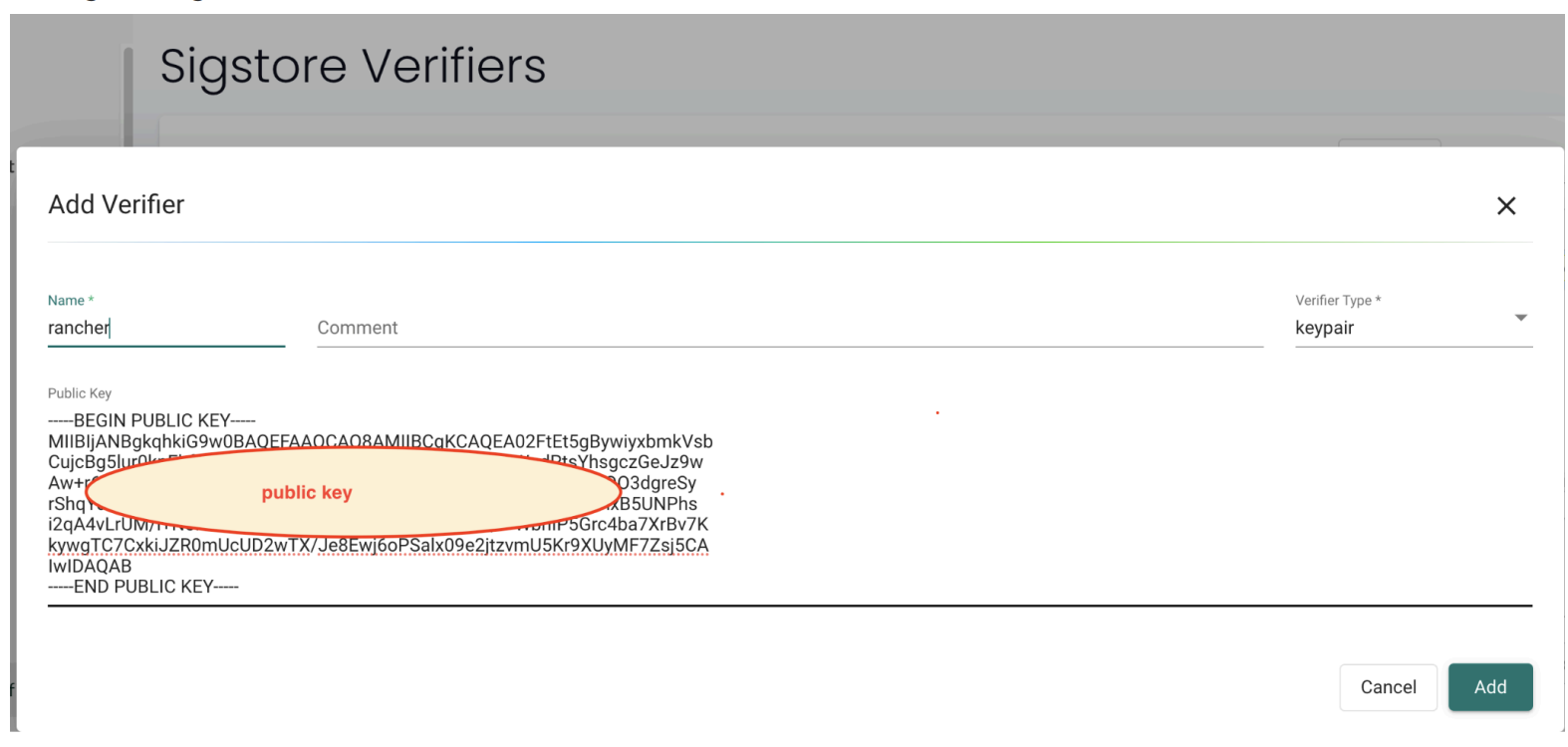
Follow these steps to configure Sigstore verification for images in the SUSE Rancher Application Collection.
-
Create an access token by following the authentication guide:
-
Retrieve the Cosign public key (
ap-pubkey.pem) by following the signature verification guide: -
In the SUSE® Security web UI, create a Sigstore root of trust.
-
Go to Assets > Sigstore Verifiers.
-
Create a new verifier.
-
Add the Cosign public key as a key-pair verifier.
-
-
Configure the registry and start a scan.
-
Go to Assets > Registries.
-
Create a new registry with the following values:
Registry: https://dp.apps.rancher.io/
Filter: containers/openjdk:21.0.4-build7
Username: <your SUSE username>
Password: <access token created earlier>
The filtered image is an OCI image published in the SUSE Rancher Application Collection.
-
-
Review the scan results to confirm signature verification.
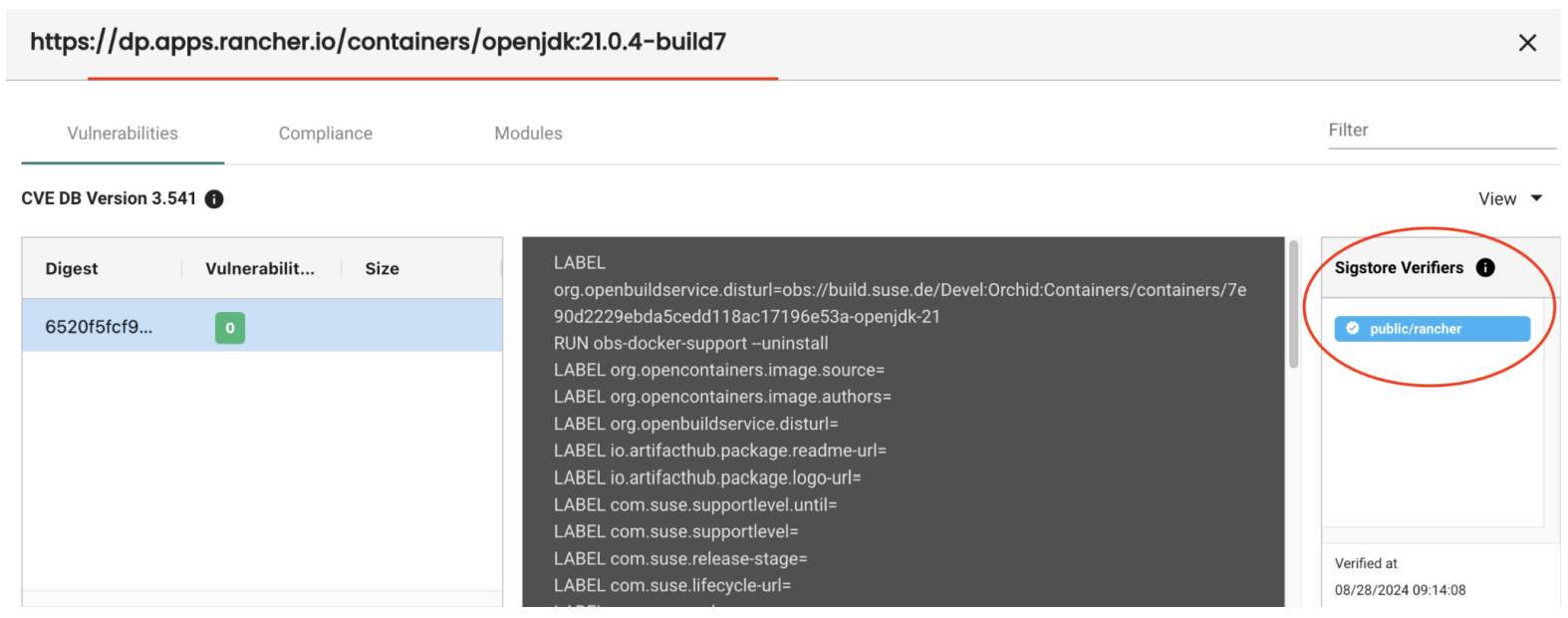
After the scan completes, SUSE® Security displays the Sigstore verifier details in the scan results, confirming that the image signature was successfully validated.