Enriched system visibility in the SUSE Customer Center #
This document describes what SUSEConnect is and how the SUSE Customer Center (SCC) and Repository Mirroring Tool (RMT) use it to gather updated information about active systems and their hardware environment.
1 What is SUSEConnect? #
SUSEConnect is a tool to register SLE-based operating systems with SCC or RMT. Registered systems receive updates to installed packages, for example, to increase security of the operating system. With SUSEConnect, you can additionally register extensions and modules that extend the base system functionality.

This document does not cover general usage of SUSEConnect. To find more basic information about how to register your system, modules and extensions with SUSEConnect, refer to https://documentation.suse.com/sles/html/SLES-all/cha-register-sle.html.
SUSE is committed to helping provide better insights into the consumption of SUSE subscriptions, regardless of where they are running or how they are managed; physical or virtual, on-premises or in the cloud, connected to SCC or RMT, or managed by SUSE Multi-Linux Manager. To help you identify or filter out systems in SCC that are decommissioned or no longer running, SUSEConnect now features a daily “ping,” which updates system information automatically. Each registered host contacts SCC or RMT and sends the unique identification of the host and the description of its hardware environment.
2 Requirements #
To use the extended SUSEConnect functionality, you need to:
Run a supported and registered SLE-based host with all update patches applied.
Verify that the host system includes the
SUSEConnectcommand version 0.3.33 or higher.
3 How enhanced system visibility works #
We extended SUSEConnect with the new option
--keepalive. The command SUSEConnect
--keepalive updates the last time that a host contacted SCC or
RMT and updates the host's hardware information.
The SUSEConnect package ships with two systemd units:
suseconnect-keepalive.serviceA service which runs the command
SUSEConnect --keepaliveon demand.suseconnect-keepalive.timerA timer which runs the service
suseconnect-keepalive.serviceonce a day at random time to prevent SCC congestion.
These units are responsible for keeping the system information up to date with the SCC or RMT, and for providing accurate data about subscription usage.

When the SUSEConnect package is installed or updated, and its version is equal to or greater than the one described above, the keep-alive timer is enabled automatically.
3.1 How do I disable the SUSEConnect keep-alive timer? #
If you prefer to not have the SUSEConnect keep-alive timer running on
your system, you can disable it with systemctl:
>sudosystemctl disable --now suse-connect-keepalive.timer
Once the timer is disabled, subsequent updates to the SUSEConnect package do not re-enable it.
If you decide to re-enable the disabled keep-alive timer, run the following command:
>sudosystemctl enable --now suse-connect-keepalive.timer
4 Identifying inactive systems #
When SUSEConnect reports details about active hosts daily, SCC or RMT collect this information and let you filter out registered inactive hosts. If your hosts are registered against RMT or SUSE Multi-Linux Manager, these registration servers forward the received information to SCC.
4.1 How to identify inactive systems in SCC? #
In the SCC Web user interface, you can limit the list of systems to see only inactive hosts.
Log in to SCC at https://scc.suse.com and select your organization in the left pane.
Select from the top menu to list all registered hosts by default.
Select from the upper-left drop-down list.
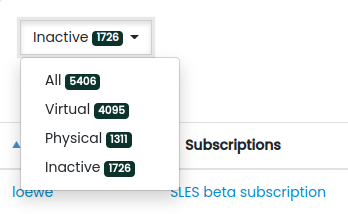 Figure 1: Drop-down list with a filter for inactive hosts #
If you have sufficient privileges and your inactive host is registered directly with SCC, you can deregister it by clicking the three dots on its right and selecting .
4.2 Identifying inactive systems with RMT #
By using the rmt-cli systems purge command, you can
view and remove hosts that have not contacted the RMT server since a
given date in the past. For more details, refer to
https://documentation.suse.com/sles/15-SP7/html/SLES-all/cha-rmt-tools.html#sec-rmt-tools-rmt-cli-systems
5 What system data does SCC collect? #
When a system is registered directly via SCC, or its registration information is forwarded by RMT or SUSE Multi-Linux Manager, SCC collects the following information:
| System Attribute | Type | Example value |
|---|---|---|
| Host Name | string | virtual.domain.net |
| CPUs | int | 1 |
| Sockets | int | 2 |
| Total Memory | int | 4096 (in MiB) |
| Architecture | string | x86_64 |
| UUID | uuid | 6A5072A0-311B-430E-8EDE-A8770788B92D |
| Hypervisor | string | KVM or VMware etc. |
| Container runtime | string | Docker |
| uname | string | Linux lair 6.9.7-1-default #1 SMP PREEMPT_DYNAMIC Fri Jun 28 05:50:47 UTC 2024 (a5efffa) x86_64 x86_64 x86_64 GNU/Linux |
| Vendor | string | Hardware manufacturer for the system. For virtual machines this is the hypervisor. A sample of the possible values would be Dell Inc., IBM, HP, QEMU, ... |
| ha_active | string | The pacemaker version, if the pacemaker.service is running on the client. For example, 2.1.10+20250718.fdf796ebc8-150700.3.3.1 |
| Architecture specifics | map | Depends on the architecture. It includes parameters such as device-tree information or virtualization type on PowerPC or System Z. |
| SAP | list |
"sap": [
    {
      "system_id": "DEV",
      "instance_types": [
        "ASCS",
        "D"
      ]
    }
] |
| Kubernetes Provider | map |
"kubernetes_provider": {
  "role": "server",
  "type": "rke2",
  "version": "v1.35.4+rke2r1"
} |
| Cloud Provider | string | Amazon, Google, or Azure |
| Last Seen Date | date | 2021-05-05 (the last time that the system contacted SCC or RMT) |
| Products | list |
Base product and activated extensions and modules, for example: {
"id": 2511,
"identifier": "sle-module-live-patching",
"version": "15.2",
"arch": "x86_64"
} |
| Subscriptions | list | The subscription registration code used to activate each product |
| pci_data | List |
PCI Device information {
"identifier":"37191ca7bc6a[...]e5e5e9533109e06fc",
"data":[
"00:00.0 Host bridge: Intel Corporation Xeon E7 v3/Xeon E5 v3/Core i7 DMI2 (rev 02)",
"00:01.0 PCI bridge: Intel Corporation Xeon E7 v3/Xeon E5 v3/Core i7 PCI Express Root Port 1 (rev 02)",
...
]
} |
| mod_list | List |
Loaded kernel modules {
"identifier":"5eff37558df4[...]3f01244f6ee80fc73",
"data":[
"aesni_intel",
"af_packet",
"button",
...
]
} |
| rpm_packages | List |
Installed SUSE RPM packages {
"identifier":"f0c8e318d184[...]d568c8543f49efbc0",
"data":[
[
"bash",
"4.4",
"19.6.1",
"x86_64"
],
[
"glibc",
"2.31",
"150300.63.1",
"x86_64"
],
...
]
} |
SUSE Multi-Linux Manager sends additional data about the used hypervisor and virtualized systems. Find more details in https://documentation.suse.com/subscription/hypervisor-collector/html/SLE-scc-hypervisor-collector/index.html#scc-hypervisor-collector-data.
5.1 Configuring system data collectors #
SUSEConnect collects system data through a configurable collector system. Most collectors are mandatory and cannot be disabled, as they provide essential system information required for proper subscription management and support. However, certain optional collectors can be configured to suit your privacy and performance requirements.
5.1.1 Mandatory collectors #
The following collectors are always enabled and cannot be disabled:
Host name
CPUs, sockets and total memory
Architecture
UUID
Hypervisor
Container runtime
uname (kernel version and OS details)
Vendor (hardware manufacturer)
Architecture specifics
SAP workload detection
Kubernetes provider detection
Cloud provider
5.1.2 Optional collectors #
The following collectors are optional and can be configured:
pci_data— PCI device information (enabled by default)mod_list— Loaded kernel modules (enabled by default)rpm_packages— Installed SUSE RPM packages (disabled by default)
5.1.2.1 Collector configuration #
To configure optional collectors, edit the SUSEConnect configuration file at /etc/SUSEConnect.
Add a collectors section with the desired collector configuration:
---
url: https://scc.suse.com
language: en
insecure: false
auto_agree_with_licenses: false
enable_system_uptime_tracking: false
no_zypper_refs: false

collectors:
  pci_data:
    state: enabled
  mod_list:
    state: enabled
  rpm_packages:
    state: disabled
For each optional collector, set the state field to one of the following:
enabled— Enable the collectordisabled— Disable the collector
If a collector is not configured in the file, it will use its default state. When a collector is disabled, SUSEConnect will not collect or relay that data when contacting SCC or RMT.
6 What are the benefits of using the keep-alive timer? #
The new functionality of SUSEConnect brings the following benefits to the customer:
Ability to identify all types of deployments of systems, no matter if they are derived from a custom image or are clones of an already registered virtual machine.
By contacting SCC or RMT regularly, you can obtain the number of actually running registered systems. This provides a better insight into the consumption of SUSE subscriptions.
Updates to registration tools provide a clearer picture of your workloads. You can filter out the systems that are no longer running or decommissioned.
By collecting regular registration and hardware information, we can continue to improve our products to reflect your needs and let you manage system subscriptions more easily.
7 Using the MCP server #
The MCP server of SUSEConnect is available for SLES starting with version 16.
It can be used as stdio by pointing to the suseconnect-mcp executable.
In the SLES agentic framework, the system's MCP servers run behind a proxy.
For more information, refer to
https://www.suse.com/c/suse-linux-enterprise-server-16-agentic-ai/
7.1 Installing the MCP server #
Install MCP server of SUSEConnect using zypper
zypper in mcp-server-suseconnect
7.2 Configuring the MCP server #
Add the MCP server to config in ~/.gemini/settings.json or ~/.mcp.json:
{
    "mcpServers": {
     "suseconnect-mcp-stdio": {
	"command": "/usr/bin/suseconnect-mcp",
        "args": []
    }
  }
}
7.3 Available tools #
ActivateProduct— Activates an additional extension product or moduleDeactivateProduct— Deactivates an extension product or moduleDeregisterSystem— Removes the system's registration and disables access to online repositoriesListExtensions— Lists available extensions or productsRegisterSystem— Enables access to online repositories and additional extensions and modulesRegistrationStatus— Displays the registration status and activated/non-activated installed products