- SUSE Edge 3.6 Documentation
- I Quick Starts
- II Components
- 4 Rancher
- 5 Rancher Dashboard Extensions
- 6 Fleet
- 7 SUSE Linux Micro
- 8 Edge Image Builder
- 9 Edge Networking
- 10 Elemental
- 11 K3s
- 12 RKE2
- 13 SUSE Storage
- 14 SUSE Security
- 15 MetalLB
- 16 Endpoint Copier Operator
- 17 Edge Virtualization
- 18 System Upgrade Controller
- 19 Upgrade Controller
- 19.1 How does SUSE Edge use Upgrade Controller?
- 19.2 Upgrade Controller vs System Upgrade Controller
- 19.3 Installing the Upgrade Controller
- 19.4 Installing the Upgrade Controller via Edge Image Builder
- 19.5 How does the Upgrade Controller work?
- 19.6 Kubernetes API extensions
- 19.7 Tracking the upgrade process
- 19.8 Known Limitations
- 20 SUSE Multi-Linux Manager
- III How-To Guides
- 21 MetalLB on K3s (using Layer 2 Mode)
- 22 MetalLB on K3s (using Layer 3 Mode)
- 23 MetalLB on K3s (using FRR-K8s Mode)
- 24 MetalLB in front of the Kubernetes API server
- 25 Air-gapped deployments with Edge Image Builder
- 25.1 Intro
- 25.2 Prerequisites
- 25.3 Libvirt Network Configuration
- 25.4 Base Directory Configuration
- 25.5 Base Definition File
- 25.6 Rancher Installation
- 25.7 SUSE Security Installation
- 25.8 SUSE Storage Installation
- 25.9 KubeVirt and CDI Installation
- 25.10 SUSE Private Registry Installation
- 25.11 Troubleshooting
- 26 Building Updated SUSE Linux Micro Images with Kiwi
- IV Tips and Tricks
- V Third-Party Integration
- VI Day 2 Operations
- VII Troubleshooting
- VIII Appendix
SUSE Edge 3.6 Documentation #
Welcome to the SUSE Edge documentation. You will find the high level architectural overview, quick start guides, validated designs, guidance on using components, third-party integrations, and best practices for managing your edge computing infrastructure and workloads.
1 What is SUSE Edge? #
SUSE Edge is a purpose-built, tightly integrated, and comprehensively validated end-to-end solution for addressing the unique challenges of the deployment of infrastructure and cloud-native applications at the edge. Its driving focus is to provide an opinionated, yet highly flexible, highly scalable, and secure platform that spans initial deployment image building, node provisioning and onboarding, application deployment, observability, and complete lifecycle operations. The platform is built on best-of-breed open source software from the ground up, consistent with both our 30-year+ history in delivering secure, stable, and certified SUSE Linux platforms and our experience in providing highly scalable and feature-rich Kubernetes management with our Rancher portfolio. SUSE Edge builds on-top of these capabilities to deliver functionality that can address a wide number of market segments, including retail, medical, transportation, logistics, telecommunications, smart manufacturing, and Industrial IoT.
2 Design Philosophy #
The solution is designed with the notion that there is no "one-size-fits-all" edge platform due to customers’ widely varying requirements and expectations. Edge deployments push us to solve, and continually evolve, some of the most challenging problems, including massive scalability, restricted network availability, physical space constraints, new security threats and attack vectors, variations in hardware architecture and system resources, the requirement to deploy and interface with legacy infrastructure and applications, and customer solutions that have extended lifespans. Since many of these challenges are different from traditional ways of thinking, e.g. deployment of infrastructure and applications within data centers or in the public cloud, we have to look into the design in much more granular detail, and rethinking many common assumptions.
For example, we find value in minimalism, modularity, and ease of operations. Minimalism is important for edge environments since the more complex a system is, the more likely it is to break. When looking at hundreds of locations, up to hundreds of thousands, complex systems will break in complex ways. Modularity in our solution allows for more user choice while removing unneeded complexity in the deployed platform. We also need to balance these with the ease of operations. Humans may make mistakes when repeating a process thousands of times, so the platform should make sure any potential mistakes are recoverable, eliminating the need for on-site technician visits, but also strive for consistency and standardization.
3 High Level Architecture #
The high level system architecture of SUSE Edge is broken into two core categories, namely "management" and "downstream" clusters. The management cluster is responsible for remote management of one or more downstream clusters, although it’s recognized that in certain circumstances, downstream clusters need to operate without remote management, e.g. in situations where an edge site has no external connectivity and needs to operate independently. In SUSE Edge, the technical components that are utilized for the operation of both the management and downstream clusters are largely common, although likely differentiate in both the system specifications and the applications that reside on-top, i.e. the management cluster would run applications that enable systems management and lifecycle operations, whereas the downstream clusters fulfil the requirements for serving user applications.
3.1 Components used in SUSE Edge #
SUSE Edge is comprised of both existing SUSE and Rancher components along with additional features and components built by the Edge team to enable us to address the constraints and intricacies required in edge computing. The components used within both the management and downstream clusters are explained below, with a simplified high-level architecture diagram, noting that this isn’t an exhaustive list:
3.1.1 Management Cluster #
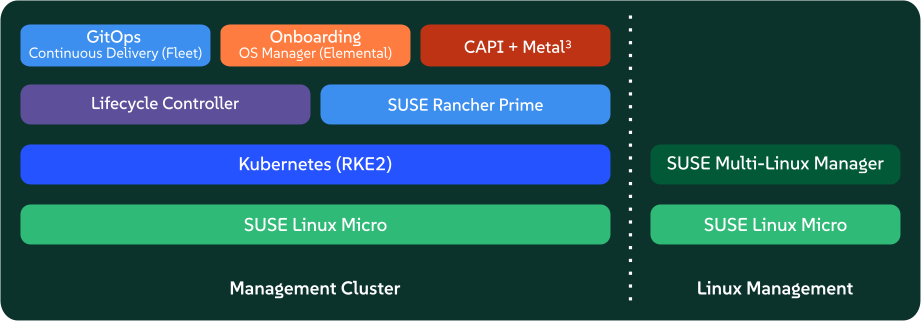
Management: This is the centralized part of SUSE Edge that is used to manage the provisioning and lifecycle of connected downstream clusters. The management cluster typically includes the following components:
Multi-cluster management with Rancher Prime (Chapter 4, Rancher), enabling a common dashboard for downstream cluster onboarding and ongoing lifecycle management of infrastructure and applications, also providing comprehensive tenant isolation and
IDP(Identity Provider) integrations, a large marketplace of third-party integrations and extensions, and a vendor-neutral API.Linux systems management with SUSE Multi-Linux Manager, enabling automated Linux patch and configuration management of the underlying Linux operating system (*SUSE Linux Micro (Chapter 7, SUSE Linux Micro)) that runs on the downstream clusters. Note that while this component is containerized, it currently needs to run on a separate system to the rest of the management components, hence labelled as "Linux Management" in the diagram above.
A dedicated Lifecycle Management (Chapter 19, Upgrade Controller) controller that handles management cluster component upgrades to a given SUSE Edge release.
Remote system on-boarding into Rancher Prime with Elemental (Chapter 10, Elemental), enabling late binding of connected edge nodes to desired Kubernetes clusters and application deployment, e.g. via GitOps.
An optional GitOps engine called Fleet (Chapter 6, Fleet) for managing the provisioning and lifecycle of downstream clusters and applications that reside on them.
Underpinning the management cluster itself is SUSE Linux Micro (Chapter 7, SUSE Linux Micro) as the base operating system and RKE2 (Chapter 12, RKE2) as the Kubernetes distribution supporting the management cluster applications.
3.1.2 Downstream Clusters #
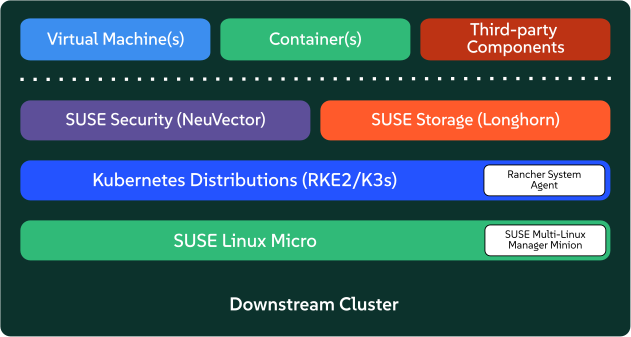
Downstream: This is the distributed part of SUSE Edge that is used to run the user workloads at the Edge, i.e. the software that is running at the edge location itself, and is typically comprised of the following components:
A choice of Kubernetes distributions, with secure and lightweight distributions like K3s (Chapter 11, K3s) and RKE2 (Chapter 12, RKE2) (
RKE2is hardened, certified and optimized for usage in government and regulated industries).SUSE Security (Chapter 14, SUSE Security) to enable security features like image vulnerability scanning, deep packet inspection, and real-time threat and vulnerability protection.
Software block storage with SUSE Storage (Chapter 13, SUSE Storage) to enable lightweight persistent, resilient, and scalable block-storage.
A lightweight, container-optimized, hardened Linux operating system with SUSE Linux Micro (Chapter 7, SUSE Linux Micro), providing an immutable and highly resilient OS for running containers and virtual machines at the edge. SUSE Linux Micro is available for both AArch64 and AMD64/Intel 64 architectures, and it also supports
Real-Time Kernelfor latency sensitive applications (e.g. telco use-cases).For connected clusters (i.e. those that do have connectivity to the management cluster) two agents are deployed, namely Rancher System Agent for managing the connectivity to Rancher Prime, and venv-salt-minion for taking instructions from SUSE Multi-Linux Manager for applying Linux software updates. These agents are not required for management of disconnected clusters.
3.2 Connectivity #
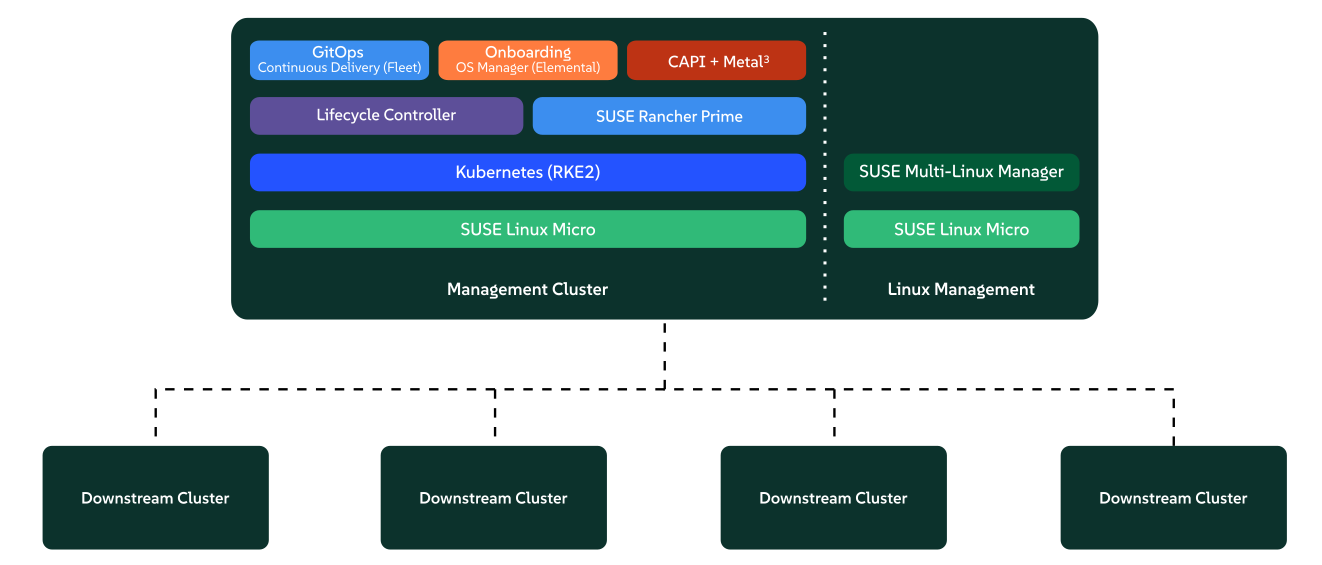
The above image provides a high-level architectural overview for connected downstream clusters and their attachment to the management cluster. The management cluster can be deployed on a wide variety of underlying infrastructure platforms, in both on-premises and cloud capacities, depending on networking availability between the downstream clusters and the target management cluster. The only requirement for this to function are API and callback URL’s to be accessible over the network that connects downstream cluster nodes to the management infrastructure.
It’s important to recognize that there are distinct mechanisms in which this connectivity is established relative to the mechanism of downstream cluster deployment. The details of this are explained in much more depth in the next section, but to set a baseline understanding, there are three primary mechanisms for connected downstream clusters to be established as a "managed" cluster:
The downstream clusters are deployed in a "disconnected" capacity at first (e.g. via Edge Image Builder (Chapter 8, Edge Image Builder)), and are then imported into the management cluster if/when connectivity allows.
The downstream clusters are configured to use the built-in onboarding mechanism (e.g. via Elemental (Chapter 10, Elemental)), and they automatically register into the management cluster at first-boot, allowing for late-binding of the cluster configuration.
The downstream clusters have been provisioned with the baremetal management capabilities (CAPI + Metal3), and they’re automatically imported into the management cluster once the cluster has been deployed and configured (via the Rancher Turtles operator).

It’s recommended that multiple management clusters are implemented to accommodate the scale of large deployments, optimize for bandwidth and latency concerns in geographically dispersed environments, and to minimize the disruption in the event of an outage or management cluster upgrade. You can find the current management cluster scalability limits and system requirements here.
4 Common Edge Deployment Patterns #
Due to the varying set of operating environments and lifecycle requirements, we’ve implemented support for a number of distinct deployment patterns that loosely align to the market segments and use-cases that SUSE Edge operates in. We have documented a quickstart guide for each of these deployment patterns to help you get familiar with the SUSE Edge platform based around your needs. The three deployment patterns that we support today are described below, with a link to the respective quickstart page.
4.1 "Phone Home" network provisioning #
Sometimes you are operating in an environment where the central management cluster cannot manage the hardware directly (for example, your remote network is behind a firewall or there is no out-of-band management interface; common in "PC" type hardware often found at the edge). In this scenario, we provide tooling to remotely provision clusters and their workloads with no need to know where hardware is being shipped when it is bootstrapped. This is what most people think of when they think about edge computing; it’s the thousands or tens of thousands of somewhat unknown systems booting up at edge locations and securely phoning home, validating who they are, and receiving their instructions on what they’re supposed to do. Our requirements here expect provisioning and lifecycle management with very little user-intervention other than either pre-imaging the machine at the factory, or simply attaching a boot image, e.g. via USB, and switching the system on. The primary challenges in this space are addressing scale, consistency, security, and lifecycle of these devices in the wild.
This solution provides a great deal of flexibility and consistency in the way that systems are provisioned and on-boarded, regardless of their location, system type or specification, or when they’re powered on for the first time. SUSE Edge enables full flexibility and customization of the system via Edge Image Builder, and leverages the registration capabilities Rancher’s Elemental offering for node on-boarding and Kubernetes provisioning, along with SUSE Multi-Linux Manager for operating system patching. The quick start for this solution can be found in Chapter 1, Remote host onboarding with Elemental.
4.2 Image-based provisioning #
For customers that need to operate in standalone, air-gapped, or network limited environments, SUSE Edge provides a solution that enables customers to generate fully customized installation media that contains all of the required deployment artifacts to enable both single-node and multi-node highly-available Kubernetes clusters at the edge, including any workloads or additional layered components required, all without any network connectivity to the outside world, and without the intervention of a centralized management platform. The user-experience follows closely to the "phone home" solution in that installation media is provided to the target systems, but the solution will "bootstrap in-place". In this scenario, it’s possible to attach the resulting clusters into Rancher for ongoing management (i.e. going from a "disconnected" to "connected" mode of operation without major reconfiguration or redeployment), or can continue to operate in isolation. Note that in both cases the same consistent mechanism for automating lifecycle operations can be applied.
Furthermore, this solution can be used to quickly create management clusters that may host the centralized infrastructure that supports both the "directed network provisioning" and "phone home network provisioning" models as it can be the quickest and most simple way to provision all types of Edge infrastructure. This solution heavily utilizes the capabilities of SUSE Edge Image Builder to create fully customized and unattended installation media; the quickstart can be found in Chapter 2, Standalone clusters with Edge Image Builder.
5 SUSE Edge Stack Validation #
All SUSE Edge releases comprise of tightly integrated and thoroughly validated components that are versioned as one. As part of the continuous integration and stack validation efforts that not only test the integration between components but ensure that the system performs as expected under forced failure scenarios, the SUSE Edge team publishes all of the test runs and the results to the public. The results along with all input parameters can be found at ci.edge.suse.com.
6 Full Component List #
The full list of components, along with a link to a high-level description of each and how it’s used in SUSE Edge can be found below:
Rancher (Chapter 4, Rancher)
Rancher Dashboard Extensions (Chapter 5, Rancher Dashboard Extensions)
SUSE Multi-Linux Manager
Fleet (Chapter 6, Fleet)
SUSE Linux Micro (Chapter 7, SUSE Linux Micro)
Edge Image Builder (Chapter 8, Edge Image Builder)
NetworkManager Configurator (Chapter 9, Edge Networking)
Elemental (Chapter 10, Elemental)
K3s (Chapter 11, K3s)
RKE2 (Chapter 12, RKE2)
SUSE Storage (Chapter 13, SUSE Storage)
SUSE Security (Chapter 14, SUSE Security)
MetalLB (Chapter 15, MetalLB)
KubeVirt (Chapter 17, Edge Virtualization)
System Upgrade Controller (Chapter 18, System Upgrade Controller)
Upgrade Controller (Chapter 19, Upgrade Controller)
Part I Quick Starts #
Quick Starts here
- 1 Remote host onboarding with Elemental
This section documents the "phone home network provisioning" solution as part of SUSE Edge, where we use Elemental to assist with node onboarding. Elemental is a software stack enabling remote host registration and centralized full cloud-native OS management with Kubernetes. In the SUSE Edge stack w…
- 2 Standalone clusters with Edge Image Builder
Edge Image Builder (EIB) is a tool that streamlines the process of generating Customized, Ready-to-Boot (CRB) disk images for bootstrapping machines, even in fully air-gapped scenarios. EIB is used to create deployment images for use in all three of the SUSE Edge deployment footprints, as it’s flexi…
- 3 SUSE Multi-Linux Manager
SUSE Multi-Linux Manager is included in SUSE Edge to provide automation and control for keeping SUSE Linux Micro as the underlying operating system consistently up-to-date on all nodes of your edge deployment. It can also be used to manage Kubernetes and applications deployed on Kubernetes on your e…
1 Remote host onboarding with Elemental #
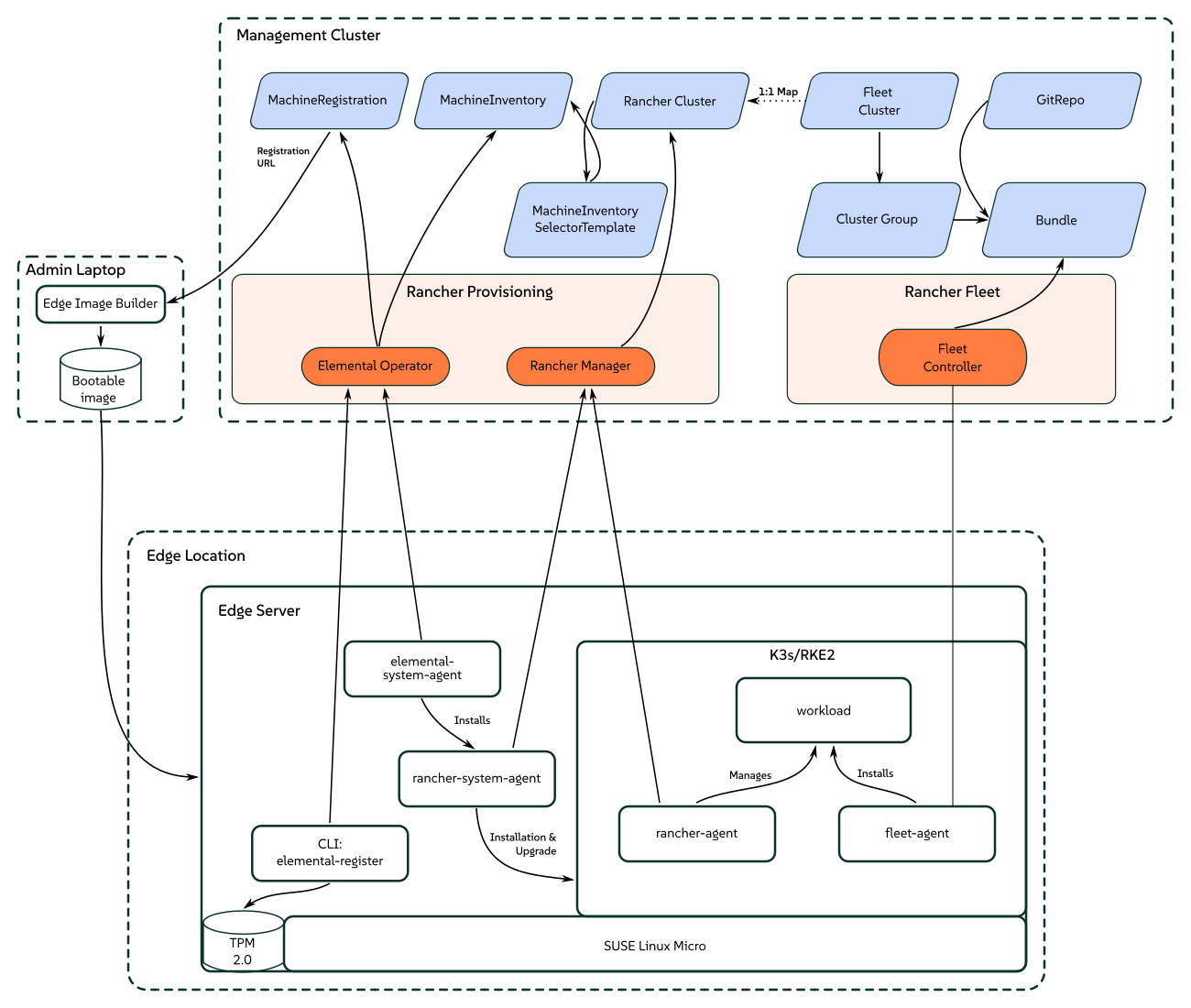
This section documents the "phone home network provisioning" solution as part of SUSE Edge, where we use Elemental to assist with node onboarding. Elemental is a software stack enabling remote host registration and centralized full cloud-native OS management with Kubernetes. In the SUSE Edge stack we use the registration feature of Elemental to enable remote host onboarding into Rancher so that hosts can be integrated into a centralized management platform and from there, deploy and manage Kubernetes clusters along with layered components, applications, and their lifecycle, all from a common place.
This approach can be useful in scenarios where the devices that you want to control are not on the same network as the management cluster or do not have a out-of-band management controller onboard to allow more direct control, and where you’re booting many different "unknown" systems at the edge, and need to securely onboard and manage them at scale. This is a common scenario for use cases in retail, industrial IoT, or other spaces where you have little control over the network your devices are being installed in.
1.1 High-level architecture #
1.2 Resources needed #
The following describes the minimum system and environmental requirements to run through this quickstart:
A host for the centralized management cluster (the one hosting Rancher and Elemental):
Minimum 8 GB RAM and 20 GB disk space for development or testing (see here for production use)
A target node to be provisioned, i.e. the edge device (a virtual machine can be used for demoing or testing purposes)
Minimum 4GB RAM, 2 CPU cores, and 20 GB disk
A resolvable host name for the management cluster or a static IP address to use with a service like sslip.io
A host to build the installation media via Edge Image Builder
A USB flash drive to boot from (if using physical hardware)
A downloaded copy of the latest SUSE Linux Micro 6.2 SelfInstall ISO image found here.
Existing data found on target machines will be overwritten as part of the process, please make sure you backup any data on any USB storage devices and disks attached to target deployment nodes.
This guide is created using a Digital Ocean droplet to host the upstream cluster and an Intel NUC as the downstream device. For building the installation media, SUSE Linux Enterprise Server is used.
1.3 Build bootstrap cluster #
Start by creating a cluster capable of hosting Rancher and Elemental. This cluster needs to be routable from the network that the downstream nodes are connected to.
1.3.1 Create Kubernetes cluster #
If you are using a hyperscaler (such as Azure, AWS or Google Cloud), the easiest way to set up a cluster is using their built-in tools. For the sake of conciseness in this guide, we do not detail the process of each of these options.
If you are installing onto bare-metal or another hosting service where you need to also provide the Kubernetes distribution itself, we recommend using RKE2.
1.3.2 Set up DNS #
Before continuing, you need to set up access to your cluster. As with the setup of the cluster itself, how you configure DNS will be different depending on where it is being hosted.

If you do not want to handle setting up DNS records (for example, this is just an ephemeral test server), you can use a service like sslip.io instead. With this service, you can resolve any IP address with <address>.sslip.io.
1.4 Install Rancher #
To install Rancher, you need to get access to the Kubernetes API of the cluster you just created. This looks different depending on what distribution of Kubernetes is being used.
For RKE2, the kubeconfig file will have been written to /etc/rancher/rke2/rke2.yaml.
Save this file as ~/.kube/config on your local system.
You may need to edit the file to include the correct externally routable IP address or host name.
Install Rancher easily with the commands from the Rancher Documentation:
Install cert-manager:
helm repo add jetstack https://charts.jetstack.io
helm repo update
helm install cert-manager jetstack/cert-manager \
 --namespace cert-manager \
 --create-namespace \
 --set crds.enabled=true
Then install Rancher itself:
helm repo add rancher-prime https://charts.rancher.com/server-charts/prime
helm repo update
helm install rancher rancher-prime/rancher \
  --namespace cattle-system \
  --create-namespace \
  --set hostname=<DNS or sslip from above> \
  --set replicas=1 \
  --set bootstrapPassword=<PASSWORD_FOR_RANCHER_ADMIN> \
--version 2.14.6If this is intended to be a production system, please use cert-manager to configure a real certificate (such as one from Let’s Encrypt).
Browse to the host name you set up and log in to Rancher with the bootstrapPassword you used. You will be guided through a short setup process.
1.5 Install Elemental #
With Rancher installed, you can now install the Elemental operator and required CRD’s. The Helm chart for Elemental is published as an OCI artifact so the installation is a little simpler than other charts. It can be installed from either the same shell you used to install Rancher or in the browser from within Rancher’s shell.
helm install --create-namespace -n cattle-elemental-system \
 elemental-operator-crds \
 oci://registry.suse.com/rancher/elemental-operator-crds-chart \
 --version 1.9.0

helm install -n cattle-elemental-system \
 elemental-operator \
 oci://registry.suse.com/rancher/elemental-operator-chart \
 --version 1.9.0
1.5.1 (Optionally) Install the Elemental UI extension #
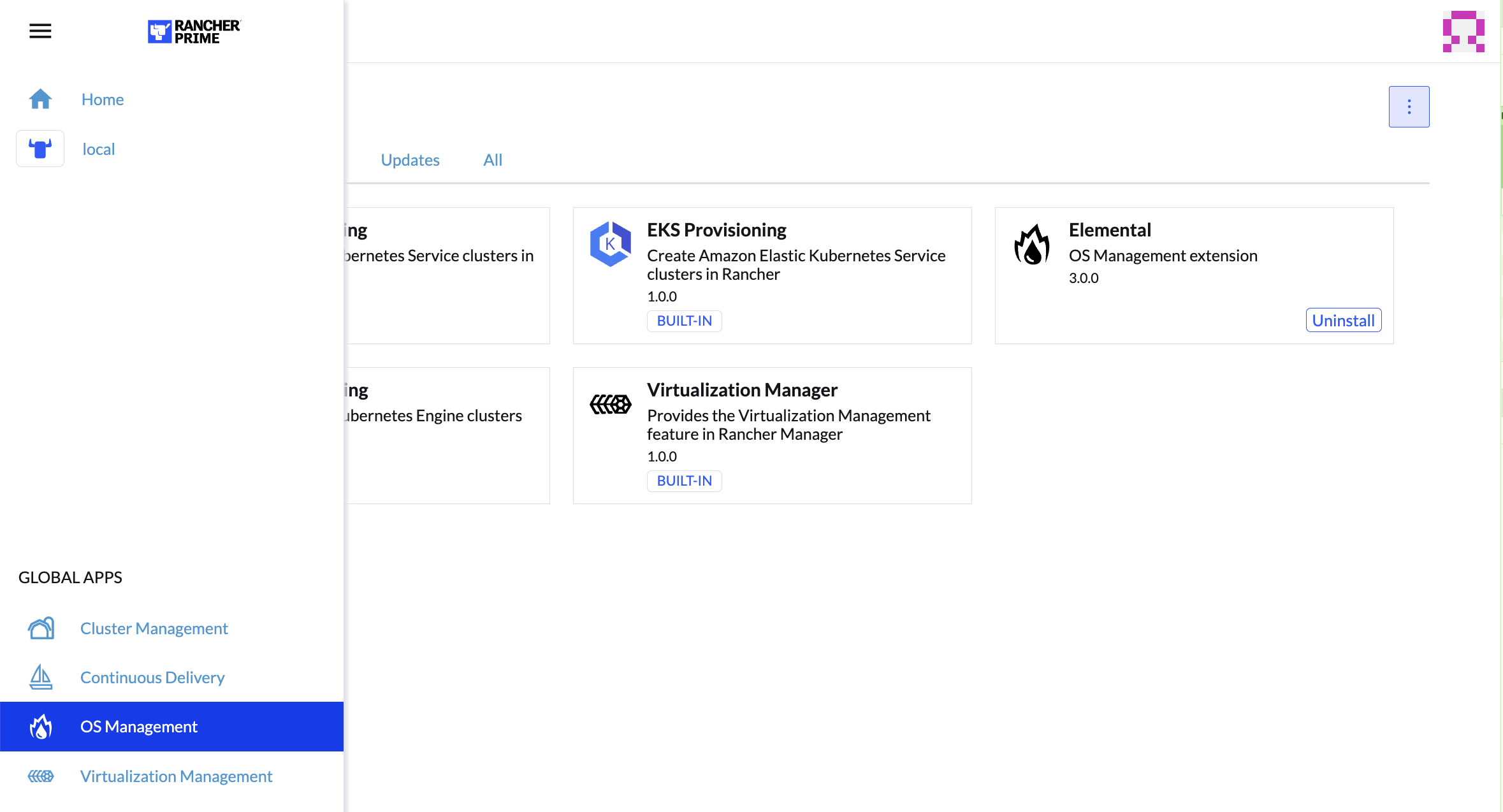
To use the Elemental UI, log in to your Rancher instance, click the three-line menu in the upper left:
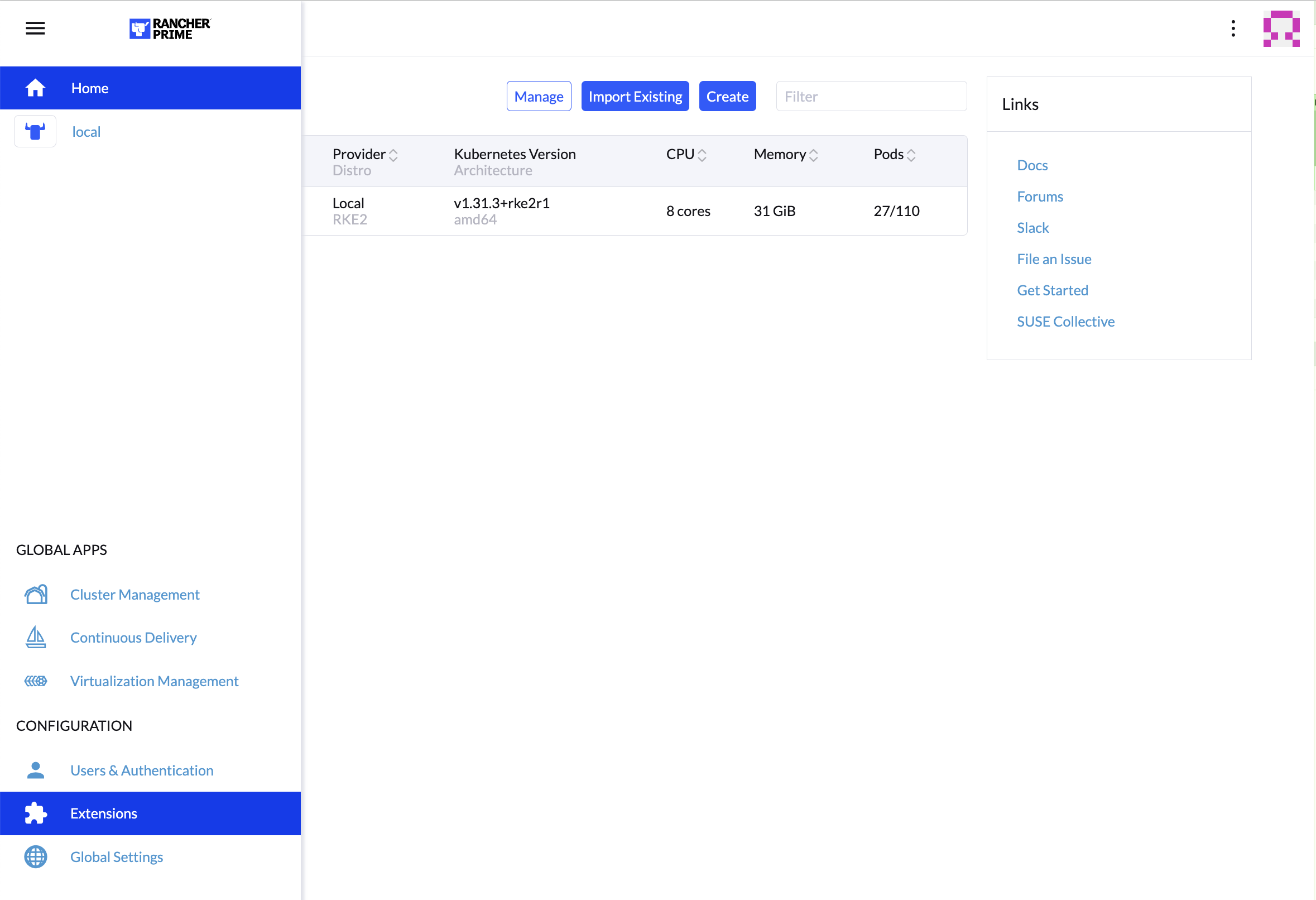
From the "Available" tab on this page, click "Install" on the Elemental card:
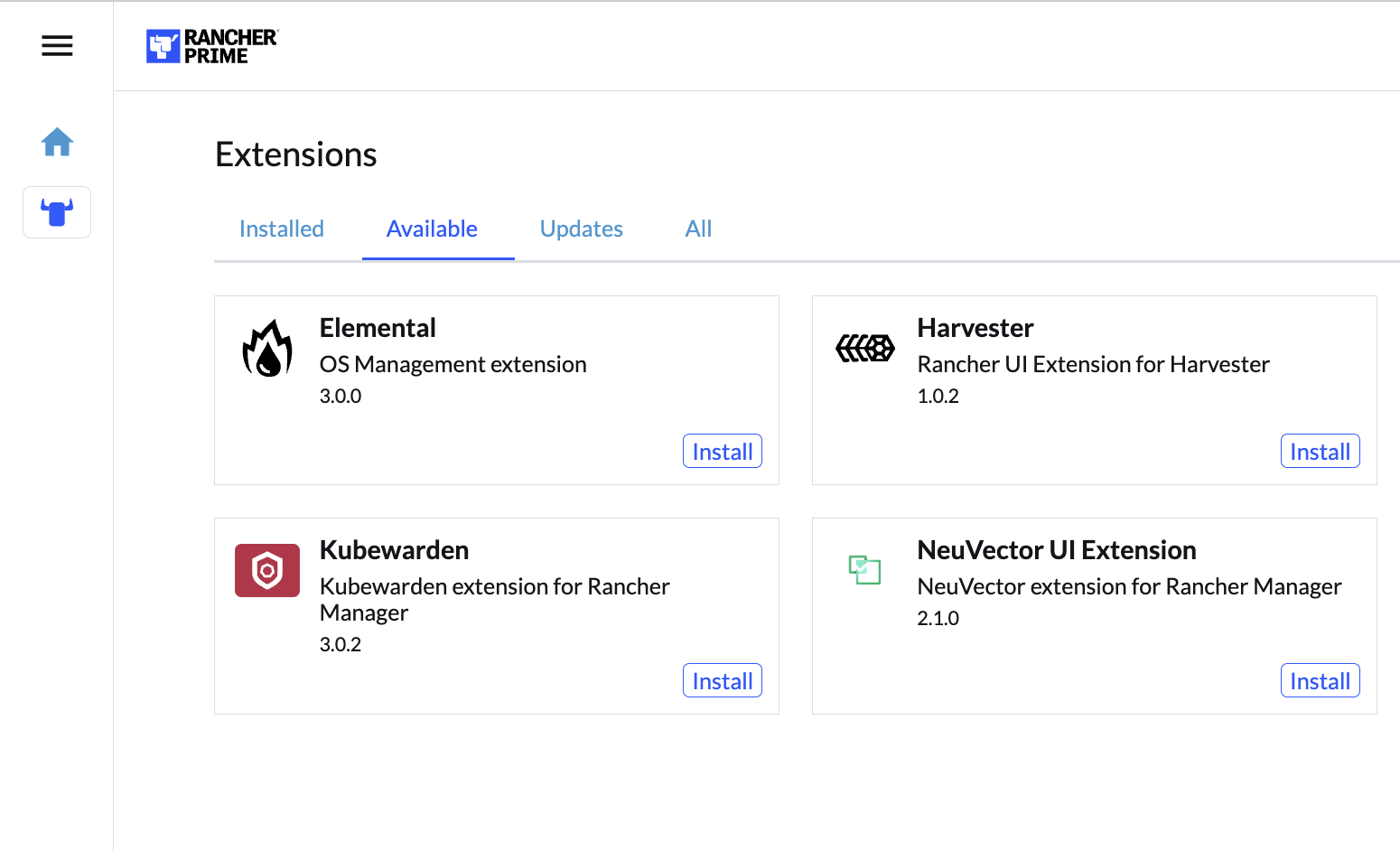
Confirm that you want to install the extension:
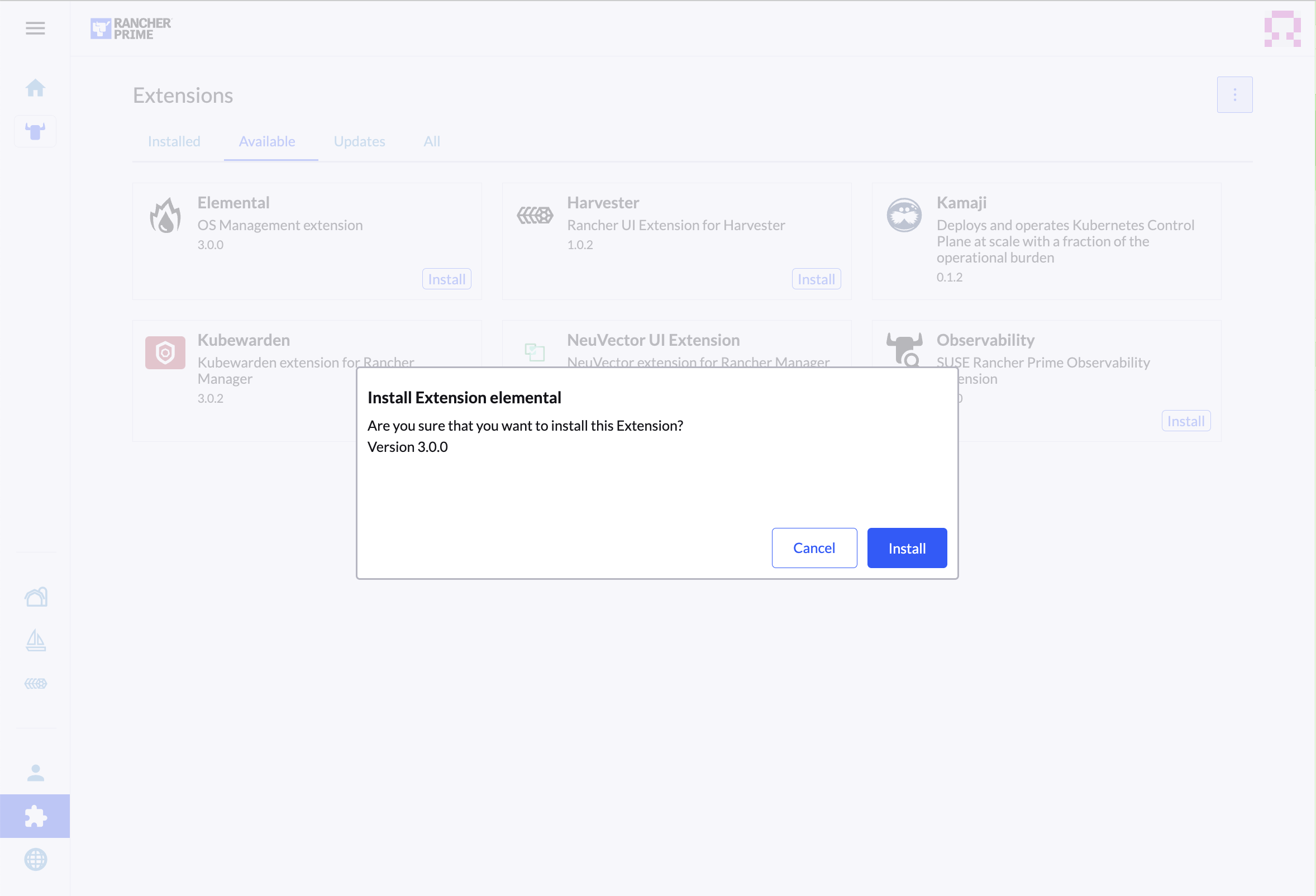
After it installs, you will be prompted to reload the page.
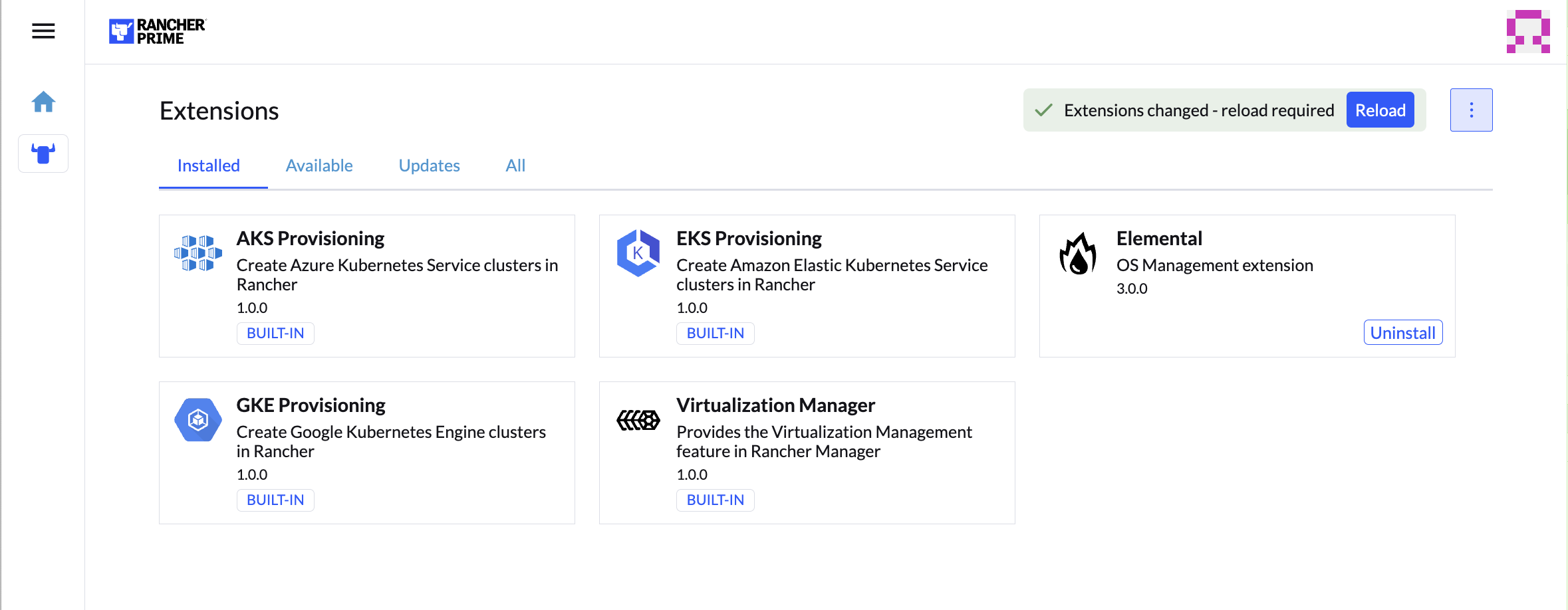
Once you reload, you can access the Elemental extension through the "OS Management" global app.
1.6 Configure Elemental #
For simplicity, we recommend setting the variable $ELEM to the full path of where you want the configuration directory:
export ELEM=$HOME/elemental
mkdir -p $ELEM
To allow machines to register to Elemental, we need to create a MachineRegistration object in the fleet-default namespace.
Let us create a basic version of this object:
cat << EOF > $ELEM/registration.yaml
apiVersion: elemental.cattle.io/v1beta1
kind: MachineRegistration
metadata:
  name: ele-quickstart-nodes
  namespace: fleet-default
spec:
  machineName: "\${System Information/Manufacturer}-\${System Information/UUID}"
  machineInventoryLabels:
    manufacturer: "\${System Information/Manufacturer}"
    productName: "\${System Information/Product Name}"
EOF

kubectl apply -f $ELEM/registration.yamlThe cat command escapes each $ with a backslash (\) so that Bash does not template them. Remove the backslashes if copying manually.
Once the object is created, find and note the endpoint that gets assigned:
REGISURL=$(kubectl get machineregistration ele-quickstart-nodes -n fleet-default -o jsonpath='{.status.registrationURL}')Alternatively, this can also be done from the UI.
- UI Extension
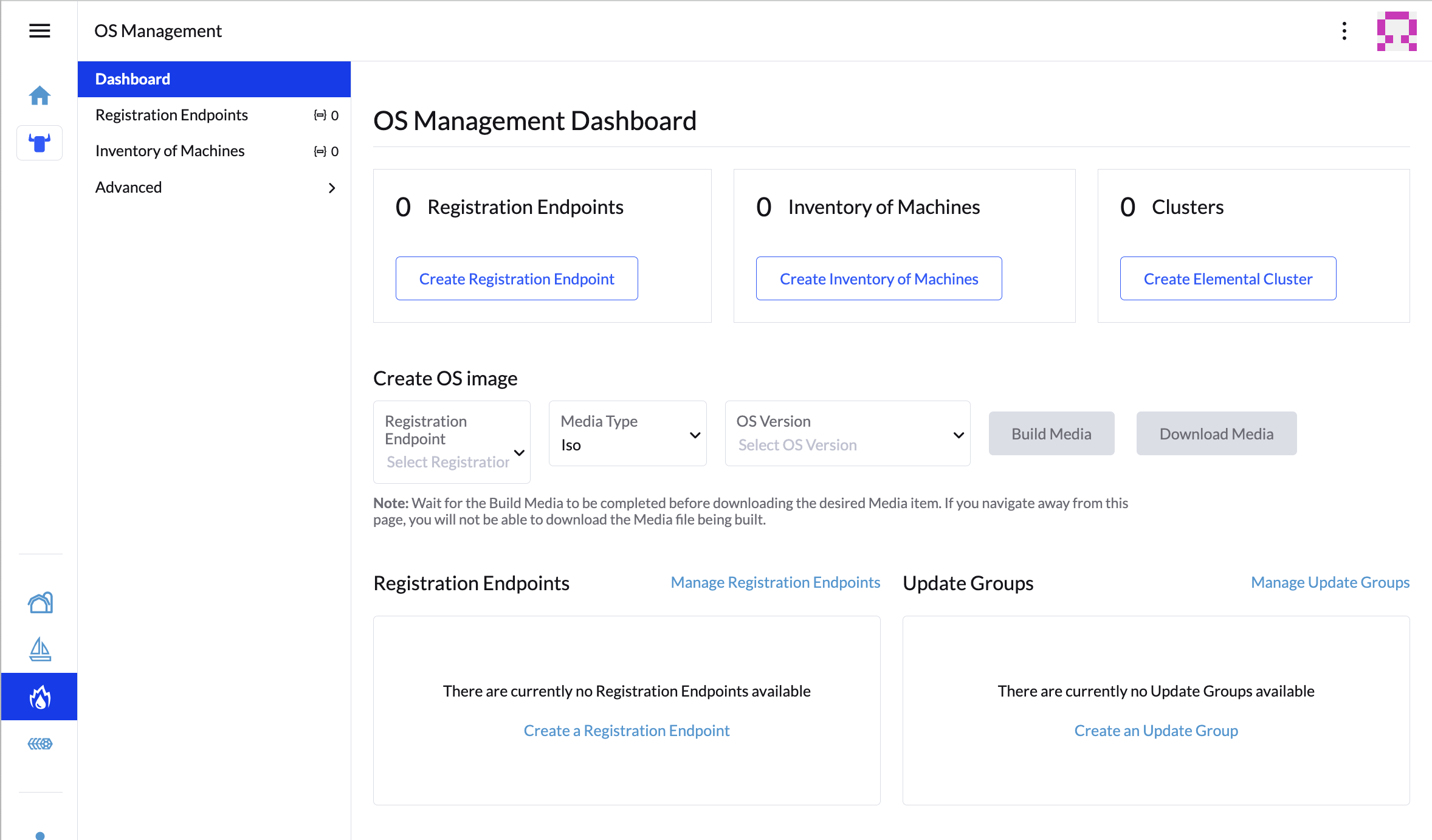
From the OS Management extension, click "Create Registration Endpoint":
Give this configuration a name.
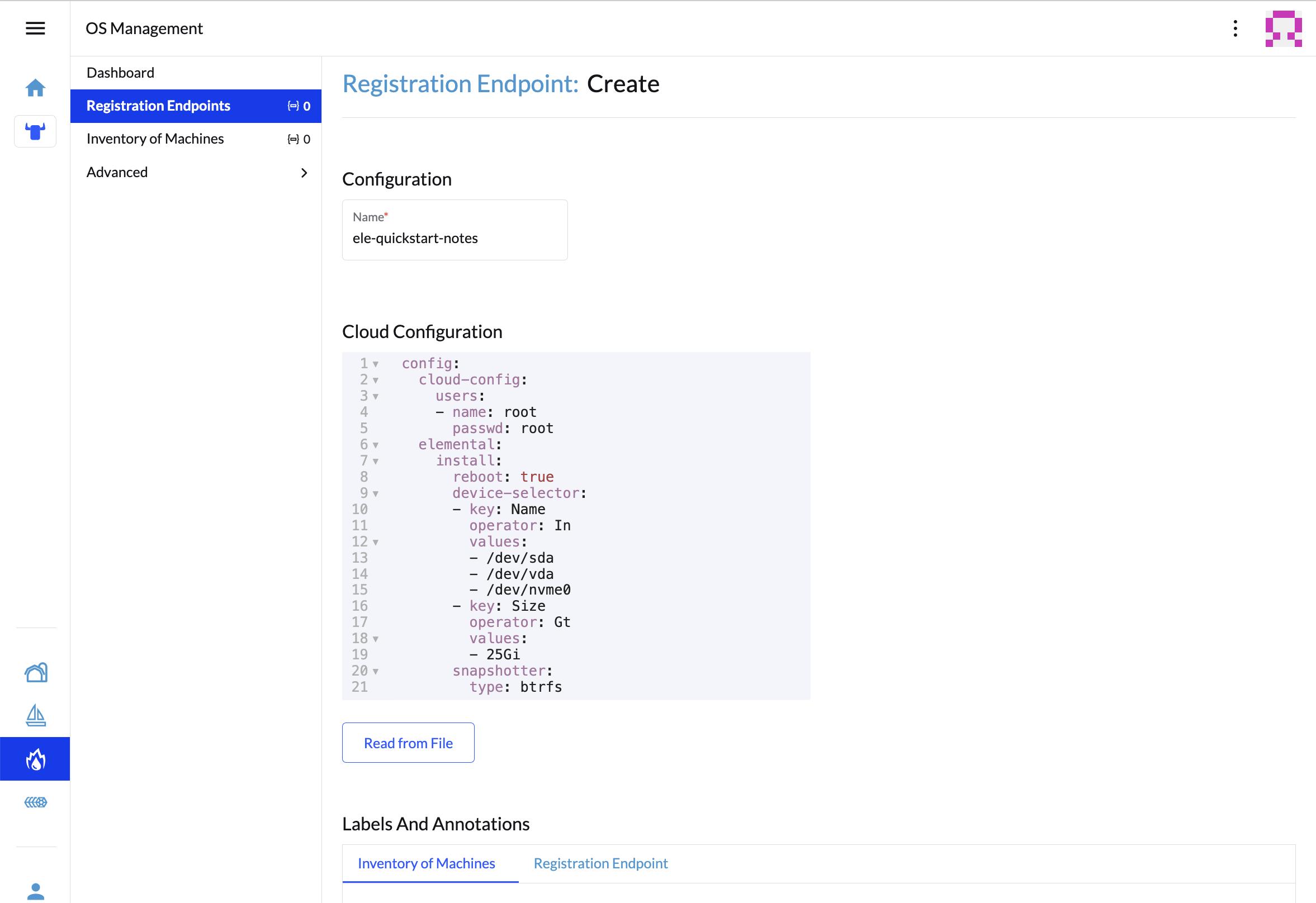 Note
NoteYou can ignore the Cloud Configuration field as the data here is overridden by the following steps with Edge Image Builder.
Next, scroll down and click "Add Label" for each label you want to be on the resource that gets created when a machine registers. This is useful for distinguishing machines.
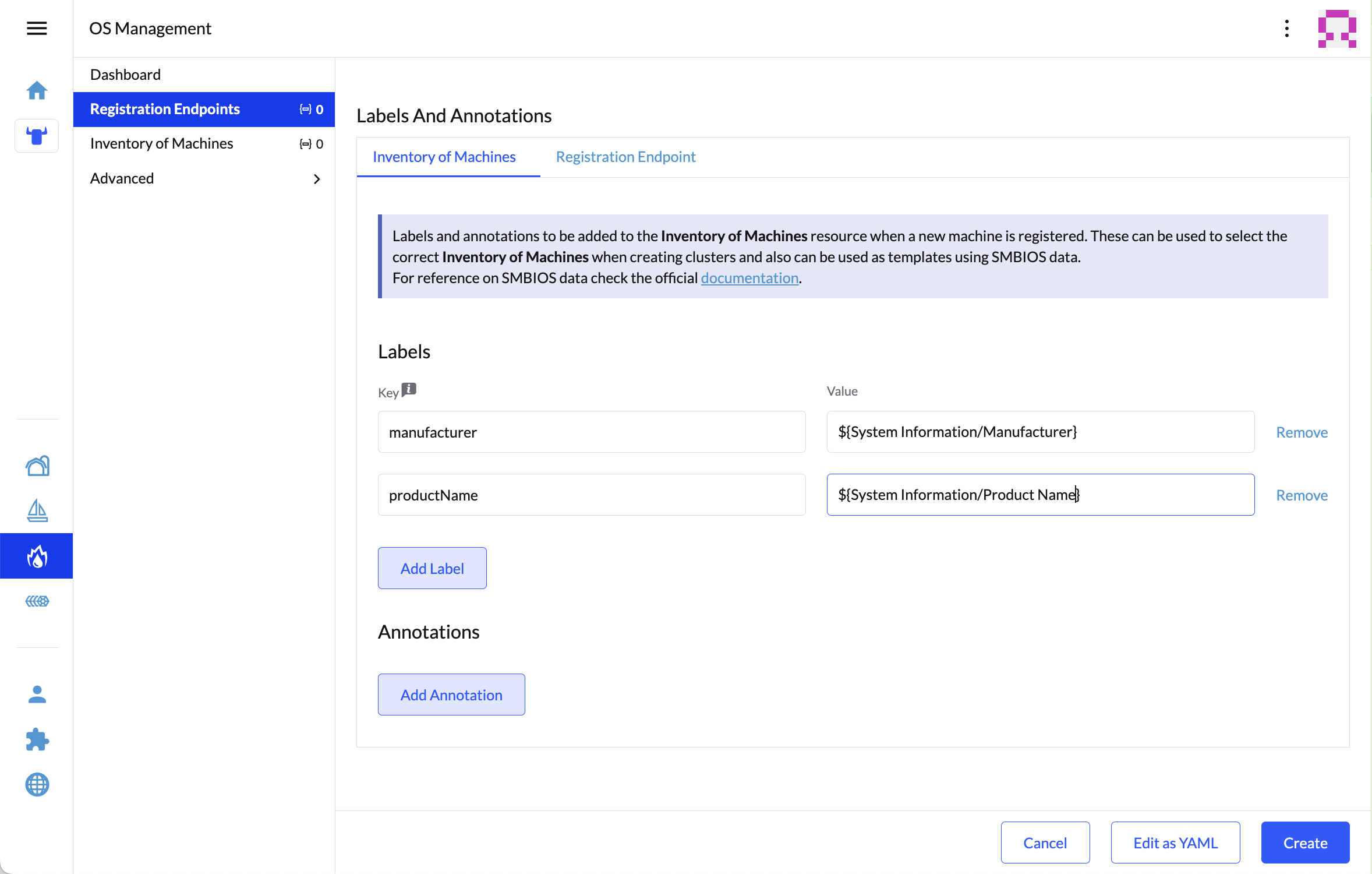
Click "Create" to save the configuration.
Once the registration is created, you should see the Registration URL listed and can click "Copy" to copy the address:
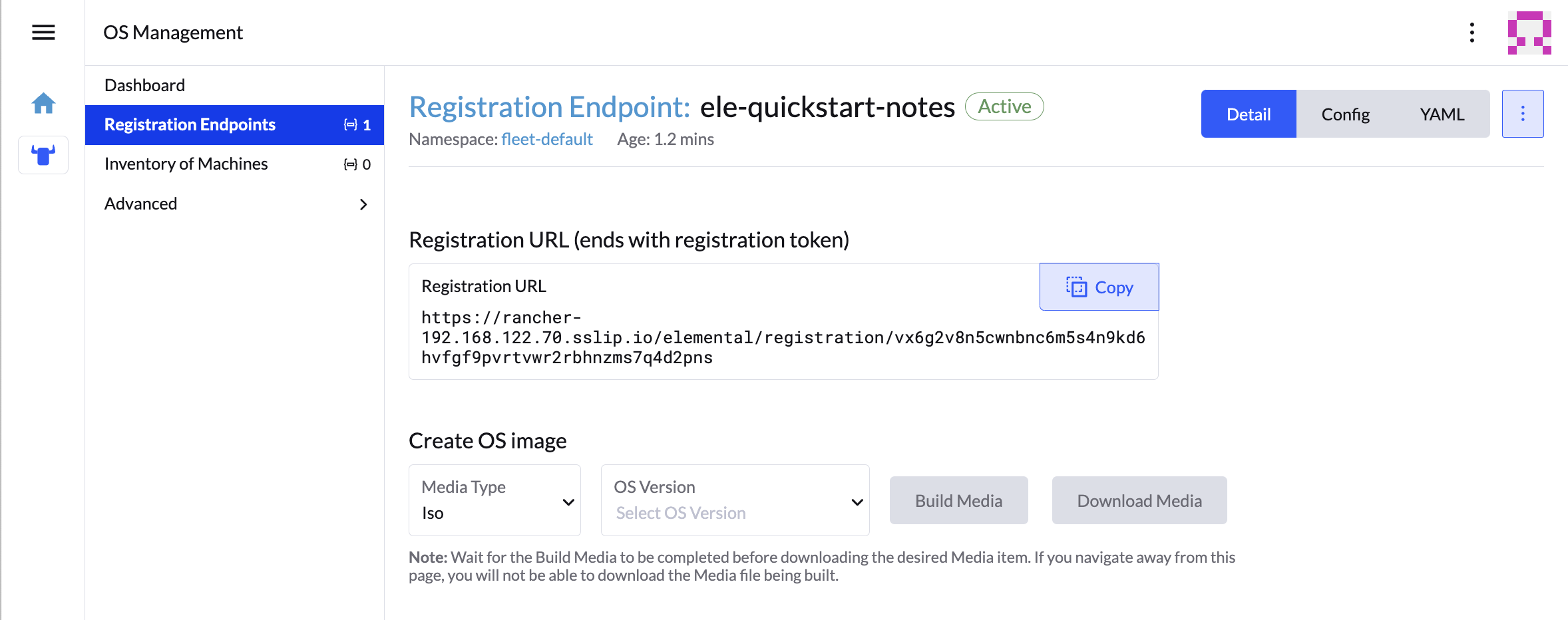 Tip
TipIf you clicked away from that screen, you can click "Registration Endpoints" in the left menu, then click the name of the endpoint you just created.
This URL is used in the next step.
1.7 Build the image #
While the current version of Elemental has a way to build its own installation media, in SUSE Edge 3.6 we do this with Kiwi and Edge Image Builder instead, so the resulting system is built with SUSE Linux Micro as the base Operating System.
For more details on Kiwi, please follow Kiwi Image Builder process (Chapter 26, Building Updated SUSE Linux Micro Images with Kiwi) to build fresh images first and for Edge Image Builder, check out the Edge Image Builder Getting Started Guide (Chapter 2, Standalone clusters with Edge Image Builder) and also the Component Documentation (Chapter 8, Edge Image Builder).
From a Linux system with Podman installed, create the directories and place the base image being built by Kiwi:
mkdir -p $ELEM/eib_quickstart/base-images
cp /path/to/{micro-base-image-iso} $ELEM/eib_quickstart/base-images/
mkdir -p $ELEM/eib_quickstart/elemental
curl $REGISURL -o $ELEM/eib_quickstart/elemental/elemental_config.yamlcat << EOF > $ELEM/eib_quickstart/eib-config.yaml
apiVersion: 1.3
image:
imageType: iso
arch: x86_64
baseImage: SL-Micro.x86_64-6.2-Base-SelfInstall-GM.install.iso
outputImageName: elemental-image.iso
operatingSystem:
time:
timezone: Europe/London
ntp:
forceWait: true
pools:
- 2.suse.pool.ntp.org
servers:
- 10.0.0.1
- 10.0.0.2
isoConfiguration:
installDevice: /dev/vda
users:
- username: root
encryptedPassword: \$6\$jHugJNNd3HElGsUZ\$eodjVe4te5ps44SVcWshdfWizrP.xAyd71CVEXazBJ/.v799/WRCBXxfYmunlBO2yp1hm/zb4r8EmnrrNCF.P/
packages:
sccRegistrationCode: XXX
EOFThe
timesection is optional but it is highly recommended to be configured to avoid potential issues with certificates and clock skew. The values provided in this example are for illustrative purposes only. Please adjust them to fit your specific requirements.The unencoded password is
eib.The
sccRegistrationCodeis needed to download and install the necessary RPMs from the official sources (alternatively, theelemental-registerandelemental-system-agentRPMs can be manually side-loaded instead)The
catcommand escapes each$with a backslash (\) so that Bash does not template them. Remove the backslashes if copying manually.The installation device will be wiped during the installation.
podman run --privileged --rm -it -v $ELEM/eib_quickstart/:/eib \
 registry.suse.com/edge/3.6/edge-image-builder:1.3.4 \
 build --definition-file eib-config.yaml
If you are booting a physical device, we need to burn the image to a USB flash drive. This can be done with:
sudo dd if=/eib_quickstart/elemental-image.iso of=/dev/<PATH_TO_DISK_DEVICE> status=progress1.8 Boot the downstream nodes #
Now that we have created the installation media, we can boot our downstream nodes with it.
For each of the systems that you want to control with Elemental, add the installation media and boot the device. After installation, it will reboot and register itself.
If you are using the UI extension, you should see your node appear in the "Inventory of Machines."
Do not remove the installation medium until you’ve seen the login prompt; during first-boot files are still accessed on the USB stick.
1.9 Create downstream clusters #
There are two objects we need to create when provisioning a new cluster using Elemental.
- Linux
- UI Extension
The first is the MachineInventorySelectorTemplate. This object allows us to specify a mapping between clusters and the machines in the inventory.
Create a selector which will match any machine in the inventory with a label:
cat << EOF > $ELEM/selector.yaml
apiVersion: elemental.cattle.io/v1beta1
kind: MachineInventorySelectorTemplate
metadata:
  name: location-123-selector
  namespace: fleet-default
spec:
  template:
    spec:
      selector:
        matchLabels:
          locationID: '123'
EOF
Apply the resource to the cluster:
kubectl apply -f $ELEM/selector.yamlObtain the name of the machine and add the matching label:
MACHINENAME=$(kubectl get MachineInventory -n fleet-default | awk 'NR>1 {print $1}')

kubectl label MachineInventory -n fleet-default \
 $MACHINENAME locationID=123
Create a simple single-node K3s cluster resource and apply it to the cluster:
cat << EOF > $ELEM/cluster.yaml
apiVersion: provisioning.cattle.io/v1
kind: Cluster
metadata:
  name: location-123
  namespace: fleet-default
spec:
  kubernetesVersion: v1.35.8+k3s1
  rkeConfig:
    machinePools:
      - name: pool1
        quantity: 1
        etcdRole: true
        controlPlaneRole: true
        workerRole: true
        machineConfigRef:
          kind: MachineInventorySelectorTemplate
          name: location-123-selector
          apiVersion: elemental.cattle.io/v1beta1
EOF

kubectl apply -f $ELEM/cluster.yaml
After creating these objects, you should see a new Kubernetes cluster spin up using the new node you just installed with.
1.10 Node Reset (Optional) #
SUSE Rancher Elemental supports the ability to perform a "node reset" which can optionally trigger when either a whole cluster is deleted from Rancher, a single node is deleted from a cluster, or a node is manually deleted from the machine inventory. This is useful when you want to reset and clean-up any orphaned resources and want to automatically bring the cleaned node back into the machine inventory so it can be reused. This is not enabled by default, and thus any system that is removed, will not be cleaned up (i.e. data will not be removed, and any Kubernetes cluster resources will continue to operate on the downstream clusters) and it will require manual intervention to wipe data and re-register the machine to Rancher via Elemental.
If you wish for this functionality to be enabled by default, you need to make sure that your MachineRegistration explicitly enables this by adding config.elemental.reset.enabled: true, for example:
config:
  elemental:
    registration:
      auth: tpm
    reset:
      enabled: true
Then, all systems registered with this MachineRegistration will automatically receive the elemental.cattle.io/resettable: 'true' annotation in their configuration. If you wish to do this manually on individual nodes, e.g. because you’ve got an existing MachineInventory that doesn’t have this annotation, or you have already deployed nodes, you can modify the MachineInventory and add the resettable configuration, for example:
apiVersion: elemental.cattle.io/v1beta1
kind: MachineInventory
metadata:
  annotations:
    elemental.cattle.io/os.unmanaged: 'true'
    elemental.cattle.io/resettable: 'true'
In SUSE Edge 3.1, the Elemental Operator puts down a marker on the operating system that will trigger the cleanup process automatically; it will stop all Kubernetes services, remove all persistent data, uninstall all Kubernetes services, cleanup any remaining Kubernetes/Rancher directories, and force a re-registration to Rancher via the original Elemental MachineRegistration configuration. This happens automatically, there is no need for any manual intervention. The script that gets called can be found in /opt/edge/elemental_node_cleanup.sh and is triggered via systemd.path upon the placement of the marker, so its execution is immediate.

Using the resettable functionality assumes that the desired behavior when removing a node/cluster from Rancher is to wipe data and force a re-registration. Data loss is guaranteed in this situation, so only use this if you’re sure that you want automatic reset to be performed.
1.11 Next steps #
Here are some recommended resources to research after using this guide:
End-to-end automation in Chapter 6, Fleet
Additional network configuration options in Chapter 9, Edge Networking
2 Standalone clusters with Edge Image Builder #
Edge Image Builder (EIB) is a tool that streamlines the process of generating Customized, Ready-to-Boot (CRB) disk images for bootstrapping machines, even in fully air-gapped scenarios. EIB is used to create deployment images for use in all three of the SUSE Edge deployment footprints, as it’s flexible enough to offer the smallest customizations, e.g. adding a user or setting the timezone, through offering a comprehensively configured image that sets up, for example, complex networking configurations, deploys multi-node Kubernetes clusters, deploys customer workloads, and registers to the centralized management platform via Rancher/Elemental and SUSE Multi-Linux Manager. EIB runs as in a container image, making it incredibly portable across platforms and ensuring that all of the required dependencies are self-contained, having a very minimal impact on the installed packages of the system that’s being used to operate the tool.
For multi-node scenarios, EIB automatically deploys MetalLB and Endpoint Copier Operator in order for hosts provisioned using the same built image to automatically join a Kubernetes cluster.
For more information, read the Edge Image Builder Introduction (Chapter 8, Edge Image Builder).
Edge Image Builder 1.3.4 supports customizing SUSE Linux Micro 6.2 images. Older versions, such as SUSE Linux Enterprise Micro 5.5, or 6.0 are not supported.
2.1 Prerequisites #
An AMD64/Intel 64 build host machine (physical or virtual) running SLES 15 SP6.
The Podman container engine
A SUSE Linux Micro 6.2 SelfInstall ISO image created using the Kiwi Builder procedure (Chapter 26, Building Updated SUSE Linux Micro Images with Kiwi)
For non-production purposes, openSUSE Leap 15.6, or openSUSE Tumbleweed may be used as a build host machine. Other operating systems may function, so long as a compatible container runtime is available.
2.1.1 Getting the EIB Image #
The EIB container image is publicly available and can be downloaded from the SUSE Edge registry by running the following command on your image build host:
podman pull registry.suse.com/edge/3.6/edge-image-builder:1.3.42.2 Creating the image configuration directory #
As EIB runs within a container, we need to mount a configuration directory from the host, enabling you to specify your desired configuration, and during the build process EIB has access to any required input files and supporting artifacts. This directory must follow a specific structure. Let’s create it, assuming that this directory will exist in your home directory, and called "eib":
export CONFIG_DIR=$HOME/eib
mkdir -p $CONFIG_DIR/base-images
In the previous step we created a "base-images" directory that will host the SUSE Linux Micro 6.2 input image, let’s ensure that the image is copied over to the configuration directory:
cp /path/to/SL-Micro.x86_64-6.2-Base-SelfInstall-GM.install.iso $CONFIG_DIR/base-images/slemicro.isoDuring the EIB run, the original base image is not modified; a new and customized version is created with the desired configuration in the root of the EIB config directory.
The configuration directory at this point should look like the following:
└── base-images/
    └── slemicro.iso
2.3 Creating the image definition file #
The definition file describes the majority of configurable options that the Edge Image Builder supports, a full example of options can be found here, and we would recommend that you take a look at the upstream building images guide for more comprehensive examples than the one we’re going to run through below. Let’s start with a very basic definition file for our OS image:
cat << EOF > $CONFIG_DIR/iso-definition.yaml
apiVersion: 1.3
image:
  imageType: iso
  arch: x86_64
  baseImage: slemicro.iso
  outputImageName: eib-image.iso
EOF
This definition specifies that we are generating an output image for an AMD64/Intel 64 based system. The image that will be used as the base for further modification is an iso image named slemicro.iso,
expected to be located at $CONFIG_DIR/base-images/slemicro.iso. It also outlines that after EIB finishes modifying the image, the output image will be named eib-image.iso, and by default will reside in $CONFIG_DIR.
Now our directory structure should look like:
├── iso-definition.yaml
└── base-images/
    └── slemicro.iso
In the following sections we’ll walk through a few examples of common operations:
2.3.1 Configuring Operating System (OS) #
The EIB operatingSystem section is intended to configure where the operating system is going to be installed, the image size, etc.
It is an optional section and should not be included unless one or more customizations are being applied.
apiVersion: 1.3
image:
  imageType: iso
  arch: x86_64
  baseImage: slemicro.iso
  outputImageName: eib-Base-RT-SelfInstall.iso
operatingSystem:
  isoConfiguration:
    installDevice: /dev/disk/by-id/ata-QEMU_HARDDISK_111-disk1 # first defined disk
Type-specific Configuration. Depending on the type of image being customized, one of the following optional sections may be included.
isoConfiguration- Optional; configuration in this section only applies to ISO images.installDevice- Optional; specifies the disk that should be used as the install device. This needs to be a block device, and will default to automatically wipe any data found on the disk. Additionally, specifying this attribute triggers a GRUB override to automatically install the operating system rather than prompting user to begin the installation, allowing for a fully unattended and automated installation. If omitted, the user is prompted to select the "Install" option from the GRUB menu, as well as having to select the installation disk and confirm that the device will be wiped in the process.NoteThe device being used on the
installDevicesection can be specified as/dev/sdaor using the/dev/disk/by-id,/dev/disk/by-pathnaming to ensure the proper device is being used. If using libvirt VMs, theserialattribute value can be specified when creating a disk for the VM (e.g.,serial=111-disk1) so it can be used on theinstallDevicevalue with theby-idnaming as for example/dev/disk/by-id/ata-QEMU_HARDDISK_111-disk1if using ATA devices (libvirtautomatically prefixes the ID withata-QEMU_HARDDISK_for ATA devices, orvirtio-for virtio devices, see #17670 virtio issue for more information).rawConfiguration- Optional; configuration in this section only applies to RAW images.diskSize- Optional; sets the desired raw disk image size that EIB will resize the resulting image to. This is important to ensure that your disk image is large enough to accommodate any artifacts being embedded in the image. It is advised to set this to slightly smaller than your SD card size (or block device if writing directly to a disk) as the system will automatically expand at boot time to fill the size of the block device. This is optional, but highly recommended. Specify as an integer with either "M" (Megabyte), "G" (Gigabyte), or "T" (Terabyte) as a suffix (e.g. "32G").luksKey- Required for encrypted images; the given LUKS key for an encrypted raw image which is necessary for EIB to be able to complete the build process.expandEncryptedPartition- Optional; disabled by default, when enabled, automatically expands the encrypted partition to its maximum size. E.g. ifdiskSizeis25Gand this field istrue, EIB will expand the encrypted partition to25Gduring the build process.
2.3.2 Configuring OS Users #
EIB allows you to preconfigure users with login information, such as passwords or SSH keys, including setting a fixed root password. As part of this example we’re going to fix the root password, and the first step is to use OpenSSL to create a one-way encrypted password:
openssl passwd -6 SecurePasswordThis will output something similar to:
$6$G392FCbxVgn[...]Y7zTXnC1We can then add a section in the definition file called operatingSystem with a users array inside it. The resulting file should look like:
apiVersion: 1.3
image:
  imageType: iso
  arch: x86_64
  baseImage: slemicro.iso
  outputImageName: eib-image.iso
operatingSystem:
  users:
    - username: root
encryptedPassword: $6$G392FCbxVgn[...]Y7zTXnC1It’s also possible to add additional users, create the home directories, set user-id’s, add ssh-key authentication, and modify group information. Please refer to the upstream building images guide for further examples.
2.3.3 Configuring OS time #
The time section is optional but it is highly recommended to be configured to avoid potential issues with certificates and clock skew. EIB will configure chronyd and /etc/localtime depending on the parameters here.
operatingSystem:
  time:
    timezone: Europe/London
    ntp:
      forceWait: true
      pools:
        - 2.suse.pool.ntp.org
      servers:
        - 10.0.0.1
        - 10.0.0.2
The
timezonespecifies the timezone in the format of "Region/Locality" (e.g. "Europe/London"). The full list may be found by runningtimedatectl list-timezoneson a Linux system.ntp - Defines attributes related to configuring NTP (using chronyd):
forceWait - Requests that chronyd attempts to synchronize timesources before starting other services, with a 180s timeout.
pools - Specifies a list of pools that chronyd will use as data sources (using
iburstto improve the time taken for initial synchronization).servers - Specifies a list of servers that chronyd will use as data sources (using
iburstto improve the time taken for initial synchronization).
The values provided in this example are for illustrative purposes only. Please adjust them to fit your specific requirements.
2.3.4 Adding certificates #
Certificate files with the extension ".pem" or ".crt" stored in the certificates directory will be installed in the node system-wide certificate store:
.
├── definition.yaml
└── certificates
    ├── my-ca.pem
    └── my-ca.crt
See the "Securing Communication with TLS Certificate" guide for more information.
2.3.5 Adding Operating System Files #
The files placed in the os-files directory in the image configuration directory are automatically copied into the filesystem of the built image.
The exact directory directory will be retained when they are copied.
For example, if a file exists in a subdirectory named os-files/etc, it is placed in the /etc directory of the built image.
If the os-files directory exists, it cannot be empty.
.
├── definition.yaml
└── os-files
    └── etc
        └── ssh
            └── sshd_config
2.3.6 Configuring RPM packages #
One of the major features of EIB is to provide a mechanism to add additional software packages to the image, so when the installation completes the system is able to leverage the installed packages right away. EIB permits users to specify the following:
Packages by their name within a list in the image definition
Network repositories to search for these packages in
SUSE Customer Center (SCC) credentials to search official SUSE repositories for the listed packages
Via an
$CONFIG_DIR/rpmsdirectory, side-load custom RPM’s that don’t exist in network repositoriesVia the same directory (
$CONFIG_DIR/rpms/gpg-keys), GPG-keys to enable validation of third party packages
EIB will then run through a package resolution process at image build time, taking the base image as the input, and attempts to pull and install all supplied packages, either specified via the list or provided locally. EIB downloads all of the packages, including any dependencies into a repository that exists within the output image and instructs the system to install these during the first boot process. Doing this process during the image build guarantees that the packages will successfully install during first-boot on the desired platform, e.g. the node at the edge. This is also advantageous in environments where you want to bake the additional packages into the image rather than pull them over the network when in operation, e.g. for air-gapped or restricted network environments.
As a simple example to demonstrate this, we are going to install the nvidia-container-toolkit RPM package found in the third party vendor-supported NVIDIA repository:
  packages:
    packageList:
      - nvidia-container-toolkit
    additionalRepos:
      - url: https://nvidia.github.io/libnvidia-container/stable/rpm/x86_64
The resulting definition file looks like the following:
apiVersion: 1.3
image:
  imageType: iso
  arch: x86_64
  baseImage: slemicro.iso
  outputImageName: eib-image.iso
operatingSystem:
  users:
    - username: root
      encryptedPassword: $6$G392FCbxVgn[...]Y7zTXnC1
  packages:
    packageList:
      - nvidia-container-toolkit
    additionalRepos:
      - url: https://nvidia.github.io/libnvidia-container/stable/rpm/x86_64
The above is a simple example, but for completeness, download the NVIDIA package signing key before running the image generation:
$ mkdir -p $CONFIG_DIR/rpms/gpg-keys
$ curl -fsSL https://nvidia.github.io/libnvidia-container/gpgkey > $CONFIG_DIR/rpms/gpg-keys/nvidia.gpgAdding in additional RPM’s via this method is meant for the addition of supported third party components or user-supplied (and maintained) packages; this mechanism should not be used to add packages that would not usually be supported on SUSE Linux Micro. If this mechanism is used to add components from openSUSE repositories (which are not supported), including from newer releases or service packs, you may end up with an unsupported configuration, especially when dependency resolution results in core parts of the operating system being replaced, even though the resulting system may appear to function as expected. If you’re unsure, contact your SUSE representative for assistance in determining the supportability of your desired configuration.
A more comprehensive guide with additional examples can be found in the upstream installing packages guide.
2.3.7 Configuring Kubernetes cluster and user workloads #
Another feature of EIB is the ability to use it to automate the deployment of both single-node and multi-node highly-available Kubernetes clusters that "bootstrap in place" (i.e. don’t require any form of centralized management infrastructure to coordinate). The primary driver behind this approach is for air-gapped deployments, or network restricted environments, but it also serves as a way of quickly bootstrapping standalone clusters, even if full and unrestricted network access is available.
This method enables not only the deployment of the customized operating system, but also the ability to specify Kubernetes configuration, any additional layered components via Helm charts, and any user workloads via supplied Kubernetes manifests. However, the design principle behind using this method is that we default to assuming that the user is wanting to air-gap. Therefore, any items specified in the image definition will be pulled into the image, which includes user-supplied workloads. EIB ensures that any discovered images that are required by definitions are copied locally and are served by the embedded image registry in the resulting deployed system.
In this next example, we’re going to take our existing image definition and will specify a Kubernetes configuration (in this example it doesn’t list the systems and their roles, so we default to assuming single-node), which will instruct EIB to provision a single-node RKE2 Kubernetes cluster. To show the automation of both the deployment of both user-supplied workloads (via manifest) and layered components (via Helm), we are going to install KubeVirt via the SUSE Edge Helm chart, as well as NGINX via a Kubernetes manifest. The additional configuration we need to append to the existing image definition is as follows:
kubernetes:
  version: v1.35.8+rke2r1
  manifests:
    urls:
      - https://k8s.io/examples/application/nginx-app.yaml
  helm:
    charts:
      - name: kubevirt
        version: 306.0.2+up0.7.0
        repositoryName: suse-edge
    repositories:
      - name: suse-edge
        url: oci://registry.suse.com/edge/charts
The resulting full definition file should now look like:
apiVersion: 1.3
image:
  imageType: iso
  arch: x86_64
  baseImage: slemicro.iso
  outputImageName: eib-image.iso
operatingSystem:
  users:
    - username: root
      encryptedPassword: $6$G392FCbxVgn[...]Y7zTXnC1
  packages:
    packageList:
      - nvidia-container-toolkit
    additionalRepos:
      - url: https://nvidia.github.io/libnvidia-container/stable/rpm/x86_64
kubernetes:
  version: v1.35.8+k3s1
  manifests:
    urls:
      - https://k8s.io/examples/application/nginx-app.yaml
  helm:
    charts:
      - name: kubevirt
        version: 306.0.2+up0.7.0
        repositoryName: suse-edge
    repositories:
      - name: suse-edge
url: oci://registry.suse.com/edge/chartsFurther examples of options such as multi-node deployments, custom networking, and Helm chart options/values can be found in the upstream documentation.
2.3.8 Configuring the network #
In the last example in this quickstart, let’s configure the network that will be brought up when a system is provisioned with the image generated by EIB. It’s important to understand that unless a network configuration is supplied, the default model is that DHCP will be used on all interfaces discovered at boot time. However, this is not always a desirable configuration, especially if DHCP is not available and you need to provide static configurations, or you need to set up more complex networking constructs, e.g. bonds, LACP, and VLAN’s, or need to override certain parameters, e.g. hostnames, DNS servers, and routes.
EIB provides the ability to provide either per-node configurations (where the system in question is uniquely identified by its MAC address), or an override for supplying an identical configuration to each machine, which is more useful when the system MAC addresses aren’t known. An additional tool is used by EIB called Network Manager Configurator, or nmc for short, which is a tool built by the SUSE Edge team to allow custom networking configurations to be applied based on the nmstate.io declarative network schema, and at boot time will identify the node it’s booting on and will apply the desired network configuration prior to any services coming up.
We’ll now apply a static network configuration for a system with a single interface by describing the desired network state in a node-specific file (based on the desired hostname) in the required network directory:
mkdir $CONFIG_DIR/network

cat << EOF > $CONFIG_DIR/network/host1.local.yaml
routes:
  config:
  - destination: 0.0.0.0/0
    metric: 100
    next-hop-address: 192.168.122.1
    next-hop-interface: eth0
    table-id: 254
  - destination: 192.168.122.0/24
    metric: 100
    next-hop-address: 192.168.122.1
    next-hop-interface: eth0
    table-id: 254
dns-resolver:
  config:
    server:
    - 192.168.122.1
    - 8.8.8.8
interfaces:
- name: eth0
  type: ethernet
  state: up
  mac-address: 34:8A:B1:4B:16:E7
  ipv4:
    address:
    - ip: 192.168.122.50
      prefix-length: 24
    dhcp: false
    enabled: true
  ipv6:
    enabled: false
EOFThe above example is set up for the default 192.168.122.0/24 subnet assuming that testing is being executed on a virtual machine, please adapt to suit your environment, not forgetting the MAC address. As the same image can be used to provision multiple nodes, networking configured by EIB (via nmc) is dependent on it being able to uniquely identify the node by its MAC address, and hence during boot nmc will apply the correct networking configuration to each machine. This means that you’ll need to know the MAC addresses of the systems you want to install onto. Alternatively, the default behavior is to rely on DHCP, but you can utilize the configure-network.sh hook to apply a common configuration to all nodes - see the networking guide (Chapter 9, Edge Networking) for further details.
The resulting file structure should look like:
├── iso-definition.yaml
├── base-images/
│   └── slemicro.iso
└── network/
    └── host1.local.yaml
The network configuration we just created will be parsed and the necessary NetworkManager connection files will be automatically generated and inserted into the new installation image that EIB will create. These files will be applied during the provisioning of the host, resulting in a complete network configuration.
Please refer to the Edge Networking component (Chapter 9, Edge Networking) for a more comprehensive explanation of the above configuration and examples of this feature.
2.4 Building the image #
Now that we’ve got a base image and an image definition for EIB to consume, let’s go ahead and build the image. For this, we simply use podman to call the EIB container with the "build" command, specifying the definition file:
podman run --rm -it --privileged -v $CONFIG_DIR:/eib \
registry.suse.com/edge/3.6/edge-image-builder:1.3.4 \
build --definition-file iso-definition.yaml
The output of the command should be similar to:
Setting up Podman API listener...
Downloading file: dl-manifest-1.yaml 100% (498/498 B, 9.5 MB/s)
Pulling selected Helm charts... 100% (1/1, 43 it/min)
Generating image customization components...
Identifier ................... [SUCCESS]
Custom Files ................. [SKIPPED]
Time ......................... [SKIPPED]
Network ...................... [SUCCESS]
Groups ....................... [SKIPPED]
Users ........................ [SUCCESS]
Proxy ........................ [SKIPPED]
Resolving package dependencies...
Rpm .......................... [SUCCESS]
Os Files ..................... [SKIPPED]
Systemd ...................... [SKIPPED]
Fips ......................... [SKIPPED]
Elemental .................... [SKIPPED]
Suma ......................... [SKIPPED]
Populating Embedded Artifact Registry... 100% (3/3, 10 it/min)
Embedded Artifact Registry ... [SUCCESS]
Keymap ....................... [SUCCESS]
Configuring Kubernetes component...
The Kubernetes CNI is not explicitly set, defaulting to 'cilium'.
Downloading file: rke2_installer.sh
Downloading file: rke2-images-core.linux-amd64.tar.zst 100% (657/657 MB, 48 MB/s)
Downloading file: rke2-images-cilium.linux-amd64.tar.zst 100% (368/368 MB, 48 MB/s)
Downloading file: rke2.linux-amd64.tar.gz 100% (35/35 MB, 50 MB/s)
Downloading file: sha256sum-amd64.txt 100% (4.3/4.3 kB, 6.2 MB/s)
Kubernetes ................... [SUCCESS]
Certificates ................. [SKIPPED]
Cleanup ...................... [SKIPPED]
Building ISO image...
Kernel Params ................ [SKIPPED]
Build complete, the image can be found at: eib-image.iso
The built ISO image is stored at $CONFIG_DIR/eib-image.iso:
├── iso-definition.yaml
├── eib-image.iso
├── _build
│   └── cache/
│       └── ...
│   └── build-<timestamp>/
│       └── ...
├── base-images/
│   └── slemicro.iso
└── network/
    └── host1.local.yaml
Each build creates a time-stamped folder in $CONFIG_DIR/_build/ that includes the logs of the build, the artifacts used during the build,
and the combustion and artefacts directories which contain all the scripts and artifacts that are added to the CRB image.
The contents of this directory should look like:
├── build-<timestamp>/
│   │── combustion/
│   │   ├── 05-configure-network.sh
│   │   ├── 10-rpm-install.sh
│   │   ├── 12-keymap-setup.sh
│   │   ├── 13b-add-users.sh
│   │   ├── 20-k8s-install.sh
│   │   ├── 26-embedded-registry.sh
│   │   ├── 48-message.sh
│   │   ├── network/
│   │   │   ├── host1.local/
│   │   │   │   └── eth0.nmconnection
│   │   │   └── host_config.yaml
│   │   ├── nmc
│   │   └── script
│   │── artefacts/
│   │   │── registry/
│   │   │   ├── hauler
│   │   │   ├── nginx:<version>-registry.tar.zst
│   │   │   ├── rancher_kubectl:<version>-registry.tar.zst
│   │   │   └── registry.suse.com_suse_sles_15.6_virt-operator:<version>-registry.tar.zst
│   │   │── rpms/
│   │   │   └── rpm-repo
│   │   │       ├── addrepo0
│   │   │       │   ├── nvidia-container-toolkit-<version>.rpm
│   │   │       │   ├── nvidia-container-toolkit-base-<version>.rpm
│   │   │       │   ├── libnvidia-container1-<version>.rpm
│   │   │       │   └── libnvidia-container-tools-<version>.rpm
│   │   │       ├── repodata
│   │   │       │   ├── ...
│   │   │       └── zypper-success
│   │   └── kubernetes/
│   │       ├── rke2_installer.sh
│   │       ├── registries.yaml
│   │       ├── server.yaml
│   │       ├── images/
│   │       │   ├── rke2-images-cilium.linux-amd64.tar.zst
│   │       │   └── rke2-images-core.linux-amd64.tar.zst
│   │       ├── install/
│   │       │   ├── rke2.linux-amd64.tar.gz
│   │       │   └── sha256sum-amd64.txt
│   │       └── manifests/
│   │           ├── dl-manifest-1.yaml
│   │           └── kubevirt.yaml
│   ├── createrepo.log
│   ├── eib-build.log
│   ├── embedded-registry.log
│   ├── helm
│   │   └── kubevirt
│   │       └── kubevirt-0.4.0.tgz
│   ├── helm-pull.log
│   ├── helm-template.log
│   ├── iso-build.log
│   ├── iso-build.sh
│   ├── iso-extract
│   │   └── ...
│   ├── iso-extract.log
│   ├── iso-extract.sh
│   ├── modify-raw-image.sh
│   ├── network-config.log
│   ├── podman-image-build.log
│   ├── podman-system-service.log
│   ├── prepare-resolver-base-tarball-image.log
│   ├── prepare-resolver-base-tarball-image.sh
│   ├── raw-build.log
│   ├── raw-extract
│   │   └── ...
│   └── resolver-image-build
│       └──...
└── cache
    └── ...
If the build fails, eib-build.log is the first log that contains information. From there, it will direct you to the component that failed for debugging.
At this point, you should have a ready-to-use image that will:
Deploy SUSE Linux Micro 6.2
Configure the root password
Install the
nvidia-container-toolkitpackageConfigure an embedded container registry to serve content locally
Install single-node RKE2
Configure static networking
Install KubeVirt
Deploy a user-supplied manifest
2.5 Debugging the image build process #
If the image build process fails, refer to the upstream debugging guide.
2.6 Testing your newly built image #
For instructions on how to test the newly built CRB image, refer to the upstream image testing guide.
3 SUSE Multi-Linux Manager #
SUSE Multi-Linux Manager is included in SUSE Edge to provide automation and control for keeping SUSE Linux Micro as the underlying operating system consistently up-to-date on all nodes of your edge deployment. It can also be used to manage Kubernetes and applications deployed on Kubernetes on your edge nodes.
This quickstart guide is intended to get you up to speed with SUSE Multi-Linux Manager as quickly as possible, with the goal of providing operating system updates to your edge nodes. The quickstart guide doesn’t discuss topics like sizing your storage, creating and managing additional software channels for staging purposes, or managing users, system groups, and organizations for larger deployments. For production use, we strongly recommend to get familiar with the comprehensive SUSE Multi-Linux Manager Documentation.
The following steps are required to prepare SUSE Edge for using SUSE Multi-Linux Manager effectively:
Deploy and configure SUSE Multi-Linux Manager Server.
Sync the SUSE Linux Micro package repositories.
Create system groups.
Create activation keys.
Use Edge Image Builder to prepare installation media for SUSE Multi-Linux Manager registration
3.1 Deploy SUSE Multi-Linux Manager Server #
If you already have an instance of SUSE Multi-Linux Manager 5.2 running, you can skip this step.
You can run SUSE Multi-Linux Manager Server on a dedicated physical server, as a virtual machine on your own hardware, or in the cloud. Pre-configured virtual machine images for SUSE Multi-Linux Server are provided for supported public clouds.
In this quick start we’re using the "qcow2" image SUSE-Multi-Linux-Manager-Server.x86_64-5.2.0-Qcow-GM.qcow2 for AMD64/Intel 64 that you can find at https://www.suse.com/download/suse-manager/ or in the SUSE Customer Center. This image will work as a virtual machine on hypervisors like KVM. Please always check for the newest version of the image and use it for new installations.
You can also install SUSE Multi-Linux Manager Server on any of the other supported hardware architectures. In that case pick the image that matches your hardware architecture.
Once you have downloaded the image, create a virtual machine that meets at least the following minimal hardware specifications:
16 GB RAM
4 physical or virtual cores
an additional block device that has at least 100 GB
With the qcow2 image, there is no need to install the operating system. You can directly attach the image as your root partition.
You need to set up the network so that your edge nodes can later access SUSE Multi-Linux Manager Server with a hostname that contains the fully qualified domain name ("FQDN")!
When you boot SUSE Multi-Linux Manager for the first time you need to perform some initial configuration:
Select your keyboard layout
Accept the license agreement
Select your time zone
Enter the root password for the operating system
The next steps need to be done as the "root" user:
For the next step you need the registration code for the SUSE Multi-Linux Manager Extension that you can find in the SUSE Customer Center. The same code can be used for both registering SUSE Linux Micro and SUSE Multi-Linux Manager:
Register SUSE Linux Micro:
transactional-update register -r <REGCODE> -e <your_email>Register SUSE Multi-Linux Manager:
transactional-update register -p Multi-Linux-Manager-Server/5.2/x86_64 -r <REGCODE>The product string depends on your hardware architecture! For example, if you are using SUSE Multi-Linux Manager on a 64-bit Arm system, the string is "Multi-Linux-Manager-Server/5.2/aarch64".
Reboot
Update the system:
transactional-updateUnless there were no changes, reboot to apply the updates.
SUSE Multi-Linux Manager is provided via a container that is managed by Podman. The mgradm command handles the setup and configuration for you.
It is very important that your SUSE Multi-Linux Manager Server has the hostname configured with a fully qualified domain name ("FQDN") that the edge nodes you want to manage can properly resolve in your network!
Before you install and configure the SUSE Multi-Linux Manager Server container, you need to prepare the additional block device that you have previously added. For that, you need to know the name the virtual machine has given to the device. For example, if the block device is /dev/vdb, you can configure it to be used for SUSE Multi-Linux Manager using the following command:
mgr-storage-server /dev/vdbDeploy SUSE Multi-Linux Manager:
mgradm install podman <FQDN>Provide the password for the CA certificate. This password should be different from your login passwords. You usually don’t need to enter it later, but you should note it down.
Provide the password for the "admin" user. This is the initial user for logging into SUSE Multi-Linux Manager. You can create additional users with full or restricted rights later.
3.2 Configure SUSE Multi-Linux Manager #
Once the deployment has finished, you can log into the SUSE Multi-Linux Manager web UI using the host name you provided earlier. The initial user is "admin". Use the password you provided in the previous step.
For the next step you need your Organization Credentials that you can find on the 2nd sub-tab of the "Users" tab of your organization in SUSE Customer Center. With those credentials, SUSE Multi-Linux Manager can synchronize all the products that you have subscriptions for.
Select Admin > Setup Wizard.
On the Organization Credentials tab create a new credential with your Username and Password that you found in the SUSE Customer Center.
Go to the next tab SUSE Products. You need to wait until the first data synchronization with SUSE Customer Center has finished.
Once the list is populated, you use the filter to only show "Micro 6.2".
Check the box for SUSE Linux Micro 6.2 for the hardware architecture your edge nodes will run on (x86_64 or aarch64).
Click Add Products. This will add the main package repository ("channel") for SUSE Linux Micro and automatically add the channel for the SUSE Manager client tools as a sub-channel.
Depending on your Internet connection, the first synchronization will take a while. You can already start with the next steps:
Under Systems > System Groups, create at least one group that your systems will automatically join when they are onboarded. Groups are an important way of categorizing systems, so you can apply configuration or actions to a whole set of systems at once. They are conceptually similar to labels in Kubernetes.
Click + Create Group
Provide a short name, e.g., "Edge Nodes", and long description.
Under Systems > Activation Keys, create at least one activation key. Activation keys can be thought of as a configuration profile that is automatically applied to systems when they are onboarded to SUSE Multi-Linux Manager. If you want certain edge nodes to be added to different groups or use different configuration, you can create separate activation keys for them and use them later in Edge Image Builder to create customized installation media.
A typical advanced use case for activation keys would be to assign your test clusters to the software channels with the latest updates and your production clusters to software channels that only get those latest updates once you’ve tested them in the test cluster.
Click + Create Key
Choose a short description, e.g., "Edge Nodes". Provide a unique name that identifies the key, e.g., "edge-x86_64" for your edge nodes with AMD64/Intel 64 hardware architecture. A number prefix is automatically added to the key. For the default organization, the number is always "1". If you create additional organizations in SUSE Multi-Linux Manager and create keys for them, that number may differ.
If you haven’t created any cloned software channels, you can keep the setting for the Base Channel to "SUSE Manager Default". This will automatically assign the correct SUSE update repository for your edge nodes.
As "Child Channel", select the "include recommended" slider for the hardware architecture your activation key is used for. This will add the "SUSE-Manager-Tools-For-SL-Micro-6.2" channel.
On the "Groups" tab, add the group you’ve created before. All nodes that are onboarded using this activation key will automatically be added to that group.
3.3 Create a customized installation image with Edge Image Builder #
To use Edge Image Builder, you only need an environment where you can start a Linux-based container with podman.
For a minimal lab setup, we can actually use the same virtual machine SUSE Multi-Linux Manager Server is running on. Please make sure that you have enough disk space in the virtual machine! This is not a recommended setup for production use. See Section 2.1, “Prerequisites” for host operating systems we have tested Edge Image Builder with.
Log into your SUSE Multi-Linux Manager Server host as root.
Pull the Edge Image Builder container:
podman pull registry.suse.com/edge/3.6/edge-image-builder:1.3.4Create the directory /opt/eib and a sub-directory base-images:
mkdir -p /opt/eib/base-imagesIn this quickstart we’re using the "self-install" flavor of the SUSE Linux Micro image. That image can later be written to a physical USB thumb drive that you can use to install on physical servers. If your server has the option of remote attachment of installation ISOs via a BMC (Baseboard Management Controller), you can also use that approach. Finally that image can also be used with most virtualization tools.
If you either want to preload the image directly to a physical node or directly start it from a VM, you can also use the "raw" image flavor.
You can find those images in the SUSE Customer Center or on https://www.suse.com/download/sle-micro/
Download or copy the image SL-Micro.x86_64-6.2-Default-SelfInstall-GM.install.iso to the base-images directory and name it "slemicro.iso".
Building AArch64 images on an Arm-based build host is a technology preview in SUSE Edge 3.6. It will most likely work, but isn’t supported yet. If you want to try it out, you need to be running Podman on a 64-bit Arm machine, and you need to replace "x86_64" in all the examples and code snippets with "aarch64".
In /opt/eib, create a file called iso-definition.yaml. This is your build definition for Edge Image Builder.
Here is a simple example that installs SL Micro 6.2, sets a root password, an additional user and the keymap, starts the Cockpit graphical UI and registers your node to SUSE Multi-Linux Manager:
apiVersion: 1.3
image:
  imageType: iso
  arch: x86_64
  baseImage: slemicro.iso
  outputImageName: eib-image.iso
operatingSystem:
  users:
  - username: root
    createHomeDir: true
    encryptedPassword: $6$aaBTHyqDRUMY1HAp$pmBY7.qLtoVlCGj32XR/Ogei4cngc3f4OX7fwBD/gw7HWyuNBOKYbBWnJ4pvrYwH2WUtJLKMbinVtBhMDHQIY0
  - username: admin
    createHomeDir: true
    encryptedPassword: $6$8EGZXU1iFcLiHHxk$Hs3nVtzO.yZhApT.YBHaNvLRZvXG3Iv/km92BtiNiGXhSSUG0ZbNHxlm7c//ROFj3W9M5xIkB.RLQpPKOFxP91
  keymap: de
  systemd:
    enable:
      - cockpit.socket
  packages:
    noGPGCheck: true
  suma:
    host: ${fully qualified hostname of your SUSE Multi-Linux Manager Server}
    activationKey: 1-edge-x86_64
Edge Image Builder can also configure the network, automatically install Kubernetes on the node, and even deploy applications via Helm charts. See Chapter 2, Standalone clusters with Edge Image Builder for more comprehensive examples.
For baseImage, specify the actual name of the ISO in the base-images directory that you want to use.
In this example, the root password would be "root". See Section 2.3.2, “Configuring OS Users” for creating password hashes for the secure password you want to use.
As Cockpit forbids connection as root user, an additional user is needed. In this example that user is "admin" with password "admin".
Set the keymap to the actual keyboard layout you want the system to have after installation.
We use the option noGPGCheck: true because we aren’t going to provide a GPG key to check RPM packages. A comprehensive guide with a more secure setup that we recommend for production use can be found in the upstream installing packages guide.
As mentioned several times, your SUSE Multi-Linux Manager host requires a fully qualified hostname that can be resolved in the network your edge nodes will boot into.
The value for activationKey needs to match the key you created in SUSE Multi-Linux Manager.
To build an installation image that automatically registers your edge nodes to SUSE Multi-Linux Manager after installation, you also need to prepare two artifacts:
the Salt minion package that installs the management agent for SUSE Multi-Linux Manager
the CA certificate of your SUSE Multi-Linux Manager server
3.3.1 Download the venv-salt-minion package #
In /opt/eib, create a subdirectory rpms.
Download the package venv-salt-minion from your SUSE Multi-Linux Manager server into that directory. You can either get it via the web UI by finding the package under Software > Channel List and downloading it from the SUSE-Manager-Tools … channel or download it from the SUSE Multi-Linux Manager "bootstrap repo" with a tool like curl:
curl -O http://${HOSTNAME_OF_SUSE_MANAGER}/pub/repositories/slmicro/6/1/bootstrap/x86_64/venv-salt-minion-3006.0-8.1.x86_64.rpmThe actual package name may differ if a newer release has already been released. If there are multiple packages to choose from, always pick the latest.
To work around an issue documented in the release notes for SUSE Multi-Linux Manager, you also need to put the latest version of the build key package into the rpms directory (suse-build-key-12.0-slfo.1.1_3.1.noarch.rpm at the time this documentation was created). You can find it in the Software section of SUSE Multi-Linux Manager via the Packages tab of the Pool channel of SL Micro. There is a Download button in the Details view.
3.4 Download the SUSE Multi-Linux Manager CA certificate #
In /opt/eib, create a subdirectory certificates
Download the CA certificate from SUSE Multi-Linux Manager into that directory:
curl -O http://${HOSTNAME_OF_SUSE_MANAGER}/pub/RHN-ORG-TRUSTED-SSL-CERTYou have to rename the certificate to RHN-ORG-TRUSTED-SSL-CERT.crt. Edge Image Builder will then make sure that the certificate is installed and activated on the edge node during installation.
Now you can run Edge Image Builder:
cd /opt/eib
podman run --rm -it --privileged -v /opt/eib:/eib \
registry.suse.com/edge/3.6/edge-image-builder:1.3.4 \
build --definition-file iso-definition.yaml
If you have used a different name for your YAML definition file or want to use a different version of Edge Image Builder, you need to adapt the command accordingly.
After the build is finished, you’ll find the installation ISO in the /opt/eib directory as eib-image.iso.
That image can now be used to deploy nodes that will try to register with SUSE Multi-Linux Manager.
After the node has fully installed, you will see its key listed as pending in the Salt/Keys section of SUSE Multi-Linux Manager. Once you have accepted the key, the node will automatically be onboarded to SUSE Multi-Liux Manager and show up in the Systems list after that process is finished. It will have the system group(s) assigned that you provided in the activation key.
You should then schedule a reboot before applying any additional configuration.
Note that accepting the key can be fully automated using whitelists as described here.
Part II Components #
List of components for Edge
- 4 Rancher
See Rancher documentation at https://ranchermanager.docs.rancher.com/v2.14.
- 5 Rancher Dashboard Extensions
Extensions allow users, developers, partners, and customers to extend and enhance the Rancher UI. SUSE Edge provides KubeVirt dashboard extensions.
- 6 Fleet
Fleet is a container management and deployment engine designed to offer users more control on the local cluster and constant monitoring through GitOps. Fleet focuses not only on the ability to scale, but it also gives users a high degree of control and visibility to monitor exactly what is installed…
- 7 SUSE Linux Micro
- 8 Edge Image Builder
See the Official Repository.
- 9 Edge Networking
This section describes the approach to network configuration in the SUSE Edge solution. We will show how to configure NetworkManager on SUSE Linux Micro in a declarative manner, and explain how the related tools are integrated.
- 10 Elemental
Elemental is a software stack enabling centralized and full cloud-native OS management with Kubernetes. The Elemental stack consists of a number of components that either reside on Rancher itself, or on the edge nodes. The core components are:
- 11 K3s
K3s is a highly available, certified Kubernetes distribution designed for production workloads in unattended, resource-constrained, remote locations or inside IoT appliances.
- 12 RKE2
- 13 SUSE Storage
SUSE Storage is a lightweight, reliable, and user-friendly distributed block storage system designed for Kubernetes. It is a product based on Longhorn, an open-source project initially developed by Rancher Labs and currently incubated under the CNCF.
- 14 SUSE Security
SUSE Security is a security solution for Kubernetes that provides L7 network security, runtime security, supply chain security, and compliance checks in a cohesive package.
- 15 MetalLB
- 16 Endpoint Copier Operator
Endpoint Copier Operator is a Kubernetes operator whose purpose is to create a copy of a Kubernetes Service and Endpoint and to keep them synced.
- 17 Edge Virtualization
This section describes how you can use Edge Virtualization to run virtual machines on your edge nodes. Edge Virtualization is designed for lightweight virtualization use-cases, where it is expected that a common workflow for the deployment and management of both virtualized and containerized applica…
- 18 System Upgrade Controller
- 19 Upgrade Controller
A Kubernetes controller capable of performing upgrades over the following SUSE Edge platform components:
- 20 SUSE Multi-Linux Manager
SUSE Multi-Linux Manager is included in SUSE Edge to provide automation and control for keeping SUSE Linux Micro as the underlying operating system consistently up-to-date on all nodes of your edge deployment.
4 Rancher #
See Rancher documentation at https://ranchermanager.docs.rancher.com/v2.14.
Rancher is a powerful open-source Kubernetes management platform that streamlines the deployment, operations and monitoring of Kubernetes clusters across multiple environments. Whether you manage clusters on premises, in the cloud, or at the edge, Rancher provides a unified and centralized platform for all your Kubernetes needs.
4.1 Key Features of Rancher #
Multi-cluster management: Rancher’s intuitive interface lets you manage Kubernetes clusters from anywhere—public clouds, private data centers and edge locations.
Security and compliance: Rancher enforces security policies, role-based access control (RBAC), and compliance standards across your Kubernetes landscape.
Simplified cluster operations: Rancher automates cluster provisioning, upgrades and troubleshooting, simplifying Kubernetes operations for teams of all sizes.
Centralized application catalog: The Rancher application catalog offers a diverse range of Helm charts and Kubernetes Operators, making it easy to deploy and manage containerized applications.
Continuous delivery: Rancher supports GitOps and CI/CD pipelines, enabling automated and streamlined application delivery processes.
4.2 Rancher’s use in SUSE Edge #
Rancher provides several core functionalities to the SUSE Edge stack:
4.2.1 Centralized Kubernetes management #
In typical edge deployments with numerous distributed clusters, Rancher acts as a central control plane for managing these Kubernetes clusters. It offers a unified interface for provisioning, upgrading, monitoring, and troubleshooting, simplifying operations, and ensuring consistency.
4.2.2 Simplified cluster deployment #
Rancher streamlines Kubernetes cluster creation on the lightweight SUSE Linux Micro operating system, easing the rollout of edge infrastructure with robust Kubernetes capabilities.
4.2.3 Application deployment and management #
The integrated Rancher application catalog can simplify deploying and managing containerized applications across SUSE Edge clusters, enabling seamless edge workload deployment.
4.2.4 Security and policy enforcement #
Rancher provides policy-based governance tools, role-based access control (RBAC), and integration with external authentication providers. This helps SUSE Edge deployments maintain security and compliance, critical in distributed environments.
4.3 Best practices #
4.3.1 GitOps #
Rancher includes Fleet as a built-in component to allow manage cluster configurations and application deployments with code stored in git.
4.3.2 Observability #
Rancher includes built-in monitoring and logging tools like Prometheus and Grafana for comprehensive insights into your cluster health and performance.
4.4 Installing with Edge Image Builder #
SUSE Edge is using Chapter 8, Edge Image Builder in order to customize base SUSE Linux Micro OS images. Follow Section 25.6, “Rancher Installation” for an air-gapped installation of Rancher on top of Kubernetes clusters provisioned by EIB.
4.5 Additional Resources #
5 Rancher Dashboard Extensions #
Extensions allow users, developers, partners, and customers to extend and enhance the Rancher UI. SUSE Edge provides KubeVirt dashboard extensions.
See Rancher documentation for general information about Rancher Dashboard Extensions.
5.1 Installation #
All of the SUSE Edge 3.6 components, including dashboard extensions, are distributed as OCI artifacts. To install SUSE Edge Extensions you can use Rancher Dashboard UI, Helm or Fleet:
5.1.1 Installing with Rancher Dashboard UI #
Click Extensions in the Configuration section of the navigation sidebar.
On the Extensions page, click the three dot menu at the top right and select Manage Repositories.
Each extension is distributed via its own OCI artifact. They are available from the SUSE Edge Helm charts repository.
On the Repositories page, click
Create.In the form, specify the repository name and URL, and click
Create.SUSE Edge Helm charts repository URL:
oci://registry.suse.com/edge/charts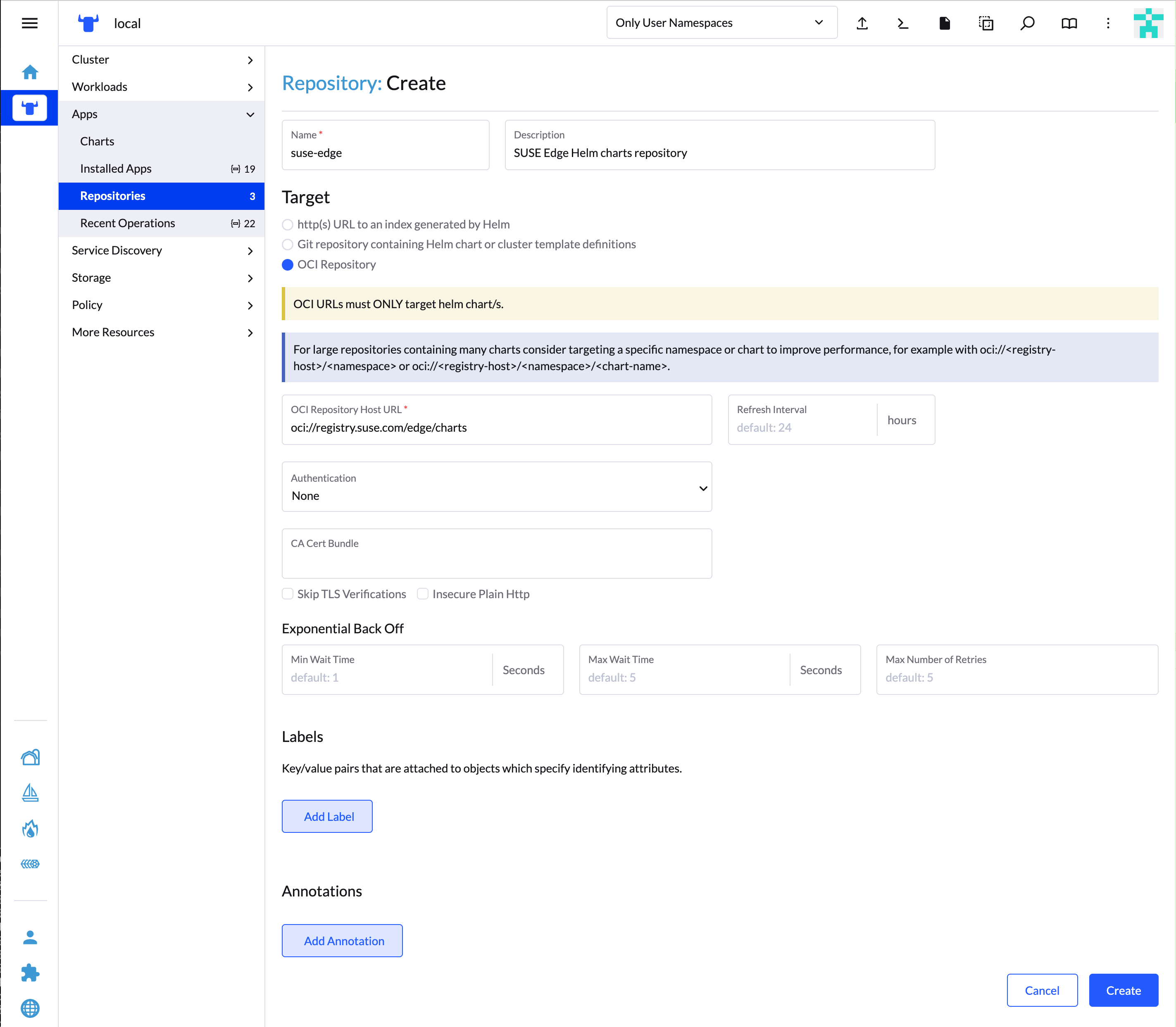
You can see that the extension repository is added to the list and is in
Activestate.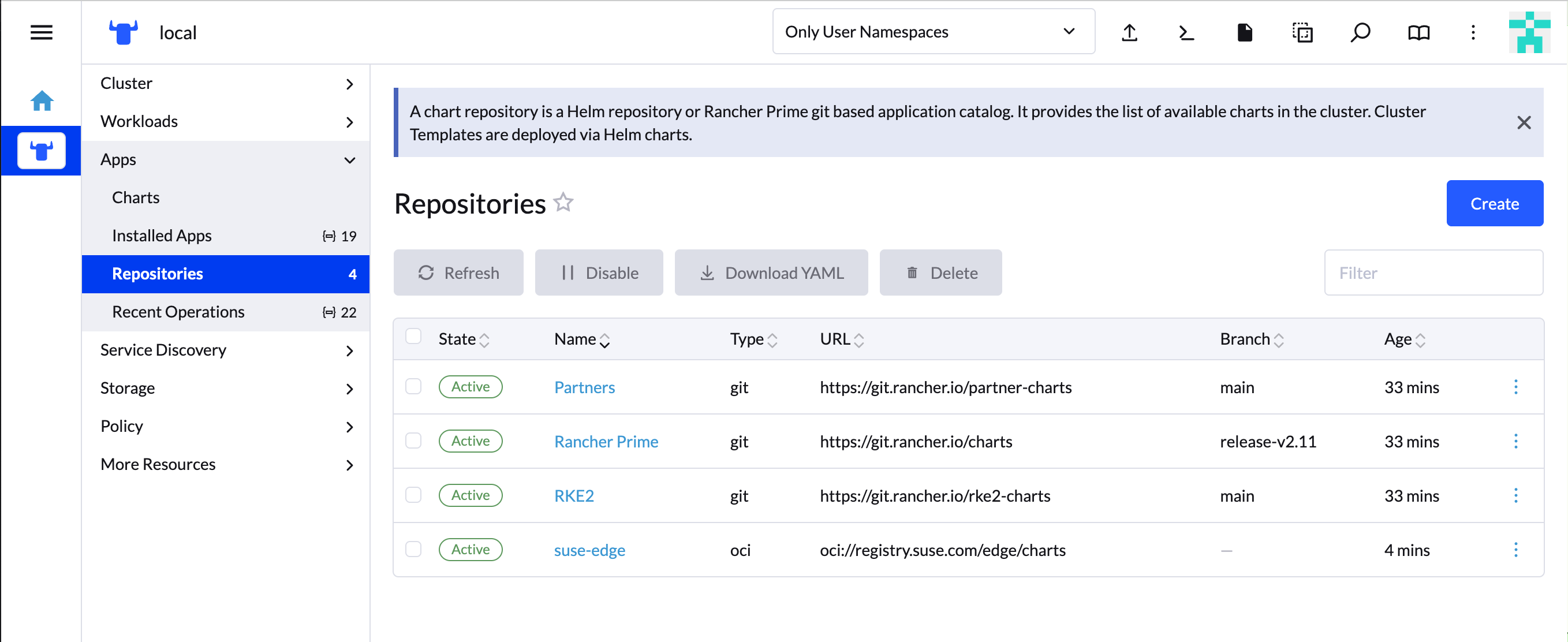
Navigate back to the Extensions in the Configuration section of the navigation sidebar.
In the Available tab you can see the extensions available for installation.
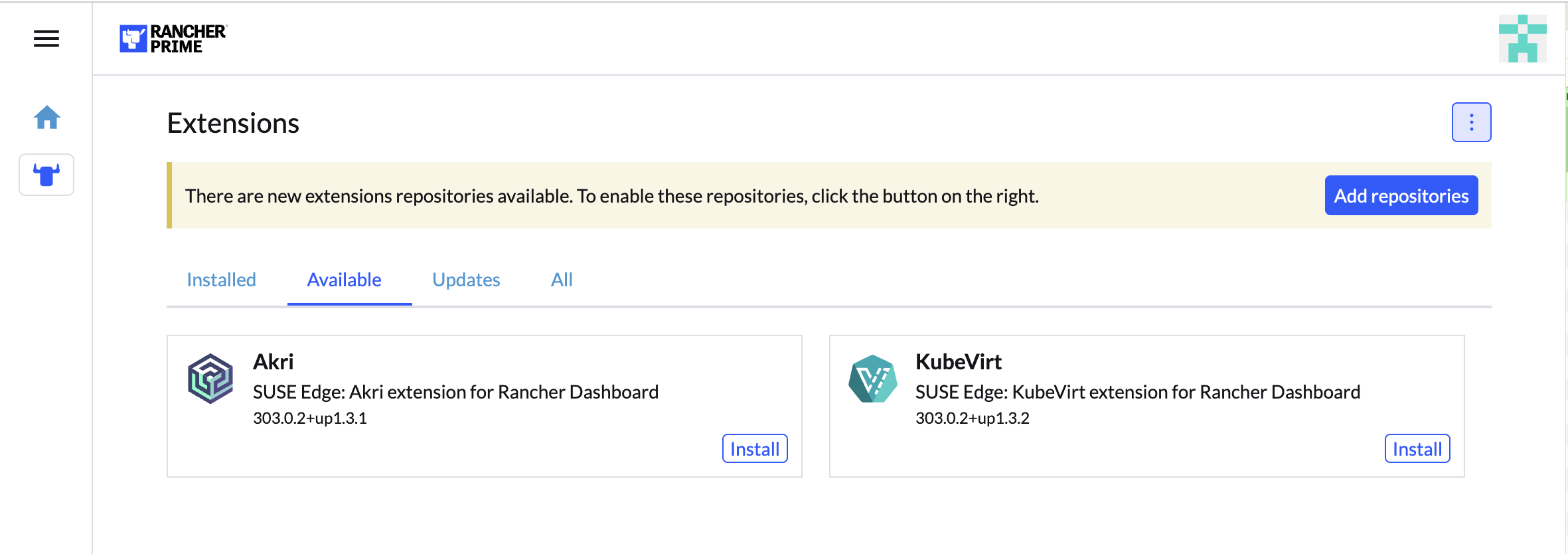
On the extension card click
Installand confirm the installation.Once the extension is installed Rancher UI prompts to reload the page as described in the
Installing Extensions Rancher documentation page.
5.1.2 Installing with Helm #
# KubeVirt extension
helm install kubevirt-dashboard-extension oci://registry.suse.com/edge/charts/kubevirt-dashboard-extension --version 306.0.4+up1.3.3 --namespace cattle-ui-plugin-systemThe extensions need to be installed in cattle-ui-plugin-system namespace.
After an extension is installed, Rancher Dashboard UI needs to be reloaded.
5.1.3 Installing with Fleet #
Installing Dashboard Extensions with Fleet requires defining a gitRepo resource which points to a Git repository with custom fleet.yaml bundle configuration file(s).
# KubeVirt extension fleet.yaml
defaultNamespace: cattle-ui-plugin-system
helm:
  releaseName: kubevirt-dashboard-extension
  chart: oci://registry.suse.com/edge/charts/kubevirt-dashboard-extension
version: "306.0.4+up1.3.3"The releaseName property is required and needs to match the extension name to get the extension correctly installed.
cat <<- EOF | kubectl apply -f -
apiVersion: fleet.cattle.io/v1alpha1
metadata:
  name: edge-dashboard-extensions
  namespace: fleet-local
spec:
  repo: https://github.com/suse-edge/fleet-examples.git
  branch: main
  paths:
  - fleets/kubevirt-dashboard-extension/
EOF
For more information, see Chapter 6, Fleet and the fleet-examples repository.
Once the Extensions are installed they are listed in Extensions section under Installed tabs. Since they are not installed via Apps/Marketplace, they are marked with Third-Party label.
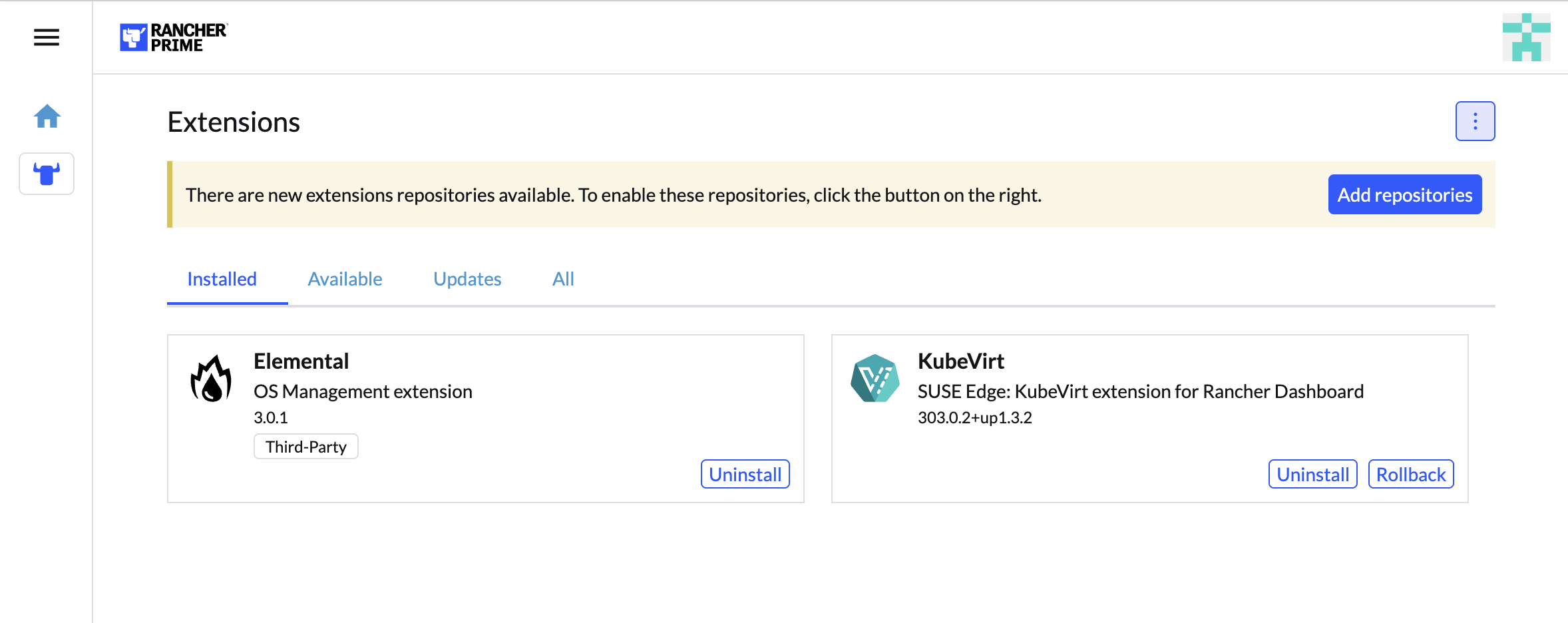
5.2 KubeVirt Dashboard Extension #
KubeVirt Extension provides basic virtual machine management for Rancher dashboard UI. Its capabilities are described in Section 17.7.2, “Using KubeVirt Rancher Dashboard Extension”.
6 Fleet #
Fleet is a container management and deployment engine designed to offer users more control on the local cluster and constant monitoring through GitOps. Fleet focuses not only on the ability to scale, but it also gives users a high degree of control and visibility to monitor exactly what is installed on the cluster.
Fleet can manage deployments from Git of raw Kubernetes YAML, Helm charts, Kustomize, or any combination of the three. Regardless of the source, all resources are dynamically turned into Helm charts, and Helm is used as the engine to deploy all resources in the cluster. As a result, users can enjoy a high degree of control, consistency and auditability of their clusters.
For information about how Fleet works, see Fleet Architecture.
6.1 Installing Fleet with Helm #
Fleet comes built-in to Rancher, but it can be also installed as a standalone application on any Kubernetes cluster using Helm.
6.2 Using Fleet with Rancher #
Rancher uses Fleet to deploy applications across managed clusters. Continuous delivery with Fleet introduces GitOps at scale, designed to manage applications running on large numbers of clusters.
Fleet shines as an integrated part of Rancher. Clusters managed with Rancher automatically get the Fleet agent deployed as part of the installation/import process and the cluster is immediately available to be managed by Fleet.
6.3 Accessing Fleet in the Rancher UI #
Fleet comes preinstalled in Rancher and is managed by the Continuous Delivery option in the Rancher UI.
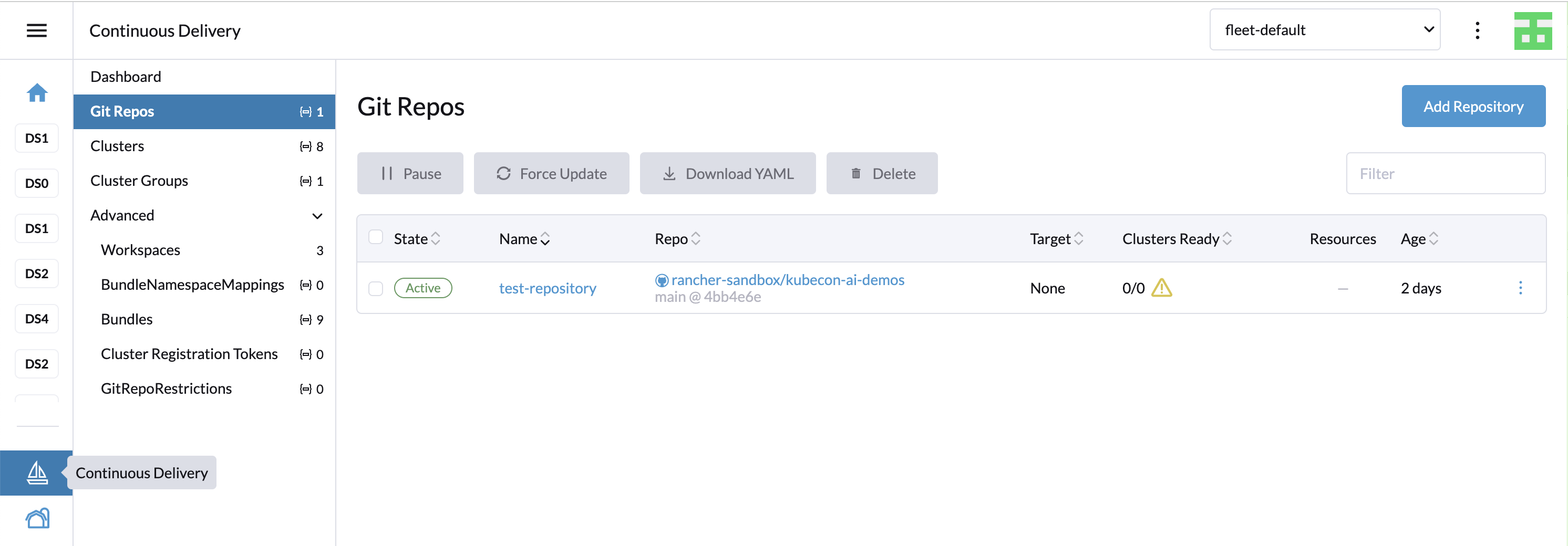
Continuous Delivery section consists of following items:
6.3.1 Dashboard #
An overview page of all GitOps repositories across all workspaces. Only the workspaces with repositories are displayed.
6.3.2 Git repos #
A list of GitOps repositories in the selected workspace. Select the active workspace using the dropdown list at the top of the page.
6.3.3 Clusters #
A list of managed clusters. By default, all Rancher-managed clusters are added to the fleet-default workspace. fleet-local workspace includes the local (management) cluster. From here, it is possible to Pause or Force update the clusters or move the cluster into another workspace. Editing the cluster allows to update labels and annotations used for grouping the clusters.
6.3.4 Cluster groups #
This section allows custom grouping of the clusters within the workspace using selectors.
6.3.5 Advanced #
The "Advanced" section allows to manage workspaces and other related Fleet resources.
6.4 Example of installing KubeVirt with Rancher and Fleet using Rancher dashboard #
Create a Git repository containing the
fleet.yamlfile:defaultNamespace: kubevirt helm: chart: "oci://registry.suse.com/edge/charts/kubevirt" version: "306.0.2+up0.7.0" # kubevirt namespace is created by kubevirt as well, we need to take ownership of it takeOwnership: trueIn the Rancher dashboard, navigate to ☰ > Continuous Delivery > Git Repos and click
Add Repository.The Repository creation wizard guides through creation of the Git repo. Provide Name, Repository URL (referencing the Git repository created in the previous step) and select the appropriate branch or revision. In the case of a more complex repository, specify Paths to use multiple directories in a single repository.
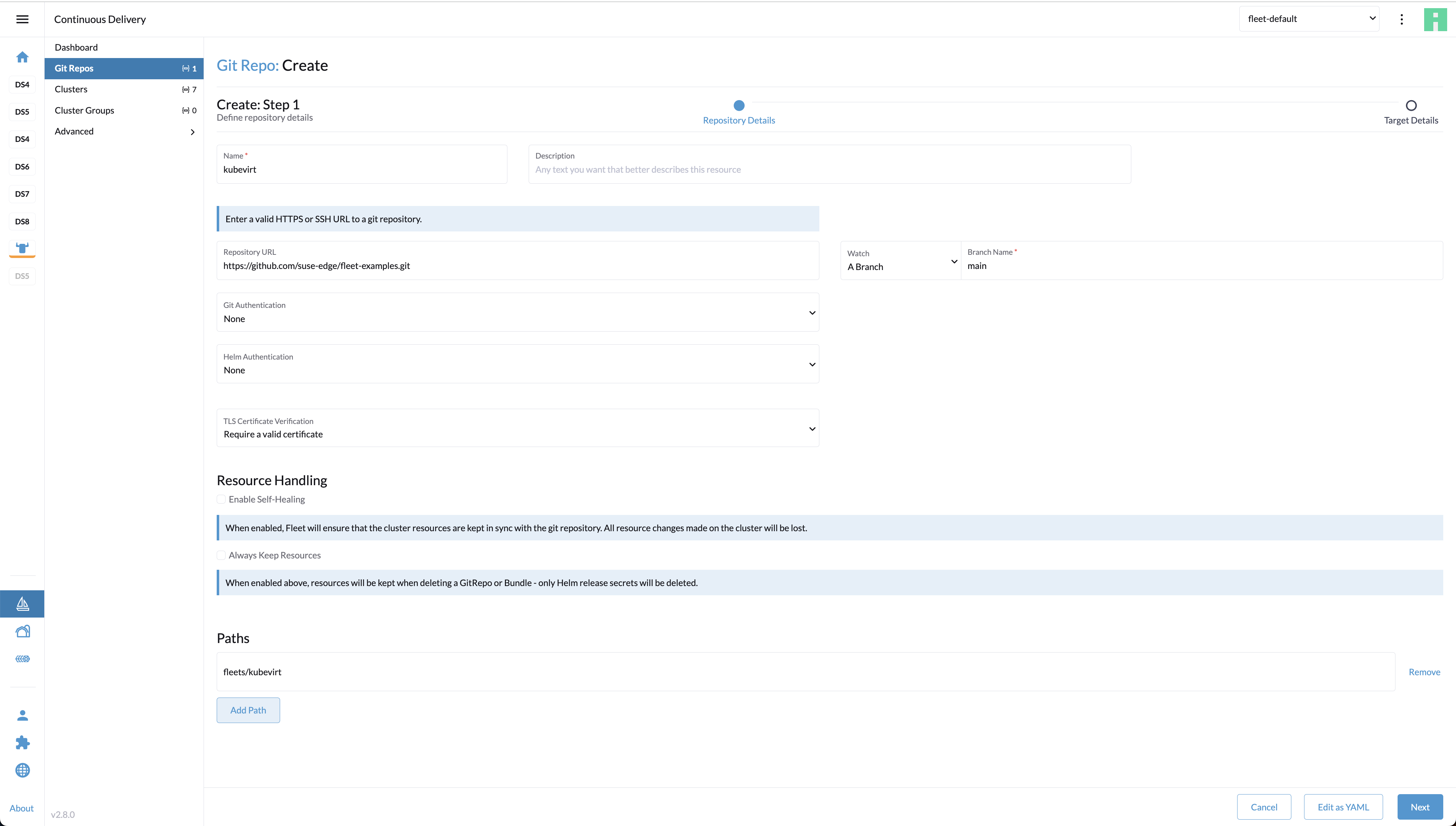
Click
Next.In the next step, you can define where the workloads will get deployed. Cluster selection offers several basic options: you can select no clusters, all clusters, or directly choose a specific managed cluster or cluster group (if defined). The "Advanced" option allows to directly edit the selectors via YAML.
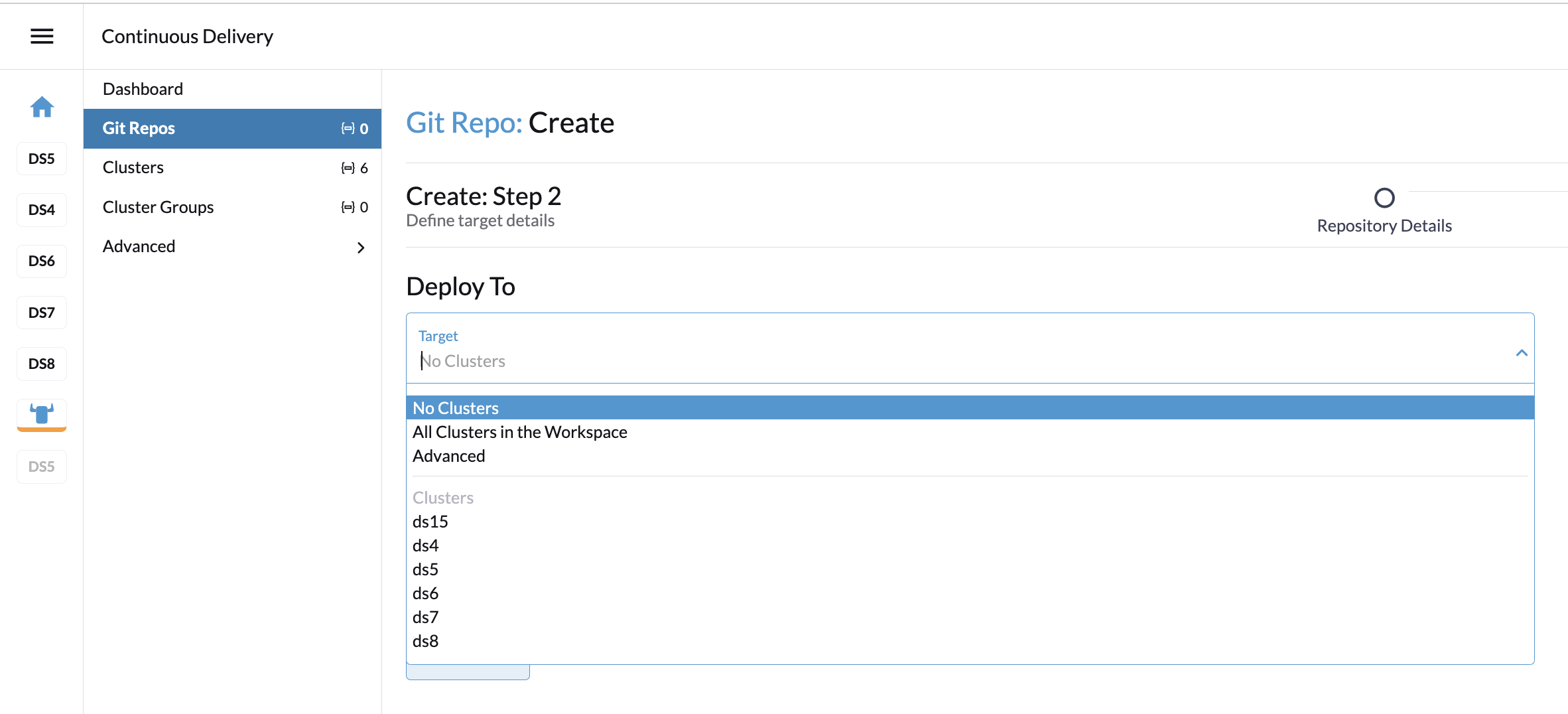
Click
Create. The repository gets created. From now on, the workloads are installed and kept in sync on the clusters matching the repository definition.
6.5 Debugging and troubleshooting #
The "Advanced" navigation section provides overviews of lower-level Fleet resources. A bundle is an internal resource used for the orchestration of resources from Git. When a Git repo is scanned, it produces one or more bundles.
To find bundles relevant to a specific repository, go to the Git repo detail page and click the Bundles tab.
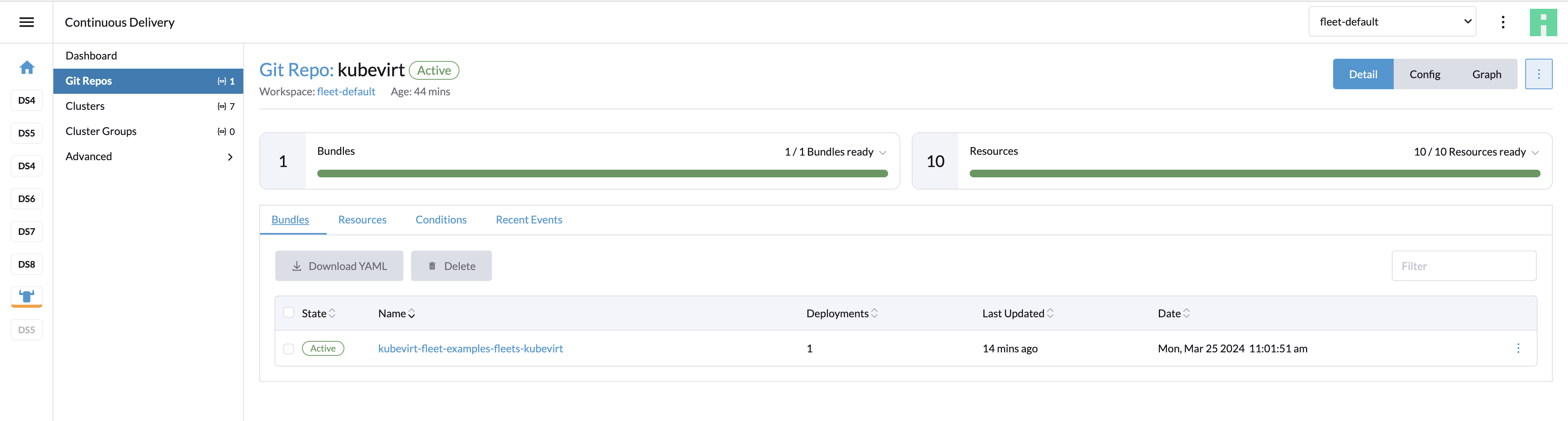
For each cluster, the bundle is applied to a BundleDeployment resource that is created. To view BundleDeployment details, click the Graph button in the upper right of the Git repo detail page.
A graph of Repo > Bundles > BundleDeployments is loaded. Click the BundleDeployment in the graph to see its details and click the Id to view the BundleDeployment YAML.
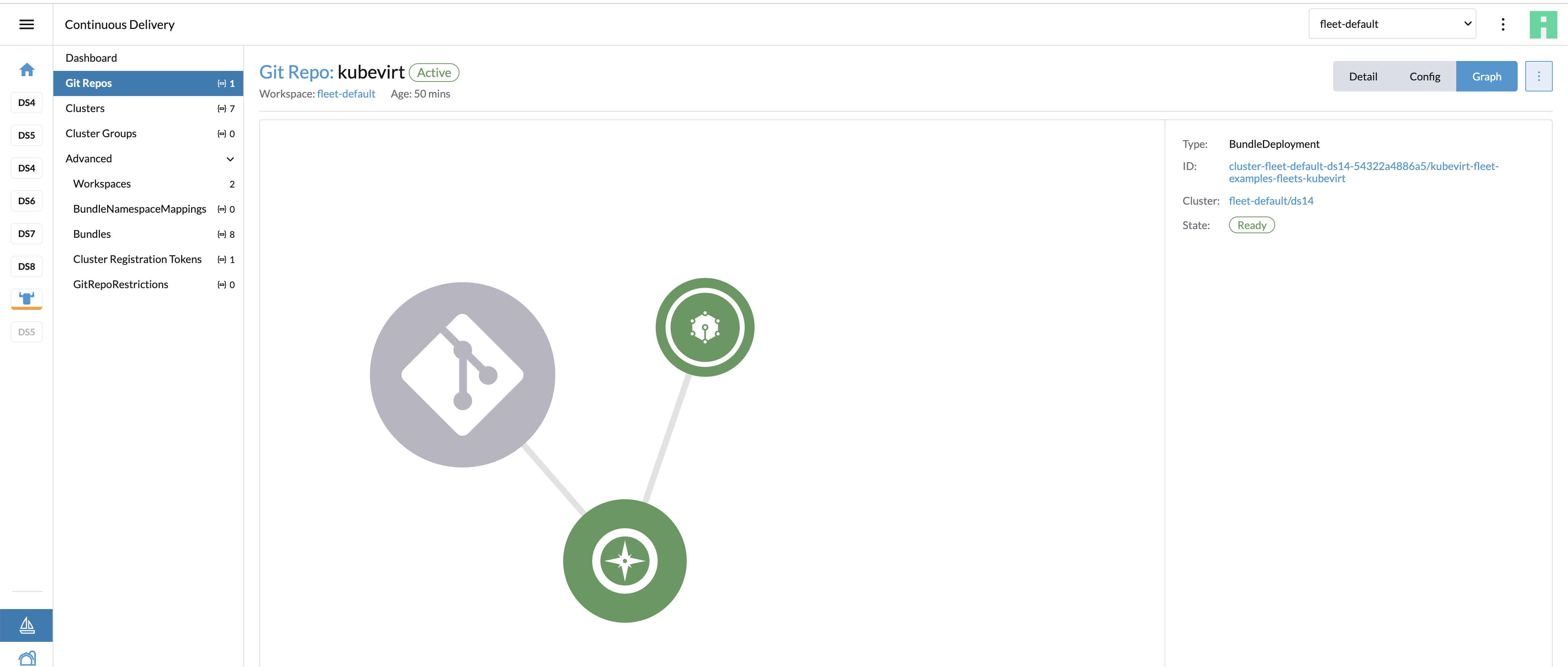
For additional information on Fleet troubleshooting tips, refer here.
6.6 Fleet examples #
The Edge team maintains a repository with examples of installing Edge projects with Fleet.
The Fleet project includes a fleet-examples repository that covers all use cases for Git repository structure.
7 SUSE Linux Micro #
See SUSE Linux Micro official documentation
SUSE Linux Micro is a lightweight and secure operating system for the edge. It merges the enterprise-hardened components of SUSE Linux Enterprise with the features that developers want in a modern, immutable operating system. As a result, you get a reliable infrastructure platform with best-in-class compliance that is also simple to use.
7.1 How does SUSE Edge use SUSE Linux Micro? #
We use SUSE Linux Micro as the base operating system for our platform stack. This provides us with a secure, stable and minimal base for building upon.
SUSE Linux Micro is unique in its use of file system (Btrfs) snapshots to allow for easy rollbacks in case something goes wrong with an upgrade. This allows for secure remote upgrades for the entire platform even without physical access in case of issues.
7.2 Best practices #
7.2.1 Installation media #
SUSE Edge uses the Edge Image Builder (Chapter 8, Edge Image Builder) to preconfigure the SUSE Linux Micro self-install installation image.
7.2.2 Local administration #
SUSE Linux Micro comes with Cockpit to allow the local management of the host through a Web application.
This service is disabled by default but can be started by enabling the systemd service cockpit.socket.
As cockpit forbids root login by default, the creation of a user with administrative privileges is recommended, refer to the SUSE Linux Micro official documentation for more information.
7.3 Known issues #
There is no desktop environment available in SUSE Linux Micro at the moment but a containerized solution is in development.
8 Edge Image Builder #
See the Official Repository.
Edge Image Builder (EIB) is a tool that streamlines the generation of Customized, Ready-to-Boot (CRB) disk images for bootstrapping machines. These images enable the end-to-end deployment of the entire SUSE software stack with a single image.
Whilst EIB can create CRB images for all provisioning scenarios, EIB demonstrates a tremendous value in air-gapped deployments with limited or completely isolated networks.
8.1 How does SUSE Edge use Edge Image Builder? #
SUSE Edge uses EIB for the simplified and quick configuration of customized SUSE Linux Micro images for a variety of scenarios. These scenarios include the bootstrapping of virtual and bare-metal machines with:
Fully air-gapped deployments of K3s/RKE2 Kubernetes (single & multi-node)
Fully air-gapped Helm chart and Kubernetes manifest deployments
Registration to Rancher via Elemental API
Metal3
Customized networking (for example, static IP, host name, VLAN’s, bonding, etc.)
Customized operating system configurations (for example, users, groups, passwords, SSH keys, proxies, NTP, custom SSL certificates, etc.)
Air-gapped installation of host-level and side-loaded RPM packages (including dependency resolution)
Registration to SUSE Multi-Linux Manager for OS management
Embedded container images
Kernel command-line arguments
Systemd units to be enabled/disabled at boot time
Custom scripts and files for any manual tasks
8.2 Getting started #
Comprehensive documentation for the usage and testing of Edge Image Builder can be found here.
Additionally, see Chapter 2, Standalone clusters with Edge Image Builder covering a basic deployment scenario.
Once you are familiar with this tool, please find some more useful information on our EIB Tips and Tricks section (Part IV, “Tips and Tricks”) page.
8.3 Known issues #
EIB air-gaps Helm charts through templating the Helm charts and parsing all the images within the template. If a Helm chart does not keep all of its images within the template and instead side-loads the images, EIB will not be able to air-gap those images automatically. The solution to this is to manually add any undetected images to the
embeddedArtifactRegistrysection of the definition file.
9 Edge Networking #
This section describes the approach to network configuration in the SUSE Edge solution. We will show how to configure NetworkManager on SUSE Linux Micro in a declarative manner, and explain how the related tools are integrated.
9.1 Overview of NetworkManager #
NetworkManager is a tool that manages the primary network connection and other connection interfaces.
NetworkManager stores network configurations as connection files that contain the desired state.
These connections are stored as files in the /etc/NetworkManager/system-connections/ directory.
Details about NetworkManager can be found in the SUSE Linux Micro documentation.
9.2 Overview of nmstate #
nmstate is a widely adopted library (with an accompanying CLI tool) which offers a declarative API for network configurations via a predefined schema.
Details about nmstate can be found in the upstream documentation.
9.3 Enter: NetworkManager Configurator (nmc) #
The network customization options available in SUSE Edge are achieved via a CLI tool called NetworkManager Configurator or nmc for short. It is leveraging the functionality provided by the nmstate library and, as such, it is fully capable of configuring static IP addresses, DNS servers, VLANs, bonding, bridges, etc. This tool allows us to generate network configurations from predefined desired states and to apply those across many different nodes in an automated fashion.
Details about the NetworkManager Configurator (nmc) can be found in the upstream repository.
9.4 How does SUSE Edge use NetworkManager Configurator? #
SUSE Edge utilizes nmc for the network customizations in the various different provisioning models: * Declarative static configurations in the Image Based Provisioning scenarios (Chapter 2, Standalone clusters with Edge Image Builder)
9.5 Configuring with Edge Image Builder #
Edge Image Builder (EIB) is a tool which enables configuring multiple hosts with a single OS image. In this section we’ll show how you can use a declarative approach to describe the desired network states, how those are converted to the respective NetworkManager connections, and are then applied during the provisioning process.
9.5.1 Prerequisites #
If you’re following this guide, it’s assumed that you’ve got the following already available:
An AMD64/Intel 64 physical host (or virtual machine) running SLES 15 SP6 or openSUSE Leap 15.6
An available container runtime (e.g. Podman)
A copy of the SUSE Linux Micro 6.2 RAW image found here
9.5.2 Getting the Edge Image Builder container image #
The EIB container image is publicly available and can be downloaded from the SUSE Edge registry by running:
podman pull registry.suse.com/edge/3.6/edge-image-builder:1.3.49.5.3 Creating the image configuration directory #
Let’s start with creating the configuration directory:
export CONFIG_DIR=$HOME/eib
mkdir -p $CONFIG_DIR/base-images
We will now ensure that the downloaded base image copy is moved over to the configuration directory:
mv /path/to/downloads/SL-Micro.x86_64-6.2-Base-GM.raw $CONFIG_DIR/base-images/NoteEIB is never going to modify the base image input. It will create a new image with its modifications.
The configuration directory at this point should look like the following:
└── base-images/
    └── SL-Micro.x86_64-6.2-Base-GM.raw
9.5.4 Creating the image definition file #
The definition file describes the majority of configurable options that the Edge Image Builder supports.
Let’s start with a very basic definition file for our OS image:
cat << EOF > $CONFIG_DIR/definition.yaml
apiVersion: 1.3
image:
  arch: x86_64
  imageType: raw
  baseImage: SL-Micro.x86_64-6.2-Base-GM.raw
  outputImageName: modified-image.raw
operatingSystem:
  users:
    - username: root
      encryptedPassword: $6$jHugJNNd3HElGsUZ$eodjVe4te5ps44SVcWshdfWizrP.xAyd71CVEXazBJ/.v799/WRCBXxfYmunlBO2yp1hm/zb4r8EmnrrNCF.P/
EOF
The image section is required, and it specifies the input image, its architecture and type, as well as what the output image will be called.
The operatingSystem section is optional, and contains configuration to enable login on the provisioned systems with the root/eib username/password.
NoteFeel free to use your own encrypted password by running
openssl passwd -6 <password>.
The configuration directory at this point should look like the following:
├── definition.yaml
└── base-images/
    └── SL-Micro.x86_64-6.2-Base-GM.raw
9.5.5 Defining the network configurations #
The desired network configurations are not part of the image definition file that we just created.
We’ll now populate those under the special network/ directory. Let’s create it:
mkdir -p $CONFIG_DIR/networkAs previously mentioned, the NetworkManager Configurator (nmc) tool expects an input in the form of predefined schema. You can find how to set up a wide variety of different networking options in the upstream NMState examples documentation.
This guide will explain how to configure the networking on three different nodes:
A node which uses two Ethernet interfaces
A node which uses network bonding
A node which uses a network bridge
Using completely different network setups is not recommended in production builds, especially if configuring Kubernetes clusters. Networking configurations should generally be homogeneous amongst nodes or at least amongst roles within a given cluster. This guide is including various different options only to serve as an example reference.
NoteThe following assumes a default
libvirtnetwork with an IP address range192.168.122.1/24. Adjust accordingly if this differs in your environment.
Let’s create the desired states for the first node which we will call node1.suse.com:
cat << EOF > $CONFIG_DIR/network/node1.suse.com.yaml
routes:
  config:
    - destination: 0.0.0.0/0
      metric: 100
      next-hop-address: 192.168.122.1
      next-hop-interface: eth0
      table-id: 254
    - destination: 192.168.122.0/24
      metric: 100
      next-hop-address: 192.168.122.1
      next-hop-interface: eth0
      table-id: 254
dns-resolver:
  config:
    server:
      - 192.168.122.1
      - 8.8.8.8
interfaces:
  - name: eth0
    type: ethernet
    state: up
    mac-address: 34:8A:B1:4B:16:E1
    ipv4:
      address:
        - ip: 192.168.122.50
          prefix-length: 24
      dhcp: false
      enabled: true
    ipv6:
      enabled: false
  - name: eth3
    type: ethernet
    state: down
    mac-address: 34:8A:B1:4B:16:E2
    ipv4:
      address:
        - ip: 192.168.122.55
          prefix-length: 24
      dhcp: false
      enabled: true
    ipv6:
      enabled: false
EOF
In this example we define a desired state of two Ethernet interfaces (eth0 and eth3), their requested IP addresses, routing, and DNS resolution.
You must ensure that the MAC addresses of all Ethernet interfaces are listed. Those are used during the provisioning process as the identifiers of the nodes and serve to determine which configurations should be applied. This is how we are able to configure multiple nodes using a single ISO or RAW image.
Next up is the second node which we will call node2.suse.com and which will use network bonding:
cat << EOF > $CONFIG_DIR/network/node2.suse.com.yaml
routes:
  config:
    - destination: 0.0.0.0/0
      metric: 100
      next-hop-address: 192.168.122.1
      next-hop-interface: bond99
      table-id: 254
    - destination: 192.168.122.0/24
      metric: 100
      next-hop-address: 192.168.122.1
      next-hop-interface: bond99
      table-id: 254
dns-resolver:
  config:
    server:
      - 192.168.122.1
      - 8.8.8.8
interfaces:
  - name: bond99
    type: bond
    state: up
    ipv4:
      address:
        - ip: 192.168.122.60
          prefix-length: 24
      enabled: true
    link-aggregation:
      mode: balance-rr
      options:
        miimon: '140'
      port:
        - eth0
        - eth1
  - name: eth0
    type: ethernet
    state: up
    mac-address: 34:8A:B1:4B:16:E3
    ipv4:
      enabled: false
    ipv6:
      enabled: false
  - name: eth1
    type: ethernet
    state: up
    mac-address: 34:8A:B1:4B:16:E4
    ipv4:
      enabled: false
    ipv6:
      enabled: false
EOF
In this example we define a desired state of two Ethernet interfaces (eth0 and eth1) which are not enabling IP addressing, as well as a bond with a round-robin policy and its respective address which is going to be used to forward the network traffic.
Lastly, we’ll create the third and final desired state file which will be utilizing a network bridge and which we’ll call node3.suse.com:
cat << EOF > $CONFIG_DIR/network/node3.suse.com.yaml
routes:
  config:
    - destination: 0.0.0.0/0
      metric: 100
      next-hop-address: 192.168.122.1
      next-hop-interface: linux-br0
      table-id: 254
    - destination: 192.168.122.0/24
      metric: 100
      next-hop-address: 192.168.122.1
      next-hop-interface: linux-br0
      table-id: 254
dns-resolver:
  config:
    server:
      - 192.168.122.1
      - 8.8.8.8
interfaces:
  - name: eth0
    type: ethernet
    state: up
    mac-address: 34:8A:B1:4B:16:E5
    ipv4:
      enabled: false
    ipv6:
      enabled: false
  - name: linux-br0
    type: linux-bridge
    state: up
    ipv4:
      address:
        - ip: 192.168.122.70
          prefix-length: 24
      dhcp: false
      enabled: true
    bridge:
      options:
        group-forward-mask: 0
        mac-ageing-time: 300
        multicast-snooping: true
        stp:
          enabled: true
          forward-delay: 15
          hello-time: 2
          max-age: 20
          priority: 32768
      port:
        - name: eth0
          stp-hairpin-mode: false
          stp-path-cost: 100
          stp-priority: 32
EOF
The configuration directory at this point should look like the following:
├── definition.yaml
├── network/
│   │── node1.suse.com.yaml
│   │── node2.suse.com.yaml
│   └── node3.suse.com.yaml
└── base-images/
└── SL-Micro.x86_64-6.2-Base-GM.rawNoteThe names of the files under the
network/directory are intentional. They correspond to the hostnames which will be set during the provisioning process.
9.5.6 Building the OS image #
Now that all the necessary configurations are in place, we can build the image by simply running:
podman run --rm -it -v $CONFIG_DIR:/eib registry.suse.com/edge/3.6/edge-image-builder:1.3.4 build --definition-file definition.yamlThe output should be similar to the following:
Generating image customization components...
Identifier ................... [SUCCESS]
Custom Files ................. [SKIPPED]
Time ......................... [SKIPPED]
Network ...................... [SUCCESS]
Groups ....................... [SKIPPED]
Users ........................ [SUCCESS]
Proxy ........................ [SKIPPED]
Rpm .......................... [SKIPPED]
Systemd ...................... [SKIPPED]
Elemental .................... [SKIPPED]
Suma ......................... [SKIPPED]
Embedded Artifact Registry ... [SKIPPED]
Keymap ....................... [SUCCESS]
Kubernetes ................... [SKIPPED]
Certificates ................. [SKIPPED]
Building RAW image...
Kernel Params ................ [SKIPPED]
Image build complete!
The snippet above tells us that the Network component has successfully been configured, and we can proceed with provisioning our edge nodes.
NoteA log file (
network-config.log) and the respective NetworkManager connection files can be inspected in the resulting_builddirectory under a timestamped directory for the image run.
9.5.7 Provisioning the edge nodes #
Let’s copy the resulting RAW image:
mkdir edge-nodes && cd edge-nodes
for i in {1..4}; do cp $CONFIG_DIR/modified-image.raw node$i.raw; done
You will notice that we copied the built image four times but only specified the network configurations for three nodes. This is because we also want to showcase what will happen if we provision a node which does not match any of the desired configurations.
NoteThis guide will use virtualization for the node provisioning examples. Ensure the necessary extensions are enabled in the BIOS (see here for details).
We will be using virt-install to create virtual machines using the copied raw disks.
Each virtual machine will be using 10 GB of RAM and 6 vCPUs.
9.5.7.1 Provisioning the first node #
Let’s create the virtual machine:
virt-install --name node1 --ram 10000 --vcpus 6 --disk path=node1.raw,format=raw --osinfo detect=on,name=sle-unknown --graphics none --console pty,target_type=serial --network default,mac=34:8A:B1:4B:16:E1 --network default,mac=34:8A:B1:4B:16:E2 --virt-type kvm --importNoteIt is important that we create the network interfaces with the same MAC addresses as the ones in the desired state we described above.
Once the operation is complete, we will see something similar to the following:
Starting install...
Creating domain...

Running text console command: virsh --connect qemu:///system console node1
Connected to domain 'node1'
Escape character is ^] (Ctrl + ])


Welcome to SUSE Linux Micro 6.0 (x86_64) - Kernel 6.4.0-18-default (tty1).

SSH host key: SHA256:XN/R5Tw43reG+QsOw480LxCnhkc/1uqMdwlI6KUBY70 (RSA)
SSH host key: SHA256:/96yGrPGKlhn04f1rb9cXv/2WJt4TtrIN5yEcN66r3s (DSA)
SSH host key: SHA256:Dy/YjBQ7LwjZGaaVcMhTWZNSOstxXBsPsvgJTJq5t00 (ECDSA)
SSH host key: SHA256:TNGqY1LRddpxD/jn/8dkT/9YmVl9hiwulqmayP+wOWQ (ED25519)
eth0: 192.168.122.50
eth1:


Configured with the Edge Image Builder
Activate the web console with: systemctl enable --now cockpit.socket

node1 login:
We’re now able to log in with the root:eib credentials pair.
We’re also able to SSH into the host if we prefer that over the virsh console we’re presented with here.
Once logged in, let’s confirm that all the settings are in place.
Verify that the hostname is properly set:
node1:~ # hostnamectl
 Static hostname: node1.suse.com
 ...
Verify that the routing is properly configured:
node1:~ # ip r
default via 192.168.122.1 dev eth0 proto static metric 100
192.168.122.0/24 dev eth0 proto static scope link metric 100
192.168.122.0/24 dev eth0 proto kernel scope link src 192.168.122.50 metric 100
Verify that Internet connection is available:
node1:~ # ping google.com
PING google.com (142.250.72.78) 56(84) bytes of data.
64 bytes from den16s09-in-f14.1e100.net (142.250.72.78): icmp_seq=1 ttl=56 time=13.2 ms
64 bytes from den16s09-in-f14.1e100.net (142.250.72.78): icmp_seq=2 ttl=56 time=13.4 ms
^C
--- google.com ping statistics ---
2 packets transmitted, 2 received, 0% packet loss, time 1002ms
rtt min/avg/max/mdev = 13.248/13.304/13.361/0.056 ms
Verify that exactly two Ethernet interfaces are configured and only one of those is active:
node1:~ # ip a
1: lo: <LOOPBACK,UP,LOWER_UP> mtu 65536 qdisc noqueue state UNKNOWN group default qlen 1000
    link/loopback 00:00:00:00:00:00 brd 00:00:00:00:00:00
    inet 127.0.0.1/8 scope host lo
       valid_lft forever preferred_lft forever
    inet6 ::1/128 scope host
       valid_lft forever preferred_lft forever
2: eth0: <BROADCAST,MULTICAST,UP,LOWER_UP> mtu 1500 qdisc pfifo_fast state UP group default qlen 1000
    link/ether 34:8a:b1:4b:16:e1 brd ff:ff:ff:ff:ff:ff
    altname enp0s2
    altname ens2
    inet 192.168.122.50/24 brd 192.168.122.255 scope global noprefixroute eth0
       valid_lft forever preferred_lft forever
3: eth1: <BROADCAST,MULTICAST,UP,LOWER_UP> mtu 1500 qdisc pfifo_fast state UP group default qlen 1000
    link/ether 34:8a:b1:4b:16:e2 brd ff:ff:ff:ff:ff:ff
    altname enp0s3
    altname ens3

node1:~ # nmcli -f NAME,UUID,TYPE,DEVICE,FILENAME con show
NAME  UUID                                  TYPE      DEVICE  FILENAME
eth0  dfd202f5-562f-5f07-8f2a-a7717756fb70  ethernet  eth0    /etc/NetworkManager/system-connections/eth0.nmconnection
eth1  7e211aea-3d14-59cf-a4fa-be91dac5dbba  ethernet  --      /etc/NetworkManager/system-connections/eth1.nmconnection
You’ll notice that the second interface is eth1 instead of the predefined eth3 in our desired networking state.
This is the case because the NetworkManager Configurator (nmc) is able to detect that the OS has given a different name for the NIC with MAC address 34:8a:b1:4b:16:e2 and it adjusts its settings accordingly.
Verify this has indeed happened by inspecting the Combustion phase of the provisioning:
node1:~ # journalctl -u combustion | grep nmc
Apr 23 09:20:19 localhost.localdomain combustion[1360]: [2024-04-23T09:20:19Z INFO  nmc::apply_conf] Identified host: node1.suse.com
Apr 23 09:20:19 localhost.localdomain combustion[1360]: [2024-04-23T09:20:19Z INFO  nmc::apply_conf] Set hostname: node1.suse.com
Apr 23 09:20:19 localhost.localdomain combustion[1360]: [2024-04-23T09:20:19Z INFO  nmc::apply_conf] Processing interface 'eth0'...
Apr 23 09:20:19 localhost.localdomain combustion[1360]: [2024-04-23T09:20:19Z INFO  nmc::apply_conf] Processing interface 'eth3'...
Apr 23 09:20:19 localhost.localdomain combustion[1360]: [2024-04-23T09:20:19Z INFO  nmc::apply_conf] Using interface name 'eth1' instead of the preconfigured 'eth3'
Apr 23 09:20:19 localhost.localdomain combustion[1360]: [2024-04-23T09:20:19Z INFO  nmc] Successfully applied config
We will now provision the rest of the nodes, but we will only show the differences in the final configuration. Feel free to apply any or all of the above checks for all nodes you are about to provision.
9.5.7.2 Provisioning the second node #
Let’s create the virtual machine:
virt-install --name node2 --ram 10000 --vcpus 6 --disk path=node2.raw,format=raw --osinfo detect=on,name=sle-unknown --graphics none --console pty,target_type=serial --network default,mac=34:8A:B1:4B:16:E3 --network default,mac=34:8A:B1:4B:16:E4 --virt-type kvm --importOnce the virtual machine is up and running, we can confirm that this node is using bonded interfaces:
node2:~ # ip a
1: lo: <LOOPBACK,UP,LOWER_UP> mtu 65536 qdisc noqueue state UNKNOWN group default qlen 1000
    link/loopback 00:00:00:00:00:00 brd 00:00:00:00:00:00
    inet 127.0.0.1/8 scope host lo
       valid_lft forever preferred_lft forever
    inet6 ::1/128 scope host
       valid_lft forever preferred_lft forever
2: eth0: <BROADCAST,MULTICAST,SLAVE,UP,LOWER_UP> mtu 1500 qdisc pfifo_fast master bond99 state UP group default qlen 1000
    link/ether 34:8a:b1:4b:16:e3 brd ff:ff:ff:ff:ff:ff
    altname enp0s2
    altname ens2
3: eth1: <BROADCAST,MULTICAST,SLAVE,UP,LOWER_UP> mtu 1500 qdisc pfifo_fast master bond99 state UP group default qlen 1000
    link/ether 34:8a:b1:4b:16:e3 brd ff:ff:ff:ff:ff:ff permaddr 34:8a:b1:4b:16:e4
    altname enp0s3
    altname ens3
4: bond99: <BROADCAST,MULTICAST,MASTER,UP,LOWER_UP> mtu 1500 qdisc noqueue state UP group default qlen 1000
    link/ether 34:8a:b1:4b:16:e3 brd ff:ff:ff:ff:ff:ff
    inet 192.168.122.60/24 brd 192.168.122.255 scope global noprefixroute bond99
       valid_lft forever preferred_lft forever
Confirm that the routing is using the bond:
node2:~ # ip r
default via 192.168.122.1 dev bond99 proto static metric 100
192.168.122.0/24 dev bond99 proto static scope link metric 100
192.168.122.0/24 dev bond99 proto kernel scope link src 192.168.122.60 metric 300
Ensure that the static connection files are properly utilized:
node2:~ # nmcli -f NAME,UUID,TYPE,DEVICE,FILENAME con show
NAME    UUID                                  TYPE      DEVICE  FILENAME
bond99  4a920503-4862-5505-80fd-4738d07f44c6  bond      bond99  /etc/NetworkManager/system-connections/bond99.nmconnection
eth0    dfd202f5-562f-5f07-8f2a-a7717756fb70  ethernet  eth0    /etc/NetworkManager/system-connections/eth0.nmconnection
eth1    0523c0a1-5f5e-5603-bcf2-68155d5d322e  ethernet  eth1    /etc/NetworkManager/system-connections/eth1.nmconnection
9.5.7.3 Provisioning the third node #
Let’s create the virtual machine:
virt-install --name node3 --ram 10000 --vcpus 6 --disk path=node3.raw,format=raw --osinfo detect=on,name=sle-unknown --graphics none --console pty,target_type=serial --network default,mac=34:8A:B1:4B:16:E5 --virt-type kvm --importOnce the virtual machine is up and running, we can confirm that this node is using a network bridge:
node3:~ # ip a
1: lo: <LOOPBACK,UP,LOWER_UP> mtu 65536 qdisc noqueue state UNKNOWN group default qlen 1000
    link/loopback 00:00:00:00:00:00 brd 00:00:00:00:00:00
    inet 127.0.0.1/8 scope host lo
       valid_lft forever preferred_lft forever
    inet6 ::1/128 scope host
       valid_lft forever preferred_lft forever
2: eth0: <BROADCAST,MULTICAST,UP,LOWER_UP> mtu 1500 qdisc pfifo_fast master linux-br0 state UP group default qlen 1000
    link/ether 34:8a:b1:4b:16:e5 brd ff:ff:ff:ff:ff:ff
    altname enp0s2
    altname ens2
3: linux-br0: <BROADCAST,MULTICAST,UP,LOWER_UP> mtu 1500 qdisc noqueue state UP group default qlen 1000
    link/ether 34:8a:b1:4b:16:e5 brd ff:ff:ff:ff:ff:ff
    inet 192.168.122.70/24 brd 192.168.122.255 scope global noprefixroute linux-br0
       valid_lft forever preferred_lft forever
Confirm that the routing is using the bridge:
node3:~ # ip r
default via 192.168.122.1 dev linux-br0 proto static metric 100
192.168.122.0/24 dev linux-br0 proto static scope link metric 100
192.168.122.0/24 dev linux-br0 proto kernel scope link src 192.168.122.70 metric 425
Ensure that the static connection files are properly utilized:
node3:~ # nmcli -f NAME,UUID,TYPE,DEVICE,FILENAME con show
NAME       UUID                                  TYPE      DEVICE     FILENAME
linux-br0  1f8f1469-ed20-5f2c-bacb-a6767bee9bc0  bridge    linux-br0  /etc/NetworkManager/system-connections/linux-br0.nmconnection
eth0       dfd202f5-562f-5f07-8f2a-a7717756fb70  ethernet  eth0       /etc/NetworkManager/system-connections/eth0.nmconnection
9.5.7.4 Provisioning the fourth node #
Lastly, we will provision a node which will not match any of the predefined configurations by a MAC address. In these cases, we will default to DHCP to configure the network interfaces.
Let’s create the virtual machine:
virt-install --name node4 --ram 10000 --vcpus 6 --disk path=node4.raw,format=raw --osinfo detect=on,name=sle-unknown --graphics none --console pty,target_type=serial --network default --virt-type kvm --importOnce the virtual machine is up and running, we can confirm that this node is using a random IP address for its network interface:
localhost:~ # ip a
1: lo: <LOOPBACK,UP,LOWER_UP> mtu 65536 qdisc noqueue state UNKNOWN group default qlen 1000
    link/loopback 00:00:00:00:00:00 brd 00:00:00:00:00:00
    inet 127.0.0.1/8 scope host lo
       valid_lft forever preferred_lft forever
    inet6 ::1/128 scope host
       valid_lft forever preferred_lft forever
2: eth0: <BROADCAST,MULTICAST,UP,LOWER_UP> mtu 1500 qdisc pfifo_fast state UP group default qlen 1000
    link/ether 52:54:00:56:63:71 brd ff:ff:ff:ff:ff:ff
    altname enp0s2
    altname ens2
    inet 192.168.122.86/24 brd 192.168.122.255 scope global dynamic noprefixroute eth0
       valid_lft 3542sec preferred_lft 3542sec
    inet6 fe80::5054:ff:fe56:6371/64 scope link noprefixroute
       valid_lft forever preferred_lft forever
Verify that nmc failed to apply static configurations for this node:
localhost:~ # journalctl -u combustion | grep nmc
Apr 23 12:15:45 localhost.localdomain combustion[1357]: [2024-04-23T12:15:45Z ERROR nmc] Applying config failed: None of the preconfigured hosts match local NICs
Verify that the Ethernet interface was configured via DHCP:
localhost:~ # journalctl | grep eth0
Apr 23 12:15:29 localhost.localdomain NetworkManager[704]: <info>  [1713874529.7801] manager: (eth0): new Ethernet device (/org/freedesktop/NetworkManager/Devices/2)
Apr 23 12:15:29 localhost.localdomain NetworkManager[704]: <info>  [1713874529.7802] device (eth0): state change: unmanaged -> unavailable (reason 'managed', sys-iface-state: 'external')
Apr 23 12:15:29 localhost.localdomain NetworkManager[704]: <info>  [1713874529.7929] device (eth0): carrier: link connected
Apr 23 12:15:29 localhost.localdomain NetworkManager[704]: <info>  [1713874529.7931] device (eth0): state change: unavailable -> disconnected (reason 'carrier-changed', sys-iface-state: 'managed')
Apr 23 12:15:29 localhost.localdomain NetworkManager[704]: <info>  [1713874529.7944] device (eth0): Activation: starting connection 'Wired Connection' (300ed658-08d4-4281-9f8c-d1b8882d29b9)
Apr 23 12:15:29 localhost.localdomain NetworkManager[704]: <info>  [1713874529.7945] device (eth0): state change: disconnected -> prepare (reason 'none', sys-iface-state: 'managed')
Apr 23 12:15:29 localhost.localdomain NetworkManager[704]: <info>  [1713874529.7947] device (eth0): state change: prepare -> config (reason 'none', sys-iface-state: 'managed')
Apr 23 12:15:29 localhost.localdomain NetworkManager[704]: <info>  [1713874529.7953] device (eth0): state change: config -> ip-config (reason 'none', sys-iface-state: 'managed')
Apr 23 12:15:29 localhost.localdomain NetworkManager[704]: <info>  [1713874529.7964] dhcp4 (eth0): activation: beginning transaction (timeout in 90 seconds)
Apr 23 12:15:33 localhost.localdomain NetworkManager[704]: <info>  [1713874533.1272] dhcp4 (eth0): state changed new lease, address=192.168.122.86

localhost:~ # nmcli -f NAME,UUID,TYPE,DEVICE,FILENAME con show
NAME              UUID                                  TYPE      DEVICE  FILENAME
Wired Connection  300ed658-08d4-4281-9f8c-d1b8882d29b9  ethernet  eth0    /var/run/NetworkManager/system-connections/default_connection.nmconnection
9.5.8 Unified node configurations #
There are occasions where relying on known MAC addresses is not an option. In these cases we can opt for the so-called unified configuration
which allows us to specify settings in an _all.yaml file which will then be applied across all provisioned nodes.
We will build and provision an edge node using different configuration structure. Follow all steps starting from Section 9.5.3, “Creating the image configuration directory” up until Section 9.5.5, “Defining the network configurations”.
In this example we define a desired state of two Ethernet interfaces (eth0 and eth1) - one using DHCP, and one assigned a static IP address.
mkdir -p $CONFIG_DIR/network

cat <<- EOF > $CONFIG_DIR/network/_all.yaml
interfaces:
- name: eth0
  type: ethernet
  state: up
  ipv4:
    dhcp: true
    enabled: true
  ipv6:
    enabled: false
- name: eth1
  type: ethernet
  state: up
  ipv4:
    address:
    - ip: 10.0.0.1
      prefix-length: 24
    enabled: true
    dhcp: false
  ipv6:
    enabled: false
EOF
Let’s build the image:
podman run --rm -it -v $CONFIG_DIR:/eib registry.suse.com/edge/3.6/edge-image-builder:1.3.4 build --definition-file definition.yamlOnce the image is successfully built, let’s create a virtual machine using it:
virt-install --name node1 --ram 10000 --vcpus 6 --disk path=$CONFIG_DIR/modified-image.raw,format=raw --osinfo detect=on,name=sle-unknown --graphics none --console pty,target_type=serial --network default --network default --virt-type kvm --importThe provisioning process might take a few minutes. Once it’s finished, log in to the system with the provided credentials.
Verify that the routing is properly configured:
localhost:~ # ip r
default via 192.168.122.1 dev eth0 proto dhcp src 192.168.122.100 metric 100
10.0.0.0/24 dev eth1 proto kernel scope link src 10.0.0.1 metric 101
192.168.122.0/24 dev eth0 proto kernel scope link src 192.168.122.100 metric 100
Verify that Internet connection is available:
localhost:~ # ping google.com
PING google.com (142.250.72.46) 56(84) bytes of data.
64 bytes from den16s08-in-f14.1e100.net (142.250.72.46): icmp_seq=1 ttl=56 time=14.3 ms
64 bytes from den16s08-in-f14.1e100.net (142.250.72.46): icmp_seq=2 ttl=56 time=14.2 ms
^C
--- google.com ping statistics ---
2 packets transmitted, 2 received, 0% packet loss, time 1001ms
rtt min/avg/max/mdev = 14.196/14.260/14.324/0.064 ms
Verify that the Ethernet interfaces are configured and active:
localhost:~ # ip a
1: lo: <LOOPBACK,UP,LOWER_UP> mtu 65536 qdisc noqueue state UNKNOWN group default qlen 1000
    link/loopback 00:00:00:00:00:00 brd 00:00:00:00:00:00
    inet 127.0.0.1/8 scope host lo
       valid_lft forever preferred_lft forever
    inet6 ::1/128 scope host
       valid_lft forever preferred_lft forever
2: eth0: <BROADCAST,MULTICAST,UP,LOWER_UP> mtu 1500 qdisc pfifo_fast state UP group default qlen 1000
    link/ether 52:54:00:26:44:7a brd ff:ff:ff:ff:ff:ff
    altname enp1s0
    inet 192.168.122.100/24 brd 192.168.122.255 scope global dynamic noprefixroute eth0
       valid_lft 3505sec preferred_lft 3505sec
3: eth1: <BROADCAST,MULTICAST,UP,LOWER_UP> mtu 1500 qdisc pfifo_fast state UP group default qlen 1000
    link/ether 52:54:00:ec:57:9e brd ff:ff:ff:ff:ff:ff
    altname enp7s0
    inet 10.0.0.1/24 brd 10.0.0.255 scope global noprefixroute eth1
       valid_lft forever preferred_lft forever

localhost:~ # nmcli -f NAME,UUID,TYPE,DEVICE,FILENAME con show
NAME  UUID                                  TYPE      DEVICE  FILENAME
eth0  dfd202f5-562f-5f07-8f2a-a7717756fb70  ethernet  eth0    /etc/NetworkManager/system-connections/eth0.nmconnection
eth1  0523c0a1-5f5e-5603-bcf2-68155d5d322e  ethernet  eth1    /etc/NetworkManager/system-connections/eth1.nmconnection

localhost:~ # cat /etc/NetworkManager/system-connections/eth0.nmconnection
[connection]
autoconnect=true
autoconnect-slaves=-1
id=eth0
interface-name=eth0
type=802-3-ethernet
uuid=dfd202f5-562f-5f07-8f2a-a7717756fb70

[ipv4]
dhcp-client-id=mac
dhcp-send-hostname=true
dhcp-timeout=2147483647
ignore-auto-dns=false
ignore-auto-routes=false
method=auto
never-default=false

[ipv6]
addr-gen-mode=0
dhcp-timeout=2147483647
method=disabled

localhost:~ # cat /etc/NetworkManager/system-connections/eth1.nmconnection
[connection]
autoconnect=true
autoconnect-slaves=-1
id=eth1
interface-name=eth1
type=802-3-ethernet
uuid=0523c0a1-5f5e-5603-bcf2-68155d5d322e

[ipv4]
address0=10.0.0.1/24
dhcp-timeout=2147483647
method=manual

[ipv6]
addr-gen-mode=0
dhcp-timeout=2147483647
method=disabled
9.5.9 Custom network configurations #
We have already covered the default network configuration for Edge Image Builder which relies on the NetworkManager Configurator. However, there is also the option to modify it via a custom script. Whilst this option is very flexible and is also not MAC address dependant, its limitation stems from the fact that using it is much less convenient when bootstrapping multiple nodes with a single image.
NoteIt is recommended to use the default network configuration via files describing the desired network states under the
/networkdirectory. Only opt for custom scripting when that behaviour is not applicable to your use case.
We will build and provision an edge node using different configuration structure. Follow all steps starting from Section 9.5.3, “Creating the image configuration directory” up until Section 9.5.5, “Defining the network configurations”.
In this example, we will create a custom script which applies static configuration for the eth0 interface on all provisioned nodes,
as well as removing and disabling the automatically created wired connections by NetworkManager. This is beneficial in situations where you want to make sure that every node in your cluster has an identical networking configuration, and as such you do not need to be concerned with the MAC address of each node prior to image creation.
Let’s start by storing the connection file in the /custom/files directory:
mkdir -p $CONFIG_DIR/custom/files

cat << EOF > $CONFIG_DIR/custom/files/eth0.nmconnection
[connection]
autoconnect=true
autoconnect-slaves=-1
autoconnect-retries=1
id=eth0
interface-name=eth0
type=802-3-ethernet
uuid=dfd202f5-562f-5f07-8f2a-a7717756fb70
wait-device-timeout=60000

[ipv4]
dhcp-timeout=2147483647
method=auto

[ipv6]
addr-gen-mode=eui64
dhcp-timeout=2147483647
method=disabled
EOF
Now that the static configuration is created, we will also create our custom network script:
mkdir -p $CONFIG_DIR/network

cat << EOF > $CONFIG_DIR/network/configure-network.sh
#!/bin/bash
set -eux

# Remove and disable wired connections
mkdir -p /etc/NetworkManager/conf.d/
printf "[main]\nno-auto-default=*\n" > /etc/NetworkManager/conf.d/no-auto-default.conf
rm -f /var/run/NetworkManager/system-connections/* || true

# Copy pre-configured network configuration files into NetworkManager
mkdir -p /etc/NetworkManager/system-connections/
cp eth0.nmconnection /etc/NetworkManager/system-connections/
chmod 600 /etc/NetworkManager/system-connections/*.nmconnection
EOF

chmod a+x $CONFIG_DIR/network/configure-network.shNoteThe nmc binary will still be included by default, so it can also be used in the
configure-network.shscript if necessary.
The custom script must always be provided under /network/configure-network.sh in the configuration directory. If present, all other files will be ignored.
It is NOT possible to configure a network by working with both static configurations in YAML format and a custom script simultaneously.
The configuration directory at this point should look like the following:
├── definition.yaml
├── custom/
│   └── files/
│       └── eth0.nmconnection
├── network/
│   └── configure-network.sh
└── base-images/
    └── SL-Micro.x86_64-6.2-Base-GM.raw
Let’s build the image:
podman run --rm -it -v $CONFIG_DIR:/eib registry.suse.com/edge/3.6/edge-image-builder:1.3.4 build --definition-file definition.yamlOnce the image is successfully built, let’s create a virtual machine using it:
virt-install --name node1 --ram 10000 --vcpus 6 --disk path=$CONFIG_DIR/modified-image.raw,format=raw --osinfo detect=on,name=sle-unknown --graphics none --console pty,target_type=serial --network default --virt-type kvm --importThe provisioning process might take a few minutes. Once it’s finished, log in to the system with the provided credentials.
Verify that the routing is properly configured:
localhost:~ # ip r
default via 192.168.122.1 dev eth0 proto dhcp src 192.168.122.185 metric 100
192.168.122.0/24 dev eth0 proto kernel scope link src 192.168.122.185 metric 100
Verify that Internet connection is available:
localhost:~ # ping google.com
PING google.com (142.250.72.78) 56(84) bytes of data.
64 bytes from den16s09-in-f14.1e100.net (142.250.72.78): icmp_seq=1 ttl=56 time=13.6 ms
64 bytes from den16s09-in-f14.1e100.net (142.250.72.78): icmp_seq=2 ttl=56 time=13.6 ms
^C
--- google.com ping statistics ---
2 packets transmitted, 2 received, 0% packet loss, time 1001ms
rtt min/avg/max/mdev = 13.592/13.599/13.606/0.007 ms
Verify that an Ethernet interface is statically configured using our connection file and is active:
localhost:~ # ip a
1: lo: <LOOPBACK,UP,LOWER_UP> mtu 65536 qdisc noqueue state UNKNOWN group default qlen 1000
    link/loopback 00:00:00:00:00:00 brd 00:00:00:00:00:00
    inet 127.0.0.1/8 scope host lo
       valid_lft forever preferred_lft forever
    inet6 ::1/128 scope host
       valid_lft forever preferred_lft forever
2: eth0: <BROADCAST,MULTICAST,UP,LOWER_UP> mtu 1500 qdisc pfifo_fast state UP group default qlen 1000
    link/ether 52:54:00:31:d0:1b brd ff:ff:ff:ff:ff:ff
    altname enp0s2
    altname ens2
    inet 192.168.122.185/24 brd 192.168.122.255 scope global dynamic noprefixroute eth0

localhost:~ # nmcli -f NAME,UUID,TYPE,DEVICE,FILENAME con show
NAME  UUID                                  TYPE      DEVICE  FILENAME
eth0  dfd202f5-562f-5f07-8f2a-a7717756fb70  ethernet  eth0    /etc/NetworkManager/system-connections/eth0.nmconnection

localhost:~ # cat  /etc/NetworkManager/system-connections/eth0.nmconnection
[connection]
autoconnect=true
autoconnect-slaves=-1
autoconnect-retries=1
id=eth0
interface-name=eth0
type=802-3-ethernet
uuid=dfd202f5-562f-5f07-8f2a-a7717756fb70
wait-device-timeout=60000

[ipv4]
dhcp-timeout=2147483647
method=auto

[ipv6]
addr-gen-mode=eui64
dhcp-timeout=2147483647
method=disabled
10 Elemental #
Elemental is a software stack enabling centralized and full cloud-native OS management with Kubernetes. The Elemental stack consists of a number of components that either reside on Rancher itself, or on the edge nodes. The core components are:
elemental-operator - The core operator that resides on Rancher and handles registration requests from clients.
elemental-register - The client that runs on the edge nodes allowing registration via the
elemental-operator.elemental-system-agent - An agent that resides on the edge nodes; its configuration is fed from
elemental-registerand it receives aplanfor configuring therancher-system-agentrancher-system-agent - Once the edge node has fully registered, this takes over from
elemental-system-agentand waits for furtherplansfrom Rancher Manager (e.g. for Kubernetes installation).
See Elemental upstream documentation for full information about Elemental and its relationship to Rancher.
10.1 How does SUSE Edge use Elemental? #
We use portions of Elemental for managing remote devices where Metal3 is not an option (for example, there is no BMC, or the device is behind a NAT gateway). This tooling allows for an operator to bootstrap their devices in a lab before knowing when or where they will be shipped to. Namely, we leverage the elemental-register and elemental-system-agent components to enable the onboarding of SUSE Linux Micro hosts to Rancher for "phone home" network provisioning use-cases. When using Edge Image Builder (EIB) to create deployment images, the automatic registration through Rancher via Elemental can be achieved by specifying the registration configuration in the configuration directory for EIB.
In SUSE Edge 3.6 we do not leverage the operating system management aspects of Elemental, and therefore it’s not possible to manage your operating system patching via Rancher. Instead of using the Elemental tools to build deployment images, SUSE Edge uses the Edge Image Builder tooling, which consumes the registration configuration.
10.2 Best practices #
10.2.1 Installation media #
The SUSE Edge recommended way of building deployments image that can leverage Elemental for registration to Rancher in the "phone home network provisioning" deployment footprint is to follow the instructions detailed in the remote host onboarding with Elemental (Chapter 1, Remote host onboarding with Elemental) quickstart.
10.2.2 Labels #
Elemental tracks its inventory with the MachineInventory CRD and provides a way to select inventory, e.g. for selecting machines to deploy Kubernetes clusters to, based on labels. This provides a way for users to predefine most (if not all) of their infrastructure needs prior to hardware even being purchased. Also, since nodes can add/remove labels on their respective inventory object (by re-running elemental-register with the additional flag --label "FOO=BAR"), we can write scripts that will discover and let Rancher know where a node is booted.
10.3 Known issues #
The Elemental UI does not currently know how to build installation media or update non-"Elemental Teal" operating systems. This should be addressed in future releases.
11 K3s #
K3s is a highly available, certified Kubernetes distribution designed for production workloads in unattended, resource-constrained, remote locations or inside IoT appliances.
It is packaged as a single and small binary, so installations and updates are fast and easy.
11.1 How does SUSE Edge use K3s #
K3s can be used as the Kubernetes distribution backing the SUSE Edge stack. It is meant to be installed on a SUSE Linux Micro operating system.
Using K3s as the SUSE Edge stack Kubernetes distribution is only recommended when etcd as a backend does not fit your constraints. If etcd as a backend is possible, it is better to use RKE2 (Chapter 12, RKE2).
11.2 Best practices #
11.2.1 Installation #
The recommended way of installing K3s as part of the SUSE Edge stack is by using Edge Image Builder (EIB). See its documentation (Chapter 8, Edge Image Builder) for more details on how to configure it to deploy K3s.
It automatically supports HA setup, as well as Elemental setup.
11.2.2 Fleet for GitOps workflow #
The SUSE Edge stack uses Fleet as its preferred GitOps tool. For more information around its installation and use, refer to the Fleet section (Chapter 6, Fleet) in this documentation.
11.2.3 Storage management #
K3s comes with local-path storage preconfigured, which is suitable for single-node clusters. For clusters spanning over multiple nodes, we recommend using SUSE Storage (Chapter 13, SUSE Storage).
11.2.4 Load balancing and HA #
If you installed K3s using EIB, this part is already covered by the EIB documentation in the HA section.
Otherwise, you need to install and configure MetalLB as per our MetalLB documentation (Chapter 21, MetalLB on K3s (using Layer 2 Mode)).
12 RKE2 #
See RKE2 official documentation.
RKE2 is a fully conformant Kubernetes distribution that focuses on security and compliance by:
Providing defaults and configuration options that allow clusters to pass the CIS Kubernetes Benchmark v1.6 or v1.23 with minimal operator intervention
Enabling FIPS 140-2 compliance
Regularly scanning components for CVEs using trivy in the RKE2 build pipeline
RKE2 launches control plane components as static pods, managed by kubelet. The embedded container runtime is containerd.
Note: RKE2 is also known as RKE Government in order to convey another use case and sector it currently targets.
12.1 RKE2 vs K3s #
K3s is a fully compliant and lightweight Kubernetes distribution focused on Edge, IoT, ARM - optimized for ease of use and resource constrained environments.
RKE2 combines the best of both worlds from the 1.x version of RKE (hereafter referred to as RKE1) and K3s.
From K3s, it inherits the usability, ease of operation and deployment model.
From RKE1, it inherits close alignment with upstream Kubernetes. In places, K3s has diverged from upstream Kubernetes in order to optimize for edge deployments, but RKE1 and RKE2 can stay closely aligned with upstream.
12.2 How does SUSE Edge use RKE2? #
RKE2 is a fundamental piece of the SUSE Edge stack. It sits on top of SUSE Linux Micro (Chapter 7, SUSE Linux Micro), providing a standard Kubernetes interface required to deploy Edge workloads.
12.3 Best practices #
12.3.1 Installation #
The recommended way of installing RKE2 as part of the SUSE Edge stack is by using Edge Image Builder (EIB). See the EIB documentation (Chapter 8, Edge Image Builder) for more details on how to configure it to deploy RKE2.
EIB is flexible enough to support any parameter required by RKE2, such as specifying the RKE2 version, the servers or the agents configuration, covering all the Edge use cases.
12.3.2 High availability #
For HA deployments, EIB automatically deploys and configures MetalLB (Chapter 15, MetalLB) and the Endpoint Copier Operator (Chapter 16, Endpoint Copier Operator) to expose the RKE2 API endpoint externally.
12.3.3 Networking #
SUSE Edge Stack supports Cilium, Calico, with Cilium as its default CNI. Multus meta-plugin can also be used when pods require multiple network interfaces. RKE2 standalone supports a wider range of CNI options.
12.3.4 Storage #
RKE2 does not provide any kind of persistent storage class or operators. For clusters spanning over multiple nodes, it is recommended to use SUSE Storage (Chapter 13, SUSE Storage).
13 SUSE Storage #
SUSE Storage is a lightweight, reliable, and user-friendly distributed block storage system designed for Kubernetes. It is a product based on Longhorn, an open-source project initially developed by Rancher Labs and currently incubated under the CNCF.
13.1 Prerequisites #
If you are following this guide, it assumes that you have the following already available:
At least one host with SUSE Linux Micro 6.2 installed; this can be physical or virtual
A Kubernetes cluster installed; either K3s or RKE2
Helm
13.2 Manual installation of SUSE Storage #
13.2.1 Installing Open-iSCSI #
A core requirement of deploying and using SUSE Storage is the installation of the open-iscsi package and the iscsid daemon running on all Kubernetes nodes.
This is necessary, since Longhorn relies on iscsiadm on the host to provide persistent volumes to Kubernetes.
Let’s install it:
transactional-update pkg install open-iscsiIt is important to note that once the operation is completed, the package is only installed into a new snapshot as SUSE Linux Micro is an immutable operating system.
In order to load it and for the iscsid daemon to start running, we must reboot into that new snapshot that we just created.
Issue the reboot command when you are ready:
reboot13.2.2 Installing SUSE Storage #
There are several ways to install SUSE Storage on your Kubernetes clusters. This guide will follow through the Helm installation, however feel free to follow the official documentation if another approach is desired.
Log into the Rancher Application Collection:
helm registry login dp.apps.rancher.io --username $APPS.RANCHER.IO_USERNAME --password $APPS.RANCHER.IO_ACCESS_TOKENInstall SUSE Storage in the
longhorn-systemnamespace and add your container registry credentials:helm install longhorn oci://dp.apps.rancher.io/charts/suse-storage \ --version 1.11.3-10.1 \ --namespace longhorn-system \ --create-namespace \ --set privateRegistry.createSecret=true \ --set privateRegistry.registryUrl=dp.apps.rancher.io \ --set privateRegistry.registryUser=$APPS.RANCHER.IO_USERNAME \ --set privateRegistry.registryPasswd=$APPS.RANCHER.IO_ACCESS_TOKEN \ --set privateRegistry.registrySecret=application-collectionConfirm that the deployment succeeded:
kubectl -n longhorn-system get podslocalhost:~ # kubectl -n longhorn-system get pods NAME READY STATUS RESTARTS AGE csi-attacher-7656559cf4-pkhh6 1/1 Running 0 103s csi-attacher-7656559cf4-pnzw5 1/1 Running 0 103s csi-attacher-7656559cf4-z94mm 1/1 Running 0 103s csi-provisioner-6d9cf6456d-kcwtq 1/1 Running 0 103s csi-provisioner-6d9cf6456d-mvvml 1/1 Running 0 103s csi-provisioner-6d9cf6456d-q4f88 1/1 Running 0 103s csi-resizer-f587cd467-clr2n 1/1 Running 0 103s csi-resizer-f587cd467-z28v4 1/1 Running 0 103s csi-resizer-f587cd467-zxmtx 1/1 Running 0 103s csi-snapshotter-6dcdf78684-757mg 1/1 Running 0 103s csi-snapshotter-6dcdf78684-8ktgc 1/1 Running 0 103s csi-snapshotter-6dcdf78684-ffsqr 1/1 Running 0 103s engine-image-ei-099f845a-lvdtr 1/1 Running 0 2m21s instance-manager-4adffddaffe02374cd5635b8a6113de7 1/1 Running 0 111s longhorn-csi-plugin-w7pwr 3/3 Running 0 103s longhorn-driver-deployer-6886fb84bc-wm9h6 1/1 Running 2 (2m32s ago) 2m45s longhorn-manager-zblbl 2/2 Running 0 2m45s longhorn-ui-6bcc65d4bd-mcn6r 1/1 Running 0 2m45s longhorn-ui-6bcc65d4bd-rwf97 1/1 Running 0 2m45s
13.3 Creating SUSE Storage volumes #
SUSE Storage utilizes Kubernetes resources called StorageClass in order to automatically provision PersistentVolume objects for pods.
Think of StorageClass as a way for administrators to describe the classes or profiles of storage they offer.
Let’s create a StorageClass with some default options:
kubectl apply -f - <<EOF
kind: StorageClass
apiVersion: storage.k8s.io/v1
metadata:
  name: longhorn-example
provisioner: driver.longhorn.io
allowVolumeExpansion: true
parameters:
  numberOfReplicas: "3"
  staleReplicaTimeout: "2880" # 48 hours in minutes
  fromBackup: ""
  fsType: "ext4"
EOF
Now that we have our StorageClass in place, we need a PersistentVolumeClaim referencing it.
A PersistentVolumeClaim (PVC) is a request for storage by a user. PVCs consume PersistentVolume resources.
Claims can request specific sizes and access modes (e.g., they can be mounted once read/write or many times read-only).
Let’s create a PersistentVolumeClaim:
kubectl apply -f - <<EOF
apiVersion: v1
kind: PersistentVolumeClaim
metadata:
  name: longhorn-volv-pvc
  namespace: longhorn-system
spec:
  accessModes:
    - ReadWriteOnce
  storageClassName: longhorn-example
  resources:
    requests:
      storage: 2Gi
EOF
That’s it! Once we have the PersistentVolumeClaim created, we can proceed with attaching it to a Pod.
When the Pod is deployed, Kubernetes creates the Longhorn volume and binds it to the Pod if storage is available.
kubectl apply -f - <<EOF
apiVersion: v1
kind: Pod
metadata:
  name: volume-test
  namespace: longhorn-system
spec:
  containers:
  - name: volume-test
    image: nginx:stable-alpine
    imagePullPolicy: IfNotPresent
    volumeMounts:
    - name: volv
      mountPath: /data
    ports:
    - containerPort: 80
  volumes:
  - name: volv
    persistentVolumeClaim:
      claimName: longhorn-volv-pvc
EOFThe concept of storage in Kubernetes is a complex, but important topic. We briefly mentioned some of the most common Kubernetes resources, however, we suggest to familiarize yourself with the terminology documentation that Longhorn offers.
In this example, the result should look something like this:
localhost:~ # kubectl get storageclass
NAME                 PROVISIONER          RECLAIMPOLICY   VOLUMEBINDINGMODE   ALLOWVOLUMEEXPANSION   AGE
longhorn (default)   driver.longhorn.io   Delete          Immediate           true                   12m
longhorn-example     driver.longhorn.io   Delete          Immediate           true                   24s

localhost:~ # kubectl get pvc -n longhorn-system
NAME                STATUS   VOLUME                                     CAPACITY   ACCESS MODES   STORAGECLASS       AGE
longhorn-volv-pvc   Bound    pvc-f663a92e-ac32-49ae-b8e5-8a6cc29a7d1e   2Gi        RWO            longhorn-example   54s

localhost:~ # kubectl get pods -n longhorn-system
NAME                                                READY   STATUS    RESTARTS      AGE
csi-attacher-5c4bfdcf59-qmjtz                       1/1     Running   0             14m
csi-attacher-5c4bfdcf59-s7n65                       1/1     Running   0             14m
csi-attacher-5c4bfdcf59-w9xgs                       1/1     Running   0             14m
csi-provisioner-667796df57-fmz2d                    1/1     Running   0             14m
csi-provisioner-667796df57-p7rjr                    1/1     Running   0             14m
csi-provisioner-667796df57-w9fdq                    1/1     Running   0             14m
csi-resizer-694f8f5f64-2rb8v                        1/1     Running   0             14m
csi-resizer-694f8f5f64-z9v9x                        1/1     Running   0             14m
csi-resizer-694f8f5f64-zlncz                        1/1     Running   0             14m
csi-snapshotter-959b69d4b-5dpvj                     1/1     Running   0             14m
csi-snapshotter-959b69d4b-lwwkv                     1/1     Running   0             14m
csi-snapshotter-959b69d4b-tzhwc                     1/1     Running   0             14m
engine-image-ei-5cefaf2b-hvdv5                      1/1     Running   0             14m
instance-manager-0ee452a2e9583753e35ad00602250c5b   1/1     Running   0             14m
longhorn-csi-plugin-gd2jx                           3/3     Running   0             14m
longhorn-driver-deployer-9f4fc86-j6h2b              1/1     Running   0             15m
longhorn-manager-z4lnl                              1/1     Running   0             15m
longhorn-ui-5f4b7bbf69-bln7h                        1/1     Running   3 (14m ago)   15m
longhorn-ui-5f4b7bbf69-lh97n                        1/1     Running   3 (14m ago)   15m
volume-test                                         1/1     Running   0             26s
13.4 Accessing the UI #
If you installed SUSE Storage with kubectl or Helm, you need to set up an Ingress controller to allow external traffic into the cluster. Authentication is not enabled by default. If the Rancher catalog app was used, Rancher automatically created an Ingress controller with access control (the rancher-proxy).
Get the Longhorn’s external service IP address:
kubectl -n longhorn-system get svcOnce you have retrieved the
longhorn-frontendIP address, you can start using the UI by navigating to it in your browser.
13.5 Installing with Edge Image Builder #
SUSE Edge is using Chapter 8, Edge Image Builder in order to customize base SUSE Linux Micro OS images. We are going to demonstrate how to do so for provisioning an RKE2 cluster with SUSE Storage on top of it.
Let’s create the definition file:
export CONFIG_DIR=$HOME/eib
mkdir -p $CONFIG_DIR

cat << EOF > $CONFIG_DIR/iso-definition.yaml
apiVersion: 1.3
image:
  imageType: iso
  baseImage: SL-Micro.x86_64-6.2-Base-SelfInstall-GM.install.iso
  arch: x86_64
  outputImageName: eib-image.iso
kubernetes:
  version: v1.35.8+rke2r1
  helm:
    charts:
      - name: suse-storage
        releaseName: longhorn
        version: 1.11.3-10.1
        repositoryName: rancher-application-collection
        targetNamespace: longhorn-system
        createNamespace: true
        installationNamespace: kube-system
    repositories:
      - name: rancher-application-collection
        url: oci://dp.apps.rancher.io/charts
        authentication:
          username: $APPS.RANCHER.IO_USERNAME
          password: $APPS.RANCHER.IO_ACCESS_TOKEN
embeddedArtifactRegistry:
  registries:
    - uri: dp.apps.rancher.io
      authentication:
        username: $APPS.RANCHER.IO_USERNAME
        password: $APPS.RANCHER.IO_ACCESS_TOKEN
  images:
    - name: dp.apps.rancher.io/containers/kubernetes-csi-external-attacher:4.12.0-19.1
    - name: dp.apps.rancher.io/containers/kubernetes-csi-external-provisioner:6.3.0-12.1
    - name: dp.apps.rancher.io/containers/kubernetes-csi-external-resizer:2.2.1-12.1
    - name: dp.apps.rancher.io/containers/kubernetes-csi-external-snapshotter:8.6.0-19.1
    - name: dp.apps.rancher.io/containers/kubernetes-csi-livenessprobe:2.19.0-19.1
    - name: dp.apps.rancher.io/containers/kubernetes-csi-node-driver-registrar:2.17.0-19.1
    - name: dp.apps.rancher.io/containers/longhorn-backing-image-manager:1.11.3-8.5
    - name: dp.apps.rancher.io/containers/longhorn-engine:1.11.3-8.6
    - name: dp.apps.rancher.io/containers/longhorn-instance-manager:1.11.3-8.7
    - name: dp.apps.rancher.io/containers/longhorn-manager:1.11.3-8.3
    - name: dp.apps.rancher.io/containers/longhorn-share-manager:1.11.3-8.2
    - name: dp.apps.rancher.io/containers/longhorn-ui:1.11.3-8.1
    - name: dp.apps.rancher.io/containers/rancher-support-bundle-kit:0.0.88-10.8
operatingSystem:
  packages:
    sccRegistrationCode: <reg-code>
    packageList:
      - open-iscsi
  users:
  - username: root
    encryptedPassword: \$6\$jHugJNNd3HElGsUZ\$eodjVe4te5ps44SVcWshdfWizrP.xAyd71CVEXazBJ/.v799/WRCBXxfYmunlBO2yp1hm/zb4r8EmnrrNCF.P/
EOFCustomizing any of the Helm chart values is possible via a separate file provided under helm.charts[].valuesFile.
Refer to the upstream documentation for details.
Let’s build the image:
podman run --rm --privileged -it -v $CONFIG_DIR:/eib registry.suse.com/edge/3.6/edge-image-builder:1.3.4 build --definition-file $CONFIG_DIR/iso-definition.yamlAfter the image is built, you can use it to install your OS on a physical or virtual host.
Once the provisioning is complete, you are able to log in to the system using the root:eib credentials pair.
Ensure that SUSE Storage has been successfully deployed:
localhost:~ # /var/lib/rancher/rke2/bin/kubectl --kubeconfig /etc/rancher/rke2/rke2.yaml -n longhorn-system get pods
NAME                                                READY   STATUS    RESTARTS        AGE
csi-attacher-5c4bfdcf59-qmjtz                       1/1     Running   0               103s
csi-attacher-5c4bfdcf59-s7n65                       1/1     Running   0               103s
csi-attacher-5c4bfdcf59-w9xgs                       1/1     Running   0               103s
csi-provisioner-667796df57-fmz2d                    1/1     Running   0               103s
csi-provisioner-667796df57-p7rjr                    1/1     Running   0               103s
csi-provisioner-667796df57-w9fdq                    1/1     Running   0               103s
csi-resizer-694f8f5f64-2rb8v                        1/1     Running   0               103s
csi-resizer-694f8f5f64-z9v9x                        1/1     Running   0               103s
csi-resizer-694f8f5f64-zlncz                        1/1     Running   0               103s
csi-snapshotter-959b69d4b-5dpvj                     1/1     Running   0               103s
csi-snapshotter-959b69d4b-lwwkv                     1/1     Running   0               103s
csi-snapshotter-959b69d4b-tzhwc                     1/1     Running   0               103s
engine-image-ei-5cefaf2b-hvdv5                      1/1     Running   0               109s
instance-manager-0ee452a2e9583753e35ad00602250c5b   1/1     Running   0               109s
longhorn-csi-plugin-gd2jx                           3/3     Running   0               103s
longhorn-driver-deployer-9f4fc86-j6h2b              1/1     Running   0               2m28s
longhorn-manager-z4lnl                              1/1     Running   0               2m28s
longhorn-ui-5f4b7bbf69-bln7h                        1/1     Running   3 (2m7s ago)    2m28s
longhorn-ui-5f4b7bbf69-lh97n 1/1 Running 3 (2m10s ago) 2m28sThis installation will not work for completely air-gapped environments. In those cases, please refer to Section 25.8, “SUSE Storage Installation”.
14 SUSE Security #
SUSE Security is a security solution for Kubernetes that provides L7 network security, runtime security, supply chain security, and compliance checks in a cohesive package.
SUSE Security is a product that is deployed as a platform of multiple containers, each communicating over various ports and interfaces. Under the hood, it uses NeuVector as its underlying container security component. The following containers make up the SUSE Security platform:
Manager. A stateless container which presents the Web-based console. Typically, only one is needed and this can run anywhere. Failure of the Manager does not affect any of the operations of the controller or enforcer. However, certain notifications (events) and recent connection data are cached in memory by the Manager so viewing of these would be affected.
Controller. The ‘control plane’ for SUSE Security must be deployed in an HA configuration, so configuration is not lost in a node failure. These can run anywhere, although customers often choose to place these on ‘management’, master or infra nodes because of their criticality.
Enforcer. This container is deployed as a DaemonSet so one Enforcer is on every node to be protected. Typically deploys to every worker node but scheduling can be enabled for master and infra nodes to deploy there as well. Note: If the Enforcer is not on a cluster node and connections come from a pod on that node, SUSE Security labels them as ‘unmanaged’ workloads.
Scanner. Performs the vulnerability scanning using the built-in CVE database, as directed by the Controller. Multiple scanners can be deployed to increase scanning capacity. Scanners can run anywhere but are often run on the nodes where the controllers run. See below for sizing considerations of scanner nodes. A scanner can also be invoked independently when used for build-phase scanning, for example, within a pipeline that triggers a scan, retrieves the results, and stops the scanner. The scanner contains the latest CVE database so should be updated daily.
Updater. The updater triggers an update of the scanner through a Kubernetes cron job when an update of the CVE database is desired. Please be sure to configure this for your environment.
A more in-depth SUSE Security onboarding and best practices documentation can be found here.
14.1 How does SUSE Edge use SUSE Security? #
SUSE Edge provides a leaner configuration of SUSE Security as a starting point for edge deployments.
14.2 Important notes #
The
Scannercontainer must have enough memory to pull the image to be scanned into memory and expand it. To scan images exceeding 1 GB, increase the scanner’s memory to slightly above the largest expected image size.High network connections expected in Protect mode. The
Enforcerrequires CPU and memory when in Protect (inline firewall blocking) mode to hold and inspect connections and possible payload (DLP). Increasing memory and dedicating a CPU core to theEnforcercan ensure adequate packet filtering capacity.
14.3 Installing with Edge Image Builder #
SUSE Edge is using Chapter 8, Edge Image Builder in order to customize base SUSE Linux Micro OS images. Follow Section 25.7, “SUSE Security Installation” for an air-gapped installation of SUSE Security on top of Kubernetes clusters provisioned by EIB.
15 MetalLB #
See MetalLB official documentation.
MetalLB is a load-balancer implementation for bare-metal Kubernetes clusters, using standard routing protocols.
In bare-metal environments, setting up network load balancers is notably more complex than in cloud environments. Unlike the straightforward API calls in cloud setups, bare-metal requires either dedicated network appliances or a combination of load balancers and Virtual IP (VIP) configurations to manage High Availability (HA) or address the potential Single Point of Failure (SPOF) inherent in a single node load balancer. These configurations are not easily automated, posing challenges in Kubernetes deployments where components dynamically scale up and down.
MetalLB addresses these challenges by harnessing the Kubernetes model to create LoadBalancer type services as if they were operating in a cloud environment, even on bare-metal setups.
There are two different approaches, via L2 mode (using ARP tricks) or via BGP. Mainly L2 does not need any special network gear but BGP is in general better. It depends on the use cases.
15.1 How does SUSE Edge use MetalLB? #
SUSE Edge uses MetalLB in three key ways:
As a Load Balancer Solution: MetalLB serves as the Load Balancer solution for bare-metal machines.
For an HA K3s/RKE2 Setup: MetalLB allows for load balancing the Kubernetes API using a Virtual IP address.
As an L3 BGP solution where MetalLB advertises routes to the service IPs to nearby routers.
In order to be able to expose the API, the Endpoint Copier Operator (Chapter 16, Endpoint Copier Operator) is used to keep in sync the K8s API endpoints from the kubernetes service to a kubernetes-vip LoadBalancer service.
15.2 Best practices #
Installation of MetalLB in L2 mode is described in Chapter 21, MetalLB on K3s (using Layer 2 Mode) and for L3 mode in Chapter 22, MetalLB on K3s (using Layer 3 Mode).
A guide on installing MetalLB in front of the kube-api-server to achieve high-availability topology can be found in Chapter 24, MetalLB in front of the Kubernetes API server.
15.3 Known issues #
K3s comes with its Load Balancer solution called
Klipper. To use MetalLB,Klippermust be disabled. This can be done by starting the K3s server with the--disable servicelboption, as described in the K3s documentation.
16 Endpoint Copier Operator #
Endpoint Copier Operator is a Kubernetes operator whose purpose is to create a copy of a Kubernetes Service and Endpoint and to keep them synced.
16.1 How does SUSE Edge use Endpoint Copier Operator? #
At SUSE Edge, the Endpoint Copier Operator plays a crucial role in achieving High Availability (HA) setup for K3s/RKE2 clusters. This is accomplished by creating a kubernetes-vip service of type LoadBalancer, ensuring its Endpoint remains in constant synchronization with the kubernetes Endpoint. MetalLB (Chapter 15, MetalLB) is leveraged to manage the kubernetes-vip service, as the exposed IP address is used from other nodes to join the cluster.
16.2 Best Practices #
Comprehensive documentation for using the Endpoint Copier Operator can be found here.
Additionally, refer to our guide (Chapter 21, MetalLB on K3s (using Layer 2 Mode)) on achieving a K3s/RKE2 HA setup using the Endpoint Copier Operator and MetalLB.
16.3 Known issues #
Presently, the Endpoint Copier Operator is limited to working with only one Service/Endpoint. Enhancements to support multiple Services/Endpoints are planned for the future.
17 Edge Virtualization #
This section describes how you can use Edge Virtualization to run virtual machines on your edge nodes. Edge Virtualization is designed for lightweight virtualization use-cases, where it is expected that a common workflow for the deployment and management of both virtualized and containerized applications will be utilized.
SUSE Edge Virtualization supports two methods of running virtual machines:
Deploying the virtual machines manually via libvirt+qemu-kvm at the host level (where Kubernetes is not involved)
Deploying the KubeVirt operator for Kubernetes-based management of virtual machines
Both options are valid, but only the second one is covered below. If you want to use the standard out-of-the box virtualization mechanisms provided by SUSE Linux Micro, a comprehensive guide can be found here, and whilst it was primarily written for SUSE Linux Enterprise Server, the concepts are almost identical.
This guide initially explains how to deploy the additional virtualization components onto a system that has already been pre-deployed, but follows with a section that describes how to embed this configuration in the initial deployment via Edge Image Builder. If you do not want to run through the basics and set things up manually, skip right ahead to that section.
17.1 KubeVirt overview #
KubeVirt allows for managing Virtual Machines with Kubernetes alongside the rest of your containerized workloads. It does this by running the user space portion of the Linux virtualization stack in a container. This minimizes the requirements on the host system, allowing for easier setup and management.
Details about KubeVirt’s architecture can be found in the upstream documentation.
17.2 Prerequisites #
If you are following this guide, we assume you have the following already available:
At least one physical host with SUSE Linux Micro 6.2 installed, and with virtualization extensions enabled in the BIOS (see here for details).
Across your nodes, a K3s/RKE2 Kubernetes cluster already deployed and with an appropriate
kubeconfigthat enables superuser access to the cluster.Access to the root user — these instructions assume you are the root user, and not escalating your privileges via
sudo.You have Helm available locally with an adequate network connection to be able to push configurations to your Kubernetes cluster and download the required images.
17.3 Manual installation of Edge Virtualization #
This guide will not walk you through the deployment of Kubernetes, but it assumes that you have either installed the SUSE Edge-appropriate version of K3s or RKE2 and that you have your kubeconfig configured accordingly so that standard kubectl commands can be executed as the superuser. We assume your node forms a single-node cluster, although there are no significant differences expected for multi-node deployments.
SUSE Edge Virtualization is deployed via three separate Helm charts, specifically:
KubeVirt: The core virtualization components, that is, Kubernetes CRDs, operators and other components required for enabling Kubernetes to deploy and manage virtual machines.
KubeVirt Dashboard Extension: An optional Rancher UI extension that allows basic virtual machine management, for example, starting/stopping of virtual machines as well as accessing the console.
Containerized Data Importer (CDI): An additional component that enables persistent-storage integration for KubeVirt, providing capabilities for virtual machines to use existing Kubernetes storage back-ends for data, but also allowing users to import or clone data volumes for virtual machines.
Each of these Helm charts is versioned according to the SUSE Edge release you are currently using. For production/supported usage, employ the artifacts that can be found in the SUSE Registry.
First, ensure that your kubectl access is working:
$ kubectl get nodesThis should show something similar to the following:
NAME                   STATUS   ROLES                       AGE     VERSION
node1.edge.rdo.wales   Ready    control-plane,etcd,master   4h20m   v1.30.5+rke2r1
node2.edge.rdo.wales   Ready    control-plane,etcd,master   4h15m   v1.30.5+rke2r1
node3.edge.rdo.wales   Ready    control-plane,etcd,master   4h15m   v1.30.5+rke2r1
Now you can proceed to install the KubeVirt and Containerized Data Importer (CDI) Helm charts:
$ helm install kubevirt oci://registry.suse.com/edge/charts/kubevirt --namespace kubevirt-system --create-namespace
$ helm install cdi oci://registry.suse.com/edge/charts/cdi --namespace cdi-system --create-namespace
In a few minutes, you should have all KubeVirt and CDI components deployed. You can validate this by checking all the deployed resources in the kubevirt-system and cdi-system namespace.
Verify KubeVirt resources:
$ kubectl get all -n kubevirt-systemThis should show something similar to the following:
NAME                                   READY   STATUS    RESTARTS      AGE
pod/virt-operator-5fbcf48d58-p7xpm     1/1     Running   0             2m24s
pod/virt-operator-5fbcf48d58-wnf6s     1/1     Running   0             2m24s
pod/virt-handler-t594x                 1/1     Running   0             93s
pod/virt-controller-5f84c69884-cwjvd   1/1     Running   1 (64s ago)   93s
pod/virt-controller-5f84c69884-xxw6q   1/1     Running   1 (64s ago)   93s
pod/virt-api-7dfc54cf95-v8kcl          1/1     Running   1 (59s ago)   118s

NAME                                  TYPE        CLUSTER-IP      EXTERNAL-IP   PORT(S)   AGE
service/kubevirt-prometheus-metrics   ClusterIP   None            <none>        443/TCP   2m1s
service/virt-api                      ClusterIP   10.43.56.140    <none>        443/TCP   2m1s
service/kubevirt-operator-webhook     ClusterIP   10.43.201.121   <none>        443/TCP   2m1s
service/virt-exportproxy              ClusterIP   10.43.83.23     <none>        443/TCP   2m1s

NAME                          DESIRED   CURRENT   READY   UP-TO-DATE   AVAILABLE   NODE SELECTOR            AGE
daemonset.apps/virt-handler   1         1         1       1            1           kubernetes.io/os=linux   93s

NAME                              READY   UP-TO-DATE   AVAILABLE   AGE
deployment.apps/virt-operator     2/2     2            2           2m24s
deployment.apps/virt-controller   2/2     2            2           93s
deployment.apps/virt-api          1/1     1            1           118s

NAME                                         DESIRED   CURRENT   READY   AGE
replicaset.apps/virt-operator-5fbcf48d58     2         2         2       2m24s
replicaset.apps/virt-controller-5f84c69884   2         2         2       93s
replicaset.apps/virt-api-7dfc54cf95          1         1         1       118s

NAME                            AGE     PHASE
kubevirt.kubevirt.io/kubevirt   2m24s   Deployed
Verify CDI resources:
$ kubectl get all -n cdi-systemThis should show something similar to the following:
NAME                                   READY   STATUS    RESTARTS   AGE
pod/cdi-operator-55c74f4b86-692xb      1/1     Running   0          2m24s
pod/cdi-apiserver-db465b888-62lvr      1/1     Running   0          2m21s
pod/cdi-deployment-56c7d74995-mgkfn    1/1     Running   0          2m21s
pod/cdi-uploadproxy-7d7b94b968-6kxc2   1/1     Running   0          2m22s

NAME                             TYPE        CLUSTER-IP     EXTERNAL-IP   PORT(S)    AGE
service/cdi-uploadproxy          ClusterIP   10.43.117.7    <none>        443/TCP    2m22s
service/cdi-api                  ClusterIP   10.43.20.101   <none>        443/TCP    2m22s
service/cdi-prometheus-metrics   ClusterIP   10.43.39.153   <none>        8080/TCP   2m21s

NAME                              READY   UP-TO-DATE   AVAILABLE   AGE
deployment.apps/cdi-operator      1/1     1            1           2m24s
deployment.apps/cdi-apiserver     1/1     1            1           2m22s
deployment.apps/cdi-deployment    1/1     1            1           2m21s
deployment.apps/cdi-uploadproxy   1/1     1            1           2m22s

NAME                                         DESIRED   CURRENT   READY   AGE
replicaset.apps/cdi-operator-55c74f4b86      1         1         1       2m24s
replicaset.apps/cdi-apiserver-db465b888      1         1         1       2m21s
replicaset.apps/cdi-deployment-56c7d74995    1         1         1       2m21s
replicaset.apps/cdi-uploadproxy-7d7b94b968   1         1         1       2m22s
To verify that the VirtualMachine custom resource definitions (CRDs) are deployed, you can validate with:
$ kubectl explain virtualmachineThis should print out the definition of the VirtualMachine object, which should print as follows:
GROUP:      kubevirt.io
KIND:       VirtualMachine
VERSION:    v1

DESCRIPTION:
    VirtualMachine handles the VirtualMachines that are not running or are in a
    stopped state The VirtualMachine contains the template to create the
    VirtualMachineInstance. It also mirrors the running state of the created
    VirtualMachineInstance in its status.
(snip)
17.4 Deploying virtual machines #
Now that KubeVirt and CDI are deployed, let us define a simple virtual machine based on openSUSE Tumbleweed. This virtual machine has the most simple of configurations, using standard "pod networking" for a networking configuration identical to any other pod. It also employs non-persistent storage, ensuring the storage is ephemeral, just like in any container that does not have a PVC.
$ cat <<EOF > user-data.yaml
#cloud-config
disable_root: false
ssh_pwauth: True
users:
  - default
  - name: suse
    groups: sudo
    shell: /bin/bash
    sudo:  ALL=(ALL) NOPASSWD:ALL
    lock_passwd: False
    plain_text_passwd: 'suse'
EOF
$ kubectl apply -f - <<EOF
apiVersion: kubevirt.io/v1
kind: VirtualMachine
metadata:
  name: tumbleweed
  namespace: default
spec:
  runStrategy: Always
  template:
    spec:
      domain:
        devices: {}
        machine:
          type: q35
        memory:
          guest: 2Gi
        resources: {}
      volumes:
      - containerDisk:
          image: quay.io/containerdisks/opensuse-tumbleweed:1.0.0
        name: tumbleweed-containerdisk-0
      - cloudInitNoCloud:
          userDataBase64: $(cat user-data.yaml | base64 -w 0)
        name: cloudinitdisk
EOF
This should print that a VirtualMachine was created:
virtualmachine.kubevirt.io/tumbleweed createdThis VirtualMachine definition is minimal, specifying little about the configuration. It simply outlines that it is a machine type "q35" with 2 GB of memory that uses a disk image based on an ephemeral containerDisk (that is, a disk image that is stored in a container image from a remote image repository), and specifies a base64 encoded cloudInit disk, which we only use for user creation and password enforcement at boot time (use base64 -d to decode it).
NoteThis virtual machine image is only for testing. The image is not officially supported and is only meant as a documentation example.
This machine takes a few minutes to boot as it needs to download the openSUSE Tumbleweed disk image, but once it has done so, you can view further details about the virtual machine by checking the virtual machine information:
$ kubectl get vmiThis should print the node that the virtual machine was started on, and the IP address of the virtual machine. Remember, since it uses pod networking, the reported IP address will be just like any other pod, and routable as such:
NAME         AGE     PHASE     IP           NODENAME               READY
tumbleweed   4m24s   Running   10.42.2.98   node3.edge.rdo.wales   True
When running these commands on the Kubernetes cluster nodes themselves, with a CNI that routes traffic directly to pods (for example, Cilium), you should be able to ssh directly to the machine itself. Substitute the following IP address with the one that was assigned to your virtual machine:
$ ssh suse@10.42.2.98
(password is "suse")
Once you are in this virtual machine, you can play around, but remember that it is limited in terms of resources, and only has 1 GB disk space. When you are finished, Ctrl-D or exit to disconnect from the SSH session.
The virtual machine process is still wrapped in a standard Kubernetes pod. The VirtualMachine CRD is a representation of the desired virtual machine, but the process in which the virtual machine is actually started is via the virt-launcher pod, a standard Kubernetes pod, just like any other application. For every virtual machine started, you can see there is a virt-launcher pod:
$ kubectl get podsThis should then show the one virt-launcher pod for the Tumbleweed machine that we have defined:
NAME                             READY   STATUS    RESTARTS   AGE
virt-launcher-tumbleweed-8gcn4   3/3     Running   0          10m
If we take a look into this virt-launcher pod, you see it is executing libvirt and qemu-kvm processes. We can enter the pod itself and have a look under the covers, noting that you need to adapt the following command for your pod name:
$ kubectl exec -it virt-launcher-tumbleweed-8gcn4 -- bashOnce you are in the pod, try running virsh commands along with looking at the processes. You will see the qemu-system-x86_64 binary running, along with certain processes for monitoring the virtual machine. You will also see the location of the disk image and how the networking is plugged (as a tap device):
qemu@tumbleweed:/> ps ax
  PID TTY      STAT   TIME COMMAND
    1 ?        Ssl    0:00 /usr/bin/virt-launcher-monitor --qemu-timeout 269s --name tumbleweed --uid b9655c11-38f7-4fa8-8f5d-bfe987dab42c --namespace default --kubevirt-share-dir /var/run/kubevirt --ephemeral-disk-dir /var/run/kubevirt-ephemeral-disks --container-disk-dir /var/run/kube
   12 ?        Sl     0:01 /usr/bin/virt-launcher --qemu-timeout 269s --name tumbleweed --uid b9655c11-38f7-4fa8-8f5d-bfe987dab42c --namespace default --kubevirt-share-dir /var/run/kubevirt --ephemeral-disk-dir /var/run/kubevirt-ephemeral-disks --container-disk-dir /var/run/kubevirt/con
   24 ?        Sl     0:00 /usr/sbin/virtlogd -f /etc/libvirt/virtlogd.conf
   25 ?        Sl     0:01 /usr/sbin/virtqemud -f /var/run/libvirt/virtqemud.conf
   83 ?        Sl     0:31 /usr/bin/qemu-system-x86_64 -name guest=default_tumbleweed,debug-threads=on -S -object {"qom-type":"secret","id":"masterKey0","format":"raw","file":"/var/run/kubevirt-private/libvirt/qemu/lib/domain-1-default_tumbleweed/master-key.aes"} -machine pc-q35-7.1,usb
  286 pts/0    Ss     0:00 bash
  320 pts/0    R+     0:00 ps ax

qemu@tumbleweed:/> virsh list --all
 Id   Name                 State
------------------------------------
 1    default_tumbleweed   running

qemu@tumbleweed:/> virsh domblklist 1
 Target   Source
---------------------------------------------------------------------------------------------
 sda      /var/run/kubevirt-ephemeral-disks/disk-data/tumbleweed-containerdisk-0/disk.qcow2
 sdb      /var/run/kubevirt-ephemeral-disks/cloud-init-data/default/tumbleweed/noCloud.iso

qemu@tumbleweed:/> virsh domiflist 1
 Interface   Type       Source   Model                     MAC
------------------------------------------------------------------------------
 tap0        ethernet   -        virtio-non-transitional   e6:e9:1a:05:c0:92

qemu@tumbleweed:/> exit
exit
Finally, let us delete this virtual machine to clean up:
$ kubectl delete vm/tumbleweed
virtualmachine.kubevirt.io "tumbleweed" deleted
17.5 Using virtctl #
Along with the standard Kubernetes CLI tooling, that is, kubectl, KubeVirt comes with an accompanying CLI utility that allows you to interface with your cluster in a way that bridges some gaps between the virtualization world and the world that Kubernetes was designed for. For example, the virtctl tool provides the capability of managing the lifecycle of virtual machines (starting, stopping, restarting, etc.), providing access to the virtual consoles, uploading virtual machine images, as well as interfacing with Kubernetes constructs such as services, without using the API or CRDs directly.
Let us download the latest stable version of the virtctl tool:
$ export VERSION=v0.7.0
$ wget https://github.com/kubevirt/kubevirt/releases/download/$VERSION/virtctl-$VERSION-linux-amd64
If you are using a different architecture or a non-Linux machine, you can find other releases here. You need to make this executable before proceeding, and it may be useful to move it to a location within your $PATH:
$ mv virtctl-$VERSION-linux-amd64 /usr/local/bin/virtctl
$ chmod a+x /usr/local/bin/virtctl
You can then use the virtctl command-line tool to create virtual machines. Let us replicate our previous virtual machine, noting that we are piping the output directly into kubectl apply:
$ cat <<EOF >  user-data.yaml
#cloud-config
disable_root: false
ssh_pwauth: True
users:
  - default
  - name: suse
    groups: sudo
    shell: /bin/bash
    sudo:  ALL=(ALL) NOPASSWD:ALL
    lock_passwd: False
    plain_text_passwd: 'suse'
EOF
$ alias virtctl=echo
$ virtctl create vm --name virtctl-example --memory=1Gi \
    --volume-containerdisk=src:quay.io/containerdisks/opensuse-tumbleweed:1.0.0 \
    --cloud-init-user-data "$(cat user-data.yaml | base64 -w 0)"
This should then show the virtual machine running (it should start a lot quicker this time given that the container image will be cached):
$ kubectl get vmi
NAME              AGE   PHASE     IP           NODENAME               READY
virtctl-example   52s   Running   10.42.2.29   node3.edge.rdo.wales   True
Now we can use virtctl to connect directly to the virtual machine:
$ virtctl ssh suse@virtctl-example
(password is "suse" - Ctrl-D to exit)
There are plenty of other commands that can be used by virtctl. For example, virtctl console can give you access to the serial console if networking is not working, and you can use virtctl guestosinfo to get comprehensive OS information, subject to the guest having the qemu-guest-agent installed and running.
Finally, let us pause and resume the virtual machine:
$ virtctl pause vm virtctl-example
VMI virtctl-example was scheduled to pause
You find that the VirtualMachine object shows as Paused and the VirtualMachineInstance object shows as Running but READY=False:
$ kubectl get vm
NAME              AGE     STATUS   READY
virtctl-example   8m14s   Paused   False

$ kubectl get vmi
NAME              AGE     PHASE     IP           NODENAME               READY
virtctl-example   8m15s   Running   10.42.2.29   node3.edge.rdo.wales   False
You also find that you can no longer connect to the virtual machine:
$ virtctl ssh suse@virtctl-example
can't access VMI virtctl-example: Operation cannot be fulfilled on virtualmachineinstance.kubevirt.io "virtctl-example": VMI is paused
Let us resume the virtual machine and try again:
$ virtctl unpause vm virtctl-example
VMI virtctl-example was scheduled to unpause
Now we should be able to re-establish a connection:
$ virtctl ssh suse@virtctl-example
suse@vmi/virtctl-example.default's password:
suse@virtctl-example:~> exit
logout
Finally, let us remove the virtual machine:
$ kubectl delete vm/virtctl-example
virtualmachine.kubevirt.io "virtctl-example" deleted
17.6 Simple ingress networking #
In this section, we show how you can expose virtual machines as standard Kubernetes services and make them available via the Kubernetes ingress service, for example, Traefik with RKE2 or Traefik with K3s. This document assumes that these components are already configured appropriately and that you have an appropriate DNS pointer, for example, via a wild card, to point at your Kubernetes server nodes or your ingress virtual IP for proper ingress resolution.
NoteIn SUSE Edge 3.1+, if you are using K3s in a multi-server node configuration, you might have needed to configure a MetalLB-based VIP for Ingress; this is not required for RKE2.
In the example environment, another openSUSE Tumbleweed virtual machine is deployed, cloud-init is used to install NGINX as a simple Web server at boot time, and a simple message is configured to be returned to verify that it works as expected when a call is made. To see how this is done, simply base64 -d the cloud-init section in the output below.
Let us create this virtual machine now:
$ cat <<EOF > user-data.yaml
#cloud-config
disable_root: false
ssh_pwauth: True
users:
  - default
  - name: suse
    groups: sudo
    shell: /bin/bash
    sudo:  ALL=(ALL) NOPASSWD:ALL
    lock_passwd: False
    plain_text_passwd: 'suse'
EOF
$ kubectl apply -f - <<EOF
apiVersion: kubevirt.io/v1
kind: VirtualMachine
metadata:
  name: ingress-example
  namespace: default
spec:
  runStrategy: Always
  template:
    metadata:
      labels:
        app: nginx
    spec:
      domain:
        devices: {}
        machine:
          type: q35
        memory:
          guest: 2Gi
        resources: {}
      volumes:
      - containerDisk:
          image: quay.io/containerdisks/opensuse-tumbleweed:1.0.0
        name: tumbleweed-containerdisk-0
      - cloudInitNoCloud:
          userDataBase64: $(cat user-data.yaml | base64 -w 0)
        name: cloudinitdisk
EOF
When this virtual machine has successfully started, we can use the virtctl command to expose the VirtualMachineInstance with an external port of 8080 and a target port of 80 (where NGINX listens by default). We use the virtctl command here as it understands the mapping between the virtual machine object and the pod. This creates a new service for us:
$ virtctl expose vmi ingress-example --port=8080 --target-port=80 --name=ingress-example
Service ingress-example successfully exposed for vmi ingress-example
We will then have an appropriate service automatically created:
$ kubectl get svc/ingress-example
NAME              TYPE           CLUSTER-IP      EXTERNAL-IP       PORT(S)                         AGE
ingress-example   ClusterIP      10.43.217.19    <none>            8080/TCP                        9s
Next, if you then use kubectl create ingress, we can create an ingress object that points to this service. Adapt the URL (known as the "host" in the ingress object) here to match your DNS configuration and ensure that you point it to port 8080:
$ kubectl create ingress ingress-example --rule=ingress-example.suse.local/=ingress-example:8080With DNS being configured correctly, you should be able to curl the URL immediately:
$ curl ingress-example.suse.local
It works!
Let us clean up by removing this virtual machine and its service and ingress resources:
$ kubectl delete vm/ingress-example svc/ingress-example ingress/ingress-example
virtualmachine.kubevirt.io "ingress-example" deleted
service "ingress-example" deleted
ingress.networking.k8s.io "ingress-example" deleted
17.7 Using the Rancher UI extension #
SUSE Edge Virtualization provides a UI extension for Rancher Manager, enabling basic virtual machine management using the Rancher dashboard UI.
17.7.1 Installation #
See Rancher Dashboard Extensions (Chapter 5, Rancher Dashboard Extensions) for installation guidance.
17.7.2 Using KubeVirt Rancher Dashboard Extension #
The extension introduces a new KubeVirt section to the Cluster Explorer. This section is added to any managed cluster which has KubeVirt installed.
The extension allows you to directly interact with KubeVirt Virtual Machine resources to manage Virtual Machines lifecycle.
17.7.2.1 Creating a virtual machine #
Navigate to Cluster Explorer clicking KubeVirt-enabled managed cluster in the left navigation.
Navigate to KubeVirt > Virtual Machines page and click
Create from YAMLin the upper right of the screen.Fill in or paste a virtual machine definition and press
Create. Use virtual machine definition from Deploying Virtual Machines section as an inspiration.
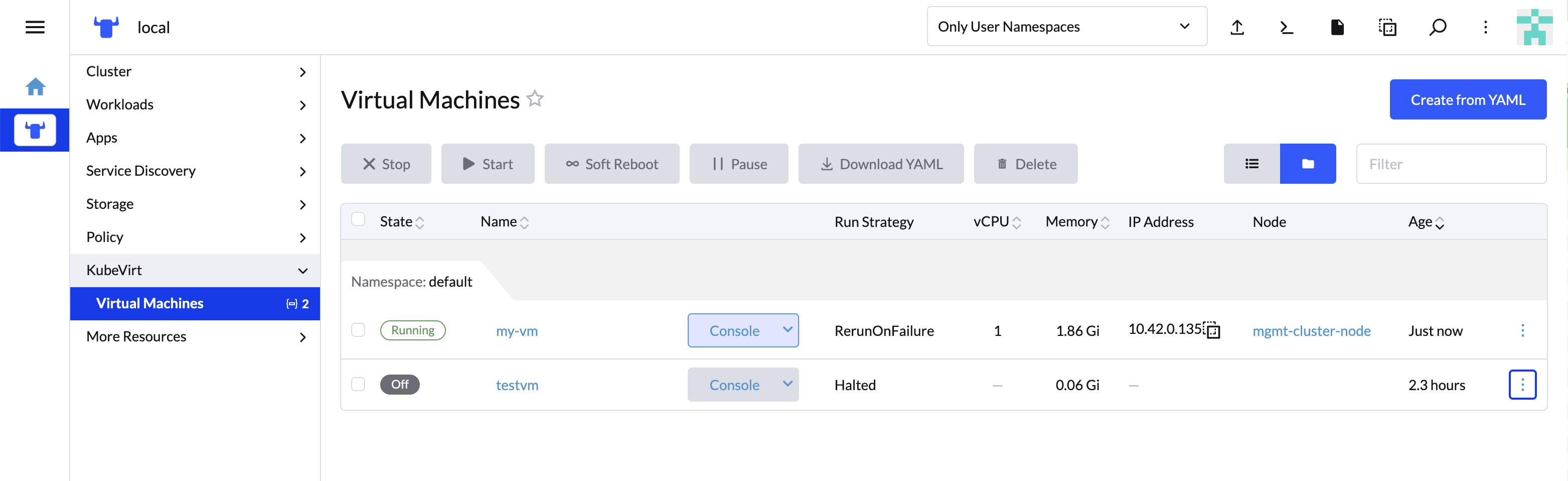
17.7.2.2 Virtual Machine Actions #
You can use the action menu accessed from the ⋮ drop-down list to the right of each virtual machine to perform start, stop, pause or soft reboot actions. Alternatively you can also use group actions at the top of the list by selecting virtual machines to perform the action on.
Performing the actions may have an effect on Virtual Machine Run Strategy. See the table in KubeVirt documentation for more details.
17.7.2.3 Accessing virtual machine console #
The "Virtual machines" list provides a Console drop-down list that allows to connect to the machine using VNC or Serial Console. This action is only available to running machines.
In some cases, it takes a short while before the console is accessible on a freshly started virtual machine.
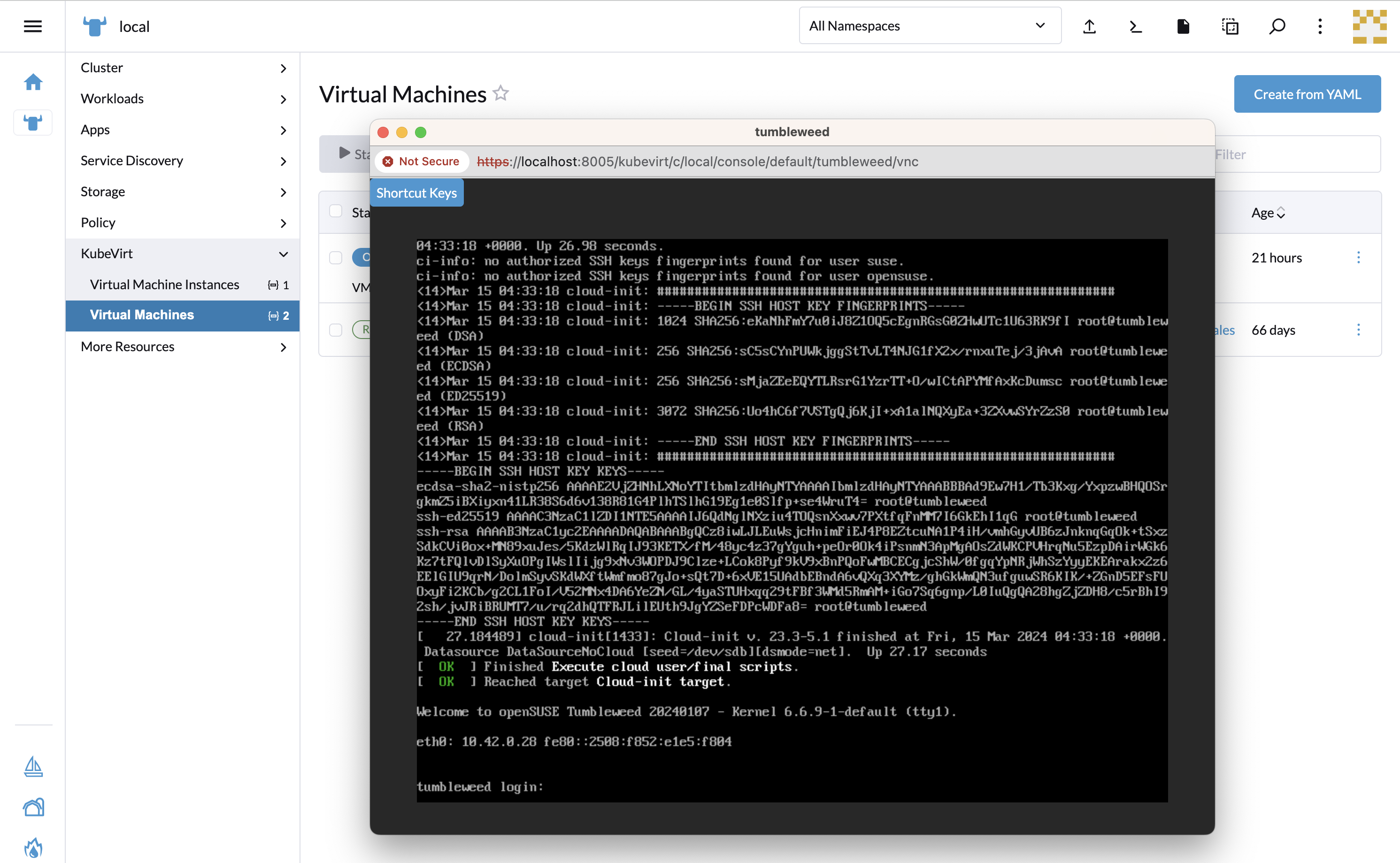
17.8 Installing with Edge Image Builder #
SUSE Edge is using Chapter 8, Edge Image Builder in order to customize base SUSE Linux Micro OS images. Follow Section 25.9, “KubeVirt and CDI Installation” for an air-gapped installation of both KubeVirt and CDI on top of Kubernetes clusters provisioned by EIB.
18 System Upgrade Controller #
See the System Upgrade Controller documentation.
The System Upgrade Controller (SUC) aims to provide a general-purpose, Kubernetes-native upgrade controller (for nodes). It introduces a new CRD, the Plan, for defining any and all of your upgrade policies/requirements. A Plan is an outstanding intent to mutate nodes in your cluster.
18.1 How does SUSE Edge use System Upgrade Controller? #
SUSE Edge uses SUC to facilitate various "Day 2" operations related to OS and Kubernetes version upgrades on management and downstream clusters.
"Day 2" operations are defined through SUC Plans. Based on these plans, SUC deploys workloads on each node to execute the respective "Day 2" operation.
SUC is also used within the Chapter 19, Upgrade Controller. To learn more about the key differences between SUC and the Upgrade Controller, see Section 19.2, “Upgrade Controller vs System Upgrade Controller”.
18.2 Installing the System Upgrade Controller #

Starting with Rancher v2.10.0, the System Upgrade Controller is installed automatically.
Follow the steps below only if your environment is not managed by Rancher, or if your Rancher version is lesser than v2.10.0.
We recommend that you install SUC through Fleet (Chapter 6, Fleet) located in the suse-edge/fleet-examples repository.
The resources offered by the suse-edge/fleet-examples repository must always be used from a valid fleet-examples release. To determine which release you need to use, refer to the Release Notes (Chapter 41, Release Notes).
If you are unable to use Fleet for the installation of SUC, you can install it through Rancher’s Helm chart repository, or incorporate the Rancher’s Helm chart in your own third-party GitOps workflow.
This section covers:
Fleet installation (Section 18.2.1, “System Upgrade Controller Fleet installation”)
Helm installation (Section 18.2.2, “System Upgrade Controller Helm installation”)
18.2.1 System Upgrade Controller Fleet installation #
Using Fleet, there are two possible resources that can be used to deploy SUC:
GitRepo resource - for use cases where an external/local Git server is available. For installation instructions, see System Upgrade Controller installation - GitRepo (Section 18.2.1.1, “System Upgrade Controller installation - GitRepo”).
Bundle resource - for air-gapped use cases that do not support a local Git server option. For installation instructions, see System Upgrade Controller installation - Bundle (Section 18.2.1.2, “System Upgrade Controller installation - Bundle”).
18.2.1.1 System Upgrade Controller installation - GitRepo #
This process can also be done through the Rancher UI, if such is available. For more information, see Accessing Fleet in the Rancher UI.
In your management cluster:
Determine on which clusters you want to deploy SUC. This is done by deploying a SUC
GitReporesource in the correct Fleet workspace on your management cluster. By default, Fleet has two workspaces:fleet-local- for resources that need to be deployed on the management cluster.fleet-default- for resources that need to be deployed on downstream clusters.For more information on Fleet workspaces, see the upstream documentation.
Deploy the
GitReporesource:To deploy SUC on your management cluster:
kubectl apply -n fleet-local -f - <<EOF
apiVersion: fleet.cattle.io/v1alpha1
kind: GitRepo
metadata:
  name: system-upgrade-controller
spec:
  revision: release-3.6.2
  paths:
  - fleets/day2/system-upgrade-controller
  repo: https://github.com/suse-edge/fleet-examples.git
EOF
To deploy SUC on your downstream clusters:
NoteBefore deploying the resource below, you must provide a valid
targetsconfiguration, so that Fleet knows on which downstream clusters to deploy your resource. For information on how to map to downstream clusters, see Mapping to Downstream Clusters.kubectl apply -n fleet-default -f - <<EOF apiVersion: fleet.cattle.io/v1alpha1 kind: GitRepo metadata: name: system-upgrade-controller spec: revision: release-3.6.2 paths: - fleets/day2/system-upgrade-controller repo: https://github.com/suse-edge/fleet-examples.git targets: - clusterSelector: CHANGEME # Example matching all clusters: # targets: # - clusterSelector: {} EOF
Validate that the
GitReporesource is deployed:# Namespace will vary based on where you want to deploy SUC kubectl get gitrepo system-upgrade-controller -n <fleet-local/fleet-default> NAME REPO COMMIT BUNDLEDEPLOYMENTS-READY STATUS system-upgrade-controller https://github.com/suse-edge/fleet-examples.git release-3.6.2 1/1Validate the System Upgrade Controller deployment:
kubectl get deployment system-upgrade-controller -n cattle-system
NAME                        READY   UP-TO-DATE   AVAILABLE   AGE
system-upgrade-controller   1/1     1            1           2m20s
18.2.1.2 System Upgrade Controller installation - Bundle #
This section illustrates how to build and deploy a Bundle resource from a standard Fleet configuration using the fleet-cli.
On a machine with network access download the
fleet-cli:NoteMake sure that the version of the fleet-cli you download matches the version of Fleet that has been deployed on your cluster.
For Mac users there is a fleet-cli Homebrew Formulae.
For Linux and Windows users the binaries are present as assets to each Fleet release.
Linux AMD:
curl -L -o fleet-cli https://github.com/rancher/fleet/releases/download/vv0.15.7/fleet-linux-amd64Linux ARM:
curl -L -o fleet-cli https://github.com/rancher/fleet/releases/download/vv0.15.7/fleet-linux-arm64
Make
fleet-cliexecutable:chmod +x fleet-cliClone the
suse-edge/fleet-examplesrelease that you wish to use:git clone -b release-3.6.2 https://github.com/suse-edge/fleet-examples.gitNavigate to the SUC fleet, located in the
fleet-examplesrepo:cd fleet-examples/fleets/day2/system-upgrade-controllerDetermine on which clusters you want to deploy SUC. This is done by deploying the SUC Bundle in the correct Fleet workspace inside your management cluster. By default, Fleet has two workspaces:
fleet-local- for resources that need to be deployed on the management cluster.fleet-default- for resources that need to be deployed on downstream clusters.For more information on Fleet workspaces, see the upstream documentation.
If you intend to deploy SUC only on downstream clusters, create a
targets.yamlfile that matches the specific clusters:cat > targets.yaml <<EOF targets: - clusterSelector: CHANGEME EOFFor information on how to map to downstream clusters, see Mapping to Downstream Clusters
Proceed to building the Bundle:
NoteMake sure you did not download the fleet-cli in the
fleet-examples/fleets/day2/system-upgrade-controllerdirectory, otherwise it will be packaged with the Bundle, which is not advised.To deploy SUC on your management cluster, execute:
fleet-cli apply --compress -n fleet-local -o - system-upgrade-controller . > system-upgrade-controller-bundle.yamlTo deploy SUC on your downstream clusters, execute:
fleet-cli apply --compress --targets-file=targets.yaml -n fleet-default -o - system-upgrade-controller . > system-upgrade-controller-bundle.yamlFor more information about this process, see Convert a Helm Chart into a Bundle.
For more information about the
fleet-cli applycommand, see fleet apply.
Transfer the
system-upgrade-controller-bundle.yamlbundle to your management cluster machine:scp system-upgrade-controller-bundle.yaml <machine-address>:<filesystem-path>On your management cluster, deploy the
system-upgrade-controller-bundle.yamlBundle:kubectl apply -f system-upgrade-controller-bundle.yamlOn your management cluster, validate that the Bundle is deployed:
# Namespace will vary based on where you want to deploy SUC
kubectl get bundle system-upgrade-controller -n <fleet-local/fleet-default>

NAME                        BUNDLEDEPLOYMENTS-READY   STATUS
system-upgrade-controller   1/1
Based on the Fleet workspace that you deployed your Bundle to, navigate to the cluster and validate the SUC deployment:
NoteSUC is always deployed in the cattle-system namespace.
kubectl get deployment system-upgrade-controller -n cattle-system
NAME                        READY   UP-TO-DATE   AVAILABLE   AGE
system-upgrade-controller   1/1     1            1           111s
18.2.2 System Upgrade Controller Helm installation #
Add the Rancher chart repository:
helm repo add rancher-charts https://charts.rancher.io/Deploy the SUC chart:
helm install system-upgrade-controller rancher-charts/system-upgrade-controller --version 109.0.2 --set global.cattle.psp.enabled=false -n cattle-system --create-namespaceThis will install SUC version v0.19.1 which is needed by the Edge 3.6 platform.
Validate the SUC deployment:
kubectl get deployment system-upgrade-controller -n cattle-system
NAME                        READY   UP-TO-DATE   AVAILABLE   AGE
system-upgrade-controller   1/1     1            1           37s
18.3 Monitoring System Upgrade Controller Plans #
SUC Plans can be viewed in the following ways:
Through the Rancher UI (Section 18.3.1, “Monitoring System Upgrade Controller Plans - Rancher UI”).
Through manual monitoring (Section 18.3.2, “Monitoring System Upgrade Controller Plans - Manual”) inside of the cluster.
Pods deployed for SUC Plans are kept alive 15 minutes after a successful execution. After that they are removed by the corresponding Job that created them. To have access to the Pod’s logs after this time period, you should enable logging for your cluster. For information on how to do this in Rancher, see Rancher Integration with Logging Services.
18.3.1 Monitoring System Upgrade Controller Plans - Rancher UI #
To check Pod logs for the specific SUC plan:
In the upper left corner, ☰ → <your-cluster-name>
Select Workloads → Pods
Select the
Only User Namespacesdrop down menu and add thecattle-systemnamespaceIn the Pod filter bar, write the name for your SUC Plan Pod. The name will be in the following template format:
apply-<plan_name>-on-<node_name>NoteThere may be both
CompletedandUnknownPods for a specific SUC Plan. This is expected and happens due to the nature of some of the upgrades.Select the pod that you want to review the logs of and navigate to ⋮ → View Logs
18.3.2 Monitoring System Upgrade Controller Plans - Manual #
The below steps assume that kubectl has been configured to connect to the cluster where the SUC Plans have been deployed to.
List deployed SUC Plans:
kubectl get plans -n cattle-systemGet Pod for SUC Plan:
kubectl get pods -l upgrade.cattle.io/plan=<plan_name> -n cattle-systemNoteThere may be both
CompletedandUnknownPods for a specific SUC Plan. This is expected and happens due to the nature of some of the upgrades.Get logs for the Pod:
kubectl logs <pod_name> -n cattle-system
19 Upgrade Controller #
A Kubernetes controller capable of performing upgrades over the following SUSE Edge platform components:
Operating System (SUSE Linux Micro)
Kubernetes (K3s & RKE2)
Additional components (Rancher, Elemental, SUSE Security, etc.)
The Upgrade Controller streamlines the upgrade process for the components mentioned above by encapsulating their complexities within a single user-facing resource that serves as a trigger for the upgrade. Users only need to configure this resource and the Upgrade Controller takes care of the rest.
The Upgrade Controller currently supports SUSE Edge platform upgrades only for non air-gapped management clusters. Refer to the Section 19.8, “Known Limitations” section for more information.
19.1 How does SUSE Edge use Upgrade Controller? #
The Upgrade Controller is essential in automating the (formerly manual) "Day 2" operations required to upgrade management clusters from one SUSE Edge release version to the next.
To achieve this automation, the Upgrade Controller utilizes tools such as the System Upgrade Controller (Chapter 18, System Upgrade Controller) and the Helm Controller.
For further details on how the Upgrade Controller works, see Section 19.5, “How does the Upgrade Controller work?”.
For known limitations that the Upgrade Controller has, see Section 19.8, “Known Limitations”.
For information on the difference between the Upgrade Controller and the System Upgrade Controller, see Section 19.2, “Upgrade Controller vs System Upgrade Controller”.
19.2 Upgrade Controller vs System Upgrade Controller #
The System Upgrade Controller (SUC) (Chapter 18, System Upgrade Controller) is a general-purpose tool that propagates upgrade instructions to specific Kubernetes nodes.
While it supports some "Day 2" operations for the SUSE Edge platform, it does not cover all of them. Moreover, even for supported operations, users have to manually configure, maintain, and deploy multiple SUC Plans — an error-prone process that can lead to unexpected issues.
This led to the need for a tool that automates and abstracts the complexity of managing various "Day 2" operations for the SUSE Edge platform. Thus, the Upgrade Controller was developed. It simplifies the upgrade process by introducing a single user-facing resource that drives the upgrade. Users only need to manage this resource, while the Upgrade Controller takes care of the rest.
19.3 Installing the Upgrade Controller #
19.3.1 Prerequisites #
System Upgrade Controller (Section 18.2, “Installing the System Upgrade Controller”)
A Kubernetes cluster; either K3s or RKE2
19.3.2 Steps #
Install the Upgrade Controller Helm chart on your management cluster:
helm install upgrade-controller oci://registry.suse.com/edge/charts/upgrade-controller --version 306.0.5+up0.1.3 --create-namespace --namespace upgrade-controller-systemValidate the Upgrade Controller deployment:
kubectl get deployment -n upgrade-controller-systemValidate the Upgrade Controller pod:
kubectl get pods -n upgrade-controller-systemValidate the Upgrade Controller pod logs:
kubectl logs <pod_name> -n upgrade-controller-system
19.4 Installing the Upgrade Controller via Edge Image Builder #
As an alternative to the manual installation described above, it is possible to install the upgrade controller as part of the initial deployment orchestrated by Edge Image Builder (Chapter 8, Edge Image Builder).
In this case it is necessary to add the following helm chart configuration to the EIB configuration file:
kubernetes:
  helm:
    charts:
      - name: cert-manager
        repositoryName: jetstack
        version: {version-cert-manager}
        targetNamespace: cert-manager
        valuesFile: certmanager-values.yaml
        createNamespace: true
        installationNamespace: kube-system
      - name: upgrade-controller
        version: {version-upgrade-controller-chart}
        repositoryName: suse-edge-charts
        targetNamespace: upgrade-controller-system
        createNamespace: true
        installationNamespace: kube-system
19.5 How does the Upgrade Controller work? #
In order to perform an Edge release upgrade, the Upgrade Controller introduces two new Kubernetes custom resources:
UpgradePlan (Section 19.6.1, “UpgradePlan”) - created by the user; holds configurations regarding an Edge release upgrade.
ReleaseManifest (Section 19.6.2, “ReleaseManifest”) - created by the Upgrade Controller; holds component versions specific to a particular Edge release version. This file must not be edited by users.
The Upgrade Controller proceeds to create a ReleaseManifest resource that holds the component data for the Edge release version specified by the user under the releaseVersion property in the UpgradePlan resource.
Using the component data from the ReleaseManifest, the Upgrade Controller proceeds to upgrade the Edge release components in the following order:
Operating System (OS) (Section 19.5.1, “Operating System upgrade”).
Kubernetes (Section 19.5.2, “Kubernetes upgrade”).
Additional components (Section 19.5.3, “Additional components upgrades”).
During the upgrade process, the Upgrade Controller continually outputs upgrade information to the created UpgradePlan. For more information on how to track the upgrade process, see Tracking the upgrade process (Section 19.7, “Tracking the upgrade process”).
19.5.1 Operating System upgrade #
To upgrade the operating system, the Upgrade Controller creates SUC (Chapter 18, System Upgrade Controller) Plans that have the following naming template:
For SUC Plans related to control plane node OS upgrades -
control-plane-<os-name>-<os-version>-<suffix>.For SUC Plans related to worker node OS upgrades -
workers-<os-name>-<os-version>-<suffix>.
Based on these plans, SUC proceeds to create workloads on each node of the cluster that perform the actual OS upgrade.
Depending on the ReleaseManifest, the OS upgrade may include:
Package only updates - for use-cases where the OS version does not change between Edge releases.
Full OS migration - for use-cases where the OS version changes between Edge releases.
The upgrade is executed one node at a time starting with the control plane nodes first. Only if the control-plane node upgrade finishes will the worker nodes begin to be upgraded.
The Upgrade Controller configures the OS SUC Plans to do perform a drain of the cluster nodes if the cluster has more than one node of the specified type.
For clusters where the control plane nodes are greater than one and there is only one worker node, a drain will be performed only for the control plane nodes and vice versa.
For information on how to disable node drains altogether, see the UpgradePlan (Section 19.6.1, “UpgradePlan”) section.
19.5.2 Kubernetes upgrade #
To upgrade the Kubernetes distribution of a cluster, the Upgrade Controller creates SUC (Chapter 18, System Upgrade Controller) Plans that have the following naming template:
For SUC Plans related to control plane node Kubernetes upgrades -
control-plane-<k8s-version>-<suffix>.For SUC Plans related to worker node Kubernetes upgrades -
workers-<k8s-version>-<suffix>.
Based on these plans, SUC proceeds to create workloads on each node of the cluster that perform the actual Kubernetes upgrade.
The Kubernetes upgrade will happen one node at a time starting with the control plane nodes first. Only if the control plane node upgrade finishes will the worker nodes begin to be upgraded.
The Upgrade Controller configures the Kubernetes SUC Plans to perform a drain of the cluster nodes if the cluster has more than one node of the specified type.
For clusters where the control plane nodes are greater than one and there is only one worker node, a drain will be performed only for the control plane nodes and vice versa.
For information on how to disable node drains altogether, see Section 19.6.1, “UpgradePlan”.
19.5.3 Additional components upgrades #
Currently, all additional components are installed via Helm charts. For a full list of the components for a specific release, refer to the Release Notes (Chapter 41, Release Notes).
For Helm charts deployed through EIB (Chapter 8, Edge Image Builder), the Upgrade Controller updates the existing HelmChart CR of each component.
For Helm charts deployed outside of EIB, the Upgrade Controller creates a HelmChart resource for each component.
After the creation/update of the HelmChart resource, the Upgrade Controller relies on the helm-controller to pick up this change and proceed with the actual component upgrade.
Charts will be upgraded sequentially based on their order in the ReleaseManifest. Additional values can also be passed through the UpgradePlan. If a chart’s version remains unchanged in the new SUSE Edge release, it will not be upgraded. For more information about this, refer to Section 19.6.1, “UpgradePlan”.
19.6 Kubernetes API extensions #
Extensions to the Kubernetes API introduced by the Upgrade Controller.
19.6.1 UpgradePlan #
The Upgrade Controller introduces a new Kubernetes custom resource called an UpgradePlan.
The UpgradePlan serves as an instruction mechanism for the Upgrade Controller and it supports the following configurations:
releaseVersion- Edge release version to which the cluster should be upgraded to. The release version must follow semantic versioning and should be retrieved from the Release Notes (Chapter 41, Release Notes).disableDrain- Optional; instructs the Upgrade Controller on whether to disable node drains. Useful for when you have workloads with Disruption Budgets.Example for control plane node drain disablement:
spec:
  disableDrain:
    controlPlane: true
Example for control plane and worker node drain disablement:
spec:
  disableDrain:
    controlPlane: true
    worker: true
helm- Optional; specifies additional values for components installed via Helm.WarningIt is only advised to use this field for values that are critical for upgrades. Standard chart value updates should be performed after the respective charts have been upgraded to the next version.
Example:
spec:
  helm:
  - chart: foo
    values:
      bar: baz
19.6.2 ReleaseManifest #
The Upgrade Controller introduces a new Kubernetes custom resource called a ReleaseManifest.
The ReleaseManifest resource is created by the Upgrade Controller and holds component data for one specific Edge release version. This means that each Edge release version upgrade will be represented by a different ReleaseManifest resource.
The Release Manifest should always be created by the Upgrade Controller.
It is not advisable to manually create or edit the ReleaseManifest resources. Users that decide to do so should do this at their own risk.
Component data that the Release Manifest ships include, but is not limited to:
For an example of how a Release Manifest can look, refer to the upstream documentation. Please note that this is just an example and it is not intended to be created as a valid ReleaseManifest resource.
19.7 Tracking the upgrade process #
This section serves as means to track and debug the upgrade process that the Upgrade Controller initiates once the user creates an UpgradePlan resource.
19.7.1 General #
General information about the state of the upgrade process can be viewed in the Upgrade Plan’s status conditions.
The Upgrade Plan resource’s status can be viewed in the following way:
kubectl get upgradeplan <upgradeplan_name> -n upgrade-controller-system -o yamlapiVersion: lifecycle.suse.com/v1alpha1
kind: UpgradePlan
metadata:
name: upgrade-plan-mgmt
namespace: upgrade-controller-system
spec:
releaseVersion: 3.6
status:
conditions:
- lastTransitionTime: "2024-10-01T06:26:27Z"
message: Control plane nodes are being upgraded
reason: InProgress
status: "False"
type: OSUpgraded
- lastTransitionTime: "2024-10-01T06:26:27Z"
message: Kubernetes upgrade is not yet started
reason: Pending
status: Unknown
type: KubernetesUpgraded
- lastTransitionTime: "2024-10-01T06:26:27Z"
message: Rancher upgrade is not yet started
reason: Pending
status: Unknown
type: RancherUpgraded
- lastTransitionTime: "2024-10-01T06:26:27Z"
message: Longhorn upgrade is not yet started
reason: Pending
status: Unknown
type: LonghornUpgraded
- lastTransitionTime: "2024-10-01T06:26:27Z"
message: MetalLB upgrade is not yet started
reason: Pending
status: Unknown
type: MetalLBUpgraded
- lastTransitionTime: "2024-10-01T06:26:27Z"
message: CDI upgrade is not yet started
reason: Pending
status: Unknown
type: CDIUpgraded
- lastTransitionTime: "2024-10-01T06:26:27Z"
message: KubeVirt upgrade is not yet started
reason: Pending
status: Unknown
type: KubeVirtUpgraded
- lastTransitionTime: "2024-10-01T06:26:27Z"
message: NeuVector upgrade is not yet started
reason: Pending
status: Unknown
type: NeuVectorUpgraded
- lastTransitionTime: "2024-10-01T06:26:27Z"
message: EndpointCopierOperator upgrade is not yet started
reason: Pending
status: Unknown
type: EndpointCopierOperatorUpgraded
- lastTransitionTime: "2024-10-01T06:26:27Z"
message: Elemental upgrade is not yet started
reason: Pending
status: Unknown
type: ElementalUpgraded
- lastTransitionTime: "2024-10-01T06:26:27Z"
message: SRIOV upgrade is not yet started
reason: Pending
status: Unknown
type: SRIOVUpgraded
- lastTransitionTime: "2024-10-01T06:26:27Z"
message: Metal3 upgrade is not yet started
reason: Pending
status: Unknown
type: Metal3Upgraded
- lastTransitionTime: "2024-10-01T06:26:27Z"
message: RancherTurtles upgrade is not yet started
reason: Pending
status: Unknown
type: RancherTurtlesUpgraded
observedGeneration: 1
sucNameSuffix: 90315a2b6dHere you can view every component that the Upgrade Controller will try to schedule an upgrade for. Each condition follows the below template:
lastTransitionTime- the last time that this component condition has transitioned from one status to another.message- message that indicates the current upgrade state of the specific component condition.reason- the current upgrade state of the specific component condition. Possiblereasonsinclude:Succeeded- upgrade of the specific component is successful.Failed- upgrade of the specific component has failed.InProgress- upgrade of the specific component is currently in progress.Pending- upgrade of the specific component is not yet scheduled.Skipped- specific component is not found on the cluster, so its upgrade will be skipped.Error- specific component has encountered a transient error.
status- status of the current conditiontype, one ofTrue,False,Unknown.type- indicator for the currently upgraded component.
The Upgrade Controller creates SUC Plans for component conditions of type OSUpgraded and KubernetesUpgraded. To further track the SUC Plans created for these components, refer to Section 18.3, “Monitoring System Upgrade Controller Plans”.
All other component condition types can be further tracked by viewing the resources created for them by the helm-controller. For more information, see Section 19.7.2, “Helm Controller”.
An Upgrade Plan scheduled by the Upgrade Controller can be marked as successful once:
There are no
PendingorInProgresscomponent conditions.The
lastSuccessfulReleaseVersionproperty points to thereleaseVersionthat is specified in the Upgrade Plan’s configuration. This property is added to the Upgrade Plan’s status by the Upgrade Controller once the upgrade process is successful.
UpgradePlan example: #apiVersion: lifecycle.suse.com/v1alpha1
kind: UpgradePlan
metadata:
name: upgrade-plan-mgmt
namespace: upgrade-controller-system
spec:
releaseVersion: 3.6
status:
conditions:
- lastTransitionTime: "2024-10-01T06:26:48Z"
message: All cluster nodes are upgraded
reason: Succeeded
status: "True"
type: OSUpgraded
- lastTransitionTime: "2024-10-01T06:26:59Z"
message: All cluster nodes are upgraded
reason: Succeeded
status: "True"
type: KubernetesUpgraded
- lastTransitionTime: "2024-10-01T06:27:13Z"
message: Chart rancher upgrade succeeded
reason: Succeeded
status: "True"
type: RancherUpgraded
- lastTransitionTime: "2024-10-01T06:27:13Z"
message: Chart longhorn is not installed
reason: Skipped
status: "False"
type: LonghornUpgraded
- lastTransitionTime: "2024-10-01T06:27:13Z"
message: Specified version of chart metallb is already installed
reason: Skipped
status: "False"
type: MetalLBUpgraded
- lastTransitionTime: "2024-10-01T06:27:13Z"
message: Chart cdi is not installed
reason: Skipped
status: "False"
type: CDIUpgraded
- lastTransitionTime: "2024-10-01T06:27:13Z"
message: Chart kubevirt is not installed
reason: Skipped
status: "False"
type: KubeVirtUpgraded
- lastTransitionTime: "2024-10-01T06:27:13Z"
message: Chart neuvector-crd is not installed
reason: Skipped
status: "False"
type: NeuVectorUpgraded
- lastTransitionTime: "2024-10-01T06:27:14Z"
message: Specified version of chart endpoint-copier-operator is already installed
reason: Skipped
status: "False"
type: EndpointCopierOperatorUpgraded
- lastTransitionTime: "2024-10-01T06:27:14Z"
message: Chart elemental-operator upgrade succeeded
reason: Succeeded
status: "True"
type: ElementalUpgraded
- lastTransitionTime: "2024-10-01T06:27:15Z"
message: Chart sriov-crd is not installed
reason: Skipped
status: "False"
type: SRIOVUpgraded
- lastTransitionTime: "2024-10-01T06:27:19Z"
message: Chart metal3 is not installed
reason: Skipped
status: "False"
type: Metal3Upgraded
- lastTransitionTime: "2024-10-01T06:27:27Z"
message: Chart rancher-turtles is not installed
reason: Skipped
status: "False"
type: RancherTurtlesUpgraded
lastSuccessfulReleaseVersion: 3.6
observedGeneration: 1
sucNameSuffix: 90315a2b6d19.7.2 Helm Controller #
This section covers how to track resources created by the helm-controller.
The below steps assume that kubectl has been configured to connect to the cluster where the Upgrade Controller has been deployed to.
Locate the
HelmChartresource for the specific component:kubectl get helmcharts -n kube-systemUsing the name of the
HelmChartresource, locate the upgrade Pod that was created by thehelm-controller:kubectl get pods -l helmcharts.helm.cattle.io/chart=<helmchart_name> -n kube-system # Example for Rancher kubectl get pods -l helmcharts.helm.cattle.io/chart=rancher -n kube-system NAME READY STATUS RESTARTS AGE helm-install-rancher-tv9wn 0/1 Completed 0 16mView the logs of the component specific pod:
kubectl logs <pod_name> -n kube-system
19.8 Known Limitations #
Downstream cluster upgrades are not yet managed by the Upgrade Controller. For information on how to upgrade downstream clusters, refer to Chapter 33, Downstream clusters.
The Upgrade Controller expects any additional SUSE Edge Helm charts that are deployed through EIB (Chapter 8, Edge Image Builder) to have their HelmChart CR deployed in the
kube-systemnamespace. To do this, configure theinstallationNamespaceproperty in your EIB definition file. For more information, see the upstream documentation.Currently the Upgrade Controller has no way to determine the current running Edge release version on the management cluster. Ensure to provide an Edge release version that is greater than the currently running Edge release version on the cluster.
Currently the Upgrade Controller supports non air-gapped environment upgrades only. Air-gapped upgrades are not yet possible.
20 SUSE Multi-Linux Manager #
SUSE Multi-Linux Manager is included in SUSE Edge to provide automation and control for keeping SUSE Linux Micro as the underlying operating system consistently up-to-date on all nodes of your edge deployment.
For more information please refer to the Chapter 3, SUSE Multi-Linux Manager and the SUSE Multi-Linux Manager Documentation.
Part III How-To Guides #
How-to guides and best practices
- 21 MetalLB on K3s (using Layer 2 Mode)
MetalLB is a load-balancer implementation for bare-metal Kubernetes clusters, using standard routing protocols.
- 22 MetalLB on K3s (using Layer 3 Mode)
MetalLB is a load-balancer implementation for bare-metal Kubernetes clusters, using standard routing protocols.
- 23 MetalLB on K3s (using FRR-K8s Mode)
MetalLB is a load-balancer implementation for bare-metal Kubernetes clusters, using standard routing protocols.
- 24 MetalLB in front of the Kubernetes API server
This guide demonstrates using a MetalLB service to expose the RKE2/K3s API externally on an HA cluster with three control-plane nodes. To achieve this, a Kubernetes Service of type LoadBalancer will be manually created. Then an EndpointSlices object will be automatically created which keeps the IPs …
- 25 Air-gapped deployments with Edge Image Builder
This guide will show how to deploy several of the SUSE Edge components completely air-gapped on SUSE Linux Micro 6.2 utilizing Edge Image Builder(EIB) (Chapter 8, Edge Image Builder). With this, you’ll be able to boot into a customized, ready to boot (CRB) image created by EIB and have the specified…
- 26 Building Updated SUSE Linux Micro Images with Kiwi
This section explains how to generate updated SUSE Linux Micro images to be used with Edge Image Builder, with Cluster API (CAPI) + Metal3, or to write the disk image directly to a block device. This process is useful in situations where the latest patches are required to be included in the initial …
21 MetalLB on K3s (using Layer 2 Mode) #
MetalLB is a load-balancer implementation for bare-metal Kubernetes clusters, using standard routing protocols.
In this guide, we demonstrate how to deploy MetalLB in layer 2 (L2) mode.
21.1 Why use MetalLB #
MetalLB is a compelling choice for load balancing in bare-metal Kubernetes clusters for several reasons:
Native Integration with Kubernetes: MetalLB seamlessly integrates with Kubernetes, making it easy to deploy and manage using familiar Kubernetes tools and practices.
Bare-Metal Compatibility: Unlike cloud-based load balancers, MetalLB is designed specifically for on-premises deployments where traditional load balancers might not be available or feasible.
Supports Multiple Protocols: MetalLB supports both Layer 2 and BGP (Border Gateway Protocol) modes, providing flexibility for different network architectures and requirements.
High Availability: By distributing load-balancing responsibilities across multiple nodes, MetalLB ensures high availability and reliability for your services.
Scalability: MetalLB can handle large-scale deployments, scaling alongside your Kubernetes cluster to meet increasing demand.
In layer 2 mode, one node assumes the responsibility of advertising a service to the local network. From the network’s perspective, it simply looks like that machine has multiple IP addresses assigned to its network interface.
The major advantage of the layer 2 mode is its universality: it works on any Ethernet network, with no special hardware required, not even fancy routers.
21.2 MetalLB on K3s (using L2) #
In this quick start, L2 mode will be used. This means we do not need any special network equipment but three free IPs within the network range.
21.3 Prerequisites #
A K3s cluster where MetalLB is going to be deployed.
K3S comes with its own service load balancer named Klipper. You need to disable it to run MetalLB. To disable Klipper, K3s needs to be installed using the --disable=servicelb flag.
Helm
Three free IP adressess within the network range. In this example
192.168.122.10-192.168.122.12
You must make sure these IP addresses are unassigned. In a DHCP environment these addresses must not be part of the DHCP pool to avoid dual assignments.
21.4 Deployment #
We will be using the MetalLB Helm chart published as part of the SUSE Edge solution:
helm install \
  metallb oci://registry.suse.com/edge/charts/metallb \
  --namespace metallb-system \
  --create-namespace

while ! kubectl wait --for condition=ready -n metallb-system $(kubectl get\
 pods -n metallb-system -l app.kubernetes.io/component=controller -o name)\
 --timeout=10s; do
 sleep 2
done
21.5 Configuration #
At this point, the installation is completed. Now it is time to configure using our example values:
cat <<-EOF | kubectl apply -f -
apiVersion: metallb.io/v1beta1
kind: IPAddressPool
metadata:
  name: ip-pool
  namespace: metallb-system
spec:
  addresses:
  - 192.168.122.10/32
  - 192.168.122.11/32
  - 192.168.122.12/32
EOF
cat <<-EOF | kubectl apply -f -
apiVersion: metallb.io/v1beta1
kind: L2Advertisement
metadata:
name: ip-pool-l2-adv
namespace: metallb-system
spec:
ipAddressPools:
- ip-pool
EOFNow, it is ready to be used. You can customize many things for L2 mode, such as:
And a lot more for BGP.
21.5.1 Traefik and MetalLB #
Traefik is deployed by default with K3s (it can be disabled with --disable=traefik) and it is by default exposed as LoadBalancer (to be used with Klipper). However, as Klipper needs to be disabled, Traefik service for ingress is still a LoadBalancer type. So at the moment of deploying MetalLB, the first IP will be assigned automatically to Traefik Ingress.
# Before deploying MetalLB
kubectl get svc -n kube-system traefik
NAME      TYPE           CLUSTER-IP     EXTERNAL-IP   PORT(S)                      AGE
traefik   LoadBalancer   10.43.44.113   <pending>     80:31093/TCP,443:32095/TCP   28s
# After deploying MetalLB
kubectl get svc -n kube-system traefik
NAME      TYPE           CLUSTER-IP     EXTERNAL-IP      PORT(S)                      AGE
traefik   LoadBalancer   10.43.44.113   192.168.122.10   80:31093/TCP,443:32095/TCP   3m10s
This will be applied later (Section 21.6.1, “Ingress with MetalLB”) in the process.
21.6 Usage #
Let us create an example deployment:
cat <<- EOF | kubectl apply -f -
---
apiVersion: v1
kind: Namespace
metadata:
  name: hello-kubernetes
---
apiVersion: v1
kind: ServiceAccount
metadata:
  name: hello-kubernetes
  namespace: hello-kubernetes
  labels:
    app.kubernetes.io/name: hello-kubernetes
---
apiVersion: apps/v1
kind: Deployment
metadata:
  name: hello-kubernetes
  namespace: hello-kubernetes
  labels:
    app.kubernetes.io/name: hello-kubernetes
spec:
  replicas: 2
  selector:
    matchLabels:
      app.kubernetes.io/name: hello-kubernetes
  template:
    metadata:
      labels:
        app.kubernetes.io/name: hello-kubernetes
    spec:
      serviceAccountName: hello-kubernetes
      containers:
        - name: hello-kubernetes
          image: "paulbouwer/hello-kubernetes:1.10"
          imagePullPolicy: IfNotPresent
          ports:
            - name: http
              containerPort: 8080
              protocol: TCP
          livenessProbe:
            httpGet:
              path: /
              port: http
          readinessProbe:
            httpGet:
              path: /
              port: http
          env:
          - name: HANDLER_PATH_PREFIX
            value: ""
          - name: RENDER_PATH_PREFIX
            value: ""
          - name: KUBERNETES_NAMESPACE
            valueFrom:
              fieldRef:
                fieldPath: metadata.namespace
          - name: KUBERNETES_POD_NAME
            valueFrom:
              fieldRef:
                fieldPath: metadata.name
          - name: KUBERNETES_NODE_NAME
            valueFrom:
              fieldRef:
                fieldPath: spec.nodeName
          - name: CONTAINER_IMAGE
            value: "paulbouwer/hello-kubernetes:1.10"
EOF
And finally, the service:
cat <<- EOF | kubectl apply -f -
apiVersion: v1
kind: Service
metadata:
  name: hello-kubernetes
  namespace: hello-kubernetes
  labels:
    app.kubernetes.io/name: hello-kubernetes
spec:
  type: LoadBalancer
  ports:
    - port: 80
      targetPort: http
      protocol: TCP
      name: http
  selector:
    app.kubernetes.io/name: hello-kubernetes
EOF
Let us see it in action:
kubectl get svc -n hello-kubernetes
NAME               TYPE           CLUSTER-IP     EXTERNAL-IP      PORT(S)        AGE
hello-kubernetes   LoadBalancer   10.43.127.75   192.168.122.11   80:31461/TCP   8s

curl http://192.168.122.11
<!DOCTYPE html>
<html>
<head>
    <title>Hello Kubernetes!</title>
    <link rel="stylesheet" type="text/css" href="/css/main.css">
    <link rel="stylesheet" href="https://fonts.googleapis.com/css?family=Ubuntu:300" >
</head>
<body>

  <div class="main">
    <img src="/images/kubernetes.png"/>
    <div class="content">
      <div id="message">
  Hello world!
</div>
<div id="info">
  <table>
    <tr>
      <th>namespace:</th>
      <td>hello-kubernetes</td>
    </tr>
    <tr>
      <th>pod:</th>
      <td>hello-kubernetes-7c8575c848-2c6ps</td>
    </tr>
    <tr>
      <th>node:</th>
      <td>allinone (Linux 5.14.21-150400.24.46-default)</td>
    </tr>
  </table>
</div>
<div id="footer">
  paulbouwer/hello-kubernetes:1.10 (linux/amd64)
</div>
    </div>
  </div>

</body>
</html>
21.6.1 Ingress with MetalLB #
As Traefik is already serving as an ingress controller, we can expose any HTTP/HTTPS traffic via an Ingress object such as:
IP=$(kubectl get svc -n kube-system traefik -o jsonpath="{.status.loadBalancer.ingress[0].ip}")
cat <<- EOF | kubectl apply -f -
apiVersion: networking.k8s.io/v1
kind: Ingress
metadata:
  name: hello-kubernetes-ingress
  namespace: hello-kubernetes
spec:
  rules:
  - host: hellok3s.${IP}.sslip.io
    http:
      paths:
        - path: "/"
          pathType: Prefix
          backend:
            service:
              name: hello-kubernetes
              port:
                name: http
EOF
And then:
curl http://hellok3s.${IP}.sslip.io
<!DOCTYPE html>
<html>
<head>
    <title>Hello Kubernetes!</title>
    <link rel="stylesheet" type="text/css" href="/css/main.css">
    <link rel="stylesheet" href="https://fonts.googleapis.com/css?family=Ubuntu:300" >
</head>
<body>

  <div class="main">
    <img src="/images/kubernetes.png"/>
    <div class="content">
      <div id="message">
  Hello world!
</div>
<div id="info">
  <table>
    <tr>
      <th>namespace:</th>
      <td>hello-kubernetes</td>
    </tr>
    <tr>
      <th>pod:</th>
      <td>hello-kubernetes-7c8575c848-fvqm2</td>
    </tr>
    <tr>
      <th>node:</th>
      <td>allinone (Linux 5.14.21-150400.24.46-default)</td>
    </tr>
  </table>
</div>
<div id="footer">
  paulbouwer/hello-kubernetes:1.10 (linux/amd64)
</div>
    </div>
  </div>

</body>
</html>
Verify that MetalLB works correctly:
% arping hellok3s.${IP}.sslip.io

ARPING 192.168.64.210
60 bytes from 92:12:36:00:d3:58 (192.168.64.210): index=0 time=1.169 msec
60 bytes from 92:12:36:00:d3:58 (192.168.64.210): index=1 time=2.992 msec
60 bytes from 92:12:36:00:d3:58 (192.168.64.210): index=2 time=2.884 msec
In the example above, the traffic flows as follows:
hellok3s.${IP}.sslip.iois resolved to the actual IP.Then the traffic is handled by the
metallb-speakerpod.metallb-speakerredirects the traffic to thetraefikcontroller.Finally, Traefik forwards the request to the
hello-kubernetesservice.
22 MetalLB on K3s (using Layer 3 Mode) #
MetalLB is a load-balancer implementation for bare-metal Kubernetes clusters, using standard routing protocols.
In this guide, we demonstrate how to deploy MetalLB in layer 3 (L3) BGP mode.
22.1 Why use MetalLB #
MetalLB is a compelling choice for load balancing in bare-metal Kubernetes clusters for several reasons:
Native Integration with Kubernetes: MetalLB seamlessly integrates with Kubernetes, making it easy to deploy and manage using familiar Kubernetes tools and practices.
Bare-Metal Compatibility: Unlike cloud-based load balancers, MetalLB is designed specifically for on-premises deployments where traditional load balancers might not be available or feasible.
Supports Multiple Protocols: MetalLB supports both Layer 2 and Layer 3 BGP (Border Gateway Protocol) modes, providing flexibility for different network architectures and requirements.
High Availability: By distributing load-balancing responsibilities across multiple nodes, MetalLB ensures high availability and reliability for your services.
Scalability: MetalLB can handle large-scale deployments, scaling alongside your Kubernetes cluster to meet increasing demand.
In layer 2 mode, one node assumes the responsibility of advertising a service to the local network. From the network’s perspective, it simply looks like that machine has multiple IP addresses assigned to its network interface.
The major advantage of the layer 2 mode is its universality: it works on any Ethernet network, with no special hardware required, not even fancy routers.
22.2 MetalLB on K3s (using L3) #
In this quick start, L3 mode is used. This means that we need to have neighboring router(s) with BGP capabilities within the network range.
22.3 Prerequisites #
A K3s cluster where MetalLB is going to be deployed.
Router(s) on the network that support the BGP protocol.
A free IP address within the network range for the service. In this example
192.168.10.100
You must make sure this IP address is unassigned. In a DHCP environment this address must not be part of the DHCP pool to avoid dual assignments.
22.4 Configuration to Advertise Service IP Addresses #
Out of the box BGP advertises a Service IP address to all the peers that are configured. These peers, which are usually routers, will receive a route for each Service IP address with a 32 bit network mask. In this examlple we will use an FRR based router and is on the same network as our cluster. We will then use MetalLB’s BGP capability to advertise a service to that FRR based router.
22.5 Deployment #
We will be using the MetalLB Helm chart published as part of the SUSE Edge solution:
helm install \
  metallb oci://registry.suse.com/edge/charts/metallb \
  --namespace metallb-system \
  --create-namespace

while ! kubectl wait --for condition=ready -n metallb-system $(kubectl get\
 pods -n metallb-system -l app.kubernetes.io/component=controller -o name)\
 --timeout=10s; do
 sleep 2
done
22.6 Configuration #
At this point, the installation is complete. Create an
IPAddressPool:
cat <<-EOF | kubectl apply -f -
apiVersion: metallb.io/v1beta1
kind: IPAddressPool
metadata:
  name: bgp-pool
  namespace: metallb-system
  labels:
    app: httpd
spec:
  addresses:
  - 192.168.10.100/32
  autoAssign: true
  avoidBuggyIPs: false
  serviceAllocation:
    namespaces:
    - metallb-system
    priority: 100
    serviceSelectors:
    - matchExpressions:
      - key: serviceType
        operator: In
        values:
        - httpd
EOF
Configure a
BGPPeer.
The FRR router has ASN 1000 while our BGPPeer will have 1001. We can also see that the FRR Router has an IP
address that is 192.168.3.140.
cat <<-EOF | kubectl apply -f -
apiVersion: metallb.io/v1beta2
kind: BGPPeer
metadata:
  namespace: metallb-system
  name: mypeertest
spec:
  peerAddress: 192.168.3.140
  peerASN: 1000
  myASN: 1001
  routerID: 4.4.4.4
EOF
Create the BGPAdvertisement (L3):
cat <<-EOF | kubectl apply -f -
apiVersion: metallb.io/v1beta1
kind: BGPAdvertisement
metadata:
  name: bgpadvertisement-test
  namespace: metallb-system
spec:
  ipAddressPools:
  - bgp-pool
EOF
22.7 Usage #
Create an example application with a service. In this case, IP address from the
IPAddressPoolis192.168.10.100for that service.
cat <<- EOF | kubectl apply -f -
apiVersion: apps/v1
kind: Deployment
metadata:
  name: httpd-deployment
  namespace: metallb-system
  labels:
    app: httpd
spec:
  replicas: 3
  selector:
    matchLabels:
      pod-label: httpd
  template:
    metadata:
      labels:
        pod-label: httpd
    spec:
      containers:
      - name: httpdcontainer
        image: image: docker.io/library/httpd:2.4
        ports:
          - containerPort: 80
            protocol: TCP
      restartPolicy: Always

---
apiVersion: v1
kind: Service
metadata:
  name: http-service
  namespace: metallb-system
  labels:
    serviceType: httpd
spec:
  selector:
    pod-label: httpd
  type: LoadBalancer
  ports:
  - protocol: TCP
    port: 8080
    name: 8080-tcp
    targetPort: 80
EOF
To verify, log onto the FRR Router to can see the routes created from the BGP advertisement.
42178089cba5# show ip bgp all

For address family: IPv4 Unicast
BGP table version is 3, local router ID is 2.2.2.2, vrf id 0
Default local pref 100, local AS 1000
Status codes:  s suppressed, d damped, h history, * valid, > best, = multipath,
               i internal, r RIB-failure, S Stale, R Removed
Nexthop codes: @NNN nexthop's vrf id, < announce-nh-self
Origin codes:  i - IGP, e - EGP, ? - incomplete
RPKI validation codes: V valid, I invalid, N Not found

   Network          Next Hop            Metric LocPrf Weight Path
* i172.16.0.0/24    1.1.1.1                  0    100      0 i
*>                  0.0.0.0                  0         32768 i
* i172.17.0.0/24    3.3.3.3                  0    100      0 i
*>                  0.0.0.0                  0         32768 i
*= 192.168.10.100/32
                    192.168.3.162                          0 1001 i
*=                  192.168.3.163                          0 1001 i
*>                  192.168.3.161                          0 1001 i

Displayed  3 routes and 7 total paths
kubectl get svc -n hello-kubernetes
NAME               TYPE           CLUSTER-IP     EXTERNAL-IP      PORT(S)        AGE
hello-kubernetes   LoadBalancer   10.43.127.75   192.168.122.11   80:31461/TCP   8s
If this router is the default gateway for your network, you can run the
curlcommand from a box on that network to verify that they can reach the httpd sample app
# curl http://192.168.10.100:8080
<html><body><h1>It works!</h1></body></html>
#
23 MetalLB on K3s (using FRR-K8s Mode) #
MetalLB is a load-balancer implementation for bare-metal Kubernetes clusters, using standard routing protocols.
In this guide, we demonstrate how to deploy MetalLB in layer 3 FRR-K8s BGP mode.
23.1 MetalLB on K3s (using FRR-K8s) #
In this quick start, FRR-K8s mode is used.
23.2 Prerequisites #
All prerequisites for FRR-K8s are the same as for Chapter 22, MetalLB on K3s (using Layer 3 Mode) apart from the need for a free IP address.
NoteThe example here does not include setting up a service so there is no need for an IP address.
A K3s cluster where MetalLB is going to be deployed.
Router(s) on the network that support the BGP protocol.
23.3 Configuration to Accept Incoming Route #
Out of the box MetalLB BGP advertises a Service IP address to all the BGP peers that are configured. These peers, which are usually routers, will receive a route for each Service IP address with a 32 bit network mask. When using FRR-K8s with the FRRConfiguration CR, it is also possible to receive routes from external routers. These external routes will show up in each node’s routing table. There are multiple benefits from this, but the main one is that it eliminates the need to manually update Linux routing tables on nodes when the external network changes, specifically in cases where it is desirable to avoid sending traffic through the default gateway.
23.4 Deployment #
We will be using the MetalLB Helm chart published as part of the SUSE Edge
solution. Note that the FRR-K8s is a sub-chart of MetalLB, and to enable it,
set frrk8s.enabled to true. FRR-K8s also requires some elevated
privileges on the namespace.
kubectl create namespace metallb-system
kubectl label namespace metallb-system pod-security.kubernetes.io/enforce=privileged
kubectl label namespace metallb-system pod-security.kubernetes.io/audit=privileged
kubectl label namespace metallb-system pod-security.kubernetes.io/warn=privileged
helm install metallb \
  oci://registry.suse.com/edge/charts/metallb \
  --namespace metallb-system \
  --set frrk8s.enabled=true --set frrk8s.external=false


while ! kubectl wait --for condition=ready -n metallb-system $(kubectl get\
 pods -n metallb-system -l app.kubernetes.io/component=controller -o name)\
 --timeout=10s; do
 sleep 2
done
Verify that you have 4 pods in the metallb-system namespace and that they are
all running without a problem:
k get pods -n metallb-system
NAME                                                      READY   STATUS    RESTARTS     AGE
metallb-controller-7fbfd8977d-m2q9t                       1/1     Running   0            46s
metallb-metallb-frr-k8s-9w7wl                             6/6     Running   0            46s
metallb-metallb-frr-k8s-webhook-server-5d9d67ffd6-8jqnc   1/1     Running   1 (6s ago)   46s
metallb-speaker-qx8bl                                     1/1     Running   0            46s
At this point, the installation of MetalLB and FRR-K8s is complete.
23.5 Configuration #
Create an
FRRConfigurationfor FRR-K8s:cat <<-EOF | kubectl apply -f - apiVersion: frrk8s.metallb.io/v1beta1 kind: FRRConfiguration metadata: name: frrdemo namespace: metallb-system spec: bgp: routers: - asn: 64513 neighbors: - address: 192.168.20.154 asn: 64512 port: 179 toAdvertise: allowed: mode: all toReceive: allowed: mode: all EOFThe external BGP router has ASN 64512 while our
BGPPeerwill have 64513. We can also see that the external BGP Router has an IP address that is 192.168.20.154.Verify that the FRRConfiguration has been deployed:
k get FRRConfiguration -A NAMESPACE NAME AGE metallb-system frrdemo 4sNoteThe
toReceivesettings above will make your cluster accept all incoming routes. This might not be advisable in a production environment as, depending on your external routers, it can cause your nodes' routing tables to fill up. See documentation on how to filter toReceive further.
With FRR-K8s these are all the settings needed. Any route that your external BGP router is receiving will be shared with your cluster and all the nodes will have their routing tables updated.
The setup can be tested with what is described in Chapter 22, MetalLB on K3s (using Layer 3 Mode). In order to combine these setups there are some requirements:
The FRR-K8s configuration is done on a separate cluster. This is required to avoid cluster internal routing.
Changes to ASN IDs and to the Router IP address are required to match both setups.
With both these setups in place the following can be observed:
Once the Deployment and Service have been applied on the cluster described in Chapter 22, MetalLB on K3s (using Layer 3 Mode), the route to the service will be visible on the external FRR Router.
The route will be added to all nodes on the FRR-K8s cluster.
In standard configurations of FRR Routing routes are shared with the next-hop
set to the IP Address of the FRR Router. To achieve a next-hop without the FRR
Router IP Address, one can add a line "neighbor BGPPG next-hop-unchanged" and a
line "neighbor BGPPG as-override" to the /etc/frr/frr.conf file on the FRR
Router. With this in place, the nodes on the FRR-K8s cluster will get a direct
route to the service.
24 MetalLB in front of the Kubernetes API server #
This guide demonstrates using a MetalLB service to expose the RKE2/K3s API externally on an HA cluster with three control-plane nodes.
To achieve this, a Kubernetes Service of type LoadBalancer will be manually created. Then an EndpointSlices object will be automatically created which keeps the IPs of all control plane nodes available in the cluster.
For the EndpointSlices to be continuously synchronized with the events occurring in the cluster (adding/removing a node or a node goes offline), the Endpoint Copier Operator (Chapter 16, Endpoint Copier Operator) will be deployed. The operator monitors the events happening in the default kubernetes EndpointSlices and updates the managed one automatically to keep them in sync.
Since the managed Service is of type LoadBalancer, MetalLB assigns it a static ExternalIP. This ExternalIP will be used to communicate with the API Server.
24.1 Prerequisites #
Three hosts to deploy RKE2/K3s on top.
Ensure the hosts have different host names.
For testing, these could be virtual machines
At least 2 available IPs in the network (one for the Traefik ingress-controller exposed service and one for the managed service).
Helm
24.2 Installing RKE2/K3s #
If you do not want to use a fresh cluster but want to use an existing one, skip this step and proceed to the next one.
First, a free IP in the network must be reserved that will be used later for ExternalIP of the managed Service.
SSH to the first host and install the wanted distribution in cluster mode.
For RKE2:
# As a root user, create the /etc/rancher/rke2/config.yaml config file with the following content:

mkdir -p /etc/rancher/rke2/
cat <<EOF > /etc/rancher/rke2/config.yaml
# An example of the config.yaml file for a server node:
write-kubeconfig-mode: "0644"
ingress-controller: traefik
tls-san:
  - "${VIP_SERVICE_IP}"
  - "https://${VIP_SERVICE_IP}.sslip.io"
EOF

# Install RKE2
curl -sfL https://get.rke2.io | INSTALL_RKE2_EXEC="server" sh -

# Enable and start the RKE2 service with the configuration specified in the config.yaml file
systemctl enable rke2-server.service
systemctl start rke2-server.service

# Fetch the cluster token to be used later:
RKE2_TOKEN=$(tr -d '\n' < /var/lib/rancher/rke2/server/node-token)
For K3s:
# Export the free IP mentioned above
export VIP_SERVICE_IP=<ip>
export INSTALL_K3S_SKIP_START=false

curl -sfL https://get.k3s.io | INSTALL_K3S_EXEC="server --cluster-init \
 --disable=servicelb --write-kubeconfig-mode=644 --tls-san=${VIP_SERVICE_IP} \
--tls-san=https://${VIP_SERVICE_IP}.sslip.io" K3S_TOKEN=foobar sh -Make sure that --disable=servicelb flag is provided in the k3s server command.
From now on, the commands should be run on the local machine.
To access the API server from outside, the IP of the RKE2/K3s VM will be used.
# Replace <node-ip> with the actual IP of the machine
export NODE_IP=<node-ip>
export KUBE_DISTRIBUTION=<k3s/rke2>

scp ${NODE_IP}:/etc/rancher/${KUBE_DISTRIBUTION}/${KUBE_DISTRIBUTION}.yaml ~/.kube/config && sed \
 -i '' "s/127.0.0.1/${NODE_IP}/g" ~/.kube/config && chmod 600 ~/.kube/config
24.3 Configuring an existing cluster #
This step is valid only if you intend to use an existing RKE2/K3s cluster.
To use an existing cluster the tls-san flags should be modified. Additionally, the servicelb LB should be disabled for K3s.
To change the flags for RKE2 or K3s servers, you need to modify either the /etc/systemd/system/rke2.service or /etc/systemd/system/k3s.service file on all the VMs in the cluster, depending on the distribution.
The flags should be inserted in the ExecStart. For example:
For RKE2:
# Replace the <vip-service-ip> with the actual ip
ExecStart=/usr/local/bin/rke2 \
    server \
        '--write-kubeconfig-mode=644' \
        '--tls-san=<vip-service-ip>' \
        '--tls-san=https://<vip-service-ip>.sslip.io' \
For K3s:
# Replace the <vip-service-ip> with the actual ip
ExecStart=/usr/local/bin/k3s \
    server \
        '--cluster-init' \
        '--write-kubeconfig-mode=644' \
        '--disable=servicelb' \
        '--tls-san=<vip-service-ip>' \
        '--tls-san=https://<vip-service-ip>.sslip.io' \
Then the following commands should be executed to load the new configurations:
systemctl daemon-reload
systemctl restart ${KUBE_DISTRIBUTION}
24.4 Installing MetalLB #
To deploy MetalLB, the MetalLB on K3s (Chapter 21, MetalLB on K3s (using Layer 2 Mode)) guide can be used.
NOTE: Ensure that the VIP_SERVICE_IP IP address does not overlap with the existing IPAddressPools in the cluster.
Create a separate IpAddressPool and L2Advertisement that will be used only for the managed Service.
NOTE: The IPAddressPool below will be assigned to a Service of type LoadBalancer in the default Namespace. If multiple LoadBalancer services exist there, additional ServiceSelectors may be configured to match this VIP service explicitly.
# Export the VIP_SERVICE_IP on the local machine
# Replace with the actual IP
export VIP_SERVICE_IP=<ip>

cat <<-EOF | kubectl apply -f -
apiVersion: metallb.io/v1beta1
kind: IPAddressPool
metadata:
  name: kubernetes-vip-ip-pool
  namespace: metallb-system
spec:
  addresses:
  - ${VIP_SERVICE_IP}/32
  serviceAllocation:
    priority: 100
    namespaces:
      - default
EOF
cat <<-EOF | kubectl apply -f -
apiVersion: metallb.io/v1beta1
kind: L2Advertisement
metadata:
name: kubernetes-vip-l2-adv
namespace: metallb-system
spec:
ipAddressPools:
- kubernetes-vip-ip-pool
EOF24.5 Installing the Endpoint Copier Operator #
helm install \
endpoint-copier-operator oci://registry.suse.com/edge/charts/endpoint-copier-operator \
--namespace endpoint-copier-operator \
--create-namespace
The command above will deploy the endpoint-copier-operator operator Deployment with two replicas. One will be the leader and the other will take over the leader role if needed.
Now, the kubernetes-vip Service should be deployed, which will be reconciled by the operator and an EndpointSlices with the configured ports and IP will be created.
For RKE2:
cat <<-EOF | kubectl apply -f -
apiVersion: v1
kind: Service
metadata:
  name: kubernetes-vip
  namespace: default
spec:
  ports:
  - name: rke2-api
    port: 9345
    protocol: TCP
    targetPort: 9345
  - name: k8s-api
    port: 6443
    protocol: TCP
    targetPort: 6443
  type: LoadBalancer
EOF
For K3s:
cat <<-EOF | kubectl apply -f -
apiVersion: v1
kind: Service
metadata:
  name: kubernetes-vip
  namespace: default
spec:
  internalTrafficPolicy: Cluster
  ipFamilies:
  - IPv4
  ipFamilyPolicy: SingleStack
  ports:
  - name: https
    port: 6443
    protocol: TCP
    targetPort: 6443
  sessionAffinity: None
  type: LoadBalancer
EOF
Verify that the kubernetes-vip Service has the correct IP address:
kubectl get service kubernetes-vip -n default \
 -o=jsonpath='{.status.loadBalancer.ingress[0].ip}'
Ensure that the kubernetes-vip-* and kubernetes EndpointSlices resources in the default namespace point to the same IPs.
kubectl get endpointslices | grep kubernetesIf everything is correct, the last thing left is to use the VIP_SERVICE_IP in our Kubeconfig.
sed -i '' "s/${NODE_IP}/${VIP_SERVICE_IP}/g" ~/.kube/configFrom now on, all the kubectl will go through the kubernetes-vip service.
24.6 Adding control-plane nodes #
To monitor the entire process, two more terminal tabs can be opened.
First terminal:
watch kubectl get nodesSecond terminal:
watch kubectl get endpointslicesNow execute the commands below on the second and third nodes.
For RKE2:
# As a root user, create the /etc/rancher/rke2/config.yaml config file with the following content:

mkdir -p /etc/rancher/rke2/
cat <<EOF > /etc/rancher/rke2/config.yaml
# An example of the config.yaml file for an additional server node:
server: https://${VIP_SERVICE_IP}:9345
write-kubeconfig-mode: "0644"
ingress-controller: traefik
tls-san:
  - "${VIP_SERVICE_IP}"
  - "https://${VIP_SERVICE_IP}.sslip.io"
# The one from above
token: ${RKE2_TOKEN}
EOF

# Install RKE2
curl -sfL https://get.rke2.io | INSTALL_RKE2_TYPE="server" sh -

# Enable the RKE2 service with the configuration specified in the config.yaml file

systemctl enable --now rke2-server.service

# Fetch the cluster token to be used later:
RKE2_TOKEN=$(tr -d '\n' < /var/lib/rancher/rke2/server/node-token)
For K3s:
# Export the VIP_SERVICE_IP in the VM
# Replace with the actual IP
export VIP_SERVICE_IP=<ip>
export INSTALL_K3S_SKIP_START=false

curl -sfL https://get.k3s.io | INSTALL_K3S_EXEC="server \
 --server https://${VIP_SERVICE_IP}:6443 --disable=servicelb \
 --write-kubeconfig-mode=644" K3S_TOKEN=foobar sh -
25 Air-gapped deployments with Edge Image Builder #
25.1 Intro #
This guide will show how to deploy several of the SUSE Edge components completely air-gapped on SUSE Linux Micro 6.2 utilizing Edge Image Builder(EIB) (Chapter 8, Edge Image Builder). With this, you’ll be able to boot into a customized, ready to boot (CRB) image created by EIB and have the specified components deployed on either a RKE2 or K3s cluster without an Internet connection or any manual steps. This configuration is highly desirable for customers that want to pre-bake all artifacts required for deployment into their OS image, so they are immediately available on boot.
We will cover an air-gapped installation of:
EIB will parse and pre-download all images referenced in the provided Helm charts and Kubernetes manifests. However, some of those may be attempting to pull container images and create Kubernetes resources based on those at runtime. In these cases we have to manually specify the necessary images in the definition file if we want to set up a completely air-gapped environment.
The image lists provided in this guide for each component (Rancher, SUSE Security, SUSE Storage, KubeVirt, and SUSE Private Registry) are a validated baseline for the scenario demonstrated here, not an exhaustive catalog. Any additional or dynamically provisioned workload deployed on top of this baseline — for example, extra Rancher catalog applications or hardware-specific components such as SR-IOV device plugins — pulls its own container images at runtime. Identify and add those images to the definition file independently before deploying in a fully air-gapped environment.
25.2 Prerequisites #
If you’re following this guide, it’s assumed that you are already familiar with EIB (Chapter 8, Edge Image Builder). If not, please follow the quick start guide (Chapter 2, Standalone clusters with Edge Image Builder) to better understand the concepts shown in practice below.
25.3 Libvirt Network Configuration #
To demo the air-gapped deployment, this guide will be done using a simulated air-gapped libvirt network and the following configuration will be tailored to that. For your own deployments, you may have to modify the host1.local.yaml configuration that will be introduced in the next step.
If you would like to use the same libvirt network configuration, follow along. If not, skip to Section 25.4, “Base Directory Configuration”.
Let’s create an isolated network configuration with an IP address range 192.168.100.2/24 for DHCP:
cat << EOF > isolatednetwork.xml
<network>
  <name>isolatednetwork</name>
  <bridge name='virbr1' stp='on' delay='0'/>
  <ip address='192.168.100.1' netmask='255.255.255.0'>
    <dhcp>
      <range start='192.168.100.2' end='192.168.100.254'/>
    </dhcp>
  </ip>
</network>
EOF
Now, the only thing left is to create the network and start it:
virsh net-define isolatednetwork.xml
virsh net-start isolatednetwork
25.4 Base Directory Configuration #
The base directory configuration is the same across all different components, so we will set it up here.
We will first create the necessary subdirectories:
export CONFIG_DIR=$HOME/config
mkdir -p $CONFIG_DIR/base-images
mkdir -p $CONFIG_DIR/network
mkdir -p $CONFIG_DIR/kubernetes/helm/values
Make sure to add whichever base image you plan to use into the base-images directory. This guide will focus on the Self Install ISO found here.
Let’s copy the downloaded image:
cp SL-Micro.x86_64-6.2-Base-SelfInstall-GM.install.iso $CONFIG_DIR/base-images/slemicro.isoEIB is never going to modify the base image input.
Let’s create a file containing the desired network configuration:
cat << EOF > $CONFIG_DIR/network/host1.local.yaml
routes:
  config:
  - destination: 0.0.0.0/0
    metric: 100
    next-hop-address: 192.168.100.1
    next-hop-interface: eth0
    table-id: 254
  - destination: 192.168.100.0/24
    metric: 100
    next-hop-address: 192.168.122.1
    next-hop-interface: eth0
    table-id: 254
dns-resolver:
  config:
    server:
    - 192.168.100.1
    - 8.8.8.8
interfaces:
- name: eth0
  type: ethernet
  state: up
  mac-address: 34:8A:B1:4B:16:E7
  ipv4:
    address:
    - ip: 192.168.100.50
      prefix-length: 24
    dhcp: false
    enabled: true
  ipv6:
    enabled: false
EOF
This configuration ensures the following are present on the provisioned systems (using the specified MAC address):
an Ethernet interface with a static IP address
routing
DNS
hostname (
host1.local)
The resulting file structure should now look like:
├── kubernetes/
│   └── helm/
│       └── values/
├── base-images/
│   └── slemicro.iso
└── network/
    └── host1.local.yaml
25.5 Base Definition File #
Edge Image Builder is using definition files to modify the SUSE Linux Micro images. These files contain the majority of configurable options. Many of these options will be repeated across the different component sections, so we will list and explain those here.
Full list of customization options in the definition file can be found in the upstream documentation
We will take a look at the following fields which will be present in all definition files:
apiVersion: 1.3
image:
  imageType: iso
  arch: x86_64
  baseImage: slemicro.iso
  outputImageName: eib-image.iso
operatingSystem:
  users:
    - username: root
      encryptedPassword: $6$jHugJNNd3HElGsUZ$eodjVe4te5ps44SVcWshdfWizrP.xAyd71CVEXazBJ/.v799/WRCBXxfYmunlBO2yp1hm/zb4r8EmnrrNCF.P/
kubernetes:
  version: v1.35.8+rke2r1
embeddedArtifactRegistry:
  images:
    - ...
The image section is required, and it specifies the input image, its architecture and type, as well as what the output image will be called.
The operatingSystem section is optional, and contains configuration to enable login on the provisioned systems with the root/eib username/password.
The kubernetes section is optional, and it defines the Kubernetes type and version. We are going to use the RKE2 distribution. Use kubernetes.version: v1.35.8+k3s1 if K3s is desired instead. Unless explicitly configured via the kubernetes.nodes field, all clusters we bootstrap in this guide will be single-node ones.
The embeddedArtifactRegistry section will include all images which are only referenced and pulled at runtime for the specific component.
25.6 Rancher Installation #
The Rancher (Chapter 4, Rancher) deployment that will be demonstrated will be highly slimmed down for demonstration purposes. For your actual deployments, additional artifacts may be necessary depending on your configuration.
The Rancher 2.14.6 release assets contain a rancher-images.txt file which lists all the images required for an air-gapped installation.
There are over 600 container images in total which means that the resulting CRB image would be roughly 30GB. For our Rancher installation, we will strip down that list to the smallest working configuration. From there, you can add back any images you may need for your deployments.
We will create the definition file and include the stripped down image list:
apiVersion: 1.3
image:
  imageType: iso
  arch: x86_64
  baseImage: slemicro.iso
  outputImageName: eib-image.iso
operatingSystem:
  users:
    - username: root
      encryptedPassword: $6$jHugJNNd3HElGsUZ$eodjVe4te5ps44SVcWshdfWizrP.xAyd71CVEXazBJ/.v799/WRCBXxfYmunlBO2yp1hm/zb4r8EmnrrNCF.P/
kubernetes:
  version: v1.35.8+rke2r1
  manifests:
    urls:
    - https://github.com/cert-manager/cert-manager/releases/download/v1.15.3/cert-manager.crds.yaml
  helm:
    charts:
      - name: rancher
        version: 2.14.6
        repositoryName: rancher-prime
        valuesFile: rancher-values.yaml
        targetNamespace: cattle-system
        createNamespace: true
        installationNamespace: kube-system
      - name: cert-manager
        installationNamespace: kube-system
        createNamespace: true
        repositoryName: jetstack
        targetNamespace: cert-manager
        version: 1.20.1
    repositories:
      - name: jetstack
        url: https://charts.jetstack.io
      - name: rancher-prime
        url: https://charts.rancher.com/server-charts/prime
embeddedArtifactRegistry:
  images:
    - name: registry.rancher.com/rancher/backup-restore-operator:v10.0.2
    - name: registry.rancher.com/rancher/compliance-operator:v1.4.1
    - name: registry.rancher.com/rancher/fleet-agent:v0.15.7
    - name: registry.rancher.com/rancher/fleet:v0.15.7
    - name: registry.rancher.com/rancher/hardened-addon-resizer:1.8.23-build20260819
    - name: registry.rancher.com/rancher/hardened-calico:v3.32.1-build20260827
    - name: registry.rancher.com/rancher/hardened-cluster-autoscaler:v1.10.3-build20260819
    - name: registry.rancher.com/rancher/hardened-cni-plugins:v1.9.1-build20260717
    - name: registry.rancher.com/rancher/hardened-cni-plugins:v1.9.1-build20260819
    - name: registry.rancher.com/rancher/hardened-coredns:v1.14.7-build20260819
    - name: registry.rancher.com/rancher/hardened-dns-node-cache:1.26.8-build20260819
    - name: registry.rancher.com/rancher/hardened-etcd:v3.6.14-k3s1-build20260819
    - name: registry.rancher.com/rancher/hardened-flannel:v0.28.9-build20260819
    - name: registry.rancher.com/rancher/hardened-k8s-metrics-server:v0.9.0-build20260819
    - name: registry.rancher.com/rancher/hardened-kubernetes:v1.35.8-rke2r1-build20260821
    - name: registry.rancher.com/rancher/hardened-multus-cni:v4.3.0-build20260722
    - name: registry.rancher.com/rancher/hardened-multus-dynamic-networks-controller:v0.3.8-build20260722
    - name: registry.rancher.com/rancher/hardened-multus-thick:v4.3.0-build20260722
    - name: registry.rancher.com/rancher/hardened-traefik:v3.7.11-build20260819
    - name: registry.rancher.com/rancher/hardened-whereabouts:v0.9.4-build20260721
    - name: registry.rancher.com/rancher/k3s-upgrade:v1.35.8-k3s1
    - name: registry.rancher.com/rancher/klipper-helm:v0.13.3-build20260820
    - name: registry.rancher.com/rancher/klipper-lb:v0.4.17
    - name: registry.rancher.com/rancher/kubectl:v1.35.2
    - name: registry.rancher.com/rancher/kuberlr-kubectl:v7.1.3
    - name: registry.rancher.com/rancher/local-path-provisioner:v0.0.37
    - name: registry.rancher.com/rancher/machine:v0.15.0-rancher142.6
    - name: registry.rancher.com/rancher/nginx-ingress-controller:v1.14.5-prime3
    - name: registry.rancher.com/rancher/prom-prometheus:v3.8.1
    - name: registry.rancher.com/rancher/prometheus-federator:v6.0.6
    - name: registry.rancher.com/rancher/pushprox:v0.1.11
    - name: registry.rancher.com/rancher/rancher-agent:v2.14.6
    - name: registry.rancher.com/rancher/rancher-csp-adapter:v9.0.0
    - name: registry.rancher.com/rancher/rancher-webhook:v0.10.12
    - name: registry.rancher.com/rancher/rancher:v2.14.6
    - name: registry.rancher.com/rancher/remotedialer-proxy:v0.7.6
    - name: registry.rancher.com/rancher/rke2-cloud-provider:v1.35.8-0.20260817193936-20fc9c33a412-build20260820
    - name: registry.rancher.com/rancher/rke2-runtime:v1.35.8-rke2r1
    - name: registry.rancher.com/rancher/rke2-upgrade:v1.35.8-rke2r1
    - name: registry.rancher.com/rancher/scc-operator:v0.5.2
    - name: registry.rancher.com/rancher/security-scan:v0.9.1
    - name: registry.rancher.com/rancher/shell:v0.7.2
    - name: registry.rancher.com/rancher/supportability-review-app-frontend:v0.25.1
    - name: registry.rancher.com/rancher/supportability-review-internal:latest
    - name: registry.rancher.com/rancher/supportability-review-operator:v0.25.1
    - name: registry.rancher.com/rancher/supportability-review:latest
    - name: registry.rancher.com/rancher/system-agent-installer-k3s:v1.35.8-k3s1
    - name: registry.rancher.com/rancher/system-agent-installer-rke2:v1.35.8-rke2r1
    - name: registry.rancher.com/rancher/system-agent:v0.14.2-suc
    - name: registry.rancher.com/rancher/system-upgrade-controller:v0.19.1
    - name: registry.rancher.com/rancher/turtles:v0.26.6
    - name: registry.rancher.com/rancher/ui-plugin-catalog:4.15.0
    - name: registry.rancher.com/rancher/kubectl:v1.35.2
    - name: registry.rancher.com/rancher/mirrored-ingress-nginx-kube-webhook-certgen:v1.6.7
As compared to the full list of 600+ container images, this slimmed down version only contains ~60 which makes the new CRB image only about 7GB.
We also need to create a Helm values file for Rancher:
cat << EOF > $CONFIG_DIR/kubernetes/helm/values/rancher-values.yaml
hostname: 192.168.100.50.sslip.io
replicas: 1
bootstrapPassword: "adminadminadmin"
systemDefaultRegistry: registry.rancher.com
useBundledSystemChart: true
EOFSetting the systemDefaultRegistry to registry.rancher.com allows Rancher to automatically look for images in the embedded artifact registry started within the CRB image at boot. Omitting this field may result in failure to find the container images on the node.
Let’s build the image:
podman run --rm -it --privileged -v $CONFIG_DIR:/eib \
registry.suse.com/edge/3.6/edge-image-builder:1.3.4 \
build --definition-file eib-iso-definition.yaml
The output should be similar to the following:
Downloading file: dl-manifest-1.yaml 100% |██████████████████████████████████████████████████████████████████████████████| (583/583 kB, 12 MB/s)
Pulling selected Helm charts... 100% |███████████████████████████████████████████████████████████████████████████████████████████| (2/2, 3 it/s)
Generating image customization components...
Identifier ................... [SUCCESS]
Custom Files ................. [SKIPPED]
Time ......................... [SKIPPED]
Network ...................... [SUCCESS]
Groups ....................... [SKIPPED]
Users ........................ [SUCCESS]
Proxy ........................ [SKIPPED]
Rpm .......................... [SKIPPED]
Os Files ..................... [SKIPPED]
Systemd ...................... [SKIPPED]
Fips ......................... [SKIPPED]
Elemental .................... [SKIPPED]
Suma ......................... [SKIPPED]
Populating Embedded Artifact Registry... 100% |███████████████████████████████████████████████████████████████████████████| (56/56, 8 it/min)
Embedded Artifact Registry ... [SUCCESS]
Keymap ....................... [SUCCESS]
Configuring Kubernetes component...
The Kubernetes CNI is not explicitly set, defaulting to 'cilium'.
Downloading file: rke2_installer.sh
Downloading file: rke2-images-core.linux-amd64.tar.zst 100% |███████████████████████████████████████████████████████████| (644/644 MB, 29 MB/s)
Downloading file: rke2-images-cilium.linux-amd64.tar.zst 100% |█████████████████████████████████████████████████████████| (400/400 MB, 29 MB/s)
Downloading file: rke2.linux-amd64.tar.gz 100% |███████████████████████████████████████████████████████████████████████████| (36/36 MB, 30 MB/s)
Downloading file: sha256sum-amd64.txt 100% |█████████████████████████████████████████████████████████████████████████████| (4.3/4.3 kB, 29 MB/s)
Kubernetes ................... [SUCCESS]
Certificates ................. [SKIPPED]
Cleanup ...................... [SKIPPED]
Building ISO image...
Kernel Params ................ [SKIPPED]
Build complete, the image can be found at: eib-image.iso
Once a node using the built image is provisioned, we can verify the Rancher installation:
/var/lib/rancher/rke2/bin/kubectl get all -n cattle-system --kubeconfig /etc/rancher/rke2/rke2.yamlThe output should be similar to the following, showing that everything has been successfully deployed:
NAME                                            READY   STATUS      RESTARTS   AGE
pod/helm-operation-6l6ld                        0/2     Completed   0          107s
pod/helm-operation-8tk2v                        0/2     Completed   0          2m2s
pod/helm-operation-blnrr                        0/2     Completed   0          2m49s
pod/helm-operation-hdcmt                        0/2     Completed   0          3m19s
pod/helm-operation-m74c7                        0/2     Completed   0          97s
pod/helm-operation-qzzr4                        0/2     Completed   0          2m30s
pod/helm-operation-s9jh5                        0/2     Completed   0          3m
pod/helm-operation-tq7ts                        0/2     Completed   0          2m41s
pod/rancher-99d599967-ftjkk                     1/1     Running     0          4m15s
pod/rancher-webhook-79798674c5-6w28t            1/1     Running     0          2m27s
pod/system-upgrade-controller-56696956b-trq5c   1/1     Running     0          104s

NAME                      TYPE        CLUSTER-IP     EXTERNAL-IP   PORT(S)          AGE
service/rancher           ClusterIP   10.43.255.80   <none>        80/TCP,443/TCP   4m15s
service/rancher-webhook   ClusterIP   10.43.7.238    <none>        443/TCP          2m27s

NAME                                        READY   UP-TO-DATE   AVAILABLE   AGE
deployment.apps/rancher                     1/1     1            1           4m15s
deployment.apps/rancher-webhook             1/1     1            1           2m27s
deployment.apps/system-upgrade-controller   1/1     1            1           104s

NAME                                                  DESIRED   CURRENT   READY   AGE
replicaset.apps/rancher-99d599967                     1         1         1       4m15s
replicaset.apps/rancher-webhook-79798674c5            1         1         1       2m27s
replicaset.apps/system-upgrade-controller-56696956b   1         1         1       104s
And when we go to https://192.168.100.50.sslip.io and log in with the adminadminadmin password that we set earlier, we are greeted with the Rancher dashboard:
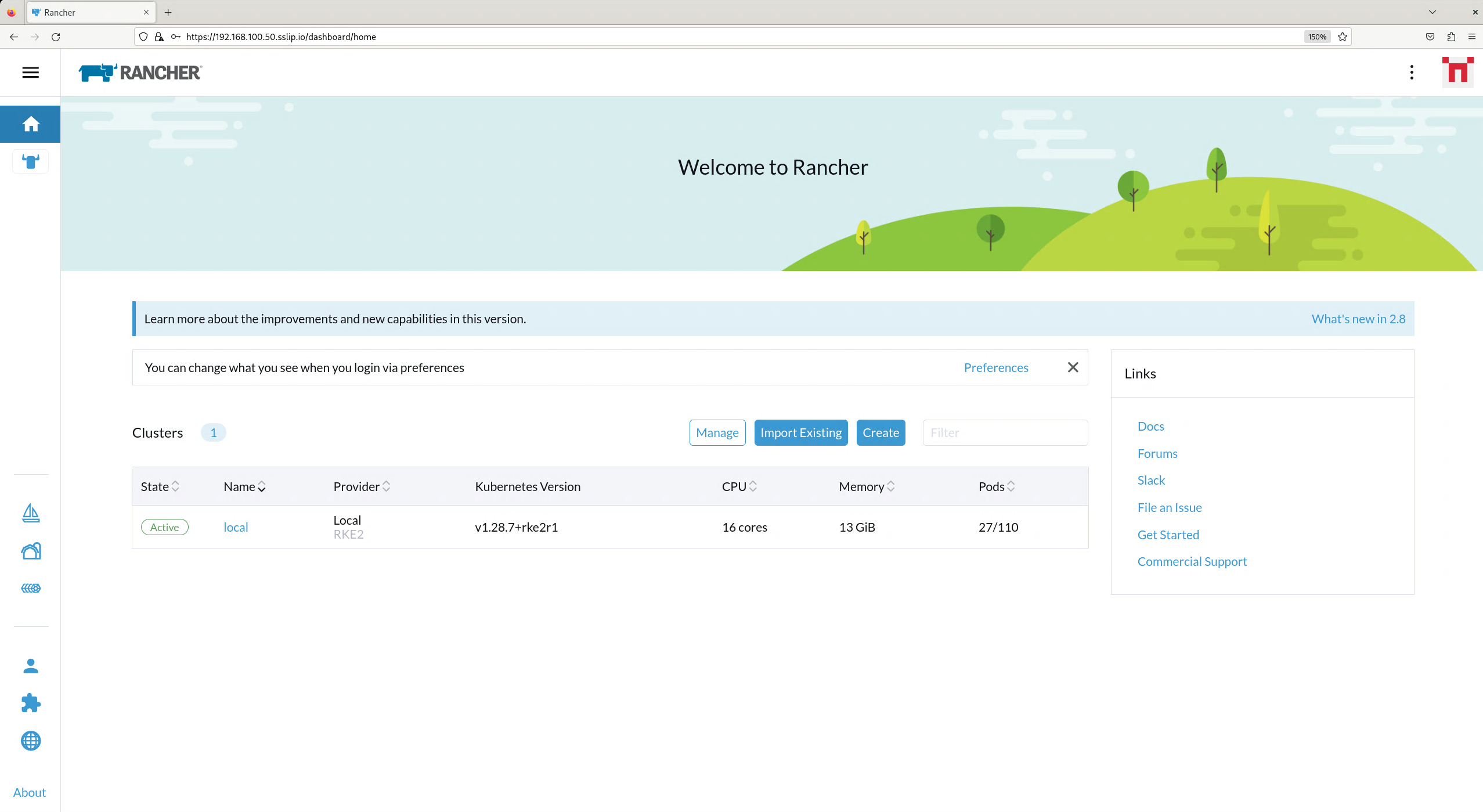
25.7 SUSE Security Installation #
Unlike the Rancher installation, the SUSE Security installation does not require any special handling in EIB. EIB will automatically air-gap every image required by its underlying component NeuVector.
We will create the definition file:
apiVersion: 1.3
image:
  imageType: iso
  arch: x86_64
  baseImage: slemicro.iso
  outputImageName: eib-image.iso
operatingSystem:
  users:
    - username: root
      encryptedPassword: $6$jHugJNNd3HElGsUZ$eodjVe4te5ps44SVcWshdfWizrP.xAyd71CVEXazBJ/.v799/WRCBXxfYmunlBO2yp1hm/zb4r8EmnrrNCF.P/
kubernetes:
  version: v1.35.8+rke2r1
  helm:
    charts:
      - name: neuvector-crd
        version: 109.0.3+up2.10.3
        repositoryName: rancher-charts
        targetNamespace: neuvector
        createNamespace: true
        installationNamespace: kube-system
        valuesFile: neuvector-values.yaml
      - name: neuvector
        version: 109.0.3+up2.10.3
        repositoryName: rancher-charts
        targetNamespace: neuvector
        createNamespace: true
        installationNamespace: kube-system
        valuesFile: neuvector-values.yaml
    repositories:
      - name: rancher-charts
        url: https://charts.rancher.io/
We will also create a Helm values file for NeuVector:
cat << EOF > $CONFIG_DIR/kubernetes/helm/values/neuvector-values.yaml
controller:
  replicas: 1
manager:
  enabled: false
cve:
  scanner:
    enabled: false
    replicas: 1
k3s:
  enabled: true
crdwebhook:
  enabled: false
EOF
Let’s build the image:
podman run --rm -it --privileged -v $CONFIG_DIR:/eib \
registry.suse.com/edge/3.6/edge-image-builder:1.3.4 \
build --definition-file eib-iso-definition.yaml
The output should be similar to the following:
Pulling selected Helm charts... 100% |███████████████████████████████████████████████████████████████████████████████████████████| (2/2, 4 it/s)
Generating image customization components...
Identifier ................... [SUCCESS]
Custom Files ................. [SKIPPED]
Time ......................... [SKIPPED]
Network ...................... [SUCCESS]
Groups ....................... [SKIPPED]
Users ........................ [SUCCESS]
Proxy ........................ [SKIPPED]
Rpm .......................... [SKIPPED]
Os Files ..................... [SKIPPED]
Systemd ...................... [SKIPPED]
Fips ......................... [SKIPPED]
Elemental .................... [SKIPPED]
Suma ......................... [SKIPPED]
Populating Embedded Artifact Registry... 100% |██████████████████████████████████████████████████████████████████████████████| (5/5, 13 it/min)
Embedded Artifact Registry ... [SUCCESS]
Keymap ....................... [SUCCESS]
Configuring Kubernetes component...
The Kubernetes CNI is not explicitly set, defaulting to 'cilium'.
Downloading file: rke2_installer.sh
Kubernetes ................... [SUCCESS]
Certificates ................. [SKIPPED]
Cleanup ...................... [SKIPPED]
Building ISO image...
Kernel Params ................ [SKIPPED]
Build complete, the image can be found at: eib-image.iso
Once a node using the built image is provisioned, we can verify the SUSE Security installation:
/var/lib/rancher/rke2/bin/kubectl get all -n neuvector --kubeconfig /etc/rancher/rke2/rke2.yamlThe output should be similar to the following, showing that everything has been successfully deployed:
NAME                                            READY   STATUS      RESTARTS   AGE
pod/neuvector-cert-upgrader-job-bxbnz           0/1     Completed   0          3m39s
pod/neuvector-controller-pod-7d854bfdc7-nhxjf   1/1     Running     0          3m44s
pod/neuvector-enforcer-pod-ct8jm                1/1     Running     0          3m44s

NAME                                      TYPE        CLUSTER-IP      EXTERNAL-IP   PORT(S)                         AGE
service/neuvector-svc-admission-webhook   ClusterIP   10.43.234.241   <none>        443/TCP                         3m44s
service/neuvector-svc-controller          ClusterIP   None            <none>        18300/TCP,18301/TCP,18301/UDP   3m44s
service/neuvector-svc-crd-webhook         ClusterIP   10.43.50.190    <none>        443/TCP                         3m44s

NAME                                    DESIRED   CURRENT   READY   UP-TO-DATE   AVAILABLE   NODE SELECTOR   AGE
daemonset.apps/neuvector-enforcer-pod   1         1         1       1            1           <none>          3m44s

NAME                                       READY   UP-TO-DATE   AVAILABLE   AGE
deployment.apps/neuvector-controller-pod   1/1     1            1           3m44s

NAME                                                  DESIRED   CURRENT   READY   AGE
replicaset.apps/neuvector-controller-pod-7d854bfdc7   1         1         1       3m44s

NAME                                        SCHEDULE    TIMEZONE   SUSPEND   ACTIVE   LAST SCHEDULE   AGE
cronjob.batch/neuvector-cert-upgrader-pod   0 0 1 1 *   <none>     True      0        <none>          3m44s
cronjob.batch/neuvector-updater-pod         0 0 * * *   <none>     False     0        <none>          3m44s

NAME                                    STATUS     COMPLETIONS   DURATION   AGE
job.batch/neuvector-cert-upgrader-job   Complete   1/1           7s         3m39s
25.8 SUSE Storage Installation #
The official documentation for Longhorn contains a
longhorn-images.txt file which lists all the images required for an air-gapped installation.
We will be including their mirrored counterparts from the Rancher container registry in our definition file.
Let’s create it:
apiVersion: 1.3
image:
  imageType: iso
  arch: x86_64
  baseImage: slemicro.iso
  outputImageName: eib-image.iso
operatingSystem:
  users:
    - username: root
      encryptedPassword: $6$jHugJNNd3HElGsUZ$eodjVe4te5ps44SVcWshdfWizrP.xAyd71CVEXazBJ/.v799/WRCBXxfYmunlBO2yp1hm/zb4r8EmnrrNCF.P/
  packages:
    sccRegistrationCode: [reg-code]
    packageList:
      - open-iscsi
kubernetes:
  version: v1.35.8+rke2r1
  helm:
    charts:
      - name: suse-storage
        releaseName: longhorn
        repositoryName: rancher-application-collection
        targetNamespace: longhorn-system
        createNamespace: true
        version: 1.11.3-10.1
    repositories:
      - name: rancher-application-collection
        url: oci://dp.apps.rancher.io/charts
        authentication:
          username: $APPS.RANCHER.IO_USERNAME
          password: $APPS.RANCHER.IO_ACCESS_TOKEN
embeddedArtifactRegistry:
    registries:
      - uri: dp.apps.rancher.io
        authentication:
          username: $APPS.RANCHER.IO_USERNAME
          password: $APPS.RANCHER.IO_ACCESS_TOKEN
    - name: dp.apps.rancher.io/containers/kubernetes-csi-external-attacher:4.12.0-19.1
    - name: dp.apps.rancher.io/containers/kubernetes-csi-external-provisioner:6.3.0-12.1
    - name: dp.apps.rancher.io/containers/kubernetes-csi-external-resizer:2.2.1-12.1
    - name: dp.apps.rancher.io/containers/kubernetes-csi-external-snapshotter:8.6.0-19.1
    - name: dp.apps.rancher.io/containers/kubernetes-csi-livenessprobe:2.19.0-19.1
    - name: dp.apps.rancher.io/containers/kubernetes-csi-node-driver-registrar:2.17.0-19.1
    - name: dp.apps.rancher.io/containers/longhorn-backing-image-manager:1.11.3-8.5
    - name: dp.apps.rancher.io/containers/longhorn-engine:1.11.3-8.6
    - name: dp.apps.rancher.io/containers/longhorn-instance-manager:1.11.3-8.7
    - name: dp.apps.rancher.io/containers/longhorn-manager:1.11.3-8.3
    - name: dp.apps.rancher.io/containers/longhorn-share-manager:1.11.3-8.2
    - name: dp.apps.rancher.io/containers/longhorn-ui:1.11.3-8.1
- name: dp.apps.rancher.io/containers/rancher-support-bundle-kit:0.0.88-10.8You will notice that the definition file lists the open-iscsi package. This is necessary since Longhorn
relies on a iscsiadm daemon running on the different nodes to provide persistent volumes to Kubernetes.
Let’s build the image:
podman run --rm -it --privileged -v $CONFIG_DIR:/eib \
registry.suse.com/edge/3.6/edge-image-builder:1.3.4 \
build --definition-file eib-iso-definition.yaml
The output should be similar to the following:
Setting up Podman API listener...
Pulling selected Helm charts... 100% |██████████████████████████████████████████████████████████████████████████████████████████████████████████████████████████| (2/2, 3 it/s)
Generating image customization components...
Identifier ................... [SUCCESS]
Custom Files ................. [SKIPPED]
Time ......................... [SKIPPED]
Network ...................... [SUCCESS]
Groups ....................... [SKIPPED]
Users ........................ [SUCCESS]
Proxy ........................ [SKIPPED]
Resolving package dependencies...
Rpm .......................... [SUCCESS]
Os Files ..................... [SKIPPED]
Systemd ...................... [SKIPPED]
Fips ......................... [SKIPPED]
Elemental .................... [SKIPPED]
Suma ......................... [SKIPPED]
Populating Embedded Artifact Registry... 100% |███████████████████████████████████████████████████████████████████████████████████████████████████████████| (15/15, 20956 it/s)
Embedded Artifact Registry ... [SUCCESS]
Keymap ....................... [SUCCESS]
Configuring Kubernetes component...
The Kubernetes CNI is not explicitly set, defaulting to 'cilium'.
Downloading file: rke2_installer.sh
Downloading file: rke2-images-core.linux-amd64.tar.zst 100% (782/782 MB, 108 MB/s)
Downloading file: rke2-images-cilium.linux-amd64.tar.zst 100% (367/367 MB, 104 MB/s)
Downloading file: rke2.linux-amd64.tar.gz 100% (34/34 MB, 108 MB/s)
Downloading file: sha256sum-amd64.txt 100% (3.9/3.9 kB, 7.5 MB/s)
Kubernetes ................... [SUCCESS]
Certificates ................. [SKIPPED]
Cleanup ...................... [SKIPPED]
Building ISO image...
Kernel Params ................ [SKIPPED]
Build complete, the image can be found at: eib-image.iso
Once a node using the built image is provisioned, we can verify the Longhorn installation:
/var/lib/rancher/rke2/bin/kubectl get all -n longhorn-system --kubeconfig /etc/rancher/rke2/rke2.yamlThe output should be similar to the following, showing that everything has been successfully deployed:
NAME                                                    READY   STATUS    RESTARTS   AGE
pod/csi-attacher-787fd9c6c8-sf42d                       1/1     Running   0          2m28s
pod/csi-attacher-787fd9c6c8-tb82p                       1/1     Running   0          2m28s
pod/csi-attacher-787fd9c6c8-zhc6s                       1/1     Running   0          2m28s
pod/csi-provisioner-74486b95c6-b2v9s                    1/1     Running   0          2m28s
pod/csi-provisioner-74486b95c6-hwllt                    1/1     Running   0          2m28s
pod/csi-provisioner-74486b95c6-mlrpk                    1/1     Running   0          2m28s
pod/csi-resizer-859d4557fd-t54zk                        1/1     Running   0          2m28s
pod/csi-resizer-859d4557fd-vdt5d                        1/1     Running   0          2m28s
pod/csi-resizer-859d4557fd-x9kh4                        1/1     Running   0          2m28s
pod/csi-snapshotter-6f69c6c8cc-r62gr                    1/1     Running   0          2m28s
pod/csi-snapshotter-6f69c6c8cc-vrwjn                    1/1     Running   0          2m28s
pod/csi-snapshotter-6f69c6c8cc-z65nb                    1/1     Running   0          2m28s
pod/engine-image-ei-4623b511-9vhkb                      1/1     Running   0          3m13s
pod/instance-manager-6f95fd57d4a4cd0459e469d75a300552   1/1     Running   0          2m43s
pod/longhorn-csi-plugin-gx98x                           3/3     Running   0          2m28s
pod/longhorn-driver-deployer-55f9c88499-fbm6q           1/1     Running   0          3m28s
pod/longhorn-manager-dpdp7                              2/2     Running   0          3m28s
pod/longhorn-ui-59c85fcf94-gg5hq                        1/1     Running   0          3m28s
pod/longhorn-ui-59c85fcf94-s49jc                        1/1     Running   0          3m28s

NAME                                  TYPE        CLUSTER-IP     EXTERNAL-IP   PORT(S)    AGE
service/longhorn-admission-webhook    ClusterIP   10.43.77.89    <none>        9502/TCP   3m28s
service/longhorn-backend              ClusterIP   10.43.56.17    <none>        9500/TCP   3m28s
service/longhorn-conversion-webhook   ClusterIP   10.43.54.73    <none>        9501/TCP   3m28s
service/longhorn-frontend             ClusterIP   10.43.22.82    <none>        80/TCP     3m28s
service/longhorn-recovery-backend     ClusterIP   10.43.45.143   <none>        9503/TCP   3m28s

NAME                                      DESIRED   CURRENT   READY   UP-TO-DATE   AVAILABLE   NODE SELECTOR   AGE
daemonset.apps/engine-image-ei-4623b511   1         1         1       1            1           <none>          3m13s
daemonset.apps/longhorn-csi-plugin        1         1         1       1            1           <none>          2m28s
daemonset.apps/longhorn-manager           1         1         1       1            1           <none>          3m28s

NAME                                       READY   UP-TO-DATE   AVAILABLE   AGE
deployment.apps/csi-attacher               3/3     3            3           2m28s
deployment.apps/csi-provisioner            3/3     3            3           2m28s
deployment.apps/csi-resizer                3/3     3            3           2m28s
deployment.apps/csi-snapshotter            3/3     3            3           2m28s
deployment.apps/longhorn-driver-deployer   1/1     1            1           3m28s
deployment.apps/longhorn-ui                2/2     2            2           3m28s

NAME                                                  DESIRED   CURRENT   READY   AGE
replicaset.apps/csi-attacher-787fd9c6c8               3         3         3       2m28s
replicaset.apps/csi-provisioner-74486b95c6            3         3         3       2m28s
replicaset.apps/csi-resizer-859d4557fd                3         3         3       2m28s
replicaset.apps/csi-snapshotter-6f69c6c8cc            3         3         3       2m28s
replicaset.apps/longhorn-driver-deployer-55f9c88499   1         1         1       3m28s
replicaset.apps/longhorn-ui-59c85fcf94                2         2         2       3m28s
25.9 KubeVirt and CDI Installation #
The Helm charts for both KubeVirt and CDI are only installing their respective operators. It is up to the operators to deploy the rest of the systems which means we will have to include all necessary container images in our definition file. Let’s create it:
apiVersion: 1.3
image:
  imageType: iso
  arch: x86_64
  baseImage: slemicro.iso
  outputImageName: eib-image.iso
operatingSystem:
  users:
    - username: root
      encryptedPassword: $6$jHugJNNd3HElGsUZ$eodjVe4te5ps44SVcWshdfWizrP.xAyd71CVEXazBJ/.v799/WRCBXxfYmunlBO2yp1hm/zb4r8EmnrrNCF.P/
kubernetes:
  version: v1.35.8+rke2r1
  helm:
    charts:
      - name: kubevirt
        repositoryName: suse-edge
        version: 306.0.2+up0.7.0
        targetNamespace: kubevirt-system
        createNamespace: true
        installationNamespace: kube-system
      - name: cdi
        repositoryName: suse-edge
        version: 306.0.2+up0.7.0
        targetNamespace: cdi-system
        createNamespace: true
        installationNamespace: kube-system
    repositories:
      - name: suse-edge
        url: oci://registry.suse.com/edge/charts
embeddedArtifactRegistry:
  images:
    - name: registry.suse.com/suse/sles/15.7/cdi-apiserver:1.64.0-150700.9.6.1
    - name: registry.suse.com/suse/sles/15.7/cdi-controller:1.64.0-150700.9.6.1
    - name: registry.suse.com/suse/sles/15.7/cdi-operator:1.64.0-150700.9.6.1
    - name: registry.suse.com/suse/sles/15.7/cdi-uploadproxy:1.64.0-150700.9.6.1
    - name: registry.suse.com/suse/sles/15.7/virt-api:1.7.0-150700.3.16.2
    - name: registry.suse.com/suse/sles/15.7/virt-controller:1.7.0-150700.3.16.2
    - name: registry.suse.com/suse/sles/15.7/virt-handler:1.7.0-150700.3.16.2
    - name: registry.suse.com/suse/sles/15.7/virt-launcher:1.7.0-150700.3.16.2
    - name: registry.suse.com/suse/sles/15.7/virt-operator:1.7.0-150700.3.16.2
Let’s build the image:
podman run --rm -it --privileged -v $CONFIG_DIR:/eib \
registry.suse.com/edge/3.6/edge-image-builder:1.3.4 \
build --definition-file eib-iso-definition.yaml
The output should be similar to the following:
Pulling selected Helm charts... 100% |███████████████████████████████████████████████████████████████████████████████████████████████████████████████████████| (2/2, 48 it/min)
Generating image customization components...
Identifier ................... [SUCCESS]
Custom Files ................. [SKIPPED]
Time ......................... [SKIPPED]
Network ...................... [SUCCESS]
Groups ....................... [SKIPPED]
Users ........................ [SUCCESS]
Proxy ........................ [SKIPPED]
Rpm .......................... [SKIPPED]
Os Files ..................... [SKIPPED]
Systemd ...................... [SKIPPED]
Fips ......................... [SKIPPED]
Elemental .................... [SKIPPED]
Suma ......................... [SKIPPED]
Populating Embedded Artifact Registry... 100% |██████████████████████████████████████████████████████████████████████████████████████████████████████████| (15/15, 4 it/min)
Embedded Artifact Registry ... [SUCCESS]
Keymap ....................... [SUCCESS]
Configuring Kubernetes component...
The Kubernetes CNI is not explicitly set, defaulting to 'cilium'.
Downloading file: rke2_installer.sh
Kubernetes ................... [SUCCESS]
Certificates ................. [SKIPPED]
Cleanup ...................... [SKIPPED]
Building ISO image...
Kernel Params ................ [SKIPPED]
Build complete, the image can be found at: eib-image.iso
Once a node using the built image is provisioned, we can verify the installation of both KubeVirt and CDI.
Verify KubeVirt:
/var/lib/rancher/rke2/bin/kubectl get all -n kubevirt-system --kubeconfig /etc/rancher/rke2/rke2.yamlThe output should be similar to the following, showing that everything has been successfully deployed:
NAME                                  READY   STATUS    RESTARTS   AGE
pod/virt-api-59cb997648-mmt67         1/1     Running   0          2m34s
pod/virt-controller-69786b785-7cc96   1/1     Running   0          2m8s
pod/virt-controller-69786b785-wq2dz   1/1     Running   0          2m8s
pod/virt-handler-2l4dm                1/1     Running   0          2m8s
pod/virt-operator-7c444cff46-nps4l    1/1     Running   0          3m1s
pod/virt-operator-7c444cff46-r25xq    1/1     Running   0          3m1s

NAME                                  TYPE        CLUSTER-IP      EXTERNAL-IP   PORT(S)   AGE
service/kubevirt-operator-webhook     ClusterIP   10.43.167.109   <none>        443/TCP   2m36s
service/kubevirt-prometheus-metrics   ClusterIP   None            <none>        443/TCP   2m36s
service/virt-api                      ClusterIP   10.43.18.202    <none>        443/TCP   2m36s
service/virt-exportproxy              ClusterIP   10.43.142.188   <none>        443/TCP   2m36s

NAME                          DESIRED   CURRENT   READY   UP-TO-DATE   AVAILABLE   NODE SELECTOR            AGE
daemonset.apps/virt-handler   1         1         1       1            1           kubernetes.io/os=linux   2m8s

NAME                              READY   UP-TO-DATE   AVAILABLE   AGE
deployment.apps/virt-api          1/1     1            1           2m34s
deployment.apps/virt-controller   2/2     2            2           2m8s
deployment.apps/virt-operator     2/2     2            2           3m1s

NAME                                        DESIRED   CURRENT   READY   AGE
replicaset.apps/virt-api-59cb997648         1         1         1       2m34s
replicaset.apps/virt-controller-69786b785   2         2         2       2m8s
replicaset.apps/virt-operator-7c444cff46    2         2         2       3m1s

NAME                            AGE    PHASE
kubevirt.kubevirt.io/kubevirt   3m1s   Deployed
Verify CDI:
/var/lib/rancher/rke2/bin/kubectl get all -n cdi-system --kubeconfig /etc/rancher/rke2/rke2.yamlThe output should be similar to the following, showing that everything has been successfully deployed:
NAME                                   READY   STATUS    RESTARTS   AGE
pod/cdi-apiserver-5598c9bf47-pqfxw     1/1     Running   0          3m44s
pod/cdi-deployment-7cbc5db7f8-g46z7    1/1     Running   0          3m44s
pod/cdi-operator-777c865745-2qcnj      1/1     Running   0          3m48s
pod/cdi-uploadproxy-646f4cd7f7-fzkv7   1/1     Running   0          3m44s

NAME                             TYPE        CLUSTER-IP     EXTERNAL-IP   PORT(S)    AGE
service/cdi-api                  ClusterIP   10.43.2.224    <none>        443/TCP    3m44s
service/cdi-prometheus-metrics   ClusterIP   10.43.237.13   <none>        8080/TCP   3m44s
service/cdi-uploadproxy          ClusterIP   10.43.114.91   <none>        443/TCP    3m44s

NAME                              READY   UP-TO-DATE   AVAILABLE   AGE
deployment.apps/cdi-apiserver     1/1     1            1           3m44s
deployment.apps/cdi-deployment    1/1     1            1           3m44s
deployment.apps/cdi-operator      1/1     1            1           3m48s
deployment.apps/cdi-uploadproxy   1/1     1            1           3m44s

NAME                                         DESIRED   CURRENT   READY   AGE
replicaset.apps/cdi-apiserver-5598c9bf47     1         1         1       3m44s
replicaset.apps/cdi-deployment-7cbc5db7f8    1         1         1       3m44s
replicaset.apps/cdi-operator-777c865745      1         1         1       3m48s
replicaset.apps/cdi-uploadproxy-646f4cd7f7   1         1         1       3m44s
25.10 SUSE Private Registry Installation #
To include the SUSE Private Registry in an air-gapped deployment, we must update the definition file to include the required helm chart as well as the embedded artifacts for the new images.
Let’s update the definition file:
apiVersion: 1.3
image:
  imageType: iso
  arch: x86_64
  baseImage: slemicro.iso
  outputImageName: eib-image.iso
operatingSystem:
  users:
    - username: root
      encryptedPassword: $6$jHugJNNd3HElGsUZ$eodjVe4te5ps44SVcWshdfWizrP.xAyd71CVEXazBJ/.v799/WRCBXxfYmunlBO2yp1hm/zb4r8EmnrrNCF.P/
kubernetes:
  version: v1.35.8+rke2r1
  helm:
    charts:
      - name: metallb
        version: 306.0.2+up0.15.3
        targetNamespace: metallb-system
        createNamespace: true
        repositoryName: suse-edge-charts
        installationNamespace: kube-system
      - name: suse-storage
        releaseName: longhorn
        repositoryName: rancher-application-collection
        targetNamespace: longhorn-system
        createNamespace: true
        version: 1.11.3-10.1
      - name: private-registry-helm
        createNamespace: true
        installationNamespace: kube-system
        repositoryName: privateregistry
        targetNamespace: suse-private-registry
        valuesFile: privateregistry.yaml
        version: 1.1.1
    repositories:
      - name: privateregistry
        authentication:
          username: ${PRIVATE_REGISTRY_USERNAME}
          password: ${PRIVATE_REGISTRY_PASSWORD}
        plainHTTP: false
        skipTLSVerify: false
        url: oci://registry.suse.com/private-registry
      - name: rancher-application-collection
        url: oci://dp.apps.rancher.io/charts
        authentication:
          username: $APPS.RANCHER.IO_USERNAME
          password: $APPS.RANCHER.IO_ACCESS_TOKEN
embeddedArtifactRegistry:
  registries:
    - uri: registry.suse.com
      authentication:
        username: ${PRIVATE_REGISTRY_USERNAME}
        password: ${PRIVATE_REGISTRY_PASSWORD}
    - uri: dp.apps.rancher.io
        authentication:
          username: $APPS.RANCHER.IO_USERNAME
          password: $APPS.RANCHER.IO_ACCESS_TOKEN
  images:
    - name: registry.suse.com/private-registry/harbor-core:1.1.1-1.19
    - name: registry.suse.com/private-registry/harbor-jobservice:1.1.1-1.19
    - name: registry.suse.com/private-registry/harbor-portal:1.1.1-1.20
    - name: registry.suse.com/private-registry/harbor-registry:1.1.1-1.19
    - name: registry.suse.com/private-registry/harbor-registryctl:1.1.1-1.19
- name: registry.suse.com/private-registry/harbor-trivy-adapter:1.1.1-1.24You will need certain credentials, which can be retrieved by following the official SUSE Private Registry documentation.
You must also modify the ${PRIVATE_REGISTRY_USERNAME} and ${PRIVATE_REGISTRY_PASSWORD} variables. Make sure to list the images containing the component versions you need.
Now we need to add the required Kubernetes manifests to properly configure the SUSE Private Registry.
You need to modify the ${MGMT_CLUSTER_REGISTRY_IP} with a reserved static IP for the SUSE Private Registry in the following files:
kubernetes/manifests/metallb-registry.yamlapiVersion: metallb.io/v1beta1 kind: L2Advertisement metadata: name: private-registry namespace: metallb-system spec: ipAddressPools: - private-registry-pool --- apiVersion: metallb.io/v1beta1 kind: IPAddressPool metadata: name: private-registry-pool namespace: metallb-system spec: addresses: - ${MGMT_CLUSTER_REGISTRY_IP}/32 serviceAllocation: namespaces: - suse-private-registrykubernetes/helm/values/privateregistry.yamlcore: secretName: suse-registry-tls expose: tls: certSource: secret enabled: true secret: secretName: suse-registry-tls type: loadBalancer externalURL: https://${MGMT_CLUSTER_REGISTRY_IP} persistence: persistentVolumeClaim: registry: size: 20Gi
Finally, the kubernetes/manifests/suse-private-registry-creds.yaml must be created with the following content:
apiVersion: v1
kind: Secret
metadata:
  name: suse-registry
  namespace: suse-private-registry
type: kubernetes.io/dockerconfigjson
data:
  .dockerconfigjson: ${DOCKER_CONFIG_JSON_BASE64}
---
apiVersion: v1
kind: Secret
metadata:
    name: suse-registry-tls
    namespace: suse-private-registry
type: kubernetes.io/tls
data:
    tls.crt: ${TLS_CRT_BASE64}
    tls.key: ${TLS_KEY_BASE64}
To correctly configure the docker config json (base64) for ${DOCKER_CONFIG_JSON_BASE64}, run:
# ${DOCKER_CONFIG_JSON_BASE64} CONTENT
echo -n '{"auths": {"<MGMT_CLUSTER_REGISTRY_IP>": {"username": "<USERNAME>", "password": "<PASSWORD>", "auth": "<AUTH>"}}}' | base64
Where the IP is the same as the previously configured ${MGMT_CLUSTER_REGISTRY_IP}, and the username, password, and auth can be retrieved from the SUSE Private Registry official documentation.
To generate the base64-encoded TLS certificate and key (tls.crt and tls.key) for ${TLS_CRT_BASE64} and ${TLS_KEY_BASE64}, you can create your own by running:
# Generate a self-signed certificate and key
openssl req -x509 -newkey rsa:4096 -keyout key.pem -out cert.pem -sha256 -days 365 -nodes

# Convert them to base64 for the suse-private-registry-creds.yaml file
cat cert.pem | base64 -w 0
cat key.pem | base64 -w 0
Verify SUSE Private Registry:
/var/lib/rancher/rke2/bin/kubectl get pods -n suse-private-registry --kubeconfig /etc/rancher/rke2/rke2.yamlThe output should be similar to the following, showing that everything has been successfully deployed:
NAME                                                      READY   STATUS    RESTARTS   AGE
pod/private-registry-harbor-core-588fd4876f-8tqnv         1/1     Running   0          4m30s
pod/private-registry-harbor-database-0                    1/1     Running   0          4m30s
pod/private-registry-harbor-jobservice-7658f97fbc-4vq6n   1/1     Running   0          4m30s
pod/private-registry-harbor-portal-5455ccc4bc-jpmt5       1/1     Running   0          4m30s
pod/private-registry-harbor-redis-0                       1/1     Running   0          4m30s
pod/private-registry-harbor-registry-5648b9d89-wdswz      2/2     Running   0          4m30s
pod/private-registry-harbor-trivy-0                       1/1     Running   0          4m30s
25.11 Troubleshooting #
If you run into any issues while building the images or are looking to further test and debug the process, please refer to the upstream documentation.
26 Building Updated SUSE Linux Micro Images with Kiwi #
This section explains how to generate updated SUSE Linux Micro images to be used with Edge Image Builder, with Cluster API (CAPI) + Metal3, or to write the disk image directly to a block device. This process is useful in situations where the latest patches are required to be included in the initial system boot images (to minimise patch transfer post-installation), or for scenarios where CAPI is used, where it’s preferred to reinstall the operating system with a new image rather than upgrading the hosts in place.
This process makes use of Kiwi to run the image build. SUSE Edge ships with a containerized version that simplifies the overall process with a helper utility baked in, allowing to specify the target profile required. The profile defines the type of output image that is required, with the common ones listed below:
"Base" - A SUSE Linux Micro disk image with a reduced package set (it includes podman).
"Base-SelfInstall" - A SelfInstall image based on the "Base" above.
"Base-RT" - Same as "Base" above but using a real-time (rt) kernel instead.
"Base-RT-SelfInstall" - A SelfInstall image based on the "Base-RT" above
"Default" - A SUSE Linux Micro disk image based on the "Base" above but with a few more tools, including the virtualization stack, Cockpit and salt-minion.
"Default-SelfInstall" - A SelfInstall image based on the "Default" above
See SUSE Linux Micro 6.2 documentation for more details.
This process works for both AMD64/Intel 64 and AArch64 architectures but it is necessary to use a build host with the same architecture of the images being built. In other words, to build an AArch64 image, it is required to use an AArch64 build host, and vice-versa for AMD64/Intel 64 - cross-builds are not supported at this time.
26.1 Prerequisites #
Kiwi image builder requires the following:
A SUSE Linux Micro 6.2 host ("build system") with the same architecture of the image being built.
The build system needs to be already registered via
SUSEConnect(the registration is used to pull the latest packages from the SUSE repositories)An internet connection that can be used to pull the required packages. If connected via proxy, the build host needs to be pre-configured.
SELinux needs to be disabled on the build host (as SELinux labelling takes place in the container and it can conflict with the host policy)
At least 10GB free disk space to accommodate the container image, the build root, and the resulting output image(s)
26.2 Getting Started #
Due to certain limitations, it is currently required to disable SELinux. Connect to the SUSE Linux Micro 6.2 image build host and ensure SELinux is disabled:
# setenforce 0Create an output directory to be shared with the Kiwi build container to save the resulting images:
# mkdir ~/outputPull the latest Kiwi builder image from the SUSE Registry:
# podman pull registry.suse.com/edge/3.6/kiwi-builder:10.2.29.1
(...)
26.3 Building the Default Image #
This is the default behavior of the Kiwi image container if no arguments are provided during the container image run. The following command runs podman with two directories mapped to the container:
The
/etc/zypp/repos.dSUSE Linux Micro package repository directory from the underlying host.The output
~/outputdirectory created above.
The Kiwi image container requires to run the build-image helper script as:
# podman run --privileged -v /etc/zypp/repos.d:/micro-sdk/repos/ -v ~/output:/tmp/output \
    -it registry.suse.com/edge/3.6/kiwi-builder:10.2.29.1 build-image
(...)It’s expected that if you’re running this script for the first time that it will fail shortly after starting with "ERROR: Early loop device test failed, please retry the container run.", this is a symptom of loop devices being created on the underlying host system that are not immediately visible inside of the container image. Simply re-run the command again and it should proceed without issue.
After a few minutes the images can be found in the local output directory:
(...)
INFO: Image build successful, generated images are available in the 'output' directory.

# ls -1 output/
SLE-Micro.x86_64-6.2.changes
SLE-Micro.x86_64-6.2.packages
SLE-Micro.x86_64-6.2.raw
SLE-Micro.x86_64-6.2.verified
build
kiwi.result
kiwi.result.json
26.4 Building images with other profiles #
In order to build different image profiles, the "-p" command option in the Kiwi container image helper script is used. For example, to build the "Default-SelfInstall" ISO image:
# podman run --privileged -v /etc/zypp/repos.d:/micro-sdk/repos/ -v ~/output:/tmp/output \
    -it registry.suse.com/edge/3.6/kiwi-builder:10.2.29.1 build-image -p Default-SelfInstall
(...)To avoid data loss, Kiwi will refuse to run if there are images in the output directory. It is required to remove the contents of the output directory before proceeding with rm -f output/*.
Alternatively, to build a SelfInstall ISO image with the RealTime kernel ("kernel-rt"):
# podman run --privileged -v /etc/zypp/repos.d:/micro-sdk/repos/ -v ~/output:/tmp/output \
    -it registry.suse.com/edge/3.6/kiwi-builder:10.2.29.1 build-image -p Base-RT-SelfInstall
(...)
26.5 Building images with large sector sizes #
Some hardware requires an image with a large sector size, i.e. 4096 bytes rather than the standard 512 bytes. The containerized Kiwi builder supports the ability to generate images with large block size by specifying the "-b" parameter. For example, to build a "Default-SelfInstall" image with a large sector size:
# podman run --privileged -v /etc/zypp/repos.d:/micro-sdk/repos/ -v ~/output:/tmp/output \
    -it registry.suse.com/edge/3.6/kiwi-builder:10.2.29.1 build-image -p Default-SelfInstall -b
(...)
26.6 Using a custom Kiwi image definition file #
For advanced use-cases a custom Kiwi image definition file (SL-Micro.kiwi) can be used along with any necessary post-build scripts. This requires overriding the default definitions pre-packaged by the SUSE Edge team.
Create a new directory and map it into the container image where the helper script is looking (/micro-sdk/defs):
# mkdir ~/mydefs/
# cp /path/to/SL-Micro.kiwi ~/mydefs/
# cp /path/to/config.sh ~/mydefs/
# podman run --privileged -v /etc/zypp/repos.d:/micro-sdk/repos/ -v ~/output:/tmp/output -v ~/mydefs/:/micro-sdk/defs/ \
    -it registry.suse.com/edge/3.6/kiwi-builder:10.2.29.1 build-image
(...)This is only required for advanced use-cases and may cause supportability issues. Please contact your SUSE representative for further advice and guidance.
To get the default Kiwi image definition files included in the container, the following commands can be used:
$ podman create --name kiwi-builder registry.suse.com/edge/3.6/kiwi-builder:10.2.29.1
$ podman cp kiwi-builder:/micro-sdk/defs/SL-Micro.kiwi .
$ podman cp kiwi-builder:/micro-sdk/defs/SL-Micro.kiwi.4096 .
$ podman rm kiwi-builder
$ ls ./SL-Micro.*
(...)
Part IV Tips and Tricks #
Tips and tricks for Edge components
- 27 Edge Image Builder
If you are in a non-Linux environment and following these instructions to build an image, then you are likely running Podman via a virtual machine. By default, this virtual machine will be configured to have a small amount of system resources allocated to it and can cause instability for Edge Image …
- 28 Elemental
When using RKE2 or K3s we need to expose services (Rancher in this context) from the management cluster as they are not exposed by default. In both RKE2 and k3s there is a Traefik Ingress controller. The current workflow suggests using MetalLB for announcing a service (via L2 or BGP Advertisement) a…
27 Edge Image Builder #
27.1 Common #
If you are in a non-Linux environment and following these instructions to build an image, then you are likely running
Podmanvia a virtual machine. By default, this virtual machine will be configured to have a small amount of system resources allocated to it and can cause instability forEdge Image Builderduring resource intensive operations, such as the RPM resolution process. You will need to adjust the resources of the podman machine, either by using Podman Desktop (settings cogwheel → podman machine edit icon) or directly via thepodman-machine-setcommandAt this point in time, the
Edge Image Builderis not able to build images in a cross architecture setup, i.e. you have to run it on:AArch64 systems (such as Apple Silicon) to build SL Micro
aarch64imagesAMD64/Intel 64 systems to build SL Micro
x86_64images.
27.2 SUSE Linux Micro #
Loading kernel modules at boot can be done using the corresponding
/etc/modprobe.d/module.conffile. Create the correspondingos-filesfolder using Edge Image Builder:
.
├── definition.yaml
└── os-files
    └── etc
        └── modprobe.d
            └── module.conf
For more information, please refer to the "Managing kernel modules" section of the SUSE Linux Enterprise Server Documentation
27.3 Kubernetes #
Creating multi node Kubernetes clusters requires adjusting the
kubernetessection in the definition file to:list all server and agent nodes under
kubernetes.nodesset a virtual IP address that would be used for all non-initializer nodes to join the cluster under
kubernetes.network.apiVIPoptionally, set an API host to specify a domain address for accessing the cluster under
kubernetes.network.apiHostTo learn more about this configuration, please refer to the Kubernetes section docs.
Edge Image Builderrelies on the hostnames of the different nodes to determine their Kubernetes type (serveroragent). While this configuration is managed in the definition file, for the general networking setup of the machines we can utilize either DHCP configuration as described in Chapter 9, Edge Networking.
28 Elemental #
28.1 Common #
28.1.1 Expose Rancher service #
When using RKE2 or K3s we need to expose services (Rancher in this context) from the management cluster as they are not exposed by default.
In both RKE2 and k3s there is a Traefik Ingress controller.
The current workflow suggests using MetalLB for announcing a service (via L2 or BGP Advertisement) and the respective Ingress Controller
to create an Ingress via HelmChartConfig since creating a new Ingress object would override the existing setup.
Install Rancher Prime (via Helm) and configure the necessary values
hostname: rancher-192.168.64.101.sslip.io replicas: 1 bootstrapPassword: Admin global.cattle.psp.enabled: "false"Create a LoadBalancer service to expose Rancher
kubectl apply -f - <<EOF apiVersion: helm.cattle.io/v1 kind: HelmChartConfig metadata: name: rke2-traefik namespace: kube-system spec: valuesContent: |- ingressClass: isDefaultClass: true ports: web: hostPort: null # disallow hostPort exposedPort: 80 websecure: hostPort: null # disallow hostPort exposedPort: 443 service: enabled: true type: LoadBalancer spec: externalTrafficPolicy: Local allocateLoadBalancerNodePorts: false # k8s GA from 1.24; supported by MetalLB EOFCreate an IP Address Pool for the service using the IP address we set up earlier in the Helm values
kubectl apply -f - <<EOF apiVersion: metallb.io/v1beta1 kind: IPAddressPool metadata: name: ingress-ippool namespace: metallb-system spec: addresses: - 192.168.64.101/32 serviceAllocation: priority: 100 serviceSelectors: - matchExpressions: - {key: app.kubernetes.io/name, operator: In, values: [rke2-traefik]} EOFCreate an L2 Advertisement for the IP address pool
kubectl apply -f - <<EOF apiVersion: metallb.io/v1beta1 kind: L2Advertisement metadata: name: ingress-l2-adv namespace: metallb-system spec: ipAddressPools: - ingress-ippool EOFEnsure Elemental is properly installed
Install the Elemental Operator and Elemental UI on the management nodes
Add the Elemental configuration on the downstream node together with a registration code, as that will prompt Edge Image Builder to include the remote registration option for the machine.
Check Section 1.5, “Install Elemental” and Section 1.6, “Configure Elemental” for additional information and examples.
28.2 Hardware Specific #
28.2.1 Trusted Platform Module #
It is necessary to properly handle the Trusted Platform Module (TPM) configuration. Failing to do so will result in errors similar to the following:
Nov 25 18:17:06 eled elemental-register[4038]: Error: registering machine: cannot generate authentication token: opening tpm for getting attestation data: TPM device not availableThis can be mitigated by one of the following approaches:
Enable TPM in the Virtual Machine settings
Example with UTM on MacOS
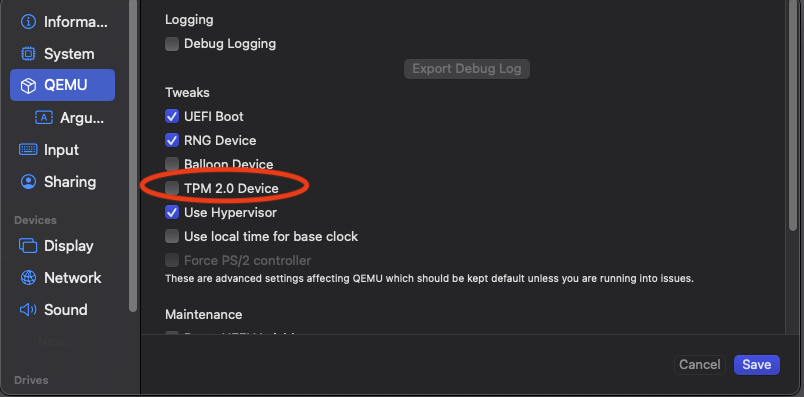
Emulate TPM by using negative value for the TPM seed in the
MachineRegistrationresource
apiVersion: elemental.cattle.io/v1beta1
kind: MachineRegistration
metadata:
name: ...
namespace: ...
spec:
...
elemental:
...
registration:
emulate-tpm: true
emulated-tpm-seed: -1Disable TPM in the
MachineRegistrationresource
apiVersion: elemental.cattle.io/v1beta1
kind: MachineRegistration
metadata:
name: ...
namespace: ...
spec:
...
elemental:
...
registration:
emulate-tpm: falsePart V Third-Party Integration #
How to integrate third-party tools
- 29 NATS
NATS is a connective technology built for the ever-increasingly hyper-connected world. It is a single technology that enables applications to securely communicate across any combination of cloud vendors, on-premises, edge, Web and mobile devices. NATS consists of a family of open-source products tha…
- 30 NVIDIA GPUs on SUSE Linux Micro
This guide demonstrates how to implement host-level NVIDIA GPU support via the pre-built open-source drivers on SUSE Linux Micro 6.2. These are drivers that are baked into the operating system rather than dynamically loaded by NVIDIA’s GPU Operator. This configuration is highly desirable for custome…
29 NATS #
NATS is a connective technology built for the ever-increasingly hyper-connected world. It is a single technology that enables applications to securely communicate across any combination of cloud vendors, on-premises, edge, Web and mobile devices. NATS consists of a family of open-source products that are tightly integrated but can be deployed easily and independently. NATS is being used globally by thousands of companies, spanning use cases including microservices, edge computing, mobile and IoT, and can be used to augment or replace traditional messaging.
29.1 Architecture #
NATS is an infrastructure that allows data exchange between applications in the form of messages.
29.1.1 NATS client applications #
NATS client libraries can be used to allow the applications to publish, subscribe, request and reply between different instances.
These applications are generally referred to as client applications.
29.1.2 NATS service infrastructure #
The NATS services are provided by one or more NATS server processes that are configured to interconnect with each other and provide a NATS service infrastructure. The NATS service infrastructure can scale from a single NATS server process running on an end device to a public global super-cluster of many clusters spanning all major cloud providers and all regions of the world.
29.1.3 Simple messaging design #
NATS makes it easy for applications to communicate by sending and receiving messages. These messages are addressed and identified by subject strings and do not depend on network location. Data is encoded and framed as a message and sent by a publisher. The message is received, decoded and processed by one or more subscribers.
29.1.4 NATS JetStream #
NATS has a built-in distributed persistence system called JetStream. JetStream was created to solve the problems identified with streaming in technology today — complexity, fragility and a lack of scalability. JetStream also solves the problem with the coupling of the publisher and the subscriber (the subscribers need to be up and running to receive the message when it is published). More information about NATS JetStream can be found here.
29.2 Installation #
29.2.1 Installing NATS on top of K3s #
NATS is built for multiple architectures so it can easily be installed on K3s. (Chapter 11, K3s)
Let us create a values file to overwrite the default values of NATS.
cat > values.yaml <<EOF
cluster:
# Enable the HA setup of the NATS
enabled: true
replicas: 3
nats:
jetstream:
# Enable JetStream
enabled: true
memStorage:
enabled: true
size: 2Gi
fileStorage:
enabled: true
size: 1Gi
storageDirectory: /data/
EOFNow let us install NATS via Helm:
helm repo add nats https://nats-io.github.io/k8s/helm/charts/
helm install nats nats/nats --namespace nats --values values.yaml \
--create-namespaceWith the values.yaml file above, the following components will be in the nats namespace:
HA version of NATS Statefulset containing three containers: NATS server + Config reloader and Metrics sidecars.
NATS box container, which comes with a set of
NATSutilities that can be used to verify the setup.JetStream also leverages its Key-Value back-end that comes with
PVCsbounded to the pods.
29.2.1.1 Testing the setup #
kubectl exec -n nats -it deployment/nats-box -- /bin/sh -lCreate a subscription for the test subject:
nats sub test &Send a message to the test subject:
nats pub test hi
29.2.1.2 Cleaning up #
helm -n nats uninstall nats
rm values.yaml29.2.2 NATS as a back-end for K3s #
One component K3s leverages is KINE, which is a shim enabling the replacement of etcd with alternate storage back-ends originally targeting relational databases. As JetStream provides a Key Value API, this makes it possible to have NATS as a back-end for the K3s cluster.
There is an already merged PR which makes the built-in NATS in K3s straightforward, but the change is still not included in the K3s releases.
For this reason, the K3s binary should be built manually.
29.2.2.1 Building K3s #
git clone --depth 1 https://github.com/k3s-io/k3s.git && cd k3sThe following command adds nats in the build tags to enable the NATS built-in feature in K3s:
sed -i '' 's/TAGS="ctrd/TAGS="nats ctrd/g' scripts/build
make localReplace <node-ip> with the actual IP of the node where the K3s will be started:
export NODE_IP=<node-ip>
sudo scp dist/artifacts/k3s-arm64 ${NODE_IP}:/usr/local/bin/k3sLocally building K3s requires the buildx Docker CLI plugin.
It can be manually installed if $ make local fails.
29.2.2.2 Installing NATS CLI #
TMPDIR=$(mktemp -d)
nats_version="nats-0.0.35-linux-arm64"
curl -o "${TMPDIR}/nats.zip" -sfL https://github.com/nats-io/natscli/releases/download/v0.0.35/${nats_version}.zip
unzip "${TMPDIR}/nats.zip" -d "${TMPDIR}"
sudo scp ${TMPDIR}/${nats_version}/nats ${NODE_IP}:/usr/local/bin/nats
rm -rf ${TMPDIR}29.2.2.3 Running NATS as K3s back-end #
Let us ssh on the node and run the K3s with the --datastore-endpoint flag pointing to nats.
The command below starts K3s as a foreground process, so the logs can be easily followed to see if there are any issues.
To not block the current terminal, a & flag could be added before the command to start it as a background process.
k3s server --datastore-endpoint=nats://For making the K3s server with the NATS back-end permanent on your slemicro VM, the script below can be run, which creates a systemd service with the needed configurations.
export INSTALL_K3S_SKIP_START=false
export INSTALL_K3S_SKIP_DOWNLOAD=true
curl -sfL https://get.k3s.io | INSTALL_K3S_EXEC="server \
--datastore-endpoint=nats://" sh -29.2.2.4 Troubleshooting #
The following commands can be run on the node to verify that everything with the stream works properly:
nats str report -a
nats str view -a30 NVIDIA GPUs on SUSE Linux Micro #
30.1 Intro #
This guide demonstrates how to implement host-level NVIDIA GPU support via the pre-built open-source drivers on SUSE Linux Micro 6.2. These are drivers that are baked into the operating system rather than dynamically loaded by NVIDIA’s GPU Operator. This configuration is highly desirable for customers that want to pre-bake all artifacts required for deployment into the image, and where the dynamic selection of the driver version, that is, the user selecting the version of the driver via Kubernetes, is not a requirement. This guide initially explains how to deploy the additional components onto a system that has already been pre-deployed, but follows with a section that describes how to embed this configuration into the initial deployment via Edge Image Builder. If you do not want to run through the basics and set things up manually, skip right ahead to that section.
It is important to call out that the support for these drivers is provided by both SUSE and NVIDIA in tight collaboration, where the driver is built and shipped by SUSE as part of the package repositories. However, if you have any concerns or questions about the combination in which you use the drivers, ask your SUSE or NVIDIA account managers for further assistance. If you plan to use NVIDIA AI Enterprise (NVAIE), ensure that you are using an NVAIE certified GPU, which may require the use of proprietary NVIDIA drivers. If you are unsure, speak with your NVIDIA representative.
Further information about NVIDIA GPU operator integration is not covered in this guide. While integrating the NVIDIA GPU Operator for Kubernetes is not covered here, you can still follow most of the steps in this guide to set up the underlying operating system and simply enable the GPU operator to use the pre-installed drivers via the driver.enabled=false flag in the NVIDIA GPU Operator Helm chart, where it will simply pick up the installed drivers on the host. More comprehensive instructions are available from NVIDIA here.
30.2 Prerequisites #
If you are following this guide, it assumes that you have the following already available:
At least one host with SUSE Linux Micro 6.2 installed; this can be physical or virtual.
Your hosts are attached to a subscription as this is required for package access — an evaluation is available here.
A compatible NVIDIA GPU installed (or fully passed through to the virtual machine in which SUSE Linux Micro is running).
Access to the root user — these instructions assume you are the root user, and not escalating your privileges via
sudo.
30.3 Manual installation #
In this section, you are going to install the NVIDIA drivers directly onto the SUSE Linux Micro operating system as the NVIDIA open-driver is now part of the core SUSE Linux Micro package repositories, which makes it as easy as installing the required RPM packages. There is no compilation or downloading of executable packages required. Below we walk through deploying the "G06" generation of driver, which supports the latest GPUs (see here for further information), so select an appropriate driver generation for the NVIDIA GPU that your system has. For modern GPUs, the "G06" driver is the most common choice.
Before we begin, it is important to recognize that besides the NVIDIA open-driver that SUSE ships as part of SUSE Linux Micro, you might also need additional NVIDIA components for your setup. These could include OpenGL libraries, CUDA toolkits, command-line utilities such as nvidia-smi, and container-integration components such as nvidia-container-toolkit. Many of these components are not shipped by SUSE as they are proprietary NVIDIA software, or it makes no sense for us to ship them instead of NVIDIA. Therefore, as part of the instructions, we are going to configure additional repositories that give us access to said components and walk through certain examples of how to use these tools, resulting in a fully functional system. It is important to distinguish between SUSE repositories and NVIDIA repositories, as occasionally there can be a mismatch between the package versions that NVIDIA makes available versus what SUSE has built. This usually arises when SUSE makes a new version of the open-driver available, and it takes a couple of days before the equivalent packages are made available in NVIDIA repositories to match.
We recommend that you ensure that the driver version that you are selecting is compatible with your GPU and meets any CUDA requirements that you may have by checking:
The driver version that you plan on deploying has a matching version in the NVIDIA repository and ensuring that you have equivalent package versions for the supporting components available
To find the NVIDIA open-driver versions, either run zypper se -s nvidia-open-driver on the target machine or search the SUSE Customer Center for the "nvidia-open-driver" in SUSE Linux Micro 6.2 for AMD64/Intel 64.
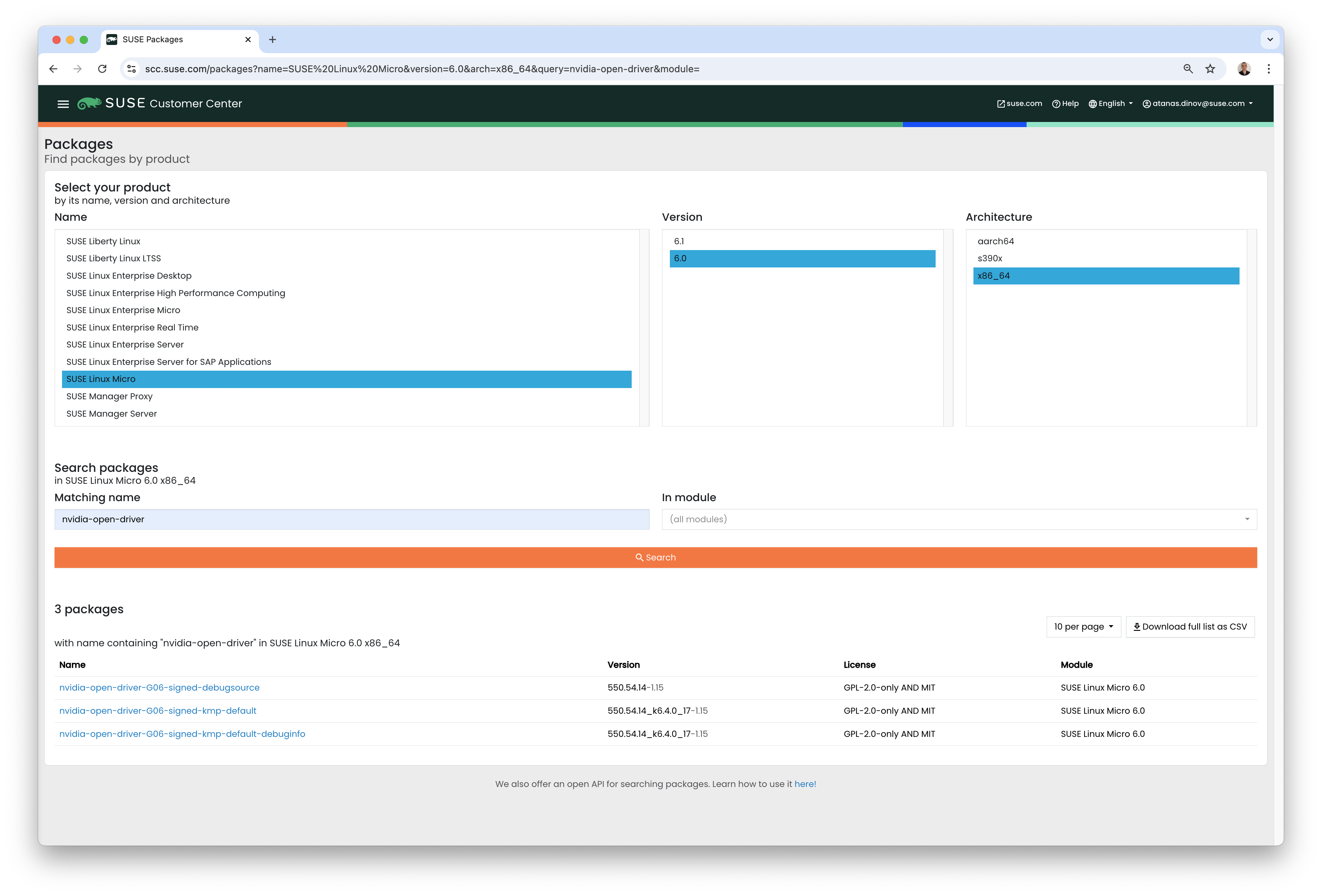
When you have confirmed that an equivalent version is available in the NVIDIA repos, you are ready to install the packages on the host operating system. For this, we need to open up a transactional-update session, which creates a new read/write snapshot of the underlying operating system so we can make changes to the immutable platform (for further instructions on transactional-update, see here):
transactional-update shellWhen you are in your transactional-update shell, add an additional package repository from NVIDIA. This allows us to pull in additional utilities, for example, nvidia-smi:
zypper ar https://download.nvidia.com/suse/sle15sp6/ nvidia-suse-main
zypper --gpg-auto-import-keys refreshYou can then install the driver and nvidia-compute-utils for additional utilities. If you do not need the utilities, you can omit it, but for testing purposes, it is worth installing at this stage:
zypper install -y --auto-agree-with-licenses nvidia-open-driver-G06-signed-kmp nvidia-compute-utils-G06If the installation fails, this might indicate a dependency mismatch between the selected driver version and what NVIDIA ships in their repositories. Refer to the previous section to verify that your versions match. Attempt to install a different driver version. For example, if the NVIDIA repositories have an earlier version, you can try specifying nvidia-open-driver-G06-signed-kmp=550.54.14 on your install command to specify a version that aligns.
Next, if you are not using a supported GPU (remembering that the list can be found here), you can see if the driver works by enabling support at the module level, but your mileage may vary — skip this step if you are using a supported GPU:
sed -i '/NVreg_OpenRmEnableUnsupportedGpus/s/^#//g' /etc/modprobe.d/50-nvidia-default.confNow that you have installed these packages, it is time to exit the transactional-update session:
exitMake sure that you have exited the transactional-update session before proceeding.
Now that you have installed the drivers, it is time to reboot. As SUSE Linux Micro is an immutable operating system, it needs to reboot into the new snapshot that you created in a previous step. The drivers are only installed into this new snapshot, hence it is not possible to load the drivers without rebooting into this new snapshot, which happens automatically. Issue the reboot command when you are ready:
rebootOnce the system has rebooted successfully, log back in and use the nvidia-smi tool to verify that the driver is loaded successfully and that it can both access and enumerate your GPUs:
nvidia-smiThe output of this command should show you something similar to the following output, noting that in the example below, we have two GPUs:
+---------------------------------------------------------------------------------------+
| NVIDIA-SMI 545.29.06 Driver Version: 545.29.06 CUDA Version: 12.3 |
|-----------------------------------------+----------------------+----------------------+
| GPU Name Persistence-M | Bus-Id Disp.A | Volatile Uncorr. ECC |
| Fan Temp Perf Pwr:Usage/Cap | Memory-Usage | GPU-Util Compute M. |
| | | MIG M. |
|=========================================+======================+======================|
| 0 NVIDIA A100-PCIE-40GB Off | 00000000:17:00.0 Off | 0 |
| N/A 29C P0 35W / 250W | 4MiB / 40960MiB | 0% Default |
| | | Disabled |
+-----------------------------------------+----------------------+----------------------+
| 1 NVIDIA A100-PCIE-40GB Off | 00000000:CA:00.0 Off | 0 |
| N/A 30C P0 33W / 250W | 4MiB / 40960MiB | 0% Default |
| | | Disabled |
+-----------------------------------------+----------------------+----------------------+
+---------------------------------------------------------------------------------------+
| Processes: |
| GPU GI CI PID Type Process name GPU Memory |
| ID ID Usage |
|=======================================================================================|
| No running processes found |
+---------------------------------------------------------------------------------------+This concludes the installation and verification process for the NVIDIA drivers on your SUSE Linux Micro system.
30.4 Further validation of the manual installation #
At this stage, all we have been able to verify is that, at the host level, the NVIDIA device can be accessed and that the drivers are loading successfully. However, if we want to be sure that it is functioning, a simple test would be to validate that the GPU can take instructions from a user-space application, ideally via a container, and through the CUDA library, as that is typically what a real workload would use. For this, we can make a further modification to the host OS by installing the nvidia-container-toolkit (NVIDIA Container Toolkit). First, open another transactional-update shell, noting that we could have done this in a single transaction in the previous step, and see how to do this fully automated in a later section:
transactional-update shellNext, install the nvidia-container-toolkit package from the NVIDIA Container Toolkit repo:
The
nvidia-container-toolkit.repobelow contains a stable (nvidia-container-toolkit) and an experimental (nvidia-container-toolkit-experimental) repository. The stable repository is recommended for production use. The experimental repository is disabled by default.
zypper ar https://nvidia.github.io/libnvidia-container/stable/rpm/nvidia-container-toolkit.repo
zypper --gpg-auto-import-keys install -y nvidia-container-toolkitWhen you are ready, you can exit the transactional-update shell:
exit…and reboot the machine into the new snapshot:
rebootAs before, you need to ensure that you have exited the transactional-shell and rebooted the machine for your changes to be enacted.
With the machine rebooted, you can verify that the system can successfully enumerate the devices using the NVIDIA Container Toolkit. The output should be verbose, with INFO and WARN messages, but no ERROR messages:
nvidia-ctk cdi generate --output=/etc/cdi/nvidia.yamlThis ensures that any container started on the machine can employ NVIDIA GPU devices that have been discovered. When ready, you can then run a podman-based container. Doing this via podman gives us a good way of validating access to the NVIDIA device from within a container, which should give confidence for doing the same with Kubernetes at a later stage. Give podman access to the labeled NVIDIA devices that were taken care of by the previous command, based on SLE BCI, and simply run the Bash command:
podman run --rm --device nvidia.com/gpu=all --security-opt=label=disable -it registry.suse.com/bci/bci-base:latest bashYou will now execute commands from within a temporary podman container. It does not have access to your underlying system and is ephemeral, so whatever we do here will not persist, and you should not be able to break anything on the underlying host. As we are now in a container, we can install the required CUDA libraries, again checking the correct CUDA version for your driver here, although the previous output of nvidia-smi should show the required CUDA version. In the example below, we are installing CUDA 12.3 and pulling many examples, demos and development kits so you can fully validate the GPU:
zypper ar https://developer.download.nvidia.com/compute/cuda/repos/sles15/x86_64/ cuda-suse
zypper in -y cuda-libraries-devel-12-3 cuda-minimal-build-12-3 cuda-demo-suite-12-3Once this has been installed successfully, do not exit the container. We will run the deviceQuery CUDA example, which comprehensively validates GPU access via CUDA, and from within the container itself:
/usr/local/cuda-12/extras/demo_suite/deviceQueryIf successful, you should see output that shows similar to the following, noting the Result = PASS message at the end of the command, and noting that in the output below, the system correctly identifies two GPUs, whereas your environment may only have one:
/usr/local/cuda-12/extras/demo_suite/deviceQuery Starting...
CUDA Device Query (Runtime API) version (CUDART static linking)
Detected 2 CUDA Capable device(s)
Device 0: "NVIDIA A100-PCIE-40GB"
CUDA Driver Version / Runtime Version 12.2 / 12.1
CUDA Capability Major/Minor version number: 8.0
Total amount of global memory: 40339 MBytes (42298834944 bytes)
(108) Multiprocessors, ( 64) CUDA Cores/MP: 6912 CUDA Cores
GPU Max Clock rate: 1410 MHz (1.41 GHz)
Memory Clock rate: 1215 Mhz
Memory Bus Width: 5120-bit
L2 Cache Size: 41943040 bytes
Maximum Texture Dimension Size (x,y,z) 1D=(131072), 2D=(131072, 65536), 3D=(16384, 16384, 16384)
Maximum Layered 1D Texture Size, (num) layers 1D=(32768), 2048 layers
Maximum Layered 2D Texture Size, (num) layers 2D=(32768, 32768), 2048 layers
Total amount of constant memory: 65536 bytes
Total amount of shared memory per block: 49152 bytes
Total number of registers available per block: 65536
Warp size: 32
Maximum number of threads per multiprocessor: 2048
Maximum number of threads per block: 1024
Max dimension size of a thread block (x,y,z): (1024, 1024, 64)
Max dimension size of a grid size (x,y,z): (2147483647, 65535, 65535)
Maximum memory pitch: 2147483647 bytes
Texture alignment: 512 bytes
Concurrent copy and kernel execution: Yes with 3 copy engine(s)
Run time limit on kernels: No
Integrated GPU sharing Host Memory: No
Support host page-locked memory mapping: Yes
Alignment requirement for Surfaces: Yes
Device has ECC support: Enabled
Device supports Unified Addressing (UVA): Yes
Device supports Compute Preemption: Yes
Supports Cooperative Kernel Launch: Yes
Supports MultiDevice Co-op Kernel Launch: Yes
Device PCI Domain ID / Bus ID / location ID: 0 / 23 / 0
Compute Mode:
< Default (multiple host threads can use ::cudaSetDevice() with device simultaneously) >
Device 1: <snip to reduce output for multiple devices>
< Default (multiple host threads can use ::cudaSetDevice() with device simultaneously) >
> Peer access from NVIDIA A100-PCIE-40GB (GPU0) -> NVIDIA A100-PCIE-40GB (GPU1) : Yes
> Peer access from NVIDIA A100-PCIE-40GB (GPU1) -> NVIDIA A100-PCIE-40GB (GPU0) : Yes
deviceQuery, CUDA Driver = CUDART, CUDA Driver Version = 12.3, CUDA Runtime Version = 12.3, NumDevs = 2, Device0 = NVIDIA A100-PCIE-40GB, Device1 = NVIDIA A100-PCIE-40GB
Result = PASSFrom here, you can continue to run any other CUDA workload — use compilers and any other aspect of the CUDA ecosystem to run further tests. When done, you can exit from the container, noting that whatever you have installed in there is ephemeral (so will be lost!), and has not impacted the underlying operating system:
exit30.5 Implementation with Kubernetes #
Now that we have proven the installation and use of the NVIDIA open-driver on SUSE Linux Micro, let us explore configuring Kubernetes on the same machine. This guide does not walk you through deploying Kubernetes, but it assumes that you have installed K3s or RKE2 and that your kubeconfig is configured accordingly, so that standard kubectl commands can be executed as the superuser. We assume that your node forms a single-node cluster, although the core steps should be similar for multi-node clusters. First, ensure that your kubectl access is working:
kubectl get nodesThis should show something similar to the following:
NAME STATUS ROLES AGE VERSION
node0001 Ready control-plane,etcd,master 13d v1.35.8+rke2r1What you should find is that your k3s/rke2 installation has detected the NVIDIA Container Toolkit on the host and auto-configured the NVIDIA runtime integration into containerd (the Container Runtime Interface that k3s/rke2 use). Confirm this by checking the containerd config.toml file:
tail -n8 /var/lib/rancher/rke2/agent/etc/containerd/config.tomlThis must show something akin to the following. The equivalent K3s location is /var/lib/rancher/k3s/agent/etc/containerd/config.toml:
[plugins."io.containerd.grpc.v1.cri".containerd.runtimes."nvidia"]
runtime_type = "io.containerd.runc.v2"
[plugins."io.containerd.grpc.v1.cri".containerd.runtimes."nvidia".options]
BinaryName = "/usr/bin/nvidia-container-runtime"If these entries are not present, the detection might have failed. This could be due to the machine or the Kubernetes services not being restarted. Add these manually as above, if required.
Next, we need to configure the NVIDIA RuntimeClass as an additional Kubernetes runtime to the default, ensuring that any user requests for pods that need access to the GPU can use the NVIDIA Container Toolkit to do so, via the nvidia-container-runtime, as configured in the containerd configuration:
kubectl apply -f - <<EOF
apiVersion: node.k8s.io/v1
kind: RuntimeClass
metadata:
name: nvidia
handler: nvidia
EOFThe next step is to configure the NVIDIA Device Plugin, which configures Kubernetes to leverage the NVIDIA GPUs as resources within the cluster that can be used, working in combination with the NVIDIA Container Toolkit. This tool initially detects all capabilities on the underlying host, including GPUs, drivers and other capabilities (such as GL) and then allows you to request GPU resources and consume them as part of your applications.
First, you need to add and update the Helm repository for the NVIDIA Device Plugin:
helm repo add nvdp https://nvidia.github.io/k8s-device-plugin
helm repo updateNow you can install the NVIDIA Device Plugin:
helm upgrade -i nvdp nvdp/nvidia-device-plugin --namespace nvidia-device-plugin --create-namespace --version 0.14.5 --set runtimeClassName=nvidiaAfter a few minutes, you see a new pod running that will complete the detection on your available nodes and tag them with the number of GPUs that have been detected:
kubectl get pods -n nvidia-device-plugin
NAME READY STATUS RESTARTS AGE
nvdp-nvidia-device-plugin-jp697 1/1 Running 2 (12h ago) 6d3h
kubectl get node node0001 -o json | jq .status.capacity
{
"cpu": "128",
"ephemeral-storage": "466889732Ki",
"hugepages-1Gi": "0",
"hugepages-2Mi": "0",
"memory": "32545636Ki",
"nvidia.com/gpu": "1", <----
"pods": "110"
}Now you are ready to create an NVIDIA pod that attempts to use this GPU. Let us try with the CUDA Benchmark container:
kubectl apply -f - <<EOF
apiVersion: v1
kind: Pod
metadata:
name: nbody-gpu-benchmark
namespace: default
spec:
restartPolicy: OnFailure
runtimeClassName: nvidia
containers:
- name: cuda-container
image: nvcr.io/nvidia/k8s/cuda-sample:nbody
args: ["nbody", "-gpu", "-benchmark"]
resources:
limits:
nvidia.com/gpu: 1
env:
- name: NVIDIA_VISIBLE_DEVICES
value: all
- name: NVIDIA_DRIVER_CAPABILITIES
value: all
EOFIf all went well, you can look at the logs and see the benchmark information:
kubectl logs nbody-gpu-benchmark
Run "nbody -benchmark [-numbodies=<numBodies>]" to measure performance.
-fullscreen (run n-body simulation in fullscreen mode)
-fp64 (use double precision floating point values for simulation)
-hostmem (stores simulation data in host memory)
-benchmark (run benchmark to measure performance)
-numbodies=<N> (number of bodies (>= 1) to run in simulation)
-device=<d> (where d=0,1,2.... for the CUDA device to use)
-numdevices=<i> (where i=(number of CUDA devices > 0) to use for simulation)
-compare (compares simulation results running once on the default GPU and once on the CPU)
-cpu (run n-body simulation on the CPU)
-tipsy=<file.bin> (load a tipsy model file for simulation)
NOTE: The CUDA Samples are not meant for performance measurements. Results may vary when GPU Boost is enabled.
> Windowed mode
> Simulation data stored in video memory
> Single precision floating point simulation
> 1 Devices used for simulation
GPU Device 0: "Turing" with compute capability 7.5
> Compute 7.5 CUDA device: [Tesla T4]
40960 bodies, total time for 10 iterations: 101.677 ms
= 165.005 billion interactions per second
= 3300.103 single-precision GFLOP/s at 20 flops per interactionFinally, if your applications require OpenGL, you can install the required NVIDIA OpenGL libraries at the host level, and the NVIDIA Device Plugin and NVIDIA Container Toolkit can make them available to containers. To do this, install the package as follows:
transactional-update pkg install nvidia-gl-G06You need to reboot to make this package available to your applications. The NVIDIA Device Plugin should automatically redetect this via the NVIDIA Container Toolkit.
30.6 Bringing it together via Edge Image Builder #
Okay, so you have demonstrated full functionality of your applications and GPUs on SUSE Linux Micro and you now want to use Chapter 8, Edge Image Builder to provide it all together via a deployable/consumable ISO or RAW disk image. This guide does not explain how to use Edge Image Builder, but it provides the necessary configurations to build such image. Below you can find an example of an image definition, along with the necessary Kubernetes configuration files, to ensure that all the required components are deployed out of the box. Here is the directory structure of the Edge Image Builder directory for the example shown below:
.
├── base-images
│ └── SL-Micro.x86_64-6.2-Base-SelfInstall-GM.install.iso
├── eib-config-iso.yaml
├── kubernetes
│ ├── config
│ │ └── server.yaml
│ ├── helm
│ │ └── values
│ │ └── nvidia-device-plugin.yaml
│ └── manifests
│ └── nvidia-runtime-class.yaml
└── rpms
└── gpg-keys
└── nvidia-container-toolkit.keyLet us explore those files. First, here is a sample image definition for a single-node cluster running K3s that deploys the utilities and OpenGL packages, too (eib-config-iso.yaml):
apiVersion: 1.3
image:
arch: x86_64
imageType: iso
baseImage: SL-Micro.x86_64-6.2-Base-SelfInstall-GM.install.iso
outputImageName: deployimage.iso
operatingSystem:
time:
timezone: Europe/London
ntp:
pools:
- 2.suse.pool.ntp.org
isoConfiguration:
installDevice: /dev/sda
users:
- username: root
encryptedPassword: $6$XcQN1xkuQKjWEtQG$WbhV80rbveDLJDz1c93K5Ga9JDjt3mF.ZUnhYtsS7uE52FR8mmT8Cnii/JPeFk9jzQO6eapESYZesZHO9EslD1
packages:
packageList:
- nvidia-open-driver-G06-signed-kmp-default
- nvidia-compute-utils-G06
- nvidia-gl-G06
- nvidia-container-toolkit
additionalRepos:
- url: https://download.nvidia.com/suse/sle15sp6/
- url: https://nvidia.github.io/libnvidia-container/stable/rpm/x86_64
sccRegistrationCode: [snip]
kubernetes:
version: v1.35.8+k3s1
helm:
charts:
- name: nvidia-device-plugin
version: v0.14.5
installationNamespace: kube-system
targetNamespace: nvidia-device-plugin
createNamespace: true
valuesFile: nvidia-device-plugin.yaml
repositoryName: nvidia
repositories:
- name: nvidia
url: https://nvidia.github.io/k8s-device-pluginThis is just an example. You may need to customize it to fit your requirements and expectations. Additionally, if using SUSE Linux Micro, you need to provide your own sccRegistrationCode to resolve package dependencies and pull the NVIDIA drivers.
Besides this, we need to add additional components, so they get loaded by Kubernetes at boot time. The EIB directory needs a kubernetes directory first, with subdirectories for the configuration, Helm chart values and any additional manifests required:
mkdir -p kubernetes/config kubernetes/helm/values kubernetes/manifestsLet us now set up the (optional) Kubernetes configuration by choosing a CNI (which defaults to Cilium if unselected) and enabling SELinux:
cat << EOF > kubernetes/config/server.yaml
cni: cilium
ingress-controller: traefik
selinux: true
EOFNow ensure that the NVIDIA RuntimeClass is created on the Kubernetes cluster:
cat << EOF > kubernetes/manifests/nvidia-runtime-class.yaml
apiVersion: node.k8s.io/v1
kind: RuntimeClass
metadata:
name: nvidia
handler: nvidia
EOFWe use the built-in Helm Controller to deploy the NVIDIA Device Plugin through Kubernetes itself. Let’s provide the runtime class in the values file for the chart:
cat << EOF > kubernetes/helm/values/nvidia-device-plugin.yaml
runtimeClassName: nvidia
EOFWe need to grab the NVIDIA Container Toolkit RPM public key before proceeding:
mkdir -p rpms/gpg-keys
curl -o rpms/gpg-keys/nvidia-container-toolkit.key https://nvidia.github.io/libnvidia-container/gpgkeyAll the required artifacts, including Kubernetes binary, container images, Helm charts (and any referenced images), will be automatically air-gapped, meaning that the systems at deploy time should require no Internet connectivity by default. Now you need only to grab the SUSE Linux Micro ISO from the SUSE Downloads Page (and place it in the base-images directory), and you can call the Edge Image Builder tool to generate the ISO for you. To complete the example, here is the command that was used to build the image:
podman run --rm --privileged -it -v /path/to/eib-files/:/eib \
registry.suse.com/edge/3.6/edge-image-builder:1.3.4 \
build --definition-file eib-config-iso.yamlFor further instructions, please see the documentation for Edge Image Builder.
30.7 Resolving issues #
30.7.1 nvidia-smi does not find the GPU #
Check the kernel messages using dmesg. If this indicates that it cannot allocate NvKMSKapDevice, apply the unsupported GPU workaround:
sed -i '/NVreg_OpenRmEnableUnsupportedGpus/s/^#//g' /etc/modprobe.d/50-nvidia-default.confNOTE: You will need to reload the kernel module, or reboot, if you change the kernel module configuration in the above step for it to take effect.
Part VI Day 2 Operations #
This section explains how administrators can handle different "Day Two" operation tasks both on the management and on the downstream clusters.
- 31 Edge 3.6 migration
This section explains how to migrate your
managementanddownstreamclusters fromSUSE Edge 3.5toSUSE Edge 3.6.0.- 32 Management Cluster
Currently, there are two ways to perform "Day 2" operations on your
managementcluster:- 33 Downstream clusters
This section covers the possible ways to perform "Day 2" operations for different parts of your
downstreamcluster.
31 Edge 3.6 migration #
This section explains how to migrate your management and downstream clusters from SUSE Edge 3.5 to SUSE Edge 3.6.0.
Always perform cluster migrations from the latest Z-stream release of SUSE Edge 3.5.
Always migrate to the SUSE Edge 3.6.0 release. For subsequent post-migration upgrades, refer to the management (Chapter 32, Management Cluster)
and downstream (Chapter 33, Downstream clusters) cluster
sections.
The following table lists the different types of clusters and the methods to upgrade clusters:
| Cluster type | Method |
|---|---|
EIB provisioned clusters | See Section 31.1.3, “Fleet” for details. |
Phone-home provisioned clusters | See Upgrading the Kubernetes Version for Kubernetes version upgrade and Downstream clusters (Chapter 33, Downstream clusters) for SUC, Operating system, and other components. |
31.1 Management Cluster #
This section covers the following topics:
Section 31.1.1, “Prerequisites” - prerequisite steps to complete before starting the migration.
Section 31.1.2, “Upgrade Controller” - how to do a management cluster migration using the Chapter 19, Upgrade Controller.
Section 31.1.3, “Fleet” - how to do a management cluster migration using Chapter 6, Fleet.
31.1.1 Prerequisites #
31.1.1.1 Migrate Metal3 CA Certificate Configuration #
Applies only to Metal3 deployments that use additional trusted CAs for external media servers with TLS.
The Metal3 Helm chart has changed how trusted CA certificates are configured. Previously, additional CAs were provided via a Secret (tls-ca-additional) with the additionalTrustedCAs boolean flag. The new version uses a ConfigMap containing the complete CA bundle referenced by the global.trustedCAs value.
If you have configured additional trusted CAs for Metal3, you need to migrate from the Secret-based approach to the ConfigMap-based approach:
Create a ConfigMap containing your CA bundle from the existing Secret:
Extract the certificates from the old Secret:
kubectl get secret tls-ca-additional -n metal3-system -o jsonpath='{.data}' | \ jq -r 'to_entries[] | .value' | base64 -d > ca-bundle.pemOptional - Include system CA bundle: If your Metal3 deployment also needs to trust public CAs (for example, when accessing external resources over HTTPS), you need to include the system CA bundle in addition to your custom CAs. Extract the system CA bundle from a container image and prepend it to your custom CAs:
# Extract system CAs from a container image (using podman or docker) podman run --rm registry.suse.com/bci/bci-base:latest cat /etc/ssl/certs/ca-certificates.crt > system-cas.pem # Combine system CAs with your custom CAs cat system-cas.pem ca-bundle.pem > combined-ca-bundle.pem mv combined-ca-bundle.pem ca-bundle.pemImportantIf you include the system CA bundle, it becomes your responsibility to keep it up-to-date. The system CAs in the container image may become outdated over time as CA certificates expire or are revoked. You should periodically refresh the system CA bundle by re-extracting it from an updated container image.
Create the ConfigMap with the final CA bundle:
kubectl create configmap tls-ca-bundle -n metal3-system --from-file=ca-bundle.pem=ca-bundle.pemUpdate your Metal3 Helm values to use the new ConfigMap reference:
Change from:
global: additionalTrustedCAs: trueTo:
global: trustedCAs: tls-ca-bundleAfter upgrading the Metal3 Helm chart with the new configuration, you can delete the old Secret:
kubectl delete secret tls-ca-additional -n metal3-system
31.1.2 Upgrade Controller #
The Upgrade Controller currently supports SUSE Edge release migrations only for non air-gapped management clusters.
The following topics are covered as part of this section:
Section 31.1.2.1, “Prerequisites” - prerequisites specific to the Upgrade Controller.
Section 31.1.2.2, “Migration steps” - steps for migrating a management cluster to a new SUSE Edge version using the Upgrade Controller.
31.1.2.1 Prerequisites #
31.1.2.1.1 SUSE Edge 3.6 Upgrade Controller #
Before using the Upgrade Controller, you must first ensure that it is running a version that is capable of migrating to the desired SUSE Edge release.
To do this:
If you already have
Upgrade Controllerdeployed from a previousSUSE Edgerelease, upgrade its chart:helm upgrade upgrade-controller -n upgrade-controller-system oci://registry.suse.com/edge/charts/upgrade-controller --version 306.0.5+up0.1.3If you do not have
Upgrade Controllerdeployed, follow Section 19.3, “Installing the Upgrade Controller”.
31.1.2.2 Migration steps #
Performing a management cluster migration with the Upgrade Controller is fundamentally similar to executing an upgrade.
The only difference is that your UpgradePlan must specify the 3.6.0 release version:
apiVersion: lifecycle.suse.com/v1alpha1
kind: UpgradePlan
metadata:
name: upgrade-plan-mgmt
# Change to the namespace of your Upgrade Controller
namespace: CHANGE_ME
spec:
releaseVersion: 3.6.0For information on how to use the above UpgradePlan to do a migration, refer to Upgrade Controller upgrade process (Section 32.1, “Upgrade Controller”).
31.1.3 Fleet #
Whenever possible, use the Section 31.1.2, “Upgrade Controller” for migration.
Refer to this section only for use cases not covered by the Upgrade Controller.
Performing a management cluster migration with Fleet is fundamentally similar to executing an upgrade.
The key differences being that:
The fleets must be used from the release-3.6.0 release of the
suse-edge/fleet-examplesrepository.Charts scheduled for an upgrade must be upgraded to versions compatible with the
SUSE Edge 3.6.0release. For a list of theSUSE Edge 3.6.0components, refer to Section 41.5, “Release 3.6.0”.
To ensure a successful SUSE Edge 3.6.0 migration, it is important that users comply with the points outlined above.
Considering the points above, users can follow the management cluster Fleet (Section 32.2, “Fleet”) documentation for a comprehensive guide on the steps required to perform a migration.
31.2 Downstream Clusters #
Section 31.2.1, “Fleet” - how to do a downstream cluster migration using Chapter 6, Fleet.
31.2.1 Fleet #
Performing a downstream cluster migration with Fleet is fundamentally similar to executing an upgrade.
The key differences being that:
The fleets must be used from the release-3.6.0 release of the
suse-edge/fleet-examplesrepository.Charts scheduled for an upgrade must be upgraded to versions compatible with the
SUSE Edge 3.6.0release. For a list of theSUSE Edge 3.6.0components, refer to Section 41.5, “Release 3.6.0”.
To ensure a successful SUSE Edge 3.6.0 migration, it is important that users comply with the points outlined above.
Considering the points above, users can follow the downstream cluster Fleet (Section 33.1, “Fleet”) documentation for a comprehensive guide on the steps required to perform a migration.
32 Management Cluster #
Currently, there are two ways to perform "Day 2" operations on your management cluster:
32.1 Upgrade Controller #
The Upgrade Controller currently only supports Day 2 operations for non air-gapped management clusters.
This section covers how to perform the various Day 2 operations related to upgrading your management cluster from one SUSE Edge platform version to another.
The Day 2 operations are automated by the Upgrade Controller (Chapter 19, Upgrade Controller) and include:
SUSE Linux Micro (Chapter 7, SUSE Linux Micro) OS upgrade
Chapter 12, RKE2 or Chapter 11, K3s Kubernetes upgrade
SUSE additional components (SUSE Rancher Prime, SUSE Security, etc.) upgrade
32.1.1 Prerequisites #
Before upgrading your management cluster, the following prerequisites must be met:
SCC registered nodes- ensure your cluster nodes' OS are registered with a subscription key that supports the OS version specified in theSUSE Edgerelease (Chapter 41, Release Notes) you intend to upgrade to.Upgrade Controller- make sure that theUpgrade Controllerhas been deployed on yourmanagementcluster. For installation steps, refer to Section 19.3, “Installing the Upgrade Controller”.
32.1.2 Upgrade #
Determine the
SUSE Edgerelease (Chapter 41, Release Notes) version that you wish to upgrade yourmanagementcluster to.In the
managementcluster, deploy anUpgradePlanthat specifies the desiredrelease version. TheUpgradePlanmust be deployed in the namespace of theUpgrade Controller.kubectl apply -n <upgrade_controller_namespace> -f - <<EOF apiVersion: lifecycle.suse.com/v1alpha1 kind: UpgradePlan metadata: name: upgrade-plan-mgmt spec: # Version retrieved from release notes releaseVersion: 3.X.Y EOFNoteThere may be use-cases where you would want to make additional configurations over the
UpgradePlan. For all possible configurations, refer to Section 19.6.1, “UpgradePlan”.Deploying the
UpgradePlanto theUpgrade Controller’snamespace will begin theupgrade process.NoteFor more information on the actual
upgrade process, refer to Section 19.5, “How does the Upgrade Controller work?”.For information on how to track the
upgrade process, refer to Section 19.7, “Tracking the upgrade process”.
32.1.3 Post-Upgrade Steps #
SUSE Edge upgrades from latest 3.5 z-stream to 3.6.0 can require some final manual steps to be performed after the Upgrade Controller has completed the upgrade process. Those are related to the replacement of Ingress-NGINX with Traefik as the single supported ingress controller in SUSE Edge from 3.6 release.
The Traefik ingress provider integrated into RKE2/K3s is the only ingress controller supported in SUSE Edge 3.6 release, being still possible to temporarily run Ingress-NGINX alongside Traefik in order to support complex ingress migration scenarios, but only after SUSE Edge Management and/or Downstream clusters have been upgraded to version 3.6 and for the time required to perform that migration.
RKE2 Ingress NGINX to Traefik Migration guide provides details on the ingress migration paths available
once the Traefik ingress controller replaces the discontinued Ingress-NGINX.
In case the just upgraded Management cluster was not running the Traefik ingress controller (but the default Ingress-NGINX one) before triggering the upgrade, it is now then needed to manually deploy Traefik.
First we are going to assure the deployed ingress-NGINX instance is properly configured (e.g., to avoid unnecessary hostPort collisions between the pods from the two ingress controllers):
kubectl apply -f - <<- EOF
apiVersion: helm.cattle.io/v1
kind: HelmChartConfig
metadata:
name: rke2-ingress-nginx
namespace: kube-system
spec:
valuesContent: |-
controller:
hostPort:
enabled: false # not needed when exposing through a type:LoadBalancer service
config:
use-forwarded-headers: "true"
enable-real-ip: "true"
publishService:
enabled: true
service:
enabled: true
type: LoadBalancer
externalTrafficPolicy: Local
EOFNow we can proceed with the deployment of Traefik, through the installation of both rke2-traefik-crd and rke2-traefik Helm charts.
Deploy these Helm chats through HelmChart manifests, as shown below, to assure the Upgrade Controller will take care of also upgrading these Helm charts
in future Management cluster upgrades.
kubectl apply -f - <<- EOF
apiVersion: helm.cattle.io/v1
kind: HelmChart
metadata:
name: rke2-traefik-crd
namespace: kube-system
spec:
chart: rke2-traefik-crd
version: {rke2-traefik-crd Helm chart version}
repo: https://rke2-charts.rancher.io
bootstrap: false
failurePolicy: reinstall
backOffLimit: 20
targetNamespace: kube-system
set:
global.cattle.systemDefaultRegistry: registry.rancher.com
global.rke2DataDir: /var/lib/rancher/rke2
global.systemDefaultRegistry: registry.rancher.com
---
apiVersion: helm.cattle.io/v1
kind: HelmChart
metadata:
name: rke2-traefik
namespace: kube-system
spec:
chart: rke2-traefik
version: {rke2-traefik Helm chart version}
repo: https://rke2-charts.rancher.io
bootstrap: false
failurePolicy: reinstall
backOffLimit: 20
targetNamespace: kube-system
set:
global.cattle.systemDefaultRegistry: registry.rancher.com
global.rke2DataDir: /var/lib/rancher/rke2
global.systemDefaultRegistry: registry.rancher.com
valuesContent: |-
ingressClass:
isDefaultClass: false # if traefik deployed alongside ingress-nginx
ports:
web:
hostPort: null # disallow hostPort
exposedPort: 80
websecure:
hostPort: null # disallow hostPort
exposedPort: 443
service:
enabled: true
type: LoadBalancer
spec:
externalTrafficPolicy: Local
allocateLoadBalancerNodePorts: false # k8s GA from 1.24; supported by MetalLB
providers:
kubernetesIngressNginx: # this provider allows traefik to "understand" most of the ingress-nginx annotations
enabled: true
ingressClass: "rke2-ingress-nginx-migration"
controllerClass: "rke2.cattle.io/ingress-nginx-migration"
EOFThe {rke2-traefik-crd Helm chart version} and {rke2-traefik-crd Helm chart version} are the ones dictated by the RKE2/k3s version
we have upgraded to.
In the last step, we finally create the MetalLB required objects to expose the Traefik service through a LoadBalancer type service:
kubectl apply -f - <<- EOF
apiVersion: metallb.io/v1beta1
kind: IPAddressPool
metadata:
name: ingress-ippool-traefik
namespace: metallb-system
spec:
addresses:
- {EXTERNAL_IP_FOR_TRAEFIK_SERVICE}/32
serviceAllocation:
priority: 100
serviceSelectors:
- matchExpressions:
- {key: app.kubernetes.io/name, operator: In, values: [rke2-traefik]}
---
apiVersion: metallb.io/v1beta1
kind: L2Advertisement
metadata:
name: ingress-l2-adv-traefik
namespace: metallb-system
spec:
ipAddressPools:
- ingress-ippool-traefik
EOFNow both Traefik and Ingress-NGINX are running side by side, allowing you to safely perform the necessary migration of your ingresses from one to the other.
Once all ingresses have been migrated and you no longer need Ingress-NGINX, make sure to uninstall it and clean up all related resources to avoid any unnecessary resource consumption on your cluster.
32.2 Fleet #
This section offers information on how to perform "Day 2" operations using the Fleet (Chapter 6, Fleet) component.
The following topics are covered as part of this section:
Section 32.2.1, “Components” - default components used for all "Day 2" operations.
Section 32.2.2, “Determine your use-case” - provides an overview of the Fleet custom resources that will be used and their suitability for different "Day 2" operations use-cases.
Section 32.2.3, “Day 2 workflow” - provides a workflow guide for executing "Day 2" operations with Fleet.
Section 32.2.4, “OS upgrade” - describes how to do OS upgrades using Fleet.
Section 32.2.5, “Kubernetes version upgrade” - describes how to do Kubernetes version upgrades using Fleet.
Section 32.2.6, “Helm chart upgrade” - describes how to do Helm chart upgrades using Fleet.
32.2.1 Components #
Below you can find a description of the default components that should be set up on your management cluster so that you can successfully perform "Day 2" operations using Fleet.
32.2.1.1 Rancher #
Optional; Responsible for managing downstream clusters and deploying the System Upgrade Controller on your management cluster.
For more information, see Chapter 4, Rancher.
32.2.1.2 System Upgrade Controller (SUC) #
System Upgrade Controller is responsible for executing tasks on specified nodes based on configuration data provided through a custom resource, called a Plan.
SUC is actively utilized to upgrade the operating system and Kubernetes distribution.
For more information about the SUC component and how it fits in the Edge stack, see Chapter 18, System Upgrade Controller.
32.2.2 Determine your use-case #
Fleet uses two types of custom resources to enable the management of Kubernetes and Helm resources.
Below you can find information about the purpose of these resources and the use-cases they are best suited for in the context of "Day 2" operations.
32.2.2.1 GitRepo #
A GitRepo is a Fleet (Chapter 6, Fleet) resource that represents a Git repository from which Fleet can create Bundles. Each Bundle is created based on configuration paths defined inside of the GitRepo resource. For more information, see the GitRepo documentation.
In the context of "Day 2" operations, GitRepo resources are normally used to deploy SUC or SUC Plans in non air-gapped environments that utilize a Fleet GitOps approach.
Alternatively, GitRepo resources can also be used to deploy SUC or SUC Plans on air-gapped environments, provided you mirror your repository setup through a local git server.
32.2.2.2 Bundle #
Bundles hold raw Kubernetes resources that will be deployed on the targeted cluster. Usually they are created from a GitRepo resource, but there are use-cases where they can be deployed manually. For more information refer to the Bundle documentation.
In the context of "Day 2" operations, Bundle resources are normally used to deploy SUC or SUC Plans in air-gapped environments that do not use some form of local GitOps procedure (e.g. a local git server).
Alternatively, if your use-case does not allow for a GitOps workflow (e.g. using a Git repository), Bundle resources could also be used to deploy SUC or SUC Plans in non air-gapped environments.
32.2.3 Day 2 workflow #
The following is a "Day 2" workflow that should be followed when upgrading a management cluster to a specific Edge release.
OS upgrade (Section 32.2.4, “OS upgrade”)
Kubernetes version upgrade (Section 32.2.5, “Kubernetes version upgrade”)
Helm chart upgrade (Section 32.2.6, “Helm chart upgrade”)
32.2.4 OS upgrade #
This section describes how to perform an operating system upgrade using Chapter 6, Fleet and the Chapter 18, System Upgrade Controller.
The following topics are covered as part of this section:
Section 32.2.4.1, “Components” - additional components used by the upgrade process.
Section 32.2.4.2, “Overview” - overview of the upgrade process.
Section 32.2.4.3, “Requirements” - requirements of the upgrade process.
Section 32.2.4.4, “OS upgrade - SUC plan deployment” - information on how to deploy
SUC plans, responsible for triggering the upgrade process.
32.2.4.1 Components #
This section covers the custom components that the OS upgrade process uses over the default "Day 2" components (Section 32.2.1, “Components”).
32.2.4.1.1 systemd.service #
The OS upgrade on a specific node is handled by a systemd.service.
A different service is created depending on what type of upgrade the OS requires from one Edge version to another:
For Edge versions that require the same OS version (e.g.
6.1), theos-pkg-update.servicewill be created. It uses transactional-update to perform a normal package upgrade.For Edge versions that require an OS version migration (e.g
6.1→6.2), theos-migration.servicewill be created. It uses transactional-update to perform:A normal package upgrade which ensures that all packages are at up-to-date in order to mitigate any failures in the migration related to old package versions.
An OS migration by utilizing the
zypper migrationcommand.
The services mentioned above are shipped on each node through a SUC plan which must be located on the management cluster that is in need of an OS upgrade.
32.2.4.2 Overview #
The upgrade of the operating system for management cluster nodes is done by utilizing Fleet and the System Upgrade Controller (SUC).
Fleet is used to deploy and manage SUC plans onto the desired cluster.
SUC plans are custom resources that describe the steps that SUC needs to follow in order for a specific task to be executed on a set of nodes. For an example of how an SUC plan looks like, refer to the upstream repository.
The OS SUC plans are shipped to each cluster by deploying a GitRepo or Bundle resource to a specific Fleet workspace. Fleet retrieves the deployed GitRepo/Bundle and deploys its contents (the OS SUC plans) to the desired cluster(s).
GitRepo/Bundle resources are always deployed on the management cluster. Whether to use a GitRepo or Bundle resource depends on your use-case, check Section 32.2.2, “Determine your use-case” for more information.
OS SUC plans describe the following workflow:
Always cordon the nodes before OS upgrades.
Always upgrade
control-planenodes beforeworkernodes.Always upgrade the cluster on a one node at a time basis.
Once the OS SUC plans are deployed, the workflow looks like this:
SUC reconciles the deployed
OS SUC plansand creates aKubernetes Jobon each node.The
Kubernetes Jobcreates a systemd.service (Section 32.2.4.1.1, “systemd.service”) for either package upgrade, or OS migration.The created
systemd.servicetriggers the OS upgrade process on the specific node.ImportantOnce the OS upgrade process finishes, the corresponding node will be
rebootedto apply the updates on the system.
Below you can find a diagram of the above description:
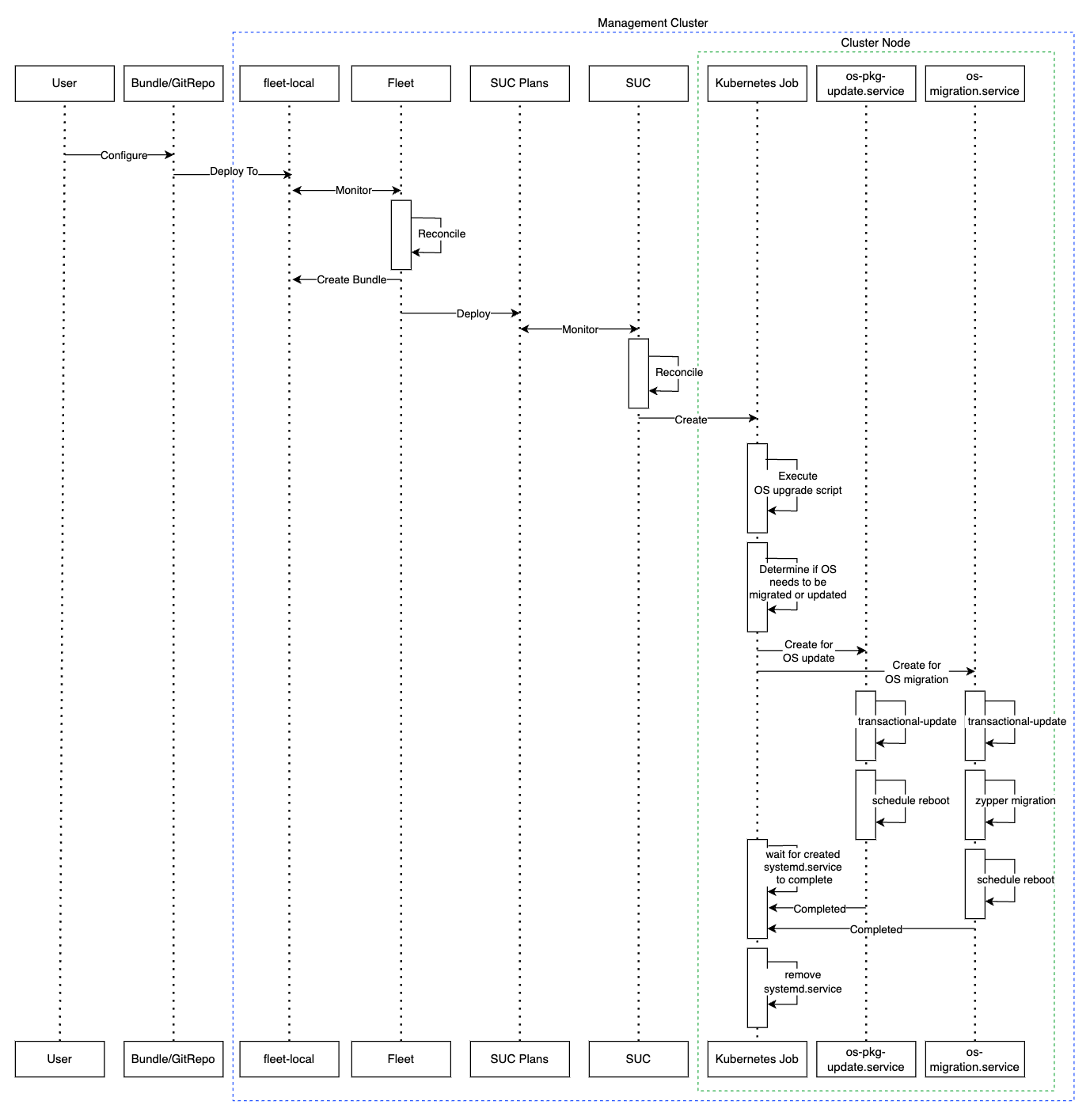
32.2.4.3 Requirements #
General:
SCC registered machine - All management cluster nodes should be registered to
https://scc.suse.com/which is needed so that the respectivesystemd.servicecan successfully connect to the desired RPM repository.ImportantFor Edge releases that require an OS version migration (e.g.
6.1→6.2), make sure that your SCC key supports the migration to the new version.Make sure that SUC Plan tolerations match node tolerations - If your Kubernetes cluster nodes have custom taints, make sure to add tolerations for those taints in the SUC Plans. By default, SUC Plans have tolerations only for control-plane nodes. Default tolerations include:
CriticalAddonsOnly=true:NoExecute
node-role.kubernetes.io/control-plane:NoSchedule
node-role.kubernetes.io/etcd:NoExecute
NoteAny additional tolerations must be added under the
.spec.tolerationssection of each Plan. SUC Plans related to the OS upgrade can be found in the suse-edge/fleet-examples repository underfleets/day2/system-upgrade-controller-plans/os-upgrade. Make sure you use the Plans from a valid repository release tag.An example of defining custom tolerations for the control-plane SUC Plan would look like this:
apiVersion: upgrade.cattle.io/v1 kind: Plan metadata: name: os-upgrade-control-plane spec: ... tolerations: # default tolerations - key: "CriticalAddonsOnly" operator: "Equal" value: "true" effect: "NoExecute" - key: "node-role.kubernetes.io/control-plane" operator: "Equal" effect: "NoSchedule" - key: "node-role.kubernetes.io/etcd" operator: "Equal" effect: "NoExecute" # custom toleration - key: "foo" operator: "Equal" value: "bar" effect: "NoSchedule" ...
Air-gapped:
Mirror SUSE RPM repositories - OS RPM repositories should be locally mirrored so that the
systemd.servicecan have access to them. This can be achieved by using either RMT or SUSE Multi-Linux Manager Documentation..
32.2.4.4 OS upgrade - SUC plan deployment #
For environments previously upgraded using this procedure, users should ensure that one of the following steps is completed:
Remove any previously deployed SUC Plans related to older Edge release versions from the management cluster- can be done by removing the desired cluster from the existingGitRepo/Bundletarget configuration, or removing theGitRepo/Bundleresource altogether.Reuse the existing GitRepo/Bundle resource- can be done by pointing the resource’s revision to a new tag that holds the correct fleets for the desiredsuse-edge/fleet-examplesrelease.
This is done in order to avoid clashes between SUC Plans for older Edge release versions.
If users attempt to upgrade, while there are existing SUC Plans on the management cluster, they will see the following fleet error:
Not installed: Unable to continue with install: Plan <plan_name> in namespace <plan_namespace> exists and cannot be imported into the current release: invalid ownership metadata; annotation validation error..As mentioned in Section 32.2.4.2, “Overview”, OS upgrades are done by shipping SUC plans to the desired cluster through one of the following ways:
Fleet
GitReporesource - Section 32.2.4.4.1, “SUC plan deployment - GitRepo resource”.Fleet
Bundleresource - Section 32.2.4.4.2, “SUC plan deployment - Bundle resource”.
To determine which resource you should use, refer to Section 32.2.2, “Determine your use-case”.
For use-cases where you wish to deploy the OS SUC plans from a third-party GitOps tool, refer to Section 32.2.4.4.3, “SUC Plan deployment - third-party GitOps workflow”
32.2.4.4.1 SUC plan deployment - GitRepo resource #
A GitRepo resource, that ships the needed OS SUC plans, can be deployed in one of the following ways:
Through the
Rancher UI- Section 32.2.4.4.1.1, “GitRepo creation - Rancher UI” (whenRancheris available).By manually deploying (Section 32.2.4.4.1.2, “GitRepo creation - manual”) the resource to your
management cluster.
Once deployed, to monitor the OS upgrade process of the nodes of your targeted cluster, refer to Section 18.3, “Monitoring System Upgrade Controller Plans”.
32.2.4.4.1.1 GitRepo creation - Rancher UI #
To create a GitRepo resource through the Rancher UI, follow their official documentation.
The Edge team maintains a ready to use fleet. Depending on your environment this fleet could be used directly or as a template.
For use-cases where no custom changes need to be included to the SUC plans that the fleet ships, users can directly refer the os-upgrade fleet from the suse-edge/fleet-examples repository.
In cases where custom changes are needed (e.g. to add custom tolerations), users should refer the os-upgrade fleet from a separate repository, allowing them to add the changes to the SUC plans as required.
An example of how a GitRepo can be configured to use the fleet from the suse-edge/fleet-examples repository, can be viewed here.
32.2.4.4.1.2 GitRepo creation - manual #
Pull the GitRepo resource:
curl -o os-upgrade-gitrepo.yaml https://raw.githubusercontent.com/suse-edge/fleet-examples/refs/tags/release-3.6.2/gitrepos/day2/os-upgrade-gitrepo.yamlEdit the GitRepo configuration:
Remove the
spec.targetssection - only needed for downstream clusters.# Example using sed sed -i.bak '/^ targets:/,$d' os-upgrade-gitrepo.yaml && rm -f os-upgrade-gitrepo.yaml.bak # Example using yq (v4+) yq eval 'del(.spec.targets)' -i os-upgrade-gitrepo.yamlPoint the namespace of the
GitRepoto thefleet-localnamespace - done in order to deploy the resource on the management cluster.# Example using sed sed -i.bak 's/namespace: fleet-default/namespace: fleet-local/' os-upgrade-gitrepo.yaml && rm -f os-upgrade-gitrepo.yaml.bak # Example using yq (v4+) yq eval '.metadata.namespace = "fleet-local"' -i os-upgrade-gitrepo.yaml
Apply the GitRepo resource your
management cluster:kubectl apply -f os-upgrade-gitrepo.yamlView the created GitRepo resource under the
fleet-localnamespace:kubectl get gitrepo os-upgrade -n fleet-local # Example output NAME REPO COMMIT BUNDLEDEPLOYMENTS-READY STATUS os-upgrade https://github.com/suse-edge/fleet-examples.git release-3.6.2 0/0
32.2.4.4.2 SUC plan deployment - Bundle resource #
A Bundle resource, that ships the needed OS SUC Plans, can be deployed in one of the following ways:
Through the
Rancher UI- Section 32.2.4.4.2.1, “Bundle creation - Rancher UI” (whenRancheris available).By manually deploying (Section 32.2.4.4.2.2, “Bundle creation - manual”) the resource to your
management cluster.
Once deployed, to monitor the OS upgrade process of the nodes of your targeted cluster, refer to Section 18.3, “Monitoring System Upgrade Controller Plans”.
32.2.4.4.2.1 Bundle creation - Rancher UI #
The Edge team maintains a ready to use bundle that can be used in the below steps.
To create a bundle through Rancher’s UI:
In the upper left corner, click ☰ → Continuous Delivery
Go to Advanced > Bundles
Select Create from YAML
From here you can create the Bundle in one of the following ways:
NoteThere might be use-cases where you would need to include custom changes to the
SUC plansthat the bundle ships (e.g. to add custom tolerations). Make sure to include those changes in the bundle that will be generated by the below steps.By manually copying the bundle content from
suse-edge/fleet-examplesto the Create from YAML page.By cloning the suse-edge/fleet-examples repository from the desired release tag and selecting the Read from File option in the Create from YAML page. From there, navigate to the bundle location (
bundles/day2/system-upgrade-controller-plans/os-upgrade) and select the bundle file. This will auto-populate the Create from YAML page with the bundle content.
Edit the Bundle in the Rancher UI:
Change the namespace of the
Bundleto point to thefleet-localnamespace.# Example kind: Bundle apiVersion: fleet.cattle.io/v1alpha1 metadata: name: os-upgrade namespace: fleet-local ...Change the target clusters for the
Bundleto point to yourlocal(management) cluster:spec: targets: - clusterName: localNoteThere are some use-cases where your
localcluster could have a different name.To retrieve your
localcluster name, execute the command below:kubectl get clusters.fleet.cattle.io -n fleet-local
Select Create
32.2.4.4.2.2 Bundle creation - manual #
Pull the Bundle resource:
curl -o os-upgrade-bundle.yaml https://raw.githubusercontent.com/suse-edge/fleet-examples/refs/tags/release-3.6.2/bundles/day2/system-upgrade-controller-plans/os-upgrade/os-upgrade-bundle.yamlEdit the
Bundleconfiguration:Change the target clusters for the
Bundleto point to yourlocal(management) cluster:spec: targets: - clusterName: localNoteThere are some use-cases where your
localcluster could have a different name.To retrieve your
localcluster name, execute the command below:kubectl get clusters.fleet.cattle.io -n fleet-localChange the namespace of the
Bundleto point to thefleet-localnamespace.# Example kind: Bundle apiVersion: fleet.cattle.io/v1alpha1 metadata: name: os-upgrade namespace: fleet-local ...
Apply the Bundle resource to your
management cluster:kubectl apply -f os-upgrade-bundle.yamlView the created Bundle resource under the
fleet-localnamespace:kubectl get bundles -n fleet-local
32.2.4.4.3 SUC Plan deployment - third-party GitOps workflow #
There might be use-cases where users would like to incorporate the OS SUC plans to their own third-party GitOps workflow (e.g. Flux).
To get the OS upgrade resources that you need, first determine the Edge release tag of the suse-edge/fleet-examples repository that you would like to use.
After that, resources can be found at fleets/day2/system-upgrade-controller-plans/os-upgrade, where:
plan-control-plane.yamlis a SUC plan resource for control-plane nodes.plan-worker.yamlis a SUC plan resource for worker nodes.secret.yamlis a Secret that contains theupgrade.shscript, which is responsible for creating the systemd.service (Section 32.2.4.1.1, “systemd.service”).config-map.yamlis a ConfigMap that holds configurations that are consumed by theupgrade.shscript.
These Plan resources are interpreted by the System Upgrade Controller and should be deployed on each downstream cluster that you wish to upgrade. For SUC deployment information, see Section 18.2, “Installing the System Upgrade Controller”.
To better understand how your GitOps workflow can be used to deploy the SUC Plans for OS upgrade, it can be beneficial to take a look at overview (Section 32.2.4.2, “Overview”).
32.2.5 Kubernetes version upgrade #
This section describes how to perform a Kubernetes upgrade using Chapter 6, Fleet and the Chapter 18, System Upgrade Controller.
The following topics are covered as part of this section:
Section 32.2.5.1, “Components” - additional components used by the upgrade process.
Section 32.2.5.2, “Overview” - overview of the upgrade process.
Section 32.2.5.3, “Requirements” - requirements of the upgrade process.
Section 32.2.5.4, “K8s upgrade - SUC plan deployment” - information on how to deploy
SUC plans, responsible for triggering the upgrade process.
32.2.5.1 Components #
This section covers the custom components that the K8s upgrade process uses over the default "Day 2" components (Section 32.2.1, “Components”).
32.2.5.1.1 rke2-upgrade #
Container image responsible for upgrading the RKE2 version of a specific node.
Shipped through a Pod created by SUC based on a SUC Plan. The Plan should be located on each cluster that is in need of a RKE2 upgrade.
For more information regarding how the rke2-upgrade image performs the upgrade, see the upstream documentation.
32.2.5.1.2 k3s-upgrade #
Container image responsible for upgrading the K3s version of a specific node.
Shipped through a Pod created by SUC based on a SUC Plan. The Plan should be located on each cluster that is in need of a K3s upgrade.
For more information regarding how the k3s-upgrade image performs the upgrade, see the upstream documentation.
32.2.5.2 Overview #
The Kubernetes distribution upgrade for management cluster nodes is done by utilizing Fleet and the System Upgrade Controller (SUC).
Fleet is used to deploy and manage SUC plans onto the desired cluster.
SUC plans are custom resources that describe the steps that SUC needs to follow in order for a specific task to be executed on a set of nodes. For an example of how an SUC plan looks like, refer to the upstream repository.
The K8s SUC plans are shipped on each cluster by deploying a GitRepo or Bundle resource to a specific Fleet workspace. Fleet retrieves the deployed GitRepo/Bundle and deploys its contents (the K8s SUC plans) to the desired cluster(s).
GitRepo/Bundle resources are always deployed on the management cluster. Whether to use a GitRepo or Bundle resource depends on your use-case, check Section 32.2.2, “Determine your use-case” for more information.
K8s SUC plans describe the following workflow:
Always cordon the nodes before K8s upgrades.
Always upgrade
control-planenodes beforeworkernodes.Always upgrade the
control-planenodes one node at a time and theworkernodes two nodes at a time.
Once the K8s SUC plans are deployed, the workflow looks like this:
SUC reconciles the deployed
K8s SUC plansand creates aKubernetes Jobon each node.Depending on the Kubernetes distribution, the Job will create a Pod that runs either the rke2-upgrade (Section 32.2.5.1.1, “rke2-upgrade”) or the k3s-upgrade (Section 32.2.5.1.2, “k3s-upgrade”) container image.
The created Pod will go through the following workflow:
Replace the existing
rke2/k3sbinary on the node with the one from therke2-upgrade/k3s-upgradeimage.Kill the running
rke2/k3sprocess.
Killing the
rke2/k3sprocess triggers a restart, launching a new process that runs the updated binary, resulting in an upgraded Kubernetes distribution version.
Below you can find a diagram of the above description:
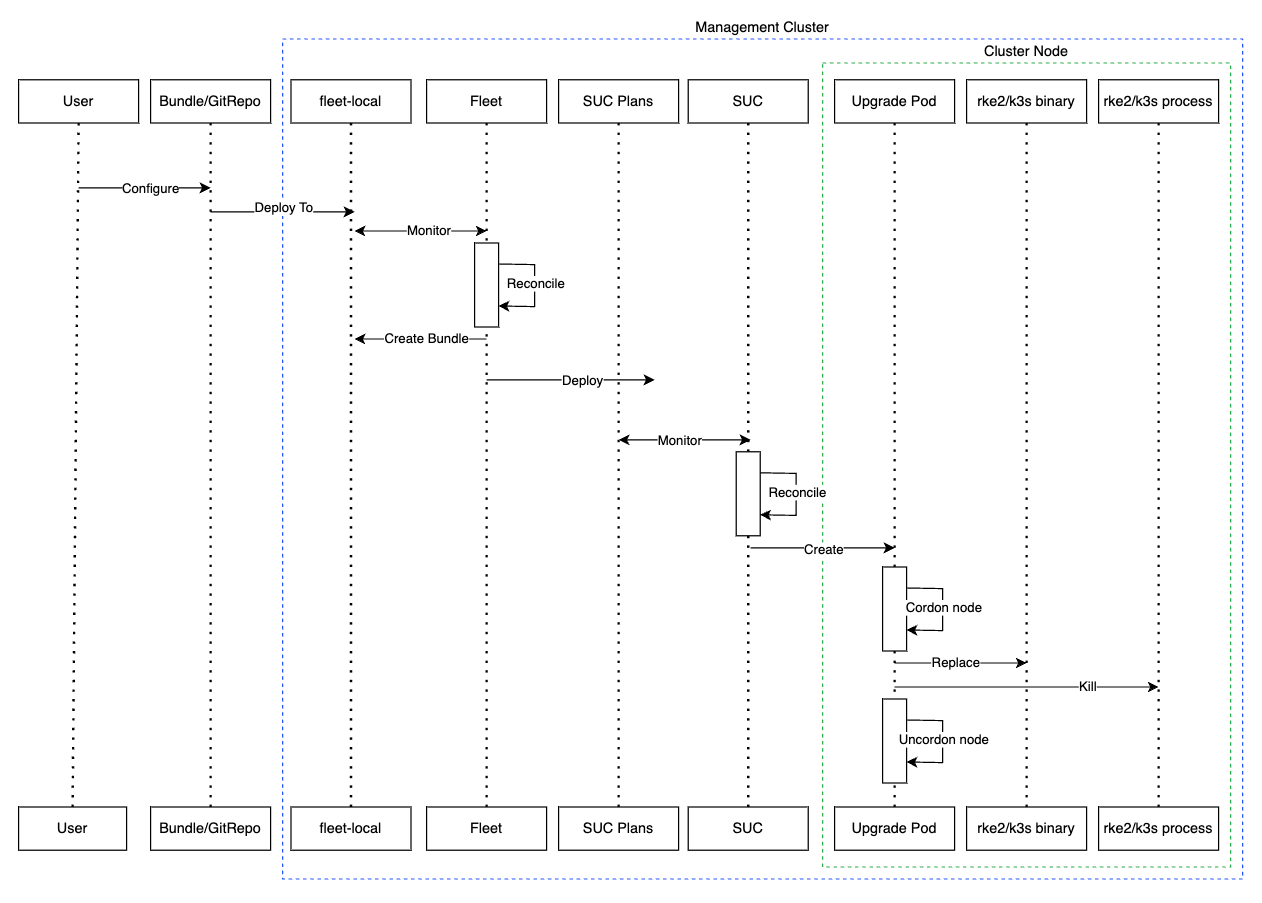
32.2.5.3 Requirements #
Backup your Kubernetes distribution:
For RKE2 clusters, see the RKE2 Backup and Restore documentation.
For K3s clusters, see the K3s Backup and Restore documentation.
Make sure that SUC Plan tolerations match node tolerations - If your Kubernetes cluster nodes have custom taints, make sure to add tolerations for those taints in the SUC Plans. By default SUC Plans have tolerations only for control-plane nodes. Default tolerations include:
CriticalAddonsOnly=true:NoExecute
node-role.kubernetes.io/control-plane:NoSchedule
node-role.kubernetes.io/etcd:NoExecute
NoteAny additional tolerations must be added under the
.spec.tolerationssection of each Plan. SUC Plans related to the Kubernetes version upgrade can be found in the suse-edge/fleet-examples repository under:For RKE2 -
fleets/day2/system-upgrade-controller-plans/rke2-upgradeFor K3s -
fleets/day2/system-upgrade-controller-plans/k3s-upgrade
Make sure you use the Plans from a valid repository release tag.
An example of defining custom tolerations for the RKE2 control-plane SUC Plan, would look like this:
apiVersion: upgrade.cattle.io/v1 kind: Plan metadata: name: rke2-upgrade-control-plane spec: ... tolerations: # default tolerations - key: "CriticalAddonsOnly" operator: "Equal" value: "true" effect: "NoExecute" - key: "node-role.kubernetes.io/control-plane" operator: "Equal" effect: "NoSchedule" - key: "node-role.kubernetes.io/etcd" operator: "Equal" effect: "NoExecute" # custom toleration - key: "foo" operator: "Equal" value: "bar" effect: "NoSchedule" ...
32.2.5.4 K8s upgrade - SUC plan deployment #
For environments previously upgraded using this procedure, users should ensure that one of the following steps is completed:
Remove any previously deployed SUC Plans related to older Edge release versions from the management cluster- can be done by removing the desired cluster from the existingGitRepo/Bundletarget configuration, or removing theGitRepo/Bundleresource altogether.Reuse the existing GitRepo/Bundle resource- can be done by pointing the resource’s revision to a new tag that holds the correct fleets for the desiredsuse-edge/fleet-examplesrelease.
This is done in order to avoid clashes between SUC Plans for older Edge release versions.
If users attempt to upgrade, while there are existing SUC Plans on the management cluster, they will see the following fleet error:
Not installed: Unable to continue with install: Plan <plan_name> in namespace <plan_namespace> exists and cannot be imported into the current release: invalid ownership metadata; annotation validation error..As mentioned in Section 32.2.5.2, “Overview”, Kubernetes upgrades are done by shipping SUC plans to the desired cluster through one of the following ways:
Fleet GitRepo resource (Section 32.2.5.4.1, “SUC plan deployment - GitRepo resource”)
Fleet Bundle resource (Section 32.2.5.4.2, “SUC plan deployment - Bundle resource”)
To determine which resource you should use, refer to Section 32.2.2, “Determine your use-case”.
For use-cases where you wish to deploy the K8s SUC plans from a third-party GitOps tool, refer to Section 32.2.5.4.3, “SUC Plan deployment - third-party GitOps workflow”
32.2.5.4.1 SUC plan deployment - GitRepo resource #
A GitRepo resource, that ships the needed K8s SUC plans, can be deployed in one of the following ways:
Through the
Rancher UI- Section 32.2.5.4.1.1, “GitRepo creation - Rancher UI” (whenRancheris available).By manually deploying (Section 32.2.5.4.1.2, “GitRepo creation - manual”) the resource to your
management cluster.
Once deployed, to monitor the Kubernetes upgrade process of the nodes of your targeted cluster, refer to Section 18.3, “Monitoring System Upgrade Controller Plans”.
32.2.5.4.1.1 GitRepo creation - Rancher UI #
To create a GitRepo resource through the Rancher UI, follow their official documentation.
The Edge team maintains ready to use fleets for both rke2 and k3s Kubernetes distributions. Depending on your environment, this fleet could be used directly or as a template.
For use-cases where no custom changes need to be included to the SUC plans that these fleets ship, users can directly refer the fleets from the suse-edge/fleet-examples repository.
In cases where custom changes are needed (e.g. to add custom tolerations), users should refer the fleets from a separate repository, allowing them to add the changes to the SUC plans as required.
Configuration examples for a GitRepo resource using the fleets from suse-edge/fleet-examples repository:
32.2.5.4.1.2 GitRepo creation - manual #
Pull the GitRepo resource:
For RKE2 clusters:
curl -o rke2-upgrade-gitrepo.yaml https://raw.githubusercontent.com/suse-edge/fleet-examples/refs/tags/release-3.6.2/gitrepos/day2/rke2-upgrade-gitrepo.yamlFor K3s clusters:
curl -o k3s-upgrade-gitrepo.yaml https://raw.githubusercontent.com/suse-edge/fleet-examples/refs/tags/release-3.6.2/gitrepos/day2/k3s-upgrade-gitrepo.yaml
Edit the GitRepo configuration:
Remove the
spec.targetssection - only needed for downstream clusters.For RKE2:
# Example using sed sed -i.bak '/^ targets:/,$d' rke2-upgrade-gitrepo.yaml && rm -f rke2-upgrade-gitrepo.yaml.bak # Example using yq (v4+) yq eval 'del(.spec.targets)' -i rke2-upgrade-gitrepo.yamlFor K3s:
# Example using sed sed -i.bak '/^ targets:/,$d' k3s-upgrade-gitrepo.yaml && rm -f k3s-upgrade-gitrepo.yaml.bak # Example using yq (v4+) yq eval 'del(.spec.targets)' -i k3s-upgrade-gitrepo.yaml
Point the namespace of the
GitRepoto thefleet-localnamespace - done in order to deploy the resource on the management cluster.For RKE2:
# Example using sed sed -i.bak 's/namespace: fleet-default/namespace: fleet-local/' rke2-upgrade-gitrepo.yaml && rm -f rke2-upgrade-gitrepo.yaml.bak # Example using yq (v4+) yq eval '.metadata.namespace = "fleet-local"' -i rke2-upgrade-gitrepo.yamlFor K3s:
# Example using sed sed -i.bak 's/namespace: fleet-default/namespace: fleet-local/' k3s-upgrade-gitrepo.yaml && rm -f k3s-upgrade-gitrepo.yaml.bak # Example using yq (v4+) yq eval '.metadata.namespace = "fleet-local"' -i k3s-upgrade-gitrepo.yaml
Apply the GitRepo resources to your
management cluster:# RKE2 kubectl apply -f rke2-upgrade-gitrepo.yaml # K3s kubectl apply -f k3s-upgrade-gitrepo.yamlView the created GitRepo resource under the
fleet-localnamespace:# RKE2 kubectl get gitrepo rke2-upgrade -n fleet-local # K3s kubectl get gitrepo k3s-upgrade -n fleet-local # Example output NAME REPO COMMIT BUNDLEDEPLOYMENTS-READY STATUS k3s-upgrade https://github.com/suse-edge/fleet-examples.git fleet-local 0/0 rke2-upgrade https://github.com/suse-edge/fleet-examples.git fleet-local 0/0
32.2.5.4.2 SUC plan deployment - Bundle resource #
A Bundle resource, that ships the needed Kubernetes upgrade SUC Plans, can be deployed in one of the following ways:
Through the
Rancher UI- Section 32.2.5.4.2.1, “Bundle creation - Rancher UI” (whenRancheris available).By manually deploying (Section 32.2.5.4.2.2, “Bundle creation - manual”) the resource to your
management cluster.
Once deployed, to monitor the Kubernetes upgrade process of the nodes of your targeted cluster, refer to Section 18.3, “Monitoring System Upgrade Controller Plans”.
32.2.5.4.2.1 Bundle creation - Rancher UI #
The Edge team maintains ready to use bundles for both rke2 and k3s Kubernetes distributions. Depending on your environment these bundles could be used directly or as a template.
To create a bundle through Rancher’s UI:
In the upper left corner, click ☰ → Continuous Delivery
Go to Advanced > Bundles
Select Create from YAML
From here you can create the Bundle in one of the following ways:
NoteThere might be use-cases where you would need to include custom changes to the
SUC plansthat the bundle ships (e.g. to add custom tolerations). Make sure to include those changes in the bundle that will be generated by the below steps.By manually copying the bundle content for RKE2 or K3s from
suse-edge/fleet-examplesto the Create from YAML page.By cloning the suse-edge/fleet-examples repository from the desired release tag and selecting the Read from File option in the Create from YAML page. From there, navigate to the bundle that you need (
bundles/day2/system-upgrade-controller-plans/rke2-upgrade/plan-bundle.yamlfor RKE2 andbundles/day2/system-upgrade-controller-plans/k3s-upgrade/plan-bundle.yamlfor K3s). This will auto-populate the Create from YAML page with the bundle content.
Edit the Bundle in the Rancher UI:
Change the namespace of the
Bundleto point to thefleet-localnamespace.# Example kind: Bundle apiVersion: fleet.cattle.io/v1alpha1 metadata: name: rke2-upgrade namespace: fleet-local ...Change the target clusters for the
Bundleto point to yourlocal(management) cluster:spec: targets: - clusterName: localNoteThere are some use-cases where your
localcluster could have a different name.To retrieve your
localcluster name, execute the command below:kubectl get clusters.fleet.cattle.io -n fleet-local
Select Create
32.2.5.4.2.2 Bundle creation - manual #
Pull the Bundle resources:
For RKE2 clusters:
curl -o rke2-plan-bundle.yaml https://raw.githubusercontent.com/suse-edge/fleet-examples/refs/tags/release-3.6.2/bundles/day2/system-upgrade-controller-plans/rke2-upgrade/plan-bundle.yamlFor K3s clusters:
curl -o k3s-plan-bundle.yaml https://raw.githubusercontent.com/suse-edge/fleet-examples/refs/tags/release-3.6.2/bundles/day2/system-upgrade-controller-plans/k3s-upgrade/plan-bundle.yaml
Edit the
Bundleconfiguration:Change the target clusters for the
Bundleto point to yourlocal(management) cluster:spec: targets: - clusterName: localNoteThere are some use-cases where your
localcluster could have a different name.To retrieve your
localcluster name, execute the command below:kubectl get clusters.fleet.cattle.io -n fleet-localChange the namespace of the
Bundleto point to thefleet-localnamespace.# Example kind: Bundle apiVersion: fleet.cattle.io/v1alpha1 metadata: name: rke2-upgrade namespace: fleet-local ...
Apply the Bundle resources to your
management cluster:# For RKE2 kubectl apply -f rke2-plan-bundle.yaml # For K3s kubectl apply -f k3s-plan-bundle.yamlView the created Bundle resource under the
fleet-localnamespace:# For RKE2 kubectl get bundles rke2-upgrade -n fleet-local # For K3s kubectl get bundles k3s-upgrade -n fleet-local # Example output NAME BUNDLEDEPLOYMENTS-READY STATUS k3s-upgrade 0/0 rke2-upgrade 0/0
32.2.5.4.3 SUC Plan deployment - third-party GitOps workflow #
There might be use-cases where users would like to incorporate the Kubernetes upgrade SUC plans to their own third-party GitOps workflow (e.g. Flux).
To get the K8s upgrade resources that you need, first determine the Edge release tag of the suse-edge/fleet-examples repository that you would like to use.
After that, the resources can be found at:
For a RKE2 cluster upgrade:
For
control-planenodes -fleets/day2/system-upgrade-controller-plans/rke2-upgrade/plan-control-plane.yamlFor
workernodes -fleets/day2/system-upgrade-controller-plans/rke2-upgrade/plan-worker.yaml
For a K3s cluster upgrade:
For
control-planenodes -fleets/day2/system-upgrade-controller-plans/k3s-upgrade/plan-control-plane.yamlFor
workernodes -fleets/day2/system-upgrade-controller-plans/k3s-upgrade/plan-worker.yaml
These Plan resources are interpreted by the System Upgrade Controller and should be deployed on each downstream cluster that you wish to upgrade. For SUC deployment information, see Section 18.2, “Installing the System Upgrade Controller”.
To better understand how your GitOps workflow can be used to deploy the SUC Plans for Kubernetes version upgrade, it can be beneficial to take a look at the overview (Section 32.2.5.2, “Overview”) of the update procedure using Fleet.
32.2.6 Helm chart upgrade #
This section covers the following parts:
Section 32.2.6.1, “Preparation for air-gapped environments” - holds information on how to ship Edge related OCI charts and images to your private registry.
Section 32.2.6.2, “Upgrade procedure” - holds information on different Helm chart upgrade use-cases and their upgrade procedure.
32.2.6.1 Preparation for air-gapped environments #
32.2.6.1.1 Ensure you have access to your Helm chart Fleet #
Depending on what your environment supports, you can take one of the following options:
Host your chart’s Fleet resources on a local Git server that is accessible by your
management cluster.Use Fleet’s CLI to convert a Helm chart into a Bundle that you can directly use and will not need to be hosted somewhere. Fleet’s CLI can be retrieved from their release page, for Mac users there is a fleet-cli Homebrew Formulae.
32.2.6.1.2 Find the required assets for your Edge release version #
Go to the "Day 2" release page and find the Edge release that you want to upgrade your chart to and click Assets.
From the "Assets" section, download the following files:
Release File
Description
edge-save-images.sh
Pulls the images specified in the
edge-release-images.txtfile and packages them inside of a '.tar.gz' archive.edge-save-oci-artefacts.sh
Pulls the OCI chart images related to the specific Edge release and packages them inside of a '.tar.gz' archive.
edge-load-images.sh
Loads images from a '.tar.gz' archive, retags and pushes them to a private registry.
edge-load-oci-artefacts.sh
Takes a directory containing Edge OCI '.tgz' chart packages and loads them to a private registry.
edge-release-helm-oci-artefacts.txt
Contains a list of OCI chart images related to a specific Edge release.
edge-release-images.txt
Contains a list of images related to a specific Edge release.
32.2.6.1.3 Create the Edge release images archive #
On a machine with internet access:
Make
edge-save-images.shexecutable:chmod +x edge-save-images.shGenerate the image archive:
./edge-save-images.sh --source-registry registry.suse.comThis will create a ready to load archive named
edge-images.tar.gz.NoteIf the
-i|--imagesoption is specified, the name of the archive may differ.Copy this archive to your air-gapped machine:
scp edge-images.tar.gz <user>@<machine_ip>:/path
32.2.6.1.4 Create the Edge OCI chart images archive #
On a machine with internet access:
Make
edge-save-oci-artefacts.shexecutable:chmod +x edge-save-oci-artefacts.shGenerate the OCI chart image archive:
./edge-save-oci-artefacts.sh --source-registry registry.suse.comThis will create an archive named
oci-artefacts.tar.gz.NoteIf the
-a|--archiveoption is specified, the name of the archive may differ.Copy this archive to your air-gapped machine:
scp oci-artefacts.tar.gz <user>@<machine_ip>:/path
32.2.6.1.5 Load Edge release images to your air-gapped machine #
On your air-gapped machine:
Log into your private registry (if required):
podman login <REGISTRY.YOURDOMAIN.COM:PORT>Make
edge-load-images.shexecutable:chmod +x edge-load-images.shExecute the script, passing the previously copied
edge-images.tar.gzarchive:./edge-load-images.sh --source-registry registry.suse.com --registry <REGISTRY.YOURDOMAIN.COM:PORT> --images edge-images.tar.gzNoteThis will load all images from the
edge-images.tar.gz, retag and push them to the registry specified under the--registryoption.
32.2.6.1.6 Load the Edge OCI chart images to your air-gapped machine #
On your air-gapped machine:
Log into your private registry (if required):
podman login <REGISTRY.YOURDOMAIN.COM:PORT>Make
edge-load-oci-artefacts.shexecutable:chmod +x edge-load-oci-artefacts.shUntar the copied
oci-artefacts.tar.gzarchive:tar -xvf oci-artefacts.tar.gzThis will produce a directory with the naming template
edge-release-oci-tgz-<date>Pass this directory to the
edge-load-oci-artefacts.shscript to load the Edge OCI chart images to your private registry:NoteThis script assumes the
helmCLI has been pre-installed on your environment. For Helm installation instructions, see Installing Helm../edge-load-oci-artefacts.sh --archive-directory edge-release-oci-tgz-<date> --registry <REGISTRY.YOURDOMAIN.COM:PORT> --source-registry registry.suse.com
32.2.6.1.7 Configure your private registry in your Kubernetes distribution #
For RKE2, see Private Registry Configuration
For K3s, see Private Registry Configuration
32.2.6.2 Upgrade procedure #
This section focuses on the following Helm upgrade procedure use-cases:
Manually deployed Helm charts cannot be reliably upgraded. We suggest to redeploy the Helm chart using the Section 32.2.6.2.1, “I have a new cluster and would like to deploy and manage an Edge Helm chart” method.
32.2.6.2.1 I have a new cluster and would like to deploy and manage an Edge Helm chart #
This section covers how to:
32.2.6.2.1.1 Prepare the fleet resources for your chart #
Acquire the chart’s Fleet resources from the Edge release tag that you wish to use.
Navigate to the Helm chart fleet (
fleets/day2/chart-templates/<chart>)If you intend to use a GitOps workflow, copy the chart Fleet directory to the Git repository from where you will do GitOps.
Optionally, if the Helm chart requires configurations to its values, edit the
.helm.valuesconfiguration inside thefleet.yamlfile of the copied directory.Optionally, there may be use-cases where you need to add additional resources to your chart’s fleet so that it can better fit your environment. For information on how to enhance your Fleet directory, see Git Repository Contents.
In some cases, the default timeout Fleet uses for Helm operations may be insufficient, resulting in the following error:
failed pre-install: context deadline exceededIn such cases, add the timeoutSeconds property under the helm configuration of your fleet.yaml file.
An example for the longhorn helm chart would look like:
User Git repository structure:
<user_repository_root> ├── longhorn │ └── fleet.yaml └── longhorn-crd └── fleet.yamlfleet.yamlcontent populated with userLonghorndata:defaultNamespace: longhorn-system helm: # timeoutSeconds: 10 releaseName: "longhorn" chart: "longhorn" repo: "https://charts.rancher.io/" version: "1.11.3-10.1" takeOwnership: true # custom chart value overrides values: # Example for user provided custom values content defaultSettings: deletingConfirmationFlag: true # https://fleet.rancher.io/bundle-diffs diff: comparePatches: - apiVersion: apiextensions.k8s.io/v1 kind: CustomResourceDefinition name: engineimages.longhorn.io operations: - {"op":"remove", "path":"/status/conditions"} - {"op":"remove", "path":"/status/storedVersions"} - {"op":"remove", "path":"/status/acceptedNames"} - apiVersion: apiextensions.k8s.io/v1 kind: CustomResourceDefinition name: nodes.longhorn.io operations: - {"op":"remove", "path":"/status/conditions"} - {"op":"remove", "path":"/status/storedVersions"} - {"op":"remove", "path":"/status/acceptedNames"} - apiVersion: apiextensions.k8s.io/v1 kind: CustomResourceDefinition name: volumes.longhorn.io operations: - {"op":"remove", "path":"/status/conditions"} - {"op":"remove", "path":"/status/storedVersions"} - {"op":"remove", "path":"/status/acceptedNames"}NoteThese are just example values that are used to illustrate custom configurations over the
longhornchart. They should NOT be treated as deployment guidelines for thelonghornchart.
32.2.6.2.1.2 Deploy the fleet for your chart #
You can deploy the fleet for your chart by either using a GitRepo (Section 32.2.6.2.1.2.1, “GitRepo”) or Bundle (Section 32.2.6.2.1.2.2, “Bundle”).
While deploying your Fleet, if you get a Modified message, make sure to add a corresponding comparePatches entry to the Fleet’s diff section. For more information, see Generating Diffs to Ignore Modified GitRepos.
32.2.6.2.1.2.1 GitRepo #
Fleet’s GitRepo resource holds information on how to access your chart’s Fleet resources and to which clusters it needs to apply those resources.
The GitRepo resource can be deployed through the Rancher UI, or manually, by deploying the resource to the management cluster.
Example Longhorn GitRepo resource for manual deployment:
apiVersion: fleet.cattle.io/v1alpha1
kind: GitRepo
metadata:
name: longhorn-git-repo
namespace: fleet-local
spec:
# If using a tag
# revision: user_repository_tag
#
# If using a branch
# branch: user_repository_branch
paths:
# As seen in the 'Prepare your Fleet resources' example
- longhorn
- longhorn-crd
repo: user_repository_url32.2.6.2.1.2.2 Bundle #
Bundle resources hold the raw Kubernetes resources that need to be deployed by Fleet. Normally it is encouraged to use the GitRepo approach, but for use-cases where the environment is air-gapped and cannot support a local Git server, Bundles can help you in propagating your Helm chart Fleet to your target clusters.
A Bundle can be deployed either through the Rancher UI (Continuous Delivery → Advanced → Bundles → Create from YAML) or by manually deploying the Bundle resource in the correct Fleet namespace. For information about Fleet namespaces, see the upstream documentation.
Bundles for Edge Helm charts can be created by utilizing Fleet’s Convert a Helm Chart into a Bundle approach.
Below you can find an example on how to create a Bundle resource from the longhorn and longhorn-crd Helm chart fleet templates and manually deploy this bundle to your management cluster.
To illustrate the workflow, the below example uses the suse-edge/fleet-examples directory structure.
Navigate to the longhorn Chart fleet template:
cd fleets/day2/chart-templates/longhorn/longhornCreate a
targets.yamlfile that will instruct Fleet to which clusters it should deploy the Helm chart:cat > targets.yaml <<EOF targets: # Match your local (management) cluster - clusterName: local EOFNoteThere are some use-cases where your local cluster could have a different name.
To retrieve your local cluster name, execute the command below:
kubectl get clusters.fleet.cattle.io -n fleet-localConvert the
LonghornHelm chart Fleet to a Bundle resource using the fleet-cli.NoteFleet’s CLI can be retrieved from their release Assets page (
fleet-linux-amd64).For Mac users there is a fleet-cli Homebrew Formulae.
fleet apply --compress --targets-file=targets.yaml -n fleet-local -o - longhorn-bundle > longhorn-bundle.yamlNavigate to the longhorn-crd Chart fleet template:
cd fleets/day2/chart-templates/longhorn/longhorn-crdCreate a
targets.yamlfile that will instruct Fleet to which clusters it should deploy the Helm chart:cat > targets.yaml <<EOF targets: # Match your local (management) cluster - clusterName: local EOFConvert the
Longhorn CRDHelm chart Fleet to a Bundle resource using the fleet-cli.fleet apply --compress --targets-file=targets.yaml -n fleet-local -o - longhorn-crd-bundle > longhorn-crd-bundle.yamlDeploy the
longhorn-bundle.yamlandlonghorn-crd-bundle.yamlfiles to yourmanagement cluster:kubectl apply -f longhorn-crd-bundle.yaml kubectl apply -f longhorn-bundle.yaml
Following these steps will ensure that SUSE Storage is deployed on all of the specified management cluster.
32.2.6.2.1.3 Manage the deployed Helm chart #
Once deployed with Fleet, for Helm chart upgrades, see Section 32.2.6.2.2, “I would like to upgrade a Fleet managed Helm chart”.
32.2.6.2.2 I would like to upgrade a Fleet managed Helm chart #
Determine the version to which you need to upgrade your chart so that it is compatible with the desired Edge release. Helm chart version per Edge release can be viewed from the release notes (Chapter 41, Release Notes).
In your Fleet monitored Git repository, edit the Helm chart’s
fleet.yamlfile with the correct chart version and repository from the release notes (Chapter 41, Release Notes).After committing and pushing the changes to your repository, this will trigger an upgrade of the desired Helm chart
32.2.6.2.3 I would like to upgrade a Helm chart deployed via EIB #
Chapter 8, Edge Image Builder deploys Helm charts by creating a HelmChart resource and utilizing the helm-controller introduced by the RKE2/K3s Helm integration feature.
To ensure that a Helm chart deployed via EIB is successfully upgraded, users need to do an upgrade over the respective HelmChart resources.
Below you can find information on:
The general overview (Section 32.2.6.2.3.1, “Overview”) of the upgrade process.
The necessary upgrade steps (Section 32.2.6.2.3.2, “Upgrade Steps”).
An example (Section 32.2.6.2.3.3, “Example”) showcasing a Longhorn chart upgrade using the explained method.
How to use the upgrade process with a different GitOps tool (Section 32.2.6.2.3.4, “Helm chart upgrade using a third-party GitOps tool”).
32.2.6.2.3.1 Overview #
Helm charts that are deployed via EIB are upgraded through a fleet called eib-charts-upgrader.
This fleet processes user-provided data to update a specific set of HelmChart resources.
Updating these resources triggers the helm-controller, which upgrades the Helm charts associated with the modified HelmChart resources.
The user is only expected to:
Locally pull the archives for each Helm chart that needs to be upgraded.
Pass these archives to the generate-chart-upgrade-data.sh
generate-chart-upgrade-data.shscript, which will include the data from these archives to theeib-charts-upgraderfleet.Deploy the
eib-charts-upgraderfleet to theirmanagement cluster. This is done through either aGitRepoorBundleresource.
Once deployed, the eib-charts-upgrader, with the help of Fleet, will ship its resources to the desired management cluster.
These resources include:
A set of
Secretsholding the user-provided Helm chart data.A
Kubernetes Jobwhich will deploy aPodthat will mount the previously mentionedSecretsand based on them patch the corresponding HelmChart resources.
As mentioned previously this will trigger the helm-controller which will perform the actual Helm chart upgrade.
Below you can find a diagram of the above description:
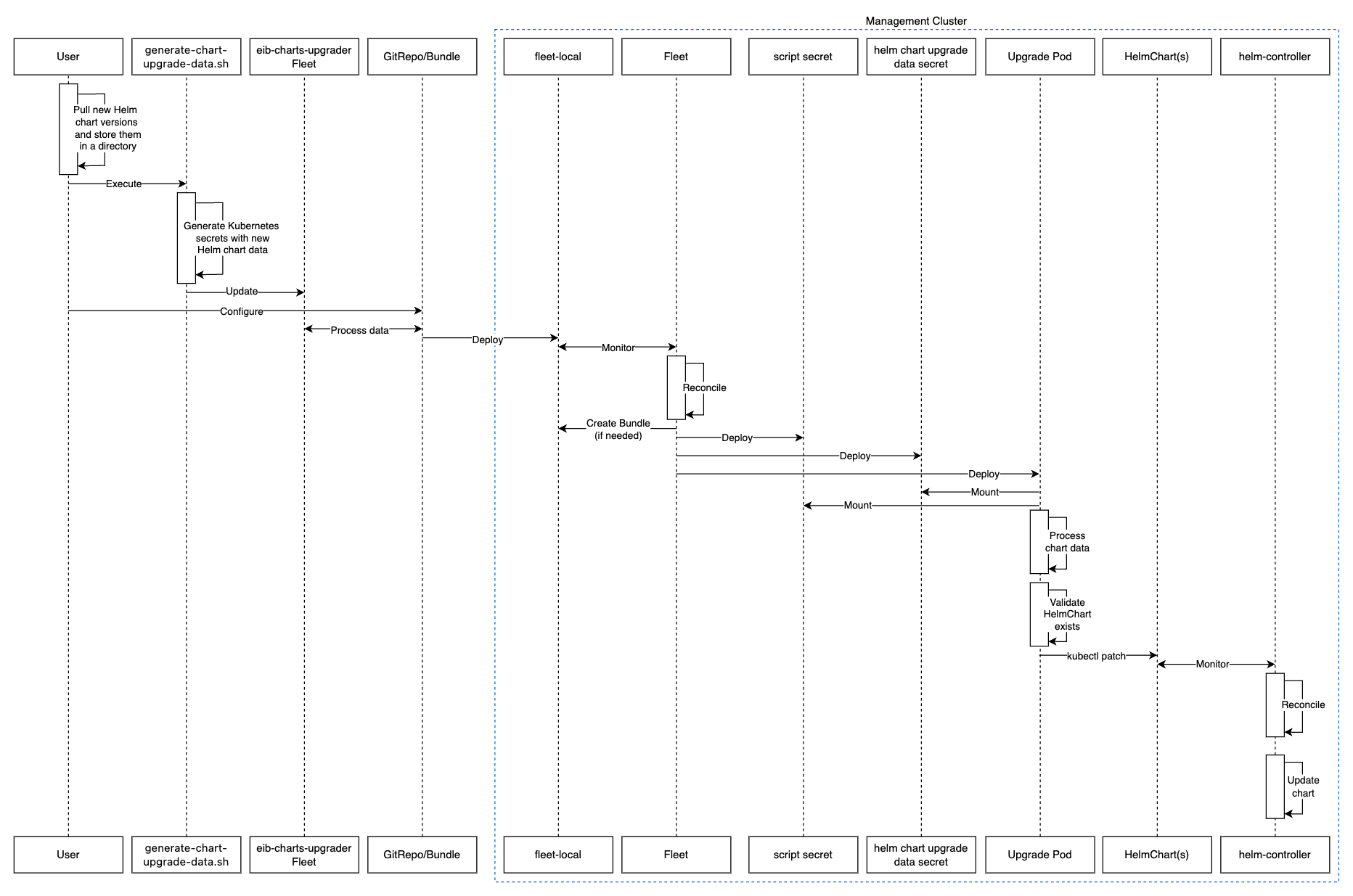
32.2.6.2.3.2 Upgrade Steps #
Clone the
suse-edge/fleet-examplesrepository from the correct release tag.Create a directory in which you will store the pulled Helm chart archive(s).
mkdir archivesInside of the newly created archive directory, pull the archive(s) for the Helm chart(s) you wish to upgrade:
cd archives helm pull [chart URL | repo/chartname] # Alternatively if you want to pull a specific version: # helm pull [chart URL | repo/chartname] --version 0.0.0From Assets of the desired release tag, download the
generate-chart-upgrade-data.shscript.Execute the
generate-chart-upgrade-data.shscript:chmod +x ./generate-chart-upgrade-data.sh ./generate-chart-upgrade-data.sh --archive-dir /foo/bar/archives/ --fleet-path /foo/bar/fleet-examples/fleets/day2/eib-charts-upgraderFor each chart archive in the
--archive-dirdirectory, the script generates aKubernetes Secret YAMLfile containing the chart upgrade data and stores it in thebase/secretsdirectory of the fleet specified by--fleet-path.The
generate-chart-upgrade-data.shscript also applies additional modifications to the fleet to ensure the generatedKubernetes Secret YAMLfiles are correctly utilized by the workload deployed by the fleet.ImportantUsers should not make any changes over what the
generate-chart-upgrade-data.shscript generates.
The steps below depend on the environment that you are running:
For an environment that supports GitOps (e.g. is non air-gapped, or is air-gapped, but allows for local Git server support):
Copy the
fleets/day2/eib-charts-upgraderFleet to the repository that you will use for GitOps.NoteMake sure that the Fleet includes the changes that have been made by the
generate-chart-upgrade-data.shscript.Configure a
GitReporesource that will be used to ship all the resources of theeib-charts-upgraderFleet.For
GitRepoconfiguration and deployment through the Rancher UI, see Accessing Fleet in the Rancher UI.For
GitRepomanual configuration and deployment, see Creating a Deployment.
For an environment that does not support GitOps (e.g. is air-gapped and does not allow local Git server usage):
Download the
fleet-clibinary from therancher/fleetrelease page (fleet-linux-amd64for Linux). For Mac users, there is a Homebrew Formulae that can be used - fleet-cli.Navigate to the
eib-charts-upgraderFleet:cd /foo/bar/fleet-examples/fleets/day2/eib-charts-upgraderCreate a
targets.yamlfile that will instruct Fleet where to deploy your resources:cat > targets.yaml <<EOF targets: # To map the local(management) cluster - clusterName: local EOFNoteThere are some use-cases where your
localcluster could have a different name.To retrieve your
localcluster name, execute the command below:kubectl get clusters.fleet.cattle.io -n fleet-localUse the
fleet-clito convert the Fleet to aBundleresource:fleet apply --compress --targets-file=targets.yaml -n fleet-local -o - eib-charts-upgrade > bundle.yamlThis will create a Bundle (
bundle.yaml) that will hold all the templated resource from theeib-charts-upgraderFleet.For more information regarding the
fleet applycommand, see fleet apply.For more information regarding converting Fleets to Bundles, see Convert a Helm Chart into a Bundle.
Deploy the
Bundle. This can be done in one of two ways:Through Rancher’s UI - Navigate to Continuous Delivery → Advanced → Bundles → Create from YAML and either paste the
bundle.yamlcontents, or click theRead from Fileoption and pass the file itself.Manually - Deploy the
bundle.yamlfile manually inside of yourmanagement cluster.
Executing these steps will result in a successfully deployed GitRepo/Bundle resource. The resource will be picked up by Fleet and its contents will be deployed onto the target clusters that the user has specified in the previous steps. For an overview of the process, refer to Section 32.2.6.2.3.1, “Overview”.
For information on how to track the upgrade process, you can refer to Section 32.2.6.2.3.3, “Example”.
Once the chart upgrade has been successfully verified, remove the Bundle/GitRepo resource.
This will remove the no longer necessary upgrade resources from your management cluster, ensuring that no future version clashes might occur.
32.2.6.2.3.3 Example #
The example below demonstrates how to upgrade a Helm chart deployed via EIB from one version to another on a management cluster. Note that the versions used in this example are not recommendations. For version recommendations specific to an Edge release, refer to the release notes (Chapter 41, Release Notes).
Use-case:
A
managementcluster is running an older version of Longhorn.The cluster has been deployed through EIB, using the following image definition snippet:
kubernetes: helm: charts: - name: longhorn-crd repositoryName: rancher-charts targetNamespace: longhorn-system createNamespace: true version: 104.2.0+up1.7.1 installationNamespace: kube-system - name: longhorn repositoryName: rancher-charts targetNamespace: longhorn-system createNamespace: true version: 104.2.0+up1.7.1 installationNamespace: kube-system repositories: - name: rancher-charts url: https://charts.rancher.io/ ...SUSE Storageneeds to be upgraded to a version that is compatible with the Edge 3.6 release. Meaning it needs to be upgraded to1.11.3-10.1.It is assumed that the
management clusteris air-gapped, without support for a local Git server and has a working Rancher setup.
Follow the Upgrade Steps (Section 32.2.6.2.3.2, “Upgrade Steps”):
Clone the
suse-edge/fleet-examplerepository from therelease-3.6.2tag.git clone -b release-3.6.2 https://github.com/suse-edge/fleet-examples.gitCreate a directory where the
Longhornupgrade archive will be stored.mkdir archivesPull the desired
Longhornchart archive version:# First add the Rancher Helm chart repository helm repo add rancher-charts https://charts.rancher.io/ # Pull the Longhorn 1.11.3 chart archive helm pull oci://dp.apps.rancher.io/charts/suse-storage --version 1.11.3-10.1Outside of the
archivesdirectory, download thegenerate-chart-upgrade-data.shscript from thesuse-edge/fleet-examplesrelease tag.Directory setup should look similar to:
. ├── archives │ └── longhorn-1.11.3-10.1.tgz ├── fleet-examples ... │ ├── fleets │ │ ├── day2 | | | ├── ... │ │ │ ├── eib-charts-upgrader │ │ │ │ ├── base │ │ │ │ │ ├── job.yaml │ │ │ │ │ ├── kustomization.yaml │ │ │ │ │ ├── patches │ │ │ │ │ │ └── job-patch.yaml │ │ │ │ │ ├── rbac │ │ │ │ │ │ ├── cluster-role-binding.yaml │ │ │ │ │ │ ├── cluster-role.yaml │ │ │ │ │ │ ├── kustomization.yaml │ │ │ │ │ │ └── sa.yaml │ │ │ │ │ └── secrets │ │ │ │ │ ├── eib-charts-upgrader-script.yaml │ │ │ │ │ └── kustomization.yaml │ │ │ │ ├── fleet.yaml │ │ │ │ └── kustomization.yaml │ │ │ └── ... │ └── ... └── generate-chart-upgrade-data.shExecute the
generate-chart-upgrade-data.shscript:# First make the script executable chmod +x ./generate-chart-upgrade-data.sh # Then execute the script ./generate-chart-upgrade-data.sh --archive-dir ./archives --fleet-path ./fleet-examples/fleets/day2/eib-charts-upgraderThe directory structure after the script execution should look similar to:
. ├── archives │ └── longhorn-1.11.3-10.1.tgz ├── fleet-examples ... │ ├── fleets │ │ ├── day2 │ │ │ ├── ... │ │ │ ├── eib-charts-upgrader │ │ │ │ ├── base │ │ │ │ │ ├── job.yaml │ │ │ │ │ ├── kustomization.yaml │ │ │ │ │ ├── patches │ │ │ │ │ │ └── job-patch.yaml │ │ │ │ │ ├── rbac │ │ │ │ │ │ ├── cluster-role-binding.yaml │ │ │ │ │ │ ├── cluster-role.yaml │ │ │ │ │ │ ├── kustomization.yaml │ │ │ │ │ │ └── sa.yaml │ │ │ │ │ └── secrets │ │ │ │ │ ├── eib-charts-upgrader-script.yaml │ │ │ │ │ ├── kustomization.yaml │ │ │ │ │ ├── longhorn-VERSION.yaml - secret created by the generate-chart-upgrade-data.sh script │ │ │ │ │ └── longhorn-crd-VERSION.yaml - secret created by the generate-chart-upgrade-data.sh script │ │ │ │ ├── fleet.yaml │ │ │ │ └── kustomization.yaml │ │ │ └── ... │ └── ... └── generate-chart-upgrade-data.shThe files changed in git should look like this:
Changes not staged for commit: (use "git add <file>..." to update what will be committed) (use "git restore <file>..." to discard changes in working directory) modified: fleets/day2/eib-charts-upgrader/base/patches/job-patch.yaml modified: fleets/day2/eib-charts-upgrader/base/secrets/kustomization.yaml Untracked files: (use "git add <file>..." to include in what will be committed) fleets/day2/eib-charts-upgrader/base/secrets/longhorn-VERSION.yaml fleets/day2/eib-charts-upgrader/base/secrets/longhorn-crd-VERSION.yamlCreate a
Bundlefor theeib-charts-upgraderFleet:First, navigate to the Fleet itself:
cd ./fleet-examples/fleets/day2/eib-charts-upgraderThen create a
targets.yamlfile:cat > targets.yaml <<EOF targets: - clusterName: local EOFThen use the
fleet-clibinary to convert the Fleet to a Bundle:fleet apply --compress --targets-file=targets.yaml -n fleet-local -o - eib-charts-upgrade > bundle.yaml
Deploy the Bundle through the Rancher UI:
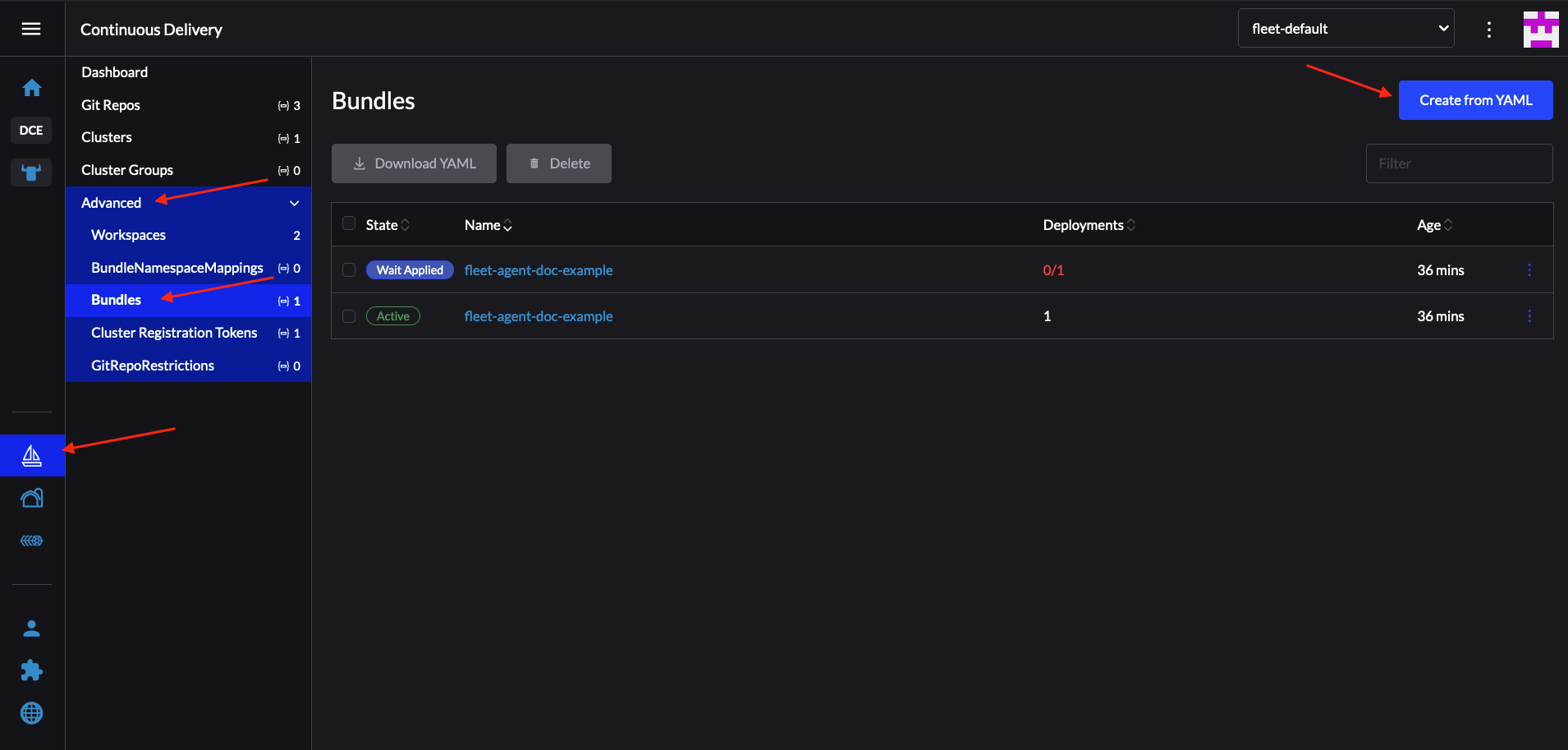 Figure 32.1: Deploy Bundle through Rancher UI #
From here, select Read from File and find the
bundle.yamlfile on your system.This will auto-populate the
Bundleinside of Rancher’s UI.Select Create.
After a successful deployment, your Bundle would look similar to:
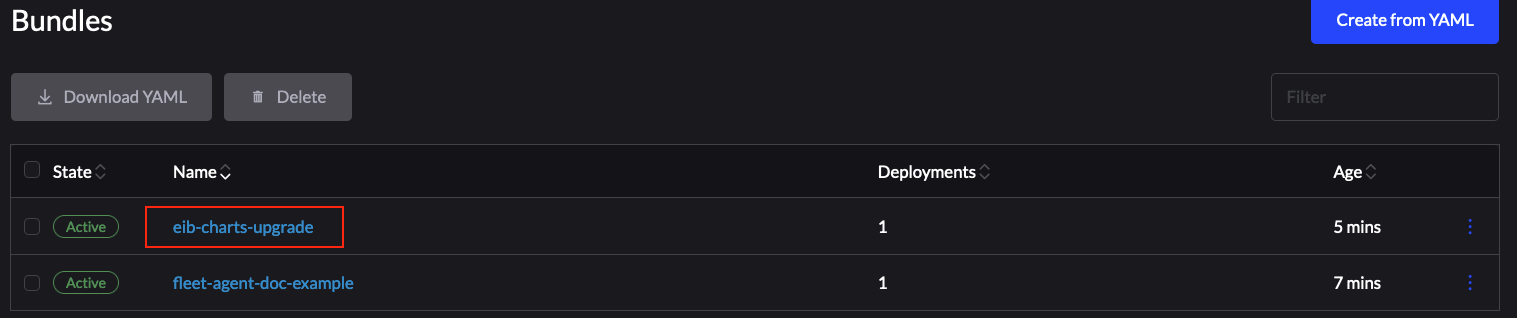 Figure 32.2: Successfully deployed Bundle #
After the successful deployment of the Bundle, to monitor the upgrade process:
Verify the logs of the
Upgrade Pod: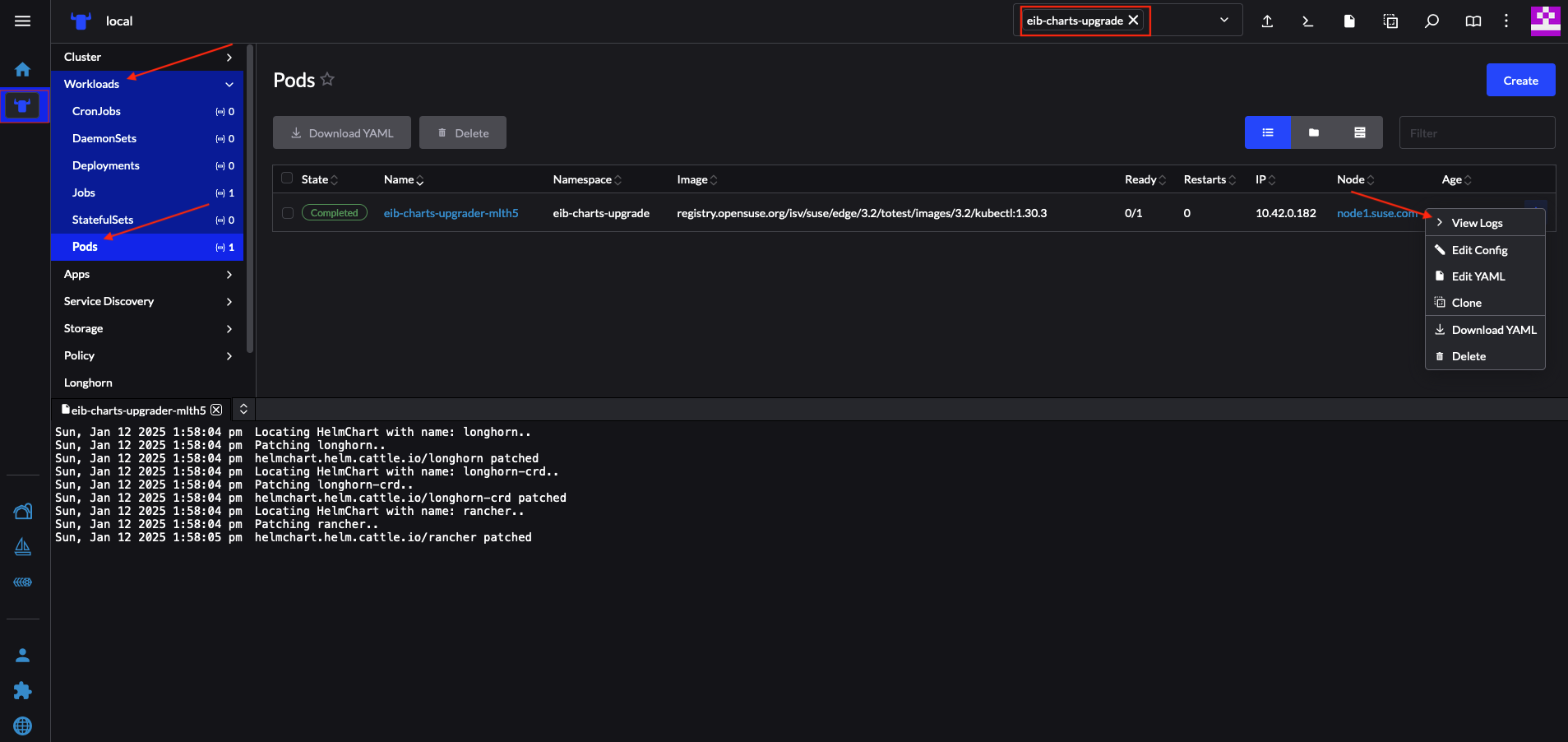
Now verify the logs of the Pod created for the upgrade by the helm-controller:
The Pod name will be with the following template -
helm-install-longhorn-<random-suffix>The Pod will be in the namespace where the
HelmChartresource was deployed. In our case this iskube-system.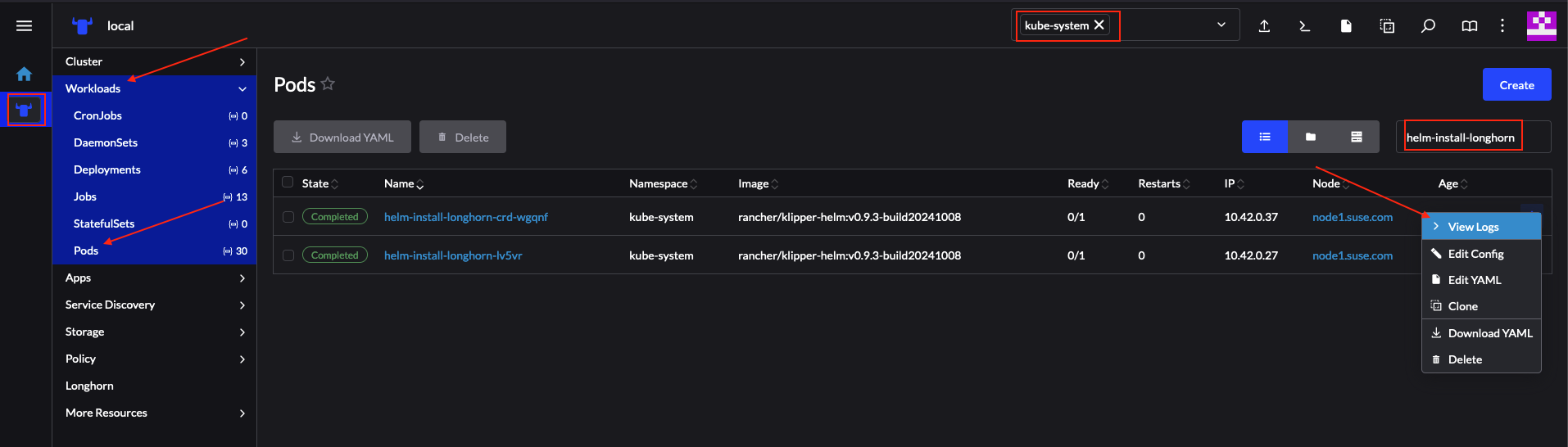 Figure 32.3: Logs for successfully upgraded Longhorn chart #
Verify that the
HelmChartversion has been updated by navigating to Rancher’sHelmChartssection (More Resources → HelmCharts). Select the namespace where the chart was deployed, for this example it would bekube-system.Finally check that the Longhorn Pods are running.
After making the above validations, it is safe to assume that the Longhorn Helm chart has been upgraded to the 1.11.3-10.1 version.
32.2.6.2.3.4 Helm chart upgrade using a third-party GitOps tool #
There might be use-cases where users would like to use this upgrade procedure with a GitOps workflow other than Fleet (e.g. Flux).
To produce the resources needed for the upgrade procedure, you can use the generate-chart-upgrade-data.sh script to populate the eib-charts-upgrader Fleet with the user provided data. For more information on how to do this, see Section 32.2.6.2.3.2, “Upgrade Steps”.
After you have the full setup, you can use kustomize to generate a full working solution that you can deploy in your cluster:
cd /foo/bar/fleets/day2/eib-charts-upgrader
kustomize build .If you want to include the solution to your GitOps workflow, you can remove the fleet.yaml file and use what is left as a valid Kustomize setup. Just do not forget to first run the generate-chart-upgrade-data.sh script, so that it can populate the Kustomize setup with the data for the Helm charts that you wish to upgrade to.
To understand how this workflow is intended to be used, it can be beneficial to look at Section 32.2.6.2.3.1, “Overview” and Section 32.2.6.2.3.2, “Upgrade Steps”.
33 Downstream clusters #
This section covers the possible ways to perform "Day 2" operations for different parts of your downstream cluster.
33.1 Fleet #
This section offers information on how to perform "Day 2" operations using the Fleet (Chapter 6, Fleet) component.
The following topics are covered as part of this section:
Section 33.1.1, “Components” - default components used for all "Day 2" operations.
Section 33.1.2, “Determine your use-case” - provides an overview of the Fleet custom resources that will be used and their suitability for different "Day 2" operations use-cases.
Section 33.1.3, “Day 2 workflow” - provides a workflow guide for executing "Day 2" operations with Fleet.
Section 33.1.4, “OS upgrade” - describes how to do OS upgrades using Fleet.
Section 33.1.5, “Kubernetes version upgrade” - describes how to do Kubernetes version upgrades using Fleet.
Section 33.1.6, “Helm chart upgrade” - describes how to do Helm chart upgrades using Fleet.
33.1.1 Components #
Below you can find a description of the default components that should be set up on your downstream cluster so that you can successfully perform "Day 2" operations using Fleet.
33.1.1.1 System Upgrade Controller (SUC) #
Must be deployed on each downstream cluster.
System Upgrade Controller is responsible for executing tasks on specified nodes based on configuration data provided through a custom resource, called a Plan.
SUC is actively utilized to upgrade the operating system and Kubernetes distribution.
For more information about the SUC component and how it fits in the Edge stack, see Chapter 18, System Upgrade Controller.
For information on how to deploy SUC, first determine your use-case (Section 33.1.2, “Determine your use-case”) and then refer to System Upgrade Controller installation - GitRepo (Section 18.2.1.1, “System Upgrade Controller installation - GitRepo”), or System Upgrade Controller installation - Bundle (Section 18.2.1.2, “System Upgrade Controller installation - Bundle”).
33.1.2 Determine your use-case #
Fleet uses two types of custom resources to enable the management of Kubernetes and Helm resources.
Below you can find information about the purpose of these resources and the use-cases they are best suited for in the context of "Day 2" operations.
33.1.2.1 GitRepo #
A GitRepo is a Fleet (Chapter 6, Fleet) resource that represents a Git repository from which Fleet can create Bundles. Each Bundle is created based on configuration paths defined inside of the GitRepo resource. For more information, see the GitRepo documentation.
In the context of "Day 2" operations, GitRepo resources are normally used to deploy SUC or SUC Plans in non air-gapped environments that utilize a Fleet GitOps approach.
Alternatively, GitRepo resources can also be used to deploy SUC or SUC Plans on air-gapped environments, provided you mirror your repository setup through a local git server.
33.1.2.2 Bundle #
Bundles hold raw Kubernetes resources that will be deployed on the targeted cluster. Usually they are created from a GitRepo resource, but there are use-cases where they can be deployed manually. For more information refer to the Bundle documentation.
In the context of "Day 2" operations, Bundle resources are normally used to deploy SUC or SUC Plans in air-gapped environments that do not use some form of local GitOps procedure (e.g. a local git server).
Alternatively, if your use-case does not allow for a GitOps workflow (e.g. using a Git repository), Bundle resources could also be used to deploy SUC or SUC Plans in non air-gapped environments.
33.1.3 Day 2 workflow #
The following is a "Day 2" workflow that should be followed when upgrading a downstream cluster to a specific Edge release.
OS upgrade (Section 33.1.4, “OS upgrade”)
Kubernetes version upgrade (Section 33.1.5, “Kubernetes version upgrade”)
Helm chart upgrade (Section 33.1.6, “Helm chart upgrade”)
33.1.4 OS upgrade #
This section describes how to perform an operating system upgrade using Chapter 6, Fleet and the Chapter 18, System Upgrade Controller.
The following topics are covered as part of this section:
Section 33.1.4.1, “Components” - additional components used by the upgrade process.
Section 33.1.4.2, “Overview” - overview of the upgrade process.
Section 33.1.4.3, “Requirements” - requirements of the upgrade process.
Section 33.1.4.4, “OS upgrade - SUC plan deployment” - information on how to deploy
SUC plans, responsible for triggering the upgrade process.
33.1.4.1 Components #
This section covers the custom components that the OS upgrade process uses over the default "Day 2" components (Section 33.1.1, “Components”).
33.1.4.1.1 systemd.service #
The OS upgrade on a specific node is handled by a systemd.service.
A different service is created depending on what type of upgrade the OS requires from one Edge version to another:
For Edge versions that require the same OS version (e.g.
6.1), theos-pkg-update.servicewill be created. It uses transactional-update to perform a normal package upgrade.For Edge versions that require an OS version migration (e.g
6.1→6.2), theos-migration.servicewill be created. It uses transactional-update to perform:A normal package upgrade which ensures that all packages are at up-to-date in order to mitigate any failures in the migration related to old package versions.
An OS migration by utilizing the
zypper migrationcommand.
The services mentioned above are shipped on each node through a SUC plan which must be located on the downstream cluster that is in need of an OS upgrade.
33.1.4.2 Overview #
The upgrade of the operating system for downstream cluster nodes is done by utilizing Fleet and the System Upgrade Controller (SUC).
Fleet is used to deploy and manage SUC plans onto the desired cluster.
SUC plans are custom resources that describe the steps that SUC needs to follow in order for a specific task to be executed on a set of nodes. For an example of how an SUC plan looks like, refer to the upstream repository.
The OS SUC plans are shipped to each cluster by deploying a GitRepo or Bundle resource to a specific Fleet workspace. Fleet retrieves the deployed GitRepo/Bundle and deploys its contents (the OS SUC plans) to the desired cluster(s).
GitRepo/Bundle resources are always deployed on the management cluster. Whether to use a GitRepo or Bundle resource depends on your use-case, check Section 33.1.2, “Determine your use-case” for more information.
OS SUC plans describe the following workflow:
Always cordon the nodes before OS upgrades.
Always upgrade
control-planenodes beforeworkernodes.Always upgrade the cluster on a one node at a time basis.
Once the OS SUC plans are deployed, the workflow looks like this:
SUC reconciles the deployed
OS SUC plansand creates aKubernetes Jobon each node.The
Kubernetes Jobcreates a systemd.service (Section 33.1.4.1.1, “systemd.service”) for either package upgrade, or OS migration.The created
systemd.servicetriggers the OS upgrade process on the specific node.ImportantOnce the OS upgrade process finishes, the corresponding node will be
rebootedto apply the updates on the system.
Below you can find a diagram of the above description:
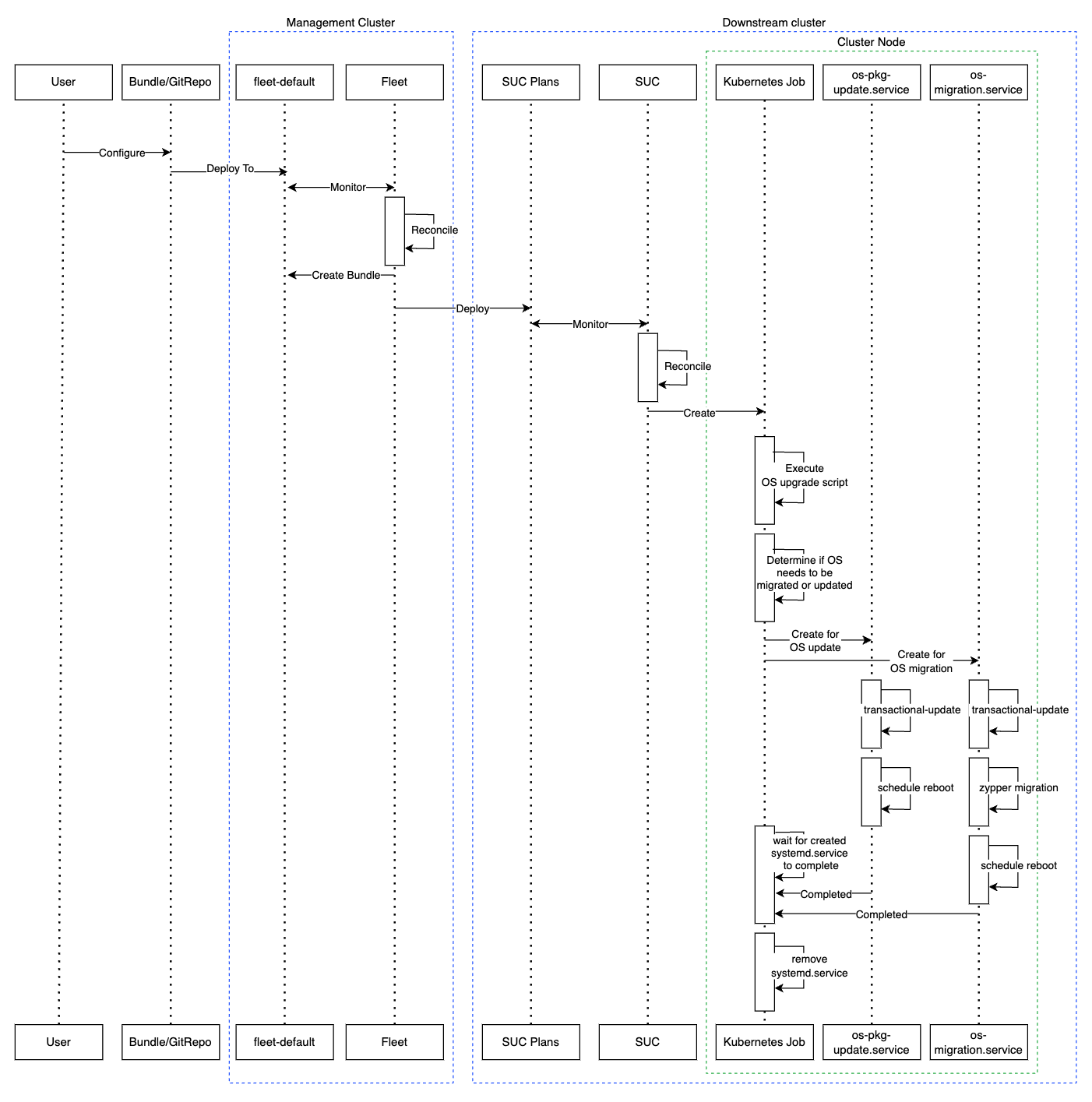
33.1.4.3 Requirements #
General:
SCC registered machine - All downstream cluster nodes should be registered to
https://scc.suse.com/which is needed so that the respectivesystemd.servicecan successfully connect to the desired RPM repository.ImportantFor Edge releases that require an OS version migration (e.g.
6.1→6.2), make sure that your SCC key supports the migration to the new version.Make sure that SUC Plan tolerations match node tolerations - If your Kubernetes cluster nodes have custom taints, make sure to add tolerations for those taints in the SUC Plans. By default, SUC Plans have tolerations only for control-plane nodes. Default tolerations include:
CriticalAddonsOnly=true:NoExecute
node-role.kubernetes.io/control-plane:NoSchedule
node-role.kubernetes.io/etcd:NoExecute
NoteAny additional tolerations must be added under the
.spec.tolerationssection of each Plan. SUC Plans related to the OS upgrade can be found in the suse-edge/fleet-examples repository underfleets/day2/system-upgrade-controller-plans/os-upgrade. Make sure you use the Plans from a valid repository release tag.An example of defining custom tolerations for the control-plane SUC Plan would look like this:
apiVersion: upgrade.cattle.io/v1 kind: Plan metadata: name: os-upgrade-control-plane spec: ... tolerations: # default tolerations - key: "CriticalAddonsOnly" operator: "Equal" value: "true" effect: "NoExecute" - key: "node-role.kubernetes.io/control-plane" operator: "Equal" effect: "NoSchedule" - key: "node-role.kubernetes.io/etcd" operator: "Equal" effect: "NoExecute" # custom toleration - key: "foo" operator: "Equal" value: "bar" effect: "NoSchedule" ...
Air-gapped:
Mirror SUSE RPM repositories - OS RPM repositories should be locally mirrored so that the
systemd.servicecan have access to them. This can be achieved by using either RMT or SUSE Multi-Linux Manager Documentation..
33.1.4.4 OS upgrade - SUC plan deployment #
For environments previously upgraded using this procedure, users should ensure that one of the following steps is completed:
Remove any previously deployed SUC Plans related to older Edge release versions from the downstream cluster- can be done by removing the desired cluster from the existingGitRepo/Bundletarget configuration, or removing theGitRepo/Bundleresource altogether.Reuse the existing GitRepo/Bundle resource- can be done by pointing the resource’s revision to a new tag that holds the correct fleets for the desiredsuse-edge/fleet-examplesrelease.
This is done in order to avoid clashes between SUC Plans for older Edge release versions.
If users attempt to upgrade, while there are existing SUC Plans on the downstream cluster, they will see the following fleet error:
Not installed: Unable to continue with install: Plan <plan_name> in namespace <plan_namespace> exists and cannot be imported into the current release: invalid ownership metadata; annotation validation error..As mentioned in Section 33.1.4.2, “Overview”, OS upgrades are done by shipping SUC plans to the desired cluster through one of the following ways:
Fleet
GitReporesource - Section 33.1.4.4.1, “SUC plan deployment - GitRepo resource”.Fleet
Bundleresource - Section 33.1.4.4.2, “SUC plan deployment - Bundle resource”.
To determine which resource you should use, refer to Section 33.1.2, “Determine your use-case”.
For use-cases where you wish to deploy the OS SUC plans from a third-party GitOps tool, refer to Section 33.1.4.4.3, “SUC Plan deployment - third-party GitOps workflow”
33.1.4.4.1 SUC plan deployment - GitRepo resource #
A GitRepo resource, that ships the needed OS SUC plans, can be deployed in one of the following ways:
Through the
Rancher UI- Section 33.1.4.4.1.1, “GitRepo creation - Rancher UI” (whenRancheris available).By manually deploying (Section 33.1.4.4.1.2, “GitRepo creation - manual”) the resource to your
management cluster.
Once deployed, to monitor the OS upgrade process of the nodes of your targeted cluster, refer to Section 18.3, “Monitoring System Upgrade Controller Plans”.
33.1.4.4.1.1 GitRepo creation - Rancher UI #
To create a GitRepo resource through the Rancher UI, follow their official documentation.
The Edge team maintains a ready to use fleet. Depending on your environment this fleet could be used directly or as a template.
For use-cases where no custom changes need to be included to the SUC plans that the fleet ships, users can directly refer the os-upgrade fleet from the suse-edge/fleet-examples repository.
In cases where custom changes are needed (e.g. to add custom tolerations), users should refer the os-upgrade fleet from a separate repository, allowing them to add the changes to the SUC plans as required.
An example of how a GitRepo can be configured to use the fleet from the suse-edge/fleet-examples repository, can be viewed here.
33.1.4.4.1.2 GitRepo creation - manual #
Pull the GitRepo resource:
curl -o os-upgrade-gitrepo.yaml https://raw.githubusercontent.com/suse-edge/fleet-examples/refs/tags/release-3.6.2/gitrepos/day2/os-upgrade-gitrepo.yamlEdit the GitRepo configuration, under
spec.targetsspecify your desired target list. By default theGitReporesources from thesuse-edge/fleet-examplesare NOT mapped to any downstream clusters.To match all clusters change the default
GitRepotarget to:spec: targets: - clusterSelector: {}Alternatively, if you want a more granular cluster selection see Mapping to Downstream Clusters
Apply the GitRepo resource your
management cluster:kubectl apply -f os-upgrade-gitrepo.yamlView the created GitRepo resource under the
fleet-defaultnamespace:kubectl get gitrepo os-upgrade -n fleet-default # Example output NAME REPO COMMIT BUNDLEDEPLOYMENTS-READY STATUS os-upgrade https://github.com/suse-edge/fleet-examples.git release-3.6.2 0/0
33.1.4.4.2 SUC plan deployment - Bundle resource #
A Bundle resource, that ships the needed OS SUC Plans, can be deployed in one of the following ways:
Through the
Rancher UI- Section 33.1.4.4.2.1, “Bundle creation - Rancher UI” (whenRancheris available).By manually deploying (Section 33.1.4.4.2.2, “Bundle creation - manual”) the resource to your
management cluster.
Once deployed, to monitor the OS upgrade process of the nodes of your targeted cluster, refer to Section 18.3, “Monitoring System Upgrade Controller Plans”.
33.1.4.4.2.1 Bundle creation - Rancher UI #
The Edge team maintains a ready to use bundle that can be used in the below steps.
To create a bundle through Rancher’s UI:
In the upper left corner, click ☰ → Continuous Delivery
Go to Advanced > Bundles
Select Create from YAML
From here you can create the Bundle in one of the following ways:
NoteThere might be use-cases where you would need to include custom changes to the
SUC plansthat the bundle ships (e.g. to add custom tolerations). Make sure to include those changes in the bundle that will be generated by the below steps.By manually copying the bundle content from
suse-edge/fleet-examplesto the Create from YAML page.By cloning the suse-edge/fleet-examples repository from the desired release tag and selecting the Read from File option in the Create from YAML page. From there, navigate to the bundle location (
bundles/day2/system-upgrade-controller-plans/os-upgrade) and select the bundle file. This will auto-populate the Create from YAML page with the bundle content.
Change the target clusters for the
Bundle:To match all downstream clusters change the default Bundle
.spec.targetsto:spec: targets: - clusterSelector: {}For a more granular downstream cluster mappings, see Mapping to Downstream Clusters.
Select Create
33.1.4.4.2.2 Bundle creation - manual #
Pull the Bundle resource:
curl -o os-upgrade-bundle.yaml https://raw.githubusercontent.com/suse-edge/fleet-examples/refs/tags/release-3.6.2/bundles/day2/system-upgrade-controller-plans/os-upgrade/os-upgrade-bundle.yamlEdit the
Bundletarget configurations, underspec.targetsprovide your desired target list. By default theBundleresources from thesuse-edge/fleet-examplesare NOT mapped to any downstream clusters.To match all clusters change the default
Bundletarget to:spec: targets: - clusterSelector: {}Alternatively, if you want a more granular cluster selection see Mapping to Downstream Clusters
Apply the Bundle resource to your
management cluster:kubectl apply -f os-upgrade-bundle.yamlView the created Bundle resource under the
fleet-defaultnamespace:kubectl get bundles -n fleet-default
33.1.4.4.3 SUC Plan deployment - third-party GitOps workflow #
There might be use-cases where users would like to incorporate the OS SUC plans to their own third-party GitOps workflow (e.g. Flux).
To get the OS upgrade resources that you need, first determine the Edge release tag of the suse-edge/fleet-examples repository that you would like to use.
After that, resources can be found at fleets/day2/system-upgrade-controller-plans/os-upgrade, where:
plan-control-plane.yamlis a SUC plan resource for control-plane nodes.plan-worker.yamlis a SUC plan resource for worker nodes.secret.yamlis a Secret that contains theupgrade.shscript, which is responsible for creating the systemd.service (Section 33.1.4.1.1, “systemd.service”).config-map.yamlis a ConfigMap that holds configurations that are consumed by theupgrade.shscript.
These Plan resources are interpreted by the System Upgrade Controller and should be deployed on each downstream cluster that you wish to upgrade. For SUC deployment information, see Section 18.2, “Installing the System Upgrade Controller”.
To better understand how your GitOps workflow can be used to deploy the SUC Plans for OS upgrade, it can be beneficial to take a look at overview (Section 33.1.4.2, “Overview”).
33.1.5 Kubernetes version upgrade #
This section covers Kubernetes upgrades for downstream clusters that have NOT been created through a Rancher (Chapter 4, Rancher) instance. For information on how to upgrade the Kubernetes version of Rancher created clusters, see Upgrading and Rolling Back Kubernetes.
This section describes how to perform a Kubernetes upgrade using Chapter 6, Fleet and the Chapter 18, System Upgrade Controller.
The following topics are covered as part of this section:
Section 33.1.5.1, “Components” - additional components used by the upgrade process.
Section 33.1.5.2, “Overview” - overview of the upgrade process.
Section 33.1.5.3, “Requirements” - requirements of the upgrade process.
Section 33.1.5.4, “K8s upgrade - SUC plan deployment” - information on how to deploy
SUC plans, responsible for triggering the upgrade process.
33.1.5.1 Components #
This section covers the custom components that the K8s upgrade process uses over the default "Day 2" components (Section 33.1.1, “Components”).
33.1.5.1.1 rke2-upgrade #
Container image responsible for upgrading the RKE2 version of a specific node.
Shipped through a Pod created by SUC based on a SUC Plan. The Plan should be located on each cluster that is in need of a RKE2 upgrade.
For more information regarding how the rke2-upgrade image performs the upgrade, see the upstream documentation.
33.1.5.1.2 k3s-upgrade #
Container image responsible for upgrading the K3s version of a specific node.
Shipped through a Pod created by SUC based on a SUC Plan. The Plan should be located on each cluster that is in need of a K3s upgrade.
For more information regarding how the k3s-upgrade image performs the upgrade, see the upstream documentation.
33.1.5.2 Overview #
The Kubernetes distribution upgrade for downstream cluster nodes is done by utilizing Fleet and the System Upgrade Controller (SUC).
Fleet is used to deploy and manage SUC plans onto the desired cluster.
SUC plans are custom resources that describe the steps that SUC needs to follow in order for a specific task to be executed on a set of nodes. For an example of how an SUC plan looks like, refer to the upstream repository.
The K8s SUC plans are shipped on each cluster by deploying a GitRepo or Bundle resource to a specific Fleet workspace. Fleet retrieves the deployed GitRepo/Bundle and deploys its contents (the K8s SUC plans) to the desired cluster(s).
GitRepo/Bundle resources are always deployed on the management cluster. Whether to use a GitRepo or Bundle resource depends on your use-case, check Section 33.1.2, “Determine your use-case” for more information.
K8s SUC plans describe the following workflow:
Always cordon the nodes before K8s upgrades.
Always upgrade
control-planenodes beforeworkernodes.Always upgrade the
control-planenodes one node at a time and theworkernodes two nodes at a time.
Once the K8s SUC plans are deployed, the workflow looks like this:
SUC reconciles the deployed
K8s SUC plansand creates aKubernetes Jobon each node.Depending on the Kubernetes distribution, the Job will create a Pod that runs either the rke2-upgrade (Section 33.1.5.1.1, “rke2-upgrade”) or the k3s-upgrade (Section 33.1.5.1.2, “k3s-upgrade”) container image.
The created Pod will go through the following workflow:
Replace the existing
rke2/k3sbinary on the node with the one from therke2-upgrade/k3s-upgradeimage.Kill the running
rke2/k3sprocess.
Killing the
rke2/k3sprocess triggers a restart, launching a new process that runs the updated binary, resulting in an upgraded Kubernetes distribution version.
Below you can find a diagram of the above description:
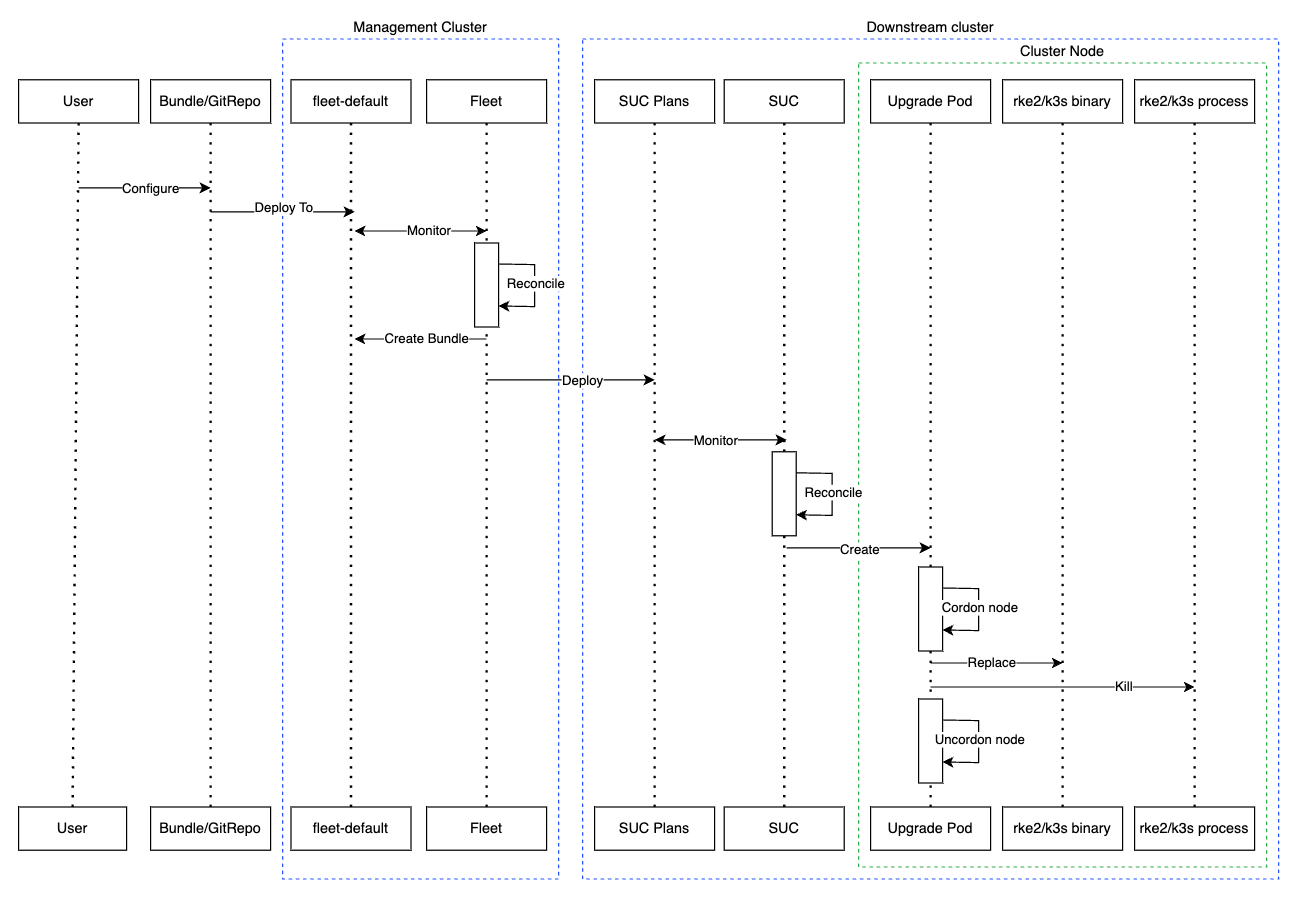
33.1.5.3 Requirements #
Backup your Kubernetes distribution:
For RKE2 clusters, see the RKE2 Backup and Restore documentation.
For K3s clusters, see the K3s Backup and Restore documentation.
Make sure that SUC Plan tolerations match node tolerations - If your Kubernetes cluster nodes have custom taints, make sure to add tolerations for those taints in the SUC Plans. By default SUC Plans have tolerations only for control-plane nodes. Default tolerations include:
CriticalAddonsOnly=true:NoExecute
node-role.kubernetes.io/control-plane:NoSchedule
node-role.kubernetes.io/etcd:NoExecute
NoteAny additional tolerations must be added under the
.spec.tolerationssection of each Plan. SUC Plans related to the Kubernetes version upgrade can be found in the suse-edge/fleet-examples repository under:For RKE2 -
fleets/day2/system-upgrade-controller-plans/rke2-upgradeFor K3s -
fleets/day2/system-upgrade-controller-plans/k3s-upgrade
Make sure you use the Plans from a valid repository release tag.
An example of defining custom tolerations for the RKE2 control-plane SUC Plan, would look like this:
apiVersion: upgrade.cattle.io/v1 kind: Plan metadata: name: rke2-upgrade-control-plane spec: ... tolerations: # default tolerations - key: "CriticalAddonsOnly" operator: "Equal" value: "true" effect: "NoExecute" - key: "node-role.kubernetes.io/control-plane" operator: "Equal" effect: "NoSchedule" - key: "node-role.kubernetes.io/etcd" operator: "Equal" effect: "NoExecute" # custom toleration - key: "foo" operator: "Equal" value: "bar" effect: "NoSchedule" ...
33.1.5.4 K8s upgrade - SUC plan deployment #
For environments previously upgraded using this procedure, users should ensure that one of the following steps is completed:
Remove any previously deployed SUC Plans related to older Edge release versions from the downstream cluster- can be done by removing the desired cluster from the existingGitRepo/Bundletarget configuration, or removing theGitRepo/Bundleresource altogether.Reuse the existing GitRepo/Bundle resource- can be done by pointing the resource’s revision to a new tag that holds the correct fleets for the desiredsuse-edge/fleet-examplesrelease.
This is done in order to avoid clashes between SUC Plans for older Edge release versions.
If users attempt to upgrade, while there are existing SUC Plans on the downstream cluster, they will see the following fleet error:
Not installed: Unable to continue with install: Plan <plan_name> in namespace <plan_namespace> exists and cannot be imported into the current release: invalid ownership metadata; annotation validation error..As mentioned in Section 33.1.5.2, “Overview”, Kubernetes upgrades are done by shipping SUC plans to the desired cluster through one of the following ways:
Fleet GitRepo resource (Section 33.1.5.4.1, “SUC plan deployment - GitRepo resource”)
Fleet Bundle resource (Section 33.1.5.4.2, “SUC plan deployment - Bundle resource”)
To determine which resource you should use, refer to Section 33.1.2, “Determine your use-case”.
For use-cases where you wish to deploy the K8s SUC plans from a third-party GitOps tool, refer to Section 33.1.5.4.3, “SUC Plan deployment - third-party GitOps workflow”
33.1.5.4.1 SUC plan deployment - GitRepo resource #
A GitRepo resource, that ships the needed K8s SUC plans, can be deployed in one of the following ways:
Through the
Rancher UI- Section 33.1.5.4.1.1, “GitRepo creation - Rancher UI” (whenRancheris available).By manually deploying (Section 33.1.5.4.1.2, “GitRepo creation - manual”) the resource to your
management cluster.
Once deployed, to monitor the Kubernetes upgrade process of the nodes of your targeted cluster, refer to Section 18.3, “Monitoring System Upgrade Controller Plans”.
33.1.5.4.1.1 GitRepo creation - Rancher UI #
To create a GitRepo resource through the Rancher UI, follow their official documentation.
The Edge team maintains ready to use fleets for both rke2 and k3s Kubernetes distributions. Depending on your environment, this fleet could be used directly or as a template.
For use-cases where no custom changes need to be included to the SUC plans that these fleets ship, users can directly refer the fleets from the suse-edge/fleet-examples repository.
In cases where custom changes are needed (e.g. to add custom tolerations), users should refer the fleets from a separate repository, allowing them to add the changes to the SUC plans as required.
Configuration examples for a GitRepo resource using the fleets from suse-edge/fleet-examples repository:
33.1.5.4.1.2 GitRepo creation - manual #
Pull the GitRepo resource:
For RKE2 clusters:
curl -o rke2-upgrade-gitrepo.yaml https://raw.githubusercontent.com/suse-edge/fleet-examples/refs/tags/release-3.6.2/gitrepos/day2/rke2-upgrade-gitrepo.yamlFor K3s clusters:
curl -o k3s-upgrade-gitrepo.yaml https://raw.githubusercontent.com/suse-edge/fleet-examples/refs/tags/release-3.6.2/gitrepos/day2/k3s-upgrade-gitrepo.yaml
Edit the GitRepo configuration, under
spec.targetsspecify your desired target list. By default theGitReporesources from thesuse-edge/fleet-examplesare NOT mapped to any downstream clusters.To match all clusters change the default
GitRepotarget to:spec: targets: - clusterSelector: {}Alternatively, if you want a more granular cluster selection see Mapping to Downstream Clusters
Apply the GitRepo resources to your
management cluster:# RKE2 kubectl apply -f rke2-upgrade-gitrepo.yaml # K3s kubectl apply -f k3s-upgrade-gitrepo.yamlView the created GitRepo resource under the
fleet-defaultnamespace:# RKE2 kubectl get gitrepo rke2-upgrade -n fleet-default # K3s kubectl get gitrepo k3s-upgrade -n fleet-default # Example output NAME REPO COMMIT BUNDLEDEPLOYMENTS-READY STATUS k3s-upgrade https://github.com/suse-edge/fleet-examples.git fleet-default 0/0 rke2-upgrade https://github.com/suse-edge/fleet-examples.git fleet-default 0/0
33.1.5.4.2 SUC plan deployment - Bundle resource #
A Bundle resource, that ships the needed Kubernetes upgrade SUC Plans, can be deployed in one of the following ways:
Through the
Rancher UI- Section 33.1.5.4.2.1, “Bundle creation - Rancher UI” (whenRancheris available).By manually deploying (Section 33.1.5.4.2.2, “Bundle creation - manual”) the resource to your
management cluster.
Once deployed, to monitor the Kubernetes upgrade process of the nodes of your targeted cluster, refer to Section 18.3, “Monitoring System Upgrade Controller Plans”.
33.1.5.4.2.1 Bundle creation - Rancher UI #
The Edge team maintains ready to use bundles for both rke2 and k3s Kubernetes distributions. Depending on your environment these bundles could be used directly or as a template.
To create a bundle through Rancher’s UI:
In the upper left corner, click ☰ → Continuous Delivery
Go to Advanced > Bundles
Select Create from YAML
From here you can create the Bundle in one of the following ways:
NoteThere might be use-cases where you would need to include custom changes to the
SUC plansthat the bundle ships (e.g. to add custom tolerations). Make sure to include those changes in the bundle that will be generated by the below steps.By manually copying the bundle content for RKE2 or K3s from
suse-edge/fleet-examplesto the Create from YAML page.By cloning the suse-edge/fleet-examples repository from the desired release tag and selecting the Read from File option in the Create from YAML page. From there, navigate to the bundle that you need (
bundles/day2/system-upgrade-controller-plans/rke2-upgrade/plan-bundle.yamlfor RKE2 andbundles/day2/system-upgrade-controller-plans/k3s-upgrade/plan-bundle.yamlfor K3s). This will auto-populate the Create from YAML page with the bundle content.
Change the target clusters for the
Bundle:To match all downstream clusters change the default Bundle
.spec.targetsto:spec: targets: - clusterSelector: {}For a more granular downstream cluster mappings, see Mapping to Downstream Clusters.
Select Create
33.1.5.4.2.2 Bundle creation - manual #
Pull the Bundle resources:
For RKE2 clusters:
curl -o rke2-plan-bundle.yaml https://raw.githubusercontent.com/suse-edge/fleet-examples/refs/tags/release-3.6.2/bundles/day2/system-upgrade-controller-plans/rke2-upgrade/plan-bundle.yamlFor K3s clusters:
curl -o k3s-plan-bundle.yaml https://raw.githubusercontent.com/suse-edge/fleet-examples/refs/tags/release-3.6.2/bundles/day2/system-upgrade-controller-plans/k3s-upgrade/plan-bundle.yaml
Edit the
Bundletarget configurations, underspec.targetsprovide your desired target list. By default theBundleresources from thesuse-edge/fleet-examplesare NOT mapped to any downstream clusters.To match all clusters change the default
Bundletarget to:spec: targets: - clusterSelector: {}Alternatively, if you want a more granular cluster selection see Mapping to Downstream Clusters
Apply the Bundle resources to your
management cluster:# For RKE2 kubectl apply -f rke2-plan-bundle.yaml # For K3s kubectl apply -f k3s-plan-bundle.yamlView the created Bundle resource under the
fleet-defaultnamespace:# For RKE2 kubectl get bundles rke2-upgrade -n fleet-default # For K3s kubectl get bundles k3s-upgrade -n fleet-default # Example output NAME BUNDLEDEPLOYMENTS-READY STATUS k3s-upgrade 0/0 rke2-upgrade 0/0
33.1.5.4.3 SUC Plan deployment - third-party GitOps workflow #
There might be use-cases where users would like to incorporate the Kubernetes upgrade SUC plans to their own third-party GitOps workflow (e.g. Flux).
To get the K8s upgrade resources that you need, first determine the Edge release tag of the suse-edge/fleet-examples repository that you would like to use.
After that, the resources can be found at:
For a RKE2 cluster upgrade:
For
control-planenodes -fleets/day2/system-upgrade-controller-plans/rke2-upgrade/plan-control-plane.yamlFor
workernodes -fleets/day2/system-upgrade-controller-plans/rke2-upgrade/plan-worker.yaml
For a K3s cluster upgrade:
For
control-planenodes -fleets/day2/system-upgrade-controller-plans/k3s-upgrade/plan-control-plane.yamlFor
workernodes -fleets/day2/system-upgrade-controller-plans/k3s-upgrade/plan-worker.yaml
These Plan resources are interpreted by the System Upgrade Controller and should be deployed on each downstream cluster that you wish to upgrade. For SUC deployment information, see Section 18.2, “Installing the System Upgrade Controller”.
To better understand how your GitOps workflow can be used to deploy the SUC Plans for Kubernetes version upgrade, it can be beneficial to take a look at the overview (Section 33.1.5.2, “Overview”) of the update procedure using Fleet.
33.1.6 Helm chart upgrade #
This section covers the following parts:
Section 33.1.6.1, “Preparation for air-gapped environments” - holds information on how to ship Edge related OCI charts and images to your private registry.
Section 33.1.6.2, “Upgrade procedure” - holds information on different Helm chart upgrade use-cases and their upgrade procedure.
33.1.6.1 Preparation for air-gapped environments #
33.1.6.1.1 Ensure you have access to your Helm chart Fleet #
Depending on what your environment supports, you can take one of the following options:
Host your chart’s Fleet resources on a local Git server that is accessible by your
management cluster.Use Fleet’s CLI to convert a Helm chart into a Bundle that you can directly use and will not need to be hosted somewhere. Fleet’s CLI can be retrieved from their release page, for Mac users there is a fleet-cli Homebrew Formulae.
33.1.6.1.2 Find the required assets for your Edge release version #
Go to the "Day 2" release page and find the Edge release that you want to upgrade your chart to and click Assets.
From the "Assets" section, download the following files:
Release File
Description
edge-save-images.sh
Pulls the images specified in the
edge-release-images.txtfile and packages them inside of a '.tar.gz' archive.edge-save-oci-artefacts.sh
Pulls the OCI chart images related to the specific Edge release and packages them inside of a '.tar.gz' archive.
edge-load-images.sh
Loads images from a '.tar.gz' archive, retags and pushes them to a private registry.
edge-load-oci-artefacts.sh
Takes a directory containing Edge OCI '.tgz' chart packages and loads them to a private registry.
edge-release-helm-oci-artefacts.txt
Contains a list of OCI chart images related to a specific Edge release.
edge-release-images.txt
Contains a list of images related to a specific Edge release.
33.1.6.1.3 Create the Edge release images archive #
On a machine with internet access:
Make
edge-save-images.shexecutable:chmod +x edge-save-images.shGenerate the image archive:
./edge-save-images.sh --source-registry registry.suse.comThis will create a ready to load archive named
edge-images.tar.gz.NoteIf the
-i|--imagesoption is specified, the name of the archive may differ.Copy this archive to your air-gapped machine:
scp edge-images.tar.gz <user>@<machine_ip>:/path
33.1.6.1.4 Create the Edge OCI chart images archive #
On a machine with internet access:
Make
edge-save-oci-artefacts.shexecutable:chmod +x edge-save-oci-artefacts.shGenerate the OCI chart image archive:
./edge-save-oci-artefacts.sh --source-registry registry.suse.comThis will create an archive named
oci-artefacts.tar.gz.NoteIf the
-a|--archiveoption is specified, the name of the archive may differ.Copy this archive to your air-gapped machine:
scp oci-artefacts.tar.gz <user>@<machine_ip>:/path
33.1.6.1.5 Load Edge release images to your air-gapped machine #
On your air-gapped machine:
Log into your private registry (if required):
podman login <REGISTRY.YOURDOMAIN.COM:PORT>Make
edge-load-images.shexecutable:chmod +x edge-load-images.shExecute the script, passing the previously copied
edge-images.tar.gzarchive:./edge-load-images.sh --source-registry registry.suse.com --registry <REGISTRY.YOURDOMAIN.COM:PORT> --images edge-images.tar.gzNoteThis will load all images from the
edge-images.tar.gz, retag and push them to the registry specified under the--registryoption.
33.1.6.1.6 Load the Edge OCI chart images to your air-gapped machine #
On your air-gapped machine:
Log into your private registry (if required):
podman login <REGISTRY.YOURDOMAIN.COM:PORT>Make
edge-load-oci-artefacts.shexecutable:chmod +x edge-load-oci-artefacts.shUntar the copied
oci-artefacts.tar.gzarchive:tar -xvf oci-artefacts.tar.gzThis will produce a directory with the naming template
edge-release-oci-tgz-<date>Pass this directory to the
edge-load-oci-artefacts.shscript to load the Edge OCI chart images to your private registry:NoteThis script assumes the
helmCLI has been pre-installed on your environment. For Helm installation instructions, see Installing Helm../edge-load-oci-artefacts.sh --archive-directory edge-release-oci-tgz-<date> --registry <REGISTRY.YOURDOMAIN.COM:PORT> --source-registry registry.suse.com
33.1.6.1.7 Configure your private registry in your Kubernetes distribution #
For RKE2, see Private Registry Configuration
For K3s, see Private Registry Configuration
33.1.6.2 Upgrade procedure #
This section focuses on the following Helm upgrade procedure use-cases:
Manually deployed Helm charts cannot be reliably upgraded. We suggest to redeploy the Helm chart using the Section 33.1.6.2.1, “I have a new cluster and would like to deploy and manage an Edge Helm chart” method.
33.1.6.2.1 I have a new cluster and would like to deploy and manage an Edge Helm chart #
This section covers how to:
33.1.6.2.1.1 Prepare the fleet resources for your chart #
Acquire the chart’s Fleet resources from the Edge release tag that you wish to use.
Navigate to the Helm chart fleet (
fleets/day2/chart-templates/<chart>)If you intend to use a GitOps workflow, copy the chart Fleet directory to the Git repository from where you will do GitOps.
Optionally, if the Helm chart requires configurations to its values, edit the
.helm.valuesconfiguration inside thefleet.yamlfile of the copied directory.Optionally, there may be use-cases where you need to add additional resources to your chart’s fleet so that it can better fit your environment. For information on how to enhance your Fleet directory, see Git Repository Contents.
In some cases, the default timeout Fleet uses for Helm operations may be insufficient, resulting in the following error:
failed pre-install: context deadline exceededIn such cases, add the timeoutSeconds property under the helm configuration of your fleet.yaml file.
An example for the longhorn helm chart would look like:
User Git repository structure:
<user_repository_root> ├── longhorn │ └── fleet.yaml └── longhorn-crd └── fleet.yamlfleet.yamlcontent populated with userLonghorndata:defaultNamespace: longhorn-system helm: # timeoutSeconds: 10 releaseName: "longhorn" chart: "longhorn" repo: "https://charts.rancher.io/" version: "1.11.3-10.1" takeOwnership: true # custom chart value overrides values: # Example for user provided custom values content defaultSettings: deletingConfirmationFlag: true # https://fleet.rancher.io/bundle-diffs diff: comparePatches: - apiVersion: apiextensions.k8s.io/v1 kind: CustomResourceDefinition name: engineimages.longhorn.io operations: - {"op":"remove", "path":"/status/conditions"} - {"op":"remove", "path":"/status/storedVersions"} - {"op":"remove", "path":"/status/acceptedNames"} - apiVersion: apiextensions.k8s.io/v1 kind: CustomResourceDefinition name: nodes.longhorn.io operations: - {"op":"remove", "path":"/status/conditions"} - {"op":"remove", "path":"/status/storedVersions"} - {"op":"remove", "path":"/status/acceptedNames"} - apiVersion: apiextensions.k8s.io/v1 kind: CustomResourceDefinition name: volumes.longhorn.io operations: - {"op":"remove", "path":"/status/conditions"} - {"op":"remove", "path":"/status/storedVersions"} - {"op":"remove", "path":"/status/acceptedNames"}NoteThese are just example values that are used to illustrate custom configurations over the
longhornchart. They should NOT be treated as deployment guidelines for thelonghornchart.
33.1.6.2.1.2 Deploy the fleet for your chart #
You can deploy the fleet for your chart by either using a GitRepo (Section 33.1.6.2.1.2.1, “GitRepo”) or Bundle (Section 33.1.6.2.1.2.2, “Bundle”).
While deploying your Fleet, if you get a Modified message, make sure to add a corresponding comparePatches entry to the Fleet’s diff section. For more information, see Generating Diffs to Ignore Modified GitRepos.
33.1.6.2.1.2.1 GitRepo #
Fleet’s GitRepo resource holds information on how to access your chart’s Fleet resources and to which clusters it needs to apply those resources.
The GitRepo resource can be deployed through the Rancher UI, or manually, by deploying the resource to the management cluster.
Example Longhorn GitRepo resource for manual deployment:
apiVersion: fleet.cattle.io/v1alpha1
kind: GitRepo
metadata:
name: longhorn-git-repo
namespace: fleet-default
spec:
# If using a tag
# revision: user_repository_tag
#
# If using a branch
# branch: user_repository_branch
paths:
# As seen in the 'Prepare your Fleet resources' example
- longhorn
- longhorn-crd
repo: user_repository_url
targets:
# Match all clusters
- clusterSelector: {}33.1.6.2.1.2.2 Bundle #
Bundle resources hold the raw Kubernetes resources that need to be deployed by Fleet. Normally it is encouraged to use the GitRepo approach, but for use-cases where the environment is air-gapped and cannot support a local Git server, Bundles can help you in propagating your Helm chart Fleet to your target clusters.
A Bundle can be deployed either through the Rancher UI (Continuous Delivery → Advanced → Bundles → Create from YAML) or by manually deploying the Bundle resource in the correct Fleet namespace. For information about Fleet namespaces, see the upstream documentation.
Bundles for Edge Helm charts can be created by utilizing Fleet’s Convert a Helm Chart into a Bundle approach.
Below you can find an example on how to create a Bundle resource from the longhorn and longhorn-crd Helm chart fleet templates and manually deploy this bundle to your management cluster.
To illustrate the workflow, the below example uses the suse-edge/fleet-examples directory structure.
Navigate to the longhorn Chart fleet template:
cd fleets/day2/chart-templates/longhorn/longhornCreate a
targets.yamlfile that will instruct Fleet to which clusters it should deploy the Helm chart:cat > targets.yaml <<EOF targets: # Matches all downstream clusters - clusterSelector: {} EOFFor a more granular downstream cluster selection, refer to Mapping to Downstream Clusters.
Convert the
LonghornHelm chart Fleet to a Bundle resource using the fleet-cli.NoteFleet’s CLI can be retrieved from their release Assets page (
fleet-linux-amd64).For Mac users there is a fleet-cli Homebrew Formulae.
fleet apply --compress --targets-file=targets.yaml -n fleet-default -o - longhorn-bundle > longhorn-bundle.yamlNavigate to the longhorn-crd Chart fleet template:
cd fleets/day2/chart-templates/longhorn/longhorn-crdCreate a
targets.yamlfile that will instruct Fleet to which clusters it should deploy the Helm chart:cat > targets.yaml <<EOF targets: # Matches all downstream clusters - clusterSelector: {} EOFConvert the
Longhorn CRDHelm chart Fleet to a Bundle resource using the fleet-cli.fleet apply --compress --targets-file=targets.yaml -n fleet-default -o - longhorn-crd-bundle > longhorn-crd-bundle.yamlDeploy the
longhorn-bundle.yamlandlonghorn-crd-bundle.yamlfiles to yourmanagement cluster:kubectl apply -f longhorn-crd-bundle.yaml kubectl apply -f longhorn-bundle.yaml
Following these steps will ensure that SUSE Storage is deployed on all of the specified downstream cluster.
33.1.6.2.1.3 Manage the deployed Helm chart #
Once deployed with Fleet, for Helm chart upgrades, see Section 33.1.6.2.2, “I would like to upgrade a Fleet managed Helm chart”.
33.1.6.2.2 I would like to upgrade a Fleet managed Helm chart #
Determine the version to which you need to upgrade your chart so that it is compatible with the desired Edge release. Helm chart version per Edge release can be viewed from the release notes (Chapter 41, Release Notes).
In your Fleet monitored Git repository, edit the Helm chart’s
fleet.yamlfile with the correct chart version and repository from the release notes (Chapter 41, Release Notes).After committing and pushing the changes to your repository, this will trigger an upgrade of the desired Helm chart
33.1.6.2.3 I would like to upgrade a Helm chart deployed via EIB #
Chapter 8, Edge Image Builder deploys Helm charts by creating a HelmChart resource and utilizing the helm-controller introduced by the RKE2/K3s Helm integration feature.
To ensure that a Helm chart deployed via EIB is successfully upgraded, users need to do an upgrade over the respective HelmChart resources.
Below you can find information on:
The general overview (Section 33.1.6.2.3.1, “Overview”) of the upgrade process.
The necessary upgrade steps (Section 33.1.6.2.3.2, “Upgrade Steps”).
An example (Section 33.1.6.2.3.3, “Example”) showcasing a Longhorn chart upgrade using the explained method.
How to use the upgrade process with a different GitOps tool (Section 33.1.6.2.3.4, “Helm chart upgrade using a third-party GitOps tool”).
33.1.6.2.3.1 Overview #
Helm charts that are deployed via EIB are upgraded through a fleet called eib-charts-upgrader.
This fleet processes user-provided data to update a specific set of HelmChart resources.
Updating these resources triggers the helm-controller, which upgrades the Helm charts associated with the modified HelmChart resources.
The user is only expected to:
Locally pull the archives for each Helm chart that needs to be upgraded.
Pass these archives to the generate-chart-upgrade-data.sh
generate-chart-upgrade-data.shscript, which will include the data from these archives to theeib-charts-upgraderfleet.Deploy the
eib-charts-upgraderfleet to theirmanagement cluster. This is done through either aGitRepoorBundleresource.
Once deployed, the eib-charts-upgrader, with the help of Fleet, will ship its resources to the desired downstream cluster.
These resources include:
A set of
Secretsholding the user-provided Helm chart data.A
Kubernetes Jobwhich will deploy aPodthat will mount the previously mentionedSecretsand based on them patch the corresponding HelmChart resources.
As mentioned previously this will trigger the helm-controller which will perform the actual Helm chart upgrade.
Below you can find a diagram of the above description:
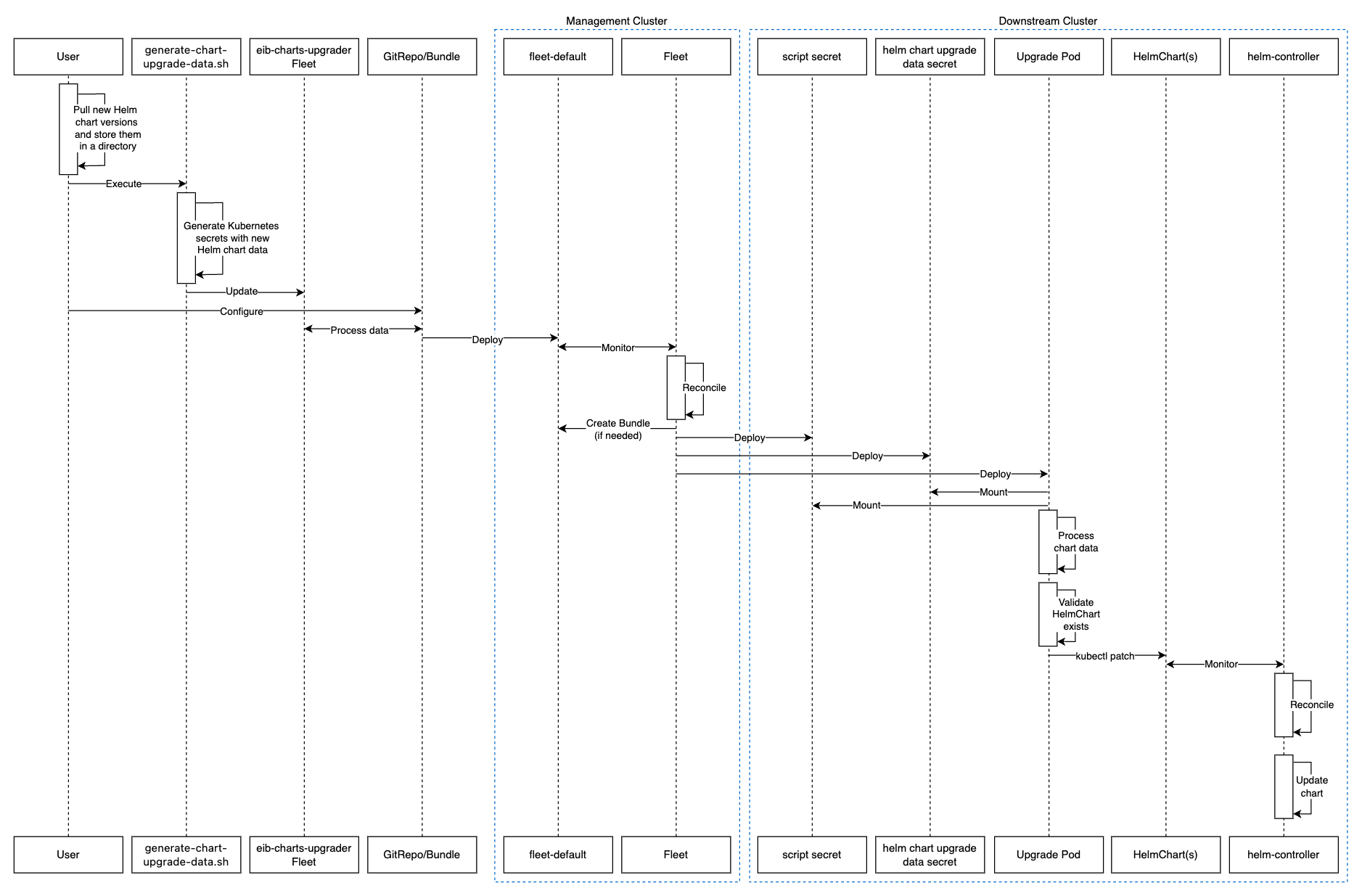
33.1.6.2.3.2 Upgrade Steps #
Clone the
suse-edge/fleet-examplesrepository from the correct release tag.Create a directory in which you will store the pulled Helm chart archive(s).
mkdir archivesInside of the newly created archive directory, pull the archive(s) for the Helm chart(s) you wish to upgrade:
cd archives helm pull [chart URL | repo/chartname] # Alternatively if you want to pull a specific version: # helm pull [chart URL | repo/chartname] --version 0.0.0From Assets of the desired release tag, download the
generate-chart-upgrade-data.shscript.Execute the
generate-chart-upgrade-data.shscript:chmod +x ./generate-chart-upgrade-data.sh ./generate-chart-upgrade-data.sh --archive-dir /foo/bar/archives/ --fleet-path /foo/bar/fleet-examples/fleets/day2/eib-charts-upgraderFor each chart archive in the
--archive-dirdirectory, the script generates aKubernetes Secret YAMLfile containing the chart upgrade data and stores it in thebase/secretsdirectory of the fleet specified by--fleet-path.The
generate-chart-upgrade-data.shscript also applies additional modifications to the fleet to ensure the generatedKubernetes Secret YAMLfiles are correctly utilized by the workload deployed by the fleet.ImportantUsers should not make any changes over what the
generate-chart-upgrade-data.shscript generates.
The steps below depend on the environment that you are running:
For an environment that supports GitOps (e.g. is non air-gapped, or is air-gapped, but allows for local Git server support):
Copy the
fleets/day2/eib-charts-upgraderFleet to the repository that you will use for GitOps.NoteMake sure that the Fleet includes the changes that have been made by the
generate-chart-upgrade-data.shscript.Configure a
GitReporesource that will be used to ship all the resources of theeib-charts-upgraderFleet.For
GitRepoconfiguration and deployment through the Rancher UI, see Accessing Fleet in the Rancher UI.For
GitRepomanual configuration and deployment, see Creating a Deployment.
For an environment that does not support GitOps (e.g. is air-gapped and does not allow local Git server usage):
Download the
fleet-clibinary from therancher/fleetrelease page (fleet-linux-amd64for Linux). For Mac users, there is a Homebrew Formulae that can be used - fleet-cli.Navigate to the
eib-charts-upgraderFleet:cd /foo/bar/fleet-examples/fleets/day2/eib-charts-upgraderCreate a
targets.yamlfile that will instruct Fleet where to deploy your resources:cat > targets.yaml <<EOF targets: # To match all downstream clusters - clusterSelector: {} EOFFor information on how to map target clusters, see the upstream documentation.
Use the
fleet-clito convert the Fleet to aBundleresource:fleet apply --compress --targets-file=targets.yaml -n fleet-default -o - eib-charts-upgrade > bundle.yamlThis will create a Bundle (
bundle.yaml) that will hold all the templated resource from theeib-charts-upgraderFleet.For more information regarding the
fleet applycommand, see fleet apply.For more information regarding converting Fleets to Bundles, see Convert a Helm Chart into a Bundle.
Deploy the
Bundle. This can be done in one of two ways:Through Rancher’s UI - Navigate to Continuous Delivery → Advanced → Bundles → Create from YAML and either paste the
bundle.yamlcontents, or click theRead from Fileoption and pass the file itself.Manually - Deploy the
bundle.yamlfile manually inside of yourmanagement cluster.
Executing these steps will result in a successfully deployed GitRepo/Bundle resource. The resource will be picked up by Fleet and its contents will be deployed onto the target clusters that the user has specified in the previous steps. For an overview of the process, refer to Section 33.1.6.2.3.1, “Overview”.
For information on how to track the upgrade process, you can refer to Section 33.1.6.2.3.3, “Example”.
Once the chart upgrade has been successfully verified, remove the Bundle/GitRepo resource.
This will remove the no longer necessary upgrade resources from your downstream cluster, ensuring that no future version clashes might occur.
33.1.6.2.3.3 Example #
The example below demonstrates how to upgrade a Helm chart deployed via EIB from one version to another on a downstream cluster. Note that the versions used in this example are not recommendations. For version recommendations specific to an Edge release, refer to the release notes (Chapter 41, Release Notes).
Use-case:
A cluster named
doc-exampleis running an older version of Longhorn.The cluster has been deployed through EIB, using the following image definition snippet:
kubernetes: helm: charts: - name: longhorn-crd repositoryName: rancher-charts targetNamespace: longhorn-system createNamespace: true version: 104.2.0+up1.7.1 installationNamespace: kube-system - name: longhorn repositoryName: rancher-charts targetNamespace: longhorn-system createNamespace: true version: 104.2.0+up1.7.1 installationNamespace: kube-system repositories: - name: rancher-charts url: https://charts.rancher.io/ ...SUSE Storageneeds to be upgraded to a version that is compatible with the Edge 3.6 release. Meaning it needs to be upgraded to1.11.3-10.1.It is assumed that the
management clusterin charge of managingdoc-exampleis air-gapped, without support for a local Git server and has a working Rancher setup.
Follow the Upgrade Steps (Section 33.1.6.2.3.2, “Upgrade Steps”):
Clone the
suse-edge/fleet-examplerepository from therelease-3.6.2tag.git clone -b release-3.6.2 https://github.com/suse-edge/fleet-examples.gitCreate a directory where the
Longhornupgrade archive will be stored.mkdir archivesPull the desired
Longhornchart archive version:# First add the Rancher Helm chart repository helm repo add rancher-charts https://charts.rancher.io/ # Pull the Longhorn 1.11.3 chart archive helm pull oci://dp.apps.rancher.io/charts/suse-storage --version 1.11.3-10.1Outside of the
archivesdirectory, download thegenerate-chart-upgrade-data.shscript from thesuse-edge/fleet-examplesrelease tag.Directory setup should look similar to:
. ├── archives │ └── longhorn-1.11.3-10.1.tgz ├── fleet-examples ... │ ├── fleets │ │ ├── day2 | | | ├── ... │ │ │ ├── eib-charts-upgrader │ │ │ │ ├── base │ │ │ │ │ ├── job.yaml │ │ │ │ │ ├── kustomization.yaml │ │ │ │ │ ├── patches │ │ │ │ │ │ └── job-patch.yaml │ │ │ │ │ ├── rbac │ │ │ │ │ │ ├── cluster-role-binding.yaml │ │ │ │ │ │ ├── cluster-role.yaml │ │ │ │ │ │ ├── kustomization.yaml │ │ │ │ │ │ └── sa.yaml │ │ │ │ │ └── secrets │ │ │ │ │ ├── eib-charts-upgrader-script.yaml │ │ │ │ │ └── kustomization.yaml │ │ │ │ ├── fleet.yaml │ │ │ │ └── kustomization.yaml │ │ │ └── ... │ └── ... └── generate-chart-upgrade-data.shExecute the
generate-chart-upgrade-data.shscript:# First make the script executable chmod +x ./generate-chart-upgrade-data.sh # Then execute the script ./generate-chart-upgrade-data.sh --archive-dir ./archives --fleet-path ./fleet-examples/fleets/day2/eib-charts-upgraderThe directory structure after the script execution should look similar to:
. ├── archives │ └── longhorn-1.11.3-10.1.tgz ├── fleet-examples ... │ ├── fleets │ │ ├── day2 │ │ │ ├── ... │ │ │ ├── eib-charts-upgrader │ │ │ │ ├── base │ │ │ │ │ ├── job.yaml │ │ │ │ │ ├── kustomization.yaml │ │ │ │ │ ├── patches │ │ │ │ │ │ └── job-patch.yaml │ │ │ │ │ ├── rbac │ │ │ │ │ │ ├── cluster-role-binding.yaml │ │ │ │ │ │ ├── cluster-role.yaml │ │ │ │ │ │ ├── kustomization.yaml │ │ │ │ │ │ └── sa.yaml │ │ │ │ │ └── secrets │ │ │ │ │ ├── eib-charts-upgrader-script.yaml │ │ │ │ │ ├── kustomization.yaml │ │ │ │ │ ├── longhorn-VERSION.yaml - secret created by the generate-chart-upgrade-data.sh script │ │ │ │ │ └── longhorn-crd-VERSION.yaml - secret created by the generate-chart-upgrade-data.sh script │ │ │ │ ├── fleet.yaml │ │ │ │ └── kustomization.yaml │ │ │ └── ... │ └── ... └── generate-chart-upgrade-data.shThe files changed in git should look like this:
Changes not staged for commit: (use "git add <file>..." to update what will be committed) (use "git restore <file>..." to discard changes in working directory) modified: fleets/day2/eib-charts-upgrader/base/patches/job-patch.yaml modified: fleets/day2/eib-charts-upgrader/base/secrets/kustomization.yaml Untracked files: (use "git add <file>..." to include in what will be committed) fleets/day2/eib-charts-upgrader/base/secrets/longhorn-VERSION.yaml fleets/day2/eib-charts-upgrader/base/secrets/longhorn-crd-VERSION.yamlCreate a
Bundlefor theeib-charts-upgraderFleet:First, navigate to the Fleet itself:
cd ./fleet-examples/fleets/day2/eib-charts-upgraderThen create a
targets.yamlfile:cat > targets.yaml <<EOF targets: - clusterName: doc-example EOFThen use the
fleet-clibinary to convert the Fleet to a Bundle:fleet apply --compress --targets-file=targets.yaml -n fleet-default -o - eib-charts-upgrade > bundle.yamlNow, transfer the
bundle.yamlon yourmanagement clustermachine.
Deploy the Bundle through the Rancher UI:
Figure 33.1: Deploy Bundle through Rancher UI #From here, select Read from File and find the
bundle.yamlfile on your system.This will auto-populate the
Bundleinside of Rancher’s UI.Select Create.
After a successful deployment, your Bundle would look similar to:
Figure 33.2: Successfully deployed Bundle #
After the successful deployment of the Bundle, to monitor the upgrade process:
Verify the logs of the
Upgrade Pod: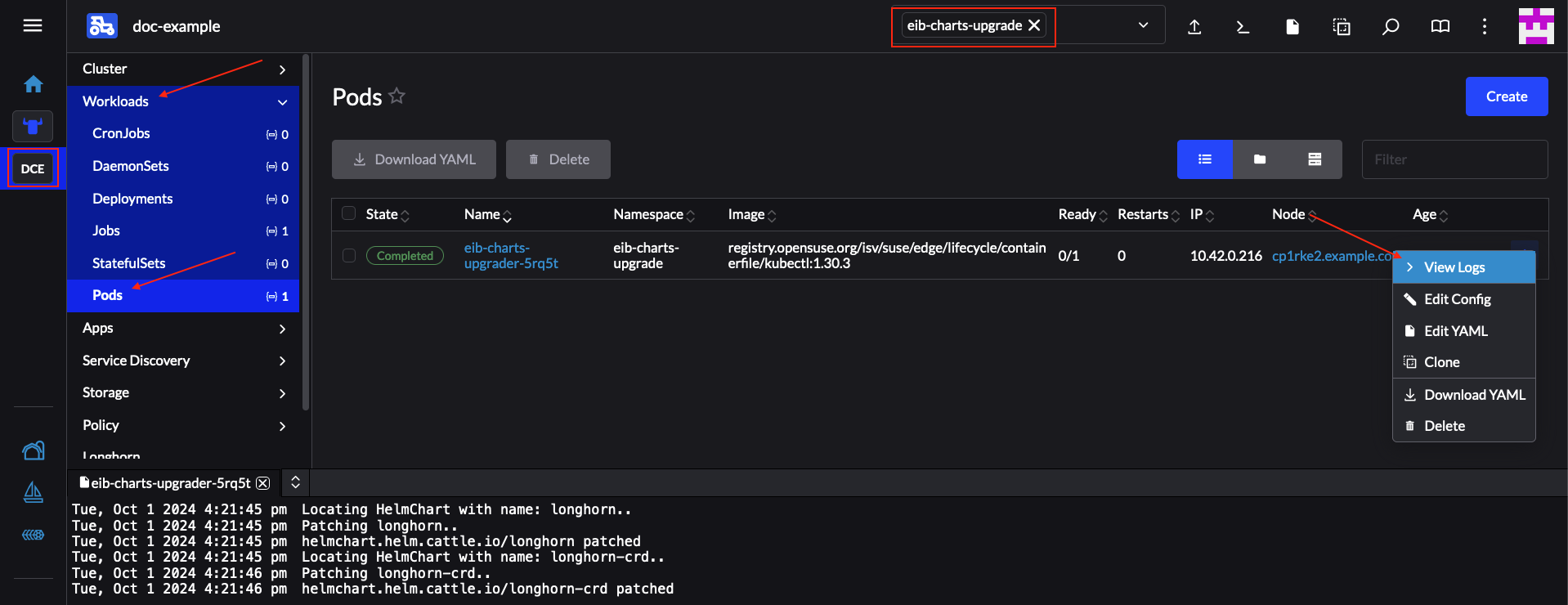
Now verify the logs of the Pod created for the upgrade by the helm-controller:
The Pod name will be with the following template -
helm-install-longhorn-<random-suffix>The Pod will be in the namespace where the
HelmChartresource was deployed. In our case this iskube-system.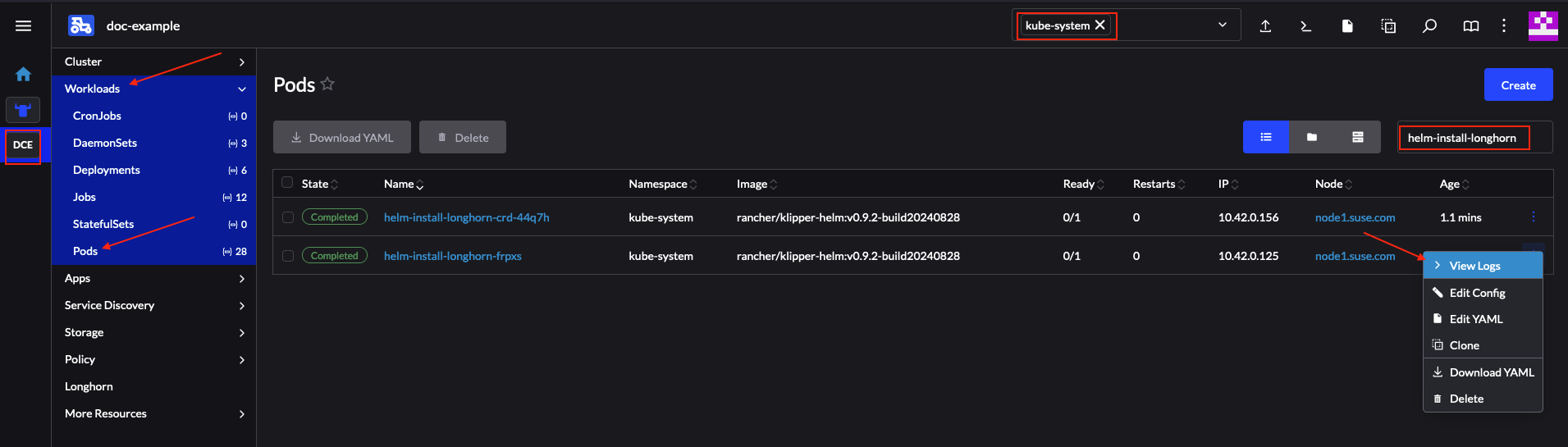 Figure 33.3: Logs for successfully upgraded Longhorn chart #
Verify that the
HelmChartversion has been updated by navigating to Rancher’sHelmChartssection (More Resources → HelmCharts). Select the namespace where the chart was deployed, for this example it would bekube-system.Finally check that the Longhorn Pods are running.
After making the above validations, it is safe to assume that the Longhorn Helm chart has been upgraded to the 1.11.3-10.1 version.
33.1.6.2.3.4 Helm chart upgrade using a third-party GitOps tool #
There might be use-cases where users would like to use this upgrade procedure with a GitOps workflow other than Fleet (e.g. Flux).
To produce the resources needed for the upgrade procedure, you can use the generate-chart-upgrade-data.sh script to populate the eib-charts-upgrader Fleet with the user provided data. For more information on how to do this, see Section 33.1.6.2.3.2, “Upgrade Steps”.
After you have the full setup, you can use kustomize to generate a full working solution that you can deploy in your cluster:
cd /foo/bar/fleets/day2/eib-charts-upgrader
kustomize build .If you want to include the solution to your GitOps workflow, you can remove the fleet.yaml file and use what is left as a valid Kustomize setup. Just do not forget to first run the generate-chart-upgrade-data.sh script, so that it can populate the Kustomize setup with the data for the Helm charts that you wish to upgrade to.
To understand how this workflow is intended to be used, it can be beneficial to look at Section 33.1.6.2.3.1, “Overview” and Section 33.1.6.2.3.2, “Upgrade Steps”.
Part VII Troubleshooting #
This section provides guidance to diagnose and resolve common issues with SUSE Edge deployments and operations. It covers various topics, offering component-specific troubleshooting steps, key tools, and relevant log locations.
- 34 General Troubleshooting Principles
Before diving into component-specific issues, consider these general principles:
- 35 Troubleshooting Kiwi
Kiwi is used to generate updated SUSE Linux Micro images to be used with Edge Image Builder.
- 36 Troubleshooting Edge Image Builder (EIB)
EIB is used to create custom SUSE Edge images.
- 37 Troubleshooting Edge Networking (NMC)
NMC is injected on SL Micro EIB images to configure the network of the Edge hosts at boot time via combustion. It is also being executed on the Metal3 workflow as part of the inspection process. Issues can happen when the host is being booted for the first time or on the Metal3 inspection process.
- 38 Troubleshooting Phone-Home scenarios
Phone-home scenarios involve using Elemental to connect back to the Management cluster and EIB to create an OS image including the elemental-registration bits. Issues can happen when the host is being booted for the first time, during the EIB build process or trying to register to the Management clu…
- 39 Troubleshooting Other components
Other SUSE Edge components troubleshooting guides can be consulted on their official documentation:
- 40 Collecting Diagnostics for Support
When contacting SUSE Support, providing comprehensive diagnostic information is crucial.
34 General Troubleshooting Principles #
Before diving into component-specific issues, consider these general principles:
Check logs: Logs are the primary source of information. Most of the times the errors are self explanatory and contain hints on what failed.
Check clocks: Having clock differences between systems can lead to all kinds of different errors. Ensure clocks are in sync. EIB can be instructed to force clock sync at boot time, see Configuring OS Time (Chapter 2, Standalone clusters with Edge Image Builder).
Boot Issues: If the system is stuck during boot, note down the last messages displayed. Access the console (physical or via BMC) to observe boot messages.
Network Issues: Verify network interface configuration (
ip a), routing table (ip route), test connectivity from/to other nodes and external services (ping,nc). Ensure firewall rules are not blocking necessary ports.Verify component status: Use
kubectl getandkubectl describefor Kubernetes resources. Usekubectl get events --sort-by='.lastTimestamp' -n <namespace>to see the events on a particular Kubernetes namespace.Verify services status: Use
systemctl status <service>for systemd services.Check syntax: Software expects certain structure and syntax on configuration files. For yaml files, for example, use
yamllintor similar tools to verify the proper syntax.Isolate the problem: Try to narrow down the issue to a specific component or layer (for example, network, storage, OS, Kubernetes, Metal3, Ironic,…).
Documentation: Always refer to the official SUSE Edge documentation and also upstream documentation for detailed information.
Versions: SUSE Edge is an opinionated and thoroughly tested version of different SUSE components. The versions of each component per SUSE Edge release can be observed in the SUSE Edge support matrix.
Known issues: For each SUSE Edge release there is a “Known issues” section on the release notes that contains information of issues that will be fixed on future releases but can affect the current one.
35 Troubleshooting Kiwi #
Kiwi is used to generate updated SUSE Linux Micro images to be used with Edge Image Builder.
SL Micro Version Mismatch: The build host operating system version must match the operating system version being built (SL Micro 6.0 host → SL Micro 6.0 image).
SELinux in Enforcing State: Due to certain limitations, it is currently required to disable SELinux temporarily to be able to build images with Kiwi. Check the SElinux status with
getenforceand disable it before running the build process withsetenforce 0.Build host not registered: The build process uses the build host subscriptions to be able to pull packages from SUSE SCC. If the host is not registered it fails.
Loop Device Test Failure: The first time that the Kiwi build process is executed, it will fail shortly after starting with "ERROR: Early loop device test failed, please retry the container run.", this is a symptom of loop devices being created on the underlying host system that are not immediately visible inside of the container image. Re-run the Kiwi build process again and it should proceed without issue.
Missing Permissions: The build process expects to be run as root user (or via sudo).
Wrong Privileges: The build process expects the
--privilegedflag when running the container. Double-check that it is present.
Build container logs: Check the logs of the build container. The logs are generated in the directory that was used to store the artifacts. Check docker logs or podman logs for the necessary information as well.
Temporary build directories: Kiwi creates temporary directories during the build process. Check these for intermediate logs or artifacts if the main output is insufficient.
Review
build-imageoutput: The error message in the console output is usually very indicative.Check build environment: Ensure all prerequisites for Kiwi itself (for example, docker/podman, SElinux, sufficient disk space) are met on the machine running Kiwi.
Inspect build container logs: Review the logs of the failed container for more detailed errors (see above).
Verify definition file: If you are using a custom Kiwi image definition file, double-check the file for any typos or syntax.
36 Troubleshooting Edge Image Builder (EIB) #
EIB is used to create custom SUSE Edge images.
Wrong SCC code: Ensure the SCC code used in the EIB definition file matches the SL Micro version and architecture.
Missing dependencies: Ensure there are no missing packages or tools within the build environment.
Incorrect image size: For raw images, the
diskSizeparameter is required and it depends heavily on the images, RPMs, and other artifacts being included in the image.Permissions: If storing a script on the custom/files directory, ensure it has executable permissions as those files are just available at combustion time but no changes are performed by EIB.
Operating system group dependencies: When creating an image with custom users and groups, the groups being set as “
primaryGroup” should be explicitly created.Operating system user’s sshkeys requires a home folder: When creating an image with users with sshkeys, the home folder needs to be created as well with
createHomeDir=true.Combustion issues: EIB relies on combustion for the customization of the OS and deployment of all the other SUSE Edge components. This also includes custom scripts being placed in the custom/scripts folder. Note that the combustion process is being executed at
initrdtime, so the system is not completely booted when the scripts are executed.Podman machine size: As explained in the EIB Tips and Tricks section (Part IV, “Tips and Tricks”), verify the podman machine has enough CPU/memory to run the EIB container on non-Linux operating systems.
Incorrect image: Ensure the base image being used is properly downloaded by verifying the
checksum. If you are building the image with kiwi-builder (Chapter 26, Building Updated SUSE Linux Micro Images with Kiwi), check the sum file generated by the process as well.
EIB output: The console output of the
eib buildcommand is crucial.Build container logs: Check the logs of the build container. The logs are generated in the directory that was used to store the artifacts. Check
docker logsorpodman logsfor the necessary information as well.Temporary build directories: EIB creates temporary directories during the build process. Check these for intermediate logs or artifacts if the main output is insufficient.
Combustion logs: If the image being built with EIB does not boot for any reason, a root shell is available. Connect to the host console (either physically, via BMC, etc.) and check combustion logs with
journalctl -u combustionand in general all the operating system logs withjournalctlto find the root cause of the failure.
Review
eib-buildoutput: The error message in the console output is usually very indicative.Check build environment: Ensure all prerequisites for EIB itself (for example, docker/podman, sufficient disk space) are met on the machine running EIB.
Inspect build container logs: Review the logs of the failed container for more detailed errors (see above).
Verify
eibconfiguration": Double-check theeibconfiguration file for any typos or incorrect paths to source files or build scripts.Test components individually: If your EIB build involves custom scripts or stages, run them independently to isolate failures.
37 Troubleshooting Edge Networking (NMC) #
NMC is injected on SL Micro EIB images to configure the network of the Edge hosts at boot time via combustion. It is also being executed on the Metal3 workflow as part of the inspection process. Issues can happen when the host is being booted for the first time or on the Metal3 inspection process.
Host not being able to boot properly the first time: Malformed network definition files can lead to the combustion phase to fail and then the host drops a root shell.
Files are not properly generated: Ensure the network files matches NMState format.
Network interfaces are not correctly configured: Ensure the MAC addresses match the interfaces being used on the host.
Mismatch between interface names: SL Micro enables Predictable Naming Scheme for Network Interfaces by default so there is no
eth0anymore but other naming schema such asenp2s0.
Combustion logs: As nmc is being used at combustion time, check combustion logs with
journalctl -u combustionon the host being provisioned.
Verify the yaml syntax: nmc configuration files are yaml files, check the proper syntax with
yamllintor similar tools.Run nmc manually: As nmc is part of the EIB container, to debug any issues, a local podman command can be used.
Create a temporary folder to store the nmc files.
mkdir -p ${HOME}/tmp/fooSave the nmc files on that location.
❯ tree --noreport ${HOME}/tmp/foo /Users/johndoe/tmp/foo ├── host1.example.com.yaml └── host2.example.com.yamlRun the EIB container with nmc as the entrypoint and the generate command to perform the same tasks nmc would do at combustion time:
podman run -it --rm -v ${HOME}/tmp/foo:/tmp/foo:Z --entrypoint=/usr/bin/nmc registry.suse.com/edge/3.6/edge-image-builder:1.3.4 generate --config-dir /tmp/foo --output-dir /tmp/foo/ [2025-06-04T11:58:37Z INFO nmc::generate_conf] Generating config from "/tmp/foo/host2.example.com.yaml"... [2025-06-04T11:58:37Z INFO nmc::generate_conf] Generating config from "/tmp/foo/host1.example.com.yaml"... [2025-06-04T11:58:37Z INFO nmc] Successfully generated and stored network configObserve the logs and files being generated on the temporary folder.
38 Troubleshooting Phone-Home scenarios #
Phone-home scenarios involve using Elemental to connect back to the Management cluster and EIB to create an OS image including the elemental-registration bits. Issues can happen when the host is being booted for the first time, during the EIB build process or trying to register to the Management cluster.
System fails to register: Node not being registered in the UI. Ensure the host is booted properly and, is able to communicate back to Rancher, clock is in sync and the Elemental services are ok.
System fails to be provisioned: Node is registered but it fails to be provisioned. Ensure the host is able to communicate back to Rancher, clock is in sync and the Elemental services are ok.
System logs:
journalctlElemental-system-agent logs:
journalctl -u elemental-system-agentK3s/RKE2 logs:
journalctl -u k3s or journalctl -u rke2-server(orrke2-agent)Elemental operator pod:
kubectl logs -n cattle-elemental-system -l app=elemental-operator
Review logs: Check Elemental operator pod logs to see if there are any issues. Check the host logs if the node is booted.
Check MachineRegistration and TPM: By default, TPM is used for authentication but there are alternatives for hosts without TPM.
39 Troubleshooting Other components #
Other SUSE Edge components troubleshooting guides can be consulted on their official documentation:
You can also see SUSE Knowledgebase.
40 Collecting Diagnostics for Support #
When contacting SUSE Support, providing comprehensive diagnostic information is crucial.
Detailed problem description: What happened, when did it happen, what were you doing, what is the expected behavior, and what is the actual behavior?
Steps to reproduce: Can you reliably reproduce the issue? If so, list the exact steps.
Component versions: SUSE Edge version, components versions (RKE2/K3, EIB, Metal3, Elemental,..).
Relevant logs:
journalctloutput (filtered by service if possible, or full boot logs).Kubernetes pod logs (kubectl logs).
Metal³/Elemental component logs.
EIB build logs and other logs
System information:
uname -adf -hip a/etc/os-release
Configuration files: Relevant configuration files for Elemental, Metal3, EIB such as helm chart values, configmaps, etc.
Kubernetes information: Nodes, Services, Deployments, etc.
Kubernetes objects affected: BMH, MachineRegistration, etc.
For logs: Redirect command output to files (for example,
journalctl -u k3s > k3s_logs.txt).For Kubernetes resources: Use
kubectl get <resource> -o yaml > <resource_name>.yamlto get detailed YAML definitions.For system information: Collect output of the commands listed above.
For SL Micro: Check the SUSE Linux Micro Troubleshooting Guide documentation on how to gather system information for support with
supportconfig.For RKE2/Rancher: Check the The Rancher v2.x Linux log collector script article to run The Rancher v2.x Linux log collector script.
For Edge (Nessie): Nessie 1.1.0 is a powerful diagnostic tool designed to collect logs and configuration data from SUSE Edge environments. It gathers comprehensive information from both the host system and Kubernetes clusters, making it invaluable for troubleshooting and support.
Nessie has two "modes" a kubernetes mode and a system mode.
To collect logs from a SUSE Edge cluster, run (provided that you have access to the kubeconfig file locally):
podman run --rm --privileged \ -v /etc/rancher/k3s/k3s.yaml:/etc/rancher/k3s/k3s.yaml:ro \ -v /var/log/journal:/var/log/journal:ro \ -v /run/systemd:/run/systemd:ro \ -v /etc/machine-id:/etc/machine-id:ro \ -v /tmp:/tmp \ -e NESSIE_LOG_DIR="/tmp" \ -e NESSIE_ZIP_DIR="/tmp" \ registry.suse.com/edge/3.6/nessie:1.1.0NoteAdjust the paths of the
k3s.yaml/rke2.yamlfile if needed. See Nessie for more information. You should be able to run this container in non-privileged mode if you have proper permissions (typicallyk3s.yaml/rke2-server.yamlfiles are owned by root).To collect logs in the system mode from the actual operating system, run:
podman run --rm --privileged \ -v /var/log/journal:/var/log/journal:ro \ -v /run/systemd:/run/systemd:ro \ -v /etc/machine-id:/etc/machine-id:ro \ -v /tmp:/tmp \ -e NESSIE_LOG_DIR="/tmp" \ -e NESSIE_ZIP_DIR="/tmp" \ -e NESSIE_VERBOSE="1" \ -e NESSIE_SKIP_POD_LOGS="true" \ -e NESSIE_SKIP_K8S_CONFIGS="true" \ -e NESSIE_SKIP_METRICS="true" \ registry.suse.com/edge/3.6/nessie:1.1.0NotePlease make sure to check Nessie for more details and information on how to run Nessie in your environment. Likewise, you should be able to run this container in non-privileged mode provided you have proper permissions.
Contact Support. Please check the article available at How-to effectively work with SUSE Technical Support and the support handbook located at SUSE Technical Support Handbook for more details on how to contact SUSE support.
Part VIII Appendix #
- 41 Release Notes
SUSE Edge 3.6 is a tightly integrated and comprehensively validated end-to-end solution for addressing the unique challenges of the deployment of infrastructure and cloud-native applications at the edge. Its driving focus is to provide an opinionated, yet highly flexible, highly scalable, and secure…
41 Release Notes #
41.1 Abstract #
SUSE Edge 3.6 is a tightly integrated and comprehensively validated end-to-end solution for addressing the unique challenges of the deployment of infrastructure and cloud-native applications at the edge. Its driving focus is to provide an opinionated, yet highly flexible, highly scalable, and secure platform that spans initial deployment image building, node provisioning and onboarding, application deployment, observability, and lifecycle management.
The solution is designed with the notion that there is no "one-size-fits-all" edge platform due to our customers’ widely varying requirements and expectations. Edge deployments push us to solve, and continually evolve, some of the most challenging problems, including massive scalability, restricted network availability, physical space constraints, new security threats and attack vectors, variations in hardware architecture and system resources, the requirement to deploy and interface with legacy infrastructure and applications, and customer solutions that have extended lifespans.
SUSE Edge is built on best-of-breed open source software from the ground up, consistent with both our 30-year history in delivering secure, stable, and certified SUSE Linux platforms and our experience in providing highly scalable and feature-rich Kubernetes management with our Rancher portfolio. SUSE Edge builds on-top of these capabilities to deliver functionality that can address a wide number of market segments, including retail, medical, transportation, logistics, telecommunications, smart manufacturing, and Industrial IoT.
For more information on product support lifecycle updates for SUSE Edge, see Product Support Lifecycle.
SUSE Telco Cloud is a derivative of SUSE Edge, with additional optimizations and components that enable the platform to address the requirements found in telecommunications use-cases.
41.2 About #
These Release Notes are, unless explicitly specified and explained, identical across all architectures, and the most recent version, along with the release notes of all other SUSE products are always available online at https://www.suse.com/releasenotes.
Entries are only listed once, but they can be referenced in several places if they are important and belong to more than one section. Release notes usually only list changes that happened between two subsequent releases. Certain important entries from the release notes of previous product versions may be repeated. To make these entries easier to identify, they contain a note to that effect.
However, repeated entries are provided as a courtesy only. Therefore, if you are skipping one or more releases, check the release notes of the skipped releases also. If you are only reading the release notes of the current release, you could miss important changes that may affect system behavior. SUSE Edge versions are defined as x.y.z, where 'x' denotes the major version, 'y' denotes the minor, and 'z' denotes the patch version, also known as the "z-stream". SUSE Edge product lifecycles are defined based around a given minor release, e.g. "3.6", but ship with subsequent patch updates through its lifecycle, e.g. "3.6.1".
SUSE Edge z-stream releases are tightly integrated and thoroughly tested as a versioned stack. Upgrade of any individual components to a different versions to those listed above is likely to result in system downtime. While it’s possible to run Edge clusters in untested configurations, it is not recommended, and it may take longer to provide resolution through the support channels.
41.3 Release 3.6.2 #
Availability Date: 14th October 2026
Full Support End Date: 27th November 2026
Maintenance Support End Date: 27th May 2028
EOL: 28th May 2028
Summary: SUSE Edge 3.6.2 is the second z-stream release in the SUSE Edge 3.6 release stream.
41.3.1 New Features #
Updated to Kubernetes 1.35.8 and Rancher Prime 2.14.6
Updated to SUSE Security (NeuVector) 5.5.3 NeuVector Release Notes
Updated to SUSE Storage (Longhorn) 1.11.3 Upstream Longhorn Release Notes
Updated to Edge Image Builder 1.3.4
Updated Metal3/Ironic with Ironic 35.0.0.3 and Ironic Python Agent 3.0.10
41.3.2 Bug & Security Fixes #
Kubernetes 1.35.8 contains several bugfixes and security updates Kubernetes Changelog
Rancher Prime 2.14.6 contains several bugfixes Upstream Rancher Release Notes
SUSE Storage (Longhorn) 1.11.3 contains several bugfixes Upstream Longhorn Bug Fixes
NeuVector 5.5.3 contains several bugfixes NeuVector Release Notes
The Metal3/Ironic updates fix several bugs and security issues
41.3.3 Known Issues #
If deploying new clusters, please follow Chapter 26, Building Updated SUSE Linux Micro Images with Kiwi to build fresh images first. This is suggested for management and downstream clusters to ensure the images contain the latest security and bug fixes.
When deploying via Edge Image Builder,
HelmChartConfigsmanifests may fail if they are put in thekubernetes/manifestsconfiguration directory. Instead it is recommended to place anyHelmChartConfigsin/var/lib/rancher/{rke2/k3s}/server/manifests/using the EIB os-files interface. Failure to do this may cause nodes to stay inNotReadystate on initial startup, as discussed in #8357 RKE2 issue.On RKE2/K3s 1.34 and 1.35 versions, the directory
/etc/cnibeing used to store CNI configurations may not trigger a notification of the files being written there tocontainerddue to certain conditions related tooverlayfs(see the #8356 RKE2 issue). This in turn results in the deployment of RKE2/K3s to get stuck waiting for the CNI to start, and the RKE2/K3s nodes to stay inNotReadystate. This can be seen at node level withkubectl describe node <affected_node>:
Conditions:
Type Status LastHeartbeatTime LastTransitionTime Reason Message
---- ------ ----------------- ------------------ ------ -------
Ready False Thu, 05 Jun 2025 17:41:28 +0000 Thu, 05 Jun 2025 14:38:16 +0000 KubeletNotReady container runtime network not ready: NetworkReady=false reason:NetworkPluginNotReady message:Network plugin returns error: cni plugin not initializedAs a workaround, a tmpfs volume can be mounted at the /etc/cni directory before RKE2 starts. It avoids the usage of overlayfs which results in containerd missing notifications and the configs should get rewritten every time the node is restarted and the pods initcontainers run again. If using EIB, this can be a 04-tmpfs-cni.sh script in the custom/scripts directory (as explained here) that looks like:
#!/bin/bash
mkdir -p /etc/cni
mount -t tmpfs -o mode=0700,size=5M tmpfs /etc/cni
echo "tmpfs /etc/cni tmpfs defaults,size=5M,mode=0700 0 0" >> /etc/fstabNo official documentation or examples to configure SyncE via synce4l and GNSS via gpsd are available at this stage, these topics will be covered by future releases.
Some container repositories are currently reachable via IPv4 only, for this this reason a local registry on the Management Cluster is required for an IPv6 only downstream cluster.
41.3.4 Component Versions #
The following table describes the individual components that make up the 3.6.2 release, including the version, the Helm chart version (if applicable), and from where the released artifact can be pulled in the binary format. Please follow the associated documentation for usage and deployment examples.
Name | Version | Helm Chart Version | Artifact Location (URL/Image) |
SUSE Linux Micro | 6.2 (latest) | N/A | |
SUSE Linux Micro | 6.2 (latest) | N/A | Checksums and signatures are available for download at SUSE Linux Micro Download Page |
SUSE Multi-Linux Manager | 5.2 | N/A | |
K3s | 1.35.8 | N/A | |
RKE2 | 1.35.8 | N/A | |
SUSE Rancher Prime | 2.14.6 | 2.14.6 | Rancher Prime Helm Repository |
SUSE Storage (Longhorn) | 1.11.3 | 1.11.3-10.1 | |
SUSE Security (NeuVector) | 5.5.3 | 109.0.3+up2.10.3 | Rancher Charts Helm Repository |
Rancher Turtles Providers (CAPI) | 0.26.2 | 306.0.7+up0.26.2 | registry.suse.com/edge/charts/rancher-turtles-providers:306.0.7+up0.26.2 |
Metal3 | 0.15.0 | 306.0.31+up0.15.0 | registry.suse.com/edge/charts/metal3:306.0.31+up0.15.0 |
MetalLB | 0.15.3 | 306.0.2+up0.15.3 | registry.suse.com/edge/charts/metallb:306.0.2+up0.15.3 |
Elemental | 1.9.0 | 1.9.0 | registry.suse.com/rancher/elemental-operator-chart:1.9.0 |
Elemental Dashboard Extension | 3.0.1 | 3.0.1 | |
Edge Image Builder | 1.3.4 | N/A | registry.suse.com/edge/3.6/edge-image-builder:1.3.4 |
KubeVirt | 1.7.0 | 306.0.2+up0.7.0 | registry.suse.com/edge/charts/kubevirt:306.0.2+up0.7.0 |
KubeVirt Dashboard Extension | 1.3.3 | 306.0.4+up1.3.3 | registry.suse.com/edge/charts/kubevirt-dashboard-extension:306.0.4+up1.3.3 |
Containerized Data Importer (CDI) | 1.64.0 | 306.0.2+up0.7.0 | registry.suse.com/edge/charts/cdi:306.0.2+up0.7.0 |
Endpoint Copier Operator | 0.3.0 | 306.0.1+up0.3.0 | registry.suse.com/edge/charts/endpoint-copier-operator:306.0.1+up0.3.0 |
SR-IOV Network Operator | 1.6.0 | 306.0.4+up1.6.0 | registry.suse.com/edge/charts/sriov-network-operator:306.0.4+up1.6.0 |
System Upgrade Controller | 0.19.1 | 109.0.2 | Rancher Charts Helm Repository |
Upgrade Controller | 0.1.3 | 306.0.5+up0.1.3 | registry.suse.com/edge/charts/upgrade-controller:306.0.5+up0.1.3 |
SUSE Private Registry | 1.1.1 | 1.1.1 | oci://registry.suse.com/private-registry/private-registry-helm[SUSE Private Registry Helm Repository] |
Kiwi Builder | 10.2.29.1 | N/A | registry.suse.com/edge/3.6/kiwi-builder:10.2.29.1 |
Cert-Manager | 1.20.1 | 1.20.1 | Jetstack Helm Repository |
41.4 Release 3.6.1 #
Availability Date: 26th June 2026
Full Support End Date: 27th November 2026
Maintenance Support End Date: 27th May 2028
EOL: 28th May 2028
Summary: SUSE Edge 3.6.1 is the first z-stream release in the SUSE Edge 3.6 release stream.
41.4.1 New Features #
Updated to Kubernetes 1.35.4 and Rancher Prime 2.14.2
Updated to SUSE Security (NeuVector) 5.5.2 NeuVector Release Notes
Updated to SUSE Storage (Longhorn) 1.11.2 Upstream Longhorn Release Notes
Updated to Rancher Turtles (CAPI) 0.26.2 Rancher Turtles Documentation
Updated Metal3/Ironic to 0.15.0 with Ironic 35.0.0.2
41.4.2 Bug & Security Fixes #
Kubernetes 1.35.4 contains several bugfixes and security updates Kubernetes Changelog
Rancher Prime 2.14.2 contains several bugfixes Upstream Rancher Release Notes
SUSE Storage (Longhorn) 1.11.2 contains several bugfixes Upstream Longhorn Bug Fixes
NeuVector 5.5.2 contains new features and several bugfixes NeuVector Release Notes
The Metal3/Ironic updates fix several bugs and security issues, including the following:
41.4.3 Known Issues #
If deploying new clusters, please follow Chapter 26, Building Updated SUSE Linux Micro Images with Kiwi to build fresh images first. This is suggested for management and downstream clusters to ensure the images contain the latest security and bug fixes.
When deploying via Edge Image Builder,
HelmChartConfigsmanifests may fail if they are put in thekubernetes/manifestsconfiguration directory. Instead it is recommended to place anyHelmChartConfigsin/var/lib/rancher/{rke2/k3s}/server/manifests/using the EIB os-files interface. Failure to do this may cause nodes to stay inNotReadystate on initial startup, as discussed in #8357 RKE2 issue.On RKE2/K3s 1.34 and 1.35 versions, the directory
/etc/cnibeing used to store CNI configurations may not trigger a notification of the files being written there tocontainerddue to certain conditions related tooverlayfs(see the #8356 RKE2 issue). This in turn results in the deployment of RKE2/K3s to get stuck waiting for the CNI to start, and the RKE2/K3s nodes to stay inNotReadystate. This can be seen at node level withkubectl describe node <affected_node>:
Conditions:
Type Status LastHeartbeatTime LastTransitionTime Reason Message
---- ------ ----------------- ------------------ ------ -------
Ready False Thu, 05 Jun 2025 17:41:28 +0000 Thu, 05 Jun 2025 14:38:16 +0000 KubeletNotReady container runtime network not ready: NetworkReady=false reason:NetworkPluginNotReady message:Network plugin returns error: cni plugin not initializedAs a workaround, a tmpfs volume can be mounted at the /etc/cni directory before RKE2 starts. It avoids the usage of overlayfs which results in containerd missing notifications and the configs should get rewritten every time the node is restarted and the pods initcontainers run again. If using EIB, this can be a 04-tmpfs-cni.sh script in the custom/scripts directory (as explained here) that looks like:
#!/bin/bash
mkdir -p /etc/cni
mount -t tmpfs -o mode=0700,size=5M tmpfs /etc/cni
echo "tmpfs /etc/cni tmpfs defaults,size=5M,mode=0700 0 0" >> /etc/fstabNo official documentation or examples to configure SyncE via synce4l and GNSS via gpsd are available at this stage, these topics will be covered by future releases.
Some container repositories are currently reachable via IPv4 only, for this this reason a local registry on the Management Cluster is required for an IPv6 only downstream cluster.
41.4.4 Component Versions #
The following table describes the individual components that make up the 3.6.1 release, including the version, the Helm chart version (if applicable), and from where the released artifact can be pulled in the binary format. Please follow the associated documentation for usage and deployment examples.
Name | Version | Helm Chart Version | Artifact Location (URL/Image) |
SUSE Linux Micro | 6.2 (latest) | N/A | |
SUSE Linux Micro | 6.2 (latest) | N/A | Checksums and signatures are available for download at SUSE Linux Micro Download Page |
SUSE Multi-Linux Manager | 5.2 | N/A | |
K3s | 1.35.4 | N/A | |
RKE2 | 1.35.4 | N/A | |
SUSE Rancher Prime | 2.14.2 | 2.14.2 | Rancher Prime Helm Repository |
SUSE Storage (Longhorn) | 1.11.2 | 1.11.2 | |
SUSE Security (NeuVector) | 5.5.2 | 109.0.2+up2.10.2 | Rancher Charts Helm Repository |
Rancher Turtles Providers (CAPI) | 0.26.2 | 306.0.7+up0.26.2 | registry.suse.com/edge/3.6/rancher-turtles-providers-chart:306.0.7+up0.26.2 |
Metal3 | 0.15.0 | 306.0.29+up0.15.0 | registry.suse.com/edge/3.6/metal3-chart:306.0.29+up0.15.0 |
MetalLB | 0.15.3 | 306.0.2+up0.15.3 | registry.suse.com/edge/3.6/metallb-chart:306.0.2+up0.15.3 |
Elemental | 1.9.0 | 1.9.0 | registry.suse.com/rancher/elemental-operator-chart:1.9.0 |
Elemental Dashboard Extension | 3.0.1 | 3.0.1 | |
Edge Image Builder | 1.3.3.1 | N/A | registry.suse.com/edge/3.6/edge-image-builder:1.3.3.1 |
KubeVirt | 1.7.0 | 306.0.2+up0.7.0 | registry.suse.com/edge/3.6/kubevirt-chart:306.0.2+up0.7.0 |
KubeVirt Dashboard Extension | 1.3.3 | 306.0.4+up1.3.3 | registry.suse.com/edge/3.6/kubevirt-dashboard-extension-chart:306.0.4+up1.3.3 |
Containerized Data Importer (CDI) | 1.64.0 | 306.0.2+up0.7.0 | registry.suse.com/edge/3.6/cdi-chart:306.0.2+up0.7.0 |
Endpoint Copier Operator | 0.3.0 | 306.0.1+up0.3.0 | registry.suse.com/edge/3.6/endpoint-copier-operator-chart:306.0.1+up0.3.0 |
SR-IOV Network Operator | 1.6.0 | 306.0.4+up1.6.0 | registry.suse.com/edge/3.6/sriov-network-operator-chart:306.0.4+up1.6.0 |
System Upgrade Controller | 0.19.1 | 109.0.1 | Rancher Charts Helm Repository |
Upgrade Controller | 0.1.3 | 306.0.4+up0.1.3 | registry.suse.com/edge/3.6/upgrade-controller-chart:306.0.4+up0.1.3 |
SUSE Private Registry | 1.1.1 | 1.1.1 | oci://registry.suse.com/private-registry/private-registry-helm[SUSE Private Registry Helm Repository] |
Kiwi Builder | 10.2.29.1 | N/A | registry.suse.com/edge/3.6/kiwi-builder:10.2.29.1 |
Cert-Manager | 1.20.1 | 1.20.1 | Jetstack Helm Repository |
41.5 Release 3.6.0 #
Availability Date: 27th May 2026
Full Support End Date: 27th November 2026
Maintenance Support End Date: 27th May 2028
EOL: 28th May 2028
Summary: SUSE Edge 3.6.0 is the first release in the SUSE Edge 3.6 release stream.
41.5.1 New Features #
Updated to Kubernetes 1.35.3 and Rancher Prime 2.14.1
Updated to SUSE Security (NeuVector) 5.5.1 NeuVector Release Notes
Updated to SUSE Storage (Longhorn) 1.11.1 Upstream Longhorn Release Notes
Updated to Rancher Turtles (CAPI) 0.26.1 Rancher Turtles Documentation
Updated to MetalLB 0.15.3 Upstream Release Notes
Updated to KubeVirt 1.7.0 and CDI (Containerized Data Importer) 1.64.0
Updated to Elemental 1.9.0 Elemental Release Notes
Updated to Cert-Manager 1.20.1 Upstream Release Notes
Updated Metal3/Ironic to 0.15.0 with Ironic 35.0.0
BGP mode for MetalLB was a Technology Preview in SUSE Edge 3.5 and is now fully supported
Precision Time Protocol (PTP) on downstream deployments was a Technology Preview in SUSE Edge 3.5 and is now fully supported, along with SyncE and GNSS support
Single-stack IPv6 downstream cluster deployments are now supported, however note this requires a dual-stack management cluster (single stack management clusters remain a Technology Preview)
41.5.2 Bug & Security Fixes #
Kubernetes 1.35.3 contains several bugfixes and security updates Kubernetes Changelog
Rancher Prime 2.14.1 contains several bugfixes Upstream Rancher Release Notes
SUSE Storage (Longhorn) 1.11.1 contains several bugfixes Upstream Longhorn Bug Fixes
NeuVector 5.5.1 contains new features and several bugfixes NeuVector Release Notes
41.5.3 Known Issues #
If deploying new clusters, please follow Chapter 26, Building Updated SUSE Linux Micro Images with Kiwi to build fresh images first. This is suggested for management and downstream clusters to ensure the images contain the latest security and bug fixes.
When deploying via Edge Image Builder,
HelmChartConfigsmanifests may fail if they are put in thekubernetes/manifestsconfiguration directory. Instead it is recommended to place anyHelmChartConfigsin/var/lib/rancher/{rke2/k3s}/server/manifests/using the EIB os-files interface. Failure to do this may cause nodes to stay inNotReadystate on initial startup, as discussed in #8357 RKE2 issue.On RKE2/K3s 1.34 and 1.35 versions, the directory
/etc/cnibeing used to store CNI configurations may not trigger a notification of the files being written there tocontainerddue to certain conditions related tooverlayfs(see the #8356 RKE2 issue). This in turn results in the deployment of RKE2/K3s to get stuck waiting for the CNI to start, and the RKE2/K3s nodes to stay inNotReadystate. This can be seen at node level withkubectl describe node <affected_node>:
Conditions:
Type Status LastHeartbeatTime LastTransitionTime Reason Message
---- ------ ----------------- ------------------ ------ -------
Ready False Thu, 05 Jun 2025 17:41:28 +0000 Thu, 05 Jun 2025 14:38:16 +0000 KubeletNotReady container runtime network not ready: NetworkReady=false reason:NetworkPluginNotReady message:Network plugin returns error: cni plugin not initializedAs a workaround, a tmpfs volume can be mounted at the /etc/cni directory before RKE2 starts. It avoids the usage of overlayfs which results in containerd missing notifications and the configs should get rewritten every time the node is restarted and the pods initcontainers run again. If using EIB, this can be a 04-tmpfs-cni.sh script in the custom/scripts directory (as explained here) that looks like:
#!/bin/bash
mkdir -p /etc/cni
mount -t tmpfs -o mode=0700,size=5M tmpfs /etc/cni
echo "tmpfs /etc/cni tmpfs defaults,size=5M,mode=0700 0 0" >> /etc/fstabNo official documentation or examples to configure SyncE via synce4l and GNSS via gpsd are available at this stage, these topics will be covered by future releases.
Some container repositories are currently reachable via IPv4 only, for this this reason a local registry on the Management Cluster is required for an IPv6 only downstream cluster.
41.5.4 Component Versions #
The following table describes the individual components that make up the 3.6.0 release, including the version, the Helm chart version (if applicable), and from where the released artifact can be pulled in the binary format. Please follow the associated documentation for usage and deployment examples.
Name | Version | Helm Chart Version | Artifact Location (URL/Image) |
SUSE Linux Micro | 6.2 (latest) | N/A | |
SUSE Linux Micro | 6.2 (latest) | N/A | Checksums and signatures are available for download at SUSE Linux Micro Download Page |
SUSE Multi-Linux Manager | 5.1 | N/A | |
K3s | 1.35.3 | N/A | |
RKE2 | 1.35.3 | N/A | |
SUSE Rancher Prime | 2.14.1 | 2.14.1 | Rancher Prime Helm Repository |
SUSE Storage (Longhorn) | 1.11.1 | 1.11.1 | |
SUSE Security (NeuVector) | 5.5.1 | 109.0.1+up2.8.13 | Rancher Charts Helm Repository |
Rancher Turtles Providers (CAPI) | 0.26.1 | 306.0.6+up0.26.1 | registry.suse.com/edge/3.6/rancher-turtles-providers-chart:306.0.6+up0.26.1 |
Metal3 | 0.15.0 | 306.0.26+up0.15.0 | registry.suse.com/edge/3.6/metal3-chart:306.0.26+up0.15.0 |
MetalLB | 0.15.3 | 306.0.2+up0.15.3 | registry.suse.com/edge/3.6/metallb-chart:306.0.2+up0.15.3 |
Elemental | 1.9.0 | 1.9.0 | registry.suse.com/rancher/elemental-operator-chart:1.9.0 |
Elemental Dashboard Extension | 3.0.1 | 3.0.1 | |
Edge Image Builder | 1.3.3.1 | N/A | registry.suse.com/edge/3.6/edge-image-builder:1.3.3.1 |
KubeVirt | 1.7.0 | 306.0.2+up0.7.0 | registry.suse.com/edge/3.6/kubevirt-chart:306.0.2+up0.7.0 |
KubeVirt Dashboard Extension | 1.3.3 | 306.0.4+up1.3.3 | registry.suse.com/edge/3.6/kubevirt-dashboard-extension-chart:306.0.4+up1.3.3 |
Containerized Data Importer (CDI) | 1.64.0 | 306.0.2+up0.7.0 | registry.suse.com/edge/3.6/cdi-chart:306.0.2+up0.7.0 |
Endpoint Copier Operator | 0.3.0 | 306.0.1+up0.3.0 | registry.suse.com/edge/3.6/endpoint-copier-operator-chart:306.0.1+up0.3.0 |
SR-IOV Network Operator | 1.6.0 | 306.0.4+up1.6.0 | registry.suse.com/edge/3.6/sriov-network-operator-chart:306.0.4+up1.6.0 |
System Upgrade Controller | 0.19.1 | 109.0.1 | Rancher Charts Helm Repository |
Upgrade Controller | 0.1.3 | 306.0.3+up0.1.3 | registry.suse.com/edge/3.6/upgrade-controller-chart:306.0.3+up0.1.3 |
SUSE Private Registry | 1.1.1 | 1.1.1 | oci://registry.suse.com/private-registry/private-registry-helm[SUSE Private Registry Helm Repository] |
Kiwi Builder | 10.2.29.1 | N/A | registry.suse.com/edge/3.6/kiwi-builder:10.2.29.1 |
Cert-Manager | 1.20.1 | 1.20.1 | Jetstack Helm Repository |
41.6 Removed features #
Unless otherwise stated, these apply to the 3.6.0 release and all subsequent z-stream versions.
Akri was a Technology Preview offering in previous Edge releases and deprecated from 3.4.0 onwards. It is now completely removed from the offering.
41.7 Technology Previews #
Unless otherwise stated, these apply to the 3.6.0 release and all subsequent z-stream versions.
Single-stack IPv6 management cluster deployments are a Technology Preview offering and are not subject to the standard scope of support.
41.8 Component Verification #
The components mentioned above may be verified using the Software Bill Of Materials (SBOM) data - for example, using cosign as outlined below:
Download the SUSE Edge Container public key from the SUSE Signing Keys source:
> cat key.pem
-----BEGIN PUBLIC KEY-----
MIICIjANBgkqhkiG9w0BAQEFAAOCAg8AMIICCgKCAgEA7N0S2d8LFKW4WU43bq7Z
IZT537xlKe17OQEpYjNrdtqnSwA0/jLtK83m7bTzfYRK4wty/so0g3BGo+x6yDFt
SVXTPBqnYvabU/j7UKaybJtX3jc4SjaezeBqdi96h6yEslvg4VTZDpy6TFP5ZHxZ
A0fX6m5kU2/RYhGXItoeUmL5hZ+APYgYG4/455NBaZT2yOywJ6+1zRgpR0cRAekI
OZXl51k0ebsGV6ui/NGECO6MB5e3arAhszf8eHDE02FeNJw5cimXkgDh/1Lg3KpO
dvUNm0EPWvnkNYeMCKR+687QG0bXqSVyCbY6+HG/HLkeBWkv6Hn41oeTSLrjYVGa
T3zxPVQM726sami6pgZ5vULyOleQuKBZrlFhFLbFyXqv1/DokUqEppm2Y3xZQv77
fMNogapp0qYz+nE3wSK4UHPd9z+2bq5WEkQSalYxadyuqOzxqZgSoCNoX5iIuWte
Zf1RmHjiEndg/2UgxKUysVnyCpiWoGbalM4dnWE24102050Gj6M4B5fe73hbaRlf
NBqP+97uznnRlSl8FizhXzdzJiVPcRav1tDdRUyDE2XkNRXmGfD3aCmILhB27SOA
Lppkouw849PWBt9kDMvzelUYLpINYpHRi2+/eyhHNlufeyJ7e7d6N9VcvjR/6qWG
64iSkcF2DTW61CN5TrCe0k0CAwEAAQ==
-----END PUBLIC KEY-----Verify the container image hash, for example using crane:
> crane digest registry.suse.com/edge/3.6/baremetal-operator:0.12.3.0 --platform linux/amd64
sha256:example-digest-placeholderFor multi-arch images it is also necessary to specify a platform when obtaining the digest, e.g --platform linux/amd64 or --platform linux/arm64. Failure to do this will result in an error in the following step (Error: no matching attestations).
Verify with cosign:
> cosign verify-attestation --type spdxjson --key key.pem registry.suse.com/edge/3.6/baremetal-operator@sha256:example-digest-placeholder > /dev/null
#
Verification for registry.suse.com/edge/3.6/baremetal-operator@sha256:example-digest-placeholder --
The following checks were performed on each of these signatures:
- The cosign claims were validated
- Existence of the claims in the transparency log was verified offline
- The signatures were verified against the specified public keyExtract SBOM data as described at the SUSE SBOM documentation:
> cosign verify-attestation --type spdxjson --key key.pem registry.suse.com/edge/3.6/baremetal-operator@sha256:example-digest-placeholder | jq '.payload | @base64d | fromjson | .predicate'41.9 Upgrade Steps #
Refer to the Part VI, “Day 2 Operations” for details around how to upgrade to a new release.
41.10 Product Support Lifecycle #
SUSE Edge is backed by award-winning support from SUSE, an established technology leader with a proven history of delivering enterprise-quality support services. For more information, see https://www.suse.com/lifecycle and the Support Policy page at https://www.suse.com/support/policy.html. If you have any questions about raising a support case, how SUSE classifies severity levels, or the scope of support, please see the Technical Support Handbook at https://www.suse.com/support/handbook/.
SUSE Edge "3.6" is supported for 24-months of production support, with an initial 6-months of "full support", followed by 18-months of "maintenance support". After these support phases the product reaches "end of life" (EOL) and is no longer supported. More info about the lifecycle phases can be found in the table below:
Full Support (6 months) | Urgent and selected high-priority bug fixes will be released during the full support window, and all other patches (non-urgent, enhancements, new capabilities) will be released via the regular release schedule. |
Maintenance Support (18 months) | During this period, only critical fixes will be released via patches. Other bug fixes may be released at SUSE’s discretion but should not be expected. |
End of Life (EOL) | Once a product release reaches its End of Life date, the customer may continue to use the product within the terms of product licensing agreement. Support Plans from SUSE do not apply to product releases past their EOL date. |
Unless explicitly stated, all components listed are considered Generally Available (GA), and are covered by SUSE’s standard scope of support. Some components may be listed as "Technology Preview", where SUSE is providing customers with access to early pre-GA features and functionality for evaluation, but are not subject to the standard support policies and are not recommended for production use-cases. SUSE very much welcomes feedback and suggestions on the improvements that can be made to Technology Preview components, but SUSE reserves the right to deprecate a Technology Preview feature before it becomes Generally Available if it doesn’t meet the needs of our customers or doesn’t reach a state of maturity that we require.
Please note that SUSE must occasionally deprecate features or change API specifications. Reasons for feature deprecation or API change could include a feature being updated or replaced by a new implementation, a new feature set, upstream technology is no longer available, or the upstream community has introduced incompatible changes. It is not intended that this will ever happen within a given minor release (x.z), and so all z-stream releases will maintain API compatibility and feature functionality. SUSE will endeavor to provide deprecation warnings with plenty of notice within the release notes, along with workarounds, suggestions, and mitigations to minimize service disruption.
The SUSE Edge team also welcomes community feedback, where issues can be raised within the respective code repository within https://www.github.com/suse-edge.
41.11 Obtaining source code #
This SUSE product includes materials licensed to SUSE under the GNU General Public License (GPL) and various other open source licenses. The GPL requires SUSE to provide the source code that corresponds to the GPL-licensed material, and SUSE conforms to all other open-source license requirements. As such, SUSE makes all source code available, and can generally be found in the SUSE Edge GitHub repository (https://www.github.com/suse-edge), the SUSE Rancher GitHub repository (https://www.github.com/rancher) for dependent components, and specifically for SUSE Linux Micro, the source code is available for download at https://www.suse.com/download/sle-micro on "Medium 2".
41.12 Legal notices #
SUSE makes no representations or warranties with regard to the contents or use of this documentation, and specifically disclaims any express or implied warranties of merchantability or fitness for any particular purpose. Further, SUSE reserves the right to revise this publication and to make changes to its content, at any time, without the obligation to notify any person or entity of such revisions or changes.
Further, SUSE makes no representations or warranties with regard to any software, and specifically disclaims any express or implied warranties of merchantability or fitness for any particular purpose. Further, SUSE reserves the right to make changes to any and all parts of SUSE software, at any time, without any obligation to notify any person or entity of such changes.
Any products or technical information provided under this Agreement may be subject to U.S. export controls and the trade laws of other countries. You agree to comply with all export control regulations and to obtain any required licenses or classifications to export, re-export, or import deliverables. You agree not to export or re-export to entities on the current U.S. export exclusion lists or to any embargoed or terrorist countries as specified in U.S. export laws. You agree to not use deliverables for prohibited nuclear, missile, or chemical/biological weaponry end uses. Refer to https://www.suse.com/company/legal/ for more information on exporting SUSE software. SUSE assumes no responsibility for your failure to obtain any necessary export approvals.
Copyright © 2024 SUSE LLC.
This release notes document is licensed under a Creative Commons Attribution-NoDerivatives 4.0 International License (CC-BY-ND-4.0). You should have received a copy of the license along with this document. If not, see https://creativecommons.org/licenses/by-nd/4.0/.
SUSE has intellectual property rights relating to technology embodied in the product that is described in this document. In particular, and without limitation, these intellectual property rights may include one or more of the U.S. patents listed at https://www.suse.com/company/legal/ and one or more additional patents or pending patent applications in the U.S. and other countries.
For SUSE trademarks, see the SUSE Trademark and Service Mark list (https://www.suse.com/company/legal/). All third-party trademarks are the property of their respective owners. For SUSE brand information and usage requirements, please see the guidelines published at https://brand.suse.com/.