Interacting with Liz (AI Assistant)
Getting Started with Liz
Liz includes a persistent AI assistant named Liz. You can open the assistant at any time by clicking the Liz icon  in the UI.
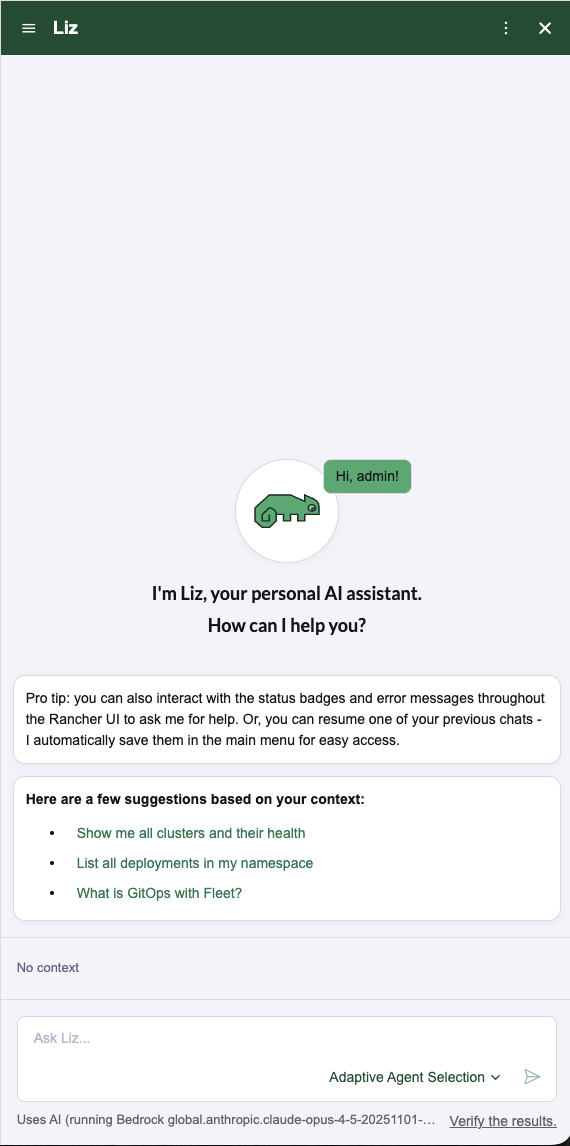
When you open the side panel, Liz greets you with a welcome message containing tips, a short news letter, and a list of suggestions to get you started (see ui-tools section).
Context-Awareness
Liz understands exactly what you are looking at. Any resource with a status badge features an Ask Liz button.
-
Click the Ask Liz sliding button icon next to a resource.

-
The side panel will open with a tailored prompt automatically generated for that specific resource.
-
Liz automatically gathers the resource name, cluster ID, and namespace to provide accurate help.

Confirming Actions
Safety is a priority.
If you ask Liz or one of its specialized Agents to modify your environment (such as updating a deployment or changing a cluster configuration), Liz will present a confirmation prompt.
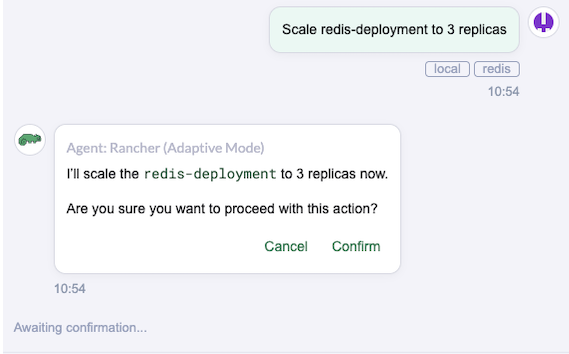
You must click Confirm before any changes are applied to your system.
Managing Conversations
You can maintain multiple threads or save your history for later reference.
-
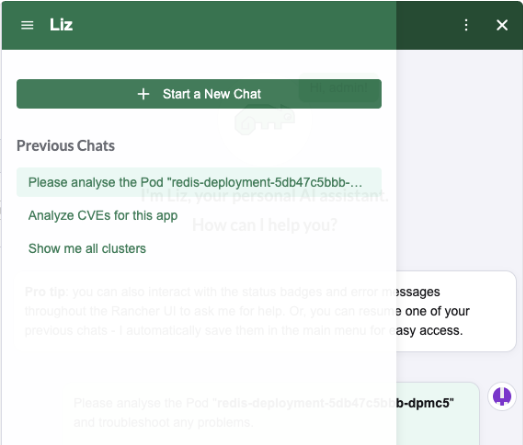
Create a New Chat: To start a fresh session, click the New Chat icon.
-
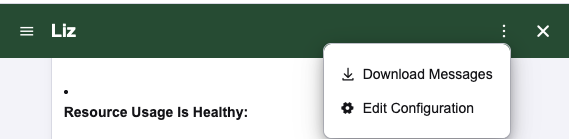
Download History: To save a record of your conversation, click the Download icon. This saves a
.txtfile of the transcript to your local drive.
Switching Agents
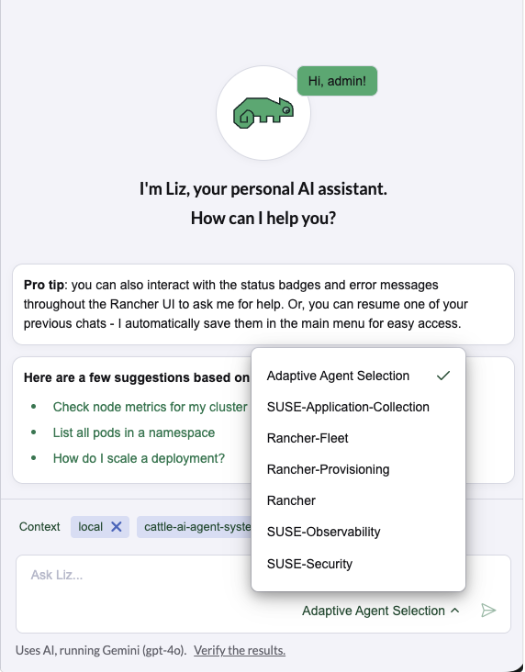
By default, Liz uses "Smart Routing" to send your request to the best specialized agent (e.g., a Security Agent for vulnerabilities).
If you want to talk to a specific agent manually:
-
Click the Agent Selection icon.
-
Choose the desired agent from the list.
| If Liz notices you frequently using the same agent, it may suggest switching to manual mode for that session. |
Example Prompts to Try
Not sure where to start? Try asking Liz these questions:
| Category | User Prompt | Handling Agent |
|---|---|---|
Security |
"Which of my running workloads are affected by vulnerabilities?" |
Security Agent (fetches CVE and scan data) |
Inventory |
"List all registries used across all my clusters." |
Rancher Agent (queries cluster-wide resources) |
Capacity |
"Show me the top 5 pods consuming the most memory." |
Rancher Agent (queries resource usage data) |
Navigation |
"What is the meaning of this status?" |
Context Logic (interprets resource status from the UI) |
Troubleshooting |
"The application is slow; find the root cause." |
SUSE Observability Agent (analyzes metrics and logs) |
Skills up |
"How do I install a helm chart in Rancher?" |
Knowledge (provides documentation sources) |
Provisioning |
"Analyze the cluster and troubleshoot any problems." |
Rancher-Provisioning Agent (checks infrastructure health) |