28 Cluster Logical Volume Manager (Cluster LVM) #
The term “Cluster LVM” indicates that LVM is being used in a cluster environment. When managing shared storage on a cluster, every node must be informed about changes to the storage subsystem. Logical Volume Manager (LVM) supports transparent management of volume groups across the whole cluster. Volume groups shared among multiple nodes can be managed using the same commands as local storage.

From SUSE Linux Enterprise 15 onward, the High Availability extension uses lvmlockd
instead of clvmd.
28.1 Conceptual overview #
Cluster LVM is coordinated with different tools:
- Logical Volume Manager (LVM)
LVM provides a virtual pool of disk space and enables flexible distribution of one logical volume over several disks.
- Volume groups and logical volumes
Volume groups (VGs) and logical volumes (LVs) are basic concepts of LVM. A volume group is a storage pool of multiple physical disks. A logical volume belongs to a volume group and can be seen as an elastic volume on which you can create a file system.
LVM-activateresource agentIn a cluster environment, VGs consist of shared storage and can be used either by multiple nodes concurrently, or by one node at a time with the ability to migrate to other nodes. To protect the LVM metadata on shared storage, the cluster uses
LVM-activateto manage the activation of LVs in a particular VG.LVM-activatehas two LV activation modes:In shared mode, LVs can be active on multiple nodes concurrently. Locking is managed by
lvmlockd. This mode is useful for cluster file systems like GFS2, for example.In exclusive mode, LVs can only be active on one node at a time. Exclusive access to the LV is managed either by
lvmlockdor by using thesystem_id. This mode is useful for virtual machine disks or for local file systems likeext4, for example.
lvmlockdwith sanlock is not officially supported.- Distributed Lock Manager (DLM)
DLM coordinates cluster-wide locking. It is required when using
lvmlockd.
crm ra info LVM-activateman lvmlockdman lvmsystemid
28.2 Requirements #
A shared storage device is available, such as Fibre Channel, FCoE, SCSI, iSCSI SAN, or NVMe-oF, for example. Volume groups must have at least one disk, but typically have multiple disks.
Make sure the following packages are installed:
lvm2andlvm2-lockd.From SUSE Linux Enterprise 15 onward, the High Availability extension uses
lvmlockdinstead ofclvmd. Make sure theclvmddaemon is not running, otherwiselvmlockdwill fail to start.
28.3 Configuring Cluster LVM with lvmlockd #
You can configure Cluster LVM in one of the following ways, depending on your storage and cluster setup:
Section 28.3.1, “Configuring Cluster LVM in shared mode”. Use this mode for active/active clusters where the LVs need to be active on all nodes at once.
Section 28.3.2, “Configuring Cluster LVM in exclusive mode”. Use this mode for active/passive clusters where the LVs only need to be active on one node at a time.
28.3.1 Configuring Cluster LVM in shared mode #
Perform the following steps on one node to configure a shared VG for an active/active cluster:
Start a shell and log in as
root.Check the current configuration of the cluster resources:
#crm configure showIf you have already configured a DLM resource (and a corresponding base group and base clone), continue with Procedure 28.2, “Creating an
lvmlockdresource”.Otherwise, configure a DLM resource and a corresponding base group and base clone as described in Procedure 24.1, “Configuring a base group for DLM”.
lvmlockd resource #Start a shell and log in as
root.Run the following command to see the usage of this resource:
#crm configure ra info lvmlockdConfigure an
lvmlockdresource as follows:#crm configure primitive lvmlockd lvmlockd \ op start timeout="90" \ op stop timeout="100" \ op monitor interval="30" timeout="90"To ensure the
lvmlockdresource is started on every node, add the primitive resource to the base group for storage you have created in Procedure 28.1, “Creating a DLM resource”:#crm configure modgroup g-storage add lvmlockdReview your changes:
#crm configure showCheck the status of the resources:
#crm status
Start a shell and log in as
root.Assuming you already have two shared disks, create a shared VG with them:
#vgcreate --shared vg1 /dev/disk/by-id/DEVICE_ID1 /dev/disk/by-id/DEVICE_ID2Create an LV and do not activate it initially:
#lvcreate --activate n --size 10G --name lv1 vg1
Start a shell and log in as
root.Run the following command to see the usage of this resource:
#crm configure ra info LVM-activateConfigure a resource to manage the activation of your VG. For shared mode managed by
lvmlockd, you must specifyvg_access_mode=lvmlockdandactivation_mode=shared:#crm configure primitive vg1 LVM-activate \ params vgname=vg1 vg_access_mode=lvmlockd activation_mode=shared \ op start timeout=90s interval=0 \ op stop timeout=90s interval=0 \ op monitor interval=30s timeout=90sMake sure the VG can only be activated on nodes where the DLM and
lvmlockdresources are already running:One VG:
Because this VG is active on multiple nodes, you can add it to the cloned
g-storagegroup, which already has internal colocation and order constraints:#crm configure modgroup g-storage add vg1Multiple VGs:
Do not add multiple VGs to the group, because this creates a dependency between the VGs. For multiple VGs, clone the resources and add constraints to the clones:
#crm configure clone cl-vg1 vg1 meta interleave=true#crm configure clone cl-vg2 vg2 meta interleave=true#crm configure colocation col-vg-with-dlm inf: ( cl-vg1 cl-vg2 ) cl-storage#crm configure order o-dlm-before-vg Mandatory: cl-storage ( cl-vg1 cl-vg2 )
Check the status of the resources:
#crm status
28.3.2 Configuring Cluster LVM in exclusive mode #
Perform the following steps on the active node to configure a local VG for an active/passive cluster:
Start a shell and log in as
root.Check the current configuration of the cluster resources:
#crm configure showIf you have already configured a DLM resource (and a corresponding base group and base clone), continue with Procedure 28.2, “Creating an
lvmlockdresource”.Otherwise, configure a DLM resource and a corresponding base group and base clone as described in Procedure 24.1, “Configuring a base group for DLM”.
lvmlockd resource #Start a shell and log in as
root.Run the following command to see the usage of this resource:
#crm configure ra info lvmlockdConfigure an
lvmlockdresource as follows:#crm configure primitive lvmlockd lvmlockd \ op start timeout="90" \ op stop timeout="100" \ op monitor interval="30" timeout="90"To ensure the
lvmlockdresource is started on every node, add the primitive resource to the base group for storage you have created in Procedure 28.1, “Creating a DLM resource”:#crm configure modgroup g-storage add lvmlockdReview your changes:
#crm configure showCheck the status of the resources:
#crm status
Start a shell and log in as
root.Assuming you already have two shared disks, create a local VG with them:
#vgcreate vg1 /dev/disk/by-id/DEVICE_ID1 /dev/disk/by-id/DEVICE_ID2Create an LV and do not activate it initially:
#lvcreate --activate n --size 10G --name lv1 vg1
Start a shell and log in as
root.Run the following command to see the usage of this resource:
#crm configure ra info LVM-activateConfigure a resource to manage the activation of your VG. For exclusive mode managed by
lvmlockd, you must specifyvg_access_mode=lvmlockd:#crm configure primitive vg1 LVM-activate \ params vgname=vg1 vg_access_mode=lvmlockd \ op start timeout=90s interval=0 \ op stop timeout=90s interval=0 \ op monitor interval=30s timeout=90sExclusive mode is the default setting, so you don't need to specify
activation_mode=exclusive.Make sure the VG can only be activated on nodes where the DLM and
lvmlockdresources are already running:One VG:
Because this VG is only active on a single node, do not add it to the cloned
g-storagegroup. Instead, add constraints directly to the resource:#crm configure colocation col-vg-with-dlm inf: vg1 cl-storage#crm configure order o-dlm-before-vg Mandatory: cl-storage vg1Multiple VGs:
For multiple VGs, you can add constraints to multiple resources at once:
#crm configure colocation col-vg-with-dlm inf: ( vg1 vg2 ) cl-storage#crm configure order o-dlm-before-vg Mandatory: cl-storage ( vg1 vg2 )
Check the status of the resources:
#crm status
28.4 Configuring LVM with system_id #
Perform the following steps on the active node to configure a local VG for an active/passive cluster:
system_id #Start a shell and log in as
root.Open the
/etc/lvm/lvm.conffile.Make sure the
use_lvmlockdline is commented out or set to0.Uncomment the
system_id_sourceline and change the value touname:system_id_source = "uname"
This means that the VG gets its
system_idfrom the host name (uname -n) of whichever node the VG is currently active on. If the VG moves to another node, thesystem_idchanges to the host name of the new node.Save and exit the file.
Copy the updated configuration to all nodes:
#crm cluster copy /etc/lvm/lvm.conf
Start a shell and log in as
root.Assuming you already have two shared disks, create a local VG with them:
#vgcreate vg1 /dev/disk/by-id/DEVICE_ID1 /dev/disk/by-id/DEVICE_ID2Create an LV and do not activate it initially:
#lvcreate --activate n --size 10G --name lv1 vg1Reboot the other cluster nodes to refresh their LVM metadata. When LVM metadata is not protected by
lvmlockd, the other nodes might still use the old disk layout cached in their memory and thus remain unaware that the on-disk metadata has changed. Tip: Refreshing LVM metadata without rebooting the nodes
If you can't reboot the other nodes immediately, you can run the following commands on each node to help refresh their LVM metadata. However, we still recommend rebooting the nodes as soon as you can.
Rescan the physical volumes:
#pvscan --cacheRescan the volume groups:
#vgscanRefresh the status of the logical volumes:
#lvscan
Start a shell and log in as
root.Run the following command to see the usage of this resource:
#crm configure ra info LVM-activateConfigure a resource to manage the activation of your VG. For exclusive mode managed by the
system_id, you must specifyvg_access_mode=system_id:#crm configure primitive vg1 LVM-activate \ params vgname=vg1 vg_access_mode=system_id \ op start timeout=90s interval=0 \ op stop timeout=90s interval=0 \ op monitor interval=30s timeout=90sExclusive mode is the default setting, so you don't need to specify
activation_mode=exclusive.Check the status of the resource:
#crm status
28.5 Scenario: Cluster LVM with iSCSI on SANs #
The following scenario uses two SAN boxes, which export their iSCSI targets to several clients. The general idea is displayed in Figure 28.1, “Setup of a shared disk with Cluster LVM”.
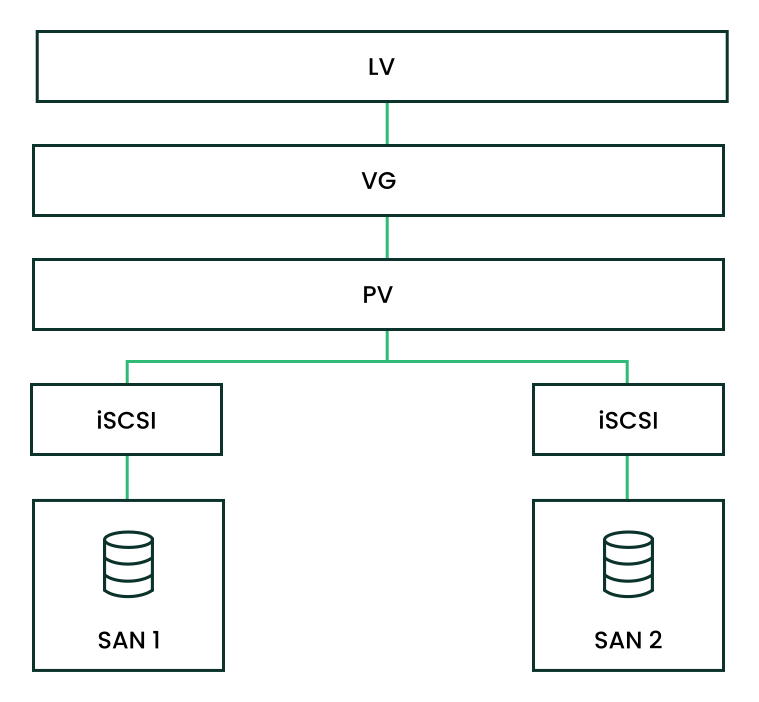

The following procedures will destroy any data on your disks.
Configure only one SAN box first. Each SAN box needs to export its own iSCSI target. Proceed as follows:
Run YaST and click › to start the iSCSI Server module.
If you want to start the iSCSI target whenever your computer is booted, choose , otherwise choose .
If you have a firewall running, enable .
Switch to the tab. If you need authentication, enable incoming or outgoing authentication or both. In this example, we select .
Add a new iSCSI target:
Switch to the tab.
Click .
Enter a target name. The name needs to be formatted like this:
iqn.DATE.DOMAIN
For more information about the format, refer to Section 3.2.6.3.1. Type "iqn." (iSCSI Qualified Name) at https://www.ietf.org/rfc/rfc3720.txt.
If you want a more descriptive name, you can change it if your identifier is unique for your different targets.
Click .
Enter the device name in and use a .
Click twice.
Confirm the warning box with .
Open the configuration file
/etc/iscsi/iscsid.confand change the parameternode.startuptoautomatic.
Now set up your iSCSI initiators as follows:
Run YaST and click › .
If you want to start the iSCSI initiator whenever your computer is booted, choose , otherwise set .
Change to the tab and click the button.
Add the IP address and the port of your iSCSI target (see Procedure 28.12, “Configuring iSCSI targets (SAN)”). Normally, you can leave the port as it is and use the default value.
If you use authentication, insert the incoming and outgoing user name and password, otherwise activate .
Select . The found connections are displayed in the list.
Proceed with .
Open a shell, log in as
root.Test if the iSCSI initiator has been started successfully:
#iscsiadm -m discovery -t st -p 192.168.3.100192.168.3.100:3260,1 iqn.2010-03.de.jupiter:san1Establish a session:
#iscsiadm -m node -l -p 192.168.3.100 -T iqn.2010-03.de.jupiter:san1Logging in to [iface: default, target: iqn.2010-03.de.jupiter:san1, portal: 192.168.3.100,3260] Login to [iface: default, target: iqn.2010-03.de.jupiter:san1, portal: 192.168.3.100,3260]: successfulSee the device names with
lsscsi:... [4:0:0:2] disk IET ... 0 /dev/sdd [5:0:0:1] disk IET ... 0 /dev/sde
Look for entries with
IETin their third column. In this case, the devices are/dev/sddand/dev/sde.
Open a
rootshell on one of the nodes you have run the iSCSI initiator from Procedure 28.13, “Configuring iSCSI initiators”.Create the shared volume group on disks
/dev/sddand/dev/sde, using their stable device names (for example, in/dev/disk/by-id/):#vgcreate --shared testvg /dev/disk/by-id/DEVICE_ID /dev/disk/by-id/DEVICE_IDCreate logical volumes as needed:
#lvcreate --name lv1 --size 500M testvgCheck the volume group with
vgdisplay:--- Volume group --- VG Name testvg System ID Format lvm2 Metadata Areas 2 Metadata Sequence No 1 VG Access read/write VG Status resizable MAX LV 0 Cur LV 0 Open LV 0 Max PV 0 Cur PV 2 Act PV 2 VG Size 1016,00 MB PE Size 4,00 MB Total PE 254 Alloc PE / Size 0 / 0 Free PE / Size 254 / 1016,00 MB VG UUID UCyWw8-2jqV-enuT-KH4d-NXQI-JhH3-J24anDCheck the shared state of the volume group with the command
vgs:#vgsVG #PV #LV #SN Attr VSize VFree vgshared 1 1 0 wz--ns 1016.00m 1016.00mThe
Attrcolumn shows the volume attributes. In this example, the volume group is writable (w), resizable (z), the allocation policy is normal (n), and it is a shared resource (s). See the man page ofvgsfor details.
After you have created the volumes and started your resources you should have new device
names under /dev/testvg, for example /dev/testvg/lv1.
This indicates the LV has been activated for use.
28.6 Configuring eligible LVM devices explicitly #
When several devices seemingly share the same physical volume signature (as can be the case for multipath devices or DRBD), we recommend to explicitly configure the devices which LVM scans for PVs.
For example, if the command vgcreate uses the physical
device instead of using the mirrored block device, DRBD will be confused.
This may result in a split-brain condition for DRBD.
To deactivate a single device for LVM, do the following:
Edit the file
/etc/lvm/lvm.confand search for the line starting withfilter.The patterns there are handled as regular expressions. A leading “a” means to accept a device pattern to the scan, a leading “r” rejects the devices that follow the device pattern.
To remove a device named
/dev/sdb1, add the following expression to the filter rule:"r|^/dev/sdb1$|"
The complete filter line will look like the following:
filter = [ "r|^/dev/sdb1$|", "r|/dev/.*/by-path/.*|", "r|/dev/.*/by-id/.*|", "a/.*/" ]
A filter line that accepts DRBD and MPIO devices but rejects all other devices would look like this:
filter = [ "a|/dev/drbd.*|", "a|/dev/.*/by-id/dm-uuid-mpath-.*|", "r/.*/" ]
Write the configuration file and copy it to all cluster nodes.
28.7 Online migration from mirror LV to cluster MD #
Starting with SUSE Linux Enterprise High Availability 15, cmirrord in Cluster LVM is deprecated. We highly
recommend to migrate the mirror logical volumes in your cluster to cluster MD.
Cluster MD stands for cluster multi-device and is a software-based
RAID storage solution for a cluster.
28.7.1 Example setup before migration #
Let us assume you have the following example setup:
You have a two-node cluster consisting of the nodes
aliceandbob.A mirror logical volume named
test-lvwas created from a volume group namedcluster-vg2.The volume group
cluster-vg2is composed of the disks/dev/vdband/dev/vdc.
#lsblkNAME MAJ:MIN RM SIZE RO TYPE MOUNTPOINT vda 253:0 0 40G 0 disk ├─vda1 253:1 0 4G 0 part [SWAP] └─vda2 253:2 0 36G 0 part / vdb 253:16 0 20G 0 disk ├─cluster--vg2-test--lv_mlog_mimage_0 254:0 0 4M 0 lvm │ └─cluster--vg2-test--lv_mlog 254:2 0 4M 0 lvm │ └─cluster--vg2-test--lv 254:5 0 12G 0 lvm └─cluster--vg2-test--lv_mimage_0 254:3 0 12G 0 lvm └─cluster--vg2-test--lv 254:5 0 12G 0 lvm vdc 253:32 0 20G 0 disk ├─cluster--vg2-test--lv_mlog_mimage_1 254:1 0 4M 0 lvm │ └─cluster--vg2-test--lv_mlog 254:2 0 4M 0 lvm │ └─cluster--vg2-test--lv 254:5 0 12G 0 lvm └─cluster--vg2-test--lv_mimage_1 254:4 0 12G 0 lvm └─cluster--vg2-test--lv 254:5 0 12G 0 lvm
Before you start the migration procedure, check the capacity and degree
of utilization of your logical and physical volumes. If the logical volume
uses 100% of the physical volume capacity, the migration might fail with an
insufficient free space error on the target volume.
How to prevent this migration failure depends on the options used for
mirror log:
Is the mirror log itself mirrored (
mirroredoption) and allocated on the same device as the mirror leg? (For example, this might be the case if you have created the logical volume for acmirrordsetup on SUSE Linux Enterprise High Availability 11 or 12 as described in the Administration Guide for those versions.)By default,
mdadmreserves a certain amount of space between the start of a device and the start of array data. During migration, you can check for the unused padding space and reduce it with thedata-offsetoption as shown in Step 1.d and following.The
data-offsetmust leave enough space on the device for cluster MD to write its metadata to it. However, the offset must be small enough for the remaining capacity of the device to accommodate all physical volume extents of the migrated volume. Because the volume may have spanned the complete device minus the mirror log, the offset must be smaller than the size of the mirror log.We recommend to set the
data-offsetto 128 kB. If no value is specified for the offset, its default value is 1 kB (1024 bytes).Is the mirror log written to a different device (
diskoption) or kept in memory (coreoption)? Before starting the migration, either enlarge the size of the physical volume or reduce the size of the logical volume (to free more space for the physical volume).
28.7.2 Migrating a mirror LV to cluster MD #
The following procedure is based on Section 28.7.1, “Example setup before migration”. Adjust the instructions to match your setup and replace the names for the LVs, VGs, disks, and the cluster MD device accordingly.
The migration does not involve any downtime. The file system can still be mounted during the migration procedure.
On node
alice, execute the following steps:Convert the mirror logical volume
test-lvto a linear logical volume:#lvconvert -m0 cluster-vg2/test-lv /dev/vdcRemove the physical volume
/dev/vdcfrom the volume groupcluster-vg2:#vgreduce cluster-vg2 /dev/vdcRemove this physical volume from LVM:
#pvremove /dev/vdcWhen you run
lsblknow, you get:NAME MAJ:MIN RM SIZE RO TYPE MOUNTPOINT vda 253:0 0 40G 0 disk ├─vda1 253:1 0 4G 0 part [SWAP] └─vda2 253:2 0 36G 0 part / vdb 253:16 0 20G 0 disk └─cluster--vg2-test--lv 254:5 0 12G 0 lvm vdc 253:32 0 20G 0 disk
Create a cluster MD device
/dev/md0with the disk/dev/vdc:#mdadm --create /dev/md0 --bitmap=clustered \ --metadata=1.2 --raid-devices=1 --force --level=mirror \ /dev/vdc --data-offset=128For details on why to use the
data-offsetoption, see Important: Avoiding migration failures.
On node
bob, assemble this MD device:#mdadm --assemble md0 /dev/vdcIf your cluster consists of more than two nodes, execute this step on all remaining nodes in your cluster.
Back on node
alice:Initialize the MD device
/dev/md0as physical volume for use with LVM:#pvcreate /dev/md0Add the MD device
/dev/md0to the volume groupcluster-vg2:#vgextend cluster-vg2 /dev/md0Move the data from the disk
/dev/vdbto the/dev/md0device:#pvmove /dev/vdb /dev/md0Remove the physical volume
/dev/vdbfrom the volumegroup cluster-vg2:#vgreduce cluster-vg2 /dev/vdbRemove the label from the device so that LVM no longer recognizes it as physical volume:
#pvremove /dev/vdbAdd
/dev/vdbto the MD device/dev/md0:#mdadm --grow /dev/md0 --raid-devices=2 --add /dev/vdb
28.7.3 Example setup after migration #
When you run lsblk now, you get:
NAME                      MAJ:MIN RM  SIZE RO TYPE  MOUNTPOINT
vda                       253:0    0   40G  0 disk
├─vda1                    253:1    0    4G  0 part  [SWAP]
└─vda2                    253:2    0   36G  0 part  /
vdb                       253:16   0   20G  0 disk
└─md0                       9:0    0   20G  0 raid1
  └─cluster--vg2-test--lv 254:5    0   12G  0 lvm
vdc                       253:32   0   20G  0 disk
└─md0                       9:0    0   20G  0 raid1
  └─cluster--vg2-test--lv 254:5    0   12G  0 lvm