SAP Edge Integration Cell on SUSE #
SAP

SUSE® offers a full stack for your container workloads. This best practice document describes how you can make use of this offerings for your installation of Edge Integration Cell included with SAP Integration Suite. The operations of SAP Edge Integration Cell and/or SAP Integration Suite are not covered in this document.
Disclaimer: Documents published as part of the SUSE Best Practices series have been contributed voluntarily by SUSE employees and third parties. They are meant to serve as examples of how particular actions can be performed. They have been compiled with utmost attention to detail. However, this does not guarantee complete accuracy. SUSE cannot verify that actions described in these documents do what is claimed or whether actions described have unintended consequences. SUSE LLC, its affiliates, the authors, and the translators may not be held liable for possible errors or the consequences thereof.
1 Introduction #
This guide describes how to prepare your infrastructure for the installation of Edge Integration Cell on Rancher Kubernetes Engine 2 using SUSE Rancher Prime. It will guide you through the steps of:
Installing SUSE Rancher Prime
Setting up Rancher Kubernetes Engine 2 clusters
Deploying mandatory components for Edge Integration Cell

This guide does not contain information about sizing your landscapes. Visit https://help.sap.com/docs/integration-suite?locale=en-US and search for the "Edge Integration Cell Sizing Guide".
2 Supported and used versions #
The support matrix below shows which versions of the given software we will use in this guide.
| Product | Version |
|---|---|
SUSE Linux Enterprise Micro | 6.0 |
Rancher Kubernetes Engine 2 | 1.31 |
SUSE Rancher Prime | 2.10.1 |
SUSE Storage | 1.7.2 |
cert-manager | 1.15.2 |
MetalLB | 0.14.7 |
PostgreSQL | 15.7 |
Redis | 7.2.5 |
Istio | 1.27.1 |
Kiali | 2.15.0 |
Prometheus | 3.5.0 |
Grafana | 12.1.1 |

If you want to use different versions of SUSE Linux Enterprise Micro or SUSE Linux Micro, SUSE Rancher Prime, Rancher Kubernetes Engine 2, or SUSE Storage, make sure to check the support matrix for the related solutions you want to use:
https://www.suse.com/suse-rancher/support-matrix/all-supported-versions/
For Redis and PostgreSQL, make sure to pick versions compatible to Edge Integration Cell, which can be found at https://me.sap.com/notes/3247839 .
Other versions of MetalLB or cert-manager can be used, but they may not have been tested.
3 Prerequisites #
Get subscriptions for:
Rancher for SAP applications *
SUSE Linux Enterprise High Availability **
* The Rancher for SAP applications subscription holds support for all required components like SUSE Linux Enterprise Micro, SUSE Rancher Prime and SUSE Storage.
** Only needed if you want to set up SUSE Rancher Prime in a high availability setup
Additionally,
check the storage requirements.
create a or get access to a private container registry.
get an SAP S-user ID to access software and documentation from SAP.
read the relevant SAP documentation:
4 Landscape Overview #
To run Edge Integration Cell in a production-ready and supported way, you need to set up multiple Kubernetes clusters and their nodes. Those comprise a Kubernetes cluster, where you will install SUSE Rancher Prime to set up and manage the production and non-production clusters. For this SUSE Rancher Prime cluster, we recommend using three Kubernetes nodes and a load balancer.
The Edge Integration Cell will need to run in a dedicated Kubernetes cluster. For an HA setup of this cluster, we recommend using three Kubernetes control planes and three Kubernetes worker nodes.
For a graphical overview of what is needed, take a look at the landscape overview:
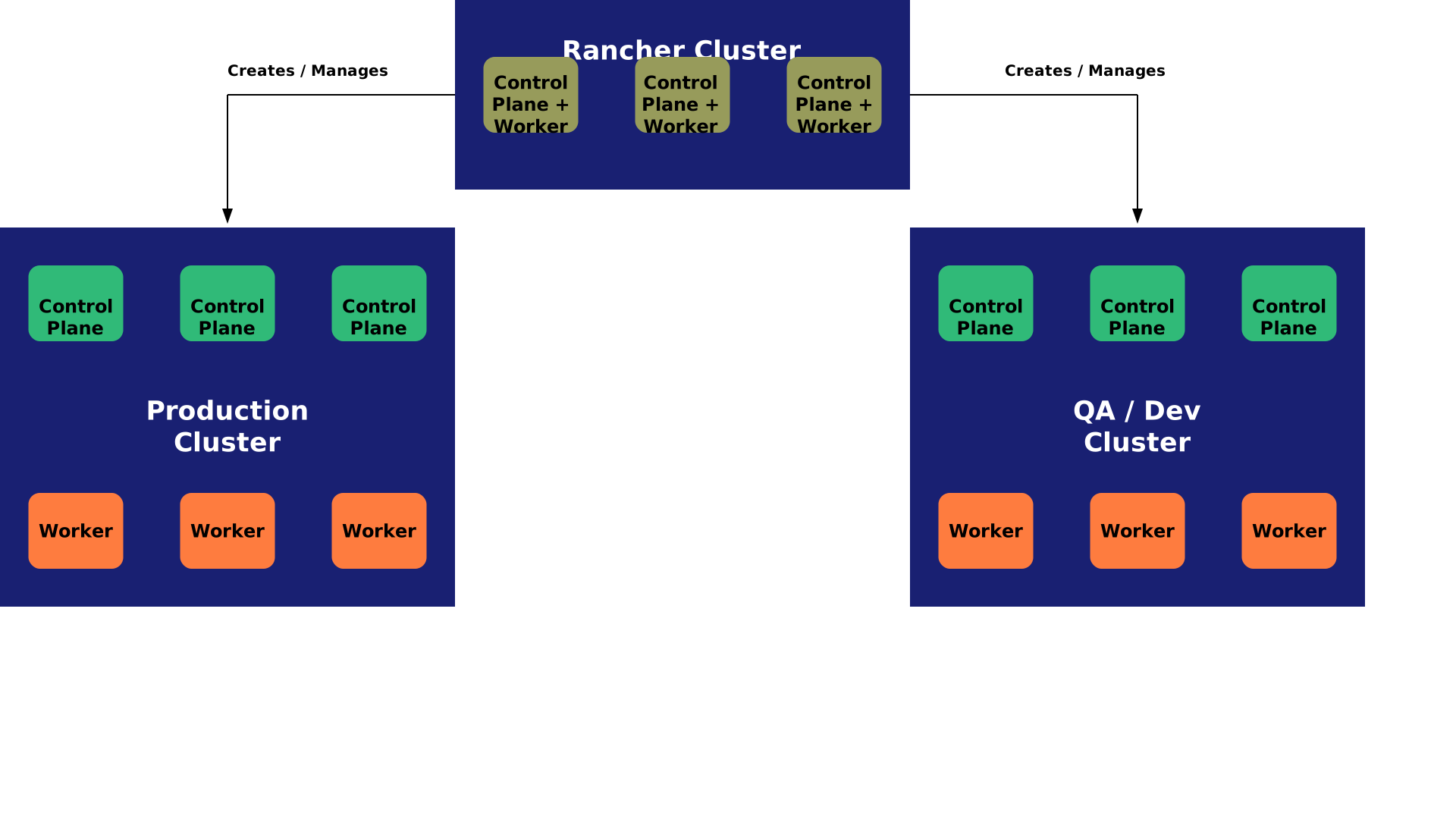
The dark blue rectangles represent Kubernetes clusters.
The olive rectangles represent Kubernetes nodes that hold the roles of Control Plane and Worker combined.
The green rectangles represent Kubernetes Control Plane nodes.
The orange rectangles represent Kubernetes Worker nodes.
This graphic overview is used throughout the guide to illustrate the purpose and context of each step.
Starting with installing the operating system of each machine or Kubernetes node, we will guide you through the complete setup of a Kubernetes landscape ready for Edge Integration Cell deployment.
5 Installing SUSE Linux Enterprise Micro 6.0 #
There are several ways to install SUSE Linux Enterprise Micro 6.0. For this best practice guide, we use the installation method via graphical installer. But in cloud native deployments, it is highly recommended to use Infrastructure-as-Code technologies to fully automate the deployment and lifecycle processes.
5.1 Installing and configuring SUSE Linux Enterprise Micro #
On each server in your environment for Edge Integration Cell and SUSE Rancher Prime, install SUSE Linux Enterprise Micro 6.0 as the operating system. There are several methods to install SUSE Linux Enterprise Micro 6.0 on your hardware or virtual machine. A list of all possible solutions are available in our Documentation SLE Micro 6.0.
At the end of the installation process, in the summary window, you need to verify that the following security settings are configured:
The firewall will be disabled.
The SSH service will be enabled.
SELinux will be set in permissive mode.
Set SELinux to permissive mode, because otherwise, some components of the Edge Integration Cell will violate SELinux rules, and the application will not work.

If you have already set up all machines and the operating system, skip this chapter.
5.2 Registering your system #
To get your system up-to-date, you need to register it with SUSE Manager, an RMT server, or directly with the SCC Portal. Find the registration process with a direct connection to SCC described in the instructions below. For more information, see the SUSE Linux Enterprise Micro documentation.
Registering the system is possible from the command line using the transactional-update register command.
For information that goes beyond the scope of this section, refer to the inline documentation with SUSEConnect --help.
To register SUSE Linux Enterprise Micro with SUSE Customer Center, run transactional-update register as follows:
sudo transactional-update register -r REGISTRATION_CODE -e EMAIL_ADDRESSTo register with a local registration server, additionally specify the URL to the server:
sudo  transactional-update register -r REGISTRATION_CODE -e EMAIL_ADDRESS \
--url "https://suse_register.example.com/"
Do not forget to replace
REGISTRATION_CODE with the registration code you received with your copy of SUSE Linux Enterprise Micro.
EMAIL_ADDRESS with the e-mail address associated with the SUSE account you or your organization uses to manage subscriptions.
Reboot your system to switch to the latest snapshot. SUSE Linux Enterprise Micro is now registered.
Find more information about registering your system in the SUSE Linux Enterprise Micro 6.0 Deployment Guide section Deploying selfinstall images.
5.3 Updating your system #
Log in to the system. After your system is registered, you can update it with the transactional-update command.
sudo transactional-update5.4 Disabling automatic reboot #
By default SUSE Linux Enterprise Micro runs a timer for transactional-update in the background which could automatically reboot your system.
Disable it with the following command:
sudo systemctl --now disable transactional-update.timer5.5 Preparing for SUSE Storage #
For SUSE Storage, some preparation steps are required. First, install some additional packages on all worker nodes. Then, attach a second disk to the worker nodes, create a file system on top of it, and mount it to the default SUSE Storage location. The size of the second disk will depend on your use case.
Install some packages as a requirement for SUSE Storage and Logical Volume Management for adding a file system to SUSE Storage.
sudo transactional-update pkg install lvm2 jq nfs-client cryptsetup open-iscsiAfter the required packages are installed, you need to reboot your machine.
sudo rebootNow you can enable the iscsid server.
sudo systemctl enable iscsid --now5.5.1 Creating file system for SUSE Storage #
The next step is to create a new logical volume with the Logical Volume Management.
First, you need to create a new physical volume. In our case, the second disk is called vdb. Use this as SUSE Storage volume.
sudo pvcreate /dev/vdbAfter the physical volume is created, create a volume group called vgdata:
sudo vgcreate vgdata /dev/vdbNow create the logical volume; use 100% of the disk.
sudo lvcreate -n lvlonghorn -l100%FREE vgdataOn the logical volume, create the XFS file system. You do not need to create a partition on top of it.
sudo mkfs.xfs /dev/vgdata/lvlonghornBefore you can mount the device, you need to create the directory structure.
sudo mkdir -p /var/lib/longhornAdd an entry to fstab to ensure that the mount of the file system is persistent:
sudo echo -e "/dev/vgdata/lvlonghorn /var/lib/longhorn xfs defaults 0 0" >> /etc/fstabFinally, you can mount the file system as follows:
sudo mount -a6 Installing SUSE Rancher Prime cluster #
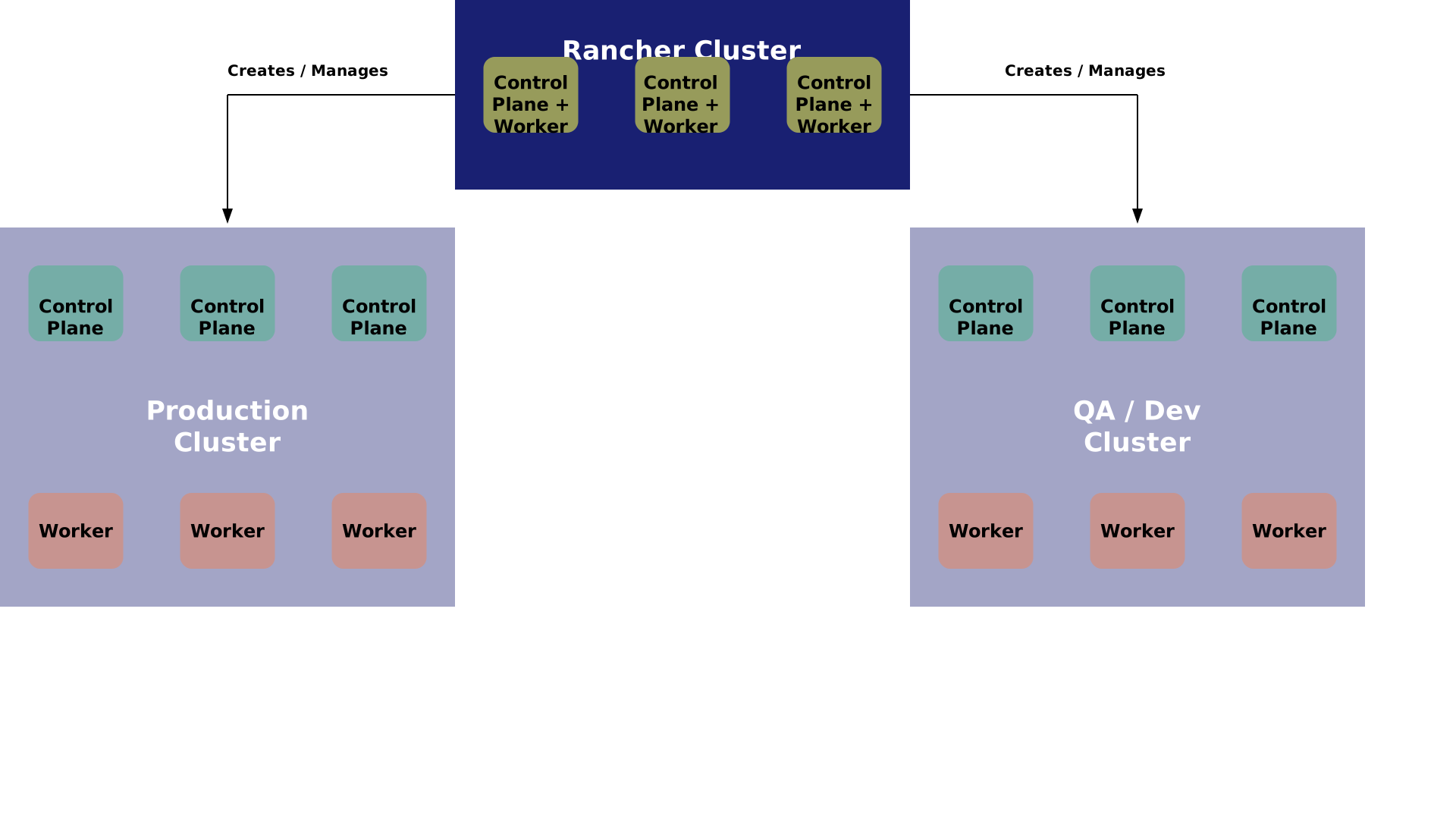
By now, you should have the operating system installed on every Kubernetes node. You are ready to install a SUSE Rancher Prime cluster. Referring to the landscape overview, we now focus on how to set up the upper section of the graphic below:
6.1 Preparation #
To provide a highly available SUSE Rancher Prime setup, you need a load balancer for your SUSE Rancher Prime nodes. If you already have a load balancer, you can use that to make SUSE Rancher Prime highly available.
If you do not plan to set up a highly available SUSE Rancher Prime cluster, you can skip this section.
6.1.1 Installing a haproxy-based load balancer #
This section describes how to set up a custom load balancer using haproxy.
Set up a virtual machine or a bare metal server with SUSE Linux Enterprise Server and SUSE Linux Enterprise High Availability or use SUSE Linux Enterprise Server for SAP applications.
Install the haproxy package.
sudo zypper in haproxyCreate the configuration for haproxy.
Find an example configuration file for haproxy below and adapt for the actual environment.
sudo cat <<EOF > /etc/haproxy/haproxy.cfg
global
        log /dev/log    local0
        log /dev/log    local1 notice
        chroot /var/lib/haproxy
        # stats socket /run/haproxy/admin.sock mode 660 level admin
        stats timeout 30s
        user haproxy
        group haproxy
        daemon

        # general hardlimit for the process of connections to handle, this is separate to backend/listen
        # Added in 'global' AND 'defaults'!!! - global affects only system limits (ulimit/maxsock) and defaults affects only listen/backend-limits - hez
        maxconn 400000

        # Default SSL material locations
        ca-base /etc/ssl/certs
        crt-base /etc/ssl/private

        tune.ssl.default-dh-param 2048

        # Default ciphers to use on SSL-enabled listening sockets.
        # For more information, see ciphers(1SSL). This list is from:
        #  https://hynek.me/articles/hardening-your-web-servers-ssl-ciphers/
        ssl-default-bind-ciphers ECDH+AESGCM:DH+AESGCM:ECDH+AES256:DH+AES256:ECDH+AES128:DH+AES:ECDH+3DES:DH+3DES:RSA+AESGCM:RSA+AES:RSA+3DES:!aNULL:!MD5:!DSS
        ssl-default-bind-options ssl-min-ver TLSv1.2 no-tls-tickets

defaults
        mode tcp
        log     global
        option  tcplog
        option  redispatch
        option  tcpka
        option  dontlognull
        retries 2
        timeout connect 5s
        timeout client  5s
        timeout server  5s
        timeout tunnel  86400s
        maxconn 400000

listen stats
        bind *:9000
        mode http
        stats hide-version
        stats uri /stats

listen rancher_apiserver
        bind my_lb_address:6443
        option httpchk GET /healthz
        http-check expect status 401
        server mynode1 mynode1.domain.local:6443 check check-ssl verify none
        server mynode2 mynode2.domain.local:6443 check check-ssl verify none
        server mynode3 mynode3.domain.local:6443 check check-ssl verify none
listen rancher_register
        bind my_lb_address:9345
        option httpchk GET /ping
        http-check expect status 200
        server mynode1 mynode1.domain.local:9345 check check-ssl verify none
        server mynode2 mynode2.domain.local:9345 check check-ssl verify none
        server mynode3 mynode3.domain.local:9345 check check-ssl verify none

listen rancher_ingress80
        bind my_lb_address:80
        option httpchk GET /
        http-check expect status 404
        server mynode1 mynode1.domain.local:80 check
        server mynode2 mynode2.domain.local:80 check
        server mynode3 mynode3.domain.local:80 check

listen rancher_ingress443
        bind my_lb_address:443
        option httpchk GET /
        http-check expect status 404
        server mynode1 mynode1.domain.local:443 check check-ssl verify none
        server mynode2 mynode2.domain.local:443 check check-ssl verify none
        server mynode3 mynode3.domain.local:443 check check-ssl verify none
EOF
Check the configuration file:
haproxy -f /path/to/your/haproxy.conf -cEnable and start the haproxy load balancer:
sudo systemctl enable haproxy
sudo systemctl start haproxy
Do not forget to restart or reload haproxy if any changes are made to the haproxy configuration file.
6.2 Installing RKE2 #
To install RKE2, the script provided at https://get.rke2.io can be used as follows:
sudo curl -sfL https://get.rke2.io | INSTALL_RKE2_VERSION=v1.31.7+rke2r1 shFor HA setups, you must create RKE2 cluster configuration files in advance. On the first master node, do the following:
sudo mkdir -p /etc/rancher/rke2
cat <<EOF > /etc/rancher/rke2/config.yaml
token: 'your cluster token'
system-default-registry: registry.rancher.com
tls-san:
  - FQDN of fixed registration address on load balancer
  - other hostname
  - IP v4 address
EOF
Create configuration files for additional cluster nodes:
cat <<EOF > /etc/rancher/rke2/config.yaml
server: https://"FQDN of registration address":9345
token: 'your cluster token'
system-default-registry: registry.rancher.com
tls-san:
  - FQDN of fixed registration address on load balancer
  - other hostname
  - IP v4 address
EOFYou also need to consider taking etcd snapshots and perform backups of your Rancher instance. These topics are not covered in this document, but you can find more information in our official documentation. Helpful links are https://documentation.suse.com/cloudnative/rke2/latest/en/backup_restore.html and https://documentation.suse.com/cloudnative/rancher-manager/latest/en/rancher-admin/back-up-restore-and-disaster-recovery/back-up-restore-and-disaster-recovery.html. IMPORTANT: For security reasons, we generally recommend activating the CIS profile when installing RKE2. This is currently still being validated and will be included in the documentation at a later date.
Now enable and start the RKE2 components and run the following command on each cluster node:
sudo systemctl enable rke2-server --nowTo verify the installation, run the following command:
/var/lib/rancher/rke2/bin/kubectl --kubeconfig /etc/rancher/rke2/rke2.yaml get nodesFor convenience, you can add the kubectl binary to the $PATH and set the specified kubeconfig
via an environment variable:
export PATH=$PATH:/var/lib/rancher/rke2/bin/
export KUBECONFIG=/etc/rancher/rke2/rke2.yaml
6.3 Installing Helm #
To install SUSE Rancher Prime and some of its required components, you need to use Helm.
One way to install Helm is to run:
curl https://raw.githubusercontent.com/helm/helm/main/scripts/get-helm-3 | bash6.4 Installing cert-manager #
To install the cert-manager package, do the following:
kubectl create namespace cert-managerIf you want to install cert-manager from the application-collection , you must create an imagePullSecret.
How to create the imagePullSecret is described in the Section 13.1, “Creating an imagePullSecret for the Rancher Application Collection”.
6.4.1 Installing the application #
Before you can install the application, you need to login into the registry. You can find the instruction in Section 13.2, “Logging in to the Application Collection Registry”.
helm install cert-manager oci://dp.apps.rancher.io/charts/cert-manager \
    --set crds.enabled=true \
    --set-json 'global.imagePullSecrets=[{"name":"application-collection"}]' \
    --namespace=cert-manager \
    --version 1.15.2
6.5 Installing SUSE Rancher Prime #
To install SUSE Rancher Prime, you need to add the related Helm repository. To achieve that, use the following command:
helm repo add rancher-prime https://charts.rancher.com/server-charts/primeNext, create the cattle-system namespace in Kubernetes as follows:
kubectl create namespace cattle-systemThe Kubernetes cluster is now ready for the installation of SUSE Rancher Prime:
helm install rancher rancher-prime/rancher \
    --namespace cattle-system \
    --set hostname=<your.domain.com> \
    --set replicas=3
During the rollout of SUSE Rancher Prime, you can monitor the progress using the following command:
kubectl -n cattle-system rollout status deploy/rancherWhen the deployment is done, you can access the SUSE Rancher Prime cluster at https://<your.domain.com>. Here you will also find a description about how to log in for the first time.
7 Installing RKE2 using SUSE Rancher Prime #
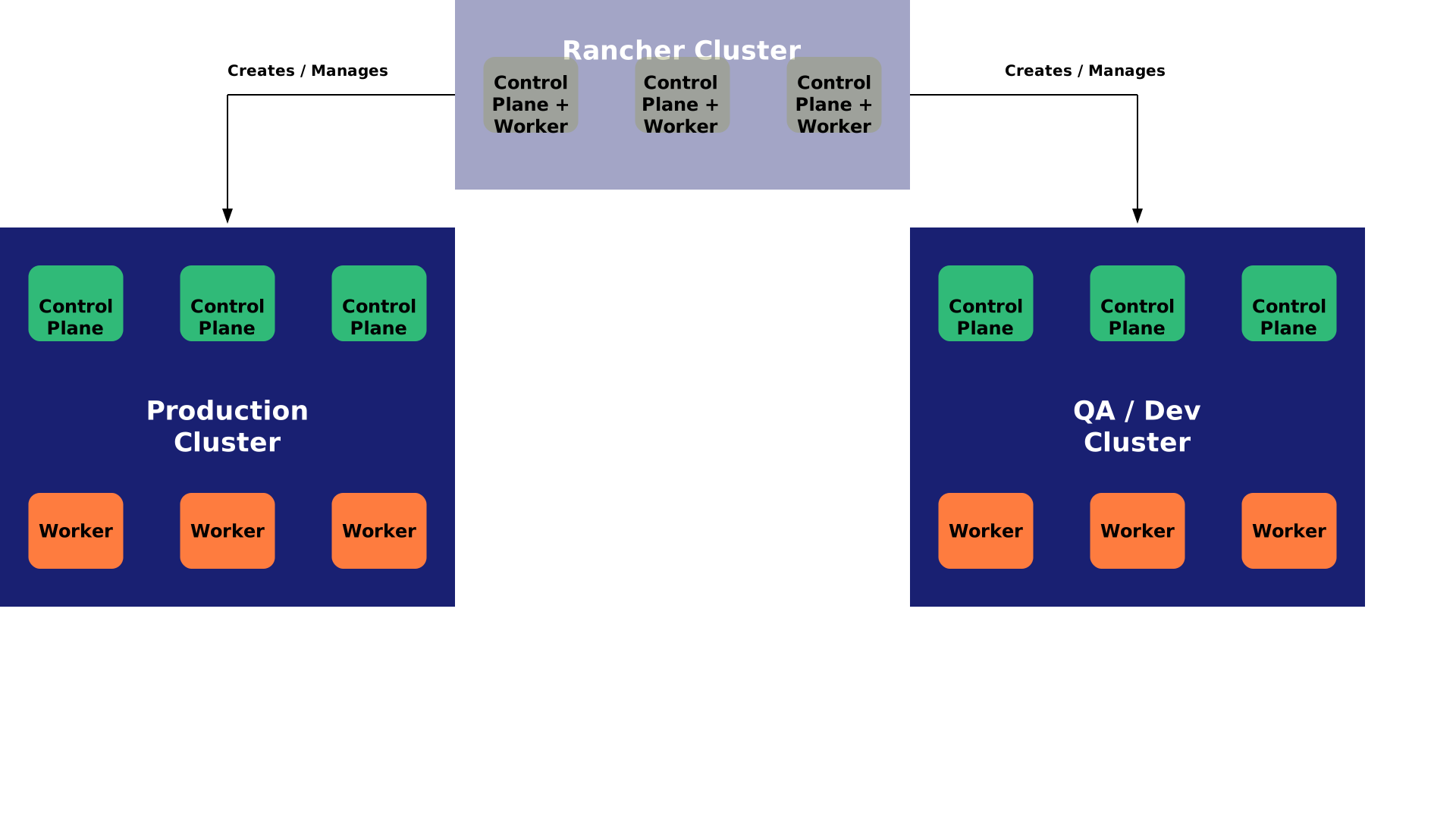
After having installed the SUSE Rancher Prime cluster, you can use it to create Rancher Kubernetes Engine 2 clusters for Edge Integration Cell. SAP recommends setting separate QA/Dev systems for Edge Integration Cell in addition to a production landscape. Both can be configured similarly using SUSE Rancher Prime, as described in this chapter. Referring to the landscape overview, we now focus on the lower section of the graphic below:
Creating new RKE2 clusters is straightforward when using SUSE Rancher Prime.
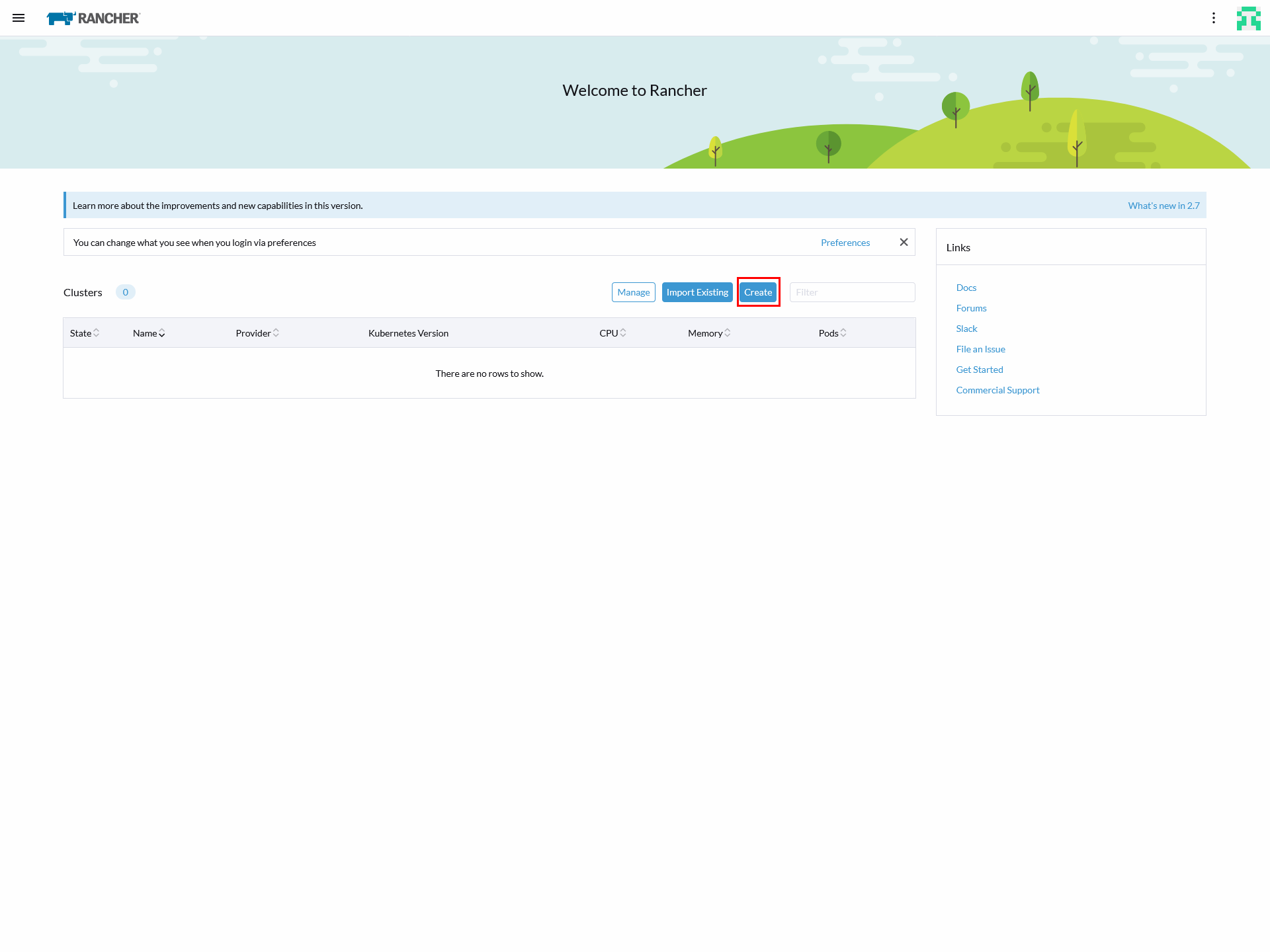
Navigate to the home menu of your SUSE Rancher Prime instance and click the Create button on the right side of the screen, as shown below:
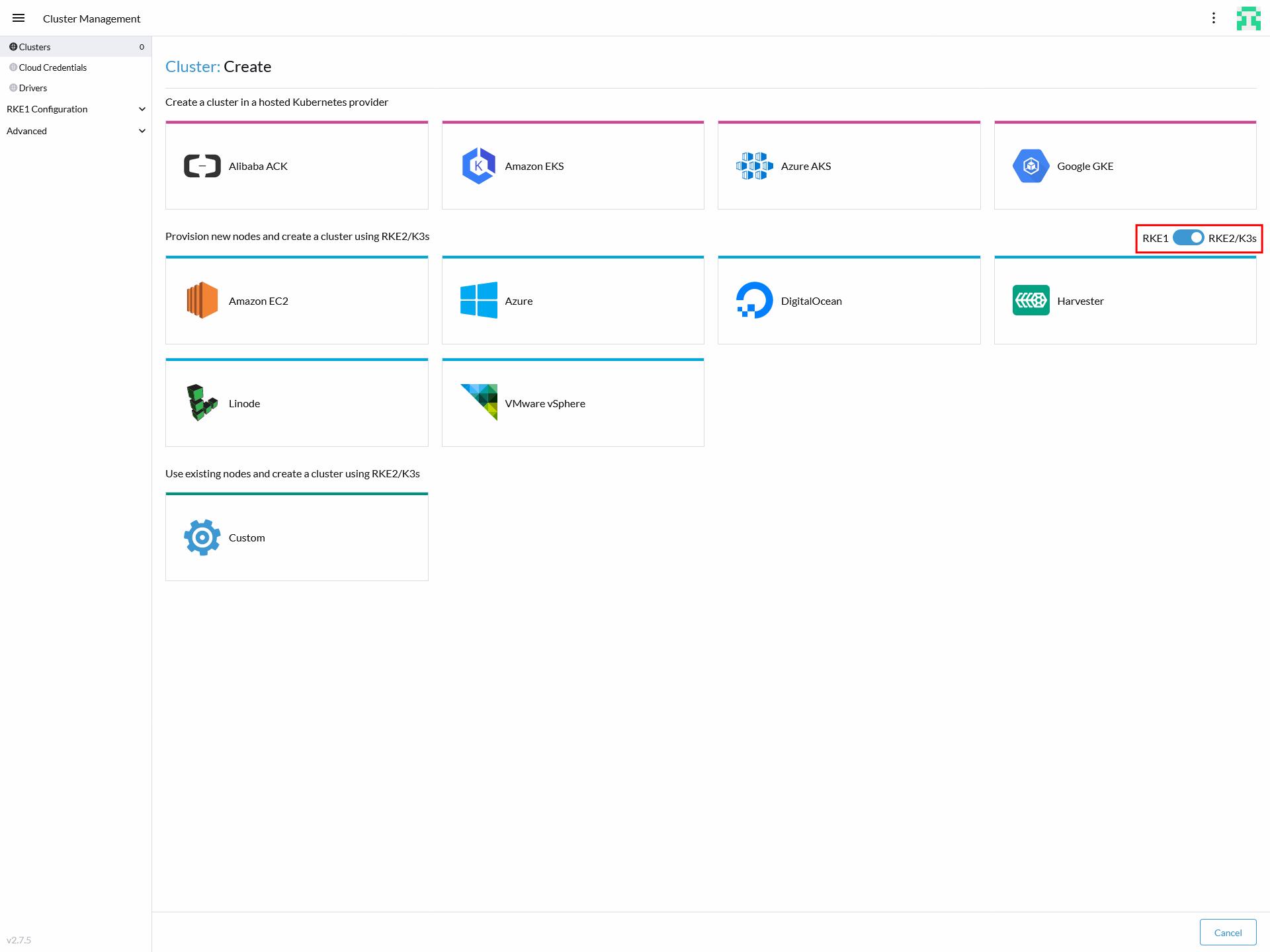
The window displays the available options for creating new Kubernetes clusters. Make sure the toggle button on the right side of the screen is set to RKE2/K3s, as shown below:
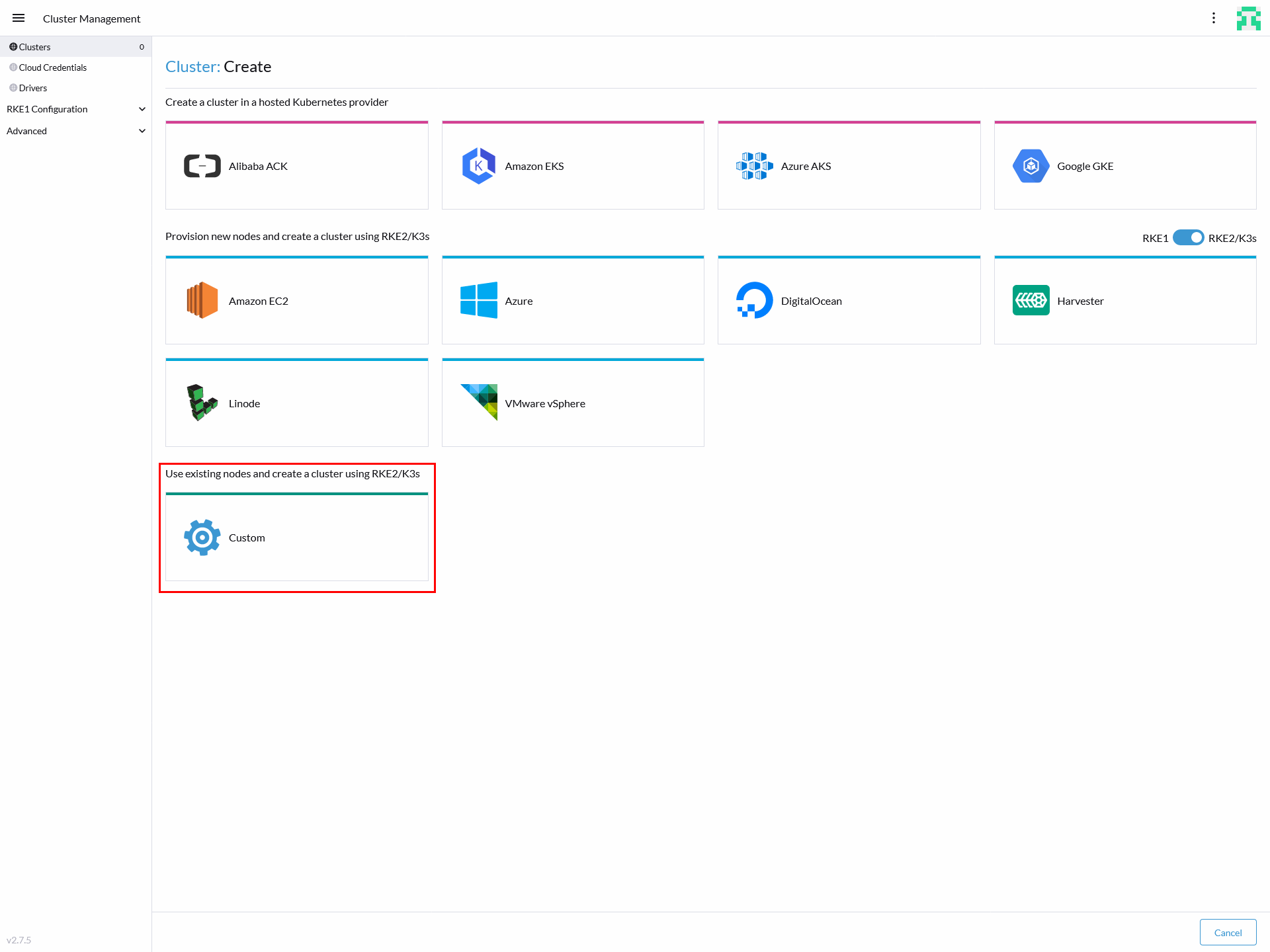
If you want to create Kubernetes clusters on existing (virtual) machines, select the Custom option at the very bottom, as shown in the image below:
Next, a window will appear where you can configure your Kubernetes cluster. It will look similar to the image below:
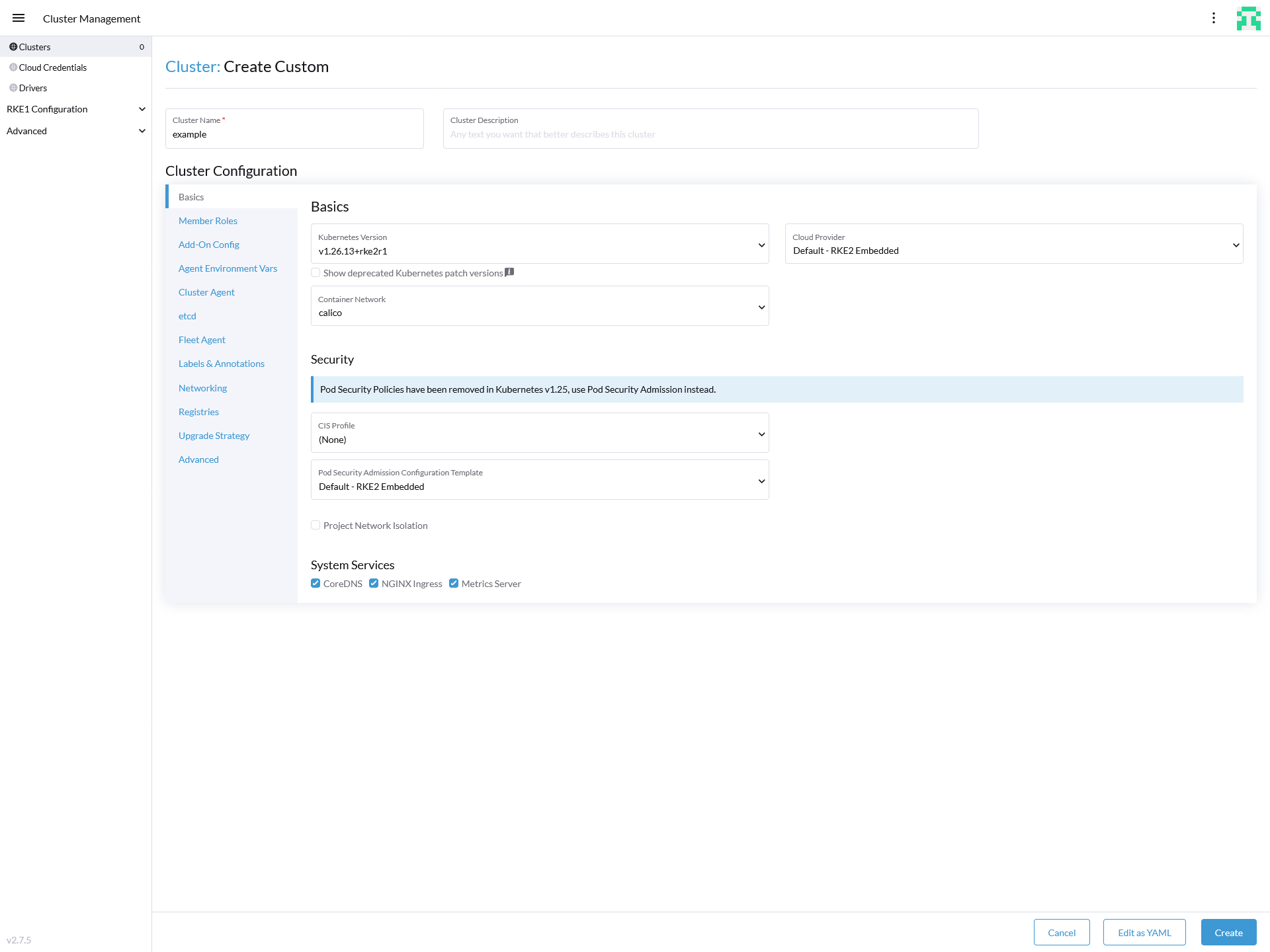
Here, you need to name the cluster. The name will only be used within SUSE Rancher Prime. It will not affect your workloads. In the next step, make sure you select a Kubernetes version that is supported by the workload you want to deploy.
If you do not have any further requirements to Kubernetes, you can click the Create button at the very bottom. In any other cases, talk to your administrators before making adjustments.
After you clicked Create, you should see a screen similar to the below:
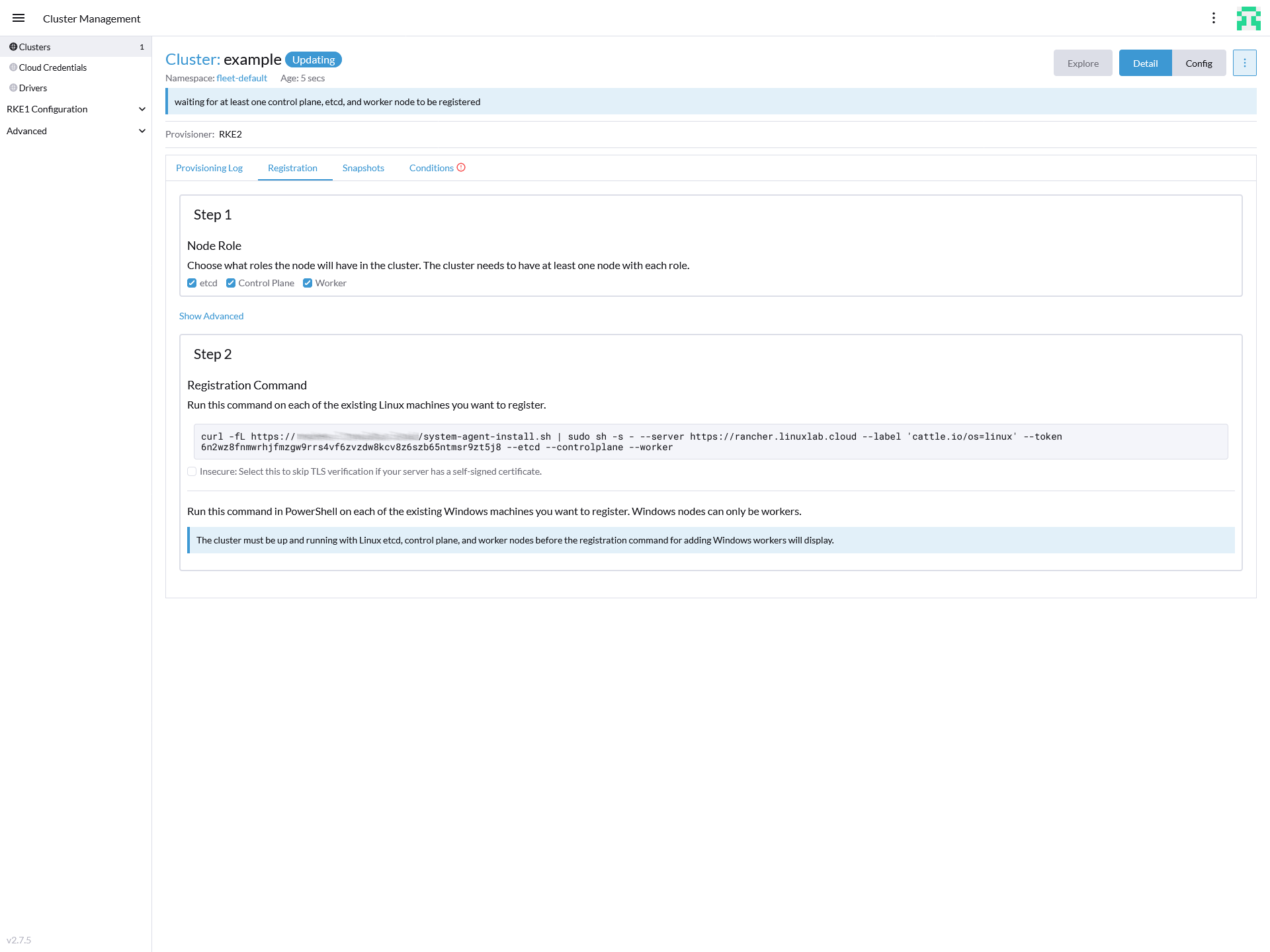
Now, in a first step, select the roles your node(s) should receive. A common high availability setup holds:
3 x etcd / control plane nodes
3 x worker nodes
The next step is to copy the registration command to the target machines' shell and execute it. If your SUSE Rancher Prime instance holds a self-signed certificate, make sure to activate the text bar holding the registration command in the check box below.
You can run the command on all nodes in parallel. You do not need to wait until a single node is down. When all machines are registered, you can see the cluster status at the top, changing from "updating" to "active". At this point in time, your Kubernetes cluster is ready to be used.
8 Preparing storage #
To make storage available for Kubernetes workloads, prepare the storage solution you want to use. In this chapter, we describe how to set this up and how to prepare it for consumption by Edge Integration Cell.
The storage solutions tested by SAP and SUSE are presented below, along with links to chapters detailing how to set them up and configure them.
SUSE Storage Section 8.1, “Installing SUSE Storage”
NetApp Trident Section 8.2, “Installing Trident”
8.1 Installing SUSE Storage #
This chapter details the minimum requirements to install SUSE Storage and describes three different ways for the installation. For more details, visit https://longhorn.io/docs/1.6.2/deploy/install/
8.1.1 Requirements #
To ensure a node is prepared for SUSE Storage, you can use the following script to check:
curl -sSfL https://raw.githubusercontent.com/longhorn/longhorn/v1.6.2/scripts/environment_check.sh | bash
8.1.2 Installing SUSE Storage using SUSE Rancher Prime #
Up-to-date and detailed instructions how to install SUSE Storage using SUSE Rancher Prime can be found at https://longhorn.io/docs/1.6.2/deploy/install/install-with-rancher/
8.1.3 Installing SUSE Storage using Helm #
To install Longhorn using Helm, run the following commands:
helm repo add rancher-v2.8-charts https://raw.githubusercontent.com/rancher/charts/release-v2.8
helm repo update
helm upgrade --install longhorn-crd rancher-v2.8-charts/longhorn-crd \
--namespace longhorn-system \
--create-namespace
helm upgrade --install longhorn rancher-v2.8-charts/longhorn \
--namespace longhorn-system
For more details, visit https://longhorn.io/docs/1.6.2/deploy/accessing-the-ui/longhorn-ingress/.
8.2 Installing Trident #
This chapter describes how to install Trident in an RKE2 cluster using Helm. For more details how to install Trident with Helm, visit https://docs.netapp.com/us-en/trident/trident-get-started/kubernetes-deploy-helm.html#critical-information-about-trident-25-02
8.2.1 Preparing the OS #
The Kubernetes worker nodes must be prepared so PVCs can later be provisioned properly. Thus, you need to install the following packages:
sudo zypper in -y lsscsi multipath-tools open-iscsiAs multipathd is known to have problems on operating systems using the kernel-default-base packages, replace them with kernel-default:
sudo zypper remove -y kernel-default-base
sudo zypper in -y kernel-default
Afterwards, you can enable iscsi and multipath:
sudo systemctl enable --now iscsi
sudo systemctl enable --now multipathd
8.2.2 Deploying the Trident operator #
The Trident operator is responsible to establish the connection between your NetApp storage system and the Kubernetes cluster. An example of its deployment is shown below:
helm repo add netapp-trident https://netapp.github.io/trident-helm-chart
helm install my-trident-operator netapp-trident/trident-operator --version 100.2502.1 --create-namespace --namespace trident
8.2.3 Establishing the connection between Kubernetes and the NetApp storage #
Before creating the link to the backend, you should store the user and password information in a Secret. To create such a Secret, follow the example below:
apiVersion: v1
kind: Secret
metadata:
  name: backend-tbc-ontap-secret
  namespace: trident
type: Opaque
stringData:
  username: <cluster-admin>
  password: <password>
To establish the connection between the target Kubernetes cluster and the NetApp storage system, a so-called TridentBackendConfig is required. For more information how to set up the backend configuration, refer to https://docs.netapp.com/us-en/trident/trident-use/backend-kubectl.html#tridentbackendconfig
Below are two examples demonstrating the configuration of SAN/iSCSI and NAS backends:
apiVersion: trident.netapp.io/v1
kind: TridentBackendConfig
metadata:
  name: backend-tbc-ontap-san
  namespace: trident
spec:
  version: 1
  backendName: ontap-san-backend
  storageDriverName: ontap-san
  managementLIF: <Cluster IP>
  dataLIF: <Storage-VM-IP>
  svm: <Storage-VM-FQDN>
  credentials:
    name: backend-tbc-ontap-secret
apiVersion: trident.netapp.io/v1
kind: TridentBackendConfig
metadata:
name: backend-tbc-ontap-nas
namespace: trident
spec:
version: 1
backendName: ontap-nas-backend
storageDriverName: ontap-nas
managementLIF: <Cluster-IP>
dataLIF: <Storage-VM-IP>
svm: <Storage-VM-FQDN>
credentials:
name: backend-tbc-ontap-secretTo verify the backend was configured successfully, check the output of:
kubectl -n trident get tbc backend-tbc-ontap-sanIf the connection was established, the State should be active and you should see a Backend UUID.
When the backend is configured, you can create a StorageClass to provision Volumes to be consumed by a Persistent Volume Claim. Here is an example for creating a StorageClass that uses a SAN/iSCSI backend:
apiVersion: storage.k8s.io/v1
kind: StorageClass
metadata:
  name: nfs
provisioner: csi.trident.netapp.io
parameters:
  backendType: ontap-san
9 Installing MetalLB and databases #
In the following chapter, we present an example for setting up MetalLB, Redis and PostgreSQL.
Keep in mind that the descriptions and instructions below might differ from the deployment you need for your specific infrastructure and use cases.
9.1 Logging in to Rancher Application Collection #
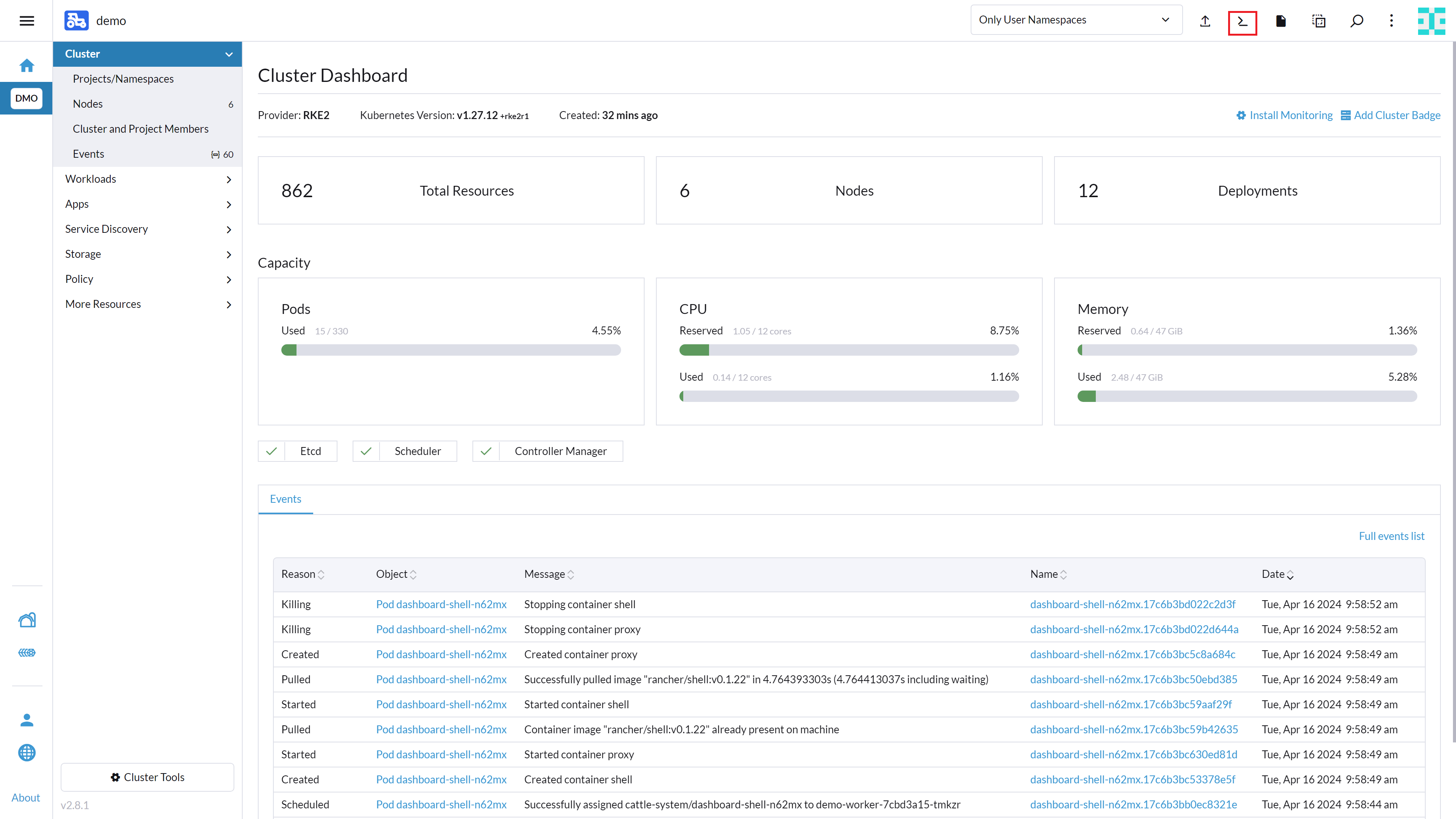
To access the Rancher Application Collection, you need to log in. You can do this using the console and Helm client. The easiest way to do so is to use the built-in shell in SUSE Rancher Prime. To access it, navigate to your cluster and click Kubectl Shell as shown below:
A shell will open as shown in the image below:
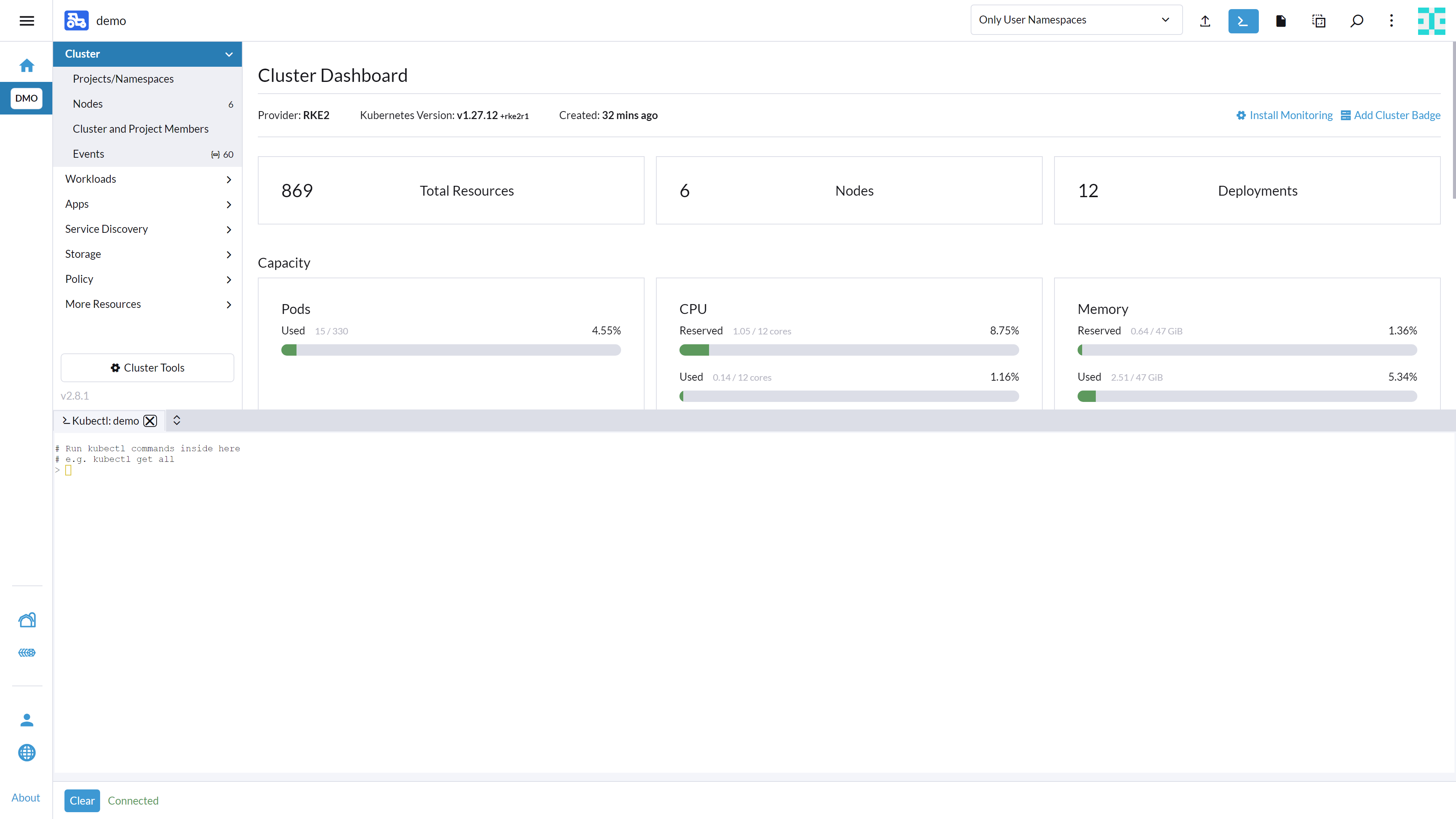
You must log in to Rancher Application Collection. This can be done as follows:
helm registry login dp.apps.rancher.io/charts -u <yourUser> -p <your-token>9.2 Installing MetalLB on Kubernetes cluster #
The following chapter should guide you through the installation and configuration of MetalLB on your Kubernetes cluster used for Edge Integration Cell.
9.2.1 Installing and configuring MetalLB #
There are multiple ways to install the MetalLB software. In this guide, we cover how to install MetalLB using kubectl or Helm.
A complete overview and more details about MetalLB can be found at official website for MetalLB.
9.2.1.1 Prerequisites #
Before starting the installation, ensure that all requirements are met. In particular, you should pay attention to network addon compatibility. If you are trying to run MetalLB on a cloud platform, you should also look at the cloud compatibility page and make sure your cloud platform works with MetalLB (note that most cloud platforms do not).
There are several ways to deploy MetalLB. In this guide, we describe how to use the Rancher Application Collection to deploy MetalLB.
Make sure to have one IP address available for configuring MetalLB.
Before you can deploy MetalLB from Rancher Application Collection, you need to create the namespace and an imagePullSecret. To create the related namespace, run:
kubectl create namespace metallbInstructions how to create the imagePullSecret can be found in Section 13.1, “Creating an imagePullSecret for the Rancher Application Collection”.
9.2.1.2 Installing MetalLB #
Before you can install the application, you need to log in to the registry. You can find the instructions in Section 13.2, “Logging in to the Application Collection Registry”.
Create a values.yaml file with the following configuration:
global:
  imagePullSecrets:
    - name: application-collection
Then install the metallb application.
helm install metallb oci://dp.apps.rancher.io/charts/metallb \
-f values.yaml \
--namespace=metallb \
--version 0.14.7
9.2.1.3 Configuring MetalLB #
MetalLB needs two configurations to function properly:
IP address pool
L2 advertisement configuration
Create the configuration files for the MetalLB IP address pool:
cat <<EOF >iprange.yaml
apiVersion: metallb.io/v1beta1
kind: IPAddressPool
metadata:
  name: first-example-pool
  namespace: metallb
spec:
  addresses:
  - 192.168.1.240/32
EOF
Create the layer 2 network advertisement:
cat <<EOF > l2advertisement.yaml
apiVersion: metallb.io/v1beta1
kind: L2Advertisement
metadata:
  name: example
  namespace: metallb
EOF
Apply the configuration:
kubectl apply -f iprange.yaml
kubectl apply -f l2advertisement.yaml
9.3 Installing Redis #
Before deploying Redis, ensure that the requirements described at https://me.sap.com/notes/3247839 are met.
Also, make sure you understand what grade of persistence you want to achieve for your Redis cluster. For more information about persistence in Redis, see https://redis.io/docs/management/persistence/.
- IMPORTANT
SUSE does not offer database support for Redis. For support requests, contact Redis Ltd..
- IMPORTANT
The following instructions describe only one variant of installing Redis which is called Redis Cluster. There are other possible ways to set up Redis that are not covered in this guide. Check if you require Redis Sentinel instead of Redis Cluster.
9.3.1 Deploying Redis #
Although Redis is available for deployment using the SUSE Rancher Prime Apps, we recommend using the Rancher Application Collection. The Redis chart can be found at https://apps.rancher.io/applications/redis.
9.3.1.1 Deploying the chart #
To deploy the chart, create the related namespace and imagePullSecret first. To create the namespace, run:
kubectl create namespace redisInstructions how to create the imagePullSecret can be found in Section 13.1, “Creating an imagePullSecret for the Rancher Application Collection”.
If you want to use self-signed certificates, you can find instructions how to create such in Section 13.3.1, “Creating self-signed certificates”.
Before you can install the application, you need to log in to the registry. You can find the instructions in Section 13.2, “Logging in to the Application Collection Registry”.
Create a file values.yaml to store some configurations for the Redis Helm chart. The configuration might look like the following:
images:
  redis:
    # -- Image registry to use for the Redis container
    registry: dp.apps.rancher.io
    # -- Image repository to use for the Redis container
    repository: containers/redis
    # -- Image tag to use for the Redis container
    tag: 7.2.5
storageClassName: "longhorn"
global:
  imagePullSecrets: ["application-collection"]
architecture: cluster
nodeCount: 3
auth:
  password: <redisPW>
tls:
  # -- Enable TLS
  enabled: true
  # -- Whether to require Redis clients to authenticate with a valid certificate (authenticated against the trusted root CA certificate)
  authClients: false
  # -- Name of the secret containing the Redis certificates
  existingSecret: "redisCert"
  # -- Certificate filename in the secret
  certFilename: "server.pem"
  # -- Certificate key filename in the secret
  keyFilename: "server.key"
  #  CA certificate filename in the secret - needs to hold the CA.crt and the server.pem
caCertFilename: "root.pem"The storageClassName in the values.yaml file should be adjusted to match the storage class you intend to use.
For more details on configuring storage, refer to Section 8, “Preparing storage”.
To install the application, run:
helm install redis oci://dp.apps.rancher.io/charts/redis \
-f values.yaml \
--namespace=redis \
--version 0.2.2
9.4 Installing PostgreSQL #
Before deploying PostgreSQL, ensure that the requirements described at https://me.sap.com/notes/3247839 are met.
- IMPORTANT
SUSE does not offer database support for PostgreSQL on Kubernetes. Find information about support options at The PostgreSQL Global Development Group.
- IMPORTANT
The instructions below describe only one variant of installing PostgreSQL. There are other possible ways to set up PostgreSQL which are not covered in this guide. It is also possible to install PostgreSQL as a single instance on the operating system. We will focus on installing PostgreSQL in a Kubernetes cluster, as we also need a Redis database, and we will clustering that together.
9.4.1 Deploying PostgreSQL #
Even though PostgreSQL is available for deployment using the SUSE Rancher Prime Apps, we recommend to use the Rancher Application Collection. The PostgreSQL chart can be found at https://apps.rancher.io/applications/postgresql.
9.4.2 Creating secret for Rancher Application Collection #
First, create a namespace and the imagePullSecret for installing the PostgreSQL database onto the cluster.
kubectl create namespace postgresqlHow to create the imagePullSecret is described in Section 13.1, “Creating an imagePullSecret for the Rancher Application Collection”.
9.4.2.1 Creating secret with certificates #
Second, create the Kubernetes secret with the certificates. Find an example how to do this in Section 13.3.1, “Creating self-signed certificates”.
9.4.2.2 Installing the application #
Before you can install the application, you need to log in to the registry. Find the instructions in Section 13.2, “Logging in to the Application Collection Registry”.
Create a file values.yaml which holds some configurations for the PostgreSQL Helm chart. The configuration might look like:
global:
  # -- Global override for container image registry pull secrets
  imagePullSecrets: ["application-collection"]
images:
  postgresql:
    # -- Image registry to use for the PostgreSQL container
    registry: dp.apps.rancher.io
    # -- Image repository to use for the PostgreSQL container
    repository: containers/postgresql
    # -- Image tag to use for the PostgreSQL container
    tag: "15.7"
auth:
  # -- PostgreSQL username for the superuser
  postgresUsername: postgres
  # -- PostgreSQL password for the superuser
  postgresPassword: "<your_password>"
  # -- Replication username
  replicationUsername: replication
  # -- Replication password
  replicationPassword: "<your_password>"
tls:
  # -- Enable SSL/TLS
  enabled: false
  # -- Name of the secret containing the PostgreSQL certificates
  existingSecret: "postgresqlcert"
  # -- Whether or with what priority a secure SSL TCP/IP connection will be negotiated with the server. Valid values: prefer (default), disable, allow, require, verify-ca, verify-full
  sslMode: "verify-full"
  # -- Certificate filename in the secret (will be ignored if empty)
  certFilename: "server.pem"
  # -- Certificate key filename in the secret (will be ignored if empty)
  keyFilename: "server.key"
  # -- CA certificate filename in the secret (will be ignored if empty)
  caCertFilename: "root.pem"
statefulset:
  # -- Enable the StatefulSet template for PostgreSQL standalone mode
  enabled: true
  # -- Lifecycle of the persistent volume claims created from PostgreSQL volumeClaimTemplates
  persistentVolumeClaimRetentionPolicy:
    ## -- Volume behavior when the StatefulSet is deleted
    whenDeleted: Delete
podSecurityContext:
  # -- Enable pod security context
  enabled: true
  # -- Group ID for the pod
  fsGroup: 1000
To install the application, run:
helm install postgresql oci://dp.apps.rancher.io/charts/postgresql -f values.yaml --namespace=postgresql --version 0.1.010 Restricted Access for Edge Integration Cell #
This section provides instructions for configuring Restricted Access feature for Edge Integration Cell.
Keep in mind that the descriptions and instructions provided might differ from the deployment requirements for your specific infrastructure and use cases.
10.1 Configuring the Istio Service Mesh #
This section guides you through configuring the Istio Service Mesh for the Restricted Access feature on Edge Integration Cell.
10.1.1 Installing Istio #
Even though Istio is available for deployment using the SUSE Rancher Prime Apps, we recommend to use the Rancher Application Collection. The Istio chart can be found at https://apps.rancher.io/applications/istio.
Before deploying Istio, ensure that the requirements described at https://me.sap.com/notes/3247839 are met.
To deploy the chart, create the related namespace and imagePullSecret first.
To create the namespace, run:
kubectl create namespace istio-systemInstructions how to create the imagePullSecret can be found in Section 13.1, “Creating an imagePullSecret for the Rancher Application Collection”.
Before you can install the application, you need to log in to the registry. You can find the instructions in Section 13.2, “Logging in to the Application Collection Registry”.
The istio-system namespace, imagePullSecret, and registry login established for Istio will be reused by: Kiali at Section 10.2.3, “Installing Kiali”, Prometheus at Section 10.2.1, “Installing Prometheus”, and Grafana at Section 10.2.2, “Installing Grafana”.
10.1.1.1 Deploying Istio #
Create a file values.yaml to store some configurations for the Istio Helm chart. The configuration might look like the following:
global:
  imagePullSecrets:
    - name: application-collection
To install the application, run:
helm install istiod oci://dp.apps.rancher.io/charts/istio \
-f values.yaml \
--namespace=istio-system \
--version 1.0.2
For more information on installing and configuring Istio, check the reference guide at https://docs.apps.rancher.io/reference-guides/istio/.
10.2 Configuring monitoring #
This section covers the deployment of key monitoring and observability tools that integrate with the Istio Service Mesh configured previously in Section 10.1, “Configuring the Istio Service Mesh”.
10.2.1 Installing Prometheus #
The Prometheus chart can be found at https://apps.rancher.io/applications/prometheus.
10.2.1.1 Deploying the chart #
Before deploying Prometheus, ensure that the requirements described at https://me.sap.com/notes/3247839 are met.
Deploy Prometheus into the istio-system namespace, which should already be configured with an imagePullSecret, as this is a prerequisite for Istio at Section 10.1.1, “Installing Istio”. For instructions on how to create the imagePullSecret, refer to Section 13.1, “Creating an imagePullSecret for the Rancher Application Collection”.
Before you can install the application, you need to log in to the registry. Find the instructions in Section 13.2, “Logging in to the Application Collection Registry”.
Create a file values.yaml to store some configurations for the Prometheus Helm chart. The configuration might look like the following:
alertmanager:
  persistentVolume:
    storageClassName: longhorn
global:
  imagePullSecrets:
    - application-collection
server:
  persistentVolume:
storageClassName: longhornThe storageClassName in the values.yaml file should be adjusted to match the storage class you intend to use.
For more details on configuring storage, refer to Section 8, “Preparing storage”.
To install the application, run:
helm install prometheus oci://dp.apps.rancher.io/charts/prometheus \
-f values.yaml \
--namespace=istio-system \
--version 27.37.0
10.2.2 Installing Grafana #
The Grafana chart can be found at https://apps.rancher.io/applications/grafana.
10.2.2.1 Deploying the chart #
Before deploying Grafana, ensure that the requirements described at https://me.sap.com/notes/3247839 are met.
Deploy Grafana into the istio-system namespace, which should already be configured with an imagePullSecret, as this is a prerequisite for Istio at Section 10.1.1, “Installing Istio”. For instructions on how to create the imagePullSecret, refer to Section 13.1, “Creating an imagePullSecret for the Rancher Application Collection”.
Also, before you install the application, ensure you are logged in to the registry; you will find those instructions in Section 13.2, “Logging in to the Application Collection Registry”.
Create a file values.yaml to store some configurations for the Grafana Helm chart. The configuration might look like the following:
datasources:
  datasources.yaml:
    apiVersion: 1
    datasources:
    - name: Prometheus
      type: prometheus
      url: http://prometheus-server.istio-system
      access: proxy
      isDefault: true
global:
  imagePullSecrets:
    - application-collection
# Optional: Expose Grafana with a LoadBalancer
# service:
#   enabled: true
#   type: LoadBalancer
To install the application, run:
helm install grafana oci://dp.apps.rancher.io/charts/grafana \
-f values.yaml \
--namespace=istio-system \
--version 9.4.4
10.2.3 Installing Kiali #
The Kiali chart can be found at https://apps.rancher.io/applications/kiali.
10.2.3.1 Deploying the chart #
Before deploying Kiali, ensure the following prerequisites are met:
The Istio application is already deployed. If not, refer to Section 10.1.1, “Installing Istio” for deployment instructions.
The Prometheus application is already deployed. If not, refer to Section 10.2.1, “Installing Prometheus” for deployment instructions.
The Grafana application is already deployed. If not, refer to Section 10.2.2, “Installing Grafana” for deployment instructions.
Deploy Prometheus into the istio-system namespace, which should already be configured with an imagePullSecret, as this is a prerequisite for Istio at Section 10.1.1, “Installing Istio”. For instructions on how to create the imagePullSecret, refer to Section 13.1, “Creating an imagePullSecret for the Rancher Application Collection”.
Before you can install the application, you need to log in to the registry. You can find the instructions in Section 13.2, “Logging in to the Application Collection Registry”.
Create a values.yaml file to store some configurations for the Kiali Helm chart. You can do this by running the following command:
GRAFANA_PASSWORD=$(kubectl get secret --namespace istio-system grafana -o jsonpath="{.data.admin-password}" | base64 -d ; echo)
cat <<EOF > values.yaml
external_services:
  grafana:
    auth:
      type: basic
      username: admin
      password: $GRAFANA_PASSWORD
    enabled: true
    external_url: http://grafana.istio-system
    internal_url: http://grafana.istio-system
  prometheus:
    custom_metrics_url: http://prometheus-server.istio-system
    url: http://prometheus-server.istio-system
global:
  imagePullSecrets:
    - application-collection
# Optional: Expose the Kiali with an Ingress
# deployment:
#   ingress:
#     enabled: true
EOF
To install the application, run:
helm install kiali oci://dp.apps.rancher.io/charts/kiali \
-f values.yaml \
--namespace=istio-system \
--version 2.15.0For more information on installing and configuring Kiali, check the reference guide at https://docs.apps.rancher.io/reference-guides/kiali/.
10.3 Configuring the cluster for restricted access #
To install SAP Edge Lifecycle Management and deploy Edge Integration Cell with Restricted Access, you need to configure specific namespaces, Kubernetes Custom Resource Definitions (CRDs), and Role-Based Access Control (RBAC). Refer to https://me.sap.com/notes/3618713 for detailed instructions on creating and configuring these components.
The RBAC configured here will be utilized in the subsequent section to grant permissions to the restricted user, as detailed in Section 10.4.3, “Configuring restricted access user permissions”.
After creating the required namespaces, verify they are correctly created and labeled for Istio injection by navigating to Cluster > Project/Namespaces.

The following namespaces are targeted for Istio sidecar injection and must have an imagePullSecret to enable image pulling:
edgelm
edge-icell
edge-icell-services
edge-icell-ela
istio-gateways
For instructions on creating the imagePullSecret, refer to Section 13.1, “Creating an imagePullSecret for the Rancher Application Collection”.
Alternatively, run the following script to create the imagePullSecret in all required namespaces:
NAMESPACES_INJECTION=("edgelm" "edge-icell" "edge-icell-services" "edge-icell-ela" "istio-gateways")
for ns in "${NAMESPACES_INJECTION[@]}"; do
  echo "Creating imagePullSecret for namespace: $ns"
  kubectl create secret docker-registry application-collection -n $ns \
    --docker-server=dp.apps.rancher.io \
    --docker-username=<yourUser> \
    --docker-password=<yourPassword>
  sleep 1
  echo "---"
done
echo "Done"
10.4 Generating the kubeconfig file #
The Edge Integration Cell Restricted Access deployment requires a kubeconfig file, which you can download from the Rancher UI.
In this section, we create a restricted user and grant the necessary permissions for Edge Integration Cell deployment. The process involves assigning the restricted user to the downstream cluster and subsequently using their account to download the kubeconfig file from Rancher.
10.4.1 Creating the restricted user #
Navigate to "Users & Authentication" and click Create.
Set a username (e.g.,
eic-restricted), a password, and select Global Permissions > Standard User.Record this password for subsequent configuration steps.
After creation, the new user will be listed. Record the User ID (formatted as "u-XXXXX"), as both the ID and password are required for assigning permissions in the downstream cluster.
This restricted user only needs to be created once in Rancher, as user management is centralized and applies to all downstream clusters.

10.4.2 Assigning restricted user to the cluster #
Assign the newly created restricted user to the downstream cluster where Edge Integration Cell will be deployed.
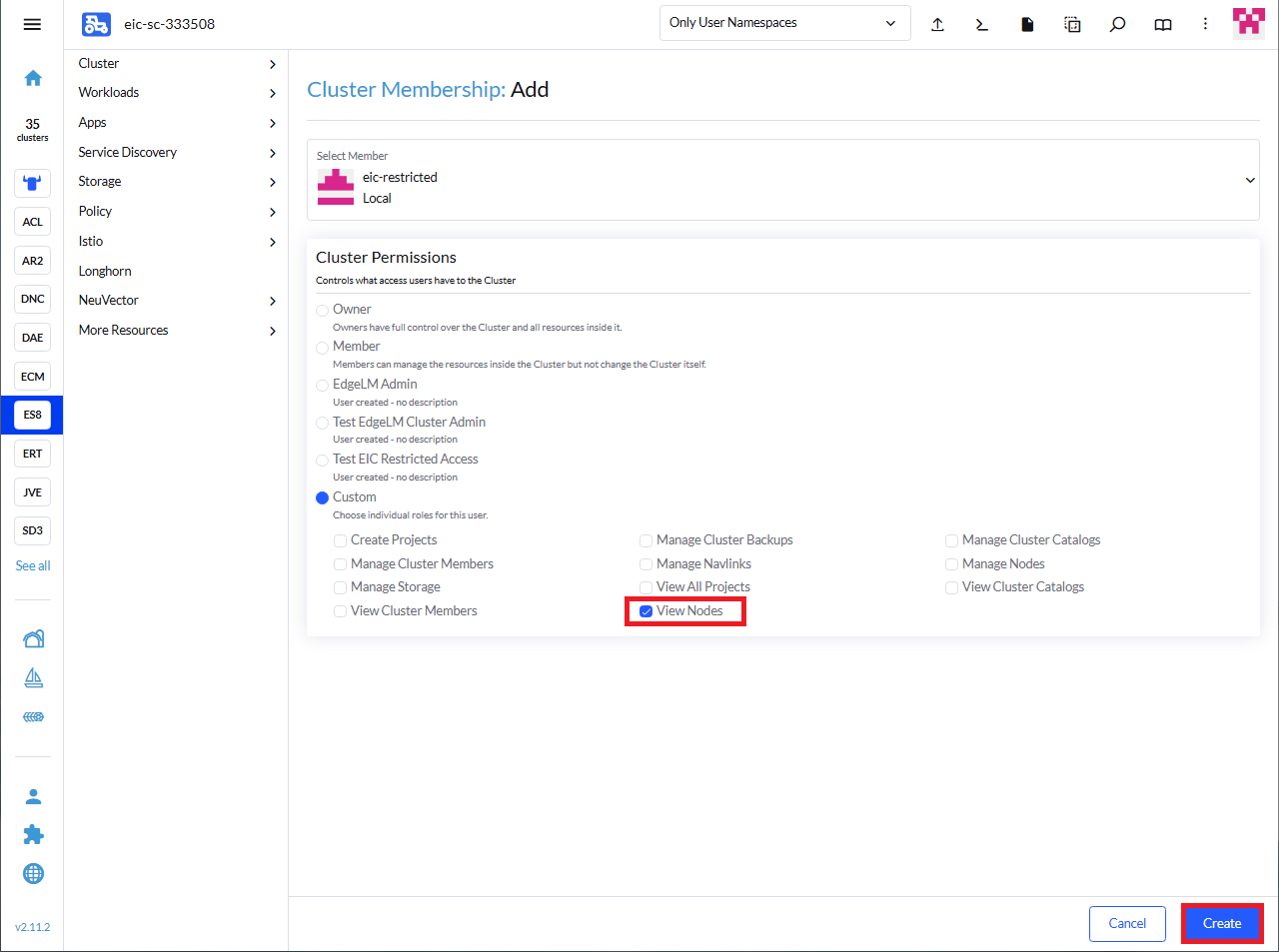
Navigate to Cluster > Cluster and Project Members in the Rancher UI.
Click Add. Select the restricted user and choose Cluster Permission > Custom > View Nodes.
10.4.3 Configuring restricted access user permissions #
The restricted user needs specific permissions to deploy Edge Integration Cell. These permissions are granted through ClusterRoleBindings and RoleBindings, which were created during the namespace configuration process described in Section 10.3, “Configuring the cluster for restricted access”.
Create a script file named configuring_permissions.sh with the following content. Remember to replace USER_ID with the actual ID of the restricted user you created earlier:
#!/bin/bash
set -eu

if [ "$#" -ne 1 ]; then
  echo "Usage: $0 <USER_ID>"
  exit 1
fi
# Restricted user ID to be added
USER_ID="$1"

echo "Adding EIC ClusterRoleBindings and RoleBindings for user: $USER_ID"

# crb-edgelm-cluster-admin
kubectl patch clusterrolebindings crb-edgelm-cluster-admin --type=json \
-p='[{"op": "add", "path": "/subjects/-", "value": {"apiGroup": "rbac.authorization.k8s.io", "kind": "User", "name": "'$USER_ID'"}}]'

# rb-edgelm-manage for every namespace
kubectl patch rolebindings rb-edgelm-manage -n edgelm --type=json \
-p='[{"op": "add", "path": "/subjects/-", "value": {"apiGroup": "rbac.authorization.k8s.io", "kind": "User", "name": "'$USER_ID'"}}]'
kubectl patch rolebindings rb-edgelm-manage -n istio-gateways --type=json \
-p='[{"op": "add", "path": "/subjects/-", "value": {"apiGroup": "rbac.authorization.k8s.io", "kind": "User", "name": "'$USER_ID'"}}]'
kubectl patch rolebindings rb-edgelm-manage -n edge-icell --type=json \
-p='[{"op": "add", "path": "/subjects/-", "value": {"apiGroup": "rbac.authorization.k8s.io", "kind": "User", "name": "'$USER_ID'"}}]'
kubectl patch rolebindings rb-edgelm-manage -n edge-icell-secrets --type=json \
-p='[{"op": "add", "path": "/subjects/-", "value": {"apiGroup": "rbac.authorization.k8s.io", "kind": "User", "name": "'$USER_ID'"}}]'
kubectl patch rolebindings rb-edgelm-manage -n edge-icell-ela --type=json \
-p='[{"op": "add", "path": "/subjects/-", "value": {"apiGroup": "rbac.authorization.k8s.io", "kind": "User", "name": "'$USER_ID'"}}]'
kubectl patch rolebindings rb-edgelm-manage -n edge-icell-services --type=json \
-p='[{"op": "add", "path": "/subjects/-", "value": {"apiGroup": "rbac.authorization.k8s.io", "kind": "User", "name": "'$USER_ID'"}}]'

# rb-edgelm-admin
kubectl patch rolebindings rb-edgelm-admin -n edgelm --type=json \
-p='[{"op": "add", "path": "/subjects/-", "value": {"apiGroup": "rbac.authorization.k8s.io", "kind": "User", "name": "'$USER_ID'"}}]'
kubectl patch rolebindings rb-istio-gateways-admin -n istio-gateways --type=json \
-p='[{"op": "add", "path": "/subjects/-", "value": {"apiGroup": "rbac.authorization.k8s.io", "kind": "User", "name": "'$USER_ID'"}}]'

# rolebindings for edge-icell namespace
kubectl patch rolebindings rb-app-admin -n edge-icell --type=json \
-p='[{"op": "add", "path": "/subjects/-", "value": {"apiGroup": "rbac.authorization.k8s.io", "kind": "User", "name": "'$USER_ID'"}}]'
kubectl patch rolebindings rb-admin -n edge-icell --type=json \
-p='[{"op": "add", "path": "/subjects/-", "value": {"apiGroup": "rbac.authorization.k8s.io", "kind": "User", "name": "'$USER_ID'"}}]'

# rolebindings for edge-icell-ela namespace
kubectl patch rolebindings rb-app-admin -n edge-icell-ela --type=json \
-p='[{"op": "add", "path": "/subjects/-", "value": {"apiGroup": "rbac.authorization.k8s.io", "kind": "User", "name": "'$USER_ID'"}}]'
kubectl patch rolebindings rb-admin -n edge-icell-ela --type=json \
-p='[{"op": "add", "path": "/subjects/-", "value": {"apiGroup": "rbac.authorization.k8s.io", "kind": "User", "name": "'$USER_ID'"}}]'

# rolebinding for edge-icell-secrets namespace
kubectl patch rolebindings rb-admin -n edge-icell-secrets --type=json \
-p='[{"op": "add", "path": "/subjects/-", "value": {"apiGroup": "rbac.authorization.k8s.io", "kind": "User", "name": "'$USER_ID'"}}]'

# rolebindings for edge-icell-services namespace
kubectl patch rolebindings rb-app-admin -n edge-icell-services --type=json \
-p='[{"op": "add", "path": "/subjects/-", "value": {"apiGroup": "rbac.authorization.k8s.io", "kind": "User", "name": "'$USER_ID'"}}]'
kubectl patch rolebindings rb-admin -n edge-icell-services --type=json \
-p='[{"op": "add", "path": "/subjects/-", "value": {"apiGroup": "rbac.authorization.k8s.io", "kind": "User", "name": "'$USER_ID'"}}]'

echo "Done"
Run the script with the USER_ID obtained from the previous step:
chmod +x configuring_permissions.sh
./configuring_permissions.sh <USER_ID>
10.4.4 Download the restricted access kubeconfig file #
Once the restricted user is created and configured for the downstream cluster, download the kubeconfig file.
Log in to the Rancher UI with the restricted user’s credentials.
Navigate to the target cluster for Edge Integration Cell deployment.
Download the kubeconfig file.

11 Installing Edge Integration Cell #
At this point, you should be able to deploy Edge Integration Cell. Follow the instructions at https://help.sap.com/docs/integration-suite/sap-integration-suite/setting-up-and-managing-edge-integration-cell to install Edge Integration Cell in your prepared environments.
12 Day 2 operations #
12.1 Upgrade guidance #
When upgrading your SAP edge application clusters, SUSE advises upgrading Rancher first, followed by Kubernetes, and finally the operating system. For helpful preparation guidelines, refer to https://www.suse.com/support/kb/doc/?id=000020061.
12.1.1 Upgrading Edge Integration Cell #
Before upgrading your Edge Integration Cell instance, ensure the target version was release for your Rancher Kubernetes Engine 2 cluster version: https://me.sap.com/notes/3247839
Detailed instructions on how to upgrade Edge Integration Cell can be found at: https://help.sap.com/docs/integration-suite/sap-integration-suite/upgrade-edge-integration-cell-solution
To upgrade your Edge Integration Cell instance, navigate to the Edge Nodes of your {break elm} UI. Select the edge node you want to upgrade. In the Deployments view, you should see your deployed solutions and their version.
To upgrade, click the three dots … and select Upgrade as show in the image below:

The following steps guide you through the upgrade process, including selecting the target version you want to upgrade to. If there are dependencies between your deployments, SAP Edge Lifecycle Management will display them and include them in the upgrade.

If you have skipped multiple versions of Edge Integration Cell, you might need to perform intermediate upgrades before installing the desired version. In this case, repeat the upgrade steps for Edge Integration Cell until you reach your target version.
12.1.2 Upgrading Rancher Kubernetes Engine 2 #
In this chapter, we describe how to upgrade Rancher Kubernetes Engine 2.
It is highly recommended sequentially through each minor version. Additionally, always upgrade to the latest patch level of your current version before proceeding to the next minor version.
12.1.2.1 Upgrading Rancher Kubernetes Engine 2 using SUSE Rancher Prime #
This is the preferred way to upgrade all Rancher Kubernetes Engine 2 clusters managed by SUSE Rancher Prime.
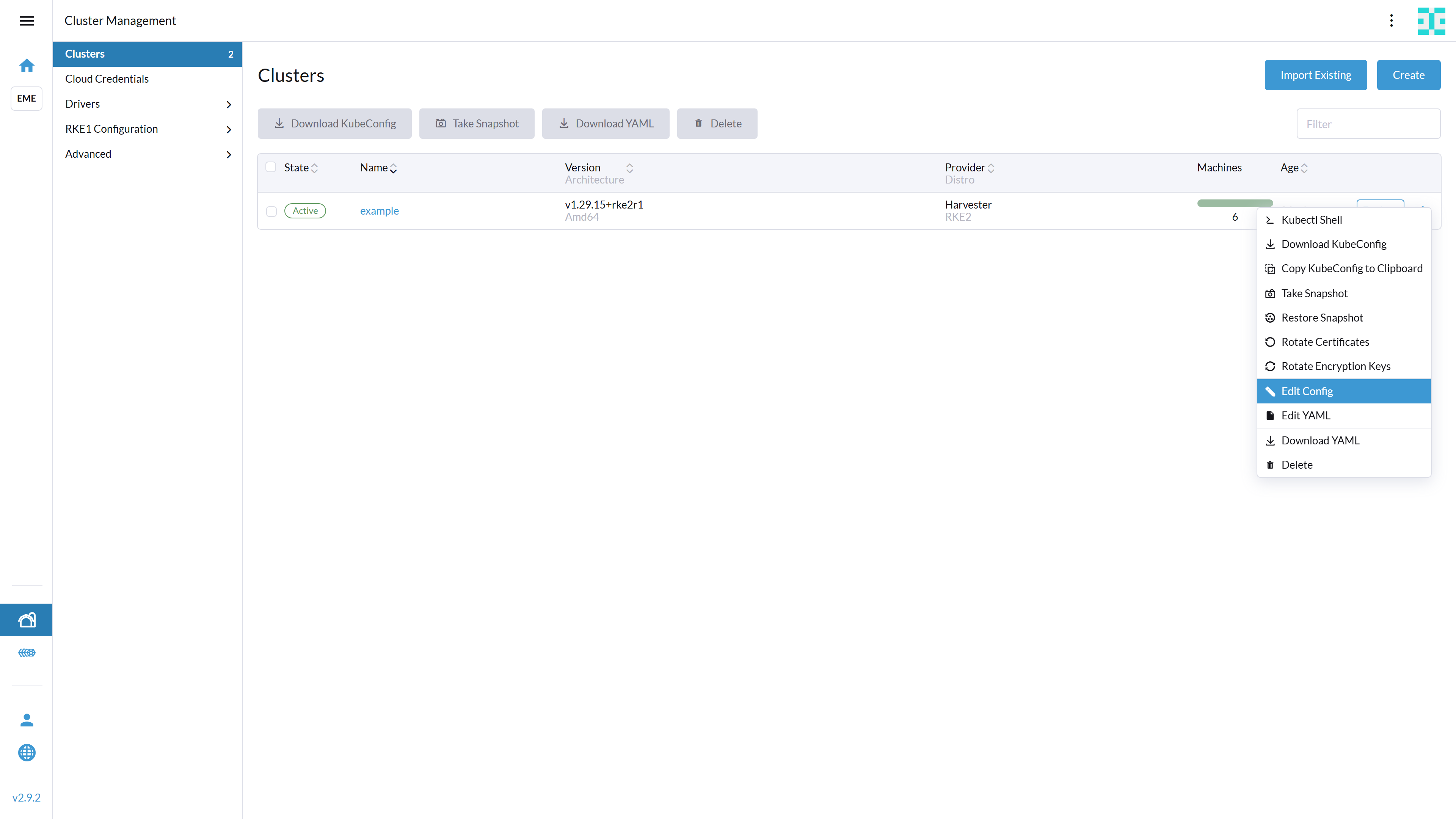
If you deployed your Rancher Kubernetes Engine 2 cluster using SUSE Rancher Prime, you can also upgrade it through the same interface. To begin, navigate to the Cluster Management view.
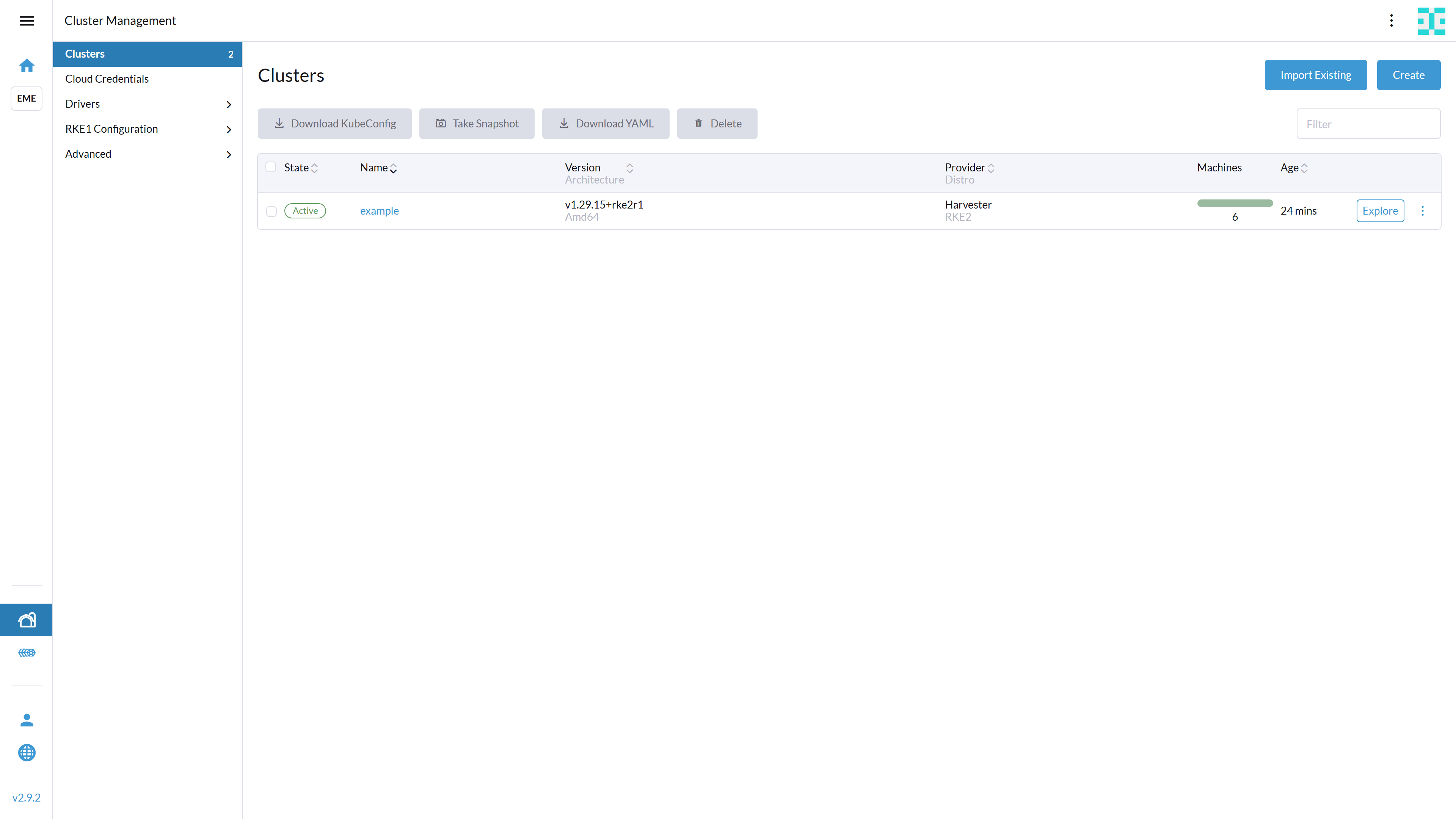
Click the menu icon ("hamburger menu") for the cluster you wish to upgrade and select Edit Config.
Scroll down to the Cluster Configuration section, where you find the field Kubernetes Version.
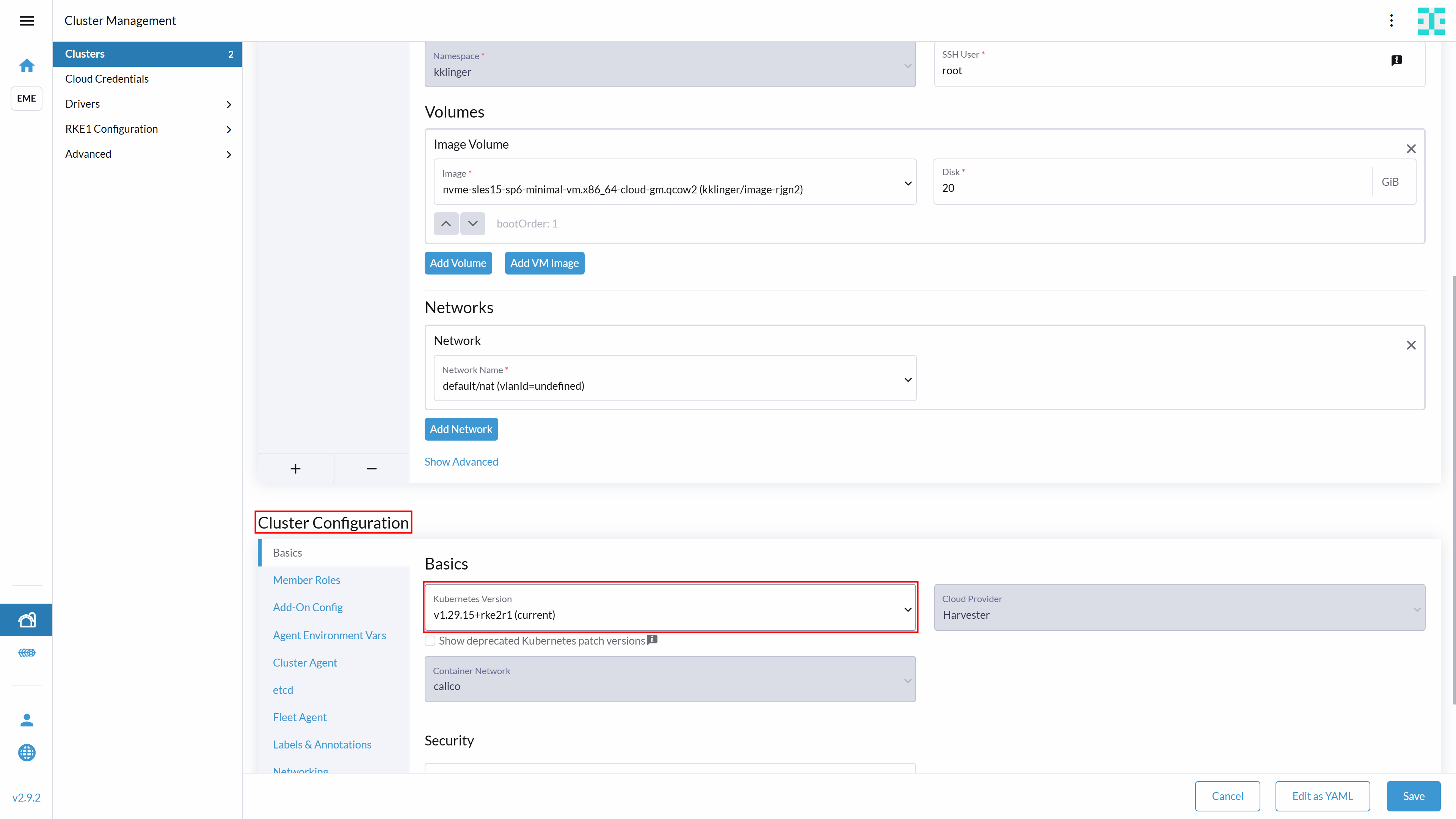
Select the Kubernetes version you want to upgrade to and click Save at the bottom right corner of your window.
12.1.2.2 Upgrading Rancher Kubernetes Engine 2 without SUSE Rancher Prime #
When upgrading Rancher Kubernetes Engine 2 without SUSE Rancher Prime, consider the following two strategies:
In-place upgrade: Upgrading the existing nodes one by one.
Rolling upgrade: Adding a temporary node already running the new version.

Regardless of the strategy choosen, it is highly recommended to upgrade the control plane nodes before the worker nodes. Furthermore, you should always upgrade nodes sequentially (one at a time).
12.1.2.2.1 Upgrading with temporary nodes #
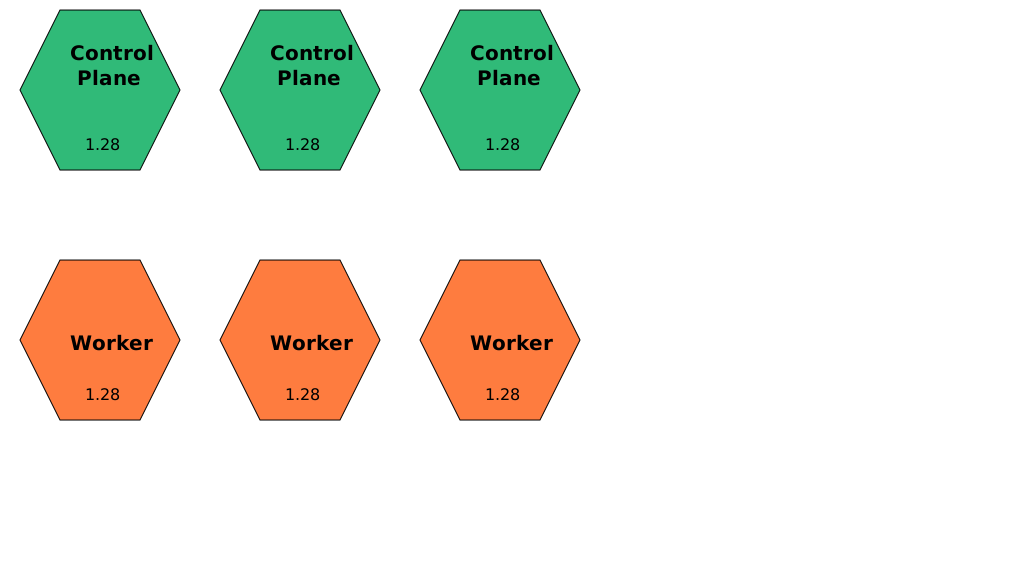
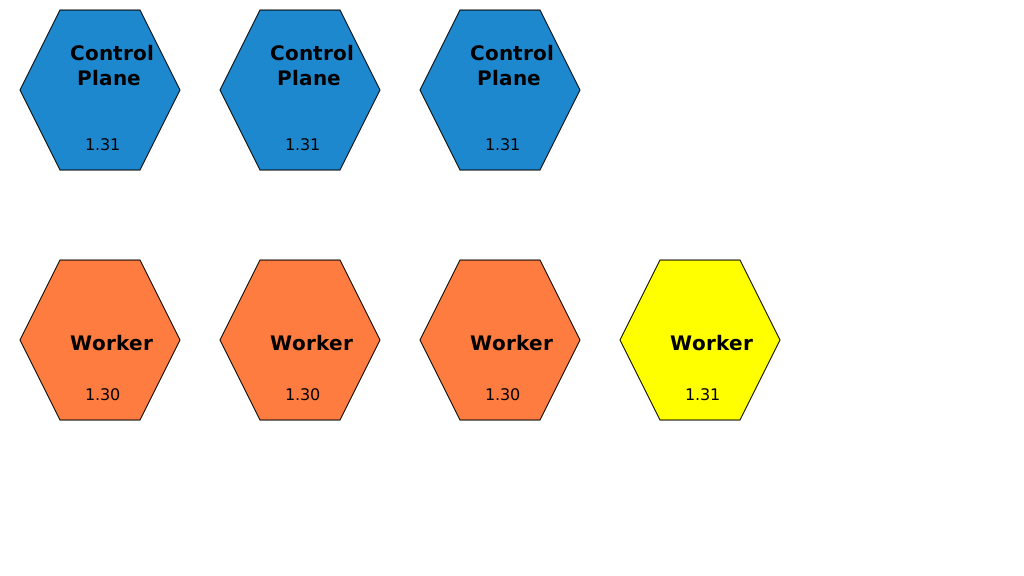
When upgrading the cluster with temporary nodes, you add a new node to the cluster that already runs the new version.
Initially, your landscape will look as shown in the following image:
After having added the new node, the landscape will look as shown below:
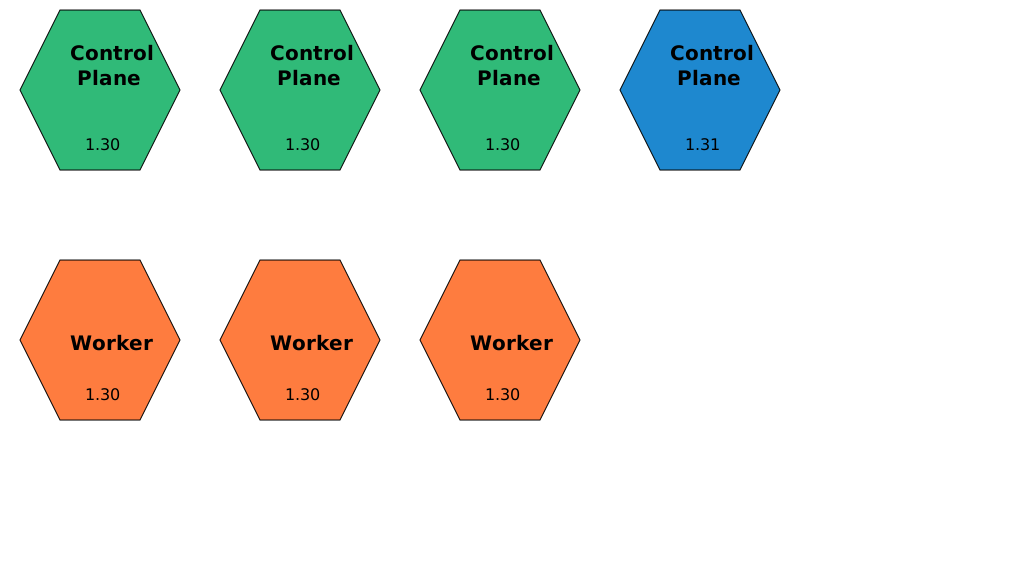
After the new node has been added and all mandatory components are successfully deployed, you can remove a non-upgraded node from the cluster:
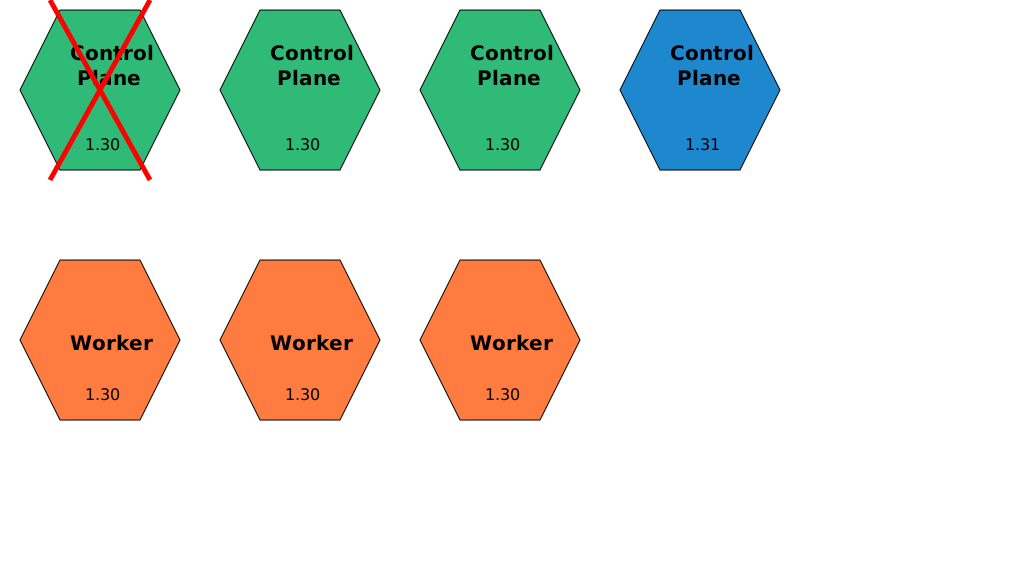
Before removing a node from the cluster, you must cordon and drain it. Cordoning prevents new workloads from being scheduled on the node, while draining evicts running workloads so they can be rescheduled elsewhere.
Follow the same procedure to upgrade the worker nodes:
12.1.2.2.2 Upgrading without temporary nodes #
Before upgrading an existing node, we recommend to cordon and drain it. To do so, run the following commands:
kubectl cordon <node-name>
kubectl drain <node-name> --grace-period=600
The upgrade method depends on how you originally installed Rancher Kubernetes Engine 2. For details on manual upgrades, refer to https://docs.rke2.io/upgrades/manual_upgrade.
You must upgrade using the same method used for installation. For example, if you installed Rancher Kubernetes Engine 2 via RPM, do not attempt to upgrade using the installation script.
In this guide, we demonstrate how to upgrade using the installation script.
To proceed, connect to your Rancher Kubernetes Engine 2 node and run the command below. Ensure you replace the version placeholder with your desired target version.
curl -sfL https://get.rke2.io | INSTALL_RKE2_VERSION=vX.Y.Z+rke2rN sh -You can find a list of Rancher Kubernetes Engine 2 versions at https://github.com/rancher/rke2/releases .
After running the script, you should wait for a minute before you restart the Rancher Kubernetes Engine 2 service. To restart the service on a control plane node, run:
sudo systemctl restart rke2-serverTo restart the service on a worker node, run:
sudo systemctl restart rke2-agentWhen the service has restarted, uncordon the node to resume scheduling:
kubectl uncordon <node-name>Repeat these steps for every machine of the cluster.
12.1.3 Upgrading SUSE Rancher Prime #
We strongly recommend backing up your SUSE Rancher Prime instance before upgrading. For instructions, refer to the Rancher Backup and Restore Guide: https://ranchermanager.docs.rancher.com/how-to-guides/new-user-guides/backup-restore-and-disaster-recovery/back-up-rancher.
For a detailed overview of the upgrade process, see the official documentation: https://ranchermanager.docs.rancher.com/getting-started/installation-and-upgrade/install-upgrade-on-a-kubernetes-cluster/upgrades
In this chapter we’ll describe the most common upgrade path.
The first step is to update the helm repository:
helm repo updateNext, we recommend backing up the configuration parameters of the current Helm deployment:
helm get values rancher -n cattle-system -o yaml > values.yamlThe upgrade of SUSE Rancher Prime is then triggered by running the command below, where you specify the version to upgrade to:
helm upgrade rancher rancher-prime/rancher \
  --namespace cattle-system \
  -f values.yaml \
  --version=<desired-version>
12.1.4 Upgrading the operating system #
Upgrade procedures and commands differ depending on the operating system used. In this guide, we focus on upgrading SUSE Linux Enterprise Micro, as this is the operating system used in our landscape setup examples.
To familiarize yourself with SUSE Linux Enterprise Micro and the concept of transactional updates, we recommend reading https://documentation.suse.com/sle-micro/6.0/html/Micro-transactional-updates/transactional-updates.html .
Before upgrading your SUSE Linux Enterprise Micro instance, read the Upgrade Guide at https://documentation.suse.com/en-us/sle-micro/6.0/html/Micro-upgrade/index.html .
Since a SUSE Linux Enterprise Micro upgrade is only supported from the most recent patch level, ensure your system is fully up to date before proceeding. You can update SUSE Linux Enterprise Micro by running:
sudo transactional-update patchKeep in mind that transactional updates require a reboot to take effect!
You can update SUSE Linux Enterprise Micro n a similar way:
sudo transactional-update migration13 Appendix #
13.1 Creating an imagePullSecret for the Rancher Application Collection #
To make the resources available for deployment, you need to create an imagePullSecret. In this guide, we use the name application-collection for it.
For details on authenticating with the Rancher Application Collection, refer to the Rancher Application Collection.
13.1.1 Creating an imagePullSecret using kubectl #
Using kubectl to create the imagePullSecret is quite easy.
Get your user name and your access token for the Rancher Application Collection.
Then run:
kubectl -n <namespace> create secret docker-registry application-collection --docker-server=dp.apps.rancher.io --docker-username=<yourUser> --docker-password=<yourPassword>As secrets are namespace-sensitive, you need to create this for every required namespace.
The related secret can then be used for the components:
Cert-Manager (Section 6.4, “Installing cert-manager”)
MetalLB (Section 9.2.1.1, “Prerequisites”)
PostgreSQL (Section 9.4.2, “Creating secret for Rancher Application Collection”)
Prometheus (Section 10.2.1.1, “Deploying the chart”)
Grafana (Section 10.2.2.1, “Deploying the chart”)
Edge Integration Cell with Restricted Cluster option (Section 10.3, “Configuring the cluster for restricted access”)
13.1.2 Creating an imagePullSecret using SUSE Rancher Prime #
You can also create an imagePullSecret using SUSE Rancher Prime. To do so, open SUSE Rancher Prime and enter your cluster.
Navigate to Storage → Secrets as shown below:
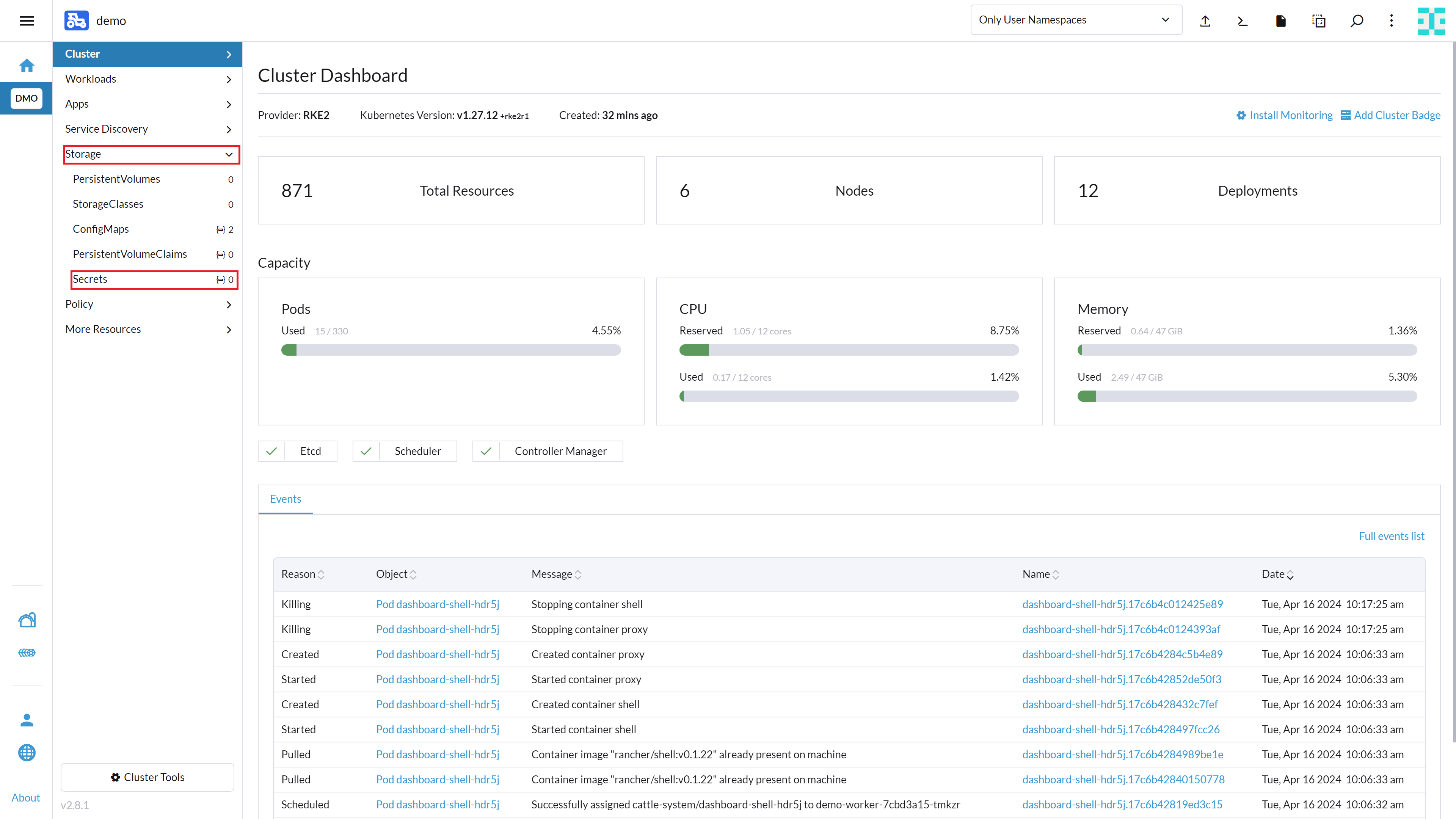
Click the Create button in the top right corner.
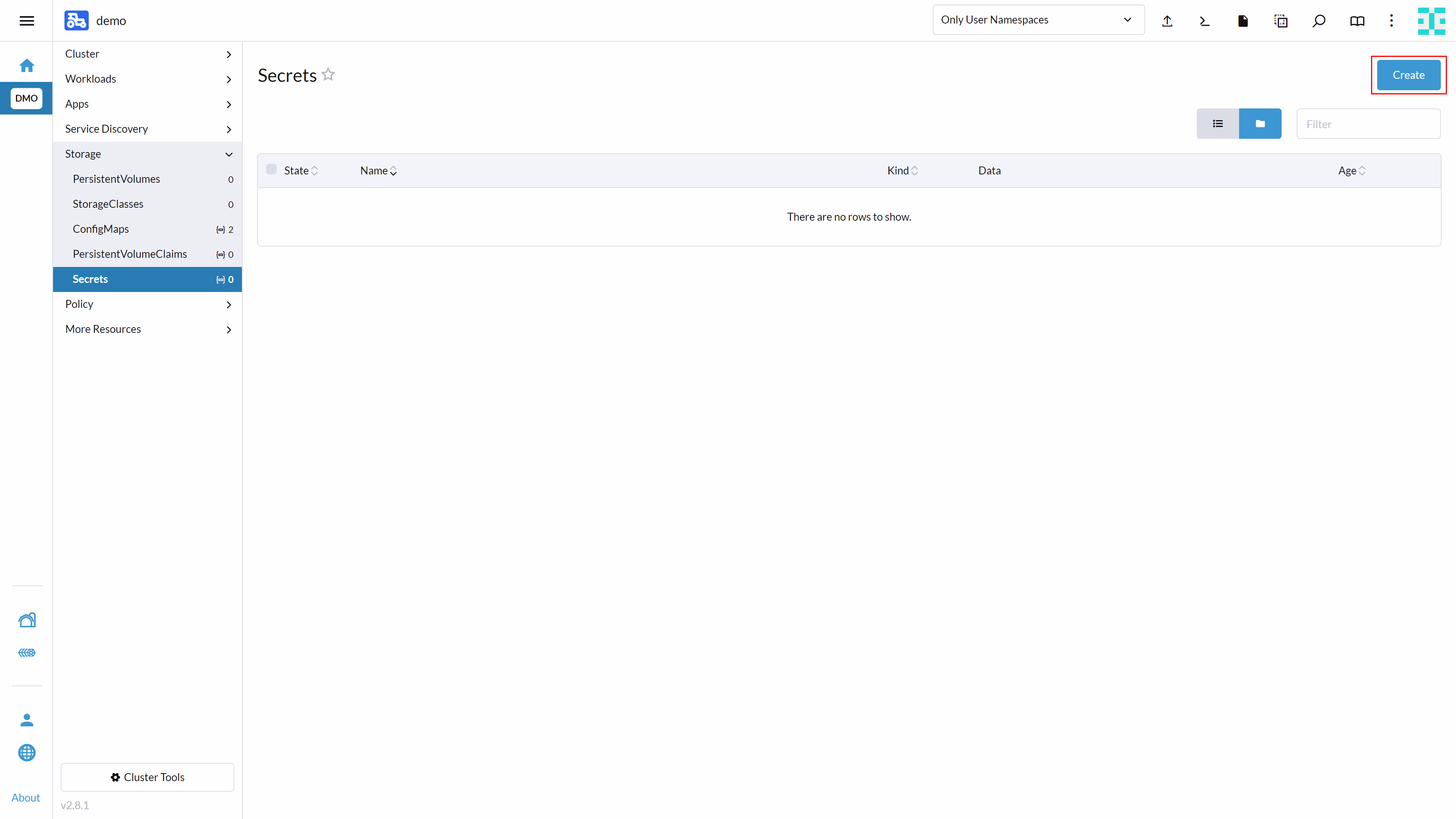
A window will appear asking you to select the secret type. Select Registry as shown here:
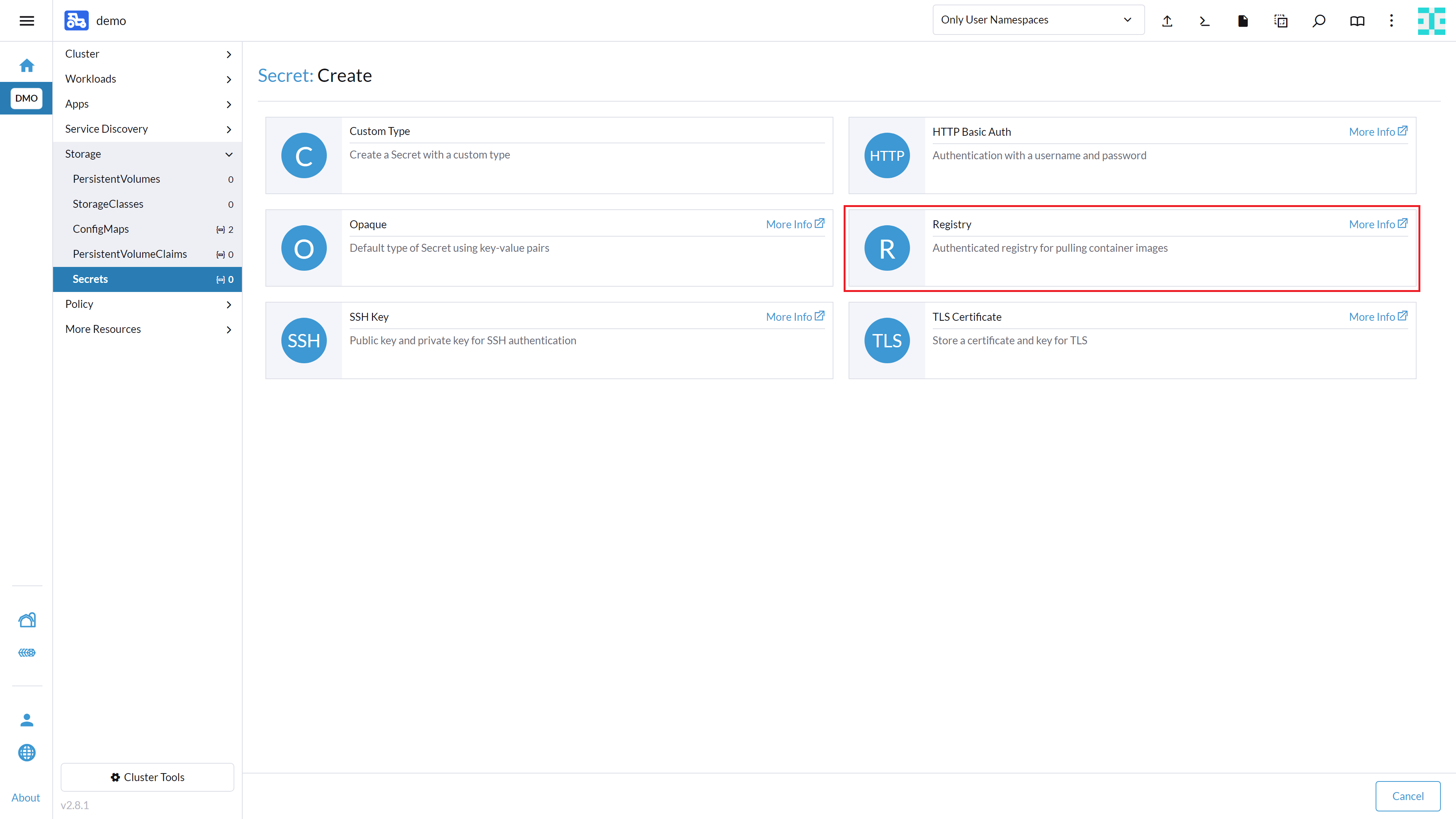
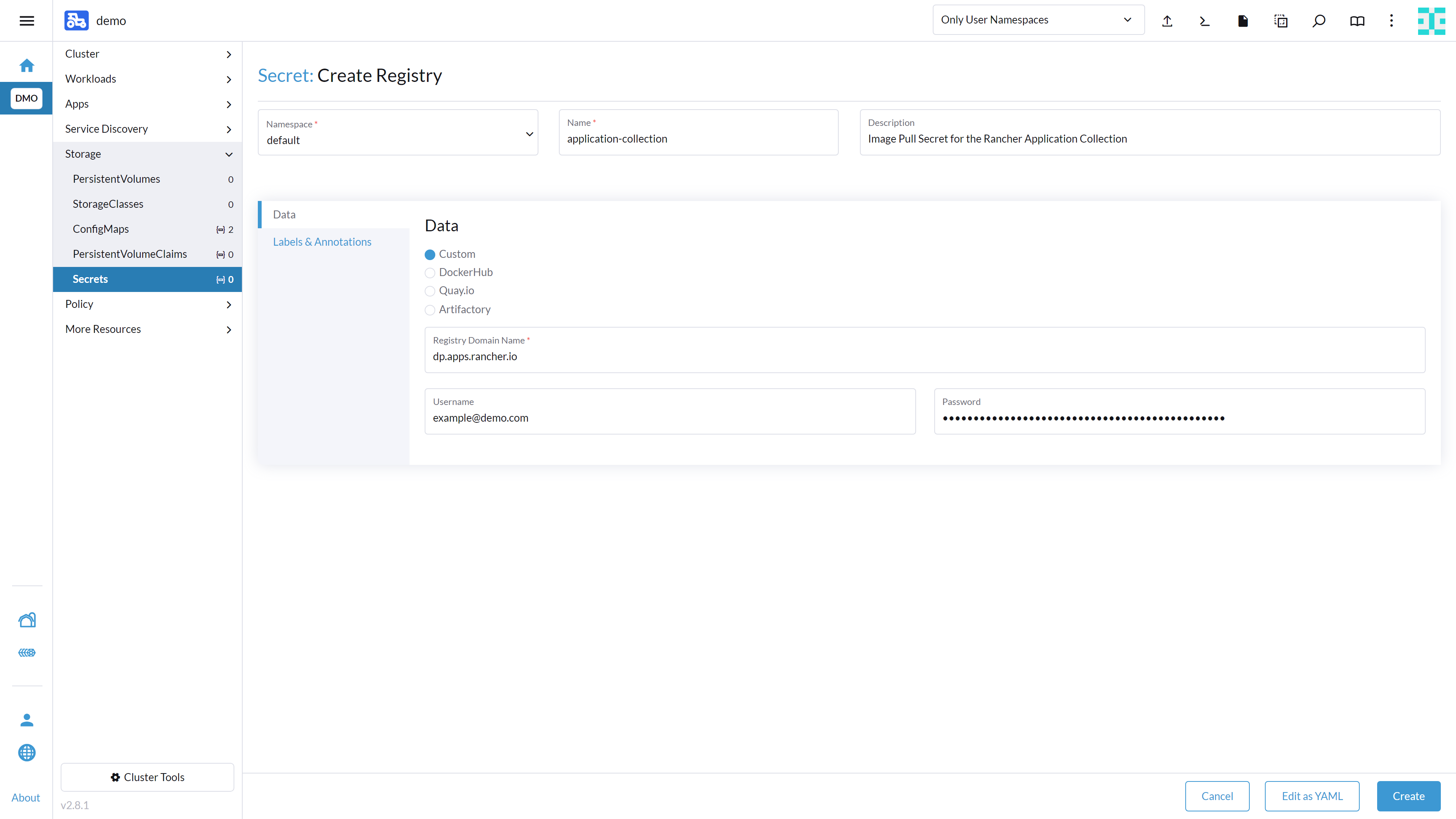
Enter a name such as application-collection for the secret. In the text box Registry Domain Name, enter dp.apps.rancher.io. Enter your user name and password and click the Create button at the bottom right.
13.2 Logging in to the Application Collection Registry #
To install the Helm charts from the application-collection, you need to log in in to the registry. This needs to be done with the Helm client.
To log in to the Rancher Application Collection, run:
helm registry login dp.apps.rancher.io/charts -u <yourUser> -p <your-token>The login process is needed for the following application installations:
Cert-Manager (Section 6.4.1, “Installing the application”)
MetalLB (Section 9.2.1.2, “Installing MetalLB”)
PostgreSQL (Section 9.4.2.2, “Installing the application”)
Prometheus (Section 10.2.1.1, “Deploying the chart”)
Grafana (Section 10.2.2.1, “Deploying the chart”)
13.3 Using self-signed certificates #
In this chapter, we explain how to create self-signed certificates and make them available within Kubernetes.
We describe two methods: generating them manually on the operating system layer or using cert-manager in your downstream cluster.
13.3.1 Creating self-signed certificates #
We strongly advise against using self-signed certificates in production environments.
The first step is to create a certificate authority (hereinafter referred to as CA) with a key and certificate. The following excerpt provides an example of how to create a CA with a passphrase of your choice:
openssl req -x509 -sha256 -days 1825 -newkey rsa:2048 -keyout rootCA.key -out rootCA.crt -passout pass:<ca-passphrase> -subj "/C=DE/ST=BW/L=Nuremberg/O=SUSE"This will generate the files rootCA.key and rootCA.crt. The server certificate requires a certificate-signing request (hereinafter referred to as CSR). The following excerpt shows how to create such a CSR:
openssl req -newkey rsa:2048 -keyout domain.key -out domain.csr -passout pass:<csr-passphrase> -subj "/C=DE/ST=BW/L=Nuremberg/O=SUSE"Before you can sign the CSR, you need to add the DNS names of your Kubernetes Services to the CSR. Therefore, create a file with the content below and replace the <servicename> and <namespace> with the name of your Kubernetes service and the namespace in which it is placed:
authorityKeyIdentifier=keyid,issuer
basicConstraints=CA:FALSE
subjectAltName = @alt_names
[alt_names]
DNS.1 = <servicename>.<namespace>.svc.cluster.local
DNS.2 = <AltService>.<AltNamespace>.svc.cluster.local
You can now use the previously created files rootCA.key and rootCA.crt with the extension file to sign the CSR. The example below shows how to do that by passing the extension file (here called domain.ext):
openssl x509 -req -CA rootCA.crt -CAkey rootCA.key -in domain.csr -out server.pem -days 365 -CAcreateserial -extfile domain.ext -passin pass:<ca-passphrase>This creates a file called server.pem, which is the certificate to be used for your application.
Your domain.key is still encrypted at this point, but the application requires an unencrypted server key. To decrypt it, run the provided command, which will generate the server.key.
openssl rsa -passin pass:<csr-passphrase> -in domain.key -out server.keySome applications (like Redis) require a full certificate chain to operate. To get a full certificate chain, link the generated file server.pem with the file rootCA.crt as follows:
cat server.pem rootCA.crt > chained.pemYou should now have the files server.pem, server.key and chained.pem, which can be used for applications such as Redis or PostgresSQL.
13.3.2 Uploading certificates to Kubernetes #
To use certificate files in Kubernetes, you need to save them as so-called secrets. For an example of uploading your certificates to Kubernetes, see the following excerpt:
kubectl -n <namespace> create secret generic <certName> --from-file=./root.pem --from-file=./server.pem --from-file=./server.keyAll applications are expecting to have the secret to be used in the same namespace as the application.
13.3.3 Using cert-manager #
cert-manager needs to be available in your Downstream Cluster. To install cert-manager in your downstream cluster,
you can follow the same installation steps outlined in the Rancher Prime installation section.
First, create a selfsigned-issuer.yaml file:
apiVersion: cert-manager.io/v1
kind: ClusterIssuer
metadata:
  name: selfsigned-issuer
spec:
  selfSigned: {}
Then create a Certificate Ressource for the CA called my-ca-cert.yaml:
apiVersion: cert-manager.io/v1
kind: Certificate
metadata:
  name: my-ca-cert
  namespace: cert-manager
spec:
  isCA: true
  commonName: <cluster-name>.cluster.local
  secretName: my-ca-secret
  issuerRef:
    name: selfsigned-issuer
    kind: ClusterIssuer
  dnsNames:
  - "<cluster-name>.cluster.local"
  - "*.<cluster-name>.cluster.local"
For creating a ClusterIssuer using the Generated CA, create the my-ca-issuer.yaml file:
apiVersion: cert-manager.io/v1
kind: ClusterIssuer
metadata:
  name: my-ca-issuer
spec:
  ca:
    secretName: my-ca-secret
The last ressource you need to create is the certificate itself. This certificate is signed by your created CA. You can name the yaml file application-name-certificate.yaml.
kind: Certificate
metadata:
  name: <application-name>
  namespace: <application namespace> // need to be created manually.
spec:
  dnsNames:
    - <application-name>.cluster.local
  issuerRef:
    group: cert-manager.io
    kind: ClusterIssuer
    name: my-ca-issuer
  secretName: <application-name>
  usages:
    - digital signature
    - key encipherment
Apply the yaml file to your Kubernetes cluster.
kubectl apply -f selfsigned-issuer.yaml
kubectl apply -f my-ca-cert.yaml
kubectl apply -f my-ca-issuer.yaml
kubectl apply -f application-name-certificate.yaml
When you deploy your applications via Helm Charts, you can use the generated certificate. In the Kubernetes Secret Certificate, three files are stored. These are the files tls.crt, tls.key and ca.crt, which you can use in the values.yaml file of your application.
13.3.4 Fully removing SUSE Rancher Prime #
While helm uninstall triggers the removal of the SUSE Rancher Prime components, timeouts can occur, leaving residual components on your cluster. Therefore, we recommend to fully uninstall SUSE Rancher Prime from your Kubernetes cluster using the cleanup script found at https://github.com/rancher/rancher-cleanup .
To run the script without cloning the repository, use the following command:
kubectl create -f https://raw.githubusercontent.com/rancher/rancher-cleanup/refs/heads/main/deploy/rancher-cleanup.yamlTo keep track of the deletion process, you can run:
kubectl -n kube-system logs -l job-name=cleanup-job -fTo verify the deletion was sucessfull, run the following commands. You should receive an empty output:
kubectl create -f https://raw.githubusercontent.com/rancher/rancher-cleanup/refs/heads/main/deploy/verify.yaml
kubectl  -n kube-system logs -l job-name=verify-job  -f | grep -v "is deprecated"
14 Legal notice #
Copyright © 2006–2025 SUSE LLC and contributors. All rights reserved.
Permission is granted to copy, distribute and/or modify this document under the terms of the GNU Free Documentation License, Version 1.2 or (at your option) version 1.3; with the Invariant Section being this copyright notice and license. A copy of the license version 1.2 is included in the section entitled "GNU Free Documentation License".
SUSE, the SUSE logo and YaST are registered trademarks of SUSE LLC in the United States and other countries. For SUSE trademarks, see https://www.suse.com/company/legal/.
Linux is a registered trademark of Linus Torvalds. All other names or trademarks mentioned in this document may be trademarks or registered trademarks of their respective owners.
Documents published as part of the SUSE Best Practices series have been contributed voluntarily by SUSE employees and third parties. They are meant to serve as examples of how particular actions can be performed. They have been compiled with utmost attention to detail. However, this does not guarantee complete accuracy. SUSE cannot verify that actions described in these documents do what is claimed or whether actions described have unintended consequences. SUSE LLC, its affiliates, the authors, and the translators may not be held liable for possible errors or the consequences thereof.
Below we draw your attention to the license under which the articles are published.
15 GNU Free Documentation License #
Copyright © 2000, 2001, 2002 Free Software Foundation, Inc. 51 Franklin St, Fifth Floor, Boston, MA 02110-1301 USA. Everyone is permitted to copy and distribute verbatim copies of this license document, but changing it is not allowed.
0. PREAMBLE#
The purpose of this License is to make a manual, textbook, or other functional and useful document "free" in the sense of freedom: to assure everyone the effective freedom to copy and redistribute it, with or without modifying it, either commercially or noncommercially. Secondarily, this License preserves for the author and publisher a way to get credit for their work, while not being considered responsible for modifications made by others.
This License is a kind of "copyleft", which means that derivative works of the document must themselves be free in the same sense. It complements the GNU General Public License, which is a copyleft license designed for free software.
We have designed this License in order to use it for manuals for free software, because free software needs free documentation: a free program should come with manuals providing the same freedoms that the software does. But this License is not limited to software manuals; it can be used for any textual work, regardless of subject matter or whether it is published as a printed book. We recommend this License principally for works whose purpose is instruction or reference.
1. APPLICABILITY AND DEFINITIONS#
This License applies to any manual or other work, in any medium, that contains a notice placed by the copyright holder saying it can be distributed under the terms of this License. Such a notice grants a world-wide, royalty-free license, unlimited in duration, to use that work under the conditions stated herein. The "Document", below, refers to any such manual or work. Any member of the public is a licensee, and is addressed as "you". You accept the license if you copy, modify or distribute the work in a way requiring permission under copyright law.
A "Modified Version" of the Document means any work containing the Document or a portion of it, either copied verbatim, or with modifications and/or translated into another language.
A "Secondary Section" is a named appendix or a front-matter section of the Document that deals exclusively with the relationship of the publishers or authors of the Document to the Document’s overall subject (or to related matters) and contains nothing that could fall directly within that overall subject. (Thus, if the Document is in part a textbook of mathematics, a Secondary Section may not explain any mathematics.) The relationship could be a matter of historical connection with the subject or with related matters, or of legal, commercial, philosophical, ethical or political position regarding them.
The "Invariant Sections" are certain Secondary Sections whose titles are designated, as being those of Invariant Sections, in the notice that says that the Document is released under this License. If a section does not fit the above definition of Secondary then it is not allowed to be designated as Invariant. The Document may contain zero Invariant Sections. If the Document does not identify any Invariant Sections then there are none.
The "Cover Texts" are certain short passages of text that are listed, as Front-Cover Texts or Back-Cover Texts, in the notice that says that the Document is released under this License. A Front-Cover Text may be at most 5 words, and a Back-Cover Text may be at most 25 words.
A "Transparent" copy of the Document means a machine-readable copy, represented in a format whose specification is available to the general public, that is suitable for revising the document straightforwardly with generic text editors or (for images composed of pixels) generic paint programs or (for drawings) some widely available drawing editor, and that is suitable for input to text formatters or for automatic translation to a variety of formats suitable for input to text formatters. A copy made in an otherwise Transparent file format whose markup, or absence of markup, has been arranged to thwart or discourage subsequent modification by readers is not Transparent. An image format is not Transparent if used for any substantial amount of text. A copy that is not "Transparent" is called "Opaque".
Examples of suitable formats for Transparent copies include plain ASCII without markup, Texinfo input format, LaTeX input format, SGML or XML using a publicly available DTD, and standard-conforming simple HTML, PostScript or PDF designed for human modification. Examples of transparent image formats include PNG, XCF and JPG. Opaque formats include proprietary formats that can be read and edited only by proprietary word processors, SGML or XML for which the DTD and/or processing tools are not generally available, and the machine-generated HTML, PostScript or PDF produced by some word processors for output purposes only.
The "Title Page" means, for a printed book, the title page itself, plus such following pages as are needed to hold, legibly, the material this License requires to appear in the title page. For works in formats which do not have any title page as such, "Title Page" means the text near the most prominent appearance of the work’s title, preceding the beginning of the body of the text.
A section "Entitled XYZ" means a named subunit of the Document whose title either is precisely XYZ or contains XYZ in parentheses following text that translates XYZ in another language. (Here XYZ stands for a specific section name mentioned below, such as "Acknowledgements", "Dedications", "Endorsements", or "History".) To "Preserve the Title" of such a section when you modify the Document means that it remains a section "Entitled XYZ" according to this definition.
The Document may include Warranty Disclaimers next to the notice which states that this License applies to the Document. These Warranty Disclaimers are considered to be included by reference in this License, but only as regards disclaiming warranties: any other implication that these Warranty Disclaimers may have is void and has no effect on the meaning of this License.
2. VERBATIM COPYING#
You may copy and distribute the Document in any medium, either commercially or noncommercially, provided that this License, the copyright notices, and the license notice saying this License applies to the Document are reproduced in all copies, and that you add no other conditions whatsoever to those of this License. You may not use technical measures to obstruct or control the reading or further copying of the copies you make or distribute. However, you may accept compensation in exchange for copies. If you distribute a large enough number of copies you must also follow the conditions in section 3.
You may also lend copies, under the same conditions stated above, and you may publicly display copies.
3. COPYING IN QUANTITY#
If you publish printed copies (or copies in media that commonly have printed covers) of the Document, numbering more than 100, and the Document’s license notice requires Cover Texts, you must enclose the copies in covers that carry, clearly and legibly, all these Cover Texts: Front-Cover Texts on the front cover, and Back-Cover Texts on the back cover. Both covers must also clearly and legibly identify you as the publisher of these copies. The front cover must present the full title with all words of the title equally prominent and visible. You may add other material on the covers in addition. Copying with changes limited to the covers, as long as they preserve the title of the Document and satisfy these conditions, can be treated as verbatim copying in other respects.
If the required texts for either cover are too voluminous to fit legibly, you should put the first ones listed (as many as fit reasonably) on the actual cover, and continue the rest onto adjacent pages.
If you publish or distribute Opaque copies of the Document numbering more than 100, you must either include a machine-readable Transparent copy along with each Opaque copy, or state in or with each Opaque copy a computer-network location from which the general network-using public has access to download using public-standard network protocols a complete Transparent copy of the Document, free of added material. If you use the latter option, you must take reasonably prudent steps, when you begin distribution of Opaque copies in quantity, to ensure that this Transparent copy will remain thus accessible at the stated location until at least one year after the last time you distribute an Opaque copy (directly or through your agents or retailers) of that edition to the public.
It is requested, but not required, that you contact the authors of the Document well before redistributing any large number of copies, to give them a chance to provide you with an updated version of the Document.
4. MODIFICATIONS#
You may copy and distribute a Modified Version of the Document under the conditions of sections 2 and 3 above, provided that you release the Modified Version under precisely this License, with the Modified Version filling the role of the Document, thus licensing distribution and modification of the Modified Version to whoever possesses a copy of it. In addition, you must do these things in the Modified Version:
Use in the Title Page (and on the covers, if any) a title distinct from that of the Document, and from those of previous versions (which should, if there were any, be listed in the History section of the Document). You may use the same title as a previous version if the original publisher of that version gives permission.
List on the Title Page, as authors, one or more persons or entities responsible for authorship of the modifications in the Modified Version, together with at least five of the principal authors of the Document (all of its principal authors, if it has fewer than five), unless they release you from this requirement.
State on the Title page the name of the publisher of the Modified Version, as the publisher.
Preserve all the copyright notices of the Document.
Add an appropriate copyright notice for your modifications adjacent to the other copyright notices.
Include, immediately after the copyright notices, a license notice giving the public permission to use the Modified Version under the terms of this License, in the form shown in the Addendum below.
Preserve in that license notice the full lists of Invariant Sections and required Cover Texts given in the Document’s license notice.
Include an unaltered copy of this License.
Preserve the section Entitled "History", Preserve its Title, and add to it an item stating at least the title, year, new authors, and publisher of the Modified Version as given on the Title Page. If there is no section Entitled "History" in the Document, create one stating the title, year, authors, and publisher of the Document as given on its Title Page, then add an item describing the Modified Version as stated in the previous sentence.
Preserve the network location, if any, given in the Document for public access to a Transparent copy of the Document, and likewise the network locations given in the Document for previous versions it was based on. These may be placed in the "History" section. You may omit a network location for a work that was published at least four years before the Document itself, or if the original publisher of the version it refers to gives permission.
For any section Entitled "Acknowledgements" or "Dedications", Preserve the Title of the section, and preserve in the section all the substance and tone of each of the contributor acknowledgements and/or dedications given therein.
Preserve all the Invariant Sections of the Document, unaltered in their text and in their titles. Section numbers or the equivalent are not considered part of the section titles.
Delete any section Entitled "Endorsements". Such a section may not be included in the Modified Version.
Do not retitle any existing section to be Entitled "Endorsements" or to conflict in title with any Invariant Section.
Preserve any Warranty Disclaimers.
If the Modified Version includes new front-matter sections or appendices that qualify as Secondary Sections and contain no material copied from the Document, you may at your option designate some or all of these sections as invariant. To do this, add their titles to the list of Invariant Sections in the Modified Version’s license notice. These titles must be distinct from any other section titles.
You may add a section Entitled "Endorsements", provided it contains nothing but endorsements of your Modified Version by various parties—for example, statements of peer review or that the text has been approved by an organization as the authoritative definition of a standard.
You may add a passage of up to five words as a Front-Cover Text, and a passage of up to 25 words as a Back-Cover Text, to the end of the list of Cover Texts in the Modified Version. Only one passage of Front-Cover Text and one of Back-Cover Text may be added by (or through arrangements made by) any one entity. If the Document already includes a cover text for the same cover, previously added by you or by arrangement made by the same entity you are acting on behalf of, you may not add another; but you may replace the old one, on explicit permission from the previous publisher that added the old one.
The author(s) and publisher(s) of the Document do not by this License give permission to use their names for publicity for or to assert or imply endorsement of any Modified Version.
5. COMBINING DOCUMENTS#
You may combine the Document with other documents released under this License, under the terms defined in section 4 above for modified versions, provided that you include in the combination all of the Invariant Sections of all of the original documents, unmodified, and list them all as Invariant Sections of your combined work in its license notice, and that you preserve all their Warranty Disclaimers.
The combined work need only contain one copy of this License, and multiple identical Invariant Sections may be replaced with a single copy. If there are multiple Invariant Sections with the same name but different contents, make the title of each such section unique by adding at the end of it, in parentheses, the name of the original author or publisher of that section if known, or else a unique number. Make the same adjustment to the section titles in the list of Invariant Sections in the license notice of the combined work.
In the combination, you must combine any sections Entitled "History" in the various original documents, forming one section Entitled "History"; likewise combine any sections Entitled "Acknowledgements", and any sections Entitled "Dedications". You must delete all sections Entitled "Endorsements".
6. COLLECTIONS OF DOCUMENTS#
You may make a collection consisting of the Document and other documents released under this License, and replace the individual copies of this License in the various documents with a single copy that is included in the collection, provided that you follow the rules of this License for verbatim copying of each of the documents in all other respects.
You may extract a single document from such a collection, and distribute it individually under this License, provided you insert a copy of this License into the extracted document, and follow this License in all other respects regarding verbatim copying of that document.
7. AGGREGATION WITH INDEPENDENT WORKS#
A compilation of the Document or its derivatives with other separate and independent documents or works, in or on a volume of a storage or distribution medium, is called an "aggregate" if the copyright resulting from the compilation is not used to limit the legal rights of the compilation’s users beyond what the individual works permit. When the Document is included in an aggregate, this License does not apply to the other works in the aggregate which are not themselves derivative works of the Document.
If the Cover Text requirement of section 3 is applicable to these copies of the Document, then if the Document is less than one half of the entire aggregate, the Document’s Cover Texts may be placed on covers that bracket the Document within the aggregate, or the electronic equivalent of covers if the Document is in electronic form. Otherwise they must appear on printed covers that bracket the whole aggregate.
8. TRANSLATION#
Translation is considered a kind of modification, so you may distribute translations of the Document under the terms of section 4. Replacing Invariant Sections with translations requires special permission from their copyright holders, but you may include translations of some or all Invariant Sections in addition to the original versions of these Invariant Sections. You may include a translation of this License, and all the license notices in the Document, and any Warranty Disclaimers, provided that you also include the original English version of this License and the original versions of those notices and disclaimers. In case of a disagreement between the translation and the original version of this License or a notice or disclaimer, the original version will prevail.
If a section in the Document is Entitled "Acknowledgements", "Dedications", or "History", the requirement (section 4) to Preserve its Title (section 1) will typically require changing the actual title.
9. TERMINATION#
You may not copy, modify, sublicense, or distribute the Document except as expressly provided for under this License. Any other attempt to copy, modify, sublicense or distribute the Document is void, and will automatically terminate your rights under this License. However, parties who have received copies, or rights, from you under this License will not have their licenses terminated so long as such parties remain in full compliance.
10. FUTURE REVISIONS OF THIS LICENSE#
The Free Software Foundation may publish new, revised versions of the GNU Free Documentation License from time to time. Such new versions will be similar in spirit to the present version, but may differ in detail to address new problems or concerns. See http://www.gnu.org/copyleft/.
Each version of the License is given a distinguishing version number. If the Document specifies that a particular numbered version of this License "or any later version" applies to it, you have the option of following the terms and conditions either of that specified version or of any later version that has been published (not as a draft) by the Free Software Foundation. If the Document does not specify a version number of this License, you may choose any version ever published (not as a draft) by the Free Software Foundation.
ADDENDUM: How to use this License for your documents#
Copyright (c) YEAR YOUR NAME.
   Permission is granted to copy, distribute and/or modify this document
   under the terms of the GNU Free Documentation License, Version 1.2
   or any later version published by the Free Software Foundation;
   with no Invariant Sections, no Front-Cover Texts, and no Back-Cover Texts.
   A copy of the license is included in the section entitled “GNU
   Free Documentation License”.
If you have Invariant Sections, Front-Cover Texts and Back-Cover Texts, replace the “ with…Texts.” line with this:
with the Invariant Sections being LIST THEIR TITLES, with the
   Front-Cover Texts being LIST, and with the Back-Cover Texts being LIST.
If you have Invariant Sections without Cover Texts, or some other combination of the three, merge those two alternatives to suit the situation.
If your document contains nontrivial examples of program code, we recommend releasing these examples in parallel under your choice of free software license, such as the GNU General Public License, to permit their use in free software.