3 Installation using the Rancher UI #
To install SUSE Private Registry using the Rancher UI, you must meet the following requirements and follow the steps below.
3.1 What requirements do I need to meet? #
An environment with a running supported Kubernetes cluster(s) and Rancher deployed. Refer to Rancher installation requirements for more details.
SUSE Registry credentials for an account with a SUSE Private Registry subscription (a username and a password/token). Refer to Obtaining Kubernetes secrets from SCC for more details.
3.2 What are the steps to install SUSE Private Registry using the Rancher UI? #
Log in to Rancher.
Click the three-line menu (☰) in the top-left corner, select , and click your cluster’s name, usually
local.From the left-hand menu, select › .
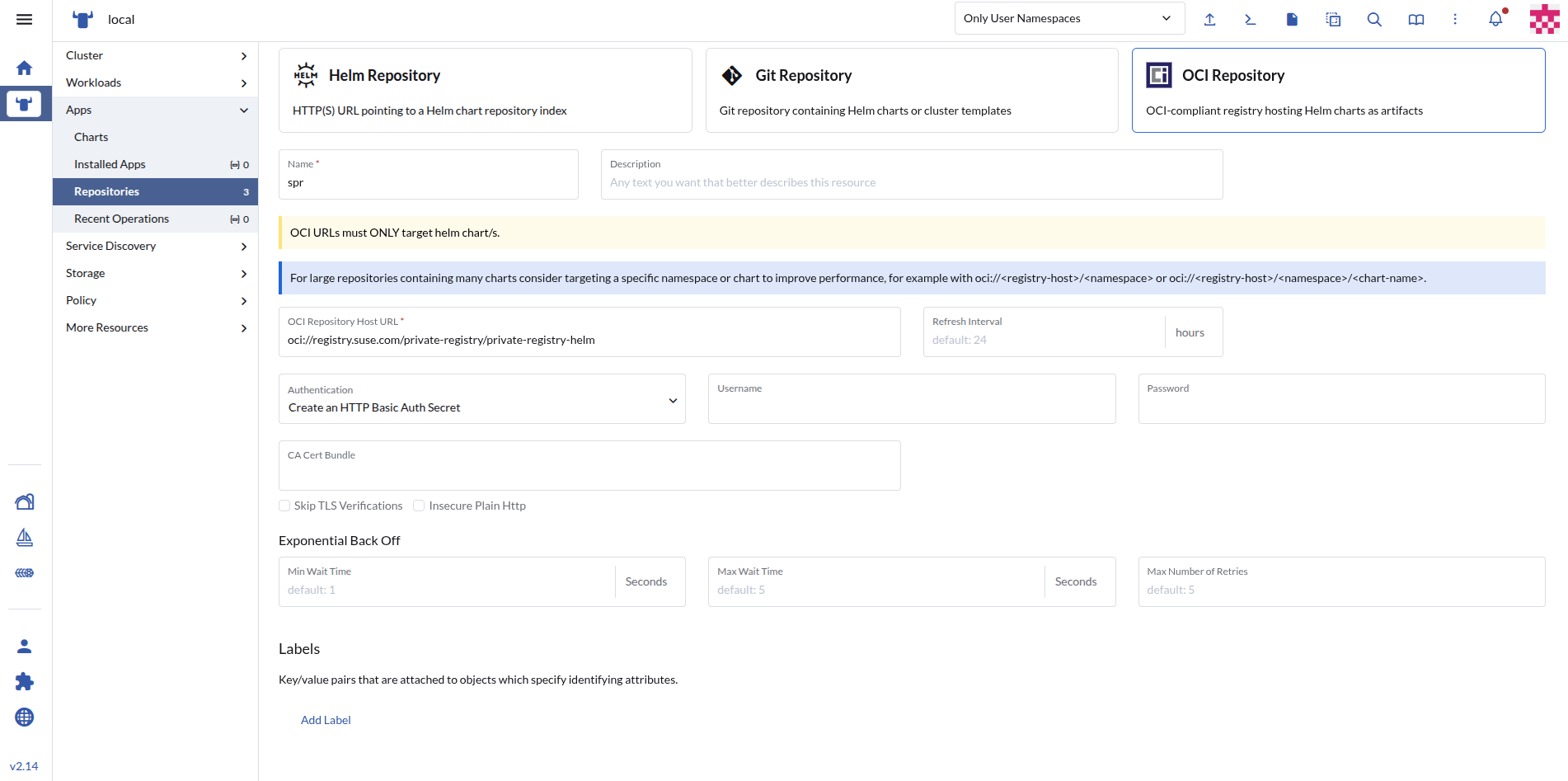
Click the button in the top right and complete the form that opens:
Target: Select .
Name: Enter a name for the repository, such as
SUSE Private Registry.Description: Optionally, add a description of the repository.
OCI Repository Host URL: Enter `oci://registry.suse.com/private-registry/private-registry-helm`.
Authentication: Change to
Create an HTTP Basic Auth Secretand enter the user name and password of the registry’s credentials.
Confirm with .
Click the three-line menu (☰) in the top-left corner and select .
Switch to the cluster to which you want to add the secret and click .
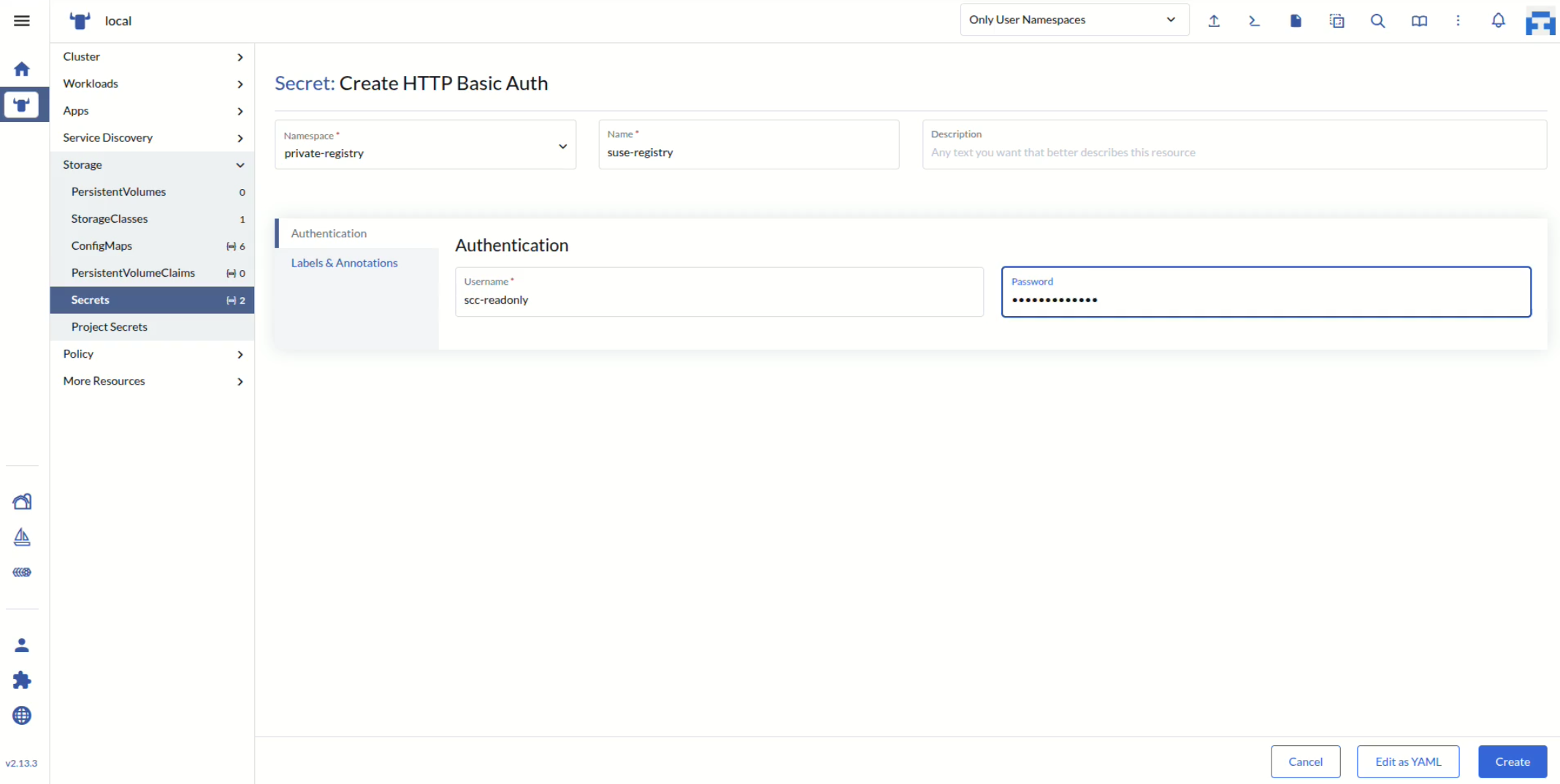
To navigate to secrets management, select › and click in the top right.
Select the secret and then the
private-registrynamespace.Enter
suse-registryas the name for the secret.Fill the
usernameand thepasswordfields with the SUSE credentials obtained in Section 3.1, “What requirements do I need to meet?”.
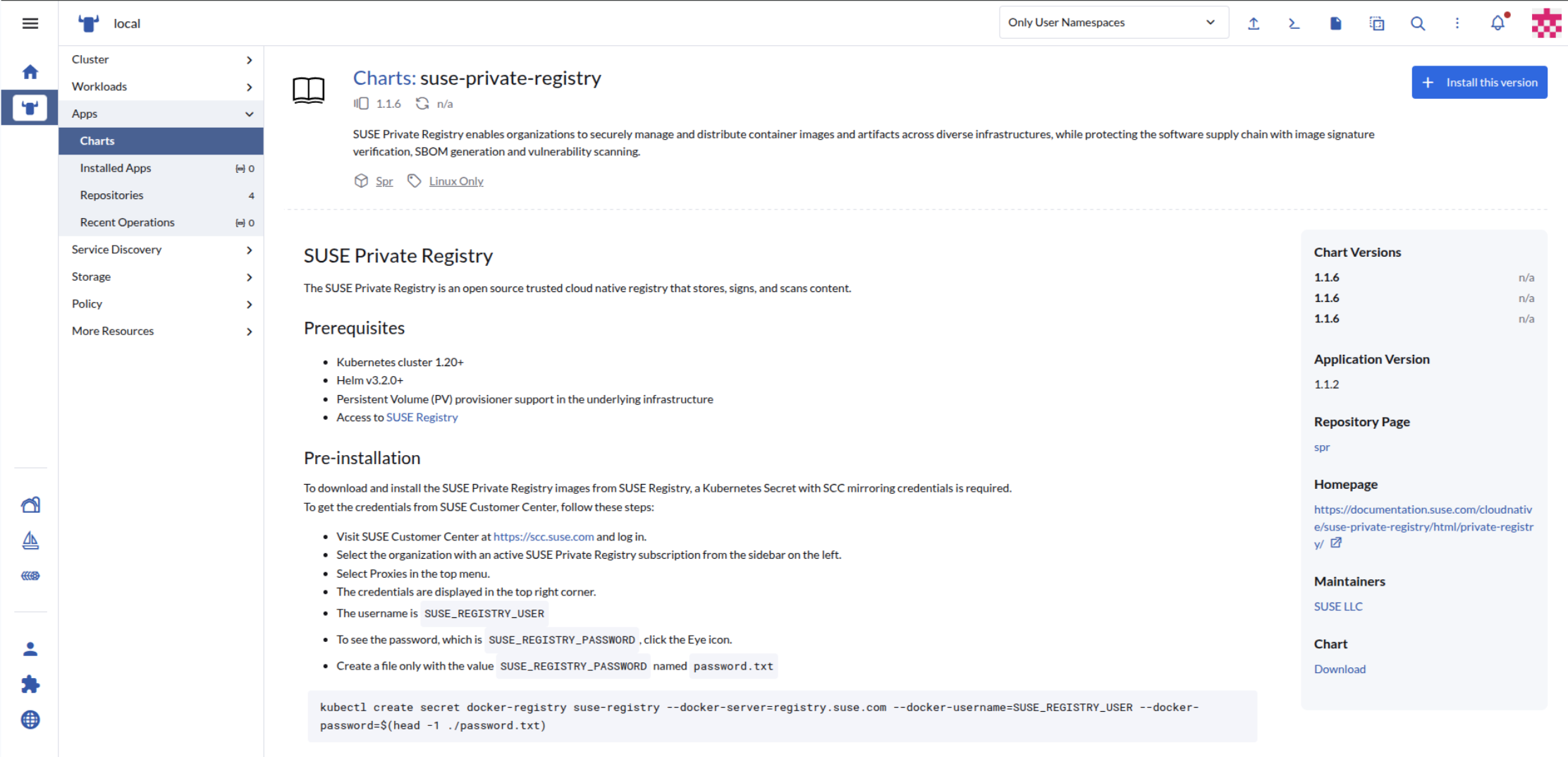
From the main left menu, select › .
Enter the name of the assigned SUSE Private Registry repository in the search box. For example,
SUSE Private Registry. If it does not appear in the list, click .Click the chart and view the
README.md.Optionally, you can customize the installation values. Either click through the sections on the left side of the
Edit Optionspanel to view all the values you can configure, or edit the values directly in the chart’s YAML file.In the top right corner, click .