3 Preparing the cluster for AI Library #
This procedure assumes that you already have the base operating system installed on cluster nodes as well as the SUSE Rancher Prime: RKE2 Kubernetes distribution installed and operational. If you are installing from scratch, refer to Chapter 2, Installing the Linux and Kubernetes distribution first.
Install SUSE Rancher Prime (Section 3.1, “Installing SUSE Rancher Prime on a Kubernetes cluster”).
 Important: Separate clusters for specific SUSE AI components
For production deployments, we strongly recommended deploying Rancher, SUSE Observability, and workloads from the AI library to separate Kubernetes clusters.
Install the NVIDIA GPU Operator as described in Section 3.2, “Installing the NVIDIA GPU Operator on the SUSE Rancher Prime: RKE2 cluster”.
Connect the downstream Kubernetes cluster to SUSE Rancher Prime running on the upstream cluster as described in Section 3.3, “Registering existing clusters”.
Configure the GPU-enabled nodes so that the SUSE AI containers are assigned to Pods that run on nodes equipped with NVIDIA GPU hardware. Find more details about assigning Pods to nodes in Section 3.4, “Assigning GPU nodes to applications”.
(Optional) Install SUSE Security as described in Section 3.5, “Installing SUSE Security”. Although this step is not required, we strongly encourage it to ensure data security in the production environment.
Install and configure SUSE Observability to observe the nodes used for SUSE AI application. Refer to Section 3.6, “Setting up SUSE Observability for SUSE AI” for more details.
3.1 Installing SUSE Rancher Prime on a Kubernetes cluster #
In this section, you’ll learn how to deploy Rancher on a Kubernetes cluster using the Helm CLI.
3.1.1 Prerequisites #
3.1.1.1 Kubernetes Cluster #
Set up the Rancher server’s local Kubernetes cluster.
Rancher can be installed on any Kubernetes cluster. This cluster can use upstream Kubernetes, or it can use one of Rancher’s Kubernetes distributions, or it can be a managed Kubernetes cluster from a provider such as Amazon EKS.
For help setting up a Kubernetes cluster, we provide these tutorials:
K3s: For the tutorial to install a K3s Kubernetes cluster, refer to this page. For help setting up the infrastructure for a high-availability K3s cluster, refer to this page.
RKE2: For the tutorial to install an RKE2 Kubernetes cluster, refer to this page. For help setting up the infrastructure for a high-availability RKE2 cluster, refer to this page.
Amazon EKS: For details on how to install Rancher on Amazon EKS, including how to install an Ingress controller so that the Rancher server can be accessed, refer to this page.
AKS: For details on how to install Rancher with Azure Kubernetes Service, including how to install an Ingress controller so that the Rancher server can be accessed, refer to this page.
GKE: For details on how to install Rancher with Google Kubernetes Engine, including how to install an Ingress controller so that the Rancher server can be accessed, refer to this page. GKE has two modes of operation when creating a Kubernetes cluster, Autopilot and Standard mode. The cluster configuration for Autopilot mode has restrictions on editing the kube-system namespace. However, Rancher needs to create resources in the kube-system namespace during installation. As a result, you will not be able to install Rancher on a GKE cluster created in Autopilot mode.
3.1.1.2 Ingress Controller #
The Rancher UI and API are exposed through an Ingress. This means the Kubernetes cluster that you install Rancher in must contain an Ingress controller.
For RKE2 and K3s installations, you don’t have to install the Ingress controller manually because one is installed by default.
For distributions that do not include an Ingress Controller by default, like a hosted Kubernetes cluster such as EKS, GKE, or AKS, you have to deploy an Ingress controller first. Note that the Rancher Helm chart does not set an ingressClassName on the ingress by default. Because of this, you have to configure the Ingress controller to also watch ingresses without an ingressClassName.
Examples are included in the Amazon EKS, AKS, and GKE tutorials above.
3.1.1.3 CLI Tools #
The following CLI tools are required for setting up the Kubernetes cluster. Please make sure these tools are installed and available in your $PATH.
kubectl - Kubernetes command-line tool.
helm - Package management for Kubernetes. Refer to the Helm version requirements to choose a version of Helm to install Rancher. Refer to the instructions provided by the Helm project for your specific platform.
3.1.2 Install the Rancher Helm Chart #
Rancher is installed using the Helm package manager for Kubernetes. Helm charts provide templating syntax for Kubernetes YAML manifest documents. With Helm, we can create configurable deployments instead of just using static files.
For systems without direct internet access, see Air Gap: Kubernetes install.
To choose a Rancher version to install, refer to xref:[Choosing a Rancher Version.]
To choose a version of Helm to install Rancher with, refer to the Helm version requirements

The installation instructions assume you are using Helm 3.
To set up Rancher,
3.1.2.1 1. Add the Helm Chart Repository #
Use the helm repo add command to add the Helm chart repository that contains charts to install Rancher Prime.
helm repo add rancher-prime <helm-chart-repo-url>3.1.2.2 2. Create a Namespace for Rancher #
We’ll need to define a Kubernetes namespace where the resources created by the Chart should be installed. This should always be cattle-system:
kubectl create namespace cattle-system
3.1.2.3 3. Choose your SSL Configuration #
The Rancher management server is designed to be secure by default and requires SSL/TLS configuration.
If you want to externally terminate SSL/TLS, see External TLS Termination. As outlined on that page, this option does have additional requirements for TLS verification.
There are three recommended options for the source of the certificate used for TLS termination at the Rancher server:
Rancher-generated TLS certificate: In this case, you will need to install
cert-managerinto the cluster. Rancher utilizescert-managerto issue and maintain its certificates. Rancher will generate a CA certificate of its own, and sign a cert using that CA.cert-manageris then responsible for managing that certificate. No extra action is needed whenagent-tls-modeis set to strict. More information can be found on this setting in Agent TLS Enforcement.Let’s Encrypt: The Let’s Encrypt option also uses
cert-manager. However, in this case, cert-manager is combined with a special Issuer for Let’s Encrypt that performs all actions (including request and validation) necessary for getting a Let’s Encrypt issued cert. This configuration uses HTTP validation (HTTP-01), so the load balancer must have a public DNS record and be accessible from the internet. When settingagent-tls-modetostrict, you must also specify--privateCA=trueand upload the Let’s Encrypt CA as described in Adding TLS Secrets. More information can be found on this setting in Agent TLS Enforcement.Bring your own certificate: This option allows you to bring your own public- or private-CA signed certificate. Rancher will use that certificate to secure websocket and HTTPS traffic. In this case, you must upload this certificate (and associated key) as PEM-encoded files with the name
tls.crtandtls.key. If you are using a private CA, you must also upload that certificate. This is due to the fact that this private CA may not be trusted by your nodes. Rancher will take that CA certificate, and generate a checksum from it, which the various Rancher components will use to validate their connection to Rancher. Ifagent-tls-modeis set tostrict, the CA must be uploaded, so that downstream clusters can successfully connect. More information can be found on this setting in Agent TLS Enforcement.
| Configuration | Helm Chart Option | Requires cert-manager |
|---|---|---|
Rancher Generated Certificates (Default) |
| |
Let’s Encrypt |
| |
Certificates from Files |
| no |
3.1.2.4 4. Install cert-manager #
- Using SUSE Application Collection
SUSE Application Collection provides a cert-manager chart that is compatible with Rancher. If you are using SUSE Application Collection, we recommend installing cert-manager using this option.
Log in to the secure SUSE Application Collection registry:
Before installing, authenticate your Helm CLI against the Application Collection OCI registry using your enterprise credentials:
helm registry login dp.apps.rancher.io -u <username-or-service-account-username> -p <access-token-or-service-account-token>Create the target namespace
cert-manager:kubectl create namespace cert-managerCreate the Image Pull Secret:
Because the Application Collection is a private registry, your cluster’s nodes need a secret to pull the images. Generate this secret in the
cert-managernamespace:kubectl create secret docker-registry application-collection \ --namespace cert-manager \ --docker-server=dp.apps.rancher.io \ --docker-username=<YOUR_APPCO_USERNAME> \ --docker-password=<YOUR_APPCO_TOKEN>Install cert-manager via the OCI chart path:
Deploy the chart directly from the OCI registry path. Ensure you pass the
global.imagePullSecretsflag so the pods can authenticate:helm install <cert-manager-release-version> oci://dp.apps.rancher.io/charts/cert-manager \ --namespace cert-manager \ --set global.imagePullSecrets={application-collection} \ --set crds.enabled=trueNoteIf you are deploying in a cluster that requires FIPS cryptography compliance, you can substitute the chart path with
oci://dp.apps.rancher.io/charts/cert-manager-fips.Verify the Installation
Once you’ve installed cert-manager, you can verify it is deployed correctly by checking the
cert-managernamespace for running pods:kubectl get pods --namespace cert-managerNAME READY STATUS RESTARTS AGE cert-manager-56cc584bd4-nhjx7 1/1 Running 0 3m cert-manager-cainjector-7cfc74b84b-kg7m2 1/1 Running 0 3m cert-manager-webhook-784f6dd68-69dvn 1/1 Running 0 3m
- Using Upstream Jetstack Helm Repository
You should skip this step if you are bringing your own certificate files (option
ingress.tls.source=secret), or if you use External TLS Termination.This step is only required to use certificates issued by Rancher’s generated CA (
ingress.tls.source=rancher) or to request Let’s Encrypt issued certificates (ingress.tls.source=letsEncrypt).Example 3.1: Click to Expand #Note: Important:Recent changes to cert-manager require an upgrade. If you are upgrading Rancher and using a version of cert-manager older than v0.11.0, please see our upgrade documentation.
These instructions are adapted from the official cert-manager documentation.
NoteTo see options on how to customize the cert-manager install (including for cases where your cluster uses PodSecurityPolicies), see the cert-manager docs.
# If you have installed the CRDs manually, instead of setting `installCRDs` or `crds.enabled` to `true` in your Helm install command, you should upgrade your CRD resources before upgrading the Helm chart:
kubectl apply -f https://github.com/cert-manager/cert-manager/releases/download/<VERSION>/cert-manager.crds.yaml

# Add the Jetstack Helm repository
helm repo add jetstack https://charts.jetstack.io

# Update your local Helm chart repository cache
helm repo update

# Install the cert-manager Helm chart
helm install cert-manager jetstack/cert-manager \
  --namespace cert-manager \
  --create-namespace \
  --set crds.enabled=true
Once you’ve installed cert-manager, you can verify it is deployed correctly by checking the cert-manager namespace for running pods:
kubectl get pods --namespace cert-manager

NAME                                       READY   STATUS    RESTARTS   AGE
cert-manager-5c6866597-zw7kh               1/1     Running   0          2m
cert-manager-cainjector-577f6d9fd7-tr77l   1/1     Running   0          2m
cert-manager-webhook-787858fcdb-nlzsq      1/1     Running   0          2m
3.1.2.5 5. Install Rancher with Helm and Your Chosen Certificate Option #
The exact command to install Rancher differs depending on the certificate configuration.
However, irrespective of the certificate configuration, the name of the Rancher installation in the cattle-system namespace should always be rancher.

This final command to install Rancher requires a domain name that forwards traffic to Rancher. If you are using the Helm CLI to set up a proof-of-concept, you can use a fake domain name when passing the hostname option. An example of a fake domain name would be <IP_OF_LINUX_NODE>.sslip.io, which would expose Rancher on an IP where it is running. Production installs would require a real domain name.
- Rancher-generated Certificates
The default is for Rancher to generate a CA and uses
cert-managerto issue the certificate for access to the Rancher server interface.Because
rancheris the default option foringress.tls.source, we are not specifyingingress.tls.sourcewhen running thehelm installcommand.Set the
hostnameto the DNS name you pointed at your load balancer.Set the
bootstrapPasswordto something unique for theadminuser.To install a specific Rancher version, use the
--versionflag, example:--version 2.7.0
helm install rancher rancher-prime/rancher-prime \
  --namespace cattle-system \
  --set hostname=rancher.my.org \
  --set bootstrapPassword=admin
Wait for Rancher to be rolled out:
kubectl -n cattle-system rollout status deploy/rancher
Waiting for deployment "rancher" rollout to finish: 0 of 3 updated replicas are available...
deployment "rancher" successfully rolled out
- Let’s Encrypt
This option uses
cert-managerto automatically request and renew Let’s Encrypt certificates. This is a free service that provides you with a valid certificate as Let’s Encrypt is a trusted CA.NoteYou need to have port 80 open as the HTTP-01 challenge can only be done on port 80.
In the following command,
hostnameis set to the public DNS record,Set the
bootstrapPasswordto something unique for theadminuser.ingress.tls.sourceis set toletsEncryptletsEncrypt.emailis set to the email address used for communication about your certificate (for example, expiry notices)Set
letsEncrypt.ingress.classto whatever your ingress controller is, e.g.,traefik,nginx,haproxy, etc.
 Caution
When
agent-tls-modeis set tostrict(the default value for new installs of Rancher starting from v2.9.0), you must supply theprivateCA=truechart value (e.x. through--set privateCA=true) and upload the Let’s Encrypt Certificate Authority as outlined in Adding TLS Secrets. Information on identifying the Let’s Encrypt Root CA can be found in the Let’s Encrypt docs. If you don’t upload the CA, then Rancher may fail to connect to new or existing downstream clusters.helm install rancher rancher-prime/rancher-prime \ --namespace cattle-system \ --set hostname=rancher.my.org \ --set bootstrapPassword=admin \ --set ingress.tls.source=letsEncrypt \ --set letsEncrypt.email=me@example.org \ --set letsEncrypt.ingress.class=nginx
Wait for Rancher to be rolled out:
kubectl -n cattle-system rollout status deploy/rancher
Waiting for deployment "rancher" rollout to finish: 0 of 3 updated replicas are available...
deployment "rancher" successfully rolled out
- Certificates from Files
In this option, Kubernetes secrets are created from your own certificates for Rancher to use.
When you run this command, the
hostnameoption must match theCommon Nameor aSubject Alternative Namesentry in the server certificate or the Ingress controller will fail to configure correctly.Although an entry in the
Subject Alternative Namesis technically required, having a matchingCommon Namemaximizes compatibility with older browsers and applications.NoteIf you want to check if your certificates are correct, see How do I check Common Name and Subject Alternative Names in my server certificate?
Set the
hostname.Set the
bootstrapPasswordto something unique for theadminuser.Set
ingress.tls.sourcetosecret.
helm install rancher rancher-prime/rancher-prime \
  --namespace cattle-system \
  --set hostname=rancher.my.org \
  --set bootstrapPassword=admin \
  --set ingress.tls.source=secret
If you are using a Private CA signed certificate , add
--set privateCA=trueto the command:helm install rancher rancher-prime/rancher-prime \ --namespace cattle-system \ --set hostname=rancher.my.org \ --set bootstrapPassword=admin \ --set ingress.tls.source=secret \ --set privateCA=true
Now that Rancher is deployed, see Adding TLS Secrets to publish the certificate files so Rancher and the Ingress controller can use them.
The Rancher chart configuration has many options for customizing the installation to suit your specific environment. Here are some common advanced scenarios.
See the Chart Options for the full list of options.
3.1.2.6 6. Verify that the Rancher Server is Successfully Deployed #
After adding the secrets, check if Rancher was rolled out successfully:
kubectl -n cattle-system rollout status deploy/rancher
Waiting for deployment "rancher" rollout to finish: 0 of 3 updated replicas are available...
deployment "rancher" successfully rolled out
If you see the following error: error: deployment "rancher" exceeded its progress deadline, you can check the status of the deployment by running the following command:
kubectl -n cattle-system get deploy rancher
NAME      DESIRED   CURRENT   UP-TO-DATE   AVAILABLE   AGE
rancher   3         3         3            3           3m
It should show the same count for DESIRED and AVAILABLE.
3.1.2.7 7. Save Your Options #
Make sure you save the --set options you used. You will need to use the same options when you upgrade Rancher to new versions with Helm.
3.1.2.8 Finishing Up #
That’s it. You should have a functional Rancher server.
In a web browser, go to the DNS name that forwards traffic to your load balancer. Then you should be greeted by the colorful login page.
Doesn’t work? Take a look at the Troubleshooting Page
3.2 Installing the NVIDIA GPU Operator on the SUSE Rancher Prime: RKE2 cluster #
The NVIDIA operator allows administrators of Kubernetes clusters to manage GPUs just like CPUs. It includes everything needed for pods to be able to operate GPUs.
3.2.1 Host OS requirements #
To expose the GPU to the pod correctly, the NVIDIA kernel drivers and the libnvidia-ml library must be correctly installed in the host OS. The NVIDIA Operator can automatically install drivers and libraries on some operating systems. Refer to the NVIDIA documentation for information on supported operating system releases. The installation of the NVIDIA components on your host OS is out of the scope of this documentation, refer to the NVIDIA documentation for instructions.
The following three commands should return a correct output if the kernel driver was correctly installed:
lsmod | grep nvidiareturns a list of nvidia kernel modules. For example:nvidia_uvm 2129920 0 nvidia_drm 131072 0 nvidia_modeset 1572864 1 nvidia_drm video 77824 1 nvidia_modeset nvidia 9965568 2 nvidia_uvm,nvidia_modeset ecc 45056 1 nvidiacat /proc/driver/nvidia/versionreturns the NVRM and GCC version of the driver. For example:NVRM version: NVIDIA UNIX Open Kernel Module for x86_64 555.42.06 Release Build (abuild@host) Thu Jul 11 12:00:00 UTC 2024 GCC version: gcc version 7.5.0 (SUSE Linux)find /usr/ -iname libnvidia-ml.soreturns a path to thelibnvidia-ml.solibrary. For example:/usr/lib64/libnvidia-ml.soThis library is used by Kubernetes components to interact with the kernel driver.
3.2.2 Operator installation #
Once the OS is ready and RKE2 is running, install the GPU Operator with the following yaml manifest.
Use the kubectl apply -f gpu-operator.yaml command to install the operator.
The NVIDIA operator restarts containerd with a hangup call which restarts RKE2.
The envvars ACCEPT_NVIDIA_VISIBLE_DEVICES_ENVVAR_WHEN_UNPRIVILEGED, ACCEPT_NVIDIA_VISIBLE_DEVICES_AS_VOLUME_MOUNTS and DEVICE_LIST_STRATEGY are required to properly isolate GPU resources as explained in Preventing unprivileged access to GPUs in Kubernetes.
NVIDIA GPU Operator v25.10.x uses Container Device Interface (CDI) specification which simplifies operations.
It is recommended that you enable CDI (the default) and the NRI plug-in on RKE2.
With both features enabled, you no longer need to pass extra environment variables for security requirements or set runtimeClassName: nvidia in your pod specifications.
# gpu-operator.yaml
apiVersion: helm.cattle.io/v1
kind: HelmChart
metadata:
  name: gpu-operator
  namespace: kube-system
spec:
  repo: https://helm.ngc.nvidia.com/nvidia
  chart: gpu-operator
  version: v25.3.4
  targetNamespace: gpu-operator
  createNamespace: true
  valuesContent: |-
    driver:
      enabled: "false"
    toolkit:
      env:
      - name: CONTAINERD_SOCKET
        value: /run/k3s/containerd/containerd.sock
      - name: ACCEPT_NVIDIA_VISIBLE_DEVICES_ENVVAR_WHEN_UNPRIVILEGED
        value: "false"
      - name: ACCEPT_NVIDIA_VISIBLE_DEVICES_AS_VOLUME_MOUNTS
        value: "true"
    devicePlugin:
      env:
      - name: DEVICE_LIST_STRATEGY
        value: volume-mounts
After one minute approximately, you can perform the following checks to verify that everything is working as expected:
Assuming the drivers and
libnvidia-ml.solibrary were previously installed, check if the operator detects them correctly:kubectl get node $NODENAME -o jsonpath='{.metadata.labels}' | grep "nvidia.com/gpu.deploy.driver"You should see the value
pre-installed. If you seetrue, the drivers were not correctly installed. If the pre-requirements (Section 3.2.1, “Host OS requirements”) were correct, it is possible that you forgot to reboot the node after installing all packages.You can also check other driver labels with:
kubectl get node $NODENAME -o jsonpath='{.metadata.labels}' | grep "nvidia.com"You should see labels specifying driver and GPU (e.g.
nvidia.com/gpu.machineornvidia.com/cuda.driver.major).Check if the GPU was added by
nvidia-device-plugin-daemonsetas an allocatable resource in the node:kubectl get node $NODENAME -o jsonpath='{.status.allocatable}'You should see
"nvidia.com/gpu":followed by the number of GPUs in the node.Check that the container runtime binary was installed by the operator (in particular by the
nvidia-container-toolkit-daemonset):ls /usr/local/nvidia/toolkit/nvidia-container-runtimeVerify if containerd config was updated to include the NVIDIA container runtime:
grep nvidia /var/lib/rancher/rke2/agent/etc/containerd/config.tomlRun a pod to verify that the GPU resource can successfully be scheduled on a pod and the pod can detect it
apiVersion: v1
kind: Pod
metadata:
  name: nbody-gpu-benchmark
  namespace: default
spec:
  restartPolicy: OnFailure
  containers:
  - name: cuda-container
    image: nvcr.io/nvidia/k8s/cuda-sample:nbody
    args: ["nbody", "-gpu", "-benchmark"]
    resources:
      limits:
        nvidia.com/gpu: 1
Available as of October 2024 releases: v1.28.15+rke2r1, v1.29.10+rke2r1, v1.30.6+rke2r1, v1.31.2+rke2r1.
RKE2 will now use PATH to find alternative container runtimes, in addition to checking the default paths used by the container runtime packages. In order to use this feature, you must modify the RKE2 service’s PATH environment variable to add the directories containing the container runtime binaries.
It’s recommended that you modify one of this two environment files:
/etc/default/rke2-server # or rke2-agent
/etc/sysconfig/rke2-server # or rke2-agent
This example will add the PATH in /etc/default/rke2-server:
PATH changes should be done with care to avoid placing untrusted binaries in the path of services that run as root.
echo PATH=$PATH >> /etc/default/rke2-server3.3 Registering existing clusters #
In this section, you will learn how to register existing RKE2 clusters in SUSE Rancher Prime (Rancher).
The cluster registration feature replaced the feature to import clusters.
The control that Rancher has to manage a registered cluster depends on the type of cluster. For details, see Management Capabilities for Registered Clusters. (Section 3.3.3, “Management Capabilities for Registered Clusters”)
3.3.1 Prerequisites #
3.3.1.1 Kubernetes Node Roles #
Registered RKE Kubernetes clusters must have all three node roles - etcd, controlplane and worker. A cluster with only controlplane components cannot be registered in Rancher.
For more information on RKE node roles, see the best practices.
3.3.1.2 Permissions #
To register a cluster in Rancher, you must have cluster-admin privileges within that cluster. If you don’t, grant these privileges to your user by running:
kubectl create clusterrolebinding cluster-admin-binding \
  --clusterrole cluster-admin \
  --user [USER_ACCOUNT]
Since, by default, Google Kubernetes Engine (GKE) doesn’t grant the cluster-admin role, you must run these commands on GKE clusters before you can register them. To learn more about role-based access control for GKE, please see the official Google documentation.
3.3.1.3 Elastic Kubernetes Service (EKS), Azure Kubernetes Service (AKS), and Google Kubernetes Engine (GKE) #
To successfully import or provision EKS, AKS, and GKE clusters from Rancher, the cluster must have at least one managed node group.
AKS clusters can be imported only if local accounts are enabled. If a cluster is configured to use Microsoft Entra ID for authentication, then Rancher will not be able to import it and report an error.
EKS Anywhere clusters can be imported/registered into Rancher with an API address and credentials, as with any downstream cluster. EKS Anywhere clusters are treated as imported clusters and do not have full lifecycle support from Rancher.
GKE Autopilot clusters aren’t supported. See Compare GKE Autopilot and Standard for more information about the differences between GKE modes.
3.3.2 Registering a Cluster #
Click ☰ > Cluster Management.
On the Clusters page, Import Existing.
Choose the type of cluster.
Use Member Roles to configure user authorization for the cluster. Click Add Member to add users that can access the cluster. Use the Role drop-down to set permissions for each user.
If you are importing a generic Kubernetes cluster in Rancher, perform the following steps for setup:
Click Agent Environment Variables under Cluster Options to set environment variables for rancher cluster agent. The environment variables can be set using key value pairs. If rancher agent requires use of proxy to communicate with Rancher server,
HTTP_PROXY,HTTPS_PROXYandNO_PROXYenvironment variables can be set using agent environment variables.Enable Project Network Isolation to ensure the cluster supports Kubernetes
NetworkPolicyresources. Users can select the Project Network Isolation option under the Advanced Options dropdown to do so.Configure the version management feature for imported RKE2 and K3s clusters (Section 3.3.4, “Configuring Version Management for SUSE Rancher Prime: RKE2 and SUSE Rancher Prime: K3s Clusters”).
Click Create.
The prerequisite for
cluster-adminprivileges is shown (see Prerequisites above), including an example command to fulfil the prerequisite.Copy the
kubectlcommand to your clipboard and run it on a node where kubeconfig is configured to point to the cluster you want to import. If you are unsure it is configured correctly, runkubectl get nodesto verify before running the command shown in Rancher.If you are using self-signed certificates, you will receive the message
certificate signed by unknown authority. To work around this validation, copy the command starting withcurldisplayed in Rancher to your clipboard. Then run the command on a node where kubeconfig is configured to point to the cluster you want to import.When you finish running the command(s) on your node, click Done.
The NO_PROXY environment variable is not standardized, and the accepted format of the value can differ between applications. When configuring the NO_PROXY variable for Rancher, the value must adhere to the format expected by Golang.
Specifically, the value should be a comma-delimited string which only contains IP addresses, CIDR notation, domain names, or special DNS labels (e.g. *). For a full description of the expected value format, refer to the upstream Golang documentation.
Result:
Your cluster is registered and assigned a state of Pending. Rancher is deploying resources to manage your cluster.
You can access your cluster after its state is updated to Active.
Active clusters are assigned two Projects:
Default(containing the namespacedefault) andSystem(containing the namespacescattle-system,ingress-nginx,kube-publicandkube-system, if present).
You can not re-register a cluster that is currently active in a Rancher setup.
3.3.2.1 Configuring an Imported EKS, AKS or GKE Cluster with Terraform #
You should define only the minimum fields that Rancher requires when importing an EKS, AKS or GKE cluster with Terraform. This is important as Rancher will overwrite what was in the cluster configuration with any configuration that the user has provided.
Even a small difference between the current cluster and a user-provided configuration could have unexpected results.
The minimum configuration fields required by Rancher to import EKS clusters with Terraform using eks_config_v2 are as follows:
cloud_credential_id
name
region
imported (this field should always be set to
truefor imported clusters)
Example YAML configuration for imported EKS clusters:
resource "rancher2_cluster" "my-eks-to-import" {
  name        = "my-eks-to-import"
  description = "Terraform EKS Cluster"
  eks_config_v2 {
    cloud_credential_id = rancher2_cloud_credential.aws.id
    name                = var.aws_eks_name
    region              = var.aws_region
    imported            = true
  }
}
You can find additional examples for other cloud providers in the Rancher2 Terraform Provider documentation.
3.3.3 Management Capabilities for Registered Clusters #
The control that Rancher has to manage a registered cluster depends on the type of cluster.
Features for All Registered Clusters (Section 3.3.3.1, “Features for All Registered Clusters”)
Additional Features for Registered RKE2 and K3s Clusters (Section 3.3.3.2, “Additional Features for Registered SUSE Rancher Prime: RKE2 and SUSE Rancher Prime: K3s Clusters”)
Additional Features for Registered EKS, AKS and GKE Clusters (Section 3.3.3.3, “Additional Features for Registered EKS, AKS, and GKE Clusters”)
3.3.3.1 Features for All Registered Clusters #
After registering a cluster, the cluster owner can:
Manage cluster access through role-based access control
Enable logging
Enable Istio
Manage projects and workloads
3.3.3.2 Additional Features for Registered SUSE Rancher Prime: RKE2 and SUSE Rancher Prime: K3s Clusters #
K3s is a lightweight, fully compliant Kubernetes distribution for edge installations.
RKE2 is Rancher’s next-generation Kubernetes distribution for datacenter and cloud installations.
When an RKE2 or K3s cluster is registered in Rancher, Rancher will recognize it. The Rancher UI will expose features available to all registered clusters (Section 3.3.3.1, “Features for All Registered Clusters”), along with the following options for editing and upgrading the cluster:
Enable or disable version management (Section 3.3.4, “Configuring Version Management for SUSE Rancher Prime: RKE2 and SUSE Rancher Prime: K3s Clusters”)
Upgrade the Kubernetes version when version management is enabled
Configure the upgrade strategy (Section 3.3.5, “Configuring SUSE Rancher Prime: RKE2 and SUSE Rancher Prime: K3s Cluster Upgrades”) when version management is enabled
View a read-only version of the cluster’s configuration arguments and environment variables used to launch each node
3.3.3.3 Additional Features for Registered EKS, AKS, and GKE Clusters #
Rancher handles registered EKS, AKS, or GKE clusters similarly to clusters created in Rancher. However, Rancher doesn’t destroy registered clusters when you delete them through the Rancher UI.
When you create an EKS, AKS, or GKE cluster in Rancher, then delete it, Rancher destroys the cluster. When you delete a registered cluster through Rancher, the Rancher server disconnects from the cluster. The cluster remains live, although it’s no longer in Rancher. You can still access the deregistered cluster in the same way you did before you registered it.
See Cluster Management Capabilities by Cluster Type for more information about what features are available for managing registered clusters.
3.3.4 Configuring Version Management for SUSE Rancher Prime: RKE2 and SUSE Rancher Prime: K3s Clusters #

When version management is enabled for an imported cluster, upgrading it outside of Rancher may lead to unexpected consequences.
The version management feature for imported RKE2 and K3s clusters can be configured using one of the following options:
Global default (default): Inherits behavior from the global imported-cluster-version-management setting.
True: Enables version management, allowing users to control the Kubernetes version and upgrade strategy of the cluster through Rancher.
False: Disables version management, enabling users to manage the cluster’s Kubernetes version independently, outside of Rancher.
You can define the default behavior for newly created clusters or existing ones set to "Global default" by modifying the imported-cluster-version-management setting.
Changes to the global imported-cluster-version-management setting take effect during the cluster’s next reconciliation cycle.
If version management is enabled for a cluster, Rancher will deploy the system-upgrade-controller app, along with the associated Plans and other required Kubernetes resources, to the cluster.
If version management is disabled, Rancher will remove these components from the cluster.
3.3.5 Configuring SUSE Rancher Prime: RKE2 and SUSE Rancher Prime: K3s Cluster Upgrades #
It is a Kubernetes best practice to back up the cluster before upgrading. When upgrading a high-availability K3s cluster with an external database, back up the database in whichever way is recommended by the relational database provider.
The concurrency is the maximum number of nodes that are permitted to be unavailable during an upgrade. If number of unavailable nodes is larger than the concurrency, the upgrade will fail. If an upgrade fails, you may need to repair or remove failed nodes before the upgrade can succeed.
Controlplane concurrency: The maximum number of server nodes to upgrade at a single time; also the maximum unavailable server nodes
Worker concurrency: The maximum number worker nodes to upgrade at the same time; also the maximum unavailable worker nodes
In the RKE2 and K3s documentation, controlplane nodes are called server nodes. These nodes run the Kubernetes master, which maintains the desired state of the cluster. By default, these controlplane nodes have the capability to have workloads scheduled to them by default.
Also in the RKE2 and K3s documentation, nodes with the worker role are called agent nodes. Any workloads or pods that are deployed in the cluster can be scheduled to these nodes by default.
3.3.6 Debug Logging and Troubleshooting for Registered SUSE Rancher Prime: RKE2 and SUSE Rancher Prime: K3s Clusters #
Nodes are upgraded by the system upgrade controller running in the downstream cluster. Based on the cluster configuration, Rancher deploys two plans to upgrade nodes: one for controlplane nodes and one for workers. The system upgrade controller follows the plans and upgrades the nodes.
To enable debug logging on the system upgrade controller deployment, edit the configmap to set the debug environment variable to true. Then restart the system-upgrade-controller pod.
Logs created by the system-upgrade-controller can be viewed by running this command:
kubectl logs -n cattle-system system-upgrade-controller
The current status of the plans can be viewed with this command:
kubectl get plans -A -o yaml
If the cluster becomes stuck in upgrading, restart the system-upgrade-controller.
To prevent issues when upgrading, the Kubernetes upgrade best practices should be followed.
3.3.7 Authorized Cluster Endpoint Support for SUSE Rancher Prime: RKE2 and SUSE Rancher Prime: K3s Clusters #
Rancher supports Authorized Cluster Endpoints (ACE) for registered RKE2 and K3s clusters. This support includes manual steps you will perform on the downstream cluster to enable the ACE. For additional information on the authorized cluster endpoint, click here.
These steps only need to be performed on the control plane nodes of the downstream cluster. You must configure each control plane node individually.
The following steps will work on both RKE2 and K3s clusters registered in v2.6.x as well as those registered (or imported) from a previous version of Rancher with an upgrade to v2.6.x.
These steps will alter the configuration of the downstream RKE2 and K3s clusters and deploy the
kube-api-authn-webhook. If a future implementation of the ACE requires an update to thekube-api-authn-webhook, then this would also have to be done manually. For more information on this webhook, click here.
3.3.7.1 Manual steps to be taken on the control plane of each downstream cluster to enable ACE: #
Create a file at
/var/lib/rancher/{rke2,k3s}/kube-api-authn-webhook.yamlwith the following contents:apiVersion: v1 kind: Config clusters: name: Default cluster: insecure-skip-tls-verify: true server: http://127.0.0.1:6440/v1/authenticate users: name: Default user: insecure-skip-tls-verify: true current-context: webhook contexts: name: webhook context: user: Default cluster: DefaultAdd the following to the configuration file (or create one if it doesn’t exist); note that the default location is
/etc/rancher/{rke2,k3s}/config.yaml:kube-apiserver-arg: - authentication-token-webhook-config-file=/var/lib/rancher/{rke2,k3s}/kube-api-authn-webhook.yamlRun the following commands:
sudo systemctl stop {rke2,k3s}-server
sudo systemctl start {rke2,k3s}-server
Finally, you must go back to the Rancher UI and edit the imported cluster there to complete the ACE enablement. Click on ⋮ > Edit Config, then click the Networking tab under Cluster Configuration. Finally, click the Enabled button for Authorized Endpoint. Once the ACE is enabled, you then have the option of entering a fully qualified domain name (FQDN) and certificate information.
The FQDN field is optional, and if one is entered, it should point to the downstream cluster. Certificate information is only needed if there is a load balancer in front of the downstream cluster that is using an untrusted certificate. If you have a valid certificate, then nothing needs to be added to the CA Certificates field.
3.3.8 Annotating Registered Clusters #
For all types of registered Kubernetes clusters except for RKE2 and K3s Kubernetes clusters, Rancher doesn’t have any information about how the cluster is provisioned or configured.
Therefore, when Rancher registers a cluster, it assumes that several capabilities are disabled by default. Rancher assumes this in order to avoid exposing UI options to the user even when the capabilities are not enabled in the registered cluster.
However, if the cluster has a certain capability, a user of that cluster might still want to select the capability for the cluster in the Rancher UI. In order to do that, the user will need to manually indicate to Rancher that certain capabilities are enabled for the cluster.
By annotating a registered cluster, it is possible to indicate to Rancher that a cluster was given additional capabilities outside of Rancher.
The following annotation indicates Ingress capabilities. Note that the values of non-primitive objects need to be JSON encoded, with quotations escaped.
"capabilities.cattle.io/ingressCapabilities": "[
  {
    "customDefaultBackend":true,
    "ingressProvider":"asdf"
  }
]"
These capabilities can be annotated for the cluster:
ingressCapabilitiesloadBalancerCapabilitiesnodePoolScalingSupportednodePortRangetaintSupport
All the capabilities and their type definitions can be viewed in the Rancher API view, at [Rancher Server URL]/v3/schemas/capabilities.
To annotate a registered cluster,
Click ☰ > Cluster Management.
On the Clusters page, go to the custom cluster you want to annotate and click ⋮ > Edit Config.
Expand the Labels & Annotations section.
Click Add Annotation.
Add an annotation to the cluster with the format
capabilities/<capability>: <value>wherevalueis the cluster capability that will be overridden by the annotation. In this scenario, Rancher is not aware of any capabilities of the cluster until you add the annotation.Click Save.
Result: The annotation does not give the capabilities to the cluster, but it does indicate to Rancher that the cluster has those capabilities.
3.3.9 Troubleshooting #
This section lists some of the most common errors that may occur when importing a cluster and provides steps to troubleshoot them.
3.3.9.1 AKS #
The following error may occur if local accounts are disabled in your cluster:
Error: Getting static credential is not allowed because this cluster is set to disable local accounts.To resolve this issue, enable local accounts before attempting to register a cluster:
az aks update --resource-group <resource-group> --name <cluster-name> --enable-local-accounts3.4 Assigning GPU nodes to applications #
When deploying a containerized application to Kubernetes, you need to ensure that containers requiring GPU resources are run on appropriate worker nodes. For example, Ollama, a core component of SUSE AI, can deeply benefit from the use of GPU acceleration. This topic describes how to satisfy this requirement by explicitly requesting GPU resources and labeling worker nodes for configuring the node selector.
Kubernetes cluster—such as SUSE Rancher Prime: RKE2—must be available and configured with more than one worker node in which certain nodes have NVIDIA GPU resources and others do not.
This document assumes that any kind of deployment to the Kubernetes cluster is done using Helm charts.
3.4.1 Labeling GPU nodes #
To distinguish nodes with the GPU support from non-GPU nodes, Kubernetes uses labels.
Labels are used for relevant metadata and should not be confused with annotations that provide simple information about a resource.
It is possible to manipulate labels with the kubectl command, as well as by tweaking configuration files from the nodes.
If an IaC tool such as Terraform is used, labels can be inserted in the node resource configuration files.
To label a single node, use the following command:
> kubectl label node <GPU_NODE_NAME> accelerator=nvidia-gpuTo achieve the same result by tweaking the node.yaml node configuration, add the following content and apply the changes with kubectl apply -f node.yaml:
apiVersion: v1
kind: Node
metadata:
  name: node-name
  labels:
accelerator: nvidia-gpuTo label multiple nodes, use the following command:
> kubectl label node \
  <GPU_NODE_NAME1> \
  <GPU_NODE_NAME2> ... \
accelerator=nvidia-gpuIf Terraform is being used as an IaC tool, you can add labels to a group of nodes by editing the .tf files and adding the following values to a resource:
resource "node_group" "example" {
  labels = {
    "accelerator" = "nvidia-gpu"
  }
}
To check if the labels are correctly applied, use the following command:
> kubectl get nodes --show-labels3.4.2 Assigning GPU nodes #
The matching between a container and a node is configured by the explicit resource allocation and the use of labels and node selectors. The use cases described below focus on NVIDIA GPUs.
3.4.2.1 Enable GPU passthrough #
Containers are isolated from the host environment by default. For the containers that rely on the allocation of GPU resources, their Helm charts must enable GPU passthrough so that the container can access and use the GPU resource. Without enabling the GPU passthrough, the container may still run, but it can only use the main CPU for all computations. Refer to Ollama Helm chart for an example of the configuration required for GPU acceleration.
3.4.2.2 Assignment by resource request #
After the NVIDIA GPU Operator is configured on a node, you can instantiate applications requesting the resource nvidia.com/gpu provided by the operator.
Add the following content to your values.yaml file.
Specify the number of GPUs according to your setup.
resources:
  requests:
    nvidia.com/gpu: 1
  limits:
    nvidia.com/gpu: 1
3.4.2.3 Assignment by labels and node selectors #
If affected cluster nodes are labeled with a label such as accelerator=nvidia-gpu, you can configure the node selector to check for the label.
In this case, use the following values in your values.yaml file.
nodeSelector:
  accelerator: nvidia-gpu
3.4.3 Verifying Ollama GPU assignment #
If the GPU is correctly detected, the Ollama container logs this event:
| [...] source=routes.go:1172 msg="Listening on :11434 (version 0.0.0)"                                              │
│ [...] source=payload.go:30 msg="extracting embedded files" dir=/tmp/ollama2502346830/runners                       │
│ [...] source=payload.go:44 msg="Dynamic LLM libraries [cuda_v12 cpu cpu_avx cpu_avx2]"                             │
│ [...] source=gpu.go:204 msg="looking for compatible GPUs"                                                          │
│ [...] source=types.go:105 msg="inference compute" id=GPU-c9ad37d0-d304-5d2a-c2e6-d3788cd733a7 library=cuda compute │
3.5 Installing SUSE Security #
This chapter describes how to install SUSE Security to scan SUSE AI nodes for vulnerabilities and improve data protection. You can install it either using SUSE Rancher Prime (Section 3.5.1, “Installing and managing SUSE Security through Rancher Extensions or Apps & Marketplace”) or on any Kubernetes cluster (Section 3.5.2, “Installing SUSE Security using Kubernetes”).
3.5.1 Installing and managing SUSE Security through Rancher Extensions or Apps & Marketplace #
SUSE Security can be deployed easily either through Rancher Extensions for Prime customers, or Rancher Apps and Marketplace.
The default (Helm-based) deployment deploys SUSE Security containers into the cattle-neuvector-system namespace.
Only SUSE Security deployments through Rancher Extensions (SUSE Security) of Rancher version 2.7.0+, or Apps & Marketplace of Rancher version 2.6.5+ can be managed directly (single sign-on to the SUSE Security console) through Rancher. If adding clusters to Rancher with SUSE Security already deployed, or where SUSE Security has been deployed directly onto the cluster, these clusters will not be enabled for SSO integration.
3.5.1.1 SUSE Security UI extension for Rancher #
SUSE Rancher Prime customers are able to easily deploy SUSE Security and the SUSE Security UI Extension for Rancher. This will enable Prime users to monitor and manage certain SUSE Security functions and events directly through the Rancher UI. For community users, please see the Deploy SUSE Security section below to deploy from Rancher Apps and Marketplace.
The first step is to enable the Rancher Extensions capability globally if it is not already enabled.
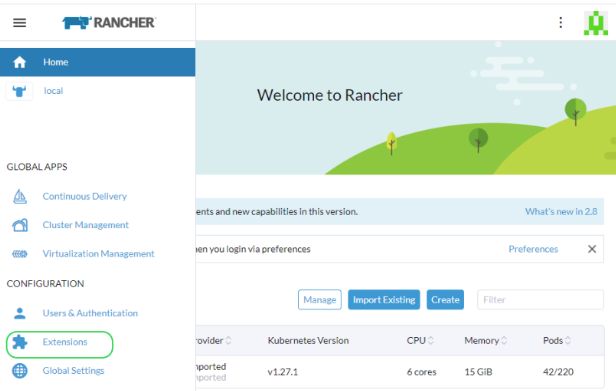 Figure 3.1: Rancher extensions #
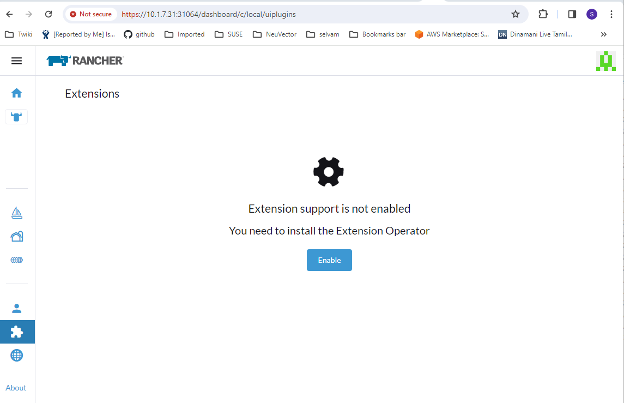 Figure 3.2: Enable extensions #
Install the SUSE Security-UI-Ext from the list.
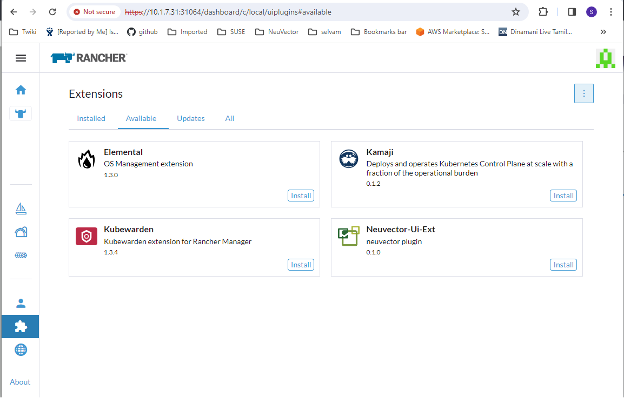 Figure 3.3: Install UI extension #
Reload the extension after installation is complete.
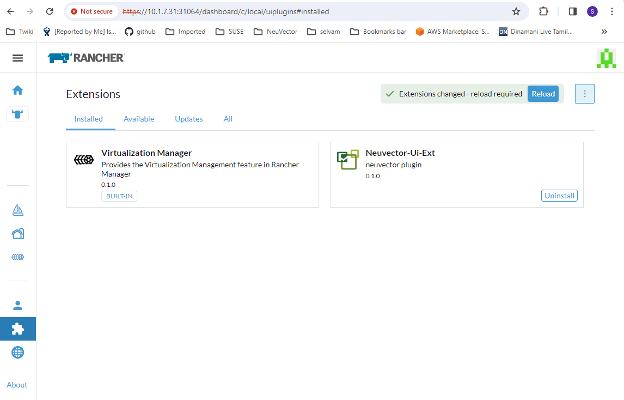 Figure 3.4: Reload extension #
On your selected cluster, install the SUSE Security application from the SUSE Security tab if the SUSE Security app is not already installed. This should take you to the application installation steps. For more details on this installation process, see Section 3.5.1.2, “Deploy SUSE Security”.
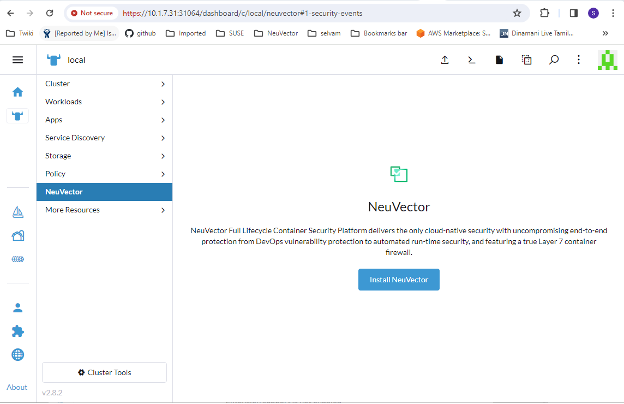 Figure 3.5: Install SUSE Security application #
The SUSE Security dashboard should now be shown from the SUSE Security menu for that cluster. From this dashboard, the security health of the cluster can be monitored. There are interactive elements in the dashboard, such as invoking a wizard to improve your Security Risk Score, including being able to turn on automated scanning for vulnerabilities if it is not enabled.
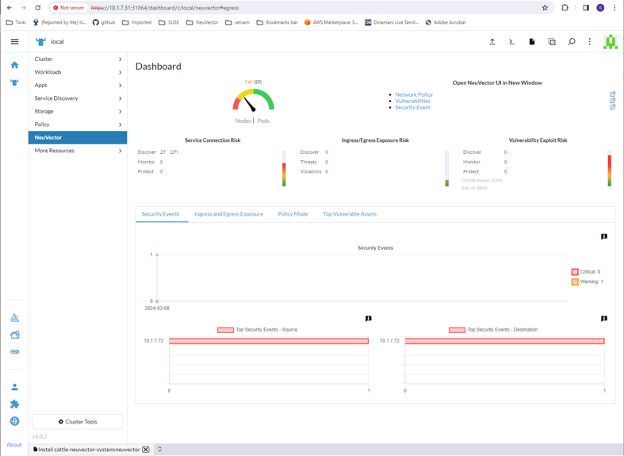 Figure 3.6: SUSE Security dasboard #
The links in the upper right of the dashboard provide convenient single sign-on (SSO) links to the full SUSE Security console for more detailed analysis and configuration.
To uninstall the extension, go back to the Extensions page.
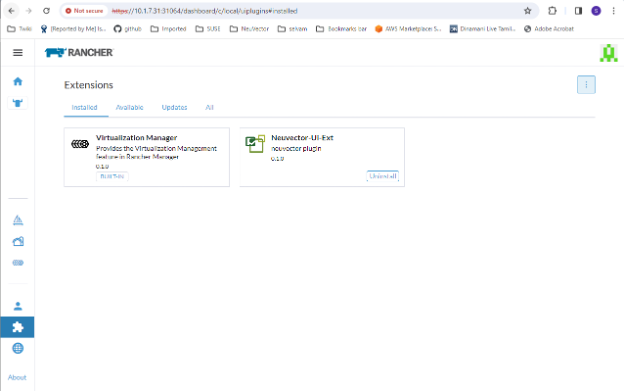 Figure 3.7: Uninstalling extension #Note
Uninstalling the SUSE Security UI extension does not uninstall the SUSE Security app from each cluster. The SUSE Security menu will revert to providing an SSO link into the SUSE Security console.
3.5.1.2 Deploy SUSE Security #
First, find the SUSE Security chart in Rancher charts, select it and review the instructions and configuration values. Optionally, create a project to deploy into if desired, for example, SUSE Security.
If you see more than one SUSE Security chart, do not select the one that is for upgrading legacy SUSE Security 4.x Helm chart deployments.
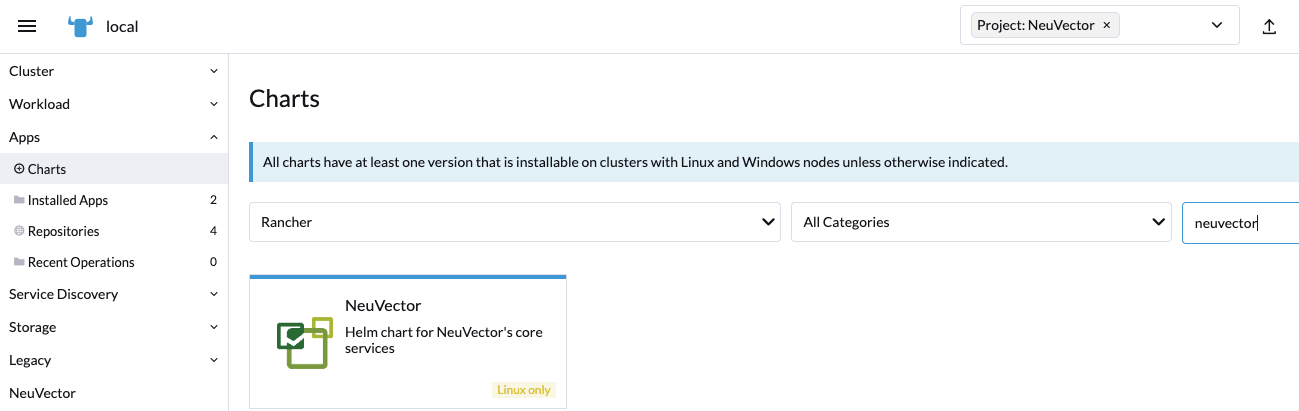
Deploy the SUSE Security chart, first configuring appropriate values for a Rancher deployment, such as:
Container runtime, such as Docker for RKE and containerd for RKE2, or select the K3s value if using K3s.
Manager service type: change to LoadBalancer if available on public cloud deployments. If access is only desired through Rancher, any allowed value will work here. See the Important note below about changing the default administration password in SUSE Security.
Indicate whether this cluster will be a multi-cluster federated primary or remote (or select both if either option is desired).
Persistent volume for configuration backups
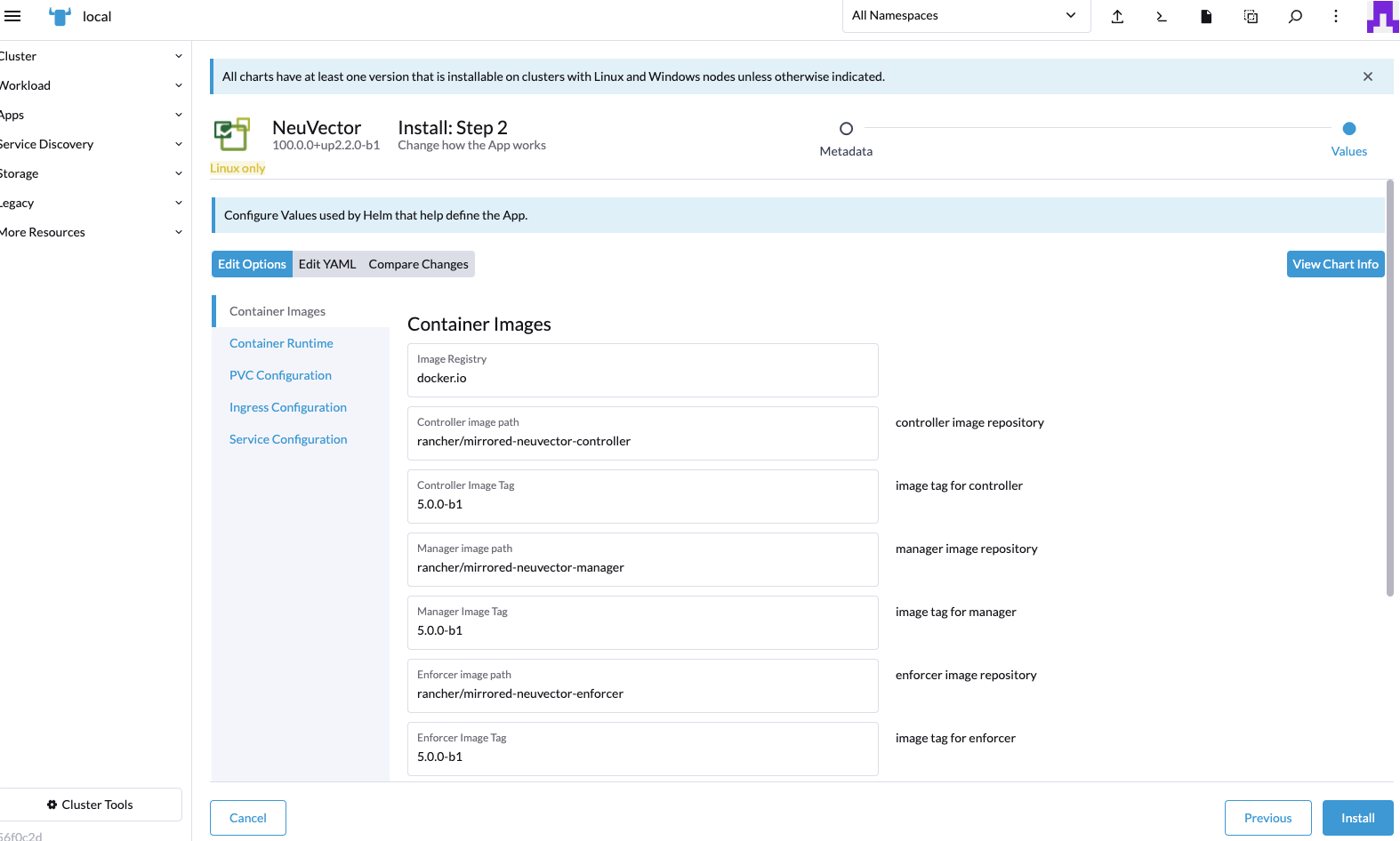
Click after you have reviewed and updated any chart values.
After a successful SUSE Security deployment, you will see a summary of the deployments, daemon sets, and cron jobs for SUSE Security. You will also be able to see the services deployed in the Services Discovery menu on the left.
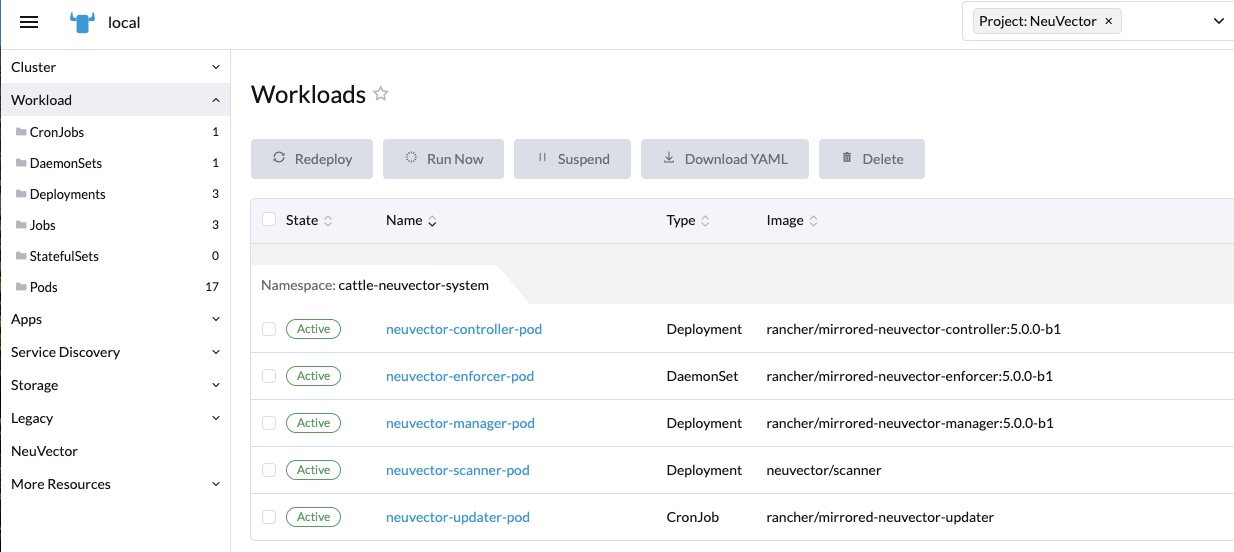
3.5.1.3 Manage SUSE Security #
You will now see a SUSE Security menu item in the left, and selecting that will show a SUSE Security tile/button, which when clicked will take you to the SUSE Security console, in a new tab.
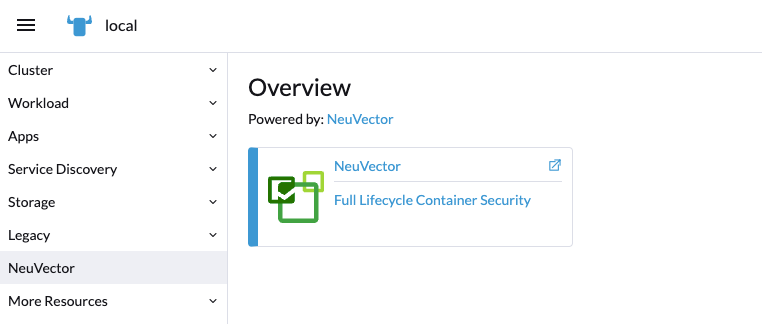
When this Single Sign-On (SSO) access method is used for the first time, a corresponding user in the SUSE Security cluster is created for the Rancher user login. The same user name as the Rancher logged-in user will be created in SUSE Security, with a role of either admin or fedAdmin, and Identity provider as Rancher.
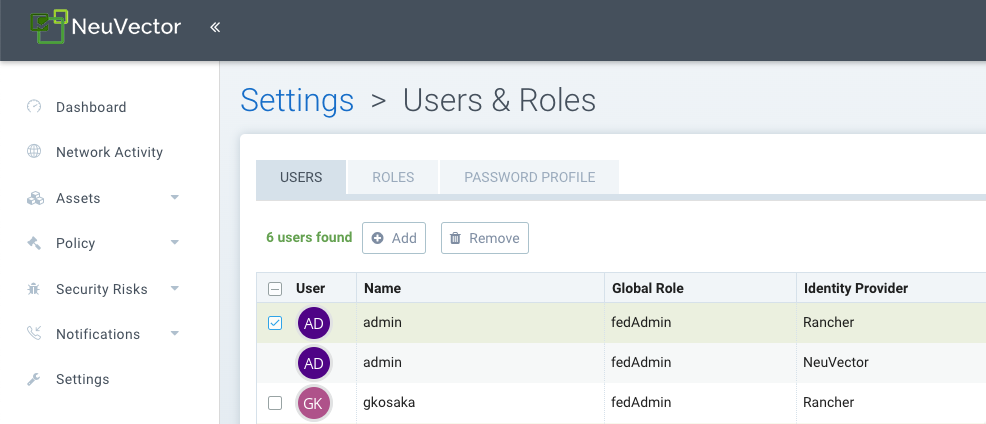
In the above screenshot, two Rancher users--admin and gkosaka--have been automatically created for SSO.
If another user is created manually in SUSE Security, the identity provider would be listed as SUSE Security, as shown below.
This local user can log in directly to the SUSE Security console without going through Rancher.

It is recommended to log in directly to the SUSE Security console as admin/admin to manually change the administrator password to a strong password. This will only change the SUSE Security identity provider administrator user password (you may see another administrator user whose identify provider is Rancher).
3.5.1.4 Neuvector/Rancher SSO permission resources #
The Rancher v2.9.2 UI provides for selecting Neuvector permission resources when creating Global/Cluster/Project/Namespaces roles.
When a Rancher user is assigned a role with a Neuvector permission resource, the user’s Neuvector SSO session is assigned the respective Neuvector permission accordingly.
This is to provide SSO users with custom roles other than the reserved admin/reader/fedAdmin/fedReader roles.
Below are the mapped permission resources used with applicable Global/Cluster/Project/Namespaces roles.
3.5.1.4.1 Mapped permission resources for Global/Cluster role #
Users will need to manually add * (Verbs) / services/proxy (Resource) to Neuvector-related Global/Cluster Roles.
API Groups:
permission.neuvector.com
Verbs:
get    // for read-only(i.e. view)
*      // for read/write(i.e. modify)
Resources:
Neuvector, Cluster Scoped
AdmissionControl
Authentication
CI Scan
Cluster
Federation
Vulnerability
Neuvector, Namespaced
AuditEvents
Authorization
Compliance
Events
Namespace
RegistryScan
RuntimePolicy
RuntimeScan
SecurityEvents
SystemConfig
3.5.1.4.2 Mapped permission resources for Project/Namespace role #
You will need to manually add * (Verbs) / services/proxy (Resource) to Neuvector-related Project/Namespace Roles.
API Groups:
permission.neuvector.com
Verbs:
get    // for read-only(i.e. view)
*      // for read/write(i.e. modify)
Resources:
Neuvector, Namespaced
AuditEvents
Authorization
Compliance
Events
Namespace
RegistryScan
RuntimePolicy
RuntimeScan
SecurityEvents
SystemConfig
3.5.1.5 Disabling SUSE Security/Rancher SSO #
To disable the ability to log in to SUSE Security from SUSE Rancher Prime, go to Settings → Configuration.
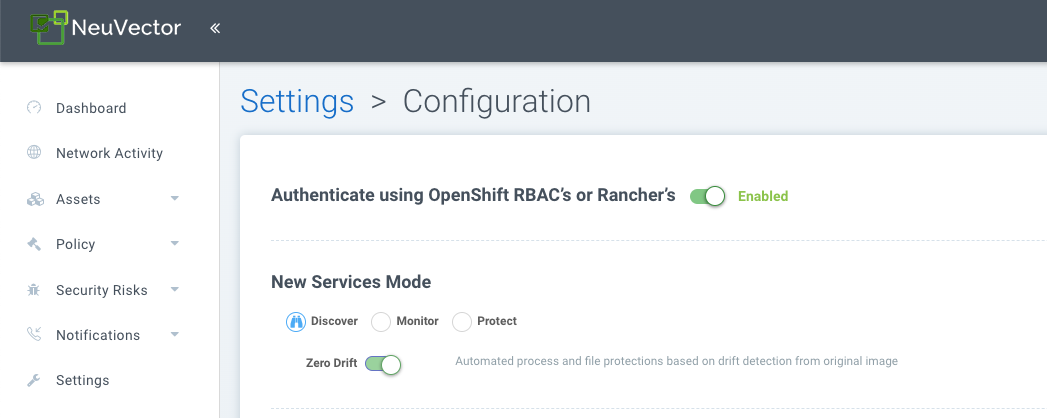
3.5.1.6 Rancher legacy deployments #
The sample file will deploy one manager and 3 controllers. It will deploy an enforcer on every node. See the bottom section for specifying dedicated manager or controller nodes using node labels.
We do not recommend deploying or scaling more than one manager behind a load balancer due to potential session state issues.
Deployment on Rancher 2.x/Kubernetes should follow the Kubernetes reference section and/or Helm-based deployment.
Deploy the catalog
docker-compose-dist.yml. Controllers will be deployed on the labeled nodes; enforcers will be deployed on the rest of the nodes. (The sample file can be modified so that enforcers are only deployed to the specified nodes.)Pick one controller for the manager to connect to. Modify the manager’s catalog file
docker-compose-manager.yml, setCTRL_SERVER_IPto the controller’s IP, then deploy the manager catalog.
Here are the sample compose files. If you wish to deploy only one or two of the components, just use that section of the file.
SUSE Rancher Prime/Controller/Enforcer Compose Sample File:
manager:
   scale: 1
   image: neuvector/manager
   restart: always
   environment:
     - CTRL_SERVER_IP=controller
   ports:
     - 8443:8443
controller:
   scale: 3
   image: neuvector/controller
   restart: always
   privileged: true
   environment:
     - CLUSTER_JOIN_ADDR=controller
   volumes:
     - /var/run/docker.sock:/var/run/docker.sock
     - /proc:/host/proc:ro
     - /sys/fs/cgroup:/host/cgroup:ro
     - /var/neuvector:/var/neuvector
enforcer:
   image: neuvector/enforcer
   pid: host
   restart: always
   privileged: true
   environment:
     - CLUSTER_JOIN_ADDR=controller
   volumes:
     - /lib/modules:/lib/modules
     - /var/run/docker.sock:/var/run/docker.sock
     - /proc:/host/proc:ro
     - /sys/fs/cgroup/:/host/cgroup/:ro
   labels:
     io.rancher.scheduler.global: true
3.5.1.7 Deploy without privileged mode #
On certain systems, deployment without using privileged mode is supported. These systems must support the ability to add capabilities using the cap_add setting and to set the AppArmor profile.
Here is a sample Rancher compose file for deployment without privileged mode:
manager:
   scale: 1
   image: neuvector/manager
   restart: always
   environment:
     - CTRL_SERVER_IP=controller
   ports:
     - 8443:8443
controller:
   scale: 3
   image: neuvector/controller
   pid: host
   restart: always
   cap_add:
     - SYS_ADMIN
     - NET_ADMIN
     - SYS_PTRACE
   security_opt:
     - apparmor=unconfined
     - seccomp=unconfined
     - label=disable
   environment:
     - CLUSTER_JOIN_ADDR=controller
   volumes:
     - /var/run/docker.sock:/var/run/docker.sock
     - /proc:/host/proc:ro
     - /sys/fs/cgroup:/host/cgroup:ro
     - /var/neuvector:/var/neuvector
enforcer:
   image: neuvector/enforcer
   pid: host
   restart: always
   cap_add:
     - SYS_ADMIN
     - NET_ADMIN
     - SYS_PTRACE
     - IPC_LOCK
   security_opt:
     - apparmor=unconfined
     - seccomp=unconfined
     - label=disable
   environment:
     - CLUSTER_JOIN_ADDR=controller
   volumes:
     - /lib/modules:/lib/modules
     - /var/run/docker.sock:/var/run/docker.sock
     - /proc:/host/proc:ro
     - /sys/fs/cgroup/:/host/cgroup/:ro
   labels:
     io.rancher.scheduler.global: true
3.5.1.8 Using node labels for manager and controller nodes #
To control which nodes the Manager and Controller are deployed on, label each node. Pick the nodes where the controllers are to be deployed. Label them with 'nvcontroller=true'. With the current sample file, no more than one controller can run on the same node.
For the manager node, label it 'nvmanager=true'.
Add labels to the YAML file. For example, for the manager:
   labels:
     io.rancher.scheduler.global: true
     io.rancher.scheduler.affinity:host_label: "nvmanager=true"
For the controller:
   labels:
     io.rancher.scheduler.global: true
     io.rancher.scheduler.affinity:host_label: "nvcontroller=true"
For the enforcer, to prevent it from running on a controller node (if desired):
  labels:
     io.rancher.scheduler.global: true
     io.rancher.scheduler.affinity:host_label_ne: "nvcontroller=true"
3.5.2 Installing SUSE Security using Kubernetes #
You can use Kubernetes to deploy separate manager, controller and enforcer containers and make sure that all new nodes have an enforcer deployed. SUSE Security requires and supports Kubernetes network plug-ins such as flannel, weave and calico.
The sample file will deploy one manager and 3 controllers. It will deploy an enforcer on every node as a daemonset. By default, the sample below will deploy to the Master node as well.
Refer to Section 3.5.2.3, “Using node labels for manager and controller nodes” for specifying dedicated manager or controller nodes using node labels.
It is not recommended to deploy (scale) more than one manager behind a load balancer due to potential session state issues. If you plan to use a PersistentVolume claim to store the backup of SUSE Security configuration files, please see the general Backup/Persistent Data section in the Deploying SUSE Security overview.
If your deployment supports an integrated load balancer, change type NodePort to LoadBalancer for the console in the YAML file below.
SUSE Security supports Helm-based deployment with a Helm chart at https://github.com/neuvector/neuvector-helm.
There is a separate section for OpenShift instructions, and EE on Kubernetes has some special steps described in the Docker section.
3.5.2.1 SUSE Security images on Docker Hub #
The images are on the SUSE Security Docker Hub registry. Use the appropriate version tag for the manager, controller and enforcer, and leave the version as 'latest' for scanner and updater. For example:
neuvector/manager:5.4.3neuvector/controller:5.4.3neuvector/enforcer:5.4.3neuvector/scanner:latestneuvector/updater:latest
Be sure to update the image references in the appropriate YAML files.
If deploying with the current SUSE Security Helm chart (v1.8.9+), the following changes should be made to values.yml:
Update the registry to
docker.io.Update image names and tags to the current version on Docker Hub, as shown above.
Leave
imagePullSecretsempty.
If deploying from the SUSE Rancher Prime 2.6.5+ SUSE Security chart, images are pulled automatically from the Rancher Registry mirrored image repo, and deployed into the cattle-neuvector-system namespace.
3.5.2.2 Deploy SUSE Security #
Create the SUSE Security namespace and the required service accounts:
> kubectl create namespace neuvector
> kubectl create sa controller -n neuvector
> kubectl create sa enforcer -n neuvector
> kubectl create sa basic -n neuvector
> kubectl create sa updater -n neuvector
> kubectl create sa scanner -n neuvector
> kubectl create sa registry-adapter -n neuvector
> kubectl create sa cert-upgrader -n neuvector
(Optional) Create the SUSE Security Pod Security Admission (PSA) or Pod Security Policy (PSP). If you have enabled Pod Security Admission (aka Pod Security Standards) in Kubernetes 1.25+, or Pod Security Policies (prior to 1.25) in your Kubernetes cluster, add the following for SUSE Security (for example,
nv_psp.yaml).NotePSP is deprecated in Kubernetes 1.21 and will be removed in 1.25.
The Manager and Scanner pods run without a UID. If your PSP has a rule
Run As User: Rule: MustRunAsNonRootthen add the following into the sample YAML below with the appropriate value for#:
securityContext:
    runAsUser: ###
For PSA in Kubernetes 1.25+, label the SUSE Security namespace with the privileged profile for deploying on a PSA-enabled cluster.
> kubectl label namespace neuvector \
  "pod-security.kubernetes.io/enforce=privileged"
Create the custom resources (CRD) for SUSE Security rules. For Kubernetes 1.19+:
NoteIf you are upgrading to version
5.4.6using YAML, you must deploy theresponserules-crd-k8s.yamlfile. If you are using Helm charts, this step is handled automatically, and no action is required.> kubectl apply -f https://raw.githubusercontent.com/neuvector/manifests/main/kubernetes/5.4.0/crd-k8s-1.19.yaml > kubectl apply -f https://raw.githubusercontent.com/neuvector/manifests/main/kubernetes/5.4.0/waf-crd-k8s-1.19.yaml > kubectl apply -f https://raw.githubusercontent.com/neuvector/manifests/main/kubernetes/5.4.0/dlp-crd-k8s-1.19.yaml > kubectl apply -f https://raw.githubusercontent.com/neuvector/manifests/main/kubernetes/5.4.0/com-crd-k8s-1.19.yaml > kubectl apply -f https://raw.githubusercontent.com/neuvector/manifests/main/kubernetes/5.4.0/vul-crd-k8s-1.19.yaml > kubectl apply -f https://raw.githubusercontent.com/neuvector/manifests/main/kubernetes/5.4.0/admission-crd-k8s-1.19.yaml > kubectl apply -f https://raw.githubusercontent.com/neuvector/manifests/main/kubernetes/5.4.0/5.4.3_group-definition-k8s.yaml > kubectl apply -f https://raw.githubusercontent.com/neuvector/manifests/main/kubernetes/5.4.0/5.4.3_group-definition-k8s > kubectl apply -f https://raw.githubusercontent.com/neuvector/manifests/main/kubernetes/5.4.0/responserules-crd-k8s.yamlAdd read permission to access the Kubernetes API.
ImportantThe standard SUSE Security 5.2+ deployment uses least-privileged service accounts instead of the default. See below if upgrading from a version prior to 5.3.
WarningIf you are upgrading to 5.3.0+, run the following commands based on your current version:
Version 5.2.0:
> kubectl delete clusterrole neuvector-binding-nvsecurityrules \
  neuvector-binding-nvadmissioncontrolsecurityrules \
  neuvector-binding-nvdlpsecurityrules \
  neuvector-binding-nvwafsecurityrules
Versions prior to 5.2.0:
> kubectl delete clusterrolebinding \
  neuvector-binding-app neuvector-binding-rbac \
  neuvector-binding-admission \
  neuvector-binding-customresourcedefinition \
  neuvector-binding-nvsecurityrules \
  neuvector-binding-view \
  neuvector-binding-nvwafsecurityrules \
  neuvector-binding-nvadmissioncontrolsecurityrules \
  neuvector-binding-nvdlpsecurityrules
> kubectl delete rolebinding neuvector-admin -n neuvector
Apply the read permissions via the following
create clusterrolecommands:> kubectl create clusterrole neuvector-binding-app --verb=get,list,watch,update --resource=nodes,pods,services,namespaces > kubectl create clusterrole neuvector-binding-rbac --verb=get,list,watch --resource=rolebindings.rbac.authorization.k8s.io,roles.rbac.authorization.k8s.io,clusterrolebindings.rbac.authorization.k8s.io,clusterroles.rbac.authorization.k8s.io > kubectl create clusterrolebinding neuvector-binding-app --clusterrole=neuvector-binding-app --serviceaccount=neuvector:controller > kubectl create clusterrolebinding neuvector-binding-rbac --clusterrole=neuvector-binding-rbac --serviceaccount=neuvector:controller > kubectl create clusterrole neuvector-binding-admission --verb=get,list,watch,create,update,delete --resource=validatingwebhookconfigurations,mutatingwebhookconfigurations > kubectl create clusterrolebinding neuvector-binding-admission --clusterrole=neuvector-binding-admission --serviceaccount=neuvector:controller > kubectl create clusterrole neuvector-binding-customresourcedefinition --verb=watch,create,get,update --resource=customresourcedefinitions > kubectl create clusterrolebinding neuvector-binding-customresourcedefinition --clusterrole=neuvector-binding-customresourcedefinition --serviceaccount=neuvector:controller > kubectl create clusterrole neuvector-binding-nvsecurityrules --verb=get,list,delete --resource=nvsecurityrules,nvclustersecurityrules > kubectl create clusterrole neuvector-binding-nvadmissioncontrolsecurityrules --verb=get,list,delete --resource=nvadmissioncontrolsecurityrules > kubectl create clusterrole neuvector-binding-nvdlpsecurityrules --verb=get,list,delete --resource=nvdlpsecurityrules > kubectl create clusterrole neuvector-binding-nvwafsecurityrules --verb=get,list,delete --resource=nvwafsecurityrules > kubectl create clusterrolebinding neuvector-binding-nvsecurityrules --clusterrole=neuvector-binding-nvsecurityrules --serviceaccount=neuvector:controller > kubectl create clusterrolebinding neuvector-binding-view --clusterrole=view --serviceaccount=neuvector:controller > kubectl create clusterrolebinding neuvector-binding-nvwafsecurityrules --clusterrole=neuvector-binding-nvwafsecurityrules --serviceaccount=neuvector:controller > kubectl create clusterrolebinding neuvector-binding-nvadmissioncontrolsecurityrules --clusterrole=neuvector-binding-nvadmissioncontrolsecurityrules --serviceaccount=neuvector:controller > kubectl create clusterrolebinding neuvector-binding-nvdlpsecurityrules --clusterrole=neuvector-binding-nvdlpsecurityrules --serviceaccount=neuvector:controller > kubectl create role neuvector-binding-scanner --verb=get,patch,update,watch --resource=deployments -n neuvector > kubectl create rolebinding neuvector-binding-scanner --role=neuvector-binding-scanner --serviceaccount=neuvector:updater --serviceaccount=neuvector:controller -n neuvector > kubectl create role neuvector-binding-secret --verb=get --resource=secrets -n neuvector > kubectl create rolebinding neuvector-binding-secret --role=neuvector-binding-secret --serviceaccount=neuvector:controller -n neuvector > kubectl create role neuvector-binding-secret --verb=get,list,watch --resource=secrets -n neuvector > kubectl create rolebinding neuvector-binding-secret --role=neuvector-binding-secret --serviceaccount=neuvector:controller --serviceaccount=neuvector:enforcer --serviceaccount=neuvector:scanner --serviceaccount=neuvector:registry-adapter -n neuvector > kubectl create clusterrole neuvector-binding-nvcomplianceprofiles --verb=get,list,delete --resource=nvcomplianceprofiles > kubectl create clusterrolebinding neuvector-binding-nvcomplianceprofiles --clusterrole=neuvector-binding-nvcomplianceprofiles --serviceaccount=neuvector:controller > kubectl create clusterrole neuvector-binding-nvvulnerabilityprofiles --verb=get,list,delete --resource=nvvulnerabilityprofiles > kubectl create clusterrolebinding neuvector-binding-nvvulnerabilityprofiles --clusterrole=neuvector-binding-nvvulnerabilityprofiles --serviceaccount=neuvector:controller > kubectl apply -f https://raw.githubusercontent.com/neuvector/manifests/main/kubernetes/5.4.0/neuvector-roles-k8s.yaml > kubectl create role neuvector-binding-lease --verb=create,get,update --resource=leases -n neuvector > kubectl create rolebinding neuvector-binding-cert-upgrader --role=neuvector-binding-cert-upgrader --serviceaccount=neuvector:cert-upgrader -n neuvector > kubectl create rolebinding neuvector-binding-job-creation --role=neuvector-binding-job-creation --serviceaccount=neuvector:controller -n neuvector > kubectl create rolebinding neuvector-binding-lease --role=neuvector-binding-lease --serviceaccount=neuvector:controller --serviceaccount=neuvector:cert-upgrader -n neuvector > kubectl create clusterrole neuvector-binding-nvgroupdefinitions --verb=list,get,delete --resource=nvgroupdefinitions > kubectl create clusterrolebinding neuvector-binding-nvgroupdefinitions --clusterrole=neuvector-binding-nvgroupdefinitions --serviceaccount=neuvector:controller > kubectl create role neuvector-binding-secret-controller --verb=create,patch,update --resource=secrets -n neuvector > kubectl create rolebinding neuvector-binding-secret-controller --role=neuvector-binding-secret-controller --serviceaccount=neuvector:controller --serviceaccount=neuvector:default -n neuvector > kubectl create clusterrole neuvector-binding-nvresponserulesecurityrules --verb=get,list,delete --resource=nvresponserulesecurityrules > kubectl create clusterrolebinding neuvector-binding-nvresponserulesecurityrules --clusterrole=neuvector-binding-nvresponserulesecurityrules --serviceaccount=neuvector:controllerRun the following commands to check if the neuvector/controller and neuvector/updater service accounts are added successfully.
> kubectl get ClusterRoleBinding \
  neuvector-binding-app neuvector-binding-rbac \
  neuvector-binding-admission \
  neuvector-binding-customresourcedefinition \
  neuvector-binding-nvsecurityrules \
  neuvector-binding-view \
  neuvector-binding-nvwafsecurityrules \
  neuvector-binding-nvadmissioncontrolsecurityrules \
  neuvector-binding-nvdlpsecurityrules \
  neuvector-binding-nvgroupdefinitions \
  neuvector-binding-nvresponserulesecurityrules -o wide
Sample output:
NAME                                                ROLE                                                            AGE   USERS   GROUPS   SERVICEACCOUNTS
neuvector-binding-app                               ClusterRole/neuvector-binding-app                               66d                    neuvector/controller
neuvector-binding-rbac                              ClusterRole/neuvector-binding-rbac                              66d                    neuvector/controller
neuvector-binding-admission                         ClusterRole/neuvector-binding-admission                         66d                    neuvector/controller
neuvector-binding-customresourcedefinition          ClusterRole/neuvector-binding-customresourcedefinition          66d                    neuvector/controller
neuvector-binding-nvsecurityrules                   ClusterRole/neuvector-binding-nvsecurityrules                   66d                    neuvector/controller
neuvector-binding-view                              ClusterRole/view                                                66d                    neuvector/controller
neuvector-binding-nvwafsecurityrules                ClusterRole/neuvector-binding-nvwafsecurityrules                66d                    neuvector/controller
neuvector-binding-nvadmissioncontrolsecurityrules   ClusterRole/neuvector-binding-nvadmissioncontrolsecurityrules   66d                    neuvector/controller
neuvector-binding-nvdlpsecurityrules                ClusterRole/neuvector-binding-nvdlpsecurityrules                66d                    neuvector/controller
neuvector-binding-nvgroupdefinitions                ClusterRole/neuvector-binding-nvgroupdefinitions                66d                    neuvector/controller
And this command:
> kubectl get RoleBinding neuvector-binding-scanner \
  neuvector-binding-cert-upgrader \
  neuvector-binding-job-creation \
  neuvector-binding-lease \
  neuvector-binding-secret -n neuvector -o wide
Sample output:
NAME                              ROLE                                   AGE    USERS   GROUPS   SERVICEACCOUNTS
neuvector-binding-scanner         Role/neuvector-binding-scanner         8m8s                    neuvector/controller, neuvector/updater
neuvector-binding-cert-upgrader   Role/neuvector-binding-cert-upgrader   8m8s                    neuvector/cert-upgrader
neuvector-binding-job-creation    Role/neuvector-binding-job-creation    8m8s                    neuvector/controller
neuvector-binding-lease           Role/neuvector-binding-lease           8m8s                    neuvector/controller, neuvector/cert-upgrader
neuvector-binding-secret          Role/neuvector-binding-secret          8m8s                    neuvector/controller, neuvector/enforcer, neuvector/scanner, neuvector/registry-adapter
(Optional) Create the Federation Master and/or Remote Multi-Cluster Management Services. If you plan to use the multi-cluster management functions in SUSE Security, one cluster must have the Federation Master service deployed, and each remote cluster must have the Federation Worker service. For flexibility, you may choose to deploy both Master and Worker services on each cluster so any cluster can be a master or remote.
apiVersion: v1
kind: Service
metadata:
  name: neuvector-service-controller-fed-master
  namespace: neuvector
spec:
  ports:
  - port: 11443
    name: fed
    protocol: TCP
  type: LoadBalancer
  selector:
    app: neuvector-controller-pod

---

apiVersion: v1
kind: Service
metadata:
  name: neuvector-service-controller-fed-worker
  namespace: neuvector
spec:
  ports:
  - port: 10443
    name: fed
    protocol: TCP
  type: LoadBalancer
  selector:
    app: neuvector-controller-pod
Then create the appropriate service(s):
> kubectl create -f nv_master_worker.yamlCreate the primary SUSE Security services and pods using the preset version commands or modify the sample YAML below. The preset version invokes a LoadBalancer for the SUSE Security Console. If using the sample YAML file below, replace the image names and
VERSIONtags for the manager, controller and enforcer image references in the YAML file. Also, make any other modifications required for your deployment environment (such as LoadBalancer/NodePort/Ingress for manager access). The YAML below needs to be changed for internal certificate changes if deployed from v5.4.2 or above. Refer to this Section 3.5.2.7, “Kubernetes deployment YAML for v5.4.2 onwards”.> kubectl apply -f https://raw.githubusercontent.com/neuvector/manifests/main/kubernetes/5.4.0/neuvector-k8s.yamlOr, if modifying any of the above YAML or samples from below:
> kubectl create -f neuvector.yamlNow you should be able to connect to the SUSE Security console and log in with admin:admin, for example:
https://<PUBLIC-IP>:8443
The nodeport service specified in the neuvector.yaml file will open a random port on all Kubernetes nodes for the SUSE Security Management Web console port.
Alternatively, you can use a LoadBalancer or Ingress, using a public IP and default port 8443.
For nodeport, be sure to open access through firewall rules for that port, if needed.
To see which port is open on the host nodes, please run the following commands:
> kubectl get svc -n neuvectorAnd you will see something like:
NAME                          CLUSTER-IP      EXTERNAL-IP   PORT(S)                                          AGE
neuvector-service-webui     10.100.195.99     <nodes>       8443:30257/TCP                                   15m
PKS Change
PKS is field-tested and requires enabling privileged containers to the plan/tile, and changing the YAML hostPath as follows for All-in-One, Controller and Enforcer:
hostPath:
  path: /var/vcap/sys/run/docker/docker.sock
Master node taints and tolerations
All taint info must match to schedule Enforcers on nodes. To check the taint info on a node (such as Master):
> kubectl get node taintnodename -o yamlSample output:
spec:
  taints:
  - effect: NoSchedule
    key: node-role.kubernetes.io/master
  # there may be an extra info for taint as below
  - effect: NoSchedule
    key: mykey
    value: myvalue
If there are additional taints as above, add these to the sample YAML tolerations section:
spec:
  template:
    spec:
      tolerations:
        - effect: NoSchedule
          key: node-role.kubernetes.io/master
        - effect: NoSchedule
          key: node-role.kubernetes.io/control-plane
        # if there is an extra info for taints as above, please add it here.
        # This is required to match all the taint info defined on the taint
        # node. Otherwise, the Enforcer won't deploy on the taint node
        - effect: NoSchedule
          key: mykey
          value: myvalue
3.5.2.3 Using node labels for manager and controller nodes #
To control which nodes the Manager and Controller are deployed on, label each node.
Replace NODE_NAME with the appropriate node name (“kubectl get nodes”).
Note: By default, Kubernetes will not schedule pods on the master node.
> kubectl label nodes <NODE_NAME> nvcontroller=trueThen add a nodeSelector to the YAML file for the Manager and Controller deployment sections. For example:
          - mountPath: /host/cgroup
              name: cgroup-vol
              readOnly: true
      nodeSelector:
        nvcontroller: "true"
      restartPolicy: Always
To prevent the enforcer from being deployed on a controller node, if it is a dedicated management node (without application containers to be monitored), add a nodeAffinity to the Enforcer YAML section. For example:
  app: neuvector-enforcer-pod
    spec:
      affinity:
        nodeAffinity:
          requiredDuringSchedulingIgnoredDuringExecution:
            nodeSelectorTerms:
              - matchExpressions:
                - key: nvcontroller
                  operator: NotIn
                  values: ["true"]
      imagePullSecrets:
3.5.2.4 Rolling updates #
Orchestration tools such as Kubernetes, Red Hat OpenShift, and Rancher support rolling updates with configurable policies. You can use this feature to update the SUSE Security containers. The most important thing will be to ensure that there is at least one Controller (or All-in-One) running so that policies, logs and connection data are not lost. Make sure that there is a minimum of 120 seconds between container updates so that a new leader can be elected and the data synchronized between controllers.
The provided sample deployment YAMLs already configure the rolling update policy. If you are updating via the SUSE Security Helm chart, please pull the latest chart to properly configure new features such as admission control, and delete the old cluster role and cluster role binding for SUSE Security. If you are updating via Kubernetes, you can manually update to a new version with the sample commands below.
3.5.2.4.1 Sample Kubernetes rolling update #
For upgrades that just need to update to a new image version, you can use this simple approach.
If your Deployment or DaemonSet is already running, you can change the YAML file to the new version, then apply the update:
> kubectl apply -f <YAML_FILE>This will update to a new version of SUSE Security from the command line.
For the controller as a Deployment (also do the same for the manager):
> kubectl set image deployment/neuvector-controller-pod \
  neuvector-controller-pod=neuvector/controller:<VERSION> -n neuvector
For any container as a DaemonSet:
> kubectl set image -n neuvector \
  ds/neuvector-enforcer-pod neuvector-enforcer-pod=neuvector/enforcer:<VERSION>
To check the status of the rolling update:
> kubectl rollout status -n neuvector ds/neuvector-enforcer-pod
> kubectl rollout status -n neuvector deployment/neuvector-controller-pod
To roll back the update:
> kubectl rollout undo -n neuvector ds/neuvector-enforcer-pod
> kubectl rollout undo -n neuvector deployment/neuvector-controller-pod
3.5.2.5 Expose REST API in Kubernetes #
To expose the REST API for access from outside of the Kubernetes cluster, here is a sample YAML file:
apiVersion: v1
kind: Service
metadata:
  name: neuvector-service-rest
  namespace: neuvector
spec:
  ports:
    - port: 10443
      name: controller
      protocol: TCP
  type: LoadBalancer
  selector:
    app: neuvector-controller-pod
Please see the Automation section for more info on the REST API.
3.5.2.6 Kubernetes deployment in non-privileged mode #
The following instructions can be used to deploy SUSE Security without using privileged mode containers. The controller is already in non-privileged mode and enforcer deployment should be changed, which is shown in the excerpted snippets below.
Enforcer:
spec:
  template:
    metadata:
      annotations:
        container.apparmor.security.beta.kubernetes.io/neuvector-enforcer-pod: unconfined
        # this line is required to be added if k8s version is pre-v1.19
        # container.seccomp.security.alpha.kubernetes.io/neuvector-enforcer-pod: unconfined
    spec:
      containers:
          securityContext:
            # the following two lines are required for k8s v1.19+.
            # Comment out both lines if version is pre-1.19.
            # Otherwise, a validating data error message will show
            seccompProfile:
              type: Unconfined
            capabilities:
              add:
              - SYS_ADMIN
              - NET_ADMIN
              - SYS_PTRACE
              - IPC_LOCK
3.5.2.7 Kubernetes deployment YAML for v5.4.2 onwards #
The following sample YAML is for versions 5.4.2 and onwards where we need to mount the internal certificates on Controller, Enforcer and Scanner pods since we do not support hardcoded certificates anymore. Create the internal-certificate secret from the given link before deploying: Replacing Internal Certificates.
apiVersion: v1
kind: Service
metadata:
  name: neuvector-svc-crd-webhook
  namespace: neuvector
spec:
  ports:
  - port: 443
    targetPort: 30443
    protocol: TCP
    name: crd-webhook
  type: ClusterIP
  selector:
    app: neuvector-controller-pod

---

apiVersion: v1
kind: Service
metadata:
  name: neuvector-svc-admission-webhook
  namespace: neuvector
spec:
  ports:
  - port: 443
    targetPort: 20443
    protocol: TCP
    name: admission-webhook
  type: ClusterIP
  selector:
    app: neuvector-controller-pod

---

apiVersion: v1
kind: Service
metadata:
  name: neuvector-service-webui
  namespace: neuvector
spec:
  ports:
    - port: 8443
      name: manager
      protocol: TCP
  type: LoadBalancer
  selector:
    app: neuvector-manager-pod

---

apiVersion: v1
kind: Service
metadata:
  name: neuvector-svc-controller
  namespace: neuvector
spec:
  ports:
  - port: 18300
    protocol: "TCP"
    name: "cluster-tcp-18300"
  - port: 18301
    protocol: "TCP"
    name: "cluster-tcp-18301"
  - port: 18301
    protocol: "UDP"
    name: "cluster-udp-18301"
  clusterIP: None
  selector:
    app: neuvector-controller-pod

---

apiVersion: apps/v1
kind: Deployment
metadata:
  name: neuvector-manager-pod
  namespace: neuvector
spec:
  selector:
    matchLabels:
      app: neuvector-manager-pod
  replicas: 1
  template:
    metadata:
      labels:
        app: neuvector-manager-pod
    spec:
      serviceAccountName: basic
      serviceAccount: basic
      containers:
        - name: neuvector-manager-pod
          image: neuvector/manager:5.4.3
          env:
            - name: CTRL_SERVER_IP
              value: neuvector-svc-controller.neuvector
      restartPolicy: Always

---

apiVersion: apps/v1
kind: Deployment
metadata:
  name: neuvector-controller-pod
  namespace: neuvector
spec:
  selector:
    matchLabels:
      app: neuvector-controller-pod
  minReadySeconds: 60
  strategy:
    type: RollingUpdate
    rollingUpdate:
      maxSurge: 1
      maxUnavailable: 0
  replicas: 3
  template:
    metadata:
      labels:
        app: neuvector-controller-pod
    spec:
      affinity:
        podAntiAffinity:
          preferredDuringSchedulingIgnoredDuringExecution:
          - weight: 100
            podAffinityTerm:
              labelSelector:
                matchExpressions:
                - key: app
                  operator: In
                  values:
                  - neuvector-controller-pod
              topologyKey: "kubernetes.io/hostname"
      serviceAccountName: controller
      serviceAccount: controller
      containers:
        - name: neuvector-controller-pod
          image: neuvector/controller:5.4.3
          securityContext:
            runAsUser: 0
          readinessProbe:
            exec:
              command:
              - cat
              - /tmp/ready
            failureThreshold: 3
            initialDelaySeconds: 5
            periodSeconds: 5
            successThreshold: 1
            timeoutSeconds: 1
          env:
            - name: CLUSTER_JOIN_ADDR
              value: neuvector-svc-controller.neuvector
            - name: CLUSTER_ADVERTISED_ADDR
              valueFrom:
                fieldRef:
                  fieldPath: status.podIP
            - name: CLUSTER_BIND_ADDR
              valueFrom:
                fieldRef:
                  fieldPath: status.podIP
          volumeMounts:
            - mountPath: /etc/config
              name: config-volume
              readOnly: true
            - mountPath: /etc/neuvector/certs/internal/cert.key
              name: internal-cert
              readOnly: true
              subPath: tls.key
            - mountPath: /etc/neuvector/certs/internal/cert.pem
              name: internal-cert
              readOnly: true
              subPath: tls.crt
            - mountPath: /etc/neuvector/certs/internal/ca.cert
              name: internal-cert
              readOnly: true
              subPath: ca.crt
      terminationGracePeriodSeconds: 300
      restartPolicy: Always
      volumes:
        - name: config-volume
          projected:
            sources:
              - configMap:
                  name: neuvector-init
                  optional: true
              - secret:
                  name: neuvector-init
                  optional: true
              - secret:
                  name: neuvector-secret
                  optional: true
        - name: internal-cert
          secret:
            defaultMode: 420
            secretName: internal-cert

---

apiVersion: apps/v1
kind: DaemonSet
metadata:
  name: neuvector-enforcer-pod
  namespace: neuvector
spec:
  selector:
    matchLabels:
      app: neuvector-enforcer-pod
  updateStrategy:
    type: RollingUpdate
  template:
    metadata:
      labels:
        app: neuvector-enforcer-pod
    spec:
      tolerations:
        - effect: NoSchedule
          key: node-role.kubernetes.io/master
        - effect: NoSchedule
          key: node-role.kubernetes.io/control-plane
      hostPID: true
      serviceAccountName: enforcer
      serviceAccount: enforcer
      containers:
        - name: neuvector-enforcer-pod
          image: neuvector/enforcer:5.4.3
          securityContext:
            privileged: true
          env:
            - name: CLUSTER_JOIN_ADDR
              value: neuvector-svc-controller.neuvector
            - name: CLUSTER_ADVERTISED_ADDR
              valueFrom:
                fieldRef:
                  fieldPath: status.podIP
            - name: CLUSTER_BIND_ADDR
              valueFrom:
                fieldRef:
                  fieldPath: status.podIP
          volumeMounts:
            - mountPath: /lib/modules
              name: modules-vol
              readOnly: true
            - mountPath: /var/nv_debug
              name: nv-debug
              readOnly: false
            - mountPath: /etc/neuvector/certs/internal/cert.key
              name: internal-cert
              readOnly: true
              subPath: tls.key
            - mountPath: /etc/neuvector/certs/internal/cert.pem
              name: internal-cert
              readOnly: true
              subPath: tls.crt
            - mountPath: /etc/neuvector/certs/internal/ca.cert
              name: internal-cert
              readOnly: true
              subPath: ca.crt
      terminationGracePeriodSeconds: 1200
      restartPolicy: Always
      volumes:
        - name: modules-vol
          hostPath:
            path: /lib/modules
        - name: nv-debug
          hostPath:
            path: /var/nv_debug
        - name: internal-cert
          secret:
            defaultMode: 420
            secretName: internal-cert

---

apiVersion: apps/v1
kind: Deployment
metadata:
  name: neuvector-scanner-pod
  namespace: neuvector
spec:
  selector:
    matchLabels:
      app: neuvector-scanner-pod
  strategy:
    type: RollingUpdate
    rollingUpdate:
      maxSurge: 1
      maxUnavailable: 0
  replicas: 2
  template:
    metadata:
      labels:
        app: neuvector-scanner-pod
    spec:
      serviceAccountName: scanner
      serviceAccount: scanner
      containers:
        - name: neuvector-scanner-pod
          image: neuvector/scanner:latest
          imagePullPolicy: Always
          env:
            - name: CLUSTER_JOIN_ADDR
              value: neuvector-svc-controller.neuvector
          volumeMounts:
            - mountPath: /etc/neuvector/certs/internal/cert.key
              name: internal-cert
              readOnly: true
              subPath: tls.key
            - mountPath: /etc/neuvector/certs/internal/cert.pem
              name: internal-cert
              readOnly: true
              subPath: tls.crt
            - mountPath: /etc/neuvector/certs/internal/ca.cert
              name: internal-cert
              readOnly: true
              subPath: ca.crt
      restartPolicy: Always
      volumes:
        - name: internal-cert
          secret:
            defaultMode: 420
            secretName: internal-cert
---

apiVersion: batch/v1
kind: CronJob
metadata:
  name: neuvector-updater-pod
  namespace: neuvector
spec:
  schedule: "0 0 * * *"
  jobTemplate:
    spec:
      template:
        metadata:
          labels:
            app: neuvector-updater-pod
        spec:
          serviceAccountName: updater
          serviceAccount: updater
          containers:
          - name: neuvector-updater-pod
            image: neuvector/updater:latest
            imagePullPolicy: Always
            command:
            - /bin/sh
            - -c
            - TOKEN=`cat /var/run/secrets/kubernetes.io/serviceaccount/token`; /usr/bin/curl -kv -X PATCH -H "Authorization:Bearer $TOKEN" -H "Content-Type:application/strategic-merge-patch+json" -d '{"spec":{"template":{"metadata":{"annotations":{"kubectl.kubernetes.io/restartedAt":"'`date +%Y-%m-%dT%H:%M:%S%z`'"}}}}}' 'https://kubernetes.default/apis/apps/v1/namespaces/neuvector/deployments/neuvector-scanner-pod'
          restartPolicy: Never
The following sample is a complete deployment reference (Kubernetes 1.19+).
apiVersion: v1
kind: Service
metadata:
  name: neuvector-svc-crd-webhook
  namespace: neuvector
spec:
  ports:
  - port: 443
    targetPort: 30443
    protocol: TCP
    name: crd-webhook
  type: ClusterIP
  selector:
    app: neuvector-controller-pod

---

apiVersion: v1
kind: Service
metadata:
  name: neuvector-svc-admission-webhook
  namespace: neuvector
spec:
  ports:
  - port: 443
    targetPort: 20443
    protocol: TCP
    name: admission-webhook
  type: ClusterIP
  selector:
    app: neuvector-controller-pod

---

apiVersion: v1
kind: Service
metadata:
  name: neuvector-service-webui
  namespace: neuvector
spec:
  ports:
    - port: 8443
      name: manager
      protocol: TCP
  type: LoadBalancer
  selector:
    app: neuvector-manager-pod

---

apiVersion: v1
kind: Service
metadata:
  name: neuvector-svc-controller
  namespace: neuvector
spec:
  ports:
  - port: 18300
    protocol: "TCP"
    name: "cluster-tcp-18300"
  - port: 18301
    protocol: "TCP"
    name: "cluster-tcp-18301"
  - port: 18301
    protocol: "UDP"
    name: "cluster-udp-18301"
  clusterIP: None
  selector:
    app: neuvector-controller-pod

---

apiVersion: apps/v1
kind: Deployment
metadata:
  name: neuvector-manager-pod
  namespace: neuvector
spec:
  selector:
    matchLabels:
      app: neuvector-manager-pod
  replicas: 1
  template:
    metadata:
      labels:
        app: neuvector-manager-pod
    spec:
      serviceAccountName: basic
      serviceAccount: basic
      containers:
        - name: neuvector-manager-pod
          image: neuvector/manager:5.4.3
          env:
            - name: CTRL_SERVER_IP
              value: neuvector-svc-controller.neuvector
      restartPolicy: Always

---

apiVersion: apps/v1
kind: Deployment
metadata:
  name: neuvector-controller-pod
  namespace: neuvector
spec:
  selector:
    matchLabels:
      app: neuvector-controller-pod
  minReadySeconds: 60
  strategy:
    type: RollingUpdate
    rollingUpdate:
      maxSurge: 1
      maxUnavailable: 0
  replicas: 3
  template:
    metadata:
      labels:
        app: neuvector-controller-pod
    spec:
      affinity:
        podAntiAffinity:
          preferredDuringSchedulingIgnoredDuringExecution:
          - weight: 100
            podAffinityTerm:
              labelSelector:
                matchExpressions:
                - key: app
                  operator: In
                  values:
                  - neuvector-controller-pod
              topologyKey: "kubernetes.io/hostname"
      serviceAccountName: controller
      serviceAccount: controller
      containers:
        - name: neuvector-controller-pod
          image: neuvector/controller:5.4.3
          securityContext:
            runAsUser: 0
          readinessProbe:
            exec:
              command:
              - cat
              - /tmp/ready
            initialDelaySeconds: 5
            periodSeconds: 5
          env:
            - name: CLUSTER_JOIN_ADDR
              value: neuvector-svc-controller.neuvector
            - name: CLUSTER_ADVERTISED_ADDR
              valueFrom:
                fieldRef:
                  fieldPath: status.podIP
            - name: CLUSTER_BIND_ADDR
              valueFrom:
                fieldRef:
                  fieldPath: status.podIP
          volumeMounts:
            - mountPath: /etc/config
              name: config-volume
              readOnly: true
      terminationGracePeriodSeconds: 300
      restartPolicy: Always
      volumes:
        - name: config-volume
          projected:
            sources:
              - configMap:
                  name: neuvector-init
                  optional: true
              - secret:
                  name: neuvector-init
                  optional: true
              - secret:
                  name: neuvector-secret
                  optional: true

---

apiVersion: apps/v1
kind: DaemonSet
metadata:
  name: neuvector-enforcer-pod
  namespace: neuvector
spec:
  selector:
    matchLabels:
      app: neuvector-enforcer-pod
  updateStrategy:
    type: RollingUpdate
  template:
    metadata:
      labels:
        app: neuvector-enforcer-pod
      annotations:
        container.apparmor.security.beta.kubernetes.io/neuvector-enforcer-pod: unconfined
      # Add the following for pre-v1.19
      # container.seccomp.security.alpha.kubernetes.io/neuvector-enforcer-pod: unconfined
    spec:
      tolerations:
        - effect: NoSchedule
          key: node-role.kubernetes.io/master
        - effect: NoSchedule
          key: node-role.kubernetes.io/control-plane
      hostPID: true
      serviceAccountName: enforcer
      serviceAccount: enforcer
      containers:
        - name: neuvector-enforcer-pod
          image: neuvector/enforcer:5.4.3
          securityContext:
            # the following two lines are required for k8s v1.19+. pls comment out both lines if version is pre-1.19. Otherwise, a validating data error message will show
            seccompProfile:
              type: Unconfined
            capabilities:
              add:
              - SYS_ADMIN
              - NET_ADMIN
              - SYS_PTRACE
              - IPC_LOCK
          env:
            - name: CLUSTER_JOIN_ADDR
              value: neuvector-svc-controller.neuvector
            - name: CLUSTER_ADVERTISED_ADDR
              valueFrom:
                fieldRef:
                  fieldPath: status.podIP
            - name: CLUSTER_BIND_ADDR
              valueFrom:
                fieldRef:
                  fieldPath: status.podIP
          volumeMounts:
            - mountPath: /lib/modules
              name: modules-vol
              readOnly: true
            - mountPath: /var/nv_debug
              name: nv-debug
              readOnly: false
      terminationGracePeriodSeconds: 1200
      restartPolicy: Always
      volumes:
        - name: modules-vol
          hostPath:
            path: /lib/modules
        - name: nv-debug
          hostPath:
            path: /var/nv_debug

---

apiVersion: apps/v1
kind: Deployment
metadata:
  name: neuvector-scanner-pod
  namespace: neuvector
spec:
  selector:
    matchLabels:
      app: neuvector-scanner-pod
  strategy:
    type: RollingUpdate
    rollingUpdate:
      maxSurge: 1
      maxUnavailable: 0
  replicas: 2
  template:
    metadata:
      labels:
        app: neuvector-scanner-pod
    spec:
      serviceAccountName: scanner
      serviceAccount: scanner
      containers:
        - name: neuvector-scanner-pod
          image: neuvector/scanner:latest
          imagePullPolicy: Always
          env:
            - name: CLUSTER_JOIN_ADDR
              value: neuvector-svc-controller.neuvector
      restartPolicy: Always

---

apiVersion: batch/v1
kind: CronJob
metadata:
  name: neuvector-updater-pod
  namespace: neuvector
spec:
  schedule: "0 0 * * *"
  jobTemplate:
    spec:
      template:
        metadata:
          labels:
            app: neuvector-updater-pod
        spec:
          serviceAccountName: updater
          serviceAccount: updater
          containers:
          - name: neuvector-updater-pod
            image: neuvector/updater:latest
            imagePullPolicy: Always
            command:
            - TOKEN=`cat /var/run/secrets/kubernetes.io/serviceaccount/token`; /usr/bin/curl -kv -X PATCH -H "Authorization:Bearer $TOKEN" -H "Content-Type:application/strategic-merge-patch+json" -d '{"spec":{"template":{"metadata":{"annotations":{"kubectl.kubernetes.io/restartedAt":"'`date +%Y-%m-%dT%H:%M:%S%z`'"}}}}}' 'https://kubernetes.default/apis/apps/v1/namespaces/neuvector/deployments/neuvector-scanner-pod'
          restartPolicy: Never
3.5.2.8 PKS change #
PKS is field-tested and requires enabling privileged containers to the plan/tile, and changing the YAML hostPath as follows for All-in-One and Enforcer:
      hostPath:
            path: /var/vcap/sys/run/docker/docker.sock
3.6 Setting up SUSE Observability for SUSE AI #
SUSE Observability provides comprehensive monitoring and insights into your infrastructure and applications. It enables efficient tracking of metrics, logs and traces, helping you maintain optimal performance and troubleshoot issues effectively. This procedure guides you through setting up SUSE Observability for the SUSE AI environment using the SUSE AI Observability Extension.
3.6.1 Deployment scenarios #
You can deploy SUSE Observability and SUSE AI in two different ways:
Single-Cluster setup: Both SUSE AI and SUSE Observability are installed in the same Kubernetes cluster. This is a simpler approach ideal for testing and proof-of-concept deployments. Communication between components can use internal cluster DNS.
Multi-Cluster setup: SUSE AI and SUSE Observability are installed on separate, dedicated Kubernetes clusters. This setup is recommended for production environments because it isolates workloads. Communication requires exposing the SUSE Observability endpoints externally, for example, via an Ingress.
This section provides instructions for both scenarios.
3.6.2 Requirements #
To set up SUSE Observability for SUSE AI, you need to meet the following requirements:
Have access to SUSE Application Collection
Have a valid SUSE AI subscription
Have a valid license for SUSE Observability in SUSE Customer Center
Instrument your applications for telemetry data acquisition with OpenTelemetry.
For details on how to collect traces and metrics from SUSE AI components and user-developed applications, refer to Monitoring SUSE AI with OpenTelemetry and SUSE Observability. It includes configurations that are essential for full observability.
Applications from the SUSE Application Collection are not instrumented by default. If you want to monitor your AI applications, you need to follow the instrumentation guidelines that we provide in the document Monitoring SUSE AI with OpenTelemetry and SUSE Observability.
3.6.3 Setup process overview #
The following chart shows the high-level steps for the setup procedure. You will first set up the SUSE Observability cluster, then configure the SUSE AI cluster, and finally instrument your applications. Execute the steps in each column from left to right and top to bottom.
Blue steps are related to Helm chart installations.
Gray steps represent another type of interaction, such as coding.
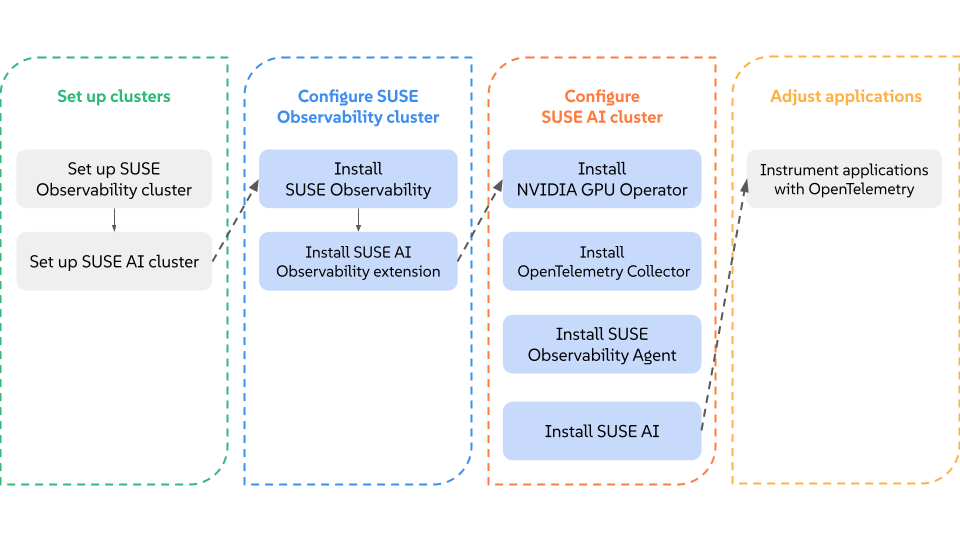
You can create and configure Kubernetes clusters for SUSE AI and SUSE Observability as you prefer. If you are using SUSE Rancher Prime, check its documentation. For testing purposes, you can even share one cluster for both deployments. You can skip instructions on setting up a specific cluster if you already have one configured.
The diagram below shows the result of the above steps. There are two clusters represented, one for the SUSE Observability workload and another one for SUSE AI. You may use identical setup or customize it for your environment.
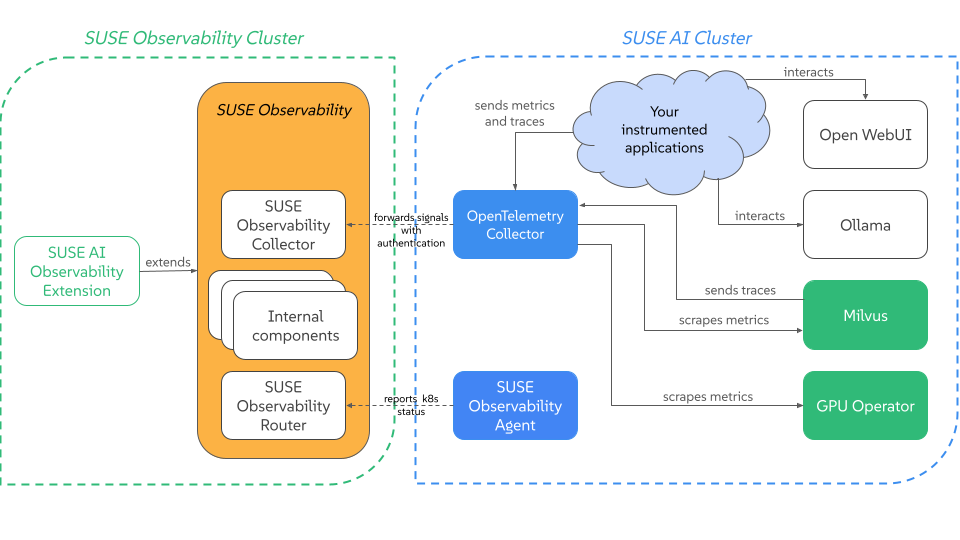
You can install SUSE AI Observability Extension alongside SUSE Observability. It means that you can confidently use the internal Kubernetes DNS.
SUSE Observability contains several components and the following two of them need to be accessible by the AI Cluster:
The Collector endpoint. Refer to Exposing SUSE Observability outside of the cluster or Self-hosted SUSE Observability for details about exposing it.
The SUSE Observability API. Refer to Exposing SUSE Observability outside of the cluster for details about exposing it.
Milvus metrics and traces can be scraped by the OpenTelemetry Collector with simple configurations, provided below. The same is true for GPU metrics.
To get information from Open WebUI, Ollama or vLLM, you must have a specific instrumentation set. It can be an application instrumented with the OpenLIT SDK or other form of instrumentation following the same patterns.
Remember that in multi-cluster setups, it is critical to properly expose your endpoints. Configure TLS, be careful with the configuration, and make sure to provide the right keys and tokens. More details are provided in the respective instructions.
3.6.4 Setting up the SUSE Observability cluster #
This initial step is identical for both single-cluster and multi-cluster deployments.
Install SUSE Observability. You can follow the official SUSE Observability installation documentation for all installation instructions. Remember to expose your APIs and collector endpoints to your SUSE AI cluster.
Important: Multi-cluster setupFor multi-cluster setups, you must expose the SUSE Observability API and collector endpoints so that the SUSE AI cluster can reach them. Refer to the guide on exposing SUSE Observability outside of the cluster.
Install the SUSE Observability extension. Create a new Helm values file named
genai_values.yaml. Before creating the file, review the placeholders below.- SUSE_OBSERVABILITY_API_URL
The URL of the SUSE Observability API. For multi-cluster deployments, this is the external URL. For single-cluster deployments, this can be the internal service URL. Example:
https://suse-observability-api.your-domain.com- SUSE_OBSERVABILITY_API_KEY
The API key from the
baseConfig_values.yamlfile used during the SUSE Observability installation.- SUSE_OBSERVABILITY_API_TOKEN_TYPE
Can be
apifor a token from the Web UI orservicefor a Service Token (used for automation/CI).- SUSE_OBSERVABILITY_TOKEN
The API or Service token itself. Ignored if
existingSecretis set.- TLS_CA_CERTIFICATE
The CA certificate content in PEM format (optional). Ignored if
tls.existingSecretis set.- OBSERVED_CLUSTER_NAMES
A list of Kubernetes cluster names to install StackPacks for. Each cluster listed here will get a kubernetes-v2 StackPack instance provisioned in SUSE Observability. Example:
["suse-ai-cluster"].Create the
genai_values.yamlfile with the following content:global: imagePullSecrets: - application-collection 1 serverUrl: <SUSE_OBSERVABILITY_API_URL> tokenType: <SUSE_OBSERVABILITY_API_TOKEN_TYPE> apiToken: <SUSE_OBSERVABILITY_TOKEN> 2 kubernetesClusters: 3 - <OBSERVED_CLUSTER_NAME> tls: 4 enabled: false skipVerify: false existingSecret: "" certificates: ca: "<TLS_CA_CERTIFICATE>"
Instructs Helm to use credentials from the SUSE Application Collection. For instructions on how to configure the image pull secrets for the SUSE Application Collection, refer to the official documentation.
Alternatively, you can reference an existing Kubernetes secret by setting
existingSecretandexistingSecretKeyinstead of providing the token inline. This is the recommended approach for production deployments.List of Kubernetes cluster names to install StackPacks for. Add one entry per cluster you want to observe.
Provides optional TLS configuration for secure communication. Set
tls.enabledtotrueand provide a CA certificate viatls.certificates.caor reference an existing secret withtls.existingSecret. Settls.skipVerifytotrueonly for development and testing environments.Run the install command.
> helm upgrade --install ai-obs \
  oci://dp.apps.rancher.io/charts/suse-ai-observability-extension \
  -f genai_values.yaml --namespace so-extensions --create-namespace
Note: TLS and self-signed certificatesThe extension supports TLS communication. If you are using self-signed certificates or a custom CA, you can provide the certificate content in the
tls.certificatessection of thegenai_values.yamlfile. Alternatively, consider running the extension in the same cluster as SUSE Observability and then use the internal Kubernetes address.Note: OpenTelemetry GenAI Semantic Conventions compatibilityThe SUSE AI Observability Extension is compatible with the OpenTelemetry Semantic Conventions for Generative AI as defined in version v1.40.0. These conventions are currently in Development status within the OpenTelemetry specification.
Important: Upgrading from version 1.5.0 to 2.0.0When upgrading the SUSE AI Observability Extension from version 1.5.0 to 2.0.0, you must also update the OpenTelemetry Collector and the SUSE AI Filter (
suse_ai_filter.py) to their corresponding versions. These components are designed to work together, and running mismatched versions may result in missing telemetry data or broken topology views.After the installation is complete, a new menu called is added to the Web interface and also a Kubernetes cron job is created that synchronizes the topology view with the components found in the SUSE AI cluster.
Verify SUSE Observability extension. After the installation, you can verify that a new lateral menu appears:
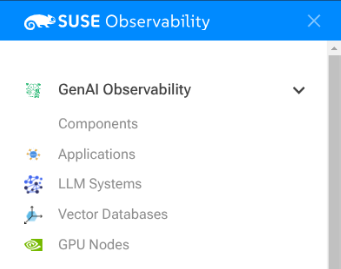 Figure 3.17: New GenAI Observability menu item #
3.6.5 Setting up the SUSE AI cluster #
Follow the instructions for your deployment scenario.
- Single-cluster deployment
In this setup, the SUSE AI components are installed in the same cluster as SUSE Observability and can communicate using internal service DNS.
- Multi-cluster deployment
In this setup, the SUSE AI cluster is separate. Communication relies on externally exposed endpoints of the SUSE Observability cluster.
The difference between deployment scenarios affects the OTEL Collector exporter configuration and the SUSE Observability Agent URL. Adjust the following values to match your SUSE Observability configuration.
- SUSE_OBSERVABILITY_API_URL
The URL of the SUSE Observability API.
Single-cluster example: http://suse-observability-otel-collector.suse-observability.svc.cluster.local:4317
Multi-cluster example: https://suse-observability-api.your-domain.com
- SUSE_OBSERVABILITY_COLLECTOR_ENDPOINT
The endpoint of the SUSE Observability Collector.
Single-cluster example: http://suse-observability-router.suse-observability.svc.cluster.local:8080/receiver/stsAgent
Multi-cluster example: https://suse-observability-router.your-domain.com/receiver/stsAgent
Install NVIDIA GPU Operator. Follow the instructions in https://documentation.suse.com/cloudnative/rke2/latest/en/advanced.html#_deploy_nvidia_operator.
Install OpenTelemetry collector. Create the namespace for the collector if it does not exist yet.
> kubectl create namespace observabilityCreate a secret with your SUSE Observability API key. Retrieve the API key using the Web UI or from the
baseConfig_values.yamlfile that you used during the SUSE Observability installation.> kubectl create secret generic open-telemetry-collector \ --namespace observability \ --from-literal=API_KEY='<SUSE_OBSERVABILITY_API_KEY>'Create the image pull secret for the SUSE Registry. The username is
regcodeand the password is the SCC registration code of your SUSE AI subscription.> kubectl create secret docker-registry suse-ai-registry \ --docker-server=registry.suse.com \ --docker-username=regcode \ --docker-password=<SCC_REG_CODE> \ -n observabilityCreate a new file named
otel-values.yamlwith the following content.global: imagePullSecrets: - suse-ai-registry extraEnvs: - name: K8S_CLUSTER_NAME value: "<CLUSTER_NAME>" 1 - name: SUSE_AI_NAMESPACE value: "<SUSE_AI_NAMESPACE>" 2 extraEnvsFrom: - secretRef: name: open-telemetry-collector mode: deployment clusterRole: create: true rules: - apiGroups: [""] resources: ["pods", "nodes", "endpoints", "services"] verbs: ["get", "list", "watch"] image: registry: registry.suse.com repository: ai/containers/suse-ai-opentelemetry-collector tag: 0.149.0 pullPolicy: IfNotPresent ports: metrics: enabled: true presets: kubernetesAttributes: enabled: true extractAllPodLabels: true config: receivers: elasticsearch: endpoint: "http://opensearch-cluster-master-headless.<OPENSEARCH_NAMESPACE>.svc.cluster.local:9200" # If you have basic auth enabled: username: "admin" password: "MySecurePass123" # If using self-signed certs or internal CAs: tls: insecure_skip_verify: true collection_interval: 10s # Optional: Enable detailed node metrics metrics: elasticsearch.node.fs.disk.total: enabled: true elasticsearch.node.fs.disk.available: enabled: true prometheus: config: scrape_configs: - job_name: 'gpu-metrics' scrape_interval: 10s scheme: http kubernetes_sd_configs: - role: endpoints namespaces: names: - gpu-operator - job_name: 'milvus' scrape_interval: 15s metrics_path: '/metrics' static_configs: - targets: ['<MILVUS_SERVICE_NAME>.<SUSE_AI_NAMESPACE>.svc.cluster.local:9091'] 3 - job_name: 'qdrant' scrape_interval: 10s metrics_path: '/metrics' static_configs: - targets: ['<QDRANT_SERVICE_NAME>.<SUSE_AI_NAMESPACE>.svc.cluster.local:6333'] 4 - job_name: 'vllm' scrape_interval: 10s scheme: http kubernetes_sd_configs: - role: service relabel_configs: - source_labels: [__meta_kubernetes_namespace] action: keep regex: '<VLLM_NAMESPACE>' 5 - source_labels: [__meta_kubernetes_service_name] action: keep regex: '.*<VLLM_RELEASE_NAME>.*' 6 exporters: topology: endpoint: http://<SUSE_OBSERVABILITY_ROUTER_ENDPOINT>:8080 7 api_key: ${env:API_KEY} instance_url: ${env:K8S_CLUSTER_NAME} namespace: ${env:SUSE_AI_NAMESPACE} tls: 8 insecure_skip_verify: true otlp: endpoint: http://<OPEN_TELEMETRY_COLLECTOR_NAME>.suse-observability.svc.cluster.local:4317 9 headers: Authorization: "SUSEObservability ${env:API_KEY}" tls: insecure: true processors: resource/elasticsearch: attributes: - key: suse.ai.managed value: "true" action: insert - key: suse.ai.component.name value: "opensearch" action: insert - key: suse.ai.component.type value: "search-engine" action: insert - key: service.name value: "opensearch" action: insert - key: service.namespace value: ${env:SUSE_AI_NAMESPACE} action: insert - key: k8s.namespace.name value: ${env:SUSE_AI_NAMESPACE} action: upsert - key: service.instance.id value: "opensearch-cluster" action: insert transform/vllm: error_mode: ignore metric_statements: - context: resource statements: - set(attributes["suse.ai.managed"], "true") where attributes["service.name"] == "vllm" - set(attributes["suse.ai.component.name"], "vllm") where attributes["service.name"] == "vllm" - set(attributes["suse.ai.component.type"], "inference-engine") where attributes["service.name"] == "vllm" - set(attributes["service.instance.id"], "vllm") where attributes["service.name"] == "vllm" - set(attributes["k8s.namespace.name"], "${env:SUSE_AI_NAMESPACE}") where attributes["service.name"] == "vllm" transform/qdrant: error_mode: ignore metric_statements: - context: resource statements: - set(attributes["suse.ai.managed"], "true") where attributes["service.name"] == "qdrant" - set(attributes["suse.ai.component.name"], "qdrant") where attributes["service.name"] == "qdrant" - set(attributes["suse.ai.component.type"], "vectordb") where attributes["service.name"] == "qdrant" - set(attributes["k8s.namespace.name"], "${env:SUSE_AI_NAMESPACE}") where attributes["service.name"] == "qdrant" transform/milvus: error_mode: ignore metric_statements: - context: resource statements: - set(attributes["suse.ai.managed"], "true") where attributes["service.name"] == "milvus" - set(attributes["suse.ai.component.name"], "milvus") where attributes["service.name"] == "milvus" - set(attributes["suse.ai.component.type"], "vectordb") where attributes["service.name"] == "milvus" - set(attributes["k8s.namespace.name"], "${env:SUSE_AI_NAMESPACE}") where attributes["service.name"] == "milvus" tail_sampling: decision_wait: 10s policies: - name: rate-limited-composite type: composite composite: max_total_spans_per_second: 500 policy_order: [errors, slow-traces, rest] composite_sub_policy: - name: errors type: status_code status_code: status_codes: [ ERROR ] - name: slow-traces type: latency latency: threshold_ms: 1000 - name: rest type: always_sample rate_allocation: - policy: errors percent: 33 - policy: slow-traces percent: 33 - policy: rest percent: 34 resource: attributes: - key: k8s.cluster.name action: insert value: ${env:K8S_CLUSTER_NAME} - key: service.instance.id from_attribute: k8s.pod.uid action: insert # Infer inference engines from GenAI client metrics. filter/genai-metrics-only: error_mode: ignore metrics: metric: - not(IsMatch(name, "gen_ai\\..*")) groupbyattrs/infer-providers: keys: - gen_ai.provider.name transform/infer-providers: error_mode: ignore metric_statements: - context: resource statements: - set(attributes["service.name"], attributes["gen_ai.provider.name"]) where attributes["gen_ai.provider.name"] != nil - set(attributes["service.instance.id"], attributes["gen_ai.provider.name"]) where attributes["gen_ai.provider.name"] != nil - set(attributes["suse.ai.managed"], "true") where attributes["gen_ai.provider.name"] != nil - set(attributes["suse.ai.component.name"], attributes["gen_ai.provider.name"]) where attributes["gen_ai.provider.name"] != nil - set(attributes["suse.ai.component.type"], "inference-engine") where attributes["gen_ai.provider.name"] != nil - set(attributes["k8s.namespace.name"], "${env:SUSE_AI_NAMESPACE}") where attributes["gen_ai.provider.name"] != nil # Infer LLM models from GenAI client metrics. groupbyattrs/infer-models: keys: - gen_ai.request.model - gen_ai.provider.name transform/infer-models: error_mode: ignore metric_statements: - context: resource statements: - set(attributes["service.name"], attributes["gen_ai.request.model"]) where attributes["gen_ai.request.model"] != nil - set(attributes["service.instance.id"], attributes["gen_ai.request.model"]) where attributes["gen_ai.request.model"] != nil - set(attributes["suse.ai.managed"], "true") where attributes["gen_ai.request.model"] != nil - set(attributes["suse.ai.component.name"], attributes["gen_ai.request.model"]) where attributes["gen_ai.request.model"] != nil - set(attributes["suse.ai.component.type"], "llm-model") where attributes["gen_ai.request.model"] != nil - set(attributes["k8s.namespace.name"], "${env:SUSE_AI_NAMESPACE}") where attributes["gen_ai.request.model"] != nil # Exclude services that already have suse.ai.component.name set. filter/exclude-already-tagged: error_mode: ignore metrics: resource: - attributes["suse.ai.component.name"] != nil # Infer application components from GenAI client metrics. transform/infer-applications: error_mode: ignore metric_statements: - context: resource statements: - set(attributes["suse.ai.managed"], "true") - set(attributes["suse.ai.component.type"], "application") - set(attributes["suse.ai.component.name"], attributes["service.name"]) # Create provider -> model relations from GenAI trace spans. filter/genai-spans: error_mode: ignore traces: span: - attributes["gen_ai.request.model"] == nil groupbyattrs/model-relations: keys: - gen_ai.provider.name transform/model-relations: error_mode: ignore trace_statements: - context: resource statements: - set(attributes["service.name"], attributes["gen_ai.provider.name"]) where attributes["gen_ai.provider.name"] != nil - set(attributes["service.instance.id"], attributes["gen_ai.provider.name"]) where attributes["gen_ai.provider.name"] != nil - context: span statements: - set(attributes["peer.service"], attributes["gen_ai.request.model"]) where attributes["gen_ai.request.model"] != nil # Create application -> provider relations from GenAI trace spans. transform/provider-relations: error_mode: ignore trace_statements: - context: span statements: - set(attributes["peer.service"], resource.attributes["gen_ai.provider.name"]) where resource.attributes["gen_ai.provider.name"] != nil filter/dropMissingK8sAttributes: error_mode: ignore traces: span: - resource.attributes["k8s.node.name"] == nil - resource.attributes["k8s.pod.uid"] == nil - resource.attributes["k8s.namespace.name"] == nil - resource.attributes["k8s.pod.name"] == nil connectors: spanmetrics: metrics_expiration: 5m namespace: otel_span routing/traces: error_mode: ignore table: - statement: route() pipelines: [traces/sampling, traces/spanmetrics, traces/model-relations, traces/provider-relations, traces/topology] service: extensions: - health_check pipelines: traces: receivers: [otlp, jaeger] processors: [filter/dropMissingK8sAttributes, memory_limiter, resource] exporters: [routing/traces] traces/spanmetrics: receivers: [routing/traces] processors: [] exporters: [spanmetrics] traces/sampling: receivers: [routing/traces] processors: [tail_sampling, batch] exporters: [debug, otlp] metrics: receivers: [otlp, spanmetrics, prometheus] processors: [memory_limiter, transform/qdrant, transform/milvus, transform/vllm, resource, batch] exporters: [debug, otlp] # Infer inference engines from GenAI client metrics. metrics/infer-providers: receivers: [otlp] processors: [filter/genai-metrics-only, groupbyattrs/infer-providers, transform/infer-providers, resource, batch] exporters: [otlp] # Infer LLM models from GenAI client metrics. metrics/infer-models: receivers: [otlp] processors: [filter/genai-metrics-only, groupbyattrs/infer-models, transform/infer-models, resource, batch] exporters: [otlp] # Infer application components from GenAI client metrics. metrics/infer-applications: receivers: [otlp] processors: [filter/genai-metrics-only, filter/exclude-already-tagged, transform/infer-applications, resource, batch] exporters: [otlp] # Create provider -> model relations from trace spans. traces/model-relations: receivers: [routing/traces] processors: [filter/genai-spans, groupbyattrs/model-relations, transform/model-relations, batch] exporters: [otlp] # Create application -> provider relations from trace spans. traces/provider-relations: receivers: [routing/traces] processors: [filter/genai-spans, transform/provider-relations, batch] exporters: [otlp] # Push product topology to {sobservability}. traces/topology: receivers: [routing/traces] processors: [batch] exporters: [topology] metrics/elasticsearch: receivers: [elasticsearch] processors: [memory_limiter, resource/elasticsearch, resource, batch] exporters: [debug, otlp]Replace
<CLUSTER_NAME>with the cluster’s name.Replace
<SUSE_AI_NAMESPACE>with the namespace where SUSE AI components are installed.Configure the Milvus service and namespace for the Prometheus scraper. Because Milvus will be installed in subsequent steps, you can return to this step and edit the endpoint if necessary.
Configure the Qdrant service and namespace for the Prometheus scraper.
Update to match the values in the vLLM deployment section.
Update to match the values in the vLLM deployment section.
Set the topology exporter to your exposed SUSE Observability router. For single-cluster deployments, use the internal service URL (for example,
suse-observability-router.suse-observability.svc.cluster.local). For multi-cluster deployments, use the external URL.Optional TLS configuration for the topology exporter. Set
insecure_skip_verifytotruefor self-signed certificates.Set the exporter to your exposed SUSE Observability collector. Remember that the value can be distinct, depending on the deployment pattern. For production usage, we recommend using TLS communication.
Finally, run the installation command.
> helm upgrade --install opentelemetry-collector \
  oci://dp.apps.rancher.io/charts/opentelemetry-collector \
  -f otel-values.yaml --namespace observability
Verify the installation by checking the existence of a new deployment and service in the observability namespace.
Install the SUSE Observability Agent.
> helm upgrade --install \
  --namespace suse-observability --create-namespace \
  --set-string 'stackstate.apiKey'='<YOUR_API_KEY>' \ 1
  --set-string 'stackstate.cluster.name'='<CLUSTER_NAME>' \ 2
  --set-string 'stackstate.url'='http://suse-observability-router.suse-observability.svc.cluster.local:8080/receiver/stsAgent' \ 3
  --set 'nodeAgent.skipKubeletTLSVerify'=true suse-observability-agent \
  suse-observability/suse-observability-agent
Install SUSE AI. Refer to Chapter 4, Installing applications from AI Library for the complete procedure.
With SUSE Observability version 2.6.2, a change of the standard behavior broke the vLLM monitoring performed by the extension.
To fix it, update otel-values.yaml to include the following additions.
No changes are required for people using SUSE Observability version 2.6.1 and below.
Add a new processor.
config:
  processors:
    ... # same as before
    transform:
      metric_statements:
        - context: metric
          statements:
            - replace_pattern(name, "^vllm:", "vllm_")
Modify the metrics pipeline to perform the transformation defined above:
config:
  service:
    pipelines:
      ... # same as before
      metrics:
        receivers: [otlp, spanmetrics, prometheus]
        processors: [transform, memory_limiter, resource, batch]
        exporters: [debug, otlp]
3.6.6 Instrument applications #
Instrumentation is the act of configuring your applications for telemetry data acquisition. Our stack employs OpenTelemetry standards as a vendor-neutral and open base for our telemetry. For a comprehensive guide on how to set up your instrumentation, please refer to Monitoring SUSE AI with OpenTelemetry and SUSE Observability.
By following the instructions in the document referenced above, you will be able to retrieve all relevant telemetry data from Open WebUI, Ollama, Milvus and vLLM by simply applying specific configuration to their Helm chart values. You can find links for advanced use cases (auto-instrumentation with the OTEL Operator) at the end of the document.