2 Installing the Linux and Kubernetes distribution #
This procedure includes the steps to install the base Linux operating system and a Kubernetes distribution for users who start deploying on cluster nodes from scratch. If you already have Kubernetes cluster(s) installed and running, you can skip this procedure and continue with Section 4.3, “Installation procedure”.
Install and register a supported Linux operating system on each cluster node. We recommend using one of the following operating systems:
SUSE Linux Enterprise Server 15 SP6 for a traditional non-transactional operating system. For more information, see Section 2.1, “Installing SUSE Linux Enterprise Server”.
SUSE Linux Micro 6.1 for an immutable transactional operating system. For more information, see SUSE Linux Micro 6.1 documentation.
For a list of supported operating systems, refer to https://www.suse.com/suse-rancher/support-matrix/all-supported-versions/.
Install the NVIDIA GPU driver on cluster nodes with GPUs. Refer to Section 2.2, “Installing NVIDIA GPU drivers” for details.
Install Kubernetes on cluster nodes.
 Important: Separate clusters for specific SUSE AI components
For production deployments, we strongly recommended deploying Rancher, SUSE Observability, and workloads from the AI library to separate Kubernetes clusters.
We recommend using the supported SUSE Rancher Prime: RKE2 distribution. Refer to Section 2.3, “Installing SUSE Rancher Prime: RKE2” for details. For a list of supported Kubernetes platforms, refer to https://www.suse.com/suse-rancher/support-matrix/all-supported-versions/.
2.1 Installing SUSE Linux Enterprise Server #
Use the following procedures to install SLES on all supported hardware platforms. They assume you have successfully booted into the installation system. For more detailed installation instructions and deployment strategies, refer to SUSE Linux Enterprise Server Deployment Guide.
2.1.1 The Unified Installer #
Starting with SLES 15, the installation medium consists only of the Unified Installer, a minimal system for installing, updating and registering all SLE base products. During the installation, you can add functionality by selecting modules and extensions to be installed on top of the Unified Installer.
2.1.2 Installing offline or without registration #
The default installation medium 15 SP6-Online-ARCH-GM-media1.iso is optimized for size and does not contain any modules and extensions. Therefore, the installation requires network access to register your product and retrieve repository data for the modules and extensions.
For installation without registering the system, use the
15 SP6-Full-ARCH-GM-media1.iso image from
https://www.suse.com/download/sles/ and refer to
Installing without registration.

Use the following command to copy the contents of the installation image to a removable flash disk.
> sudo dd if=IMAGE of=FLASH_DISK bs=4M && syncIMAGE needs to be replaced with the path to
the 15 SP6-Online-ARCH-GM-media1.iso or
15 SP6-Full-ARCH-GM-media1.iso image file.
FLASH_DISK needs to be replaced with the
flash device. To identify the device, insert it and run:
# grep -Ff <(hwinfo --disk --short) <(hwinfo --usb --short)
disk:
  /dev/sdc             General USB Flash Disk
Make sure the size of the device is sufficient for the desired image. You can check the size of the device with:
# fdisk -l /dev/sdc | grep -e "^/dev"
     /dev/sdc1  *     2048 31490047 31488000  15G 83 Linux
In this example, the device has a capacity of 15 GB. The command to
use for the 15 SP6-Full-ARCH-GM-media1.iso would be:
dd if=15 SP6-Full-ARCH-GM-media1.iso of=/dev/sdc bs=4M && syncThe device must not be mounted when running the dd
command. Note that all data on the partition will be erased.
2.1.3 The installation procedure #
To install SLES, boot or IPL into the installer from the Unified Installer medium and start the installation.
2.1.3.1 Language, keyboard and product selection #
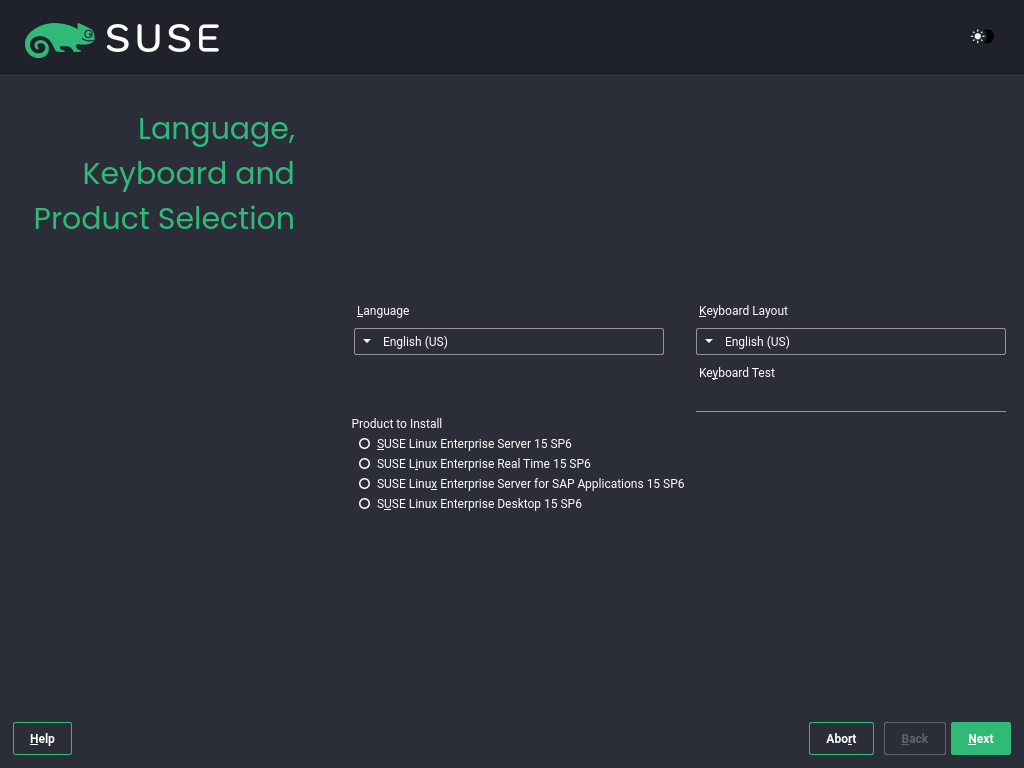
The and settings are initialized with the language you chose on the boot screen. If you do not change the default, it remains English (US). Change the settings here, if necessary. Use the text box to test the layout.
Select SUSE Linux Enterprise Server 15 SP6 for installation. You need to have a registration code for the product. Proceed with .
If you have difficulty reading the labels in the installer, you can change the widget colors and theme.
Click the  button or press
Shift–F3 to
open a theme selection dialog. Select a theme from the list and
the dialog.
button or press
Shift–F3 to
open a theme selection dialog. Select a theme from the list and
the dialog.
Shift–F4 switches to the color scheme for vision-impaired users. Press the buttons again to switch back to the default scheme.
2.1.3.2 License agreement #
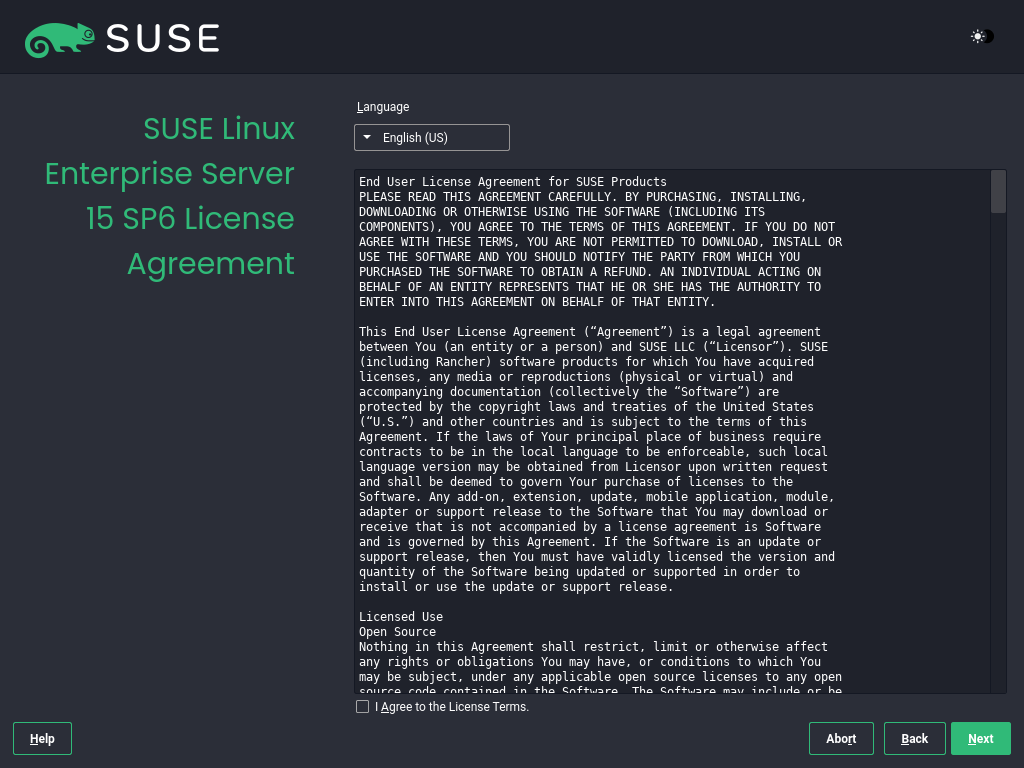
Read the License Agreement. It is presented in the language you have chosen on the boot screen. Translations are available via the drop-down list. You need to accept the agreement by checking to install SLES. Proceed with .
2.1.3.3 Network settings #
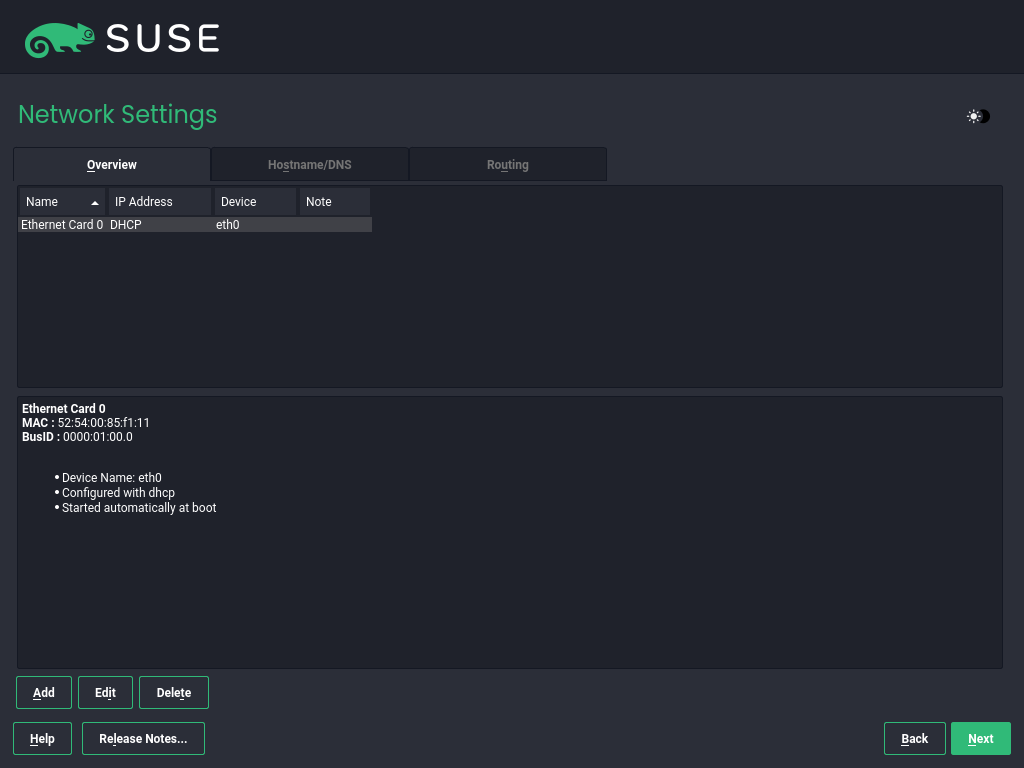
A system analysis is performed, where the installer probes for storage devices and tries to find other installed systems. If the network was automatically configured via DHCP during the start of the installation, you are presented the registration step.
If the network is not yet configured, the dialog opens. Choose a network interface from the list and configure it with . Alternatively, an interface manually. See the sections on installer network settings and configuring a network connection with YaST for more information. If you prefer to do an installation without network access, skip this step without making any changes and proceed with .
2.1.3.4 Registration #
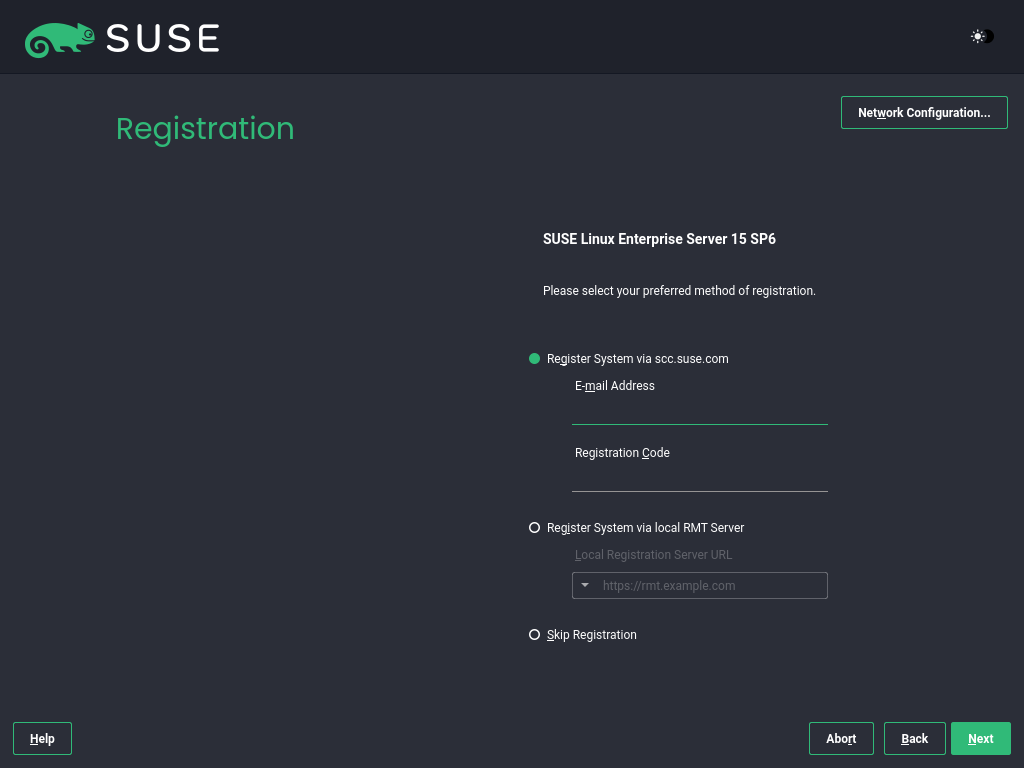
To get technical support and product updates, you need to register and activate SLES with the SUSE Customer Center or a local registration server. Registering your product at this stage also grants you immediate access to the update repository. This enables you to install the system with the latest updates and patches available.
When registering, repositories and dependencies for modules and extensions are loaded from the registration server.
To register at the SUSE Customer Center, enter the associated with your SUSE Customer Center account and the for SLES. Proceed with .
If your organization provides a local registration server, you may alternatively register to it. Activate and either choose a URL from the drop-down list or type in an address. Proceed with .
If you are offline or want to skip registration, activate . Accept the warning with and proceed with .
Important: Skipping the registrationYour system and extensions need to be registered to retrieve updates and to be eligible for support. Skipping the registration is only possible when installing from the
15 SP6-Full-ARCH-GM-media1.isoimage.If you do not register during the installation, you can do so at any time later from the running system. To do so, run › or the command-line tool
SUSEConnect.
After SLES has been successfully registered, you are asked whether to install the latest available online updates during the installation. If choosing , the system will be installed with the most current packages without having to apply the updates after installation. Activating this option is recommended.

By default, the firewall on SUSE AI only blocks incoming
connections. If your system is behind another firewall that blocks
outgoing traffic, make sure to allow connections to
https://scc.suse.com/ and
https://updates.suse.com on ports 80 and 443
to receive updates.
2.1.3.5 Extension and module selection #
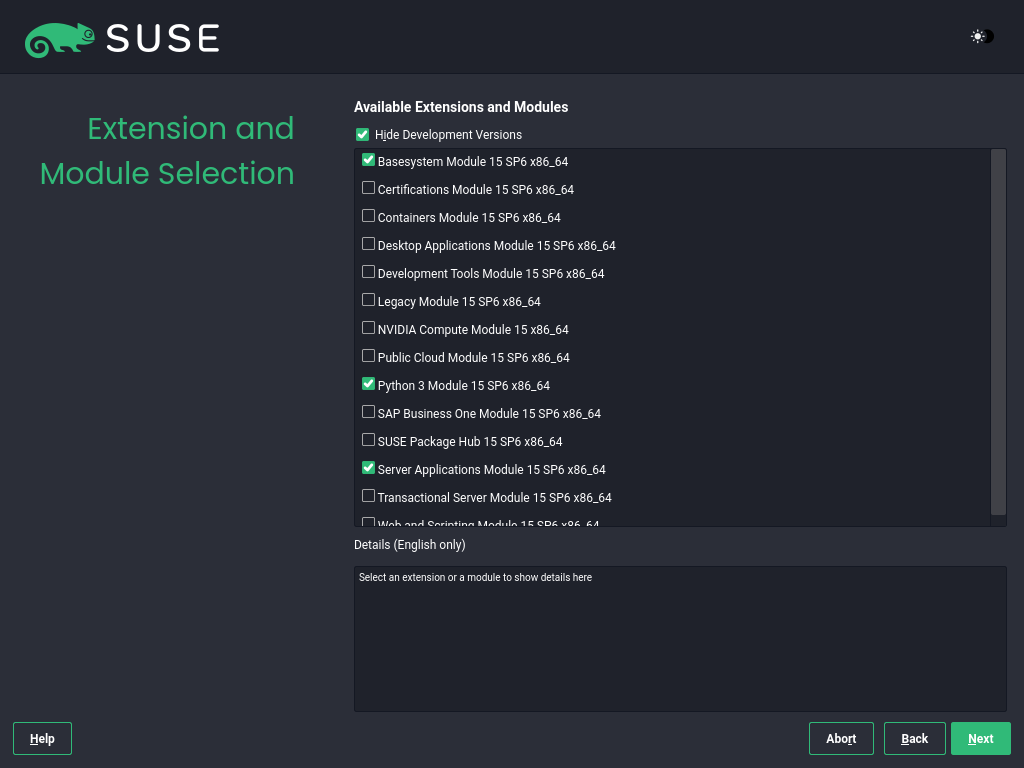
After the system is successfully registered, the installer lists modules and extensions that are available for SLES. Modules are components that allow you to customize the product according to your needs. They are included in your SLES subscription. Extensions add functionality to your product. They must be purchased separately.
The availability of certain modules or extensions depends on the product selected in the first step of the installation. For a description of the modules and their lifecycles, select a module to see the accompanying text. More detailed information is available in the Modules and extensins quick start guide.
The selection of modules indirectly affects the scope of the installation, because it defines which software sources (repositories) are available for installation and in the running system.
The following modules and extensions are available for SUSE Linux Enterprise Server:
- Basesystem Module
This module adds a basic system on top of the Unified Installer. It is required by all other modules and extensions. The scope of an installation that only contains the base system is comparable to the installation pattern
minimal systemof previous SLES versions. This module is selected for installation by default and should not be deselected.Dependencies: None
- Certifications Module
Contains the FIPS certification packages.
Dependencies: Server Applications
- Confidential Computing Technical Preview
Contains packages related to confidential computing.
Dependencies: Basesystem
- Containers Module
Contains support and tools for containers.
Dependencies: Basesystem
- Desktop Applications Module
Adds a graphical user interface and essential desktop applications to the system.
Dependencies: Basesystem
- Development Tools Module
Contains the compilers (including
gcc) and libraries required for compiling and debugging applications. Replaces the former Software Development Kit (SDK).Dependencies: Basesystem, Desktop Applications
- High Performance Computing (HPC) Module
Provides specific tools commonly used for high performance, numerically intensive workloads.
Dependencies: Basesystem
- Legacy Module
Helps you with migrating applications from earlier versions of SLES and other systems to SLES 15 SP6 by providing packages which are discontinued on SLE. Packages in this module are selected based on the requirements for migration and the level of complexity of configuration.
This module is recommended when migrating from a previous product version.
Dependencies: Basesystem, Server Applications
- NVIDIA Compute Module
Contains the NVIDIA CUDA (Compute Unified Device Architecture) drivers.
The software in this module is provided by NVIDIA under the CUDA End User License Agreement and is not supported by SUSE.
Dependencies: Basesystem
- Public Cloud Module
Contains all tools required to create images for deploying SLES in cloud environments such as Amazon Web Services (AWS), Microsoft Azure, Google Compute Platform, or OpenStack.
Dependencies: Basesystem, Server Applications
- Python 3 Module
This module contains the most recent versions of the selected Python 3 packages.
Dependencies: Basesystem
- SAP Business One Server
This module contains packages and system configurations specific to SAP Business One Server. It is maintained and supported under the SUSE Linux Enterprise Server product subscription.
Dependencies: Basesystem, Server Applications, Desktop Applications, Development Tools
- Server Applications Module
Adds server functionality by providing network services such as DHCP server, name server, or Web server. This module is selected for installation by default. Deselecting it is not recommended.
Dependencies: Basesystem
- SLE High Availability
Adds clustering support for mission-critical setups to SLES. This extension requires a separate license key.
Dependencies: Basesystem, Server Applications
- SLE Live Patching
Adds support for performing critical patching without having to shut down the system. This extension requires a separate license key.
Dependencies: Basesystem, Server Applications
- SUSE Linux Enterprise Workstation Extension
Extends the functionality of SLES with packages from SUSE Linux Enterprise Desktop, like additional desktop applications (office suite, e-mail client, graphical editor, etc.) and libraries. It allows combining both products to create a fully featured workstation. This extension requires a separate license key.
Dependencies: Basesystem, Desktop Applications
- SUSE Package Hub
Provides access to packages for SLES maintained by the openSUSE community. These packages are delivered without L3 support and do not interfere with the supportability of SLES. For more information, refer to https://packagehub.suse.com/.
Dependencies: Basesystem
- Transactional Server Module
Adds support for transactional updates. Updates are either applied to the system as a single transaction or not applied at all. This happens without influencing the running system. If an update fails, or if the successful update is deemed to be incompatible or otherwise incorrect, it can be discarded to immediately return the system to its previous functioning state.
Dependencies: Basesystem
- Web and Scripting Module
Contains packages intended for a running Web server.
Dependencies: Basesystem, Server Applications
Certain modules depend on the installation of other modules. Therefore, when selecting a module, other modules may be selected automatically to fulfill dependencies.
Depending on the product, the registration server can mark modules and extensions as recommended. Recommended modules and extensions are preselected for registration and installation. To avoid installing these recommendations, deselect them manually.
Select the modules and extensions you want to install and proceed with . In case you have chosen one or more extensions, you will be prompted to provide the respective registration codes. Depending on your choice, it may also be necessary to accept additional license agreements.
When performing an offline installation from the 15 SP6-Full-ARCH-GM-media1.iso, only the is selected by default. To install the complete default package set of SUSE Linux Enterprise Server, additionally select the and the .
2.1.3.6 Add-on product #
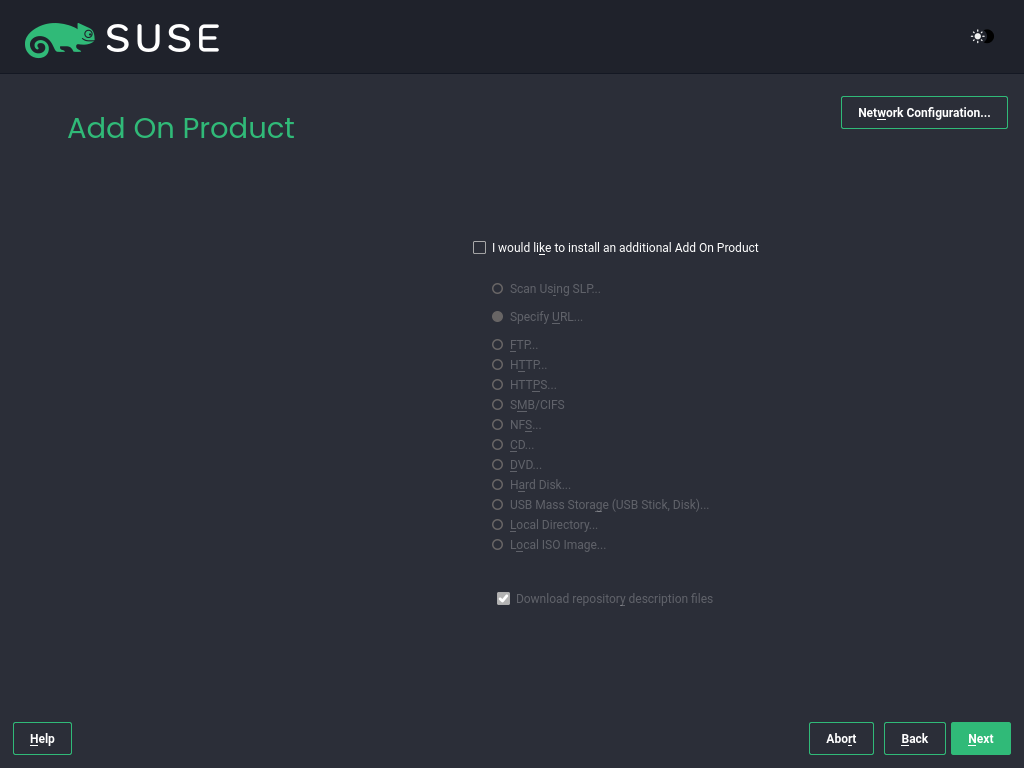
The dialog allows you to add additional software sources (called "repositories") to SLES that are not provided by the SUSE Customer Center. Add-on products may include third-party products and drivers as well as additional software for your system.
You can also add driver update repositories via the dialog. Driver updates for SLE are provided at https://drivers.suse.com/. These drivers have been created through the SUSE SolidDriver Program.
To skip this step, proceed with . Otherwise, activate . Specify a media type, a local path, or a network resource hosting the repository and follow the on-screen instructions.
Check to download the files describing the repository now. If deactivated, they will be downloaded after the installation has started. Proceed with and insert a medium if required. Depending on the content of the product, it may be necessary to accept additional license agreements. Proceed with . If you have chosen an add-on product requiring a registration key, you will be asked to enter it before proceeding to the next step.
2.1.3.7 System role #
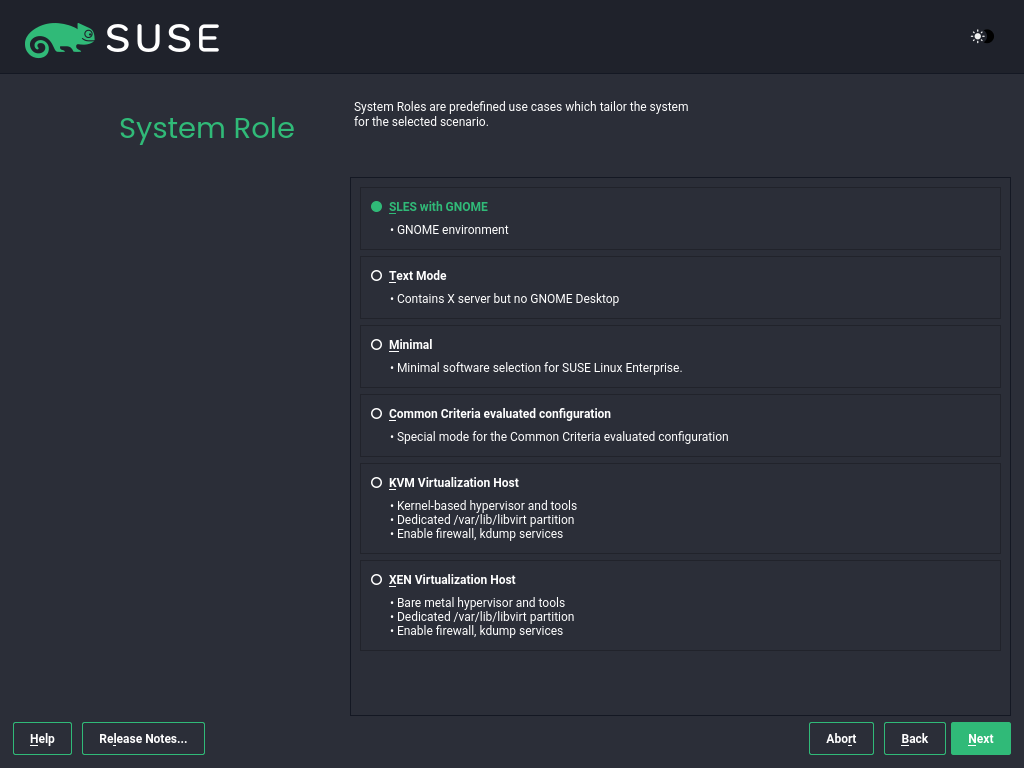
The availability of system roles depends on your selection of modules and extensions. System roles define, for example, the set of software patterns that are preselected for the installation. Refer to the description on the screen to make your choice. Select a role and proceed with . If from the enabled modules only one role or no role is suitable for the respective base product, the dialog is omitted.
From this point on, the Release Notes can be viewed from any screen during the installation process by selecting .
2.1.3.8 Suggested partitioning #
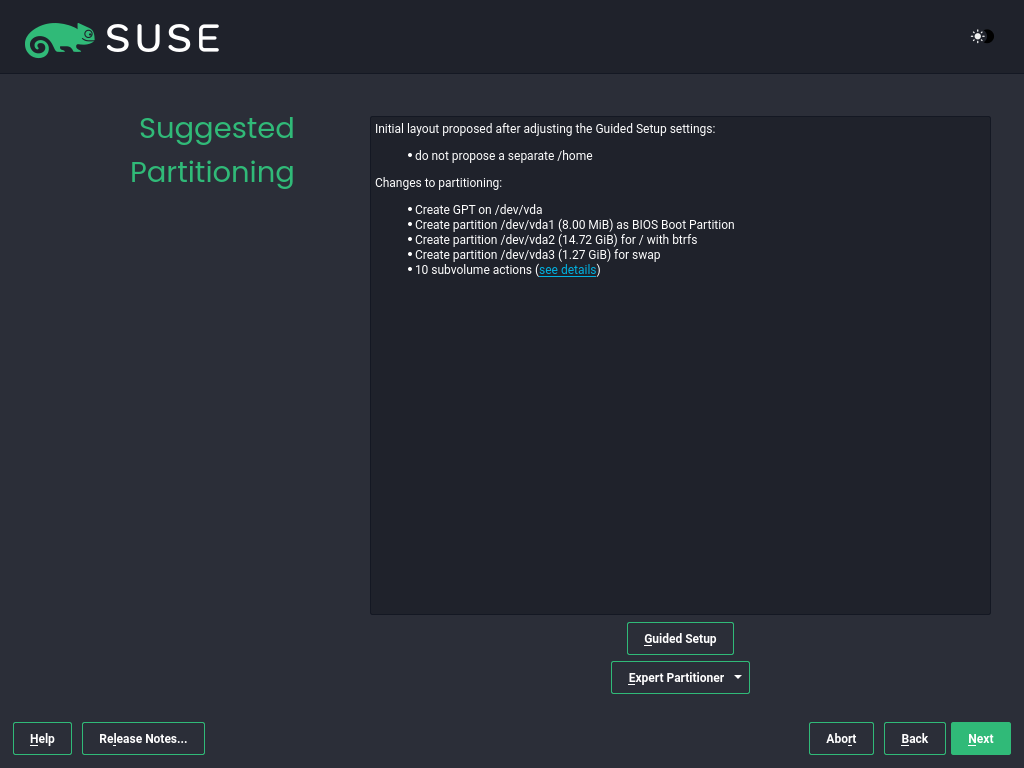
Review the partition setup proposed by the system. If necessary, change it. You have the following options:
Starts a wizard that lets you refine the partitioning proposal. The options available here depend on your system setup. If it contains more than a single hard disk, you can choose which disk or disks to use and where to place the root partition. If the disks already contain partitions, decide whether to remove or resize them.
In subsequent steps, you may also add LVM support and disk encryption. You can change the file system for the root partition and decide whether or not to have a separate home partition.
Opens the . This gives you full control over the partitioning setup and lets you create a custom setup. This option is intended for experts. For details, see the Expert Partitioner chapter.

For partitioning purposes, disk space is measured in binary units
rather than in decimal units. For example, if you enter sizes of
1GB, 1GiB or
1G, they all signify 1 GiB (Gibibyte), as
opposed to 1 GB (Gigabyte).
- Binary
1 GiB = 1,073,741,824 bytes.
- Decimal
1 GB = 1,000,000,000 bytes.
- Difference
1 GiB ≈ 1.07 GB.
To accept the proposed setup without any changes, choose to proceed.
2.1.3.9 Clock and time zone #
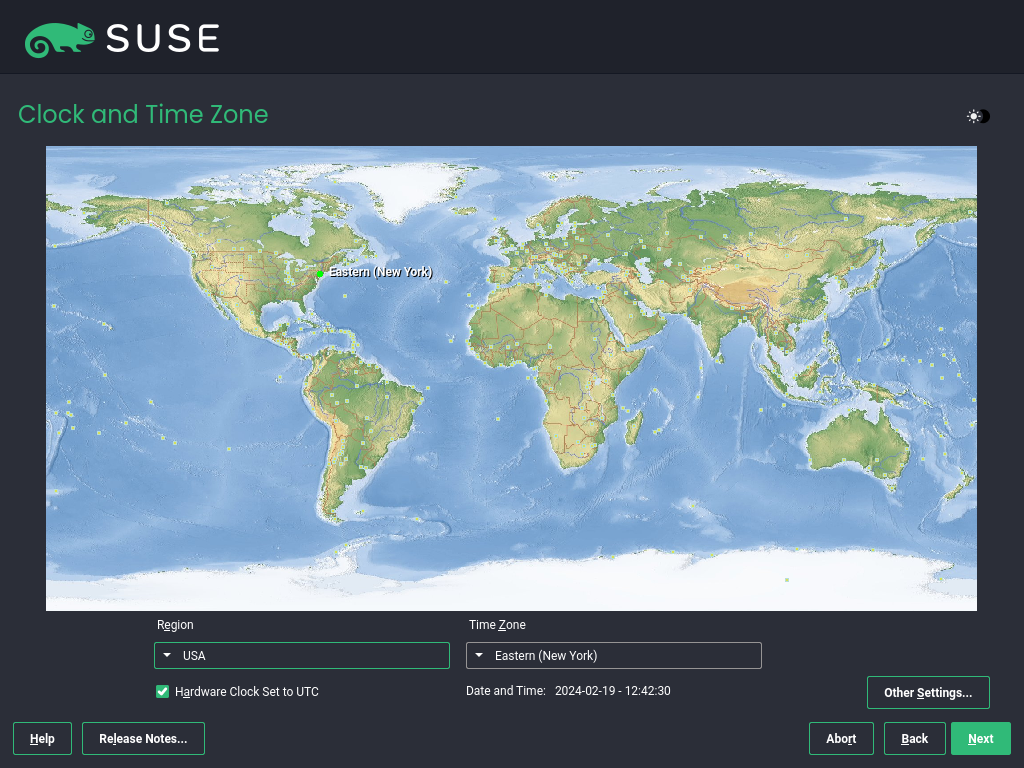
Select the clock and time zone to use in your system. To manually adjust the time or to configure an NTP server for time synchronization, choose . See the section on Clock and Time Zone for detailed information. Proceed with .
2.1.3.10 Local user #
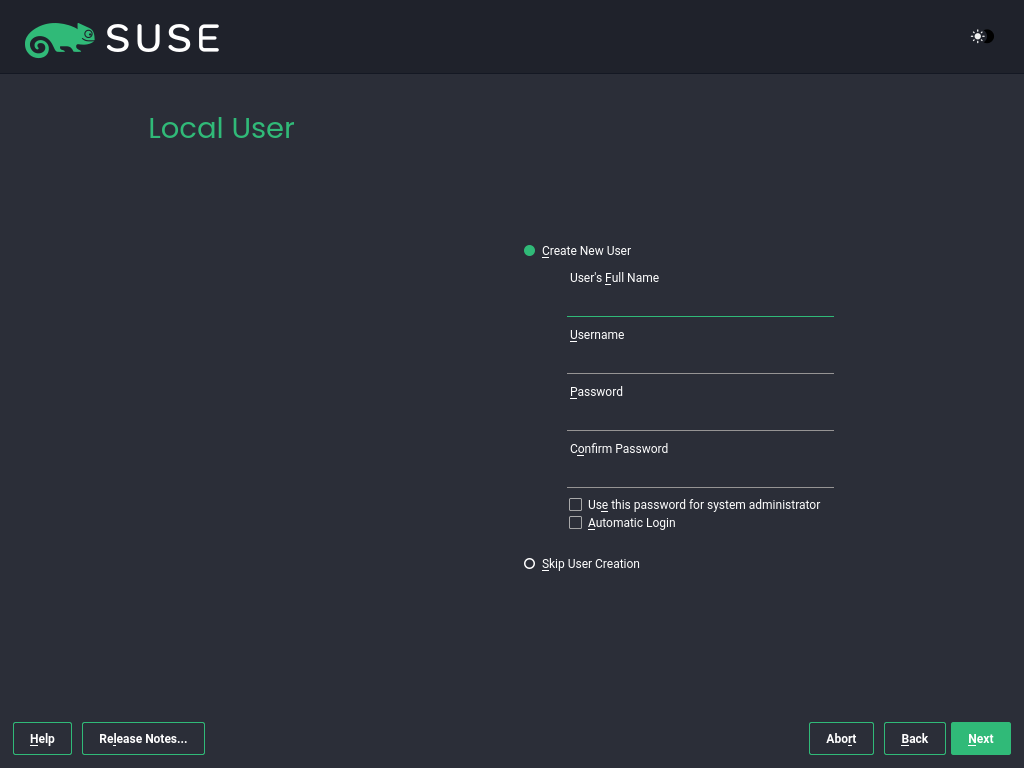
To create a local user, type the first and last name in the field, the login name in the field, and the password in the field.
The password should be at least eight characters long and should contain both uppercase and lowercase letters and numbers. The maximum length for passwords is 72 characters, and passwords are case-sensitive.
For security reasons, it is also strongly recommended not to enable . You should also not but provide a separate root password in the next installation step.
If you install on a system where a previous Linux installation was found, you may . Click for a list of available user accounts. Select one or more users.
In an environment where users are centrally managed (for example, by NIS or LDAP), you can skip the creation of local users. Select in this case.
Proceed with .
2.1.3.11 Authentication for the system administrator root #
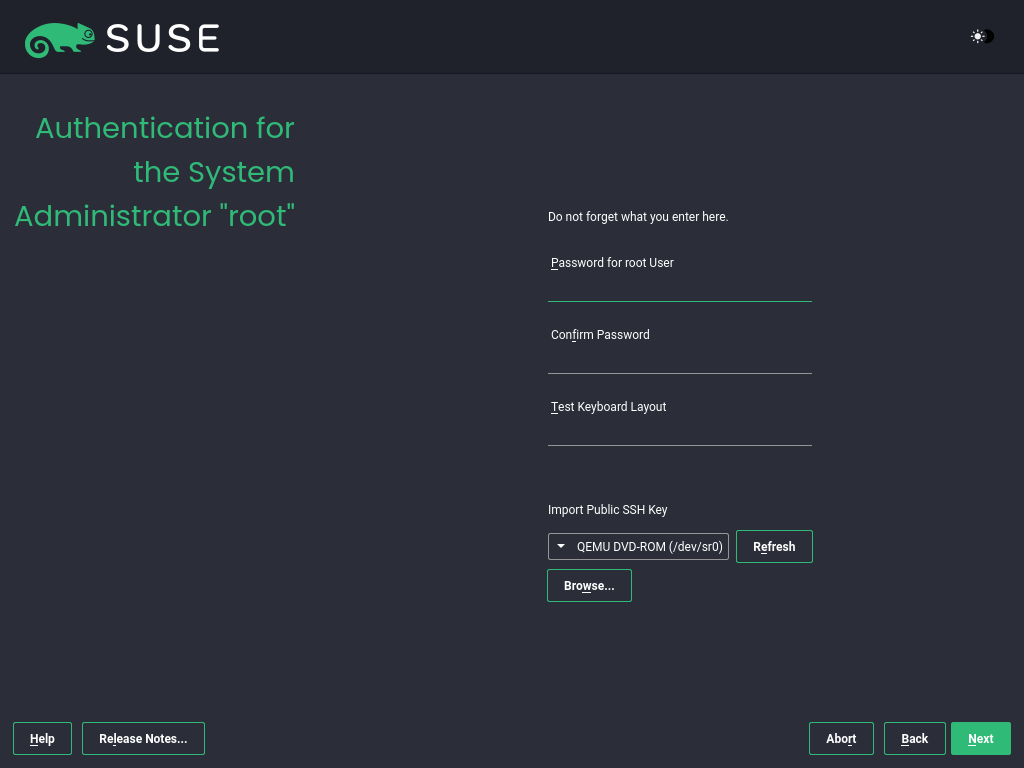
root #Type a password for the system administrator (called the root user) or provide a public SSH key. If you want, you can use both.
Because the root user is equipped with extensive permissions, the password should be chosen carefully. You should never forget the root password. After you entered it here, the password cannot be retrieved.
It is recommended to use only US ASCII characters. In the event of a system error or when you need to start your system in rescue mode, the keyboard may not be localized.
To access the system remotely via SSH using a public key, import a key from removable media or an existing partition. See the section on Authentication for the system administrator root for more information.
Proceed with .
2.1.3.12 Installation settings #
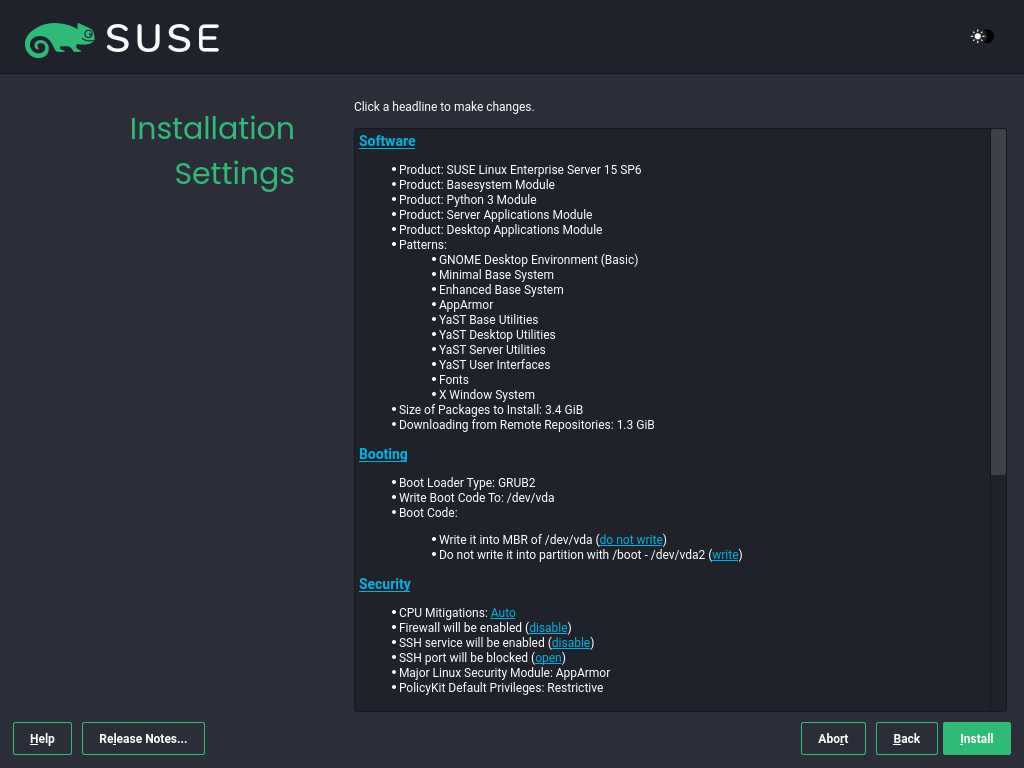
Use the screen to review and—if necessary—change several proposed installation settings. The current configuration is listed for each setting. To change it, click the headline. Certain settings, such as firewall or SSH, can be changed directly by clicking the respective links.
Changes you can make here can also be made later at any time from the installed system. However, if you need remote access right after the installation, you may need to open the SSH port in the settings.
The scope of the installation is defined by the modules and extensions you have chosen for this installation. However, depending on your selection, not all packages available in a module are selected for installation.
Clicking opens the screen, where you can change the software selection by selecting or deselecting patterns. Each pattern contains several software packages needed for specific functions (for example, ). For a more detailed selection based on software packages to install, select to switch to the YaST . See Installing or removing software for more information.
This section shows the boot loader configuration. Changing the defaults is recommended only if really needed. Refer to The boot loader GRUB 2 for details.
The refer to kernel boot command-line parameters for software mitigations that have been deployed to prevent CPU side-channel attacks. Click the selected entry to choose a different option. For details, see the section on CPU Mitigations.
By default, the is enabled on all configured network interfaces. To disable firewalld, click (not recommended). Refer to the Masquerading and Firewalls chapter for configuration details.
Note: Firewall settings for receiving updatesBy default, the firewall on SUSE AI only blocks incoming connections. If your system is behind another firewall that blocks outgoing traffic, make sure to allow connections to
https://scc.suse.com/andhttps://updates.suse.comon ports 80 and 443 to receive updates.The is enabled by default, but its port (22) is closed in the firewall. Click to open the port or to disable the service. If SSH is disabled, remote logins will not be possible. Refer to Securing network operations with OpenSSH for more information.
The default is . To disable it, select as the module in the settings.
Click to the
Defense Information Systems Agency STIGsecurity policy. If any installation settings are incompatible with the policy, you will be prompted to modify them accordingly. Certain settings can be adjusted automatically while others require user input.Enabling a security profile enables a full SCAP remediation on first boot. You can also perform a or and manually remediate the system later with OpenSCAP. For more information, refer to the section on Security Profiles.
Displays the current network configuration. By default,
wickedis used for server installations and NetworkManager for desktop workloads. Click to change the settings. For details, see the section on Configuring a network connection with YaST.Important: Support for NetworkManagerSUSE only supports NetworkManager for desktop workloads with SLED or the Workstation extension. All server certifications are done with
wickedas the network configuration tool, and using NetworkManager may invalidate them. NetworkManager is not supported by SUSE for server workloads.Kdump saves the memory image ("core dump") to the file system in case the kernel crashes. This enables you to find the cause of the crash by debugging the dump file. Kdump is preconfigured and enabled by default. See the Basic Kdump configuration for more information.
If you have installed the desktop applications module, the system boots into the target, with network, multi-user and display manager support. Switch to if you do not need to log in via a display manager.
View detailed hardware information by clicking . In the resulting screen, you can also change —see the section on System Information for more information.
2.1.3.13 Start the installation #
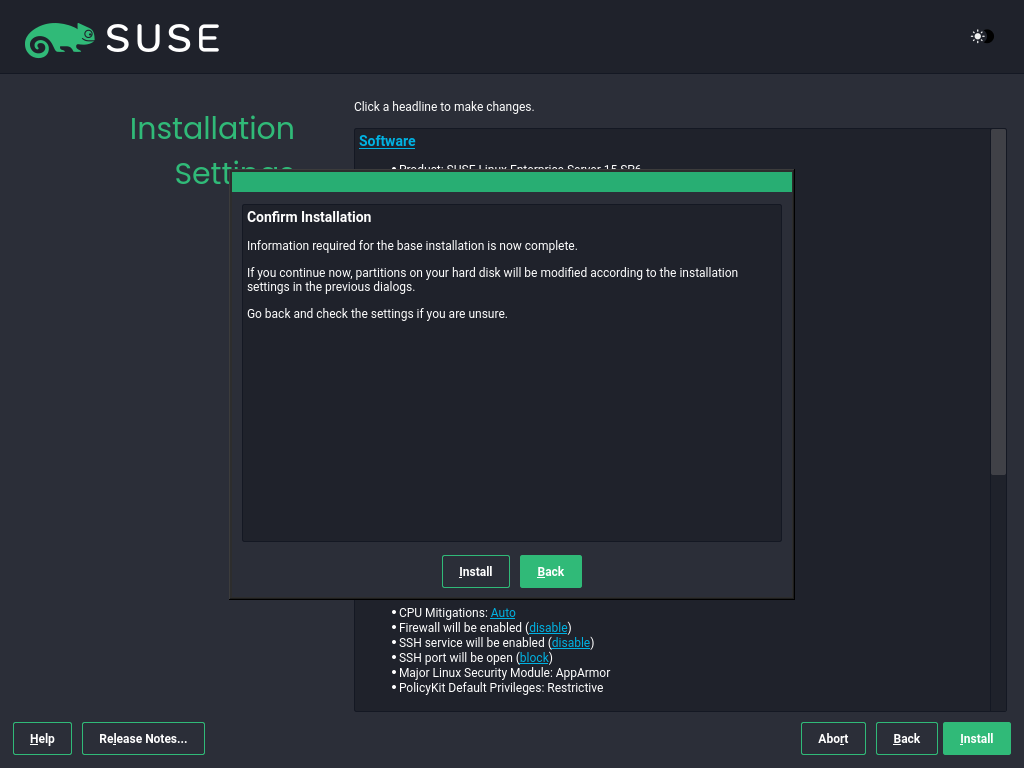
After you have finalized the system configuration on the screen, click . Depending on your software selection, you may need to agree to license agreements before the installation confirmation screen pops up. Up to this point, no changes have been made to your system. After you click a second time, the installation process starts.
2.1.3.14 The installation process #
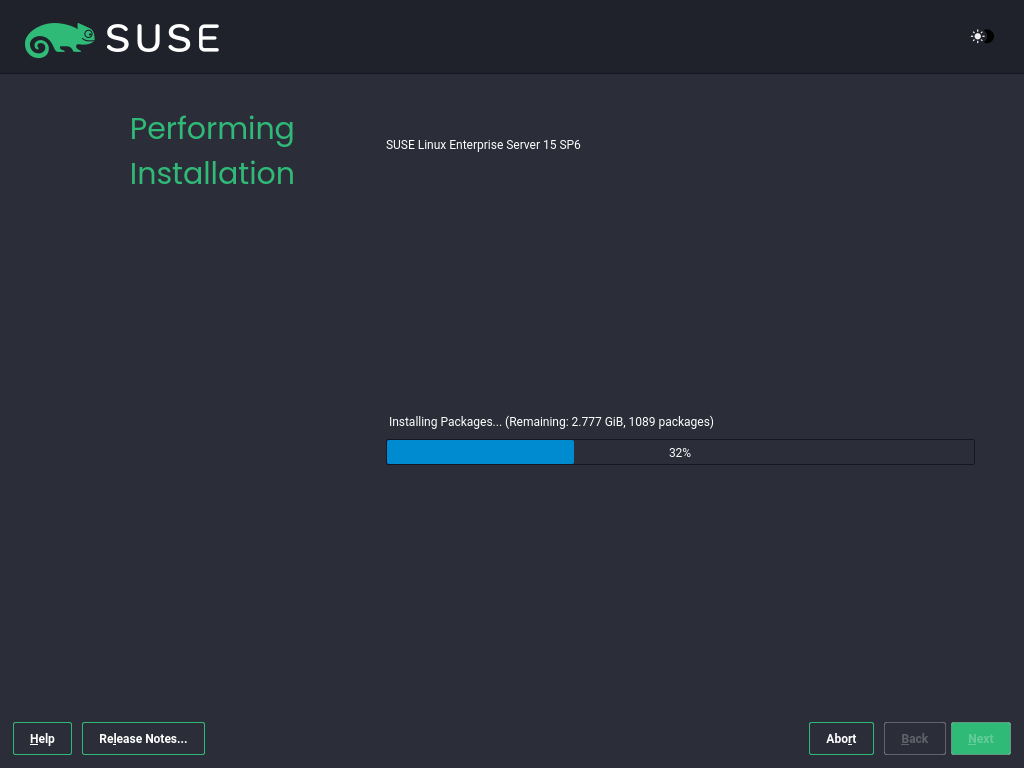
During the installation, the progress is shown. After the installation routine has finished, the computer is rebooted into the installed system.
2.1.3.15 Post install optional tweaks #
Ensure NTP is enabled and working properly. See SLES 15SP7 "Time synchronization with NTP" or SLES 16.0 "Synchronizing Time Using NTP/NTS" documentation for more information.
Set CPU scaling governor to
performance. As suggested by the NVIDIA documentation and the SLES documentation, add thecpufreq.default_governor=performancekernel parameter or use thecpupowertool to configure it.
2.2 Installing NVIDIA GPU drivers #
This article demonstrates how to implement host-level NVIDIA GPU
support via the open-driver. The
`open-driver`is part of the core package
repositories. Therefore, there is no need to compile it or
download executable packages. This driver is built into the
operating system rather than dynamically loaded by the NVIDIA
GPU Operator. This configuration is desirable for customers who
want to pre-build all artifacts required for deployment into the
image, and where the dynamic selection of the driver version via
Kubernetes is not a requirement.
2.2.1 Installing NVIDIA GPU drivers on SUSE Linux Enterprise Server #
2.2.1.1 Requirements #
If you are following this guide, it assumes that you have the following already available:
At least one host with SLES 15 SP6 installed, physical or virtual.
Your hosts are attached to a subscription as this is required for package access.
A compatible NVIDIA GPU installed or fully passed through to the virtual machine in which SLES is running.
Access to the root user—these instructions assume you are the root user, and not escalating your privileges via
sudo.
2.2.1.2 Considerations before the installation #
2.2.1.2.1 Select the driver generation #
You must verify the driver generation for the NVIDIA GPU that your
system has. For modern GPUs, the G06 driver is the
most common choice. Find more details in
the support database.
This section details the installation of the G06
generation of the driver.
2.2.1.2.2 Additional NVIDIA components #
Besides the NVIDIA open-driver provided by SUSE as part of SLES,
you might also need additional NVIDIA components. These could include
OpenGL libraries, CUDA toolkits, command-line utilities such as
nvidia-smi, and container-integration components such
as nvidia-container-toolkit. Many of these components are not shipped by
SUSE as they are proprietary NVIDIA software. This section describes
how to configure additional repositories that give you access to these
components and provides examples of using these tools to achieve a fully
functional system.
2.2.1.3 The installation procedure #
Add a package repository from NVIDIA. This allows pulling in additional utilities, for example,
nvidia-smi.For the AMD64/Intel 64 architecture, run:
# zypper ar \
  https://developer.download.nvidia.com/compute/cuda/repos/sles15/x86_64/ \
  cuda-sle15
# zypper --gpg-auto-import-keys refresh
For the Arm AArch64 architecture, run:
# zypper ar \
  https://developer.download.nvidia.com/compute/cuda/repos/sles15/sbsa/ \
  cuda-sle15
transactional update # zypper --gpg-auto-import-keys refresh
Install the Open Kernel driver KMP and detect the driver version.
# zypper install -y --auto-agree-with-licenses \
  nv-prefer-signed-open-driver
# version=$(rpm -qa --queryformat '%{VERSION}\n' \
  nv-prefer-signed-open-driver | cut -d "_" -f1 | sort -u | tail -n 1)
Install the nvidia-gl-G06 package along with the open driver on the GPU nodes if the application needs NVIDIA Vulkan capabilities.
# zypper install -y --auto-agree-with-licenses \
nvidia-gl-G06=${version}
You can then install the appropriate packages for additional utilities that are useful for testing purposes.
# zypper install -y --auto-agree-with-licenses \
nvidia-compute-utils-G06=${version} \
nvidia-persistenced=${version}
Reboot the host to make the changes effective.
# rebootLog back in and run
nvidia-smicommand as root to ensure it correctly detects the GPU and displays the GPU details.# nvidia-smiThe output of this command should show you something similar to the following output. In the example below, the system has one GPU.
Fri Aug  1 15:32:10 2025
+------------------------------------------------------------------------------+
| NVIDIA-SMI 580.82.07      Driver Version: 580.82.07    CUDA Version: 13.0    |
|------------------------------+------------------------+----------------------+
| GPU  Name      Persistence-M | Bus-Id          Disp.A | Volatile Uncorr. ECC |
| Fan  Temp Perf Pwr:Usage/Cap |           Memory-Usage | GPU-Util  Compute M. |
|                              |                        |               MIG M. |
|==============================+========================+======================|
|   0  Tesla T4            On  |   00000000:00:1E.0 Off |                    0 |
| N/A   33C   P8   13W /   70W |       0MiB /  15360MiB |      0%      Default |
|                              |                        |                  N/A |
+------------------------------+------------------------+----------------------+

+------------------------------------------------------------------------------+
| Processes:                                                                   |
|  GPU   GI   CI        PID   Type   Process name                   GPU Memory |
|        ID   ID                                                    Usage      |
|==============================================================================|
|  No running processes found                                                  |
+------------------------------------------------------------------------------+
2.2.2 Installing NVIDIA GPU drivers on SUSE Linux Enterprise Micro #
2.2.2.1 Requirements #
If you are following this guide, it assumes that you have the following already available:
At least one host with SUSE Linux Enterprise Micro 6.1 installed, physical or virtual.
Your hosts are attached to a subscription as this is required for package access.
A compatible NVIDIA GPU installed or fully passed through to the virtual machine in which SUSE Linux Enterprise Micro is running.
Access to the root user—these instructions assume you are the root user, and not escalating your privileges via
sudo.
2.2.2.2 Considerations before the installation #
2.2.2.2.1 Select the driver generation #
You must verify the driver generation for the NVIDIA GPU that your
system has. For modern GPUs, the G06 driver is the
most common choice. Find more details in
the support database.
This section details the installation of the G06
generation of the driver.
2.2.2.2.2 Additional NVIDIA components #
Besides the NVIDIA open-driver provided by SUSE as part of SUSE Linux Enterprise Micro,
you might also need additional NVIDIA components. These could include
OpenGL libraries, CUDA toolkits, command-line utilities such as
nvidia-smi, and container-integration components such
as nvidia-container-toolkit. Many of these components are not shipped by
SUSE as they are proprietary NVIDIA software. This section describes
how to configure additional repositories that give you access to these
components and provides examples of using these tools to achieve a fully
functional system.
2.2.2.3 The installation procedure #
On each (local) GPU-enabled host, open up a transactional-update shell session to create a new read/write snapshot of the underlying operating system so that we can make changes to the immutable platform.
# transactional-update shellWhen you are in the transactional-update shell session, add a package repository from NVIDIA. This allows pulling in additional utilities, for example,
nvidia-smi.For the AMD64/Intel 64 architecture, run:
transactional update # zypper ar \
  https://developer.download.nvidia.com/compute/cuda/repos/sles15/x86_64/ \
  cuda-sle15
transactional update # zypper --gpg-auto-import-keys refresh
For the Arm AArch64 architecture, run:
transactional update # zypper ar \
  https://developer.download.nvidia.com/compute/cuda/repos/sles15/sbsa/ \
  cuda-sle15
transactional update # zypper --gpg-auto-import-keys refresh
Install the Open Kernel driver KMP and detect the driver version.
transactional update # zypper install -y --auto-agree-with-licenses \
  nvidia-open-driver-G06-signed-cuda-kmp-default
transactional update # version=$(rpm -qa --queryformat '%{VERSION}\n' \
  nvidia-open-driver-G06-signed-cuda-kmp-default \
  | cut -d "_" -f1 | sort -u | tail -n 1)
Install the nvidia-gl-G06 package along with the open driver on the GPU nodes if the application needs NVIDIA Vulkan capabilities.
transactional update # zypper install -y --auto-agree-with-licenses \
nvidia-gl-G06=${version}
You can then install the appropriate packages for additional utilities that are useful for testing purposes.
transactional update # zypper install -y --auto-agree-with-licenses \
nvidia-compute-utils-G06=${version} \
nvidia-persistenced=${version}
Exit the transactional-update session and reboot to the new snapshot that contains the changes you have made.
transactional update # exit
# reboot
After the system has rebooted, log back in and run
nvidia-smicommand as root to ensure it correctly detects the GPU and displays the GPU details.# nvidia-smiThe output of this command should show you something similar to the following output. In the example below, the system has one GPU.
Fri Aug  1 14:53:26 2025
+------------------------------------------------------------------------------+
| NVIDIA-SMI 580.82.07     Driver Version: 580.82.07     CUDA Version: 13.0    |
|---------------------------------+---------------------+----------------------+
| GPU  Name         Persistence-M | Bus-Id       Disp.A | Volatile Uncorr. ECC |
| Fan  Temp   Perf  Pwr:Usage/Cap |        Memory-Usage | GPU-Util  Compute M. |
|                                 |                     |               MIG M. |
|=================================+=====================+======================|
|   0  Tesla T4               On  |00000000:00:1E.0 Off |                    0 |
| N/A   34C    P8     10W /   70W |    0MiB /  15360MiB |      0%      Default |
|                                 |                     |                  N/A |
+---------------------------------+---------------------+----------------------+

+------------------------------------------------------------------------------+
| Processes:                                                                   |
|  GPU   GI   CI         PID   Type   Process name                  GPU Memory |
|        ID   ID                                                    Usage      |
|==============================================================================|
|  No running processes found                                                  |
+------------------------------------------------------------------------------+
2.3 Installing SUSE Rancher Prime: RKE2 #
This guide will help you quickly launch a cluster with default options.
New to Kubernetes? The official Kubernetes docs already have some great tutorials outlining the basics here.
You can use any RKE2 Prime version listed on the Prime Artifacts URL for the assets mentioned in these steps. To learn more about the Prime Artifacts URL, see our Prime-only documentation. Authentication is required. Use your SUSE Customer Center (SCC) credentials to log in.
2.3.1 Prerequisites #
Make sure your environment fulfills the requirements. If NetworkManager is installed and enabled on your hosts, ensure that it is configured to ignore CNI-managed interfaces.
If the host kernel supports AppArmor, the AppArmor tools (usually available via the
apparmor-parserpackage) must also be present prior to installing RKE2.The SUSE Rancher Prime: RKE2 installation process must be run as the root user or through
sudo.
2.3.2 Server Node Installation #
SUSE Rancher Prime: RKE2 provides an installation script that is a convenient way to install it as a service on systemd based systems. This script is available at https://get.rke2.io. To install SUSE Rancher Prime: RKE2 using this method do the following:
Run the installer, where
INSTALL_RKE2_ARTIFACT_URLis the Prime Prime Artifacts URL andINSTALL_RKE2_CHANNELis a release channel you can subscribe to and defaults tostable. In this example,INSTALL_RKE2_CHANNEL="latest"gives you the latest version of RKE2.curl -sfL https://get.rke2.io/ | sudo INSTALL_RKE2_ARTIFACT_URL=<PRIME-ARTIFACTS-URL>/rke2 INSTALL_RKE2_CHANNEL="latest" sh -If you want to specify a version, set the
INSTALL_RKE2_VERSIONenvironment variable.curl -sfL https://get.rke2.io/ | sudo INSTALL_RKE2_ARTIFACT_URL=<PRIME-ARTIFACTS-URL>/rke2 INSTALL_RKE2_VERSION="<VERSION>" sh -This will install the
rke2-serverservice and therke2binary onto your machine. Due to its nature, it will fail unless it runs as the root user or throughsudo.Enable the rke2-server service.
systemctl enable rke2-server.serviceTo pull images from the Rancher Prime registry, set the following value in
etc/rancher/rke2/config.yaml:system-default-registry: registry.rancher.comThis configuration tells RKE2 to use registry.rancher.com as the default location for all container images it needs to deploy within the cluster.
Start the service.
systemctl start rke2-server.serviceFollow the logs with the following command:
journalctl -u rke2-server -f
After running this installation:
The
rke2-serverservice will be installed. Therke2-serverservice will be configured to automatically restart after node reboots or if the process crashes or is killed.Additional utilities will be installed at
/var/lib/rancher/rke2/bin/. They include:kubectl,crictl, andctr. Note that these are not on your path by default.Two cleanup scripts,
rke2-killall.shandrke2-uninstall.sh, will be installed to the path at:/usr/local/binfor regular file systems/opt/rke2/binfor read-only and brtfs file systemsINSTALL_RKE2_TAR_PREFIX/binifINSTALL_RKE2_TAR_PREFIXis set
A kubeconfig file will be written to
/etc/rancher/rke2/rke2.yaml.A token that can be used to register other server or agent nodes will be created at
/var/lib/rancher/rke2/server/node-token.
If you are adding additional server nodes, you must have an odd number in total. An odd number is needed to maintain quorum. See the High Availability documentation for more details.
2.3.3 Linux Agent (Worker) Node Installation #
The steps on this section requires root level access or sudo to work.
Run the installer.
curl -sfL https://get.rke2.io | INSTALL_RKE2_ARTIFACT_URL=<PRIME-ARTIFACTS-URL>/rke2 INSTALL_RKE2_CHANNEL="latest" INSTALL_RKE2_TYPE="agent" sh -If you want to specify a version, set the
INSTALL_RKE2_VERSIONenvironment variable.curl -sfL https://get.rke2.io/ | sudo INSTALL_RKE2_ARTIFACT_URL=<PRIME-ARTIFACTS-URL>/rke2 INSTALL_RKE2_VERSION="<VERSION>" INSTALL_RKE2_TYPE="agent" sh -This will install the
rke2-agentservice and therke2binary onto your machine. Due to its nature, it will fail unless it runs as the root user or throughsudo.Enable the rke2-agent service.
systemctl enable rke2-agent.serviceConfigure the rke2-agent service.
mkdir -p /etc/rancher/rke2/
vim /etc/rancher/rke2/config.yaml
Content for config.yaml:
server: https://<server>:9345 token: <token from server node>NoteThe
rke2 serverprocess listens on port9345for new nodes to register. The Kubernetes API is still served on port6443, as normal.Start the service.
systemctl start rke2-agent.serviceFollow the logs with the following command:
journalctl -u rke2-agent -f
Each machine must have a unique hostname. If your machines do not have unique hostnames, set the node-name parameter in the config.yaml file and provide a value with a valid and unique hostname for each node. To learn more about the config.yaml file, refer to the Configuration Options documentation.