4 Installing applications from AI Library #
SUSE AI is delivered as a set of components that you can combine to meet specific use cases. To enable the full integrated stack, you need to deploy multiple applications in sequence. Applications with the fewest dependencies must be installed first, followed by dependent applications once their required dependencies are in place within the cluster.

For production deployments, we strongly recommended deploying Rancher, SUSE Observability, and workloads from the AI library to separate Kubernetes clusters.
4.1 What is SUSE Application Collection? #
SUSE Application Collection provides curated, trusted, compliant and up-to-date applications for Kubernetes. Learn more on its dedicated Web site and in the product summary.
4.2 What is SUSE Registry? #
Applications in the SUSE Registry are not built by the SUSE build system. They are mirrored upstream projects with attached supply chain artifacts. These artifacts help you source popular applications and tools in the AI ecosystem from a single source and provide built-in visibility into their upstream origins. Learn more on the registry’s Web site and refer to Section 4.16, “Verifying SUSE AI Library applications” to see how to verify the supply chain artifacts .
You can install the required AI Library component Helm charts using one of the following methods:
Install each AI application manually using the Helm CLI as described in Section 4.3, “Installation procedure”.
Use a meta Helm chart called SUSE AI Deployer to include all the dependencies specific to your use case. Refer to Section 5.2, “AI Library deployer” for more details.
Use SUSE AI Lifecycle Manager GUI to install individual AI applications. Refer to Section 5.3, “Lifecycle manager” for more details.
Important: The ClusterRepo repositoryHelm charts of AI applications are hosted in the private SUSE registries: SUSE Application Collection and SUSE Registry. Therefore, SUSE AI Lifecycle Manager requires a ClusterRepo repository as the source of AI application charts. The ClusterRepo name is used by the extension to identify and select the chart source.
4.3 Installation procedure #
This procedure includes steps to install AI Library applications.
Purchase the SUSE AI entitlement. It is a separate entitlement from SUSE Rancher Prime.
Visit https://apps.rancher.io/ to perform the check for the SUSE AI entitlement. If the entitlement check is successful, you are given access to pull and deploy the SUSE AI-related Helm charts and container images available on SUSE Application Collection.
Visit the SUSE Application Collection, sign in and get the user access token as described in https://docs.apps.rancher.io/get-started/authentication/.
Create a Kubernetes namespace if it does not already exist. The steps in this procedure assume that all containers are deployed into the same namespace, referred to as
SUSE_AI_NAMESPACE. Replace its name to match your preferences. Helm charts of AI applications are hosted in the private SUSE registries: SUSE Application Collection and SUSE Registry.> kubectl create namespace <SUSE_AI_NAMESPACE>Create the SUSE Application Collection secret.
> kubectl create secret docker-registry application-collection \
  --docker-server=dp.apps.rancher.io \
  --docker-username=<APPCO_USERNAME> \
  --docker-password=<APPCO_USER_TOKEN> \
  -n <SUSE_AI_NAMESPACE>
Create the SUSE Registry secret.
> kubectl create secret docker-registry suse-ai-registry \
  --docker-server=registry.suse.com \
  --docker-username=regcode \
  --docker-password=<SCC_REG_CODE> \
  -n <SUSE_AI_NAMESPACE>
Log in to the SUSE Application Collection Helm registry.
> helm registry login dp.apps.rancher.io/charts \
  -u <APPCO_USERNAME> \
  -p <APPCO_USER_TOKEN>
Log in to the SUSE Registry Helm registry. The username is
regcodeand the password is the SCC registration code of your SUSE AI subscription you saved earlier.> helm registry login registry.suse.com \ -u regcode \ -p <SCC_REG_CODE>Install cert-manager as described in Section 4.4, “Installing cert-manager”.
Install AI Library components. You can either install each component separately, or use the SUSE AI Deployer chart to install the components together as described in Section 5.2, “AI Library deployer”.
Install an application with vector database capabilities. Open WebUI supports either OpenSearch or Milvus.
(Optional) Install Ollama as described in Section 4.7, “Installing Ollama”.
Install Open WebUI as described in Section 4.8, “Installing Open WebUI”.
Install vLLM as described in Section 4.9, “Installing vLLM”.
Install mcpo as described in Section 4.10, “Installing mcpo”.
Install PyTorch as described in Section 4.11, “Installing PyTorch”.
Install Qdrant as described in Section 4.12, “Installing Qdrant”.
Install LiteLLM as described in Section 4.13, “Installing LiteLLM”.
Install MLflow as described in Section 4.14, “Installing MLflow”.
Install Kubeflow as described in Section 4.15, “Installing Kubeflow”.
4.4 Installing cert-manager #
cert-manager is an extensible X.509 certificate controller for Kubernetes workloads. It supports certificates from popular public issuers as well as private issuers. cert-manager ensures that the certificates are valid and up-to-date, and attempts to renew certificates at a configured time before expiry.
In previous releases, cert-manager was automatically installed together with Open WebUI. Currently, cert-manager is no longer part of the Open WebUI Helm chart and you need to install it separately.
4.4.1 Details about the cert-manager application #
Before deploying cert-manager, it is important to know more about the supported configurations and documentation. The following command provides the corresponding details:
> helm show values oci://dp.apps.rancher.io/charts/cert-managerAlternatively, you can also refer to the cert-manager Helm chart page on the SUSE Application Collection site at https://apps.rancher.io/applications/cert-manager. It contains available versions and the link to pull the cert-manager container image.
4.4.2 cert-manager installation procedure #

Before the installation, you need to get user access to the SUSE Application Collection and SUSE Registry, create a Kubernetes namespace, and log in to the Helm registry as described in Section 4.3, “Installation procedure”.
Install the cert-manager chart.
> helm upgrade --install cert-manager \
  oci://dp.apps.rancher.io/charts/cert-manager \
  -n <CERT_MANAGER_NAMESPACE> \
  --set crds.enabled=true \
  --set 'global.imagePullSecrets[0].name'=application-collection
4.4.3 Upgrading cert-manager #
To upgrade cert-manager to a specific new version, run the following command:
> helm upgrade --install cert-manager \
  oci://dp.apps.rancher.io/charts/cert-manager \
  -n <CERT_MANAGER_NAMESPACE> \
  --version <VERSION_NUMBER>
To upgrade cert-manager to the latest version, run the following command:
> helm upgrade --install cert-manager \
  oci://dp.apps.rancher.io/charts/cert-manager \
  -n <CERT_MANAGER_NAMESPACE>
4.4.4 Uninstalling cert-manager #
To uninstall cert-manager, run the following command:
> helm uninstall cert-manager -n <CERT_MANAGER_NAMESPACE>4.5 Installing OpenSearch #
OpenSearch is a community-driven, open source search and analytics suite. It is used to search, visualize and analyze data. OpenSearch consists of a data store and search engine (OpenSearch), a visualization and user interface (OpenSearch Dashboards), and a server-side data collector (Data Prepper). Its functionality can be extended by plug-ins that enhance features like search, analytics, observability, security or machine learning.
4.5.1 Details about the OpenSearch application #
Before deploying OpenSearch, it is important to know more about the supported configurations and documentation. The following command provides the corresponding details:
> helm show values oci://dp.apps.rancher.io/charts/opensearchAlternatively, you can also refer to the OpenSearch Helm chart page on the SUSE Application Collection site at https://apps.rancher.io/applications/opensearch. It contains OpenSearch dependencies, available versions and the link to pull the OpenSearch container image.
4.5.2 OpenSearch installation procedure #
OpenSearch can operate as a single-node or multi-node cluster. The following override file examples outline both scenarios.
Both scenarios require increasing the value of the vm.max_map_count to at least 262144.
To check the current value, run the following command:
> cat /proc/sys/vm/max_map_countTo increase the value, add the following to /etc/sysctl.conf:
vm.max_map_count=262144
Then run sudo sysctl -p to reload.
Before the installation, you need to get user access to the SUSE Application Collection and SUSE Registry, create a Kubernetes namespace, and log in to the Helm registry as described in Section 4.3, “Installation procedure”.
Create an
opensearch_custom_overrides.yamlfile to override the default values of the Helm chart.For a single-node cluster, use the following template file:
# opensearch_custom_overrides.yaml
global:
  imagePullSecrets:
    - application-collection

singleNode: true
replicas: 1
persistence:
  enabled: true
  storageClass: local-path

extraEnvs:
  - name: OPENSEARCH_INITIAL_ADMIN_PASSWORD
    value: "MySecurePass123"

service:
  type: NodePort
  httpPort: 9200
  transportPort: 9300
  metricsPort: 9600

resources:
  limits:
    memory: "6Gi"
    cpu: "2"

config:
  opensearch.yml: |
    plugins.security.disabled: true
For a multi-node cluster, use the following template file:
# opensearch_custom_overrides.yaml
global:
  imagePullSecrets:
    - application-collection

singleNode: false
replicas: 3
persistence:
  enabled: true
  storageClass: local-path

extraEnvs:
  - name: OPENSEARCH_INITIAL_ADMIN_PASSWORD
    value: "MySecurePass123"
  - name: ES_JAVA_OPTS
    value: "-Xms3g -Xmx3g"

service:
  type: NodePort
  httpPort: 9200
  transportPort: 9300
  metricsPort: 9600

resources:
  limits:
    memory: "6Gi"
    cpu: "2"
  requests:
    memory: "4Gi"
    cpu: "1"

startupProbe:
  tcpSocket:
    port: 9200
  initialDelaySeconds: 60
  periodSeconds: 10
  timeoutSeconds: 5
  failureThreshold: 12

readinessProbe:
  tcpSocket:
    port: 9200
  initialDelaySeconds: 60
  periodSeconds: 10
  timeoutSeconds: 5
  failureThreshold: 6

livenessProbe:
  tcpSocket:
    port: 9200
  initialDelaySeconds: 120
  periodSeconds: 20
  timeoutSeconds: 5
  failureThreshold: 3

config:
  opensearch.yml: |
    plugins.security.disabled: true
After saving the override file as
opensearch_custom_overrides.yaml, apply its configuration with the following command.> helm upgrade --install \ opensearch oci://dp.apps.rancher.io/charts/opensearch \ -n <SUSE_AI_NAMESPACE> \ -f <opensearch_custom_overrides.yaml>Check that the pods and services are running.
> kubectl get pods -n <SUSE_AI_NAMESPACE> | grep "opensearch"
opensearch-cluster-master-0           1/1     Running   0          5h34m
A multi-node cluster configuration shows that the replicas are distributed across multiple nodes.
> kubectl get pods -n <SUSE_AI_NAMESPACE> | grep "opensearch"
opensearch-cluster-master-0 1/1 Running 0 2m30s 10.42.1.32 mgmt-rancher-wkrgpu1
opensearch-cluster-master-1 1/1 Running 0 2m30s 10.42.1.33 mgmt-rancher-wkrgpu1
opensearch-cluster-master-2 1/1 Running 0 2m30s 10.42.0.27 mgmt-rancher
4.5.3 Integrating OpenSearch with Open WebUI #
To integrate OpenSearch with Open WebUI, follow these steps:
Edit the override file for Open WebUI,
owui_custom_overrides.yaml, and update theextraEnvVarssection as follows.Change the
VECTOR_DBvalue toopensearch.Remove the
MILVUS_URIvariable.Add all the OpenSearch-related environment variables.
extraEnvVars:
- name: DEFAULT_MODELS
  value: "gemma:2b"
- name: DEFAULT_USER_ROLE
  value: "pending"
- name: ENABLE_SIGNUP
  value: "true"
- name: GLOBAL_LOG_LEVEL
  value: INFO
- name: RAG_EMBEDDING_MODEL
  value: "sentence-transformers/all-MiniLM-L6-v2"
- name: INSTALL_NLTK_DATASETS
  value: "true"
- name: VECTOR_DB
  value: "opensearch"
#- name: MILVUS_URI
#  value: http://milvus.<SUSE_AI_NAMESPACE>.svc.cluster.local:19530
- name: OPENAI_API_KEY
  value: "0p3n-w3bu!"
- name: OPENSEARCH_SSL
  value: "false"
- name: OPENSEARCH_URI
  value: http://opensearch-cluster-master.<SUSE_AI_NAMESPACE>.svc.cluster.local:9200
- name: OPENSEARCH_USERNAME
  value: admin
- name: OPENSEARCH_PASSWORD
  value: MySecurePass123
- name: OPENSEARCH_CERT_VERIFY
  value: "false"
Redeploy Open WebUI.
> helm upgrade --install \
  open-webui oci://dp.apps.rancher.io/charts/open-webui \
  -n <SUSE_AI_NAMESPACE> \
  -f <owui_custom_overrides.yaml>
Verify that
VECTOR_DBis set toopensearch.> kubectl exec -it open-webui-0 -n <SUSE_AI_NAMESPACE> \ -- sh -c 'echo "VECTOR_DB=$VECTOR_DB"' Defaulted container "open-webui" out of: open-webui, copy-app-data (init) VECTOR_DB=opensearch
4.5.4 Upgrading OpenSearch #
The OpenSearch chart receives application updates and updates of the Helm chart templates.
New versions may include changes that require manual steps.
These steps are listed in the corresponding README file.
All OpenSearch dependencies are updated automatically during an OpenSearch upgrade.
To upgrade OpenSearch, identify the new version number and run the following command below:
> helm upgrade --install \
  opensearch oci://dp.apps.rancher.io/charts/opensearch \
  -n <SUSE_AI_NAMESPACE> \
  --version <VERSION_NUMBER> \
-f <opensearch_custom_overrides.yaml>If you omit the --version option, OpenSearch gets upgraded to the latest available version.
4.5.5 Uninstalling OpenSearch #
To uninstall OpenSearch, run the following command:
> helm uninstall opensearch -n <SUSE_AI_NAMESPACE>4.6 Installing Milvus #
Milvus is a scalable, high-performance vector database designed for AI applications. It enables efficient organization and searching of massive unstructured datasets, including text, images and multi-modal content. This procedure walks you through the installation of Milvus and its dependencies.
4.6.1 Details about the Milvus application #
Before deploying Milvus, it is important to know more about the supported configurations and documentation. The following command provides the corresponding details:
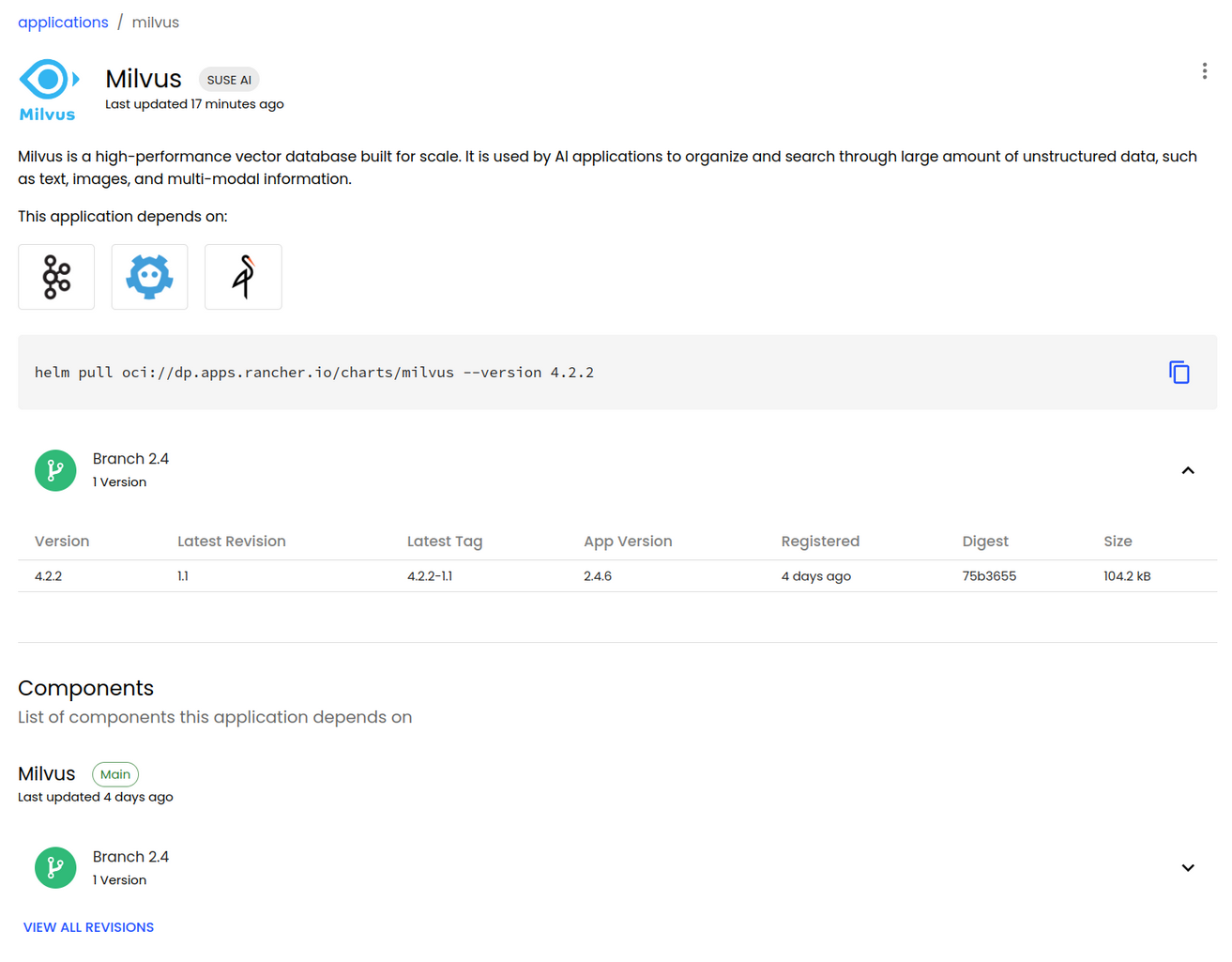
> helm show values oci://dp.apps.rancher.io/charts/milvusAlternatively, you can also refer to the Milvus Helm chart page on the SUSE Application Collection site at https://apps.rancher.io/applications/milvus. It contains Milvus dependencies, available versions and the link to pull the Milvus container image.
4.6.2 Milvus installation procedure #
Before the installation, you need to get user access to the SUSE Application Collection and SUSE Registry, create a Kubernetes namespace, and log in to the Helm registry as described in Section 4.3, “Installation procedure”.
When installed as part of SUSE AI, Milvus depends on etcd, MinIO and Apache Kafka. Because the Milvus chart uses a non-default configuration, create an override file
milvus_custom_overrides.yamlwith the following content.TipAs a template, you can download the Milvus Helm chart that includes the
values.yamlfile with the default configuration by running the following command:> helm pull oci://dp.apps.rancher.io/charts/milvus --version 4.2.2global: imagePullSecrets: - application-collection cluster: enabled: true standalone: persistence: persistentVolumeClaim: storageClassName: "local-path" etcd: replicaCount: 1 persistence: storageClassName: "local-path" minio: mode: distributed replicas: 4 rootUser: "admin" rootPassword: "adminminio" persistence: storageClass: "local-path" resources: requests: memory: 1024Mi kafka: enabled: true name: kafka replicaCount: 3 broker: enabled: true cluster: listeners: client: protocol: 'PLAINTEXT' controller: protocol: 'PLAINTEXT' persistence: enabled: true annotations: {} labels: {} existingClaim: "" accessModes: - ReadWriteOnce resources: requests: storage: 8Gi storageClassName: "local-path" extraConfigFiles: 1 user.yaml: |+ trace: exporter: jaeger sampleFraction: 1 jaeger: url: "http://opentelemetry-collector.observability.svc.cluster.local:14268/api/traces" 2The
extraConfigFilessection is optional, required only to receive telemetry data from Open WebUI.The URL of the OpenTelemetry Collector installed by the user.
TipThe above example uses local storage. For production environments, we recommend using an enterprise class storage solution such as SUSE Storage in which case the
storageClassNameoption must be set tolonghorn.Install the Milvus Helm chart using the
milvus_custom_overrides.yamloverride file.> helm upgrade --install \ milvus oci://dp.apps.rancher.io/charts/milvus \ -n <SUSE_AI_NAMESPACE> \ --version 4.2.2 -f <milvus_custom_overrides.yaml>
4.6.2.1 Using Apache Kafka with SUSE Storage #
When Milvus is deployed in cluster mode, it uses Apache Kafka as a message queue. If Apache Kafka uses SUSE Storage as a storage back-end, you need to create an XFS storage class and make it available for the Apache Kafka deployment. Otherwise deploying Apache Kafka with a storage class of an Ext4 file system fails with the following error:
"Found directory /mnt/kafka/logs/lost+found, 'lost+found' is not
  in the form of topic-partition or topic-partition.uniqueId-delete
  (if marked for deletion)"
To introduce the XFS storage class, follow these steps:
Create a file named
longhorn-xfs.yamlwith the following content:apiVersion: storage.k8s.io/v1 kind: StorageClass metadata: name: longhorn-xfs provisioner: driver.longhorn.io allowVolumeExpansion: true reclaimPolicy: Delete volumeBindingMode: Immediate parameters: numberOfReplicas: "3" staleReplicaTimeout: "30" fromBackup: "" fsType: "xfs" dataLocality: "disabled" unmapMarkSnapChainRemoved: "ignored"Create the new storage class using the
kubectlcommand.> kubectl apply -f longhorn-xfs.yamlUpdate the Milvus overrides YAML file to reference the Apache Kafka storage class, as in the following example:
  [...]
    kafka:
    enabled: true
    persistence:
      storageClassName: longhorn-xfs
4.6.3 Upgrading Milvus #
The Milvus chart receives application updates and updates of the Helm chart templates.
New versions may include changes that require manual steps.
These steps are listed in the corresponding README file.
All Milvus dependencies are updated automatically during Milvus upgrade.
To upgrade Milvus, identify the new version number and run the following command below:
> helm upgrade --install \
  milvus oci://dp.apps.rancher.io/charts/milvus \
  -n <SUSE_AI_NAMESPACE> \
  --version <VERSION_NUMBER> \
  -f milvus_custom_overrides.yaml
4.6.4 Uninstalling Milvus #
To uninstall Milvus, run the following command:
> helm uninstall milvus -n <SUSE_AI_NAMESPACE>4.7 Installing Ollama #
Ollama is a tool for running and managing language models locally on your computer. It offers a simple interface to download, run and interact with models without relying on cloud resources.
When installing SUSE AI, Ollama is installed by the Open WebUI installation by default. If you decide to install Ollama separately, disable its installation during the installation of Open WebUI as outlined in Example 4.6, “Open WebUI override file with Ollama installed separately”.
4.7.1 Details about the Ollama application #
Before deploying Ollama, it is important to know more about the supported configurations and documentation. The following command provides the corresponding details:
> helm show values oci://dp.apps.rancher.io/charts/ollamaAlternatively, you can also refer to the Ollama Helm chart page on the SUSE Application Collection site at https://apps.rancher.io/applications/ollama. It contains the available versions and a link to pull the Ollama container image.
4.7.2 Ollama installation procedure #
Before the installation, you need to get user access to the SUSE Application Collection and SUSE Registry, create a Kubernetes namespace, and log in to the Helm registry as described in Section 4.3, “Installation procedure”.
Create the
ollama_custom_overrides.yamlfile to override the values of the parent Helm chart. Refer to Section 4.7.5, “Values for the Ollama Helm chart” for more details.Install the Ollama Helm chart using the
ollama-custom-overrides.yamloverride file.> helm upgrade \ --install ollama oci://dp.apps.rancher.io/charts/ollama \ -n <SUSE_AI_NAMESPACE> \ -f ollama_custom_overrides.yamlTip: Hugging Face modelsModels downloaded from Hugging Face need to be converted before they can be used by Ollama. Refer to https://github.com/ollama/ollama/blob/main/docs/import.md for more details.
4.7.3 Uninstalling Ollama #
To uninstall Ollama, run the following command:
> helm uninstall ollama -n <SUSE_AI_NAMESPACE>4.7.4 Upgrading Ollama #
You can upgrade Ollama to a specific version by running the following command:
> helm upgrade ollama oci://dp.apps.rancher.io/charts/ollama \
  -n <SUSE_AI_NAMESPACE> \
  --version <OLLAMA_VERSION_NUMBER> -f <ollama_custom_overrides.yaml>
If you omit the --version option, Ollama gets upgraded to the latest available version.
4.7.4.1 Upgrading from version 0.x.x to 1.x.x #
The version 1.x.x introduces the ability to load models in memory at startup.
To reflect this, change ollama.models to ollama.models.pull in the Ollama Helm chart to avoid errors before upgrading, for example:
[...]
ollama:
  models:
    - "gemma:2b"
- "llama3.1"[...]
ollama:
models:
pull:
- "gemma:2b"
- "llama3.1"Without this change you may experience the following error when trying to upgrade from 0.x.x to 1.x.x.
coalesce.go:286: warning: cannot overwrite table with non table for
ollama.ollama.models (map[pull:[] run:[]])
Error: UPGRADE FAILED: template: ollama/templates/deployment.yaml:145:27:
executing "ollama/templates/deployment.yaml" at <.Values.ollama.models.pull>:
can't evaluate field pull in type interface {}
4.7.5 Values for the Ollama Helm chart #
To override the default values during the Helm chart installation or update, you can create an override YAML file with custom values.
Then, apply these values by specifying the path to the override file with the -f option of the helm command.
Remember to replace <SUSE_AI_NAMESPACE> with your Kubernetes namespace.
Ollama can run optimized for NVIDIA GPUs if the following conditions are fulfilled:
The NVIDIA driver and NVIDIA GPU Operator are installed as described in Installing NVIDIA GPU Drivers on SLES or Installing NVIDIA GPU Drivers on SUSE Linux Micro.
The workloads are set to run on NVIDIA-enabled nodes as described in https://documentation.suse.com/suse-ai/1.0/html/AI-deployment-intro/index.html#ai-gpu-nodes-assigning.
If you do not want to use the NVIDIA GPU, remove the gpu section from ollama_custom_overrides.yaml or disable it.
 ollama:
  [...]
  gpu:
    enabled: false
    type: 'nvidia'
number: 1global:
imagePullSecrets:
- application-collection
ingress:
enabled: false
defaultModel: "gemma:2b"
ollama:
models:
pull:
- "gemma:2b"
- "llama3.1"
run:
- "gemma:2b"
- "llama3.1"
gpu:
enabled: true
type: 'nvidia'
number: 1
nvidiaResource: "nvidia.com/gpu"
persistentVolume: 1
enabled: true
storageClass: local-path 2Without the | |
Use |
ollama:
  models:
    pull:
      - llama2
    run:
      - llama2
  persistentVolume:
    enabled: true
    storageClass: local-path 1
ingress:
  enabled: true
  hosts:
  - host: <OLLAMA_API_URL>
    paths:
      - path: /
pathType: PrefixUse |
| Key | Type | Default | Description |
|---|---|---|---|
affinity | object | {} | Affinity for pod assignment |
autoscaling.enabled | bool | false | Enable autoscaling |
autoscaling.maxReplicas | int | 100 | Number of maximum replicas |
autoscaling.minReplicas | int | 1 | Number of minimum replicas |
autoscaling.targetCPUUtilizationPercentage | int | 80 | CPU usage to target replica |
extraArgs | list | [] | Additional arguments on the output Deployment definition. |
extraEnv | list | [] | Additional environment variables on the output Deployment definition. |
fullnameOverride | string | "" | String to fully override template |
global.imagePullSecrets | list | [] | Global override for container image registry pull secrets |
global.imageRegistry | string | "" | Global override for container image registry |
hostIPC | bool | false | Use the host’s IPC namespace |
hostNetwork | bool | false | Use the host’s network namespace |
hostPID | bool | false | Use the host’s PID namespace. |
image.pullPolicy | string | "IfNotPresent" | Image pull policy to use for the Ollama container |
image.registry | string | "dp.apps.rancher.io" | Image registry to use for the Ollama container |
image.repository | string | "containers/ollama" | Image repository to use for the Ollama container |
image.tag | string | "0.3.6" | Image tag to use for the Ollama container |
imagePullSecrets | list | [] | Docker registry secret names as an array |
ingress.annotations | object | {} | Additional annotations for the Ingress resource |
ingress.className | string | "" | IngressClass that is used to implement the Ingress (Kubernetes 1.18+) |
ingress.enabled | bool | false | Enable Ingress controller resource |
ingress.hosts[0].host | string | "ollama.local" | |
ingress.hosts[0].paths[0].path | string | "/" | |
ingress.hosts[0].paths[0].pathType | string | "Prefix" | |
ingress.tls | list | [] | The TLS configuration for host names to be covered with this Ingress record |
initContainers | list | [] | Init containers to add to the pod |
knative.containerConcurrency | int | 0 | Knative service container concurrency |
knative.enabled | bool | false | Enable Knative integration |
knative.idleTimeoutSeconds | int | 300 | Knative service idle timeout seconds |
knative.responseStartTimeoutSeconds | int | 300 | Knative service response start timeout seconds |
knative.timeoutSeconds | int | 300 | Knative service timeout seconds |
livenessProbe.enabled | bool | true | Enable livenessProbe |
livenessProbe.failureThreshold | int | 6 | Failure threshold for livenessProbe |
livenessProbe.initialDelaySeconds | int | 60 | Initial delay seconds for livenessProbe |
livenessProbe.path | string | "/" | Request path for livenessProbe |
livenessProbe.periodSeconds | int | 10 | Period seconds for livenessProbe |
livenessProbe.successThreshold | int | 1 | Success threshold for livenessProbe |
livenessProbe.timeoutSeconds | int | 5 | Timeout seconds for livenessProbe |
nameOverride | string | "" | String to partially override template (maintains the release name) |
nodeSelector | object | {} | Node labels for pod assignment |
ollama.gpu.enabled | bool | false | Enable GPU integration |
ollama.gpu.number | int | 1 | Specify the number of GPUs |
ollama.gpu.nvidiaResource | string | "nvidia.com/gpu" | Only for NVIDIA cards; change to |
ollama.gpu.type | string | "nvidia" | GPU type: 'nvidia' or 'amd.' If 'ollama.gpu.enabled' is enabled, the default value is 'nvidia.' If set to 'amd,' this adds the 'rocm' suffix to the image tag if 'image.tag' is not override. This is because AMD and CPU/CUDA are different images. |
ollama.insecure | bool | false | Add insecure flag for pulling at container startup |
ollama.models | list | [] | List of models to pull at container startup. The more you add, the longer the container takes to start if models are not present models: - llama2 - mistral |
ollama.mountPath | string | "" | Override ollama-data volume mount path, default: "/root/.ollama" |
persistentVolume.accessModes | list | ["ReadWriteOnce"] | Ollama server data Persistent Volume access modes. Must match those of existing PV or dynamic provisioner, see https://kubernetes.io/docs/concepts/storage/persistent-volumes/. |
persistentVolume.annotations | object | {} | Ollama server data Persistent Volume annotations |
persistentVolume.enabled | bool | false | Enable persistence using PVC |
persistentVolume.existingClaim | string | "" | If you want to bring your own PVC for persisting Ollama state, pass the name of the created + ready PVC here. If set, this Chart does not create the default PVC. Requires |
persistentVolume.size | string | "30Gi" | Ollama server data Persistent Volume size |
persistentVolume.storageClass | string | "" | If persistentVolume.storageClass is present, and is set to either a dash ('-') or empty string (''), dynamic provisioning is disabled. Otherwise, the storageClassName for persistent volume claim is set to the given value specified by persistentVolume.storageClass. If persistentVolume.storageClass is absent, the default storage class is used for dynamic provisioning whenever possible. See https://kubernetes.io/docs/concepts/storage/storage-classes/ for more details. |
persistentVolume.subPath | string | "" | Subdirectory of Ollama server data Persistent Volume to mount. Useful if the volume’s root directory is not empty. |
persistentVolume.volumeMode | string | "" | Ollama server data Persistent Volume Binding Mode. If empty (the default) or set to null, no volumeBindingMode specification is set, choosing the default mode. |
persistentVolume.volumeName | string | "" | Ollama server Persistent Volume name. It can be used to force-attach the created PVC to a specific PV. |
podAnnotations | object | {} | Map of annotations to add to the pods |
podLabels | object | {} | Map of labels to add to the pods |
podSecurityContext | object | {} | Pod Security Context |
readinessProbe.enabled | bool | true | Enable readinessProbe |
readinessProbe.failureThreshold | int | 6 | Failure threshold for readinessProbe |
readinessProbe.initialDelaySeconds | int | 30 | Initial delay seconds for readinessProbe |
readinessProbe.path | string | "/" | Request path for readinessProbe |
readinessProbe.periodSeconds | int | 5 | Period seconds for readinessProbe |
readinessProbe.successThreshold | int | 1 | Success threshold for readinessProbe |
readinessProbe.timeoutSeconds | int | 3 | Timeout seconds for readinessProbe |
replicaCount | int | 1 | Number of replicas |
resources.limits | object | {} | Pod limit |
resources.requests | object | {} | Pod requests |
runtimeClassName | string | "" | Specify runtime class |
securityContext | object | {} | Container Security Context |
service.annotations | object | {} | Annotations to add to the service |
service.nodePort | int | 31434 | Service node port when service type is 'NodePort' |
service.port | int | 11434 | Service port |
service.type | string | "ClusterIP" | Service type |
serviceAccount.annotations | object | {} | Annotations to add to the service account |
serviceAccount.automount | bool | true | Whether to automatically mount a ServiceAccount’s API credentials |
serviceAccount.create | bool | true | Whether a service account should be created |
serviceAccount.name | string | "" | The name of the service account to use. If not set and 'create' is 'true', a name is generated using the full name template. |
tolerations | list | [] | Tolerations for pod assignment |
topologySpreadConstraints | object | {} | Topology Spread Constraints for pod assignment |
updateStrategy | object | {"type":""} | How to replace existing pods. |
updateStrategy.type | string | "" | Can be 'Recreate' or 'RollingUpdate'; default is 'RollingUpdate' |
volumeMounts | list | [] | Additional volumeMounts on the output Deployment definition |
volumes | list | [] | Additional volumes on the output Deployment definition |
4.8 Installing Open WebUI #
Open WebUI is a user-friendly web interface for interacting with Large Language Models (LLMs). It supports various LLM runners, including Ollama and vLLM.
4.8.1 Details about the Open WebUI application #
Before deploying Open WebUI, it is important to know more about the supported configurations and documentation. The following command provides the corresponding details:
> helm show values oci://dp.apps.rancher.io/charts/open-webuiAlternatively, you can also refer to the Open WebUI Helm chart page on the SUSE Application Collection site at https://apps.rancher.io/applications/open-webui. It contains available versions and the link to pull the Open WebUI container image.
4.8.2 Open WebUI installation procedure #
Before the installation, you need to get user access to the SUSE Application Collection and SUSE Registry, create a Kubernetes namespace, and log in to the Helm registry as described in Section 4.3, “Installation procedure”.
An installed cert-manager. If cert-manager is not installed from previous Open WebUI releases, install it by following the steps in Section 4.4, “Installing cert-manager”.
Create the
owui_custom_overrides.yamlfile to override the values of the parent Helm chart. The file contains URLs for Milvus and Ollama, and specifies whether a stand-alone Ollama deployment is used or whether Ollama is installed as part of the Open WebUI installation. Find more details in Section 4.8.5, “Examples of Open WebUI Helm chart override files”. For a list of all installation options with examples, refer to Section 4.8.6, “Values for the Open WebUI Helm chart”.Install the Open WebUI Helm chart using the
owui_custom_overrides.yamloverride file.> helm upgrade --install \ open-webui oci://dp.apps.rancher.io/charts/open-webui \ -n <SUSE_AI_NAMESPACE> \ -f <owui_custom_overrides.yaml>
4.8.3 Upgrading Open WebUI #
To upgrade Open WebUI to a specific new version, run the following command:
> helm upgrade --install open-webui \
oci://dp.apps.rancher.io/charts/open-webui \
-n <SUSE_AI_NAMESPACE> \
--version <VERSION_NUMBER> \
-f <owui_custom_overrides.yaml>To upgrade Open WebUI to the latest version, run the following command:
> helm upgrade --install open-webui \
oci://dp.apps.rancher.io/charts/open-webui \
-n <SUSE_AI_NAMESPACE> \
-f <owui_custom_overrides.yaml>4.8.4 Uninstalling Open WebUI #
To uninstall Open WebUI, run the following command:
> helm uninstall open-webui -n <SUSE_AI_NAMESPACE>4.8.5 Examples of Open WebUI Helm chart override files #
To override the default values during the Helm chart installation or update, you can create an override YAML file with custom values.
Then, apply these values by specifying the path to the override file with the -f option of the helm command.
Remember to replace <SUSE_AI_NAMESPACE> with your Kubernetes namespace.
The following override file installs Ollama during the Open WebUI installation.
global:
imagePullSecrets:
- application-collection
ollamaUrls:
- http://open-webui-ollama.<SUSE_AI_NAMESPACE>.svc.cluster.local:11434
persistence:
enabled: true
storageClass: local-path 1
ollama:
enabled: true
ingress:
enabled: false
defaultModel: "gemma:2b"
ollama:
models: 2
pull:
- "gemma:2b"
- "llama3.1"
gpu: 3
enabled: true
type: 'nvidia'
number: 1
persistentVolume: 4
enabled: true
storageClass: local-path
pipelines:
enabled: true
persistence:
storageClass: local-path
extraEnvVars: 5
- name: PIPELINES_URLS 6
value: "https://raw.githubusercontent.com/SUSE/suse-ai-observability-extension/refs/heads/main/integrations/oi-filter/suse_ai_filter.py"
- name: OTEL_SERVICE_NAME 7
value: "Open WebUI"
- name: OTEL_EXPORTER_HTTP_OTLP_ENDPONT 8
value: "http://opentelemetry-collector.suse-observability.svc.cluster.local:4318"
- name: PRICING_JSON 9
value: "https://raw.githubusercontent.com/SUSE/suse-ai-observability-extension/refs/heads/main/integrations/oi-filter/pricing.json"
ingress:
enabled: true
class: ""
annotations:
nginx.ingress.kubernetes.io/ssl-redirect: "true"
nginx.ingress.kubernetes.io/proxy-body-size: "1024m"
host: suse-ollama-webui 10
tls: true
extraEnvVars:
- name: DEFAULT_MODELS 11
value: "gemma:2b"
- name: DEFAULT_USER_ROLE
value: "user"
- name: WEBUI_NAME
value: "SUSE AI"
- name: GLOBAL_LOG_LEVEL
value: INFO
- name: RAG_EMBEDDING_MODEL
value: "sentence-transformers/all-MiniLM-L6-v2"
- name: VECTOR_DB
value: "milvus"
- name: MILVUS_URI
value: http://milvus.<SUSE_AI_NAMESPACE>.svc.cluster.local:19530
- name: INSTALL_NLTK_DATASETS 12
value: "true"
- name: OMP_NUM_THREADS
value: "1"
- name: OPENAI_API_KEY 13
value: "0p3n-w3bu!"Use | |
Specifies that two large language models (LLM) will be loaded in Ollama when the container starts. | |
Enables GPU support for Ollama.
The | |
Without the | |
The environment variables that you are making available for the pipeline’s runtime container. | |
A list of pipeline URLs to be downloaded and installed by default.
Individual URLs are separated by a semicolon | |
The service name that appears in traces and topological representations in SUSE Observability. | |
The endpoint for the OpenTelemetry collector. Make sure to use the HTTP port of your collector. | |
A file for the model multipliers in cost estimation. You can customize it to match your actual infrastructure experimentally. | |
Specifies the default LLM for Ollama. | |
Specifies the host name for the Open WebUI interface. | |
Installs the Natural Language Toolkit (NLTK) datasets for Ollama. Refer to https://www.nltk.org/index.html for licensing information. | |
API key value for communication between Open WebUI and Open WebUI Pipelines. The default value is '0p3n-w3bu!'. |
The following override file installs Ollama separately from the Open WebUI installation.
global:
imagePullSecrets:
- application-collection
ollamaUrls:
- http://ollama.<SUSE_AI_NAMESPACE>.svc.cluster.local:11434
persistence:
enabled: true
storageClass: local-path 1
ollama:
enabled: false
pipelines:
enabled: False
persistence:
storageClass: local-path 2
ingress:
enabled: true
class: ""
annotations:
nginx.ingress.kubernetes.io/ssl-redirect: "true"
host: suse-ollama-webui
tls: true
extraEnvVars:
- name: DEFAULT_MODELS 3
value: "gemma:2b"
- name: DEFAULT_USER_ROLE
value: "user"
- name: WEBUI_NAME
value: "SUSE AI"
- name: GLOBAL_LOG_LEVEL
value: INFO
- name: RAG_EMBEDDING_MODEL
value: "sentence-transformers/all-MiniLM-L6-v2"
- name: VECTOR_DB
value: "milvus"
- name: MILVUS_URI
value: http://milvus.<SUSE_AI_NAMESPACE>.svc.cluster.local:19530
- name: ENABLE_OTEL 4
value: "true"
- name: OTEL_EXPORTER_OTLP_ENDPOINT 5
value: http://opentelemetry-collector.observability.svc.cluster.local:4317 6
- name: OMP_NUM_THREADS
value: "1"Use | |
Use | |
Specifies the default LLM for Ollama. | |
These values are optional, required only to receive telemetry data from Open WebUI. | |
These values are optional, required only to receive telemetry data from Open WebUI. | |
The URL of the OpenTelemetry Collector installed by the user. |
The following override file installs Ollama separately and enables Open WebUI pipelines. This simple filter adds a limit to the number of question and answer turns during the LLM chat.
Pipelines normally require additional configuration provided either via environment variables or specified in the Open WebUI Web UI.
global:
imagePullSecrets:
- application-collection
ollamaUrls:
- http://ollama.<SUSE_AI_NAMESPACE>.svc.cluster.local:11434
persistence:
enabled: true
storageClass: local-path
ollama:
enabled: false
pipelines:
enabled: true
persistence:
storageClass: local-path
extraEnvVars:
- name: PIPELINES_URLS 1
value: "https://raw.githubusercontent.com/SUSE/suse-ai-observability-extension/refs/heads/main/integrations/oi-filter/conversation_turn_limit_filter.py"
ingress:
enabled: true
class: ""
annotations:
nginx.ingress.kubernetes.io/ssl-redirect: "true"
host: suse-ollama-webui
tls: true
[...]A list of pipeline URLs to be downloaded and installed by default.
Individual URLs are separated by a semicolon |
The following example shows how to extend the extraEnvVars section of the Open WebUI override file to connect to vLLM.
Replace SUSE_AI_NAMESPACE with your Kubernetes namespace.
extraEnvVars:
[...]
- name: OPENAI_API_BASE_URL
value: "http://vllm-router-service.<SUSE_AI_NAMESPACE>.svc.cluster.local:80/v1"
- name: OPENAI_API_KEY
value: "dummy" 1Open WebUI will require you to provide the OpenAI API key. |
If the Open WebUI installation has pipelines enabled besides the vLLM deployment, you can extend the extraEnvVars section as follows.
extraEnvVars:
[...]
- name: OPENAI_API_BASE_URLS
value: "http://open-webui-pipelines.<SUSE_AI_NAMESPACE>.svc.cluster.local:9099;http://vllm-router-service.<SUSE_AI_NAMESPACE>.svc.cluster.local:80/v1"
- name: OPENAI_API_KEYS
value: "0p3n-w3bu!;dummy"You can install the open-webui-pipelines service as a stand-alone deployment, independent of the Open WebUI chart.
To install open-webui-pipelines as a stand-alone component, use the following command:
> helm upgrade --install open-webui-pipelines \
oci://dp.apps.rancher.io/charts/open-webui-pipelines \
-n <SUSE_AI_NAMESPACE> \
-f open-webui-pipelines-values.yamlFollowing is an example of the open-webui-pipelines-values.yaml override file.
global:
imagePullSecrets:
- application-collection
image:
registry: dp.apps.rancher.io
repository: containers/open-webui-pipelines
tag: <IMAGE_TAG>
pullPolicy: IfNotPresent
persistence:
enabled: true
storageClass: local-path
size: 10Gi4.8.6 Values for the Open WebUI Helm chart #
To override the default values during the Helm chart installation or update, you can create an override YAML file with custom values.
Then, apply these values by specifying the path to the override file with the -f option of the helm command.
Remember to replace <SUSE_AI_NAMESPACE> with your Kubernetes namespace.
| Key | Type | Default | Description |
|---|---|---|---|
affinity | object | {} | Affinity for pod assignment |
annotations | object | {} | |
cert-manager.enabled | bool | true | |
clusterDomain | string | "cluster.local" | Value of cluster domain |
containerSecurityContext | object | {} | Configure container security context, see https://kubernetes.io/docs/tasks/configure-pod-container/security-context/#set-the-security-context-for-a-containe. |
extraEnvVars | list | [{"name":"OPENAI_API_KEY", "value":"0p3n-w3bu!"}] | Environment variables added to the Open WebUI deployment. Most up-to-date environment variables can be found in Environment Variable Configuration. |
extraEnvVars[0] | object | {"name":"OPENAI_API_KEY","value":"0p3n-w3bu!"} | Default API key value for Pipelines. It should be updated in a production deployment and changed to the required API key if not using Pipelines. |
global.imagePullSecrets | list | [] | Global override for container image registry pull secrets |
global.imageRegistry | string | "" | Global override for container image registry |
global.tls.additionalTrustedCAs | bool | false | |
global.tls.issuerName | string | "suse-private-ai" | |
global.tls.letsEncrypt.email | string | ||
global.tls.letsEncrypt.environment | string | "staging" | |
global.tls.letsEncrypt.ingress.class | string | "" | |
global.tls.source | string | "suse-private-ai" | The source of Open WebUI TLS keys, see Section 4.8.6.1, “TLS sources”. |
image.pullPolicy | string | "IfNotPresent" | Image pull policy to use for the Open WebUI container |
image.registry | string | "dp.apps.rancher.io" | Image registry to use for the Open WebUI container |
image.repository | string | "containers/open-webui" | Image repository to use for the Open WebUI container |
image.tag | string | "0.3.32" | Image tag to use for the Open WebUI container |
imagePullSecrets | list | [] | Configure imagePullSecrets to use private registry, see https://kubernetes.io/docs/tasks/configure-pod-container/pull-image-private-registry/. |
ingress.annotations | object | {"nginx.ingress.kubernetes.io/ssl-redirect":"true"} | Use appropriate annotations for your Ingress controller, such as |
ingress.class | string | "" | |
ingress.enabled | bool | true | |
ingress.existingSecret | string | "" | |
ingress.host | string | "" | |
ingress.tls | bool | true | |
nameOverride | string | "" | |
nodeSelector | object | {} | Node labels for pod assignment |
ollama.enabled | bool | true | Automatically install Ollama Helm chart from \oci://dp.apps.rancher.io/charts/ollama. Configure the following Helm values. |
ollama.fullnameOverride | string | "open-webui-ollama" | If enabling embedded Ollama, update fullnameOverride to your desired Ollama name value, or else it will use the default ollama.name value from the Ollama chart. |
ollamaUrls | list | [] | A list of Ollama API endpoints. These can be added instead of automatically installing the Ollama Helm chart, or in addition to it. |
openaiBaseApiUrl | string | "" | OpenAI base API URL to use.
Defaults to the Pipelines service endpoint when Pipelines are enabled, or to |
persistence.accessModes | list | ["ReadWriteOnce"] | If using multiple replicas, you must update accessModes to ReadWriteMany. |
persistence.annotations | object | {} | |
persistence.enabled | bool | true | |
persistence.existingClaim | string | "" | Use existingClaim to reuse an existing Open WebUI PVC instead of creating a new one. |
persistence.selector | object | {} | |
persistence.size | string | "2Gi" | |
persistence.storageClass | string | "" | |
pipelines.enabled | bool | false | Automatically install Pipelines chart to extend Open WebUI functionality using Pipelines. |
pipelines.extraEnvVars | list | [] | This section can be used to pass the required environment variables to your pipelines (such as the Langfuse host name). |
podAnnotations | object | {} | |
podSecurityContext | object | {} | Configure pod security context, see https://kubernetes.io/docs/tasks/configure-pod-container/security-context/#set-the-security-context-for-a-containe. |
replicaCount | int | 1 | |
resources | object | {} | |
service | object | {"annotations":{},"containerPort":8080, "labels":{},"loadBalancerClass":"", "nodePort":"","port":80,"type":"ClusterIP"} | Service values to expose Open WebUI pods to cluster |
tolerations | list | [] | Tolerations for pod assignment |
topologySpreadConstraints | list | [] | Topology Spread Constraints for pod assignment |
4.8.6.1 TLS sources #
There are three recommended options where Open WebUI can obtain TLS certificates for secure communication.
- Self-Signed TLS certificate
This is the default method. You need to install
cert-manageron the cluster to issue and maintain the certificates. This method generates a CA and signs the Open WebUI certificate using the CA.cert-managerthen manages the signed certificate. For this method, use the following Helm chart option:global.tls.source=suse-private-ai- Let’s Encrypt
This method also uses
cert-manager, but it is combined with a special issuer for Let’s Encrypt that performs all actions—including request and validation—to get the Let’s Encrypt certificate issued. This configuration uses HTTP validation (HTTP-01) and therefore the load balancer must have a public DNS record and be accessible from the Internet. For this method, use the following Helm chart option:global.tls.source=letsEncrypt- Provide your own certificate
This method allows you to bring your own signed certificate to secure the HTTPS traffic. In this case, you must upload this certificate and associated key as PEM-encoded files named
tls.crtandtls.key. For this method, use the following Helm chart option:global.tls.source=secret
4.9 Installing vLLM #
vLLM is an open-source high-performance inference and serving engine for large language models (LLMs). It is designed to maximize throughput and reduce latency by using an efficient memory management system that handles dynamic batching and streaming outputs. In short, vLLM makes running LLMs cheaper and faster in production.
Deploying vLLM on Kubernetes is a scalable and efficient way to serve machine learning models. This guide walks you through deploying vLLM using its Helm chart, which is part of AI Library. The Helm chart deploys the full vLLM production stack and enables you to run optimized LLM inference workloads on NVIDIA GPU in your Kubernetes cluster. It consists of the following components:
Serving Engine runs the model inference.
Router handles OpenAI-compatible API requests.
LMCache (Optional) improves caching efficiency.
CacheServer (Optional) is a distributed KV cache back-end.
4.9.1 Details about the vLLM application #
Before deploying vLLM, it is important to know more about the supported configurations and documentation. The following command provides the corresponding details:
> helm show values oci://dp.apps.rancher.io/charts/vllmAlternatively, you can also refer to the vLLM Helm chart page on the SUSE Application Collection site at https://apps.rancher.io/applications/vllm. It contains vLLM dependencies, available versions and the link to pull the vLLM container image.
4.9.2 vLLM installation procedure #
Before the installation, you need to get user access to the SUSE Application Collection and SUSE Registry, create a Kubernetes namespace, and log in to the Helm registry as described in Section 4.3, “Installation procedure”.

NVIDIA GPUs must be available in your Kubernetes cluster to successfully deploy and run vLLM.
The current release of SUSE AI vLLM does not support Ray and LoraController.
Create a
vllm_custom_overrides.yamlfile to override the default values of the Helm chart. Find examples of override files in Section 4.9.6, “Examples of vLLM Helm chart override files”.After saving the override file as
vllm_custom_overrides.yaml, apply its configuration with the following command.> helm upgrade --install \ vllm oci://dp.apps.rancher.io/charts/vllm \ -n <SUSE_AI_NAMESPACE> \ -f <vllm_custom_overrides.yaml>
4.9.3 Integrating vLLM with Open WebUI #
You can integrate vLLM in Open WebUI either using the Open WebUI Web user interface, or updating Open WebUI override file during Open WebUI deployment (see Example 4.8, “Open WebUI override file with a connection to vLLM”).
Integrating vLLM with Open WebUI via the Web user interface.
You must have Open WebUI administrator privileges to access configuration screens or settings mentioned in this section.
In the bottom left of the Open WebUI window, click your avatar icon to open the user menu and select .
Click the tab and select from the left menu.
In the section, add a new connection URL to the vLLM router service, for example:
http://vllm-router-service.<SUSE_AI_NAMESPACE>.svc.cluster.local:80/v1
Confirm with .
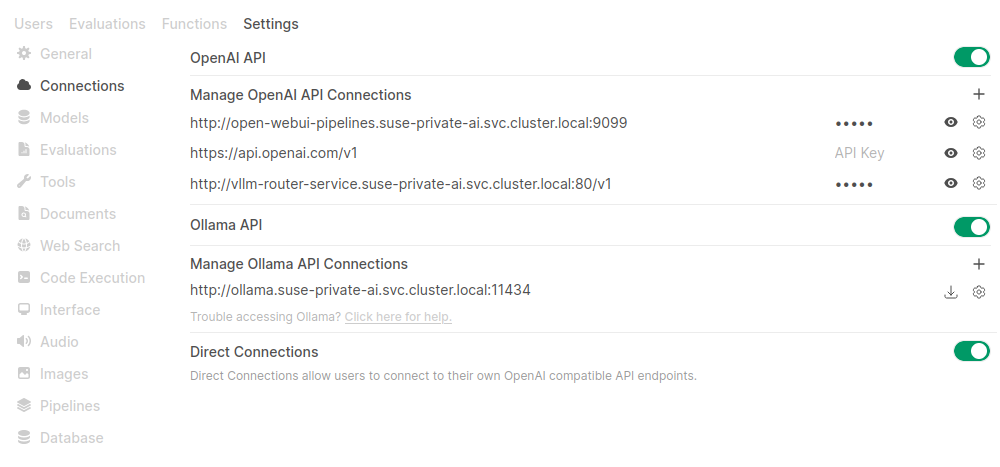 Figure 4.2: Adding a vLLM connection to Open WebUI #
4.9.4 Upgrading vLLM #
The vLLM chart receives application updates and updates of the Helm chart templates.
New versions may include changes that require manual steps.
These steps are listed in the corresponding README file.
All vLLM dependencies are updated automatically during a vLLM upgrade.
To upgrade vLLM, identify the new version number and run the following command below:
> helm upgrade --install \
vllm oci://dp.apps.rancher.io/charts/vllm \
-n <SUSE_AI_NAMESPACE> \
--version <VERSION_NUMBER> \
-f <vllm_custom_overrides.yaml>If you omit the --version option, vLLM gets upgraded to the latest available version.

The helm upgrade command performs a rolling update on Deployments or StatefulSets with the following conditions:
The old pod stays running until the new pod passes readiness checks.
If the cluster is already at GPU capacity, the new pod cannot start because there is no GPU left to schedule it. This requires patching the deployment using the Recreate update strategy. The following commands identify the vLLM deployment name and patch its deployment.
> kubectl get deployments -n <SUSE_AI_NAMESPACE> > kubectl patch deployment <VLLM_DEPLOYMENT_NAME> \ -n <SUSE_AI_NAMESPACE> \ -p '{"spec": {"strategy": {"type": "Recreate", "rollingUpdate": null}}}'
While upgrading the vLLM Helm chart from version 0.1.9 to 0.1.10, you may encounter the following error due to immutable label selector changes:
Error: UPGRADE FAILED: cannot patch "vllm-deployment-router" with kind Deployment: Deployment.apps "vllm-deployment-router" is invalid: spec.selector: Invalid value: v1.LabelSelector{MatchLabels:map[string]string{"app.kubernetes.io/component":"router", "app.kubernetes.io/instance":"vllm", "app.kubernetes.io/managed-by":"helm", "app.kubernetes.io/name":"router", "app.kubernetes.io/part-of":"vllm", "environment":"router", "release":"router"}, MatchExpressions:[]v1.LabelSelectorRequirement(nil)}: field is immutable && cannot patch "vllm-phi-3-m-deployment-vllm" with kind Deployment: Deployment.apps "vllm-phi-3-m-deployment-vllm" is invalid: spec.selector: Invalid value: v1.LabelSelector{MatchLabels:map[string]string{"app.kubernetes.io/component":"serving-engine", "app.kubernetes.io/instance":"vllm", "app.kubernetes.io/managed-by":"helm", "app.kubernetes.io/name":"phi-3-m", "app.kubernetes.io/part-of":"vllm", "environment":"test", "helm-release-name":"vllm", "model":"phi-3-m", "release":"test"}, MatchExpressions:[]v1.LabelSelectorRequirement(nil)}: field is immutableTo resolve this issue, delete the affected deployments (this stops the running pods) and then retry the upgrade:
> kubectl get deployments -n <SUSE_AI_NAMESPACE>
> kubectl delete deployment vllm-deployment-router -n <SUSE_AI_NAMESPACE>
> kubectl delete deployment <MODEL_DEPLOYMENT_NAME> -n <SUSE_AI_NAMESPACE>Replace <MODEL_DEPLOYMENT_NAME> with the actual deployment name(s) for your model(s) from the list above (for example, vllm-phi-3-m-deployment-vllm).
After deleting the deployments, retry the helm upgrade command from the beginning of this section.
The Helm chart will recreate the deployments with the correct labels.
4.9.5 Uninstalling vLLM #
To uninstall vLLM, run the following command:
> helm uninstall vllm -n <SUSE_AI_NAMESPACE>4.9.6 Examples of vLLM Helm chart override files #
To override the default values during the Helm chart installation or update, you can create an override YAML file with custom values.
Then, apply these values by specifying the path to the override file with the -f option of the helm command.
Remember to replace <SUSE_AI_NAMESPACE> with your Kubernetes namespace.
The following override file installs vLLM using a model that is publicly available.
global:
imagePullSecrets:
- application-collection
servingEngineSpec:
modelSpec:
- name: "phi3-mini-4k"
registry: "dp.apps.rancher.io"
repository: "containers/vllm-openai"
tag: "0.19.0"
imagePullPolicy: "IfNotPresent"
modelURL: "microsoft/Phi-3-mini-4k-instruct"
replicaCount: 1
requestCPU: 6
requestMemory: "16Gi"
requestGPU: 1Pulling the images can take a long time. You can monitor the status of the vLLM installation by running the following command:
> kubectl get pods -n <SUSE_AI_NAMESPACE> NAME READY STATUS RESTARTS AGE [...] vllm-deployment-router-7588bf995c-5jbkf 1/1 Running 0 8m9s vllm-phi3-mini-4k-deployment-vllm-79d6fdc-tx7 1/1 Running 0 8m9sPods for the vLLM deployment should transition to the states
ReadyandRunning.
Expose the
vllm-router-serviceport to the host machine:> kubectl port-forward svc/vllm-router-service \ -n <SUSE_AI_NAMESPACE> 30080:80Query the OpenAI-compatible API to list the available models:
> curl -o- http://localhost:30080/v1/modelsSend a query to the OpenAI
/completionendpoint to generate a completion for a prompt:> curl -X POST http://localhost:30080/v1/completions \ -H "Content-Type: application/json" \ -d '{ "model": "microsoft/Phi-3-mini-4k-instruct", "prompt": "Once upon a time,", "max_tokens": 10 }'# example output of generated completions { "id": "cmpl-3dd11a3624654629a3828c37bac3edd2", "object": "text_completion", "created": 1757530703, "model": "microsoft/Phi-3-mini-4k-instruct", "choices": [ { "index": 0, "text": " in a bustling city full of concrete and", "logprobs": null, "finish_reason": "length", "stop_reason": null, "prompt_logprobs": null } ], "usage": { "prompt_tokens": 5, "total_tokens": 15, "completion_tokens": 10, "prompt_tokens_details": null }, "kv_transfer_params": null }
The following vLLM override file includes basic configuration options.
Access to a Hugging Face token (
HF_TOKEN).The model
meta-llama/Llama-3.1-8B-Instructfrom this example is a gated model that requires you to accept the agreement to access it. For more information, see https://huggingface.co/meta-llama/Llama-3.1-8B-Instruct.Update the
storageClass:entry for eachmodelSpec.
# vllm_custom_overrides.yaml
global:
imagePullSecrets:
- application-collection
servingEngineSpec:
modelSpec:
- name: "llama3" 1
registry: "dp.apps.rancher.io" 2
repository: "containers/vllm-openai" 3
tag: "0.19.0" 4
imagePullPolicy: "IfNotPresent"
modelURL: "meta-llama/Llama-3.1-8B-Instruct" 5
replicaCount: 1 6
requestCPU: 10 7
requestMemory: "16Gi" 8
requestGPU: 1 9
storageClass: <STORAGE_CLASS>
pvcStorage: "50Gi" 10
pvcAccessMode:
- ReadWriteOnce
vllmConfig:
enableChunkedPrefill: false 11
enablePrefixCaching: false 12
maxModelLen: 4096 13
dtype: "bfloat16" 14
extraArgs: ["--disable-log-requests", "--gpu-memory-utilization", "0.8"] 15
hf_token: <HF_TOKEN> 16The unique identifier for your model deployment. | |
The Docker image registry containing the model’s serving engine image. | |
The Docker image repository containing the model’s serving engine image. | |
The version of the model image to use. | |
The URL pointing to the model on Hugging Face or another hosting service. | |
The number of replicas for the deployment, which allows scaling for load. | |
The amount of CPU resources requested per replica. | |
Memory allocation for the deployment. Sufficient memory is required to load the model. | |
The number of GPUs to allocate for the deployment. | |
The Persistent Volume Claim (PVC) size for model storage. | |
Optimizes performance by prefetching model chunks. | |
Enables caching of prompt prefixes to speed up inference for repeated prompts. | |
The maximum sequence length the model can handle. | |
The data type for model weights, such as | |
Additional command-line arguments for vLLM, such as disabling request logging or setting GPU memory utilization. | |
Your Hugging Face token for accessing gated models.
Replace |
Prefetching models to a Persistent Volume Claim (PVC) prevents repeated downloads from Hugging Face during pod startup.
The process involves creating a PVC and a job to fetch the model.
This PVC is mounted at /models, where the prefetch job stores the model weights.
Subsequently, the vLLM modelURL is set to this path, which ensures that the model is loaded locally instead of being downloaded when the pod starts.
Define a PVC for model weights using the following YAML specification.
# pvc-models.yaml apiVersion: v1 kind: PersistentVolumeClaim metadata: name: models-pvc namespace: <SUSE_AI_NAMESPACE> spec: accessModes: ["ReadWriteOnce"] resources: requests: storage: 50Gi # Adjust size based on your model storageClassName: <STORAGE_CLASS>Save it as
pvc-models.yamland apply withkubectl apply -f pvc-models.yaml.Create a secret resource for the Hugging Face token.
> kubectl create secret -n <SUSE_AI_NAMESPACE> \ generic huggingface-credentials \ --from-literal=HUGGING_FACE_HUB_TOKEN=<HF_TOKEN>Create a YAML specification for prefetching the model and save it as
job-prefetch-llama3.1-8b.yaml.# job-prefetch-llama3.1-8b.yaml apiVersion: batch/v1 kind: Job metadata: name: prefetch-llama3.1-8b namespace: <SUSE_AI_NAMESPACE> spec: template: spec: restartPolicy: OnFailure containers: - name: hf-download image: python:3.10-slim env: - name: HF_TOKEN valueFrom: { secretKeyRef: { name: huggingface-credentials, key: <HUGGING_FACE_HUB_TOKEN> } } - name: HF_HUB_ENABLE_HF_TRANSFER value: "1" - name: HF_HUB_DOWNLOAD_TIMEOUT value: "60" command: ["bash","-lc"] args: - | set -e echo "Logging in..." echo "Installing Hugging Face CLI..." pip install "huggingface_hub[cli]" pip install "hf_transfer" hf auth login --token "${HF_TOKEN}" echo "Downloading Llama 3.1 8B Instruct to /models/llama-3.1-8b-it ..." hf download meta-llama/Llama-3.1-8B-Instruct --local-dir /models/llama-3.1-8b-it volumeMounts: - name: models mountPath: /models volumes: - name: models persistentVolumeClaim: claimName: models-pvcApply the specification with the following commands:
> kubectl apply -f job-prefetch-llama3.1-8b.yaml > kubectl -n <SUSE_AI_NAMESPACE> \ wait --for=condition=complete job/prefetch-llama3.1-8bUpdate the custom vLLM override file with support for PVC.
# vllm_custom_overrides.yaml global: imagePullSecrets: - application-collection servingEngineSpec: modelSpec: - name: "llama3" registry: "dp.apps.rancher.io" repository: "containers/vllm-openai" tag: "0.19.0" imagePullPolicy: "IfNotPresent" modelURL: "/models/llama-3.1-8b-it" replicaCount: 1 requestCPU: 10 requestMemory: "16Gi" requestGPU: 1 extraVolumes: - name: models-pvc persistentVolumeClaim: claimName: models-pvc 1 extraVolumeMounts: - name: models-pvc mountPath: /models 2 vllmConfig: maxModelLen: 4096 hf_token: <HF_TOKEN>The following example lists mounted PVCs for a pod.
> kubectl exec -it vllm-llama3-deployment-vllm-858bd967bd-w26f7 \ -n <SUSE_AI_NAMESPACE> -- ls -l /models drwxr-xr-x 1 root root 608 Aug 22 16:29 llama-3.1-8b-it
This example shows how to configure multiple models to run on different GPUs.
Remember to update the entries hf_token and storageClass.
Ray is currently not supported. Therefore, sharding a single large model across multiple GPUs is not supported.
# vllm_custom_overrides.yaml
global:
imagePullSecrets:
- application-collection
servingEngineSpec:
modelSpec:
- name: "llama3"
registry: "dp.apps.rancher.io"
repository: "containers/vllm-openai"
tag: "0.19.0"
imagePullPolicy: "IfNotPresent"
modelURL: "meta-llama/Llama-3.1-8B-Instruct"
replicaCount: 1
requestCPU: 10
requestMemory: "16Gi"
requestGPU: 1
pvcStorage: "50Gi"
storageClass: <STORAGE_CLASS>
vllmConfig:
maxModelLen: 4096
hf_token: <HF_TOKEN_FOR_LLAMA_31>
- name: "mistral"
registry: "dp.apps.rancher.io"
repository: "containers/vllm-openai"
tag: "0.19.0"
imagePullPolicy: "IfNotPresent"
modelURL: "mistralai/Mistral-7B-Instruct-v0.2"
replicaCount: 1
requestCPU: 10
requestMemory: "16Gi"
requestGPU: 1
pvcStorage: "50Gi"
storageClass: <STORAGE_CLASS>
vllmConfig:
maxModelLen: 4096
hf_token: <HF_TOKEN_FOR_MISTRAL>This example demonstrates how to enable KV cache offloading to the CPU using LMCache in a vLLM deployment.
You can enable LMCache and set the CPU offloading buffer size using the lmcacheConfig field.
In the following example, the buffer is set to 20 GB, but you can adjust this value based on your workload.
Remember to update the entries hf_token and storageClass.
Setting lmcacheConfig.enabled to true implicitly enables the LMCACHE_USE_EXPERIMENTAL flag for LMCache.
These experimental features are only supported on newer GPU generations.
It is not recommended to enable them without a compelling reason.
# vllm_custom_overrides.yaml
global:
imagePullSecrets:
- application-collection
}
servingEngineSpec:
modelSpec:
- name: "mistral"
registry: "dp.apps.rancher.io"
repository: "containers/lmcache-vllm-openai"
tag: "0.3.9"
imagePullPolicy: "IfNotPresent"
modelURL: "mistralai/Mistral-7B-Instruct-v0.2"
replicaCount: 1
requestCPU: 10
requestMemory: "40Gi"
requestGPU: 1
pvcStorage: "50Gi"
storageClass: <STORAGE_CLASS>
pvcAccessMode:
- ReadWriteOnce
vllmConfig:
maxModelLen: 32000
lmcacheConfig:
enabled: false
cpuOffloadingBufferSize: "20"
hf_token: <HF_TOKEN>This example shows how to enable remote KV cache storage using LMCache in a vLLM deployment.
The configuration defines a cacheserverSpec and uses two replicas.
Remember to replace the placeholder values for hf_token and storageClass before applying the configuration.
Setting lmcacheConfig.enabled to true implicitly enables the LMCACHE_USE_EXPERIMENTAL flag for LMCache.
These experimental features are only supported on newer GPU generations.
It is not recommended to enable them without a compelling reason.
# vllm_custom_overrides.yaml
global:
imagePullSecrets:
- application-collection
servingEngineSpec:
modelSpec:
- name: "mistral"
registry: "dp.apps.rancher.io"
repository: "containers/lmcache-vllm-openai"
tag: "0.3.9"
imagePullPolicy: "IfNotPresent"
modelURL: "mistralai/Mistral-7B-Instruct-v0.2"
replicaCount: 2
requestCPU: 10
requestMemory: "40Gi"
requestGPU: 1
pvcStorage: "50Gi"
storageClass: <STORAGE_CLASS>
vllmConfig:
enablePrefixCaching: true
maxModelLen: 16384
lmcacheConfig:
enabled: false
cpuOffloadingBufferSize: "20"
hf_token: <HF_TOKEN>
initContainer:
name: "wait-for-cache-server"
image: "dp.apps.rancher.io/containers/lmcache-vllm-openai:0.3.9"
command: ["/bin/sh", "-c"]
args:
- |
timeout 60 bash -c '
while true; do
/opt/venv/bin/python3 /workspace/LMCache/examples/kubernetes/health_probe.py $(RELEASE_NAME)-cache-server-service $(LMCACHE_SERVER_SERVICE_PORT) && exit 0
echo "Waiting for LMCache server..."
sleep 2
done'
cacheserverSpec:
replicaCount: 1
containerPort: 8080
servicePort: 81
serde: "naive"
registry: "dp.apps.rancher.io"
repository: "containers/lmcache-vllm-openai"
tag: "0.3.9"
resources:
requests:
cpu: "4"
memory: "8G"
limits:
cpu: "4"
memory: "10G"
labels:
environment: "cacheserver"
release: "cacheserver"
routerSpec:
resources:
requests:
cpu: "1"
memory: "2G"
limits:
cpu: "1"
memory: "2G"
routingLogic: "session"
sessionKey: "x-user-id"4.10 Installing mcpo #
MCP (Model Context Protocol) is an open source standard for connecting AI applications—such as SUSE AI—to external systems. These external systems can include data sources like databases or local files, or tools like calculators or search engines.
mcpo is the MCP-to-OpenAPI proxy server provided by Open WebUI. It solves communication compatibility issues, enables cloud and UI integrations, and offers increased security and scalability.
4.10.1 Details about the mcpo application #
Before deploying mcpo, it is important to know more about the supported configurations and documentation. The following command provides the corresponding details:
helm show values oci://dp.apps.rancher.io/charts/open-webui-mcpo
Alternatively, you can also refer to the mcpo Helm chart page on the SUSE Application Collection site at https://apps.rancher.io/applications/open-webui-mcpo. It contains mcpo dependencies, available versions and the link to pull the mcpo container image.
4.10.2 mcpo installation procedure #
Before the installation, you need to get user access to the SUSE Application Collection and SUSE Registry, create a Kubernetes namespace, and log in to the Helm registry as described in Section 4.3, “Installation procedure”.
Create a
mcpo_custom_overrides.yamlfile to override the default values of the Helm chart. The following file defines multiple MCP servers in theconfig.mcpServerssection. These servers will be added to the mcpo configuration fileconfig.json.# mcpo_custom_overrides.yaml global: imagePullSecrets: - application-collection config: mcpServers: memory: command: npx args: - -y - "@modelcontextprotocol/server-memory" time: command: uvx args: - mcp-server-time - --local-timezone=America/New_York fetch: command: uvx args: - mcp-server-fetch weather: command: uvx args: - --from - git+https://github.com/adhikasp/mcp-weather.git - mcp-weather env: - ACCUWEATHER_API_KEY: your_api_key_here</screen>After saving the override file as
mcpo_custom_overrides.yaml, apply its configuration with the following command.> helm upgrade --install \ mcpo oci://dp.apps.rancher.io/charts/open-webui-mcpo \ -n SUSE_AI_NAMESPACE \ -f mcpo_custom_overrides.yaml
Installing MCP servers. You can add new MCP servers by including them in the mcpo configuration file following the Claude Desktop MCP format. For detailed information on installing MCP servers with mcpo, refer to the mcpo Quick Usage guide.
4.10.3 Integrating mcpo with Open WebUI #
To integrate mcpo with Open WebUI, follow these steps:
You must have Open WebUI administrator privileges to access configuration screens or settings mentioned in this section.
In the bottom left of the Open WebUI window, click your avatar icon to open the user menu and select .
Click the tab and select from the left menu.
Under , click the
plusicon to add a new connection.For each MCP server:
Provide the server URL, name and description.
Set the visibility to to make it available to all users.
Check if the connection is successful and confirm with .
TipThe general URL format is: MCPO_URL/MCP_SERVER_NAME. For example, if mcpo was deployed as
mcpoin the namespacesuse-aiwith the default port configuration, the URL is:http://mcpo-open-webui-mcpo.suse-ai.svc.cluster.local:8000/MCP_SERVER_NAME
After you have configured at least one MCP server, you can enable them from the Open WebUI chat input field to make answers more specific. For more information, see Selecting mcpo services from the chat input field.
To enable selected MCP tools by default for a model, refer to Enabling default MCP services.
4.10.4 Upgrading mcpo #
The mcpo chart receives application updates and updates of the Helm chart templates.
New versions may include changes that require manual steps.
These steps are listed in the corresponding README file.
All mcpo dependencies are updated automatically during an mcpo upgrade.
To upgrade mcpo, identify the new version number and run the following command below:
> helm upgrade --install \ mcpo oci://dp.apps.rancher.io/charts/open-webui-mcpo \ -n SUSE_AI_NAMESPACE \ --version VERSION_NUMBER \ -f mcpo_custom_overrides.yaml
If you omit the --version option, mcpo gets upgraded to the latest available version.
4.10.5 Uninstalling mcpo #
To uninstall mcpo, run the following command:
> helm uninstall mcpo -n SUSE_AI_NAMESPACE
4.11 Installing PyTorch #
PyTorch is a widely used open-source deep-learning framework that supports both CPU and GPU acceleration. When deployed with the SUSE AI stack, the PyTorch Helm chart lets you inject your own training or inference code into the container and run it on NVIDIA GPUs available in your cluster.
4.11.1 Details about the PyTorch application #
Before deploying PyTorch, it is important to know more about the supported configurations and documentation. The following command provides the corresponding details:
helm show values oci://dp.apps.rancher.io/charts/pytorch
Alternatively, you can also refer to the PyTorch Helm chart page. It contains PyTorch dependencies, available versions and the link to pull the PyTorch container image.
4.11.2 PyTorch installation procedure #
Before the installation, you need to get user access to the SUSE Application Collection and SUSE Registry, create a Kubernetes namespace, and log in to the Helm registry as described in Section 4.3, “Installation procedure”.
Create a
pytorch_custom_overrides.yamlfile to override the values of the parent Helm chart. Find examples of PyTorch override files in Section 4.11.5, “Examples of PyTorch Helm chart override files” and a list of all valid options and their values in Section 4.11.6, “Values for the PyTorch Helm chart”.Install the PyTorch Helm chart using the
pytorch_custom_overrides.yamlfile using the following command.> helm upgrade --install \ pytorch oci://dp.apps.rancher.io/charts/pytorch \ -n SUSE_AI_NAMESPACE \ -f pytorch_custom_overrides.yaml
4.11.3 Upgrading PyTorch #
You can upgrade PyTorch to a specific version by running the following command:
> helm upgrade \ pytorch oci://dp.apps.rancher.io/charts/pytorch \ -n SUSE_AI_NAMESPACE \ --version VERSION_NUMBER \ -f pytorch_custom_overrides.yaml
If you omit the --version option, PyTorch gets upgraded to the latest available version.
4.11.4 Uninstalling PyTorch #
To uninstall PyTorch, run the following command:
> helm uninstall pytorch -n SUSE_AI_NAMESPACE
4.11.5 Examples of PyTorch Helm chart override files #
To override the default values during the Helm chart installation or update, you can create an override YAML file with custom values.
Then, apply these values by specifying the path to the override file with the -f option of the helm command.
Remember to replace <SUSE_AI_NAMESPACE> with your Kubernetes namespace.
# pytorch_custom_overrides.yaml
global:
imagePullSecrets:
- application-collection 1
image:
registry: dp.apps.rancher.io
repository: containers/pytorch
tag: "2.7.0-nvidia"
pullPolicy: IfNotPresent
persistence:
enabled: true
storageClass: local-path 2
gpu:
enabled: true
type: 'nvidia'
number: 1Instructs Helm to use credentials from the SUSE Application Collection. For instructions on how to configure the image pull secrets for the SUSE Application Collection, refer to the official documentation. | |
Use |
To create a ConfigMap, run the following command:
> kubectl describe configmap \ MY_CONFIG_MAP -n SUSE_AI_NAMESPACE
# pytorch_custom_overrides.yaml
global:
imagePullSecrets:
- application-collection
image:
registry: dp.apps.rancher.io 1
repository: containers/pytorch
tag: "2.7.0-nvidia"
pullPolicy: IfNotPresent
persistence:
enabled: true
storageClass: local-path 2
gpu:
enabled: true
type: 'nvidia'
number: 1
configMapExtFiles: "my-config-files" 3Instructs Helm to use credentials from the SUSE Application Collection. For instructions on how to configure the image pull secrets for the SUSE Application Collection, refer to the official documentation. | |
Use | |
Specifies ConfigMap files. |
Move the entrypoint.sh file plus any helper files under the scripts/ directory.
# pytorch_custom_overrides.yaml
global:
imagePullSecrets:
- application-collection 1
image:
registry: dp.apps.rancher.io
repository: containers/pytorch
tag: "2.7.0-nvidia"
pullPolicy: IfNotPresent
persistence:
enabled: true
storageClass: local-path 2
gpu:
enabled: true
type: 'nvidia'
number: 1
entrypointscript:
filename: "entrypoint.sh" 3
arguments: [] 4Instructs Helm to use credentials from the SUSE Application Collection. For instructions on how to configure the image pull secrets for the SUSE Application Collection, refer to the official documentation. | |
Use | |
The file will be mounted and accessible at | |
Add custom command-line arguments if needed. |
# pytorch_custom_overrides.yaml
global:
imagePullSecrets:
- application-collection 1
image:
registry: dp.apps.rancher.io
repository: containers/pytorch
tag: "2.7.0-nvidia"
pullPolicy: IfNotPresent
persistence:
enabled: true
storageClass: local-path 2
gpu:
enabled: true
type: 'nvidia'
number: 1
gitClone:
enabled: true
repository: "github.com/YOUR_ORGANIZATOIN/YOUR_REPO" 3
revision: "main" 4Instructs Helm to use credentials from the SUSE Application Collection. For instructions on how to configure the image pull secrets for the SUSE Application Collection, refer to the official documentation. | |
Use | |
Do not specify the protocol, such as | |
Specify a branch name, a tag name or a commit. |
# pytorch_custom_overrides.yaml
global:
imagePullSecrets:
- application-collection 1
image:
registry: dp.apps.rancher.io
repository: containers/pytorch
tag: "2.7.0-nvidia"
pullPolicy: IfNotPresent
persistence:
enabled: true
storageClass: local-path 2
gpu:
enabled: true
type: 'nvidia'
number: 1
gitClone:
enabled: true
repository: "github.com/YOUR_ORGANIZATOIN/YOUR_REPO" 3
revision: "main" 4
secretName: "MY_GIT_CREDENTIALS" 5Instructs Helm to use credentials from the SUSE Application Collection. For instructions on how to configure the image pull secrets for the SUSE Application Collection, refer to the official documentation. | |
Use | |
Do not specify the protocol, such as | |
Specify a branch name, a tag name or a commit. | |
Specify a preconfigured secret with username and password (or token). |
4.11.6 Values for the PyTorch Helm chart #
To override the default values during the Helm chart installation or update, you can create an override YAML file with custom values.
Then, apply these values by specifying the path to the override file with the -f option of the helm command.
Remember to replace <SUSE_AI_NAMESPACE> with your Kubernetes namespace.
| Key | Type | Default | Description |
|---|---|---|---|
| string |
| Global override for the container-image registry used by all chart images. |
| list(string) |
| Global list of image-pull secrets to attach to all pods. |
| string | Registry that hosts the PyTorch container image. | |
| string |
| Repository name (path) of the PyTorch container image. |
| string |
| Image tag to deploy (CUDA/NVIDIA build by default). |
| string |
| Kubernetes pull policy for the PyTorch image. |
| list(string) |
| Additional pull secrets (overrides global.imagePullSecrets). |
| string |
| Replace the chart name in resource names. |
| string |
| Fully override the generated release name. |
| bool |
| Enable GPU scheduling and automatically add device requests/limits. |
| string |
| GPU vendor: |
| int |
| Number of full GPUs requested (ignored when MIG is used). |
| string |
| Requested resource name; change to a MIG slice (e.g. |
| bool |
| Enable explicit specification of multiple MIG device types. |
| map |
| Map of MIG-slice-name → count pairs (e.g. |
| map |
| Custom annotations added to the PyTorch pod. |
| map |
| Additional labels added to the PyTorch pod. |
| map |
| Pod-level security context (e.g. |
| map |
| Container-level security context (capabilities, runAsUser, etc.). |
| bool |
| Create a ClusterIP/NodePort/LoadBalancer service for the PyTorch container. |
| string |
| Service type when |
| int | (unset) | External service port. |
| int | (unset) | Target container port inside the pod. |
| int/string |
| Fixed nodePort value (for |
| string | (unset) | Requested load-balancer IP. |
| string | (unset) | Load-balancer implementation class. |
| map |
| Extra annotations applied to the Service object. |
| bool |
| Whether to create a dedicated ServiceAccount. |
| bool |
| Auto-mount ServiceAccount token in the pod. |
| map |
| Annotations added to the ServiceAccount. |
| string |
| Explicit ServiceAccount name (otherwise auto-generated). |
| bool |
| Create an Ingress exposing the service. |
| string |
| Explicit |
| map |
| Extra annotations for the Ingress. |
| list |
| Default host and path definitions. |
| list |
| TLS blocks for the Ingress resource. |
| map |
| Pod resource requests (CPU / memory / GPU). |
| map |
| Pod resource limits (CPU / memory / GPU). |
| bool |
| Enable liveness probe. |
| int |
| Delay before first liveness probe. |
| int |
| Interval between liveness probes. |
| int |
| Probe timeout. |
| int |
| Consecutive failures before restart. |
| int |
| Successes needed to mark pod healthy. |
| bool |
| Enable readiness probe. |
| int |
| Delay before first readiness probe. |
| int |
| Interval between readiness probes. |
| int |
| Probe timeout. |
| int |
| Consecutive failures before marking pod unready. |
| int |
| Successes required to mark pod ready. |
| list |
| Extra Kubernetes volumes attached to the deployment. |
| list |
| Extra |
| map |
| Node-selector labels for pod scheduling. |
| list |
| Tolerations added to the pod spec. |
| map |
| Affinity/anti-affinity rules for the pod. |
| string |
| Name (and path) of a startup script inside the container. |
| list(string) |
| CLI arguments passed to the entry point script. |
| bool |
| Provision a PVC to persist data (e.g. checkpoints). |
| list(string) |
| Access modes for the PVC. |
| map |
| Annotations applied to the PVC. |
| string |
| Use an existing PVC instead of creating a new one. |
| string |
| Requested storage size for the PVC. |
| string |
| StorageClass used for dynamic provisioning ( |
| string |
| Optional PV |
| string |
| Subdirectory within the PV to mount. |
| string |
| Bind the PVC to a pre-existing PV by name. |
| bool |
| Clone a Git repository into the container at startup. |
| string |
| Repository to clone (http://github.com/org/ |
| string |
| Branch, tag, or commit to checkout. |
| string |
| Name of a Secret containing Git credentials (username/password or token). |
| string |
| Name of the ConfigMap whose files will be mounted into the container. |
4.12 Installing Qdrant #
Qdrant is an AI-native vector database and a semantic search engine. You can use it to extract meaningful information from unstructured data.
4.12.1 Details about the Qdrant application #
Before deploying Qdrant, it is important to know more about the supported configurations and documentation.
The following command provides the corresponding details, assuming you have already executed the helm registry login
command as described in Section 4.3, “Installation procedure”.
> helm show values oci://registry.suse.com/ai/charts/qdrant
To list the available chart versions from this SUSE Registry, you can use tools like crane, skopeo, etc.
Here is an example of the crane command.
> crane auth login registry.suse.com -u regcode -p <SCC_REG_CODE> > crane ls registry.suse.com/ai/charts/qdrant
4.12.2 Qdrant installation procedure #
Before the installation, you need to get user access to the SUSE Application Collection and SUSE Registry, create a Kubernetes namespace, and log in to the Helm registry as described in Section 4.3, “Installation procedure”.
Create a
qdrant_custom_overrides.yamlfile to override the values of the Helm chart. Find examples of Qdrant override files in Section 4.12.6, “Examples of Qdrant Helm chart override files” and a list of all valid options and their values from running helm show values.Install the Qdrant Helm chart using the
qdrant_custom_overrides.yamlfile using the following command.> helm upgrade --install \ qdrant oci://registry.suse.com/ai/charts/qdrant \ -n SUSE_AI_NAMESPACE \ -f qdrant_custom_overrides.yaml
4.12.3 Integrating Qdrant with Open WebUI #
To integrate Qdrant with Open WebUI, follow these steps:
Edit the override file for Open WebUI,
owui_custom_overrides.yamland update theextraEnvVarssection as follows.Change the
VECTOR_DBvalue toqdrant.Add the Qdrant-related environment variables:
extraEnvVars: - name: DEFAULT_MODELS value: "gemma:2b" - name: DEFAULT_USER_ROLE value: "pending" - name: ENABLE_SIGNUP value: "true" - name: GLOBAL_LOG_LEVEL value: INFO - name: RAG_EMBEDDING_MODEL value: "sentence-transformers/all-MiniLM-L6-v2" - name: INSTALL_NLTK_DATASETS value: "true" - name: VECTOR_DB value: "qdrant" - name: QDRANT_URI value: http://qdrant.<SUSE_AI_NAMESPACE>.svc.cluster.local:6333 # Optional: If your Qdrant instance requires authentication, provide the API key here #- name: QDRANT_API_KEY # value: <qdrant_api_key> - name: OPENAI_API_KEY value: "0p3n-w3bu!"
Redeploy Open WebUI.
> helm upgrade --install \ open-webui oci://dp.apps.rancher.io/charts/open-webui \ -n <SUSE_AI_NAMESPACE> \ -f <owui_custom_overrides.yaml>Verify that
VECTOR_DBis set toqdrant.> kubectl exec -it open-webui-0 -n <SUSE_AI_NAMESPACE> \ -- sh -c 'echo "VECTOR_DB=$VECTOR_DB"' Defaulted container "open-webui" out of: open-webui, copy-app-data (init) VECTOR_DB=qdrant
4.12.4 Upgrading Qdrant #
You can upgrade Qdrant to a specific version by running the following command:
> helm upgrade \
  qdrant oci://dp.apps.rancher.io/ai/charts/qdrant \
  -n SUSE_AI_NAMESPACE \
  --version VERSION_NUMBER \
  -f qdrant_custom_overrides.yaml
If you omit the --version option, Qdrant gets upgraded to the latest available version.
4.12.5 Uninstalling Qdrant #
To uninstall Qdrant, run the following command:
> helm uninstall qdrant -n SUSE_AI_NAMESPACE
4.12.6 Examples of Qdrant Helm chart override files #
To override the default values during the Helm chart installation or update, you can create an override YAML file with custom values.
Then, apply these values by specifying the path to the override file with the -f option of the helm command.
Remember to replace <SUSE_AI_NAMESPACE> with your Kubernetes namespace.
# qdrant_custom_overrides.yaml
global:
  imagePullSecrets:
    - suse-ai-registry 1

persistence:
  accessModes: ["ReadWriteOnce"]
  size: 10Gi
  annotations: {}
  storageClassName: local-path 2
  # storageVolumeName: qdrant-storage
  # storageSubPath: ""
# volumeAttributesClassName: ""Specify the secret containing the credentials for the SUSE Registry in | |
Use |
# qdrant_custom_overrides.yaml
global:
  imagePullSecrets:
    - suse-ai-registry 1

env:
  - name: QDRANT__GPU__INDEXING
    value: "1"
  - name: QDRANT__LOG_LEVEL
    value: debug
image:
  registry: registry.suse.com
  repository: ai/containers/qdrant
  pullPolicy: IfNotPresent
  useUnprivilegedImage: false
  tag: "v1.17.0-gpu-nvidia"
persistence:
  accessModes: ["ReadWriteOnce"]
  size: 10Gi
  annotations: {}
  additionalLabels: {}
  # storageVolumeName: qdrant-storage
  # storageSubPath: ""
  storageClassName: local-path 2
  # volumeAttributesClassName: ""
resources:
  requests:
    nvidia.com/gpu: 1
  limits:
nvidia.com/gpu: 1Specify the secret containing the credentials for the SUSE Registry in | |
Use |
4.13 Installing LiteLLM #
LiteLLM is an open source LLM proxy and abstraction layer that lets you interact with many large language model providers through a single, OpenAI-compatible API.
The upstream LiteLLM project uses cgr.dev/chainguard/wolfi-base as the base container image.
4.13.1 Details about the LiteLLM application #
Before deploying LiteLLM, it is important to know more about the supported configurations and documentation.
The following command provides the corresponding details, assuming you have already executed the helm registry login
command as described in Section 4.3, “Installation procedure”.
> helm show values oci://registry.suse.com/ai/charts/litellm
To list the available chart versions from this SUSE Registry, you can use tools like podman, crane, Skopeo, etc.
Here is an example of the podman command.
> podman login registry.suse.com -u regcode -p <SCC_REG_CODE>
> podman search --list-tags registry.suse.com/ai/charts/litellm
4.13.2 LiteLLM installation procedure #
Before the installation, you need to get user access to the SUSE Application Collection and SUSE Registry, create a Kubernetes namespace, and log in to the Helm registry as described in Section 4.3, “Installation procedure”.
Create a
litellm_custom_overrides.yamlfile to override the values of the Helm chart. Find examples of LiteLLM override files in Section 4.13.5, “Examples of LiteLLM Helm chart override files” together with a list of all valid options and their values as displayed by thehelm showcommands.Install the LiteLLM Helm chart using the
litellm_custom_overrides.yamlfile by running the following command.> helm upgrade --install \ litellm oci://registry.suse.com/ai/charts/litellm \ -n SUSE_AI_NAMESPACE \ -f litellm_custom_overrides.yaml
4.13.3 Upgrading LiteLLM #
You can upgrade LiteLLM to a specific version by running the following command:
> helm upgrade \
  litellm oci://dp.apps.rancher.io/ai/charts/litellm \
  -n SUSE_AI_NAMESPACE \
  --version VERSION_NUMBER \
  -f litellm_custom_overrides.yaml
If you omit the --version option, LiteLLM gets upgraded to the latest available version.
4.13.4 Uninstalling LiteLLM #
To uninstall LiteLLM, run the following command:
> helm uninstall litellm -n SUSE_AI_NAMESPACE
4.13.5 Examples of LiteLLM Helm chart override files #
To override the default values during the Helm chart installation or update, you can create an override YAML file with custom values.
Then, apply these values by specifying the path to the override file with the -f option of the helm command.
Remember to replace <SUSE_AI_NAMESPACE> with your Kubernetes namespace.
# litellm_custom_overrides.yaml
global:
  imagePullSecrets:
    - application-collection 1
    - suse-ai-registry 2

postgresql:
  persistence:
storageClassName: "local-path" 3Specify the secret containing the credentials for the SUSE Application Collection in | |
Specify the secret containing the credentials for the SUSE Registry in | |
Use |
The LiteLLM chart from SUSE Registry makes use of subcharts such as Redis and PostgreSQL from the SUSE Application Collection registry. Therefore, both registry secrets must be configured.
4.13.5.1 Validating the installation #
You can monitor the status of the LiteLLM installation by running the following command:
> kubectl get pods -n <SUSE_AI_NAMESPACE>

NAME                         READY   STATUS    RESTARTS   AGE
[...]
litellm-5d8c4c864f-9v7q5      1/1     Running   1          2m33s
litellm-postgresql-0          1/1     Running   0          2m33s
Pods for the LiteLLM deployment should transition to the Ready and Running states.
4.13.5.2 Validation #
By default, the configuration does not enable Ingress. To expose the service on localhost, run:
> kubectl \
  -n <SUSE_AI_NAMESPACE> port-forward service/litellm 4000:4000
Your LiteLLM Proxy Server is now running at http://127.0.0.1:4000.
4.13.5.3 Admin UI access #
You can access the administration page at http://127.0.0.1:4000/ui and log in using the administrator account.
Retrieve the password for the administrator user from the secret resource:
> kubectl get secret litellm-masterkey \
  -n <SUSE_AI_NAMESPACE> -o jsonpath='{.data.masterkey}' | base64 --decode
4.13.6 Values for the LiteLLM Helm chart #
To override the default values during the Helm chart installation or update, you can create an override YAML file with custom values.
Then, apply these values by specifying the path to the override file with the -f option of the helm command.
Remember to replace <SUSE_AI_NAMESPACE> with your Kubernetes namespace.
Name | Description | Value |
| Global override for container image registry pull secrets |
|
| Global override for container image registry |
|
| The number of LiteLLM Proxy pods to be deployed |
|
| The name of the Kubernetes Secret that contains the Master API Key for LiteLLM. If not specified, use the generated secret name. | N/A |
| The key within the Kubernetes Secret that contains the Master API Key for LiteLLM. If not specified, use | N/A |
| The Master API Key for LiteLLM. If not specified, a random key in the | N/A |
| An optional array of Secret object names. The keys and values in these secrets will be presented to the LiteLLM proxy pod as environment variables. See below for an example Secret object. |
|
| LiteLLM Proxy image registry |
|
| LiteLLM Proxy image repository |
|
| LiteLLM Proxy image pull policy |
|
| Overrides the image tag whose default is the latest version of LiteLLM at the time this chart was published. |
|
| Registry credentials for the LiteLLM and initContainer images. |
|
| Whether or not to create a Kubernetes Service Account for this deployment. The default is |
|
| Kubernetes Service type (e.g. |
|
| TCP port on which the Kubernetes Service will listen. Also, the TCP port within the Pod on which the proxy will listen. |
|
| Optional LoadBalancer implementation class (only used when |
|
| Additional labels for the Ingress resource |
|
| See values.yaml for example settings | N/A |
| When |
|
| When |
|
| Key in the ConfigMap that contains the proxy config file. |
|
| See values.yaml for default settings. Rendered into the ConfigMap’s |
|
| An array of additional containers to be deployed as sidecars alongside the LiteLLM Proxy. | |
| Enable a PodDisruptionBudget for the LiteLLM proxy Deployment |
|
| Minimum number/percentage of pods that must be available during voluntary disruptions (choose one of minAvailable/maxUnavailable) |
|
| Maximum number/percentage of pods that can be unavailable during voluntary disruptions (choose one of minAvailable/maxUnavailable) |
|
| Extra metadata annotations to add to the PDB |
|
| Extra metadata labels to add to the PDB |
|
4.14 Installing MLflow #
MLflow is an open-source platform for managing the end-to-end machine learning lifecycle. It provides a centralized model registry to track and manage the entire lifecycle of machine learning models. MLflow includes tools for experiment tracking, model packaging, versioning and deployment. This helps streamline the transition from development to production, ensuring reproducibility and collaboration among data science teams.
This section describes how to deploy MLflow using either Docker or Helm on a Kubernetes cluster.
4.14.1 Details about the MLflow application #
Before deploying MLflow, it is important to know more about the supported configurations and documentation. The following command provides the corresponding details:
helm show values oci://dp.apps.rancher.io/charts/mlflow
Alternatively, you can also refer to the MLflow Helm chart page on the SUSE Application Collection site at https://apps.rancher.io/applications/mlflow. It contains MLflow dependencies, available versions and the link to pull the MLflow container image.
4.14.2 Installing MLflow using Helm on a Kubernetes cluster #
Before the installation, you need to get user access to the SUSE Application Collection and SUSE Registry, create a Kubernetes namespace, and log in to the Helm registry as described in Section 4.3, “Installation procedure”.
Create a skeleton for a new
MLflowHelm chart.> helm create mlflow
The command creates an
mlflowdirectory with the basic file structure for a chart.Replace
mlflow/values.yamlwith the following content. ReplaceCONTAINER_VERSIONwith the current chart version.# values.yaml replicaCount: 1 image: repository: dp.apps.rancher.io/containers/mlflow pullPolicy: IfNotPresent tag: "CONTAINER_VERSION" imagePullSecrets: - name: application-collection nameOverride: "" fullnameOverride: "" serviceAccount: # Specifies whether a service account should be created create: true # Automatically mount a ServiceAccount's API credentials? automount: true # Annotations to add to the service account annotations: {} # The name of the service account to use. # If not set and create is true, a name is generated using the fullname template name: "" podAnnotations: {} podLabels: {} podSecurityContext: {} # fsGroup: 2000 securityContext: {} # capabilities: # drop: # - ALL # readOnlyRootFilesystem: true # runAsNonRoot: true # runAsUser: 1000 service: type: ClusterIP port: 5000 ingress: enabled: true className: "" annotations: {} # kubernetes.io/ingress.class: nginx # kubernetes.io/tls-acme: "true" hosts: - host: suse-mlflow paths: - path: / pathType: ImplementationSpecific tls: [] # - secretName: chart-example-tls # hosts: # - chart-example.local resources: limits: cpu: "2" memory: "2Gi" requests: cpu: "1" memory: "1Gi" livenessProbe: httpGet: path: /health port: 5000 readinessProbe: httpGet: path: /health port: 5000 autoscaling: enabled: false minReplicas: 1 maxReplicas: 100 targetCPUUtilizationPercentage: 80 # targetMemoryUtilizationPercentage: 80 # Additional volumes on the output Deployment definition. volumes: [] # - name: foo # secret: # secretName: mysecret # optional: false # Additional volumeMounts on the output Deployment definition. volumeMounts: [] # - name: foo # mountPath: "/etc/foo" # readOnly: true nodeSelector: {} tolerations: [] affinity: {}Replace
mlflow/template/deployment.yamlwith the following content:apiVersion: apps/v1 kind: Deployment metadata: name: {{ include "mlflow.fullname" . }} labels: {{- include "mlflow.labels" . | nindent 4 }} spec: {{- if not .Values.autoscaling.enabled }} replicas: {{ .Values.replicaCount }} {{- end }} selector: matchLabels: {{- include "mlflow.selectorLabels" . | nindent 6 }} template: metadata: {{- with .Values.podAnnotations }} annotations: {{- toYaml . | nindent 8 }} {{- end }} labels: {{- include "mlflow.labels" . | nindent 8 }} {{- with .Values.podLabels }} {{- toYaml . | nindent 8 }} {{- end }} spec: {{- with .Values.imagePullSecrets }} imagePullSecrets: {{- toYaml . | nindent 8 }} {{- end }} serviceAccountName: {{ include "mlflow.serviceAccountName" . }} securityContext: {{- toYaml .Values.podSecurityContext | nindent 8 }} containers: - name: {{ .Chart.Name }} securityContext: {{- toYaml .Values.securityContext | nindent 12 }} image: "{{ .Values.image.repository }}:{{ .Values.image.tag | default .Chart.AppVersion }}" imagePullPolicy: {{ .Values.image.pullPolicy }} command: - /usr/bin/mlflow - server - --host - "0.0.0.0" - --port - "5000" ports: - name: http containerPort: {{ .Values.service.port }} protocol: TCP livenessProbe: {{- toYaml .Values.livenessProbe | nindent 12 }} readinessProbe: {{- toYaml .Values.readinessProbe | nindent 12 }} resources: {{- toYaml .Values.resources | nindent 12 }} {{- with .Values.volumeMounts }} volumeMounts: {{- toYaml . | nindent 12 }} {{- end }} {{- with .Values.volumes }} volumes: {{- toYaml . | nindent 8 }} {{- end }} {{- with .Values.nodeSelector }} nodeSelector: {{- toYaml . | nindent 8 }} {{- end }} {{- with .Values.affinity }} affinity: {{- toYaml . | nindent 8 }} {{- end }} {{- with .Values.tolerations }} tolerations: {{- toYaml . | nindent 8 }} {{- end }}Install MLflow using the following command:
> helm install mlflow ./mlflow \
  -n SUSE_AI_NAMESPACE
Validate that Ingress is enabled for MLflow.
> kubectl get ingress --all-namespaces
NAMESPACE        AME       CLASS HOSTS                ADDRESS     PORTS     AGE
[...]
suse-private-ai  mlflow     nginx suse-mlflow         10.0.3.184  80        153m
suse-private-ai  pen-webui nginx suse-ollama-webui    10.0.3.184  80, 443   8h
4.14.2.1 Uninstalling MLflow #
To uninstall MLflow, run the following command:
> helm uninstall mlflow -n SUSE_AI_NAMESPACE
4.14.3 Installing MLflow using Docker #
There are two ways to install MLflow using Docker:
By downloading and running the MLflow container (Section 4.14.3.1, “Installing MLflow using a Docker container”) directly.
By creating an MLflow Docker Compose (Section 4.14.3.2, “Installing MLflow using a Docker Compose YAML file”) YAML file.
4.14.3.1 Installing MLflow using a Docker container #
Download the MLflow container. Replace
CONTAINER_VERSIONwith the current container version.> docker pull dp.apps.rancher.io/containers/mlflow:CONTAINER_VERSION
(Optional) Verify the downloaded image.
> docker images
REPOSITORY                           TAG    IMAGE ID     CREATED      SIZE
dp.apps.rancher.io/containers/mlflow 3.6.0  d984124afc22 33 hours ago 715MB
Run the MLflow server by starting the container at port 5000. Replace
CONTAINER_VERSIONwith the current container version.> docker run -p 5000:5000 \ dp.apps.rancher.io/containers/mlflow:CONTAINER_VERSION mlflow server \ --host 0.0.0.0 --port 5000 [2025-11-27 18:34:15 +0000] [12] [INFO] Starting gunicorn 23.0.0 [2025-11-27 18:34:15 +0000] [12] [INFO] Listening at: http://0.0.0.0:5000 (12) [2025-11-27 18:34:15 +0000] [12] [INFO] Using worker: sync [2025-11-27 18:34:15 +0000] [13] [INFO] Booting worker with pid: 13 [2025-11-27 18:34:15 +0000] [14] [INFO] Booting worker with pid: 14 [2025-11-27 18:34:15 +0000] [15] [INFO] Booting worker with pid: 15 [2025-11-27 18:34:15 +0000] [16] [INFO] Booting worker with pid: 16
4.14.3.2 Installing MLflow using a Docker Compose YAML file #
Create a
docker-compose.yamlfile with the following content:
services:
  mlflow:
    image: dp.apps.rancher.io/containers/mlflow:CONTAINER_VERSION
    container_name: mlflow
    restart: always
    ports:
      - "5000:5000"
    command:
      - /usr/bin/mlflow
      - server
      - --host
      - "0.0.0.0"
      - --port
      - "5000"
Run MLflow using the following command:
> docker-compose up -d
[...]
[+] Running 2/2
 \u2714 Network tux_default  Created                0.0s
 \u2714 Container mlflow      Started                         4s
(Optional) Verify that the container is running.
> (venv) tux@localhost:~[] docker ps
CONTAINER ID IMAGE    ...     STATUS          PORTS                     NAMES
1e58723cb3d  mlflow:3.6.0     Up 23 seconds   0.0.0.0:5000->5000/tcp... mlflow
(Optional) Follow the logs to ensure that the MLflow server has started correctly.
> (venv) tux@localhost:~[] docker-compose logs -f
mlflow [2025-11-01 00:56:54 +0000] [3] [INFO] Starting gunicorn 23.0.0
mlflow [2025-11-01 00:56:54 +0000] [3] [INFO] Listening at: http://0.0.0.0:5000 (3)
mlflow [2025-11-01 00:56:54 +0000] [3] [INFO] Using worker: sync
mlflow [2025-11-01 00:56:54 +0000] [4] [INFO] Booting worker with pid: 4
mlflow [2025-11-01 00:56:54 +0000] [5] [INFO] Booting worker with pid: 5
mlflow [2025-11-01 00:56:55 +0000] [6] [INFO] Booting worker with pid: 6
mlflow [2025-11-01 00:56:55 +0000] [7] [INFO] Booting worker with pid: 7
4.14.4 Accessing MLflow Web UI #
After the MLflow server is up and running, you can access it from a Web browser either on the local host or exposed via Ingress.
To access MLflow locally, point your Web browser to http://localhost:5000.
To access MLflow via Ingress, add a corresponding line to your /etc/hosts, for example:
10.0.3.184 suse-mlflow
Then point your Web browser to http://suse-mlflow.
4.14.5 Installing MLflow with a PostgreSQL backend using Helm #
By default, MLflow uses a local file-based store for tracking experiments and models. For production deployments, it is recommended to use an external database backend such as PostgreSQL. This section provides a step-by-step walkthrough for deploying MLflow with PostgreSQL as the backend database on a Kubernetes cluster.
A running Kubernetes cluster with Helm installed.
Access to the SUSE Application Collection registry (
dp.apps.rancher.io).A Kubernetes namespace for SUSE AI components (referred to as
SUSE_AI_NAMESPACEbelow).A storage class available for persistent volumes (for example,
longhorn).
Replace the following placeholders with your own values before running the commands:
SUSE_AI_NAMESPACE— the Kubernetes namespace where SUSE AI components are deployed.POSTGRESQL_PASSWORD— a strong password for the PostgreSQL database user. Do not use the placeholder value in production environments.
4.14.5.1 Preparing the PostgreSQL database #
Pull the PostgreSQL Helm chart.
> helm pull oci://dp.apps.rancher.io/charts/postgresql --version 0.5.5
Create a
postgresql-values.yamlfile with the following content:global: imagePullSecrets: - name: application-collection images: postgresql: registry: dp.apps.rancher.io repository: containers/postgresql tag: "18.3-9.1" pullPolicy: IfNotPresent auth: username: appuser database: appdb persistence: enabled: true storageClassName: longhorn size: 10Gi podSecurityContext: enabled: true fsGroup: 26 containerSecurityContext: enabled: true runAsUser: 26 runAsNonRoot: true allowPrivilegeEscalation: false podTemplates: initContainers: volume-permissions: enabled: trueDeploy PostgreSQL.
> helm upgrade --install postgresql ./postgresql-0.5.5.tgz \
  -f postgresql-values.yaml \
  -n SUSE_AI_NAMESPACE
Verify the PostgreSQL pod is running.
> kubectl get pods -n SUSE_AI_NAMESPACE
NAME           READY   STATUS    RESTARTS   AGE
postgresql-0   1/1     Running   0          3m9s
Check PostgreSQL logs.
> kubectl logs postgresql-0 -n SUSE_AI_NAMESPACE
Expected initialization logs include:
Initializing database directory for primary node
The database cluster will be initialized with locale "en_US.utf8".
creating directory /mnt/postgresql/data/pgdata ... ok
4.14.5.2 Validating the PostgreSQL database and user #
Retrieve the PostgreSQL password from the Kubernetes secret.
The PostgreSQL Helm chart automatically generates a password and stores it in a Kubernetes secret. Run the following command to retrieve it:
> kubectl get secret -n SUSE_AI_NAMESPACE postgresql \
  -o jsonpath="{.data.password}" | base64 -d
Note the output value. You will use it as
POSTGRESQL_PASSWORDin the steps below.Connect to the PostgreSQL pod.
> kubectl exec -it postgresql-0 -n SUSE_AI_NAMESPACE -- bash
Connect to the database and validate the current user and active database. Replace
POSTGRESQL_PASSWORDwith the password retrieved in the previous step.> PGPASSWORD='POSTGRESQL_PASSWORD' psql -U appuser -d appdb -h localhost
SELECT current_user;
 current_user
--------------
 appuser

SELECT current_database();
 current_database
------------------
 appdb
Verify that no tables exist before MLflow initialization.
\dt

Did not find any tables.
Exit the PostgreSQL pod.
exit
4.14.5.3 Installing MLflow with PostgreSQL as the backend store #
Create the MLflow Helm chart skeleton.
> helm create mlflow
> cd mlflow
Create a
mlflow-values.yamlfile with the following content:replicaCount: 1 image: repository: dp.apps.rancher.io/containers/mlflow pullPolicy: IfNotPresent tag: "3.11.1" imagePullSecrets: - name: application-collection nameOverride: "" fullnameOverride: "" serviceAccount: create: true automount: true name: "" podAnnotations: {} podLabels: {} service: type: ClusterIP port: 5000 ingress: enabled: true hosts: - host: suse-mlflow paths: - path: / pathType: Prefix resources: limits: cpu: "2" memory: "2Gi" requests: cpu: "1" memory: "1Gi" livenessProbe: httpGet: path: /health port: 5000 readinessProbe: httpGet: path: /health port: 5000 autoscaling: enabled: false backendStore: databaseMigration: true databaseConnectionCheck: true backendStoreUri: postgresql+psycopg2://appuser:$(MLFLOW_DB_PASSWORD)@postgresql.SUSE_AI_NAMESPACE.svc.cluster.local:5432/appdb env: - name: MLFLOW_LOG_LEVEL value: DEBUG - name: LOG_LEVEL value: DEBUG - name: PYTHONUNBUFFERED value: "1" - name: SQLALCHEMY_ECHO value: "true" - name: MLFLOW_ENABLE_SYSTEM_METRICS_LOGGING value: "true" - name: MLFLOW_DB_PASSWORD valueFrom: secretKeyRef: name: mlflow-postgres key: passwordCreate the Kubernetes secret containing the PostgreSQL credentials.
> kubectl create secret generic mlflow-postgres \
  -n SUSE_AI_NAMESPACE \
  --from-literal=username=appuser \
  --from-literal=password='POSTGRESQL_PASSWORD'
Replace the generated
templates/deployment.yamlwith the following configuration.The following updates are included:
Added hostname support using
--allowed-hostsAdded
--backend-store-uriConfigured MLflow server startup arguments
apiVersion: apps/v1
kind: Deployment
metadata:
  name: {{ include "mlflow.fullname" . }}
  labels:
    {{- include "mlflow.labels" . | nindent 4 }}

spec:
  {{- if not .Values.autoscaling.enabled }}
  replicas: {{ .Values.replicaCount }}
  {{- end }}

  selector:
    matchLabels:
      {{- include "mlflow.selectorLabels" . | nindent 6 }}

  template:
    metadata:
      {{- with .Values.podAnnotations }}
      annotations:
        {{- toYaml . | nindent 8 }}
      {{- end }}
      labels:
        {{- include "mlflow.labels" . | nindent 8 }}
        {{- with .Values.podLabels }}
        {{- toYaml . | nindent 8 }}
        {{- end }}

    spec:
      {{- with .Values.imagePullSecrets }}
      imagePullSecrets:
        {{- toYaml . | nindent 8 }}
      {{- end }}

      serviceAccountName: {{ include "mlflow.serviceAccountName" . }}

      securityContext:
        {{- toYaml .Values.podSecurityContext | nindent 8 }}

      containers:
        - name: mlflow

          image: "{{ .Values.image.repository }}:{{ .Values.image.tag | default .Chart.AppVersion }}"
          imagePullPolicy: {{ .Values.image.pullPolicy }}

          command:
            - /usr/bin/mlflow

          args:
            - server
            - --host
            - "0.0.0.0"
            - --port
            - "5000"
            - --allowed-hosts
            - "suse-mlflow"
            {{- if .Values.backendStoreUri }}
            - --backend-store-uri
            - {{ .Values.backendStoreUri | quote }}
            {{- end }}

          env:
            {{- toYaml .Values.env | nindent 12 }}

          ports:
            - name: http
              containerPort: {{ .Values.service.port }}
              protocol: TCP

          livenessProbe:
            {{- toYaml .Values.livenessProbe | nindent 12 }}

          readinessProbe:
            {{- toYaml .Values.readinessProbe | nindent 12 }}

          resources:
            {{- toYaml .Values.resources | nindent 12 }}

          {{- with .Values.volumeMounts }}
          volumeMounts:
            {{- toYaml . | nindent 12 }}
          {{- end }}

      {{- with .Values.volumes }}
      volumes:
        {{- toYaml . | nindent 8 }}
      {{- end }}

      {{- with .Values.nodeSelector }}
      nodeSelector:
        {{- toYaml . | nindent 8 }}
      {{- end }}

      {{- with .Values.affinity }}
      affinity:
        {{- toYaml . | nindent 8 }}
      {{- end }}

      {{- with .Values.tolerations }}
      tolerations:
        {{- toYaml . | nindent 8 }}
      {{- end }}
4.14.5.4 Deploying MLflow and validating database initialization #
Deploy MLflow.
> helm upgrade --install mlflow . \
  -f ../mlflow-values.yaml \
  -n SUSE_AI_NAMESPACE
Verify MLflow logs.
> kubectl logs deployment/mlflow -n SUSE_AI_NAMESPACE
Expected output:
Creating initial MLflow database tables...
Updating database tables
Uvicorn running on http://0.0.0.0:5000
Application startup complete.
The logs confirm that the MLflow database schema was initialized successfully.
4.14.5.5 Validating MLflow database tables #
Connect to the PostgreSQL pod.
> kubectl exec -it postgresql-0 -n SUSE_AI_NAMESPACE -- bash
Connect to PostgreSQL using the application user. Replace
POSTGRESQL_PASSWORDwith the password retrieved from the Kubernetes secret (see Section 4.14.5.2, “Validating the PostgreSQL database and user”).> PGPASSWORD='POSTGRESQL_PASSWORD' psql -U appuser -d appdb -h localhost
List the database tables.
\dtExpected output includes MLflow-generated tables:
             List of relations
 Schema |       Name        | Type  |  Owner
--------+-------------------+-------+---------
 public | alembic_version   | table | appuser
 public | datasets          | table | appuser
 public | experiment_tags   | table | appuser
 public | experiments       | table | appuser
 public | inputs            | table | appuser
 public | jobs              | table | appuser
 public | runs              | table | appuser
This confirms that MLflow successfully initialized the backend PostgreSQL database schema.
4.14.5.6 Accessing the MLflow UI via Ingress #
MLflow can be accessed via Ingress host routing.
Verify the Ingress configuration.
> kubectl get ingress -n SUSE_AI_NAMESPACE
NAME     CLASS   HOSTS         ADDRESS          PORTS   AGE
mlflow   <none>  suse-mlflow   10.0.10.195,...  80      11m
On your local machine, add an entry to
/etc/hostspointing to the public IP address of your cluster.PUBLIC_IP_ADDRESS suse-mlflow
Access the MLflow UI by pointing your Web browser to
http://suse-mlflow.
Explore MLflow core features, model training, tracing (observability) and more by following the official documentation.
4.15 Installing Kubeflow #
Kubeflow is an end-to-end machine learning platform on Kubernetes, packaged as a single Helm umbrella chart. It targets Rancher / RKE2 clusters using charts and containers from the SUSE AI Library.
Kubeflow is currently available as a Technical Preview in the SUSE AI stack.
4.15.1 Details about the application #
Before deploying Kubeflow, it is important to know more about the supported configurations and documentation. The following command provides the corresponding details:
> helm show values oci://dp.apps.rancher.io/charts/kubeflow
Alternatively, you can also refer to the Kubeflow Helm chart page on the SUSE Application Collection site at https://apps.rancher.io/applications/kubeflow. It contains Kubeflow dependencies, available versions and the link to pull the Kubeflow container image.
Referenced files, such as the runMe.sh script, are located in the Kubeflow repository.
4.15.2 Prerequisites #
| Requirement | Version | Notes |
|---|---|---|
Kubernetes | >= 1.30 | Tested on RKE2 / K3s |
Helm | >= 4.0 | Required for OCI chart support |
cert-manager | 1.19.3 | Installed by the |
Istio | 1.1.3 | Installed by the |
Default StorageClass | — | Local Path Provisioner (development) or Longhorn (production) |
SUSE Application Collection credentials | — | User name + token for |
SUSE Registry credentials | — | User name + token for |
- Storage class
All PVCs use the cluster default StorageClass unless
global.storageClassis set. Most components only require RWO (ReadWriteOnce). The exception is the Katib PBT hyperparameter tuning algorithm, which requires RWX (ReadWriteMany) to share model checkpoints across trial pods. For single-node clusters, the Local Path Provisioner is sufficient for development (PBT will only work if all trial pods are scheduled on the same node). For production, Longhorn is recommended as it supports both RWO and RWX.- Cloudflare API token
Only required if you want automatic DNS record management via
external-dnsor Let’s Encrypt DNS-01 challenges. Not needed for basic installs.
We recommend using the latest versions of the Helm charts.
4.15.3 Installation procedure #
Before the installation, you need to get user access to the SUSE Application Collection and SUSE Registry, create a Kubernetes namespace, and log in to the Helm registry as described in Section 4.3, “Installation procedure”.
Log in to SUSE Application Collection registry
> helm registry login dp.apps.rancher.io \
  --username=<APPCO-REGISTRY-USERNAME> \
  --password=<APPCO-REGISTRY-TOKEN>
Log in to SUSE Registry
> helm registry login registry.suse.com \
  --username=regcode \
  --password=<SUSE-AI-REGISTRY-TOKEN>
Create namespaces.
for ns in cert-manager istio-system kubeflow; do
  kubectl create namespace "$ns" --dry-run=client -o yaml | kubectl apply -f -
done
Create SUSE Application Collection image pull secrets.
for ns in cert-manager istio-system kubeflow; do
  kubectl create secret docker-registry application-collection \
    --docker-server=dp.apps.rancher.io \
    --docker-username=<APPCO-REGISTRY-USERNAME> \
    --docker-password=<APPCO-REGISTRY-TOKEN> \
    -n "$ns" \
    --dry-run=client -o yaml | kubectl apply -f -
done
Create SUSE Registry image pull secrets.
for ns in cert-manager istio-system kubeflow; do
  kubectl create secret docker-registry suse-ai-registry \
    --docker-server=registry.suse.com \
    --docker-username=regcode \
    --docker-password=<SUSE-AI-REGISTRY-TOKEN> \
    -n "$ns" \
    --dry-run=client -o yaml | kubectl apply -f -
done
Label namespaces for Helm.
for ns in kubeflow; do
  kubectl label namespace "$ns" app.kubernetes.io/managed-by=Helm --overwrite
  kubectl annotate namespace "$ns" \
    meta.helm.sh/release-name=kubeflow \
    meta.helm.sh/release-namespace=kubeflow \
    --overwrite
done
Install cert-manager.
> helm upgrade --install cert-manager oci://dp.apps.rancher.io/charts/cert-manager \
  --version 1.19.3 \
  --namespace cert-manager \
  --set crds.enabled=true \
  --set crds.keep=true \
  --set global.imagePullSecrets[0].name=application-collection \
  --wait --timeout 5m
Install Istio (required by Kubeflow).
> helm upgrade --install istio oci://dp.apps.rancher.io/charts/istio \
  --version 1.1.3 \
  --namespace istio-system \
  --set global.imagePullSecrets[0].name=application-collection \
  --set gateway.enabled=true \
  --force-conflicts \
  --server-side=true \
  --wait --timeout 5m
Install Kubeflow.
Install directly from the OCI registry (no source checkout required):
> helm upgrade --install kubeflow \ oci://registry.suse.com/ai/charts/kubeflow \ --version 0.3.1 \ -n kubeflow \ --force-conflicts \ --server-side=true \ --wait --timeout 15m \ -f my-values.yaml 1--force-conflictsis required because cert-manager-cainjector, istiod (pilot-discovery), and the clusterrole-aggregation-controller modify fields (caBundle, webhook failurePolicy, aggregated RBAC rules) that Helm tracks. This flag lets Helm reclaim ownership of those fields on each upgrade.To apply a values override file, for example the
demo-overrides.yamlprovided in the repo, run the following command. Never usedemo-overrides.yamlin production:> helm upgrade --install kubeflow \ oci://registry.suse.com/ai/charts/kubeflow \ --version 0.3.1 \ -n kubeflow \ --force-conflicts \ --server-side=true \ --wait --timeout 15m \ -f demo-overrides.yaml
4.15.4 Accessing Kubeflow #
Once Kubeflow is deployed, the next step is choosing how to access its Web interface. The right method depends on your environment — whether you are running a local cluster, working inside a private network, or exposing Kubeflow externally.
The following options cover common access patterns, from simple local port forwarding to fully configured external endpoints with custom host names and TLS.
4.15.4.1 Option A: Port-forward (local dev) #
If NodePorts are not directly reachable, use port-forward instead:
# Run in a separate terminal and keep it open
> kubectl port-forward svc/istio -n istio-system 8080:80
Navigate to http://localhost:8080.
4.15.4.2 Option B: NodePort (standard Linux cluster) #
The Istio gateway Service is of type LoadBalancer and always has NodePorts assigned, even without a load balancer controller:
NODE_IP=$(kubectl get nodes -o jsonpath='{.items[0].status.addresses[?(@.type=="InternalIP")].address}')
HTTP_PORT=$(kubectl get svc istio -n istio-system -o jsonpath='{.spec.ports[?(@.port==80)].nodePort}')
echo "http://${NODE_IP}:${HTTP_PORT}"
4.15.4.3 Option C: LoadBalancer external IP #
If your cluster has MetalLB or a cloud load-balancer controller, the Service receives an external IP:
> kubectl get svc istio -n istio-system # wait for EXTERNAL-IPNavigate to http://<EXTERNAL-IP>.
No Helm values changes are needed for options A, B, or C.
4.15.4.4 Option D: Named host name (HTTP) #
Set a host name to restrict the gateway to a specific FQDN. TLS is not required.
See Section 4.15.5.2, “Non-production: Named host name over HTTP” for override values.
4.15.4.5 Option E: Named host name with TLS (HTTPS) #
See Section 4.15.5.3, “Non-production: Self-signed TLS” or Section 4.15.5.4, “Production: Let’s Encrypt TLS + external-dns” for override values.
external-dns is required for the Let’s Encrypt issuerWhen using Let’s Encrypt as the issuer for Gateway TLS certificates, external-dns is required for DNS-01 challenges.
Furthermore, a load balancer (i.e. MetalLB) must be used with external-dns.
This ensures that external-dns can properly obtain an external IP from the load balancer to create the DNS record.
4.15.5 Configuration scenarios #
Following is a set of common configuration scenarios for deploying Kubeflow. They range from simple non-production setups for development and testing to production-ready configurations with TLS and automated DNS.
4.15.5.1 Non-production: NodePort access (zero-configuration) #
No values override file is needed. Install with the default values and access via NodePort or port-forward as described in Section 4.15.4, “Accessing Kubeflow”.
Default credentials:
Email:    user@example.com
Password: 12341234
4.15.5.2 Non-production: Named host name over HTTP #
Use this if you want a stable URL for a shared development cluster.
You can point /etc/hosts at the cluster IP or use external-dns to automate DNS.
# kubeflow-override-values.yaml
kubeflow-istio-resources:
  hostname: "kubeflow.dev.example.com"
  externalDNSEnabled: false
After the installation, obtain the cluster IP and add a local DNS entry:
> kubectl get svc istio -n istio-system

# /etc/hosts entry (on your local machine or in the cluster)
192.168.1.100  kubeflow.dev.example.com
Navigate to: http://kubeflow.dev.example.com.
4.15.5.3 Non-production: Self-signed TLS #
Suitable for shared development clusters where you can distribute the self-signed CA manually.
Requires cert-manager, which was installed by the runMe.sh script in Section 4.15.3, “Installation procedure”.
# kubeflow-override-values.yaml
kubeflow-istio-resources:
  hostname: "kubeflow.dev.example.com"
  externalDNSEnabled: false
  tls:
    source: "selfSigned"
    credentialName: kubeflow-gateway-tls
    httpsRedirect: true
The chart creates a self-signed ClusterIssuer and requests a Certificate automatically.
No kubectl steps are required beyond the Helm install.
Add the self-signed CA to your Web browser trust store to avoid certificate warnings.
4.15.5.4 Production: Let’s Encrypt TLS + external-dns #
Recommended for Internet-facing production deployments. Uses DNS-01 challenge via Cloudflare, so HTTP-01 port requirements are avoided. Requires a Cloudflare API token with DNS edit access.
# kubeflow-override-values.yaml

# Access
kubeflow-istio-resources:
  hostname: "kubeflow.example.com"
  externalDNSEnabled: true
  tls:
    source: "letsEncrypt"
    credentialName: kubeflow-gateway-tls
    httpsRedirect: true
    letsEncrypt:
      email: "admin@example.com"   # your ACME account email
      server: prod                 # prod | staging (use staging first to test)
      solver: cloudflare           # dns01 via Cloudflare
      # Configuring cloudflare since solver is cloudflare
      cloudflare:
        email: "admin@example.com"
        apiTokenSecretRef:
          name: cloudflare-api-key
          key: apiKey

# external-dns — watches the {istio} Gateway and creates/updates DNS records
externaldns:
  enabled: true
  provider:
    name: cloudflare
  cloudflare:
    apiToken: "<YOUR-CLOUDFLARE-API-TOKEN>"  # chart creates the Secret automatically
  domainFilters:
    - "example.com"
  txtOwnerId: "kubeflow"   # unique per cluster — prevents conflicts
  sources:
    - istio-gateway
  env:
    - name: CF_API_TOKEN
      valueFrom:
        secretKeyRef:
          name: cloudflare-api-key
          key: apiKey

# Credentials — change ALL of these
auth:
  oidc:
    clientSecret: "<STRONG-RANDOM-32-CHAR-SECRET>"
  initialUser:
    email: "admin@example.com"

dex:
  config:
    staticClients:
      - id: kubeflow-oidc-authservice
        redirectURIs:
          - /oauth2/callback
        name: kubeflow-oidc-authservice
        secret: "<STRONG-RANDOM-32-CHAR-SECRET>"   # must match auth.oidc.clientSecret
    staticPasswords:
      - email: "admin@example.com"
        # Generate: htpasswd -nbBC 12 "" 'YourPassword' | tr -d ':\n' | sed 's/$2y/$2a/'
        hash: "<BCRYPT-HASH-OF-YOUR-PASSWORD>"
        username: admin
        userID: "1"
    enablePasswordDB: true

# Storage credentials — change these
pipelines:
  seaweedfs:
    accessKey: "<STRONG-ACCESS-KEY>"
    secretKey: "<STRONG-SECRET-KEY>"
  mariadb:
    backup:
      enabled: true        # recommended for production
      schedule: "0 2 * * *"
      storageSize: 20Gi

# User namespace must use the same SeaweedFS credentials
user-namespace:
  pipelines:
    seaweedfs:
      accessKey: "<STRONG-ACCESS-KEY>"    # same as pipelines.seaweedfs.accessKey
      secretKey: "<STRONG-SECRET-KEY>"    # same as pipelines.seaweedfs.secretKey

# Optional hardening
networkPolicies:
  enabled: false   # (Experimental) set to 'true' when using CNI that enforces NetworkPolicy (Calico, Cilium, Canal)

monitoring:
  enabled: false  # Leave this to 'false' as monitoring is not implemented yet
Installation:
> helm upgrade --install kubeflow \
  oci://registry.suse.com/ai/charts/kubeflow \
  --version 0.3.1 \
  -n kubeflow \
  --force-conflicts \
  --wait --timeout 15m \
-f kubeflow-override-values.yamlstaging first is strongly recommendedLet’s Encrypt rate-limits production certificate issuance.
Test with server: staging until the certificate is issued, then switch to server: prod and run helm upgrade again.
4.15.5.5 Production: Bring-your-own certificate #
Use this if your organization manages TLS certificates through an existing PKI or secret manager.
Create your TLS Secret in the istio-system namespace before installing:
> kubectl create secret tls my-kubeflow-tls \
  --cert=path/to/tls.crt \
  --key=path/to/tls.key \
  -n istio-system
Then reference it in your override values file:
# kubeflow-override-values.yaml
kubeflow-istio-resources:
  hostname: "kubeflow.example.com"
  externalDNSEnabled: false   # manage DNS separately
  tls:
    source: "secret"
    existingSecret: "my-kubeflow-tls"
    httpsRedirect: true

# Change credentials as shown in the Let's Encrypt scenario above
auth:
  oidc:
    clientSecret: "<STRONG-RANDOM-32-CHAR-SECRET>"
[...] # (rest of credentials)
4.15.5.6 Production: Use an existing external-dns and cert-manager #
If the existing environment already has external-dns and cert-manager, Kubeflow can make use of them if the following conditions are satisfied:
external-dnsmust be configured to watch for theistio-gatewaysource. You can check the deployment with thekubectlcommand:> kubectl get deployment external-dns -n external-dns -o yaml | grep source= - --source=service - --source=ingress - --source=istio-gatewayA cluster issuer must exist in the environment and be configured to issue certificates from a production public CA such as Let’s Encrypt. You can check the deployment with the
kubectlcommand:> kubectl get clusterissuer NAME READY AGE letsencrypt-production True 75mTo configure Kubeflow to use existing
external-dnsandcert-manager, reference it in your values:
# kubeflow-override-values.yaml
kubeflow-istio-resources:
  hostname: "kubeflow.example.com"
  externalDNSEnabled: true
  tls:
    source: "issuerRef"
    httpsRedirect: true

    issuerRef:
      name: letsencrypt-production

externaldns:
  enabled: false

# Change credentials as shown in the Let's Encrypt scenario above
auth:
  oidc:
    clientSecret: "<STRONG-RANDOM-32-CHAR-SECRET>"
[...] # (rest of credentials)When adding istio-gateway as a source to external-dns, make sure the Istio CRDs are installed.
Otherwise, external-dns pod may keep crashing with an error indicating a failure to list the Istio gateway resource.
However, the error will eventually resolve after Istio is installed by Kubeflow.
4.15.6 Hardening for production use #
The override values for the chart ship with defaults that are not suitable for production. Update these values before exposing the deployment to any network or storing sensitive data.
By default (global.demoMode: false), the chart fails at render time with a security error if any well-known demo credential is still present.
To suppress this during local development, set global.demoMode: true in your override values file but never set this in production.
Change all default credentials. The credentials that trigger the render-time security check:
# in your kubeflow-override-values.yaml
auth:
  oidc:
    clientSecret: "<STRONG-RANDOM-SECRET>"
    cookieSecret: "<STRONG-RANDOM-32-BYTE-BASE64>"  # generate: openssl rand -base64 32

dex:
  config:
    staticClients:
      - id: kubeflow-oidc-authservice
        redirectURIs:
          - /oauth2/callback
        name: kubeflow-oidc-authservice
        secret: "<STRONG-RANDOM-SECRET>"   # must match auth.oidc.clientSecret above
    staticPasswords:
      - email: "admin@yourcompany.com"
        # Generate: htpasswd -nbBC 12 "" 'YourPassword' | tr -d ':\n' | sed 's/$2y/$2a/'
        hash: "<BCRYPT-HASH>"
        username: admin
        userID: "1"
    enablePasswordDB: true

pipelines:
  seaweedfs:
    accessKey: "<STRONG-ACCESS-KEY>"
    secretKey: "<STRONG-SECRET-KEY>"

user-namespace:
  pipelines:
    seaweedfs:
      accessKey: "<STRONG-ACCESS-KEY>"    # must match pipelines.seaweedfs.accessKey
      secretKey: "<STRONG-SECRET-KEY>"    # must match pipelines.seaweedfs.secretKey
Note: MariaDB root passwordBoth the KFP and Katib MySQL secrets are auto-generated (24-char random password) on the first install. They are preserved across upgrades with no action required. To rotate them, delete the secret and run
helm upgradeto regenerate:> kubectl delete secret mysql-secret -n kubeflow # for KFP > kubectl delete secret katib-mysql-secrets -n kubeflow # for Katib > helm upgrade kubeflow . -f kubeflow-override-values.yaml -n kubeflowUse an external identity provider. Replace Dex static passwords with an LDAP, SAML, or upstream OIDC connector. Add a
connectorsblock todex.configand removestaticPasswordsandenablePasswordDB: true.NetworkPolicies. NetworkPolicies are disabled by default. They use an 'ingress-only deny-by-default' model where egress is unrestricted so that components can reach external services such as Hugging Face and container registries. Such configurations are supported by Calico, Cilium, Canal, and any other CNI that enforces NetworkPolicy. If your CNI does not enforce NetworkPolicy, enable it:
# in your kubeflow-override-values.yaml
networkPolicies:
  enabled: true
Enable TLS. Refer to Section 4.15.5.4, “Production: Let’s Encrypt TLS + external-dns” or Section 4.15.5.5, “Production: Bring-your-own certificate” for more details.
Enable database backups.
# in your kubeflow-override-values.yaml
pipelines:
  mariadb:
    backup:
      enabled: true
      schedule: "0 2 * * *"   # daily at 02:00 UTC
      storageSize: 20Gi
To restore the backup:
# List available backups
> kubectl exec -n kubeflow sts/mysql -- ls /backup/

# Restore
> kubectl exec -n kubeflow sts/mysql -- \
  sh -c "mariadb --ssl=false -u root < /backup/<filename>.sql"
Enable pre-install validation.
# in your kubeflow-override-values.yaml
preflightChecks:
  enabled: true
Runs a hook job before the installation that validates that the default
StorageClassexists and that cert-manager CRDs are registered.Enable High Availability. Apply
ha-overrides.yaml(provided in the repository) on top of your base values to scale the Katib controller, training-operator, and KServe controller to 2 replicas. KFP and Dex PodDisruptionBudgets are already enabled by default.> helm upgrade kubeflow . -f kubeflow-override-values.yaml -f ha-overrides.yaml -n kubeflowPDBs protect against voluntary disruptions (node drains) but only provide meaningful coverage with 2 or more replicas. With a single replica, the PDB allows full eviction. See Known limitations (Section 4.15.9, “Known limitations”) for supported HA controllers.
Apply resource quotas per user namespace.
# in your kubeflow-override-values.yaml
additionalUsers:
  - email: alice@example.com
    namespace: alice
    resourceQuota:
      requests.cpu: "4"
      requests.memory: "8Gi"
      requests.nvidia.com/gpu: "1"
4.15.7 Managing user profiles and namespaces #
Kubeflow uses a profile-per-user model.
The default user namespace that Kubeflow creates during the installation is kubeflow-user-example-com.
4.15.7.1 Adding users during installation #
Insert or update the following snippet in your kubeflow-override-values.yaml file:
# in your kubeflow-override-values.yaml
user-namespace:
  additionalUsers:
    - email: tux@example.com
      namespace: tux
      resourceQuota:
        requests.cpu: "4"
        requests.memory: 8Gi
    - email: geeko@example.com
namespace: geekoThe namespace field is optional but strongly recommended.
Without it, the namespace is auto-generated from the e-mail by replacing @ with -- and . with -.
E-mails that differ only by . vs - — such as tux.geeko@example.com and tux-geeko@example.com — produce the same auto-generated namespace.
Use an explicit namespace to disambiguate.
4.15.7.2 Adding users after installation #
Add the user to your values file and run helm upgrade:
> helm upgrade kubeflow oci://registry.suse.com/ai/charts/kubeflow \
  --version <VERSION> \
  -n kubeflow --reuse-values \
  --set "user-namespace.additionalUsers[0].email=tux@example.com" \
  --set "user-namespace.additionalUsers[0].namespace=tux"
Alternatively, add the user to your values file and rerun the upgrade:
# in your kubeflow-override-values.yaml
user-namespace:
  additionalUsers:
    - email: tux@example.com
      namespace: tux
> helm upgrade kubeflow oci://registry.suse.com/ai/charts/kubeflow \
--version <VERSION> \
-n kubeflow -f kubeflow-override-values.yamlThis creates the Profile CR and deploys all required KFP per-namespace resources (pipeline artifact server, visualization server, credentials, authorization policies) in a single step.
Do not add users by applying a Profile CR directly with kubectl.
The profiles controller only creates namespace-level RBAC — it does not deploy the KFP per-namespace resources that pipelines depend on.
Users added this way will have an incomplete environment and the pipeline runs will fail.
4.15.8 Upgrade notes #
Following are important considerations and specific instructions for managing and upgrading your Kubeflow deployment. They cover critical aspects like configuration conflicts, credential rotation, and potential service interruptions.
- Always use
--force-conflicts The
--force-conflictsflag is required forhelm upgrade. Certain components, such ascert-manager-cainjectorandistiod, modify fields that Helm also manages. This flag tells Helm to overwrite these external changes and reclaim ownership.> helm upgrade kubeflow \ oci://registry.suse.com/ai/charts/kubeflow \ --version 0.3.1 \ -n kubeflow --force-conflicts --wait --timeout 15m- Switching database engines or changing StorageClass
PVCs with the option
helm.sh/resource-policy: keepare not deleted by Helm. When switching database images or StorageClasses, delete the PVC manually first:# For KFP MariaDB (Rancher MariaDB StatefulSet) > kubectl delete pvc -n kubeflow data-mysql-0 # For Katib MariaDB (standalone Deployment, not StatefulSet) > kubectl delete pvc -n kubeflow katib-mysql- Training operator webhook secret migration (auto)
On upgrade from chart versions prior to 0.3.0, a pre-upgrade hook automatically migrates the
training-operator-webhook-certSecret from typekubernetes.io/tlstoOpaque. No manual action is required. If thekubectl get jobs -n kubeflowcommand reports a hook failure, delete the secret manually and rerunhelm upgrade:> kubectl delete secret training-operator-webhook-cert -n kubeflow --ignore-not-found > helm upgrade kubeflow charts/kubeflow -n kubeflow --force-conflicts --wait --timeout 15m- Credential rotation (SeaweedFS)
Changing
pipelines.seaweedfs.accessKeyandsecretKeyrequires restarting all KFP Deployments that read those credentials. Pods do not automatically restart when a Secret changes:> kubectl rollout restart deployment -n kubeflow \ ml-pipeline ml-pipeline-ui ml-pipeline-persistenceagent ml-pipeline-scheduledworkflow > kubectl rollout restart deployment -n kubeflow-user-example-com \ ml-pipeline-ui-artifactSeaweedFS IAM accumulates credentials across restarts (the
postStarthook adds, never removes). To clean stale entries after a rotation:> kubectl exec -n kubeflow deploy/seaweedfs -- \ sh -c "printf 's3.configure -user <OLD_USER> -access_key <OLD_KEY> -delete -apply\n' \ | weed shell -master 127.0.0.1:9333"- SeaweedFS upgrade downtime
SeaweedFS uses a
Recreatedeployment strategy (single-node S3 store backed by a PVC). Duringhelm upgrade, the old pod is terminated before the new pod starts. Expect a brief window of 10s to 60s where S3 artifact uploads and downloads are unavailable. In-flight pipeline runs may stall.We recommend temporarily disabling active pipeline runs in the GUI before upgrading.
- Supply the full values file on upgrade
Running
helm upgrade --reuse-valuesdoes not update theuser-namespaceSecret with new SeaweedFS credentials. Always supply the full values file on upgrade, or patch the Secret manually after upgrade.
4.15.9 Known limitations #
The current Kubeflow distribution has the following known limitations. Understanding these limitations is crucial for successful deployment and operation.
Namespace names, such as
kubeflow,knative-servingoristio-system, are hardcoded in most templates. Deploying to a non-standard namespace requires template modifications.Argo workflow executor image pull secrets must be set via the
workflow-controller-configmapworkflowDefaultsfield. They cannot be set via Helm values at runtime because the configmap is rendered at pod-create time, not Helm time.knativeServing.enabledmust betruefor KServe to function. Disabling Knative Serving will cause KServe InferenceService resources to remain in a non-Ready state.Only the Cloudflare provider is supported for external-dns out of the box. Other providers (AWS Route53, Azure, GCP) require additional
externaldns.envconfiguration.SeaweedFS is single-node, non-replicated. Pipeline artifact storage has no HA. A SeaweedFS pod restart causes a brief (~10–60s) S3 outage. For production HA, replace SeaweedFS with an external S3-compatible store.
Not all Kubeflow controllers support multiple replicas. Leader election is confirmed for katib-controller (v0.17+), training-operator, kserve-controller-manager, pvcviewer-controller, and model-registry-controller. These are safe to scale via
ha-overrides.yaml. It is not confirmed for notebook-controller, profiles-controller, tensorboard-controller, and several KFP background workers. SettingreplicaCount > 1for these controllers causes undefined behavior, such as duplicate reconciliation or data corruption.CRDs are not automatically upgraded by
helm upgrade. Kubeflow CRDs are placed incrds/subdirectories. Helm intentionally skips them on upgrade. After a chart version bump, run:> helm show crds oci://registry.suse.com/ai/charts/kubeflow --version <VERSION> | kubectl apply -f -Dex must be v0.23.0 (dex 2.42.0). v0.24.0 (dex 2.44.0) uses Go 1.25, which introduced strict IPv6 URL parsing. Kubernetes API server addresses like
[10.43.0.1]:443are rejected, crashing Dex on startup. The chart pins v0.23.0.SeaweedFS image is pulled from Docker Hub (
chrislusf/seaweedfs:4.00). Air-gapped clusters or environments with Docker Hub pull-rate limits will fail to start Kubeflow Pipelines. Mirror the image to a private registry and setpipelines.seaweedfs.image.registryto override.
4.15.10 Troubleshooting #
Learn about solutions for common issues encountered when using Kubeflow.
- Pods are not starting — too many open files
Run on each cluster node:
> sudo sysctl -w fs.inotify.max_user_watches=524288 > sudo sysctl -w fs.inotify.max_user_instances=512 # Persist across reboots > echo "fs.inotify.max_user_watches=524288" | \ sudo tee -a /etc/sysctl.d/99-kubeflow.conf > echo "fs.inotify.max_user_instances=512" | \ sudo tee -a /etc/sysctl.d/99-kubeflow.conf- Pods are stuck pending — storage issues
> kubectl get pvc -n kubeflow
> kubectl describe pvc -n kubeflow <PVC_NAME>
Ensure the default StorageClass exists:
> kubectl get storageclassIf none is marked as default, patch one:
kubectl patch storageclass <NAME> \ -p '{"metadata": {"annotations":{"storageclass.kubernetes.io/is-default-class":"true"}}}'metadata-grpcCrashLoopBackOff (MLMD)The
metadbdatabase is created by a post-install hook job. If the job failed, rerun it:> kubectl delete job metadb-init -n kubeflow --ignore-not-found > helm template kubeflow oci://registry.suse.com/ai/charts/kubeflow --version <VERSION> -n kubeflow \ --show-only 'charts/pipelines/templates/Job/metadb-init-kubeflow-Job.yaml' \ | kubectl apply -n kubeflow -f -- TensorBoard unavailable / controller CrashLoopBackOff
Check that the
tensorboard-controller-configConfigMap contains the following required keys:ISTIO_HOST: "*"ISTIO_GATEWAY: kubeflow/kubeflow-gateway(must be in thenamespace/nameformat)
> kubectl get configmap -n kubeflow -l app=tensorboard-controller -o yaml | grep -A5 'data:'If either the key is wrong or missing, upgrade the chart with the following overrides:
tensorboard-controller: configMapData: ISTIO_HOST: "*" ISTIO_GATEWAY: kubeflow/kubeflow-gateway- KServe InferenceService not progressing
Verify that the
ClusterStorageContainerCRD and a default object exist:> kubectl get crd clusterstoragecontainers.serving.kserve.io > kubectl get clusterstoragecontainer defaultIf either is missing, rerun
helm upgradeto install them.- "RBAC: access denied" for user namespace traffic
Rancher Istio uses the
istioServiceAccount (notistio-ingressgateway-service-account). Therancher-ingressgateway-accessAuthorizationPolicy in each user namespace handles this.If you pre-created the AuthorizationPolicy with
kubectlbefore the first Helm install, you need to add Helm ownership labels/annotations before upgrading:> kubectl label authorizationpolicy rancher-ingressgateway-access \ -n kubeflow-user-example-com app.kubernetes.io/managed-by=Helm --overwrite > kubectl annotate authorizationpolicy rancher-ingressgateway-access \ -n kubeflow-user-example-com \ meta.helm.sh/release-name=kubeflow \ meta.helm.sh/release-namespace=kubeflow --overwrite- SeaweedFS pod stuck on ContainerCreating
On K3s 1.34 with cri-dockerd (Rancher Desktop), a race between the CNI and the container runtime can leave the SeaweedFS pod stuck. SeaweedFS acquires a LevelDB file lock on startup. If the pod is stuck, the lock is held and the next pod will also fail to start. To recover, run the following commands:
# Find the Docker container ID for the stuck pod > docker ps | grep seaweedfs # Release the lock > docker kill <container-id> # Delete the stuck pod — a new pod will start cleanly > kubectl delete pod -n kubeflow -l app=seaweedfs- Dex login loop (infinite redirect)
This usually means that oauth2-proxy is receiving a 403 from an Istio AuthorizationPolicy rather than from oauth2-proxy itself. The Lua-redirect filter only converts 403 → 302 when the response includes a
set-cookieheader; AuthorizationPolicy 403 messages do not have one.Check for sidecar-level AuthorizationPolicy denials:
> kubectl logs -n istio-system -l app=istiod | grep "RBAC"
> kubectl get authorizationpolicy -A
4.16 Verifying SUSE AI Library applications #
AI Library applications are hosted in the private SUSE registries: SUSE Application Collection and SUSE Registry. This section provides steps to verify the AI Library artifacts using cosign---a tool for signing and verifying OCI containers and other artifacts.
Refer to Authentication to learn how to get authentication information for SUSE Application Collection.
Run the following command to verify artifacts hosted on the SUSE Application Collection.
> docker run --rm dp.apps.rancher.io/containers/cosign:2 \
  verify dp.apps.rancher.io/containers/milvus:2.6.9 \
  --registry-username <SUSE_APPLICATION_COLLECTION_USERNAME> \ 1
  --registry-password <SUSE_APPLICATION_COLLECTION_PASSWORD> \ 2
--key https://apps.rancher.io/ap-pubkey.pemRefer to Using LTSS container images from the SUSE Registry to learn how to get authentication information for SUSE Registry.
You can either download the public key file or create it by saving the key’s content as a text file:
> cat <<EOF >./suse-ai-pubkey.pem
-----BEGIN PUBLIC KEY-----
MFkwEwYHKoZIzj0CAQYIKoZIzj0DAQcDQgAEyeQH2ZWIPhRP+gvznCze1XjosF+M
RcYK1NYqHrJdicDHaVuY8wRvOWOb3dk87rD4XTRa1PA4OHIukef1lshEfQ==
-----END PUBLIC KEY-----
EOF
Run the following command to verify artifacts hosted on the SUSE Registry. This ensures the image was published by SUSE and has not been tampered with.
> docker run --rm \
  dp.apps.rancher.io/containers/cosign:2 \
  verify registry.suse.com/ai/containers/qdrant:v1.16.3 \
  --registry-username SUSE_REGISTRY_USERNAME \ 1
  --registry-password SUSE_REGISTRY_PASSWORD \ 2
--key https://documentation.suse.com/suse-ai/files/sr-pubkey.pemAlternatively, mount the previously created PEM file:
> docker run --rm \
  -v $(pwd)/suse-ai-pubkey.pem:/suse-ai-pubkey.pem \
  dp.apps.rancher.io/containers/cosign:2 \
  verify registry.suse.com/ai/containers/qdrant:v1.16.3 \
  --registry-username SUSE_REGISTRY_USERNAME \ 1
  --registry-password SUSE_REGISTRY_PASSWORD \ 2
--key /suse-ai-pubkey.pem 3The images contain attached cryptographic metadata.
To see exactly what types of attestations are available for a specific image (such as an SBOM or Vulnerability report), query the registry and parse the output with jq:
> docker run --rm \
  dp.apps.rancher.io/containers/cosign:2 \
  download attestation \
  --registry-username SUSE_REGISTRY_USERNAME \ 1
  --registry-password SUSE_REGISTRY_PASSWORD \ 2
  registry.suse.com/ai/containers/qdrant:v1.17.0 \
| jq -r '.payload | @base64d | fromjson | .predicateType' | sort -uThis outputs a list of URIs.
For example, https://cyclonedx.org/bom indicates that a CycloneDX Software Bill of Materials (SBOM) is attached.
By default, cosign wraps attestations in an in-toto security envelope.
To programmatically extract the raw CycloneDX SBOM and vulnerability attestations for all architectures of a specific image, you can use the following script.
>  export IMG="registry.suse.com/ai/containers/qdrant:v1.17.0"
>  crane manifest "$IMG" | jq -r '.manifests[] | select(.platform.architecture != "unknown") | "\(.platform.architecture) \(.digest)"' | \
  while read -r arch dig; do
    for type in cyclonedx vuln; do
        echo "Processing $type for $arch..."
        docker run --rm \
          dp.apps.rancher.io/containers/cosign:2 verify-attestation \
            --registry-username "$SUSE_REGISTRY_USERNAME" \ 1
            --registry-password "$SUSE_REGISTRY_PASSWORD" \ 2
            --key "https://documentation.suse.com/suse-ai/files/sr-pubkey.pem" \
            --type "$type" \
            --output json \
            "${IMG%:*}@$dig" 2>/dev/null | jq -r '.payload | @base64d | fromjson | .predicate' > "${type}-${arch}.json"
    done
  done