4 The chat input field #
For a new chat, the chat input field is located at the center of the Open WebUI chat window. During a chat session, the chat window slides to the bottom. Its main purpose is to accept a user prompt so that the AI can process it and respond (see Chapter 3, The chat window). Besides that, the chat input field provides extended functionality that can help you achieve the following tasks.
4.1 The chat input field #
For a new chat, the chat input field is located at the center of the Open WebUI chat window. During a chat session, the chat window slides to the bottom. Its main purpose is to accept a user prompt so that the AI can process it and respond. Besides that, the chat input field provides extended functionality that can help you achieve the following tasks.
4.1.1 Selecting an AI model from the chat input field #
You can specify which model you want the AI to use when responding to the prompts in your current chat. The selected model temporarily overrides your default model or the model you selected in the top-right corner of the chat window.
At least one AI model must be downloaded and available to Open WebUI. Refer to the section Setting base AI models for more details.
In the chat input field, type the
@character.From the drop-down list that appears, select one of the preconfigured AI models you want to talk to. You can only select one model at a time.
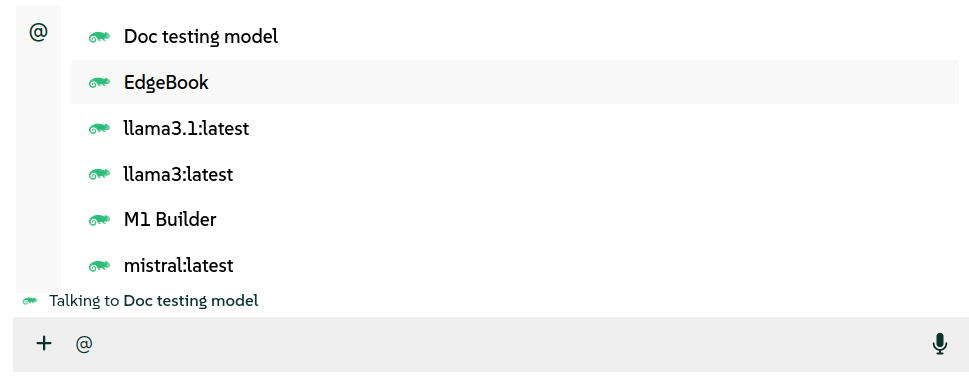 Figure 4.1: Selecting an AI model #
Your selection is confirmed by the message right above the chat input field.
Type your prompt and confirm with Enter or by clicking the "up" arrow to the right of the chat input field.
 Figure 4.2: Prompt for a selected model #
To deactivate the previously selected model from the current chat, click the "cross" icon to the right of the model name.
4.2 Specifying preconfigured documents, collections or external URLs from the chat input field #
Besides prompting preconfigured AI models, you can "talk" to documents or collections of documents uploaded by the administrator. You can also specify external URLs whose content will be processed. AI then responds to your prompts based on the specified information sources.
This procedure describes how to select preconfigured documents, collections of documents, or external URLs as information sources for AI answers from the chat input field.
At least one knowledge base collection needs to be preconfigured. Refer to Managing a knowledge base to learn how to create one.
In the chat input field, type the
#character.From the drop-down list that appears, select one of the preconfigured documents or a collection of documents whose content you want AI to use as an information source. You can select multiple documents, one by one.
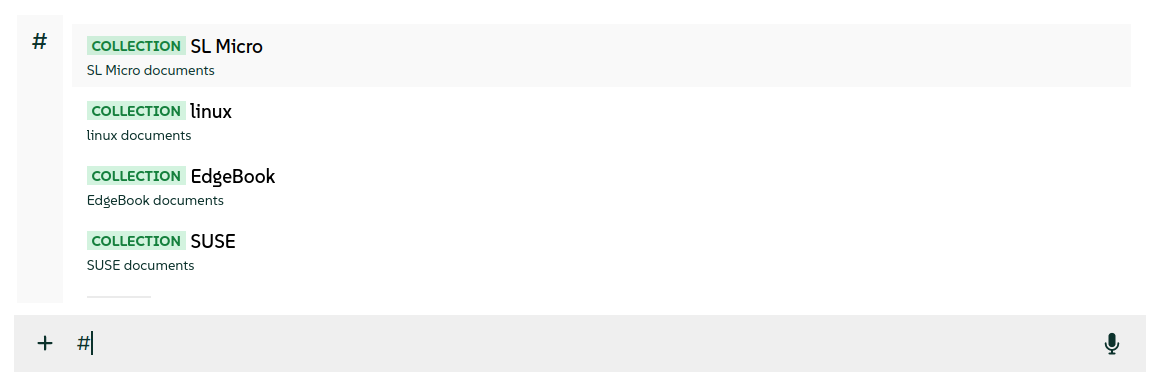 Figure 4.3: Selecting documents and collections #
Instead of selecting the preconfigured documents, you can start typing
http:followed by the full valid URL to the page that you want AI to process. After you confirm it with Enter, AI starts processing it. Figure 4.4: Adding a URL source #
Type your prompt and confirm with Enter or by clicking the "up" arrow to the right of the chat input field.
 Figure 4.5: Prompt with selected documents and collections #
To deactivate the previously selected document from the current chat, hover over its name and click the "cross" icon to the right of its name.
4.3 Adding custom data sources from the chat input field #
Besides prompting preconfigured AI models, you can "talk" to custom data sources specified in the chat input field. AI processes these sources so that it can respond based on their content.
This procedure describes how to upload custom documents as information sources for AI answers from the chat input field.
Click the
+sign to the left of the chat input field.Click and specify the document from your disk to process. You can upload multiple documents at the same time.
Type your prompt and confirm with Enter or by clicking the "up" arrow to the right of the chat input field.
 Figure 4.6: Prompt with uploaded documents #
To deactivate the previously selected document from the current chat, hover over its name and click the "cross" icon to the right of its name.
4.4 Selecting a preconfigured system prompt from the chat input field #
System prompts define the mood, context or style for user interactions. This section details how to select a preconfigured system prompt from the input field.
At least one system prompt must be preconfigured. Refer to Managing system prompts to learn how to create one.
In the chat input field, type the
/character.From the drop-down list that appears, select the system prompt that you want to apply for the current chat.
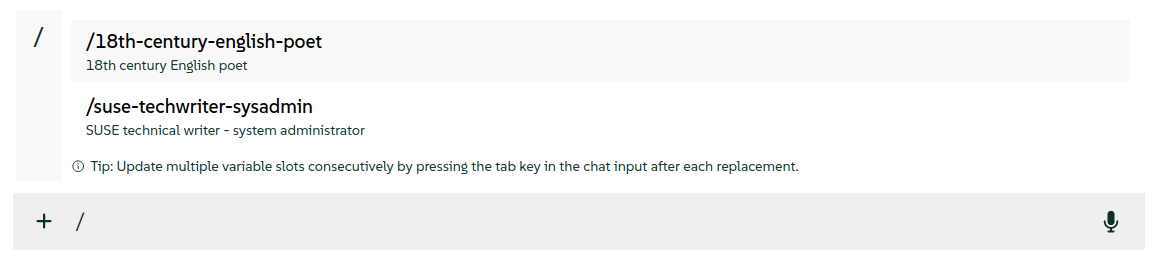 Figure 4.7: Preconfigured system prompt #
The content of the selected system prompt is pasted to the chat input field. Confirm it with Enter or by clicking the "up" arrow to the right of the chat input field.
4.5 Selecting mcpo services from the chat input field #
MCP servers offer additional services that enhance the AI model responses and make them more specific. This section details how to enable individual mcpo services from the input field.
At least one MCP server must be preconfigured. Refer to Installing mcpo to learn how to configure one.
Click the "+" sign to the left of the chat input field.
From the drop-down list that appears, select the MCP service that you want to include for the current chat.
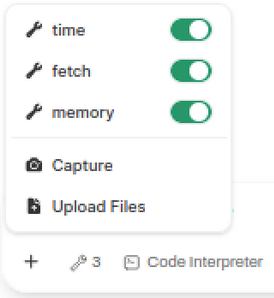 Figure 4.8: Selecting MCP services selecting_mcp_services #
Enter a prompt that triggers a call to one of the selected MCP services. You should see the tool invocation listed below the response.
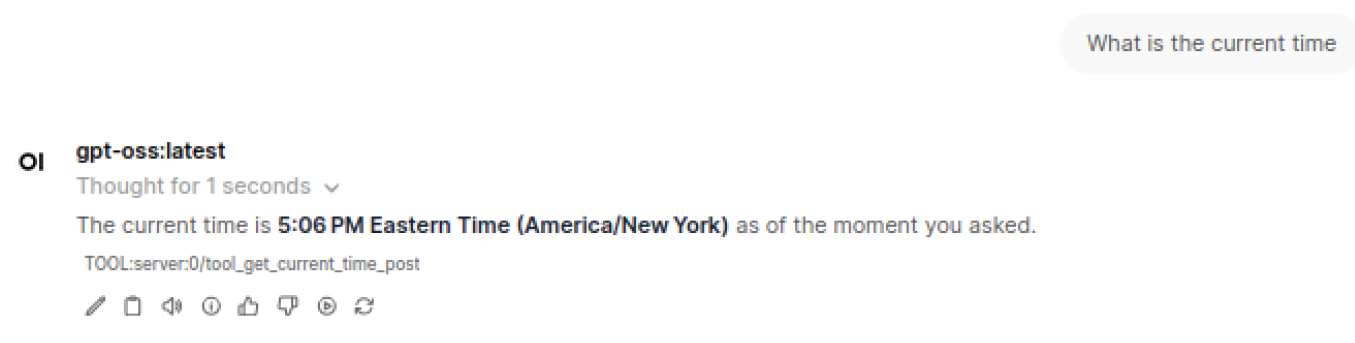 Figure 4.9: Response from an MCP service selecting_mcp_answer #

For more details about mcpo integration and usage with Open WebUI, refer to the Open WebUI integration documentation.
4.6 Enabling native function calling #
Native function calling is a process in which a client—such as the SUSE AI chatbot—instructs its LLM to query an MCP server directly, bypassing the mcpo proxy.
It involves the following steps:
A client LLM connects to an MCP server.
The MCP server exposes tools (functions) with names, argument schemas and returns.
The client calls a suitable tool and its functions with appropriate arguments.
The tool then returns the result of the function call to the client and the client includes the result in its response.

For this to work effectively, the selected model must support native tool calling. Certain models may claim such support but often produce poor results. For the best experience, Open WebUI recommends using GPT-4o or another OpenAI model that supports function calling natively.
In the top right of the Open WebUI window, click the icon.
Unfold the tab and set the from
DefaulttoNative.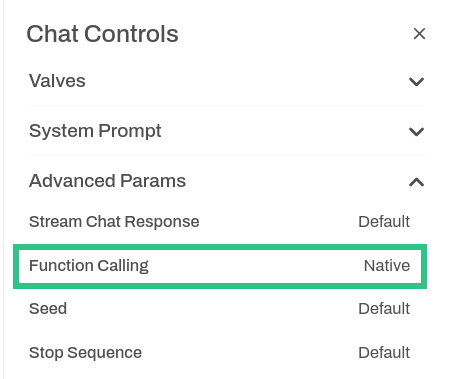 Figure 4.10: Enabling native function calling fig_owui_enabling_nfc #
Close the window to apply the change.
4.6.1 For more information #
You may find the following information sources useful: