2 User interface basics #
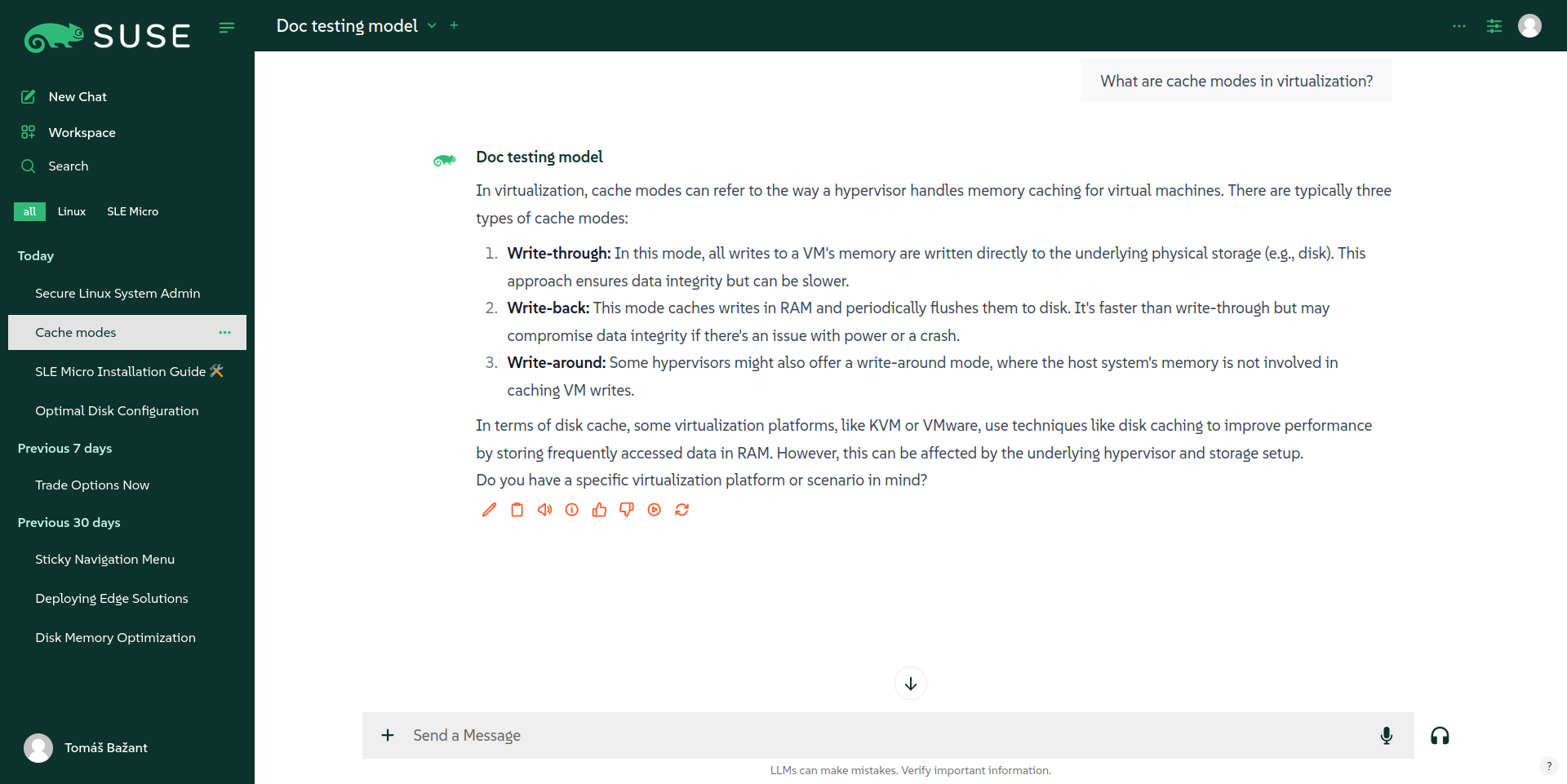
The Open WebUI interface consists of three main parts.
- Top panel
Contains controls to manage tasks related to the current chat, such as:
Maximizing the chat window
Selecting an AI model for the current chat
Viewing and managing advanced settings for the current chat
Changing settings related to the current user
Viewing archived chats of the current user
Accessing the
- Left sidebar
Contains links to perform the following tasks:
Start a new chat
Access the administrator’s
Search the content of the current chat
Browse through the history of your chats
- Main chat window
Displays your recent queries and corresponding answers provided by the AI. By using the prompt field at the bottom, you can accomplish the following tasks related to the current chat:
Enter the query that you want the AI to answer
Upload custom documents that you want the AI to process and use as a source of information when answering
Select a document, collection of documents, or URL to extend the AI model’s knowledge base
Select a preconfigured AI model for the current chat
Interrupt the chatbot from answering if you are already satisfied with the provided information
2.1 Workspace #

You must have Open WebUI administrator privileges to access configuration screens or settings mentioned in this section.
The area of the Open WebUI is a place where you can manage important parts of the AI stack. To access it, click at the top of the left panel. consists of the following parts:
- Models
Manage existing AI modules or add your custom AI module based on an existing one. Refer to https://documentation.suse.com/suse-ai/1.0/html/openwebui-configuring/index.html#openwebui-managing-models for more details and related procedures.
- Knowledge
Manage information sources—such as custom documents—that the users can use to enhance the current AI model’s knowledge base. This helps making the model’s responses more contextual. Refer to https://documentation.suse.com/suse-ai/1.0/html/openwebui-configuring/index.html#openwebui-managing-knowledgebase for more details and related procedures.
- Prompts
Define the system prompts that guide the AI model to respond accurately in the style and format that you prefer. Refer to https://documentation.suse.com/suse-ai/1.0/html/openwebui-configuring/index.html#openwebui-managing-prompts for more details and related procedures.
- Tools
include a collection of Python snippets that enhance interaction and expand functionality for working with AI models. Tools can, for example, integrate additional data sources into the model knowledge base, such as databases.
2.2 Admin Panel #
You must have Open WebUI administrator privileges to access configuration screens or settings mentioned in this section.
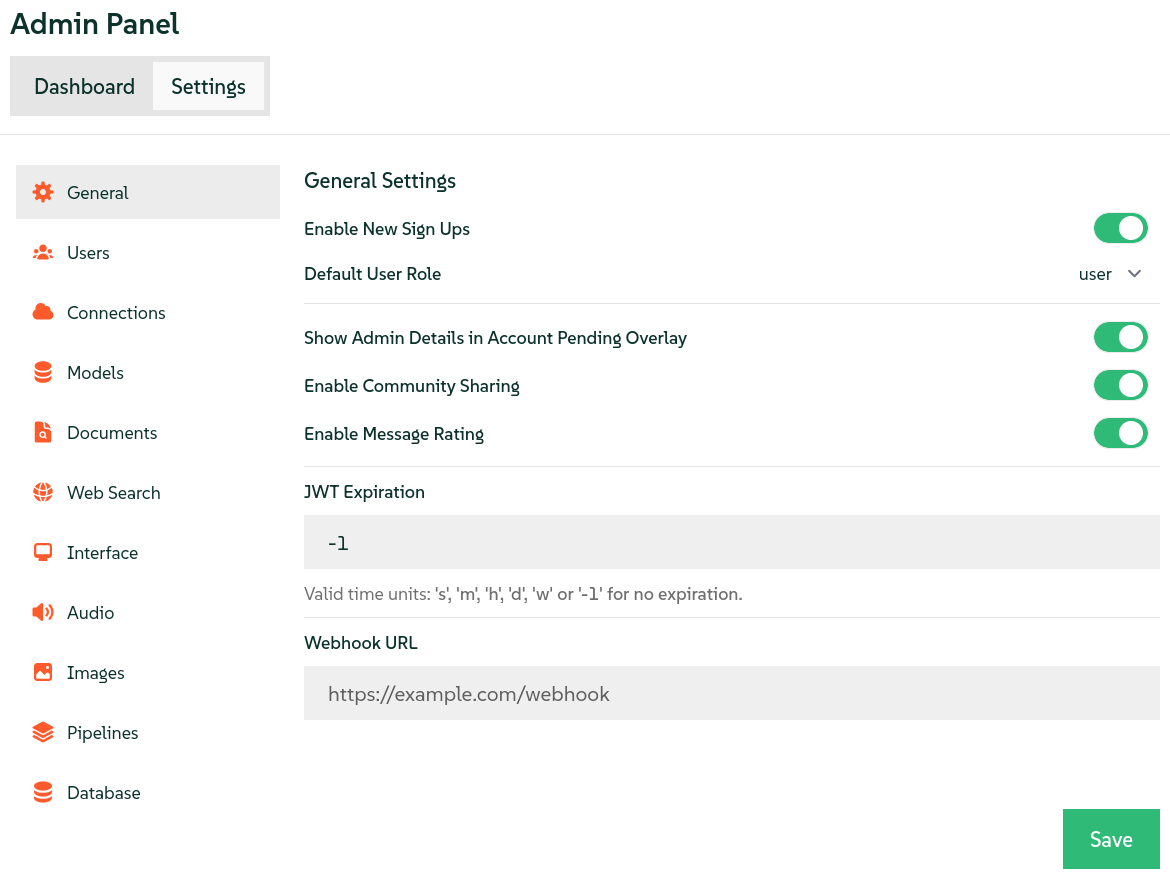
The is a centralized control interface for administrators to manage system settings, user accounts and overall application functionality.
To access the , click your avatar button at the top right of the Open WebUI screen and select .