Access the User Interface
Exposing the SUSE Storage UI allows external access to the management console. The choice of Ingress controller (for example, Traefik, HAProxy, etc.) affects only how the UI is accessed. It has no impact on the SUSE Storage backend, storage operations, or data integrity.
|
As of November 2025, the Kubernetes project has announced the retirement of the ingress-nginx controller. For details, see the official announcement. |
Prerequisites for Access and Authentication
These instructions assume that SUSE Storage is already installed in the cluster.
If you installed SUSE Storage using the YAML manifest, you must set up an Ingress controller to allow external traffic into the cluster. Authentication is not enabled by default. This applies to both Helm and kubectl installations.
For information on creating a Traefik Ingress controller with basic authentication, see this section. Alternatively, you can also use the Gateway API HTTPRoute as a modern approach to exposing the SUSE Storage UI.
If SUSE Storage was installed as a Rancher catalog app, Rancher automatically creates an Ingress controller with access control (the rancher-proxy).
Accessing the SUSE Storage UI
After SUSE Storage is installed in your Kubernetes cluster, you can access the UI dashboard by following these steps.
-
Retrieve the SUSE Storage service information:
kubectl -n longhorn-system get svcFor SUSE Storage v0.8.0 and later, the output resembles the following. Use the
CLUSTER-IPof thelonghorn-frontendservice to access the UI:NAME TYPE CLUSTER-IP EXTERNAL-IP PORT(S) AGE longhorn-backend ClusterIP 10.20.248.250 <none> 9500/TCP 58m longhorn-frontend ClusterIP 10.20.245.110 <none> 80/TCP 58mIn this example, the UI is accessible at
10.20.245.110.Starting with SUSE Storage v0.8.0, the UI service type changed from
LoadBalancertoClusterIP. -
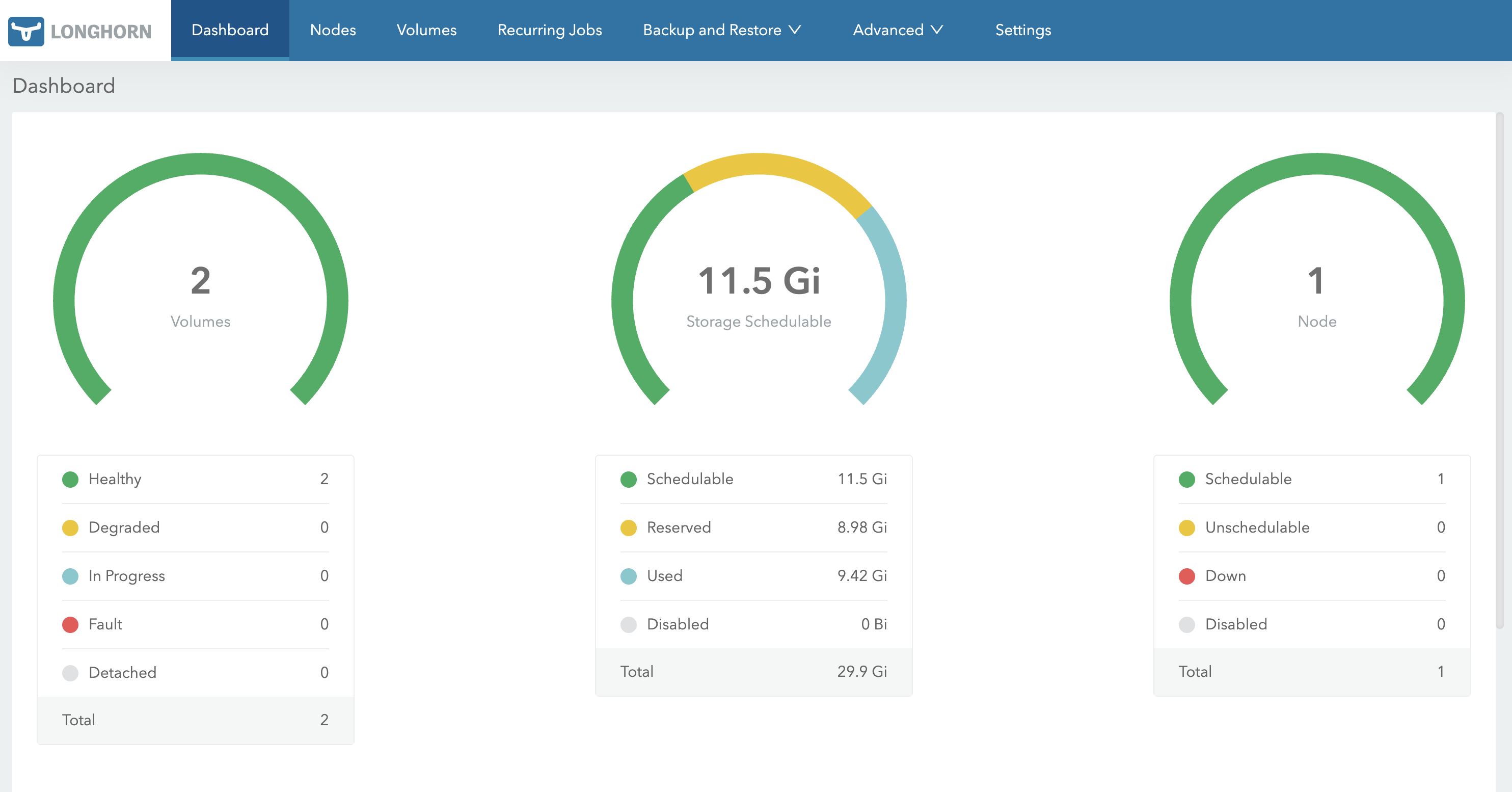
Open a browser and navigate to the IP address of the
longhorn-frontendservice.The SUSE Storage UI looks like this: