9 Core Features #
9.1 User management #
Trento provides a local permission-based user management feature with optional multi-factor authentication. This feature enables segregation of duties in the Trento interface and ensures that only authorized users with the right permissions can access it.
User management actions are performed in the Users view in the left-hand side panel of the Trento UI.
By default, a newly created user is granted display access rights except for the Users view. Where available, a user with default access can configure filters and pagination settings matching their preferences.
To perform protected actions, the user must have additional permissions added to their user profile. Below is the list of currently available permissions:
all:users: grants full access to user management actions under the Users viewall:checks_selection: grants check selection capabilities for any target in the registered environment for which checks are availableall:checks_execution: grants check execution capabilities for any target in the registered environment for which checks are available and have been previously selectedall:tags: allows creation and deletion of the available tagscleanup:all: allows triggering housekeeping actions on hosts where agents heartbeat is lost and SAP or HANA instances that are no longer foundall:settings: grants changing capabilities on any system settings under the Settings viewall:all: grants all the permissions above
Using the described permissions, it is possible to create the following types of users:
User managers: users with
all:userspermissionsSAP Basis administrator with Trento display-only access: users with default permissions
SAP Basis administrator with Trento configuration access: users with
all:checks_selection,all:tagsandall:settingspermissionsSAP Basis administrator with Trento operation access: users with
all:check_executionandcleanup:allpermissions.
The default admin user created during the installation process is
granted all:all permissions and cannot be modified or deleted. Use
it only to create the first user manager (a user with all:users
permissions who creates all the other required users). Once a user with
all:users permissions is created, the default admin user must be
treated as a fallback user in case all other access to the console is
lost. If the password of the default admin user is lost, it can be reset
by updating the Helm chart or the web component configuration, depending
on which deployment method was used to install Trento Server.
User passwords, including the default admin user password, must follow the rules below:
Password must contain at least 8 characters
The same number or letter must not be repeated three or more times in a row (for example: 111 or aaa)
Password must not contain four consecutive numbers or letters (for example: 1234, abcd or ABCD)
The Create User and Edit User views provide a built-in password generation button that allows user managers to easily generate secure and compliant passwords. The user manager must provide the user with their password through an authorized secure channel.
A user can reset their password in the Profile view. In this view, they can also update their name and email address as well as activate multi-factor authentication using an authenticator app. Multi-factor authentication increases the security of a user account by requesting a temporary second password or code when logging in the console. User managers can disable multi-factor authentication for any given user that has it enabled. However, user managers cannot enable multi-factor authentication on their behalf. The default admin user cannot enable its own multi-factor authentication.

Since multi-factor authentication cannot be enabled for the default admin user, keeping its password safe is imperative. If the default admin user’s password is compromised, reset it immediately by updating the Helm chart or the web component configuration, depending on which deployment method was used to install Trento Server.
User managers can enable and disable users. When a user logged in the console is disabled by a user admin, their session is terminated immediately.
9.2 Single Sign-On integration #
Trento can be integrated for Single Sign-On (SSO) with a third-party identity provider (IDP).
Trento cannot start with multiple SSO options together, so only one can be chosen.
The following protocols are supported:
OpenID Connect (OIDC)
Open Authorization 2.0 (OAuth 2)
Security Assertion Markup Language (SAML)
9.2.1 User roles and authentication #
User authentication is entirely managed by the IDP, which is responsible for maintaining user accounts. A user, who does not exist on the IDP, is unable to access the Trento web console.
During the installation process, a default admin user is defined using
the ADMIN_USER variable, which defaults to admin. If the
authenticated user’s IDP username matches this admin user’s username,
that user is automatically granted all:all permissions within
Trento.
User permissions are entirely managed by Trento, they are not imported
from the IDP. The permissions must be granted by some user with
all:all or all:users rights (admin user initially). This
means that only basic user information is retrieved from the external
IDP.
9.2.2 Using OpenID Connect #
Trento integrates with an IDP that uses the OIDC protocol to authenticate users accessing the Trento web console.
By default, OIDC is disabled.
9.2.2.1 Enabling OpenID Connect when using kubernetes deployment #
To enable OIDC when using kubernetes deployment with helm, add the following variables to the previously documented helm installation command:
HELM_EXPERIMENTAL_OCI=1 helm ... \
   --set trento-web.oidc.enabled=true \
   --set trento-web.oidc.clientId=<OIDC_CLIENT_ID> \
   --set trento-web.oidc.clientSecret=<OIDC_CLIENT_SECRET> \
   --set trento-web.oidc.baseUrl=<OIDC_BASE_URL>
9.2.2.2 Enabling OpenID Connect when using RPM packages #
To enable OIDC when using RPM packages, proceed as follows:
Open the file
/etc/trento/trento-web.Add the following environment variables to this file. Required variables are:
ENABLE_OIDC=true
OIDC_CLIENT_ID=<OIDC_CLIENT_ID>
OIDC_CLIENT_SECRET=<OIDC_CLIENT_SECRET>
OIDC_BASE_URL=<OIDC_BASE_URL>
Optionally, add the OIDC callback URL to the configuration. This can be useful if for some reason the default callback URL cannot be used, for example, if
httpis used instead ofhttps. Use the next variable for that:OIDC_CALLBACK_URL=<OIDC_CALLBACK_URL>Restart the application.
9.2.2.3 Available variables for OpenID Connect #
- OIDC_CLIENT_ID
OIDC client id
- OIDC_CLIENT_SECRET
OIDC client secret
- OIDC_BASE_URL
OIDC base url
- OIDC_CALLBACK_URL
OIDC callback url where the IDP is redirecting once the authentication is completed (default value:
https://#{TRENTO_WEB_ORIGIN}/auth/oidc_callback)
9.2.3 Using OAuth 2.0 #
Trento integrates with an IDP that uses the OAuth 2 protocol to authenticate users accessing the Trento web console.
By default, OAuth 2.0 is disabled.
9.2.3.1 Enabling OAuth 2.0 when using kubernetes deployment #
To enable OAuth 2.0 when using kubernetes deployment with helm, proceed as follows:
Add the following variables to the previously documented helm installation command:
HELM_EXPERIMENTAL_OCI=1 helm ... \
   --set trento-web.oauth2.enabled=true \
   --set trento-web.oauth2.clientId=<OAUTH2_CLIENT_ID> \
   --set trento-web.oauth2.clientSecret=<OAUTH2_CLIENT_SECRET> \
   --set trento-web.oauth2.baseUrl=<OAUTH2_BASE_URL> \
   --set trento-web.oauth2.authorizeUrl=<OAUTH2_AUTHORIZE_URL> \
   --set trento-web.oauth2.tokenUrl=<OAUTH2_TOKEN_URL> \
   --set trento-web.oauth2.userUrl=<OAUTH2_USER_URL>
Additionally, the following optional values are available:
HELM_EXPERIMENTAL_OCI=1 helm ... \
   --set trento-web.oauth2.scopes=<OAUTH2_SCOPES>
9.2.3.2 Enabling OAuth 2.0 when using RPM packages #
To enable OAuth 2.0 when using RPM packages, proceed as follows:
Open the file
/etc/trento/trento-web.Add the following environment variables to this file. Required variables are:
# Required:
ENABLE_OAUTH2=true
OAUTH2_CLIENT_ID=<OAUTH2_CLIENT_ID>
OAUTH2_CLIENT_SECRET=<OAUTH2_CLIENT_SECRET>
OAUTH2_BASE_URL=<OAUTH2_BASE_URL>
OAUTH2_AUTHORIZE_URL=<OAUTH2_AUTHORIZE_URL>
OAUTH2_TOKEN_URL=<OAUTH2_TOKEN_URL>
OAUTH2_USER_URL=<OAUTH2_USER_URL>

# Optional:
OAUTH2_SCOPES=<OAUTH2_SCOPES>
OAUTH2_CALLBACK_URL=<OAUTH2_CALLBACK_URL>
Restart the application.
9.2.3.3 Available variables for OAuth 2.0 #
- OAUTH2_CLIENT_ID
OAUTH2 client id
- OAUTH2_CLIENT_SECRET
OAUTH2 client secret
- OAUTH2_BASE_URL
OAUTH2 base url
- OAUTH2_AUTHORIZE_URL
OAUTH2 authorization url
- OAUTH2_TOKEN_URL
OAUTH2 token url
- OAUTH2_USER_URL
OAUTH2 token url
- OAUTH2_SCOPES
OAUTH2 scopes, used to define the user values sent to the SP. It must be adjusted depending on IDP provider requirements (default value:
profile email)- OAUTH2_CALLBACK_URL
OAUTH2 callback url where the IDP is redirecting once the authentication is completed (default value:
https://#{TRENTO_WEB_ORIGIN}/auth/oauth2_callback)
9.2.4 Using SAML #
Trento integrates with an IDP that uses the SAML protocol to authenticate users accessing the Trento web console. Trento will behave as a Service Provider (SP) in this case.
Commonly, SAML protocol messages are signed with SSL. This is optional using Trento, and the signing is not required (even though it is recommended). If the IDP signs the messages, and expect signed messages back, certificates used by the SP (Trento in this case) must be provided to the IDP, the public certificate file in this case.
To use an existing SAML IDP, follow the next instructions to met the specific requirements. You need:
Obtain metadata content from the IDP
Start Trento to generate the certificates and get them (SAML must be enabled for this)
Provide the generated certificate to the IDP
Configure SAML IDP and user profiles
See the following subsections for details.
9.2.4.1 Obtaining metadata content from the IDP #
The metadata.xml file defines the agreement between SP and IDP
during SAML communications. It is used to identify the SAML client as
well. The content of this file must be provided to Trento. Options
SAML_METADATA_URL and SAML_METADATA_CONTENT are available for
that.
If the SAML_METADATA_CONTENT option is being used, the content of
this variable must be updated with the IDP metadata as single line
string. On the other hand, if SAML_METADATA_URL is used, the new
metadata is automatically fetched when Trento starts. If neither of
these steps are completed, communication will fail because the message
signatures will not be recognized.
If the used IDP has the endpoint to provide the metadata.xml file
content, prefer the variable SAML_METADATA_URL. Trento will
automatically fetch metadata when started.
9.2.4.2 Getting certificates from Trento #
Trento provides a certificates set created during the installation. Regardless
of the installation mode, when Trento is installed the first time and SAML is
enabled the certificates are created and the public certificate file content is
available in the https://#{TRENTO_WEB_ORIGIN}/api/public_keys route.
Use the following command to get the certificate content:
curl https://#{TRENTO_WEB_ORIGIN}/api/public_keysCopy the content of the certificate from there and provide it to the IDP. This way, the IDP will sign its messages and verify the messages received from Trento.
To get the certificate using this route Trento must be configured to start with SAML enabled.
9.2.4.3 Configuring SAML IDP setup #
Configure the existing IDP with the next minimum options to be able to connect with Trento as a Service Provider (SP).
9.2.4.3.1 Providing certificates #
As commented previously, a set of certificates is needed to enable signed communication. Provide the certificate generated by Trento to the IDP (each IDP has a different way to do this). Make sure that the configured certificate is used for signing and encrypting messages.
9.2.4.3.2 Configuring SAML user profile #
Users provided by the SAML installation must have some few mandatory attributes to login in Trento. The required attributes are: username, email, first name and last name. All of them are mandatory, even though their field names are configurable.
By default, Trento expects the username, email, firstName
and lastName attribute names. All these 4 attribute names are
configurable using the next environment variables, following the same
order: SAML_USERNAME_ATTR_NAME, SAML_EMAIL_ATTR_NAME,
SAML_FIRSTNAME_ATTR_NAME and SAML_LASTNAME_ATTR_NAME.
Both IDP and Trento must know how these 4 fields are mapped. To do this, follow the next instructions:
Add the attributes if they don’t exist in the IDP user profile. If they already exist, don’t change the attributes and keep their original values.
Configure Trento to use the IDP attribute field names. To do this, set the
SAML_USERNAME_ATTR_NAME,SAML_EMAIL_ATTR_NAME,SAML_FIRSTNAME_ATTR_NAMEandSAML_LASTNAME_ATTR_NAMEenvironment values with the values configured in the IDP. For example, if the IDP user profile username is defined asattr:usernameuseSAML_USERNAME_ATTR_NAME=attr:username.
9.2.4.3.3 SAML URLs #
Trento exposes some SAML related URLs when SAML is enabled:
Assertion consumer service (or ACS): an endpoint to accept SAML messages to establish a session into the Service Provider. The endpoint for ACS in Trento is:
https://#{TRENTO_WEB_ORIGIN}/sso/sp/consume/#{SAML_IDP_ID}Single logout service (or SLS): an endpoint to initiate a logout request from the IdP. The endpoint for SLS in Trento is:
https://#{TRENTO_WEB_ORIGIN}/sso/sp/logout/#{SAML_IDP_ID}Metadata: an endpoint to retrieve Trento metadata for SAML. The endpoint for metadata in Trento is:
https://#{TRENTO_WEB_ORIGIN}/sso/sp/metadata/#{SAML_IDP_ID}. This URL is used as default value forSAML_SP_ENTITY_IDif the configuration variable is not set
9.2.4.4 Enabling SAML when using kubernetes deployment #
To enable SAML when using kubernetes deployment with helm, proceed as follows:
Add the following variables to the previously documented helm installation command:
HELM_EXPERIMENTAL_OCI=1 helm ... \
   --set trento-web.saml.enabled=true \
   --set trento-web.saml.idpId=<SAML_IDP_ID> \
   --set trento-web.saml.spId=<SAML_SP_ID> \
   --set trento-web.saml.metadataUrl=<SAML_METADATA_URL>
To use the
SAML_METADATA_CONTENToption rather thanSAML_METADATA_URLuse:HELM_EXPERIMENTAL_OCI=1 helm ... \ --set trento-web.saml.enabled=true \ --set trento-web.saml.idpId=<SAML_IDP_ID> \ --set trento-web.saml.spId=<SAML_SP_ID> \ --set trento-web.saml.metadataContent=<SAML_METADATA_CONTENT>Additionally, the following optional values are available:
HELM_EXPERIMENTAL_OCI=1 helm ... \
   --set trento-web.saml.idpNameIdFormat=<SAML_IDP_NAMEID_FORMAT> \
   --set trento-web.saml.spDir=<SAML_SP_DIR> \
   --set trento-web.saml.spEntityId=<SAML_SP_ENTITY_ID> \
   --set trento-web.saml.spContactName=<SAML_SP_CONTACT_NAME> \
   --set trento-web.saml.spContactEmail=<SAML_SP_CONTACT_EMAIL> \
   --set trento-web.saml.spOrgName=<SAML_SP_ORG_NAME> \
   --set trento-web.saml.spOrgDisplayName=<SAML_SP_ORG_DISPLAYNAME> \
   --set trento-web.saml.spOrgUrl=<SAML_SP_ORG_URL> \
   --set trento-web.saml.usernameAttrName=<SAML_USERNAME_ATTR_NAME> \
   --set trento-web.saml.emailAttrName=<SAML_EMAIL_ATTR_NAME> \
   --set trento-web.saml.firstNameAttrName=<SAML_FIRSTNAME_ATTR_NAME> \
   --set trento-web.saml.lastNameAttrName=<SAML_LASTNAME_ATTR_NAME> \
   --set trento-web.saml.signRequests=<SAML_SIGN_REQUESTS> \
   --set trento-web.saml.signMetadata=<SAML_SIGN_METADATA> \
   --set trento-web.saml.signedAssertion=<SAML_SIGNED_ASSERTION> \
   --set trento-web.saml.signedEnvelopes=<SAML_SIGNED_ENVELOPES>
9.2.4.5 Enabling SAML when using RPM packages #
To enable SAML when using RPM packages, proceed as follows:
Open the file
/etc/trento/trento-web.Add the following environment variables to this file. Required variables are:
# Required:
ENABLE_SAML=true
SAML_IDP_ID=<SAML_IDP_ID>
SAML_SP_ID=<SAML_SP_ID>
# Only SAML_METADATA_URL or SAML_METADATA_CONTENT must by provided
SAML_METADATA_URL=<SAML_METADATA_URL>
SAML_METADATA_CONTENT=<SAML_METADATA_CONTENT>

# Optional:
SAML_IDP_NAMEID_FORMAT=<SAML_IDP_NAMEID_FORMAT>
SAML_SP_DIR=<SAML_SP_DIR>
SAML_SP_ENTITY_ID=<SAML_SP_ENTITY_ID>
SAML_SP_CONTACT_NAME=<SAML_SP_CONTACT_NAME>
SAML_SP_CONTACT_EMAIL=<SAML_SP_CONTACT_EMAIL>
SAML_SP_ORG_NAME=<SAML_SP_ORG_NAME>
SAML_SP_ORG_DISPLAYNAME=<SAML_SP_ORG_DISPLAYNAME>
SAML_SP_ORG_URL=<SAML_SP_ORG_URL>
SAML_USERNAME_ATTR_NAME=<SAML_USERNAME_ATTR_NAME>
SAML_EMAIL_ATTR_NAME=<SAML_EMAIL_ATTR_NAME>
SAML_FIRSTNAME_ATTR_NAME=<SAML_FIRSTNAME_ATTR_NAME>
SAML_LASTNAME_ATTR_NAME=<SAML_LASTNAME_ATTR_NAME>
SAML_SIGN_REQUESTS=<SAML_SIGN_REQUESTS>
SAML_SIGN_METADATA=<SAML_SIGN_METADATA>
SAML_SIGNED_ASSERTION=<SAML_SIGNED_ASSERTION>
SAML_SIGNED_ENVELOPES=<SAML_SIGNED_ENVELOPES>
Restart the application.
9.2.4.6 Available variables for SAML #
- SAML_IDP_ID
SAML IDP id. This is a user-defined string used to identify the associated IDP in Trento. The value is used as well to compose relevant SAML URLs like the ACS and metadata URLs. It can have any value, for example:
trento- SAML_SP_ID
SAML SP id. This is a user-defined string to identify Trento as service provider. It can have any value, for example:
trento- SAML_METADATA_URL
URL to retrieve the SAML metadata xml file. One of
SAML_METADATA_URLorSAML_METADATA_CONTENTis required- SAML_METADATA_CONTENT
One line string containing the SAML metadata xml file content (
SAML_METADATA_URLhas precedence over this)- SAML_IDP_NAMEID_FORMAT
SAML IDP name id format, used to interpret the attribute name. Whole urn string must be used (default value:
urn:oasis:names:tc:SAML:1.1:nameid-format:unspecified)- SAML_SP_DIR
SAML SP directory, where SP specific required files (such as certificates and metadata file) are placed (default value:
/etc/trento/saml)- SAML_SP_ENTITY_ID
SAML SP entity id. This value must match with the entity ID configured in the IDP as SAML client (default value:
https://#{TRENTO_WEB_ORIGIN}/sso/sp/metadata/#{SAML_IDP_ID})- SAML_SP_CONTACT_NAME
SAML SP contact name (default value:
Trento SP Admin)- SAML_SP_CONTACT_EMAIL
SAML SP contact email (default value:
admin@trento.suse.com)- SAML_SP_ORG_NAME
SAML SP organization name (default value:
Trento SP)- SAML_SP_ORG_DISPLAYNAME
SAML SP organization display name (default value:
SAML SP build with Trento)- SAML_SP_ORG_URL
SAML SP organization url (default value:
https://www.trento-project.io/)- SAML_USERNAME_ATTR_NAME
SAML user profile "username" attribute field name. This attribute must exist in the IDP user (default value:
username)- SAML_EMAIL_ATTR_NAME
SAML user profile "email" attribute field name. This attribute must exist in the IDP user (default value:
email)- SAML_FIRSTNAME_ATTR_NAME
SAML user profile "first name" attribute field name. This attribute must exist in the IDP user (default value:
firstName)- SAML_LASTNAME_ATTR_NAME
SAML user profile "last name" attribute field name. This attribute must exist in the IDP user (default value:
lastName)- SAML_SIGN_REQUESTS
Sign SAML requests in the SP side (default value:
true)- SAML_SIGN_METADATA
Sign SAML metadata documents in the SP side (default value:
true)- SAML_SIGNED_ASSERTION
Require to receive SAML assertion signed from the IDP. Set to false if the IDP doesn’t sign the assertion (default value:
true)- SAML_SIGNED_ENVELOPES
Require to receive SAML envelopes signed from the IDP. Set to false if the IDP doesn’t sign the envelopes (default value:
true)
9.2.5 Troubleshooting failed login #
In some cases, the IDP successfully authenticates a user, but Trento fails to create a session and displays a "Login Failed" page. This typically indicates that Trento encountered an error while processing the authentication response.
To find the specific cause:
Open the Network tab in your browser’s Developer Tools
Attempt the login again
Look for a 4xx HTTP response
View the Response payload. This contains the internal error details, such as missing required user attributes, needed to troubleshoot the failure
For example, the error Some mandatory SAML user attributes are missing means
that Trento didn’t receive some expected user attributes. Have a look into the
Section 9.2.4.3.2, “Configuring SAML user profile” section.
9.3 Activity Log #
Trento collects system events and user actions in the Activity Log. It can be accessed from the left-hand side panel of the Trento console.
Each entry in the Activity Log includes the following:
A timestamp: the day and time (UTC timezone) the system event or the user action occurred
A message: type of the occurred event or user action
The user that triggered the event or performed the action. User system is used for events triggered by the system itself.
Severity status (Info, Warning, and Critical are selected by default)
Clicking on the chevron icon in the activity log entry opens a modal window containing the activity metadata.
It is possible to search the activity metadata of the activity log entries. You
can use wildcards as well as the OR and AND logical operators for advanced
search queries. The OR operator is applied by default, meaning that a query like
term1 term2 term3 is treated as term1 OR term2 OR term3. You can combine
multiple logical operators, keeping in mind that they are parsed from left to
right.
The Activity Log allows you to filter by the type of event or user action (commonly referred to as resource type), by the user that triggered the event or performed the action, and by severity status. Only active users are available for filtering. The Activity Log also allows you to filter out entries that are newer and/or older than an specific date and time (UTC timezone).
Once a filter has been set, click Apply to filter out the undesired entries and Reset to remove all the filters.
Entries related to user management can only be displayed by users that
have the all:all or all:users permissions. This includes the
following:
Login attempts
User creations
User modifications
User deletions
Profile updates
The Activity Log features a privacy-related access level controlled through the activity_log:users permission. For users without this permission, user-related info in the Activity Log is redacted. Unprivileged users can only see their own user names as well as user system.
Entries in the Activity Log are sorted from newer to older. Click Refresh to update the Activity Log view with entries generated since they accessed the view or after the last refresh. You can also enable the auto-refresh feature by selecting the desired auto-refresh interval.
The pagination features at the bottom of the Activity Log allow you to specify the number of entries to display in a page, go to the next or previous page of the view, and jump to the last page and back to first one.
The default retention time for entries in the Activity Log is one month.
This can be changed in the Activity Log section under Settings. Changing
the retention time requires the all:settings permissions. Entries
older than the specified retention time are deleted every day at
midnight (UTC timezone).
The correlation functionality of the Activity Log links related events together, offering a chronological, linear view of a chain of events in multi-step workflows triggered by a user action.
For example, the clean-up action in a host that runs a single instance HANA database of an SAP system de-registers the database instance, de-registers the database itself, de-reregisters the SAPsystem and its instances and then de-registers the host. These correlated entries are displayed in a linked, linear view, when you navigate to the host clean-up entry modal in the Activity Log and then click the link in the Related Events section named Show Events.
The following categories of Activity Log entries provide a view of linked or related events:
entries caused by de-registration of hosts
entries caused by API key re-generation
entries caused by SMLM settings save/update
entries caused by host, cluster and SAP operations
9.4 Housekeeping #
When the heartbeat of an agent fails, an option to clean-up the corresponding host is displayed in the Hosts overview and the corresponding Host details view.

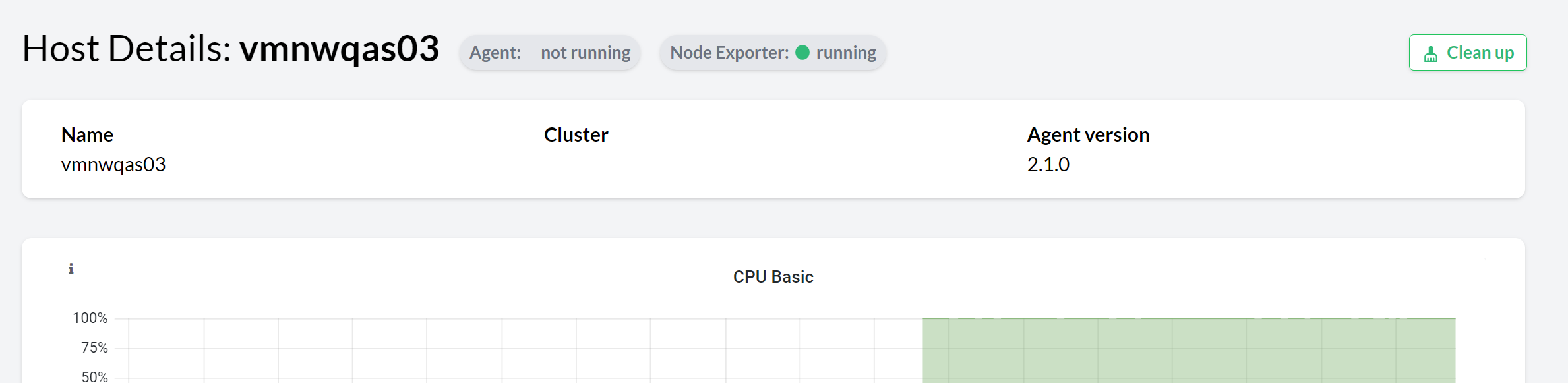
Use the Clean up button to remove all the components discovered by the agent in the host (including the host itself and other components that might depend on the ones running on the host) from the console.
For example, when cleaning up the host where the primary application server of an SAP System is registered, the entire SAP System is removed from the console.
Similarly, when a registered application or SAP HANA instance is no longer discovered, an option to clean it up is displayed in the corresponding overview and the corresponding details view.
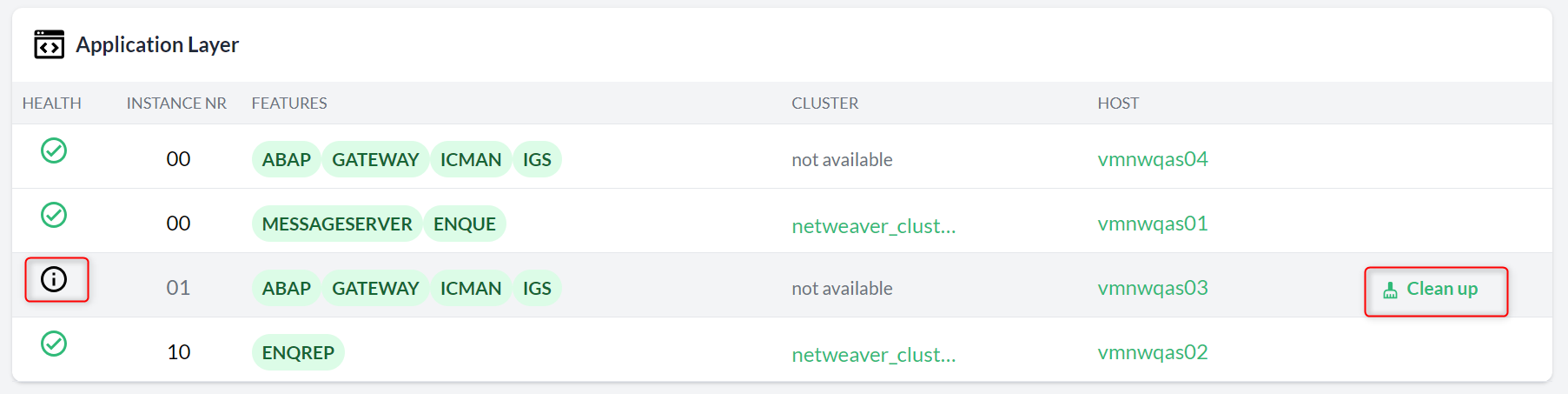
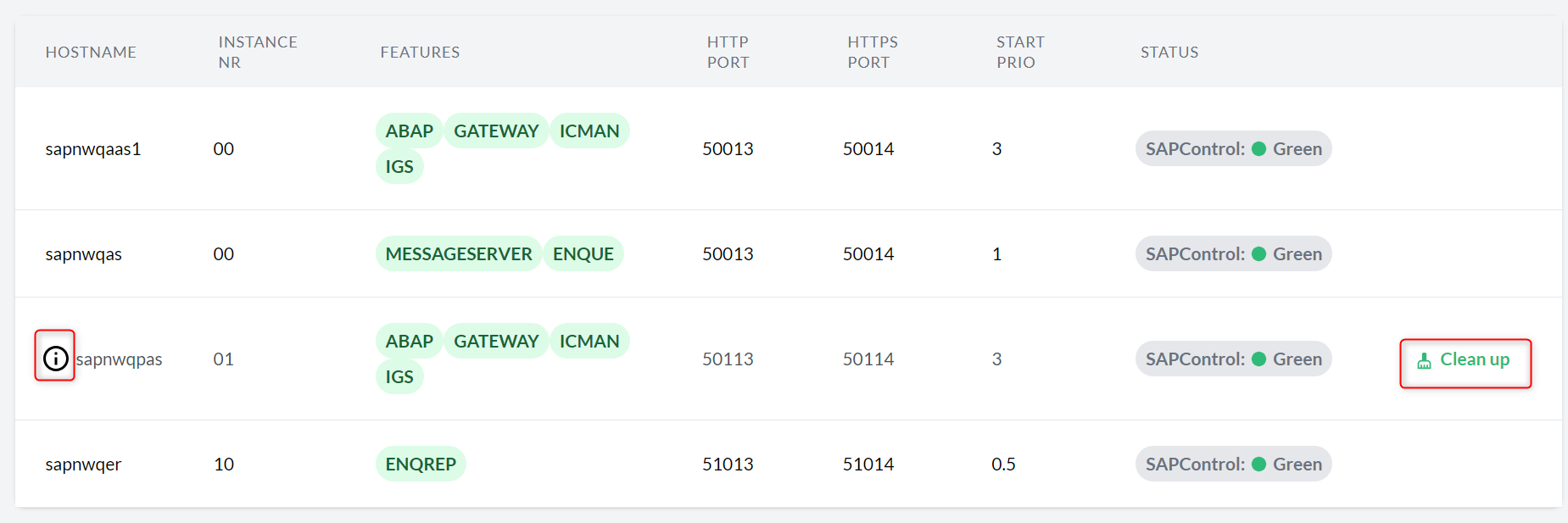
Use the Clean up button to remove the instance and any dependencies from the console.
For example, cleaning up the ASCS instance of an SAP system removes the entire SAP system from the console.
9.5 Managing tags #
Tags are used to label specific objects with location, owner, etc. The objects can be hosts, clusters, databases or SAP systems. Tags make it easier to distinguish and show all these different objects, making your lists more readable and searchable. You can use any text you like to create your tags except blank spaces and special characters other than + - = . , _ : and @.
The following subsection shows how you can add, remove, and filter objects based on your tags.
9.5.1 Adding tags to hosts, clusters, databases, and SAP Systems #
To add one or more tags to your objects, proceed as follows:
Log in to Trento.
In the Trento dashboard, go to the overview of the desired object. For example, the Hosts overview.
In the Hosts overview, search for the host you want to tag.
In the Tags column, click the Add Tag entry.
Enter the desired tag and press Enter.
Use the described steps to assign other tags to the same or a different host.
You can use the procedure to assign tags to other objects, such as Clusters, SAP Systems, or HANA Databases.
9.5.2 Removing tags #
To remove existing tags, click the appropriate part in the dashboard:
Log in to Trento.
In the Trento dashboard, go to the overview of the desired object. For example, the Hosts overview.
In the Hosts overview, search for the host you want to remove a tag from.
In the Tags column, click the × icon to remove the tag.
Use the described steps to remove other tags from the same or a different host.
9.5.3 Filter by tags #
Tags can be used to filter objects.
In the Trento dashboard, go to the desired overview.
In the second row, click the Filter tags drop-down list to view all existing tags.
Select one or more tags to display all hosts that have the selected tags.
To remove the filter, click the × icon from the same drop-down list.
9.6 Rotating API keys #
Communication from the Trento Agent to the Trento Server is secured by a API key that must be provided in the agent configuration file.
By default, the API key does not have an expiration date. You can set up a custom expiration date to increase the overall security of the setup and meet internal security requirements.
To do this, go to the Settings view and click the Generate Key button in the API Key section:

Whenever a new key is generated, the configuration of all the reporting agents must be updated accordingly.
9.7 Personal access tokens #
Trento allows users to create personal access tokens (PATs) for authentication and authorization purposes in third-party integrations with the APIs exposed by its components:
9.7.1 Creating a personal access token #
Log in to Trento Web UI, click on your username in the top-right corner, and select Profile from the drop-down menu.
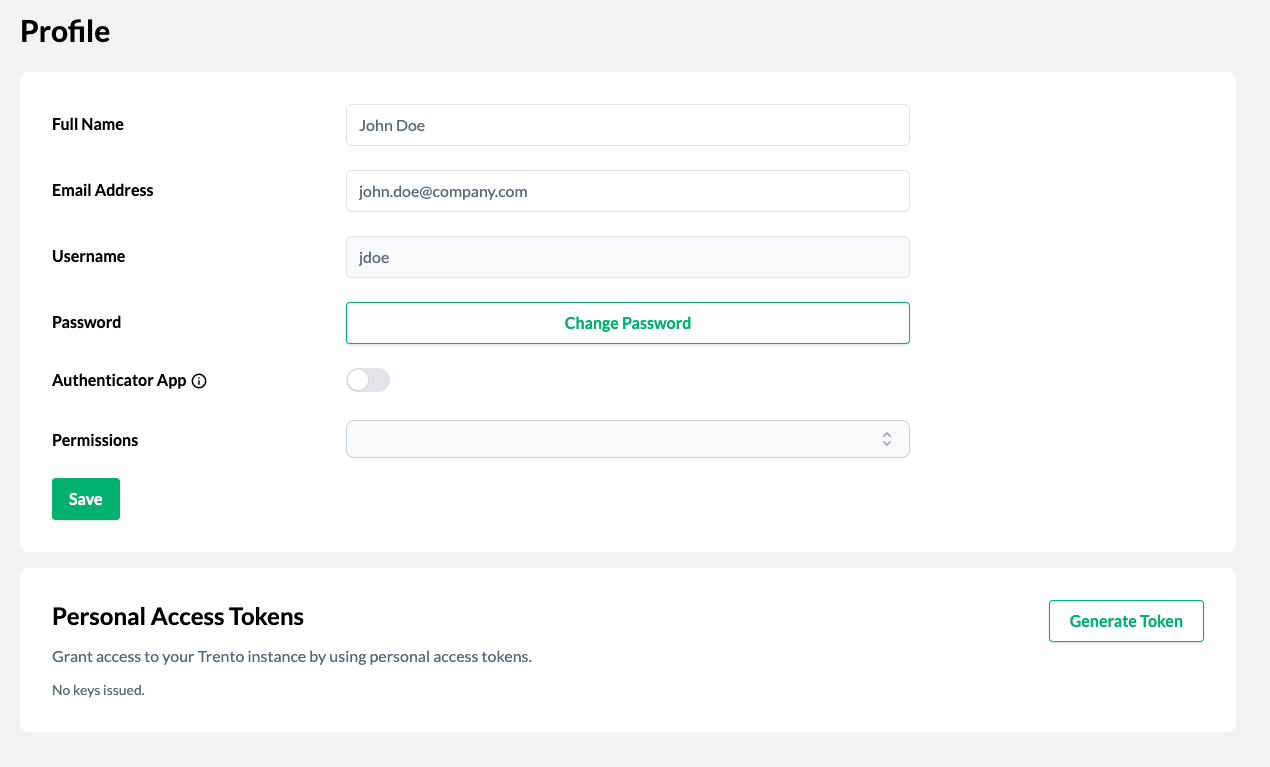
Click Generate Token in the Personal Access Tokens section.
When prompted, provide a name and an expiration date, then click Generate Token.
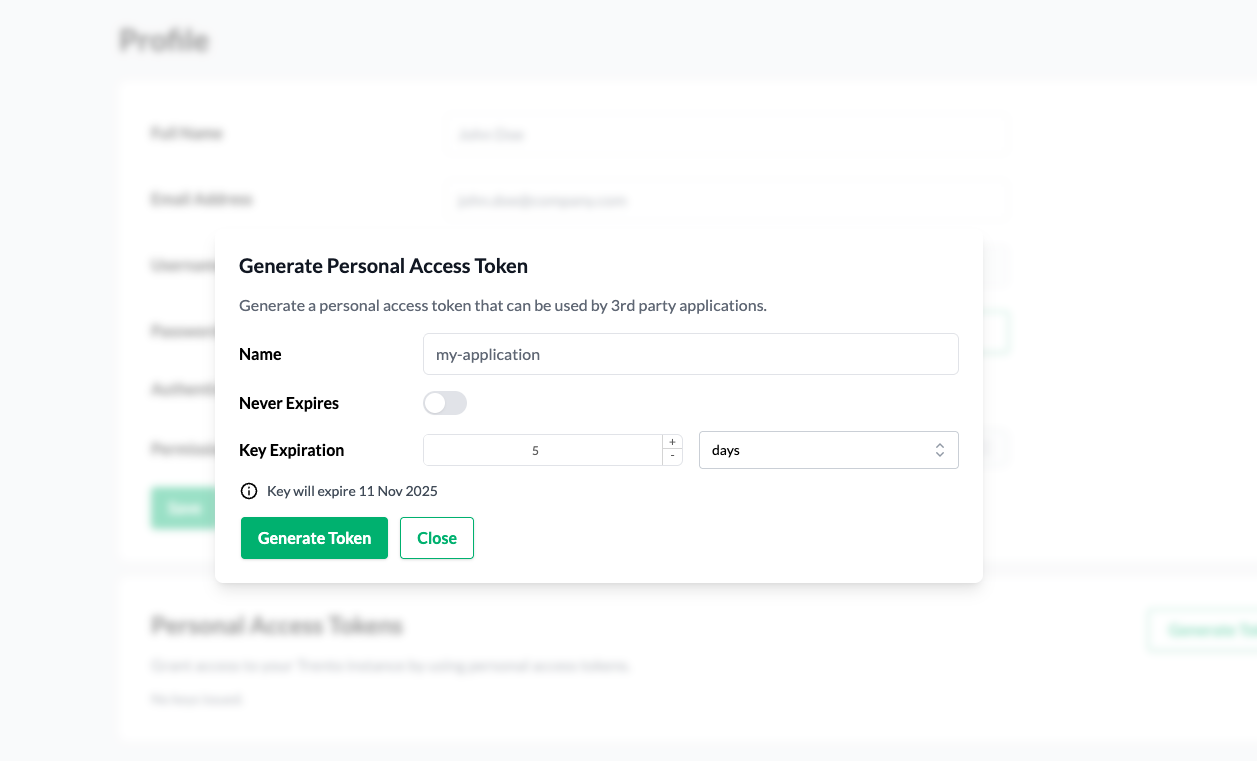 Figure 9.7: Generate personal access token modal #
Copy the generated token starting with
trento_pat_. Keep in mind that the token is shown only once. If you lose the token, you must generate a new one.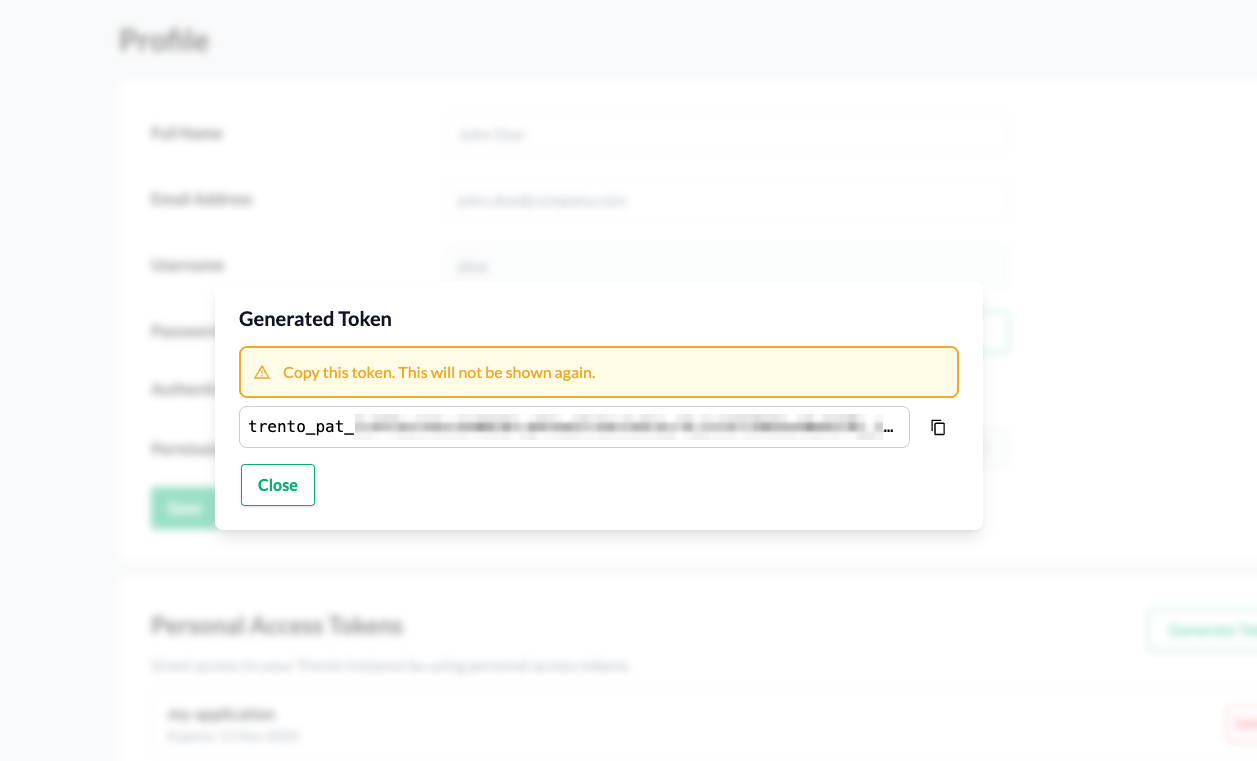 Figure 9.8: Generated personal access token #
9.7.2 Using a personal access token #
You can use the created personal access token to authenticate API requests by including it in the Authorization header as a Bearer token.
$ curl -X GET "..." -H "Authorization: Bearer trento_pat_<rest_of_token>"9.7.3 Deleting a personal access token #
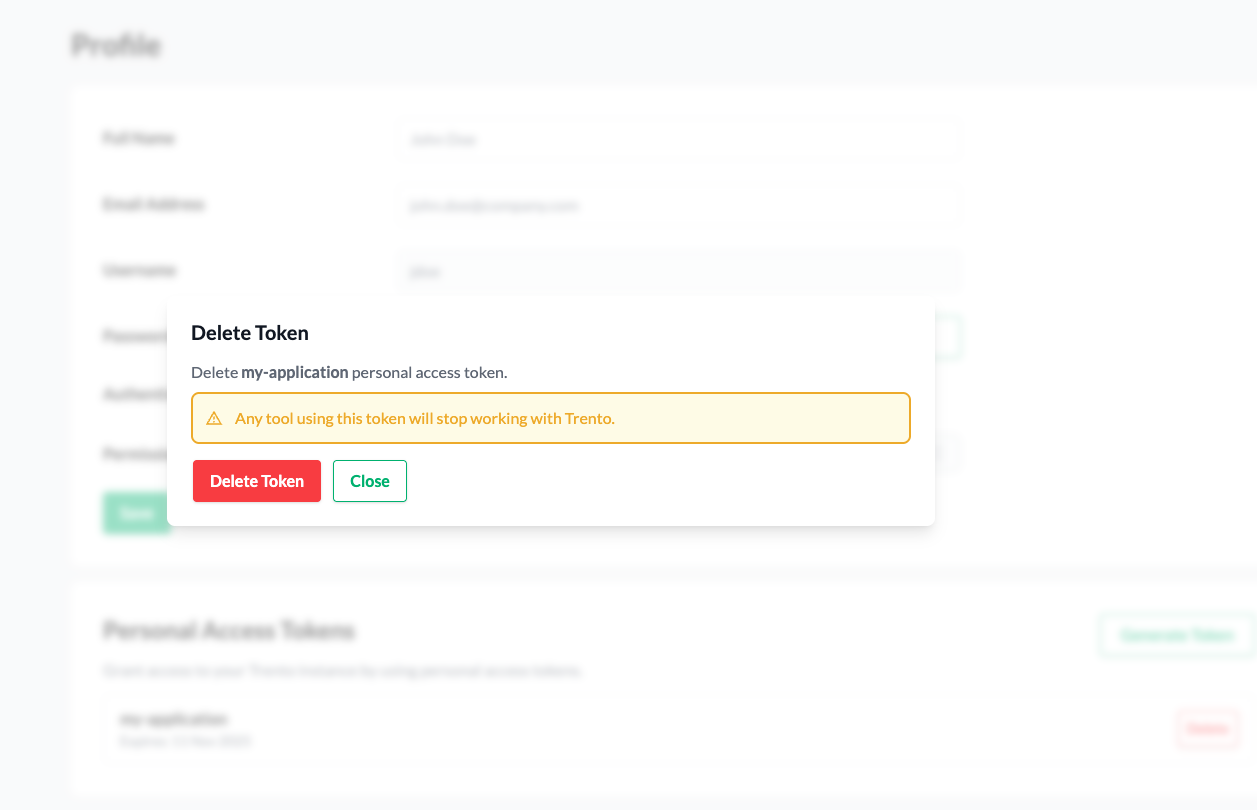
To delete personal access token, click its contextual Delete button in the Personal Access Tokens section of the profile.

Confirm the deletion
9.7.4 Notes for user admins #
User admins can delete tokens for other users. However, admins cannot create new tokens for other users.
To delete a token for another user, a user admin must perform the following steps:
navigate to the Users page
select a user
click a token’s contextual Delete button in the Personal Access Tokens section