4 Installation #
4.1 Installing Trento Server #
Trento Server can be deployed in different ways depending on your infrastructure and requirements.
Supported deployment methods:
4.1.1 Kubernetes deployment #
The subsection uses the following placeholders:
TRENTO_SERVER_HOSTNAME: the host name used by the end user to access the console.ADMIN_PASSWORD: the password of the admin user created during the installation process.The password must meet the following requirements:
minimum length of 8 characters
the password must not contain 3 identical numbers or letters in a row (for example, 111 or aaa)
the password must not contain 4 sequential numbers or letters (for example, 1234, abcd, ABCD)

By default, the provided Helm chart uses Traefik as ingress class
Main usages are related to:
path rewriting
endpoint protection
Search for Traefik specific usage scenarios on GitHub. In case another ingress controller is used, adapt accordingly.
4.1.1.1 Installing Trento Server on an existing Kubernetes cluster #
Trento Server consists of a several components delivered as container images and intended for deployment on a Kubernetes cluster. A manual production-ready deployment of these components requires Kubernetes knowledge. Customers without in-house Kubernetes expertise and those who want to try Trento with a minimum of effort, can use the Trento Helm chart. This approach automates the deployment of all the required components on a single Kubernetes cluster node. You can use the Trento Helm chart to install Trento Server on a existing Kubernetes cluster as follows:

The examples in this section do not specify a Kubernetes namespace for simplicity. By default, Helm installs to the default namespace.
For production deployments, create and use a dedicated namespace.
Example:
kubectl create namespace trento
helm upgrade \
   --install trento-server oci://registry.suse.com/trento/trento-server \
   --namespace trento \
   --set global.trentoWeb.origin=TRENTO_SERVER_HOSTNAME \
   --set trento-web.adminUser.password=ADMIN_PASSWORD
Install Helm:
curl https://raw.githubusercontent.com/helm/helm/master/scripts/get-helm-3 | bashConnect Helm to an existing Kubernetes cluster.
Use Helm to install Trento Server with the Trento Helm chart:
helm upgrade \
   --install trento-server oci://registry.suse.com/trento/trento-server \
   --set global.trentoWeb.origin=TRENTO_SERVER_HOSTNAME \
   --set trento-web.adminUser.password=ADMIN_PASSWORD
When using a Helm version lower than 3.8.0, an experimental flag must be set as follows:
HELM_EXPERIMENTAL_OCI=1 helm upgrade \
   --install trento-server oci://registry.suse.com/trento/trento-server \
   --set global.trentoWeb.origin=TRENTO_SERVER_HOSTNAME \
   --set trento-web.adminUser.password=ADMIN_PASSWORD
To verify that the Trento Server installation was successful, open the URL of the Trento Web (
http://TRENTO_SERVER_HOSTNAME) from a workstation on the SAP administrator’s LAN.
4.1.1.2 Installing Trento Server on K3s #
If you do not have a Kubernetes cluster, or you have one but you do not want to use it for Trento, you can use SUSE Rancher’s K3s as an alternative. To deploy Trento Server on K3s, you need a server or VM (see Section 3.1, “Trento Server requirements” for minimum requirements) and follow steps in Section 4.1.1.2.1, “Manually installing Trento on a Trento Server host”.
The following procedure deploys Trento Server on a single-node K3s cluster. Note that this setup is not recommended for production use.
4.1.1.2.1 Manually installing Trento on a Trento Server host #
Log in to the Trento Server host.
Install K3s either as root or a non-root user.
Installing as user root:
curl -sfL https://get.k3s.io | INSTALL_K3S_SKIP_SELINUX_RPM=true sh
Installing as a non-root user:
curl -sfL https://get.k3s.io | INSTALL_K3S_SKIP_SELINUX_RPM=true sh -s - --write-kubeconfig-mode 644
Install Helm as root.
curl https://raw.githubusercontent.com/helm/helm/master/scripts/get-helm-3 | bash
Set the
KUBECONFIGenvironment variable for the same user that installed K3s:export KUBECONFIG=/etc/rancher/k3s/k3s.yamlWith the same user that installed K3s, install Trento Server using the Helm chart:
helm upgrade \
   --install trento-server oci://registry.suse.com/trento/trento-server \
   --set global.trentoWeb.origin=TRENTO_SERVER_HOSTNAME \
   --set trento-web.adminUser.password=ADMIN_PASSWORD
When using a Helm version lower than 3.8.0, an experimental flag must be set as follows:
HELM_EXPERIMENTAL_OCI=1 helm upgrade \
   --install trento-server oci://registry.suse.com/trento/trento-server \
   --set global.trentoWeb.origin=TRENTO_SERVER_HOSTNAME \
   --set trento-web.adminUser.password=ADMIN_PASSWORD
Monitor the creation and start-up of the Trento Server pods, and wait until they are ready and running:
watch kubectl get podsAll pods must be in the ready and running state.
Log out of the Trento Server host.
To verify that the Trento Server installation was successful, open the URL of the Trento Web (
http://TRENTO_SERVER_HOSTNAME) from a workstation on the SAP administrator’s LAN.
4.1.1.3 Deploying Trento Server on selected nodes #
If you use a multi-node Kubernetes cluster, it is possible to deploy Trento Server images on selected nodes by specifying the field nodeSelector in the helm upgrade command as follows:
HELM_EXPERIMENTAL_OCI=1 helm upgrade \
   --install trento-server oci://registry.suse.com/trento/trento-server \
   --set global.trentoWeb.origin=TRENTO_SERVER_HOSTNAME \
   --set trento-web.adminUser.password=ADMIN_PASSWORD \
   --set prometheus.server.nodeSelector.LABEL=VALUE \
   --set postgresql.primary.nodeSelector.LABEL=VALUE \
   --set trento-web.nodeSelector.LABEL=VALUE \
   --set trento-runner.nodeSelector.LABEL=VALUE
4.1.1.4 Configuring event pruning #
The event pruning feature allows administrators to manage how long registered events are stored in the database and how often the expired events are removed.
The following configuration options are available:
pruneEventsOlderThanThe number of days registered events are stored in the database. The default value is 10. Keep in mind that
pruneEventsOlderThancan be set to 0. However, this deletes all events whenever the cron job runs, making it impossible to analyze and troubleshoot issues with the applicationpruneEventsCronjobScheduleThe frequency of the cron job that deletes expired events. The default value is "0 0 * * *", which runs daily at midnight.
To modify the default values, execute the following Helm command:
helm ... \
    --set trento-web.pruneEventsOlderThan=<<EXPIRATION_IN_DAYS>> \
    --set trento-web.pruneEventsCronjobSchedule="<<NEW_SCHEDULE>>"
Replace the placeholders with the desired values:
EXPIRATION_IN_DAYSNumber of days to retain events in the database before pruning.
NEW_SCHEDULEThe cron rule specifying how frequently the pruning job is performed.
Example command to retain events for 30 days and schedule pruning daily at 3 AM:
helm upgrade \
  --install trento-server oci://registry.suse.com/trento/trento-server \
  --set global.trentoWeb.origin=TRENTO_SERVER_HOSTNAME \
  --set trento-web.adminUser.password=ADMIN_PASSWORD \
  --set trento-web.pruneEventsOlderThan=30 \
  --set trento-web.pruneEventsCronjobSchedule="0 3 * * *"
4.1.1.5 Enabling email alerts #
Email alerting feature notifies the SAP Basis administrator about important changes in the SAP Landscape being monitored by Trento.
The reported events include the following:
Host heartbeat failed
Cluster health detected critical
Database health detected critical
SAP System health detected critical
This feature is disabled by default. It can be enabled at installation time or anytime at a later stage. In both cases, the procedure is the same and uses the following placeholders:
SMTP_SERVERThe SMTP server designated to send email alerts
SMTP_PORTPort on the SMTP server
SMTP_USERUser name to access SMTP server
SMTP_PASSWORDPassword to access SMTP server
ALERTING_SENDERSender email for alert notifications
ALERTING_RECIPIENTEmail address to receive alert notifications.
The command to enable email alerts is as follows:
HELM_EXPERIMENTAL_OCI=1 helm upgrade \
   --install trento-server oci://registry.suse.com/trento/trento-server \
   --set global.trentoWeb.origin=TRENTO_SERVER_HOSTNAME \
   --set trento-web.adminUser.password=ADMIN_PASSWORD \
   --set trento-web.alerting.enabled=true \
   --set trento-web.alerting.smtpServer=SMTP_SERVER \
   --set trento-web.alerting.smtpPort=SMTP_PORT \
   --set trento-web.alerting.smtpUser=SMTP_USER \
   --set trento-web.alerting.smtpPassword=SMTP_PASSWORD \
   --set trento-web.alerting.sender=ALERTING_SENDER \
   --set trento-web.alerting.recipient=ALERTING_RECIPIENT
4.1.1.6 Enabling SSL #
Ingress may be used to provide SSL termination for the Web component of Trento Server. This would allow to encrypt the communication from the agent to the server, which is already secured by the corresponding API key. It would also allow HTTPS access to the Web console with trusted certificates.
Configuration must be done in the tls section of the values.yaml file of the chart of the Trento Server Web component.
For details on the required Ingress setup and configuration, refer to: https://kubernetes.io/docs/concepts/services-networking/ingress/. Particularly, refer to section https://kubernetes.io/docs/concepts/services-networking/ingress/#tls for details on the secret format in the YAML configuration file.
Additional steps are required on the Agent side.
4.1.2 systemd deployment #
A systemd-based installation of the Trento Server using RPM packages can be performed manually on the latest supported versions of SUSE Linux Enterprise Server for SAP applications, from 15 SP4 up to 16. For installations on service packs other than the current one, make sure to update the repository URL as described in the relevant notes throughout this guide.
4.1.2.1 List of dependencies #
4.1.2.2 Install Trento dependencies #
4.1.2.2.1 Install PostgreSQL #
The current instructions are tested with the following PostgreSQL versions:
| SUSE Linux Enterprise Server for SAP applications | PostgreSQL Version |
|---|---|
15 SP4 | 14.10 |
15 SP5 | 15.5 |
15 SP6 | 16.9 |
15 SP7 | 17.5 |
16.0 | 17.6 |
Using a different version of PostgreSQL may require different steps or configurations, especially when changing the major number. For more details, refer to the official PostgreSQL documentation.
Install PostgreSQL server:
zypper in postgresql-serverEnable and start PostgreSQL server:
systemctl enable --now postgresql
4.1.2.2.2 Configure PostgreSQL #
Start
psqlwith thepostgresuser to open a connection to the database:su - postgres psqlInitialize the databases in the
psqlconsole:CREATE DATABASE wanda; CREATE DATABASE trento; CREATE DATABASE trento_event_store;Create the users:
CREATE USER wanda_user WITH PASSWORD 'wanda_password';
CREATE USER trento_user WITH PASSWORD 'web_password';
Grant required privileges to the users and close the connection:
\c wanda
GRANT ALL ON SCHEMA public TO wanda_user;
\c trento
GRANT ALL ON SCHEMA public TO trento_user;
\c trento_event_store;
GRANT ALL ON SCHEMA public TO trento_user;
\q
You can exit from the
psqlconsole andpostgresuser.Allow the PostgreSQL database to receive connections to the respective databases and users. To do this, add the following to
/var/lib/pgsql/data/pg_hba.conf:host wanda wanda_user 0.0.0.0/0 scram-sha-256 host trento,trento_event_store trento_user 0.0.0.0/0 scram-sha-256NoteThe
pg_hba.conffile works sequentially. This means that the rules on the top have preference over the ones below. The example above shows a permissive address range. So for this to work, the entires must be written at the top of thehostentries. For further information, refer to the pg_hba.conf documentation.Allow PostgreSQL to bind on all network interfaces in
/var/lib/pgsql/data/postgresql.confby changing the following line:listen_addresses = '*'Restart PostgreSQL to apply the changes:
systemctl restart postgresql
4.1.2.2.3 Install RabbitMQ #
Install RabbitMQ server:
zypper install rabbitmq-serverAllow connections from external hosts by modifying
/etc/rabbitmq/rabbitmq.conf, so the Trento-agent can reach RabbitMQ:listeners.tcp.default = 5672If firewalld is running, add a rule to firewalld:
firewall-cmd --zone=public --add-port=5672/tcp --permanent;
firewall-cmd --reload
Enable the RabbitMQ service:
systemctl enable --now rabbitmq-server
4.1.2.2.4 Configure RabbitMQ #
To configure RabbitMQ for a production system, follow the official suggestions in the RabbitMQ guide.
Create a new RabbitMQ user:
rabbitmqctl add_user trento_user trento_user_passwordCreate a virtual host:
rabbitmqctl add_vhost vhostSet permissions for the user on the virtual host:
rabbitmqctl set_permissions -p vhost trento_user ".*" ".*" ".*"
4.1.2.3 Install Trento using RPM packages #
The trento-web and trento-wanda packages are available by default on supported SUSE Linux Enterprise Server for SAP applications distributions.
Install Trento web, wanda and checks:
zypper install trento-web trento-wanda4.1.2.3.1 Create the configuration files #
Both services depend on respective configuration files. They must be
placed in /etc/trento/trento-web and /etc/trento/trento-wanda
respectively, and examples of how to modify them are available in
/etc/trento/trento-web.example and /etc/trento/trento-wanda.example.
You can create the content of the secret variables such as
SECRET_KEY_BASE, ACCESS_TOKEN_ENC_SECRET and REFRESH_TOKEN_ENC_SECRET using openssl:
openssl rand -out /dev/stdout 48 | base64Also ensure that a valid hostname, FQDN, or IP address is configured in
TRENTO_WEB_ORIGIN when using HTTPS.
Otherwise, WebSocket connections will fail, preventing real-time updates
in the web interface.
4.1.2.3.2 trento-web configuration #
# /etc/trento/trento-web
AMQP_URL=amqp://trento_user:trento_user_password@localhost:5672/vhost
DATABASE_URL=ecto://trento_user:web_password@localhost/trento
EVENTSTORE_URL=ecto://trento_user:web_password@localhost/trento_event_store
ENABLE_ALERTING=false
CHARTS_ENABLED=false
ADMIN_USER=admin
ADMIN_PASSWORD=trentodemo
ENABLE_API_KEY=true
PORT=4000
TRENTO_WEB_ORIGIN=trento.example.com
SECRET_KEY_BASE=some-secret
ACCESS_TOKEN_ENC_SECRET=some-secret
REFRESH_TOKEN_ENC_SECRET=some-secret
CHECKS_SERVICE_BASE_URL=/wanda
OAS_SERVER_URL=https://trento.example.com
The ADMIN_PASSWORD variable must must meet the following requiements:
minimum of 8 characters
the password not contain 3 consecutive identical numbers or letters (for example, 111 or aaa)
the password must not contain 4 consecutive numbers or letters (for example, 1234, abcd, ABCD)
The ENABLE_ALERTING enables the
alerting system to receive email notifications. Set ENABLE_ALERTING to true and add additional variables to the /etc/trento/trento-web, to enable the feature.
# /etc/trento/trento-web
ENABLE_ALERTING=true
ALERT_SENDER=<<SENDER_EMAIL_ADDRESS>>
ALERT_RECIPIENT=<<RECIPIENT_EMAIL_ADDRESS>>
SMTP_SERVER=<<SMTP_SERVER_ADDRESS>>
SMTP_PORT=<<SMTP_PORT>>
SMTP_USER=<<SMTP_USER>>
SMTP_PASSWORD=<<SMTP_PASSWORD>>
4.1.2.3.3 trento-wanda configuration #
# /etc/trento/trento-wanda
CORS_ORIGIN=http://localhost
AMQP_URL=amqp://trento_user:trento_user_password@localhost:5672/vhost
DATABASE_URL=ecto://wanda_user:wanda_password@localhost/wanda
PORT=4001
SECRET_KEY_BASE=some-secret
OAS_SERVER_URL=https://trento.example.com/wanda
AUTH_SERVER_URL=http://localhost:4000
4.1.2.3.4 Start the services #
In some SUSE Linux Enterprise Server for SAP applications environments, SELinux may be enabled and set to enforcing mode by default. If Trento services fail to start or show permission-related errors, check the SELinux status:
getenforceIf SELinux is set to enforcing, switch it to permissive mode either temporarily or permanently:
Temporary change (until reboot):
setenforce 0Permanent change (persists after reboot):
Edit
/etc/selinux/configand set:SELINUX=permissive
Enable and start the services:
systemctl enable --now trento-web trento-wanda4.1.2.3.5 Monitor the services #
Use journalctl to check if the services are up and running
correctly. For example:
journalctl -fu trento-web4.1.2.4 Check the health status of Trento Web and Trento Wanda #
You can check if Trento Web and Trento Wanda services function correctly by
accessing accessing the healthz and readyz API.
Check Trento Web health status using
curl:curl http://localhost:4000/api/readyzcurl http://localhost:4000/api/healthzCheck Trento wanda health status using
curl:curl http://localhost:4001/api/readyzcurl http://localhost:4001/api/healthz
If Trento web and wanda are ready, and the database connection is set up correctly, the output should be as follows:
{"ready":true}{"database":"pass"}4.1.2.5 Install and configure NGINX #
Install NGINX package:
zypper install nginxIf firewalld is running, add firewalld rules for HTTP and HTTPS:
firewall-cmd --zone=public --add-service=https --permanent
firewall-cmd --zone=public --add-service=http --permanent
firewall-cmd --reload
Start and enable NGINX:
systemctl enable --now nginxCreate a
/etc/nginx/conf.d/trento.confTrento configuration file:map $http_upgrade $connection_upgrade { default upgrade; '' close; } upstream web { server 127.0.0.1:4000 max_fails=5 fail_timeout=60s; } upstream wanda { server 127.0.0.1:4001 max_fails=5 fail_timeout=60s; } server { # Redirect HTTP to HTTPS listen 80; server_name trento.example.com; return 301 https://$host$request_uri; } server { server_name trento.example.com; listen 443 ssl; ssl_certificate /etc/nginx/ssl/certs/trento.crt; ssl_certificate_key /etc/ssl/private/trento.key; ssl_protocols TLSv1.2 TLSv1.3; ssl_ciphers 'ECDHE-ECDSA-AES128-GCM-SHA256:ECDHE-RSA-AES128-GCM-SHA256:ECDHE-ECDSA-AES256-GCM-SHA384:ECDHE-RSA-AES256-GCM-SHA384:DHE-RSA-AES128-GCM-SHA256:DHE-RSA-AES256-GCM-SHA384'; ssl_prefer_server_ciphers on; ssl_session_cache shared:SSL:10m; # Wanda rule location /wanda/ { allow all; # Proxy Headers proxy_http_version 1.1; proxy_set_header X-Forwarded-For $proxy_add_x_forwarded_for; proxy_set_header Host $http_host; proxy_set_header X-Cluster-Client-Ip $remote_addr; # Important Websocket Bits! proxy_set_header Upgrade $http_upgrade; proxy_set_header Connection "upgrade"; # Add final slash to replace the location path value by the value in proxy_pass # https://nginx.org/en/docs/http/ngx_http_proxy_module.html#proxy_pass proxy_pass http://wanda/; } # Web rule location / { # this endpoint should not be accessible publicly # it is internally used by wanda to introspect access tokens and personal access tokens location /api/session/token/introspect { deny all; return 404; } allow all; # Proxy Headers proxy_http_version 1.1; proxy_set_header X-Forwarded-For $proxy_add_x_forwarded_for; proxy_set_header Host $http_host; proxy_set_header X-Cluster-Client-Ip $remote_addr; # The Important Websocket Bits! proxy_set_header Upgrade $http_upgrade; proxy_set_header Connection "upgrade"; proxy_pass http://web; } }
4.1.2.6 Prepare SSL certificate for NGINX #
Create or provide a certificate for NGINX to enable SSL for Trento.
4.1.2.6.1 Create a self-signed certificate #
Generate a self-signed certificate:
NoteAdjust
subjectAltName = DNS:trento.example.comby replacingtrento.example.comwith your domain and change the value5to the number of days for which you need the certificate to be valid. For example,-days 365for one year.openssl req -newkey rsa:2048 --nodes -keyout trento.key -x509 -days 5 -out trento.crt -addext "subjectAltName = DNS:trento.example.com"Copy the generated
trento.keyto a location accessible by NGINX:cp trento.key /etc/ssl/private/trento.keyCreate a directory for the generated
trento.crtfile. The directory must be accessible by NGINX:mkdir -p /etc/nginx/ssl/certs/Copy the generated
trento.crtfile to the created directory:cp trento.crt /etc/nginx/ssl/certs/trento.crtCheck the NGINX configuration:
nginx -tIf the configuration is correct, the output should be as follows:
nginx: the configuration file /etc/nginx/nginx.conf syntax is ok
nginx: configuration file /etc/nginx/nginx.conf test is successful
If there are issues with the configuration, the output indicates what needs to be adjusted.
Enable NGINX:
systemctl restart nginx
4.1.2.6.2 Create a signed certificate with Let’s Encrypt using PackageHub repository #
Enable the PackageHub repository (replace
x.xwith your OS version, for example15.7):SUSEConnect --product PackageHub/x.x/x86_64 zypper refreshInstall Certbot and its NGINX plugin:
NoteService Packs include version-specific Certbot NGINX plugin packages, for example
python311-certbot-nginx,python313-certbot-nginxorpython3-certbot-nginx. Install the package available in the Service Pack you currently use.zypper install certbot python311-certbot-nginxObtain a certificate and configure NGINX with Certbot:
NoteReplace
example.comwith your domain. For more information, refer to Certbot instructions for NGINXcertbot --nginx -d trento.example.comNoteCertbot certificates are valid for 90 days. Refer to the above link for details on how to renew certificates.
4.1.2.7 Accessing the trento-web UI #
Pin the browser to https://trento.example.com. You should be able to
login using the credentials specified in the ADMIN_USER and
ADMIN_PASSWORD environment variables.
4.2 Installing Trento Agents #
Before you can install a Trento Agent, you must obtain the API key of your Trento Server. Proceed as follows:
Open the URL of the Trento Web console. It prompts you for a user name and password:
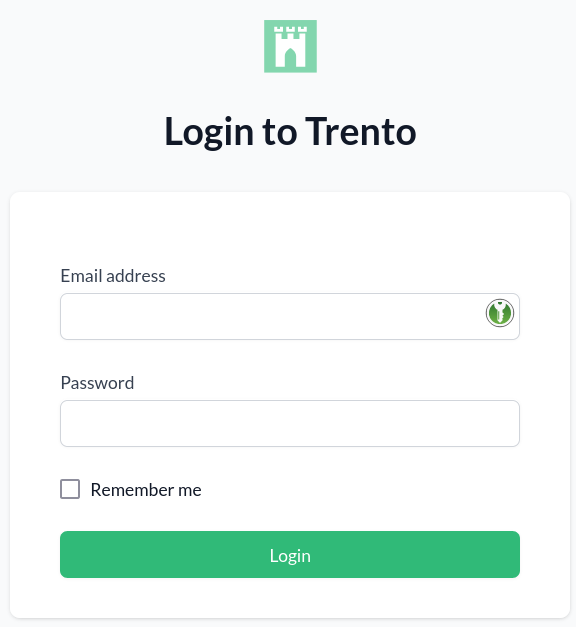
Enter the credentials for the
adminuser (specified during installation of Trento Server).Click Login.
When you are logged in, go to Settings:
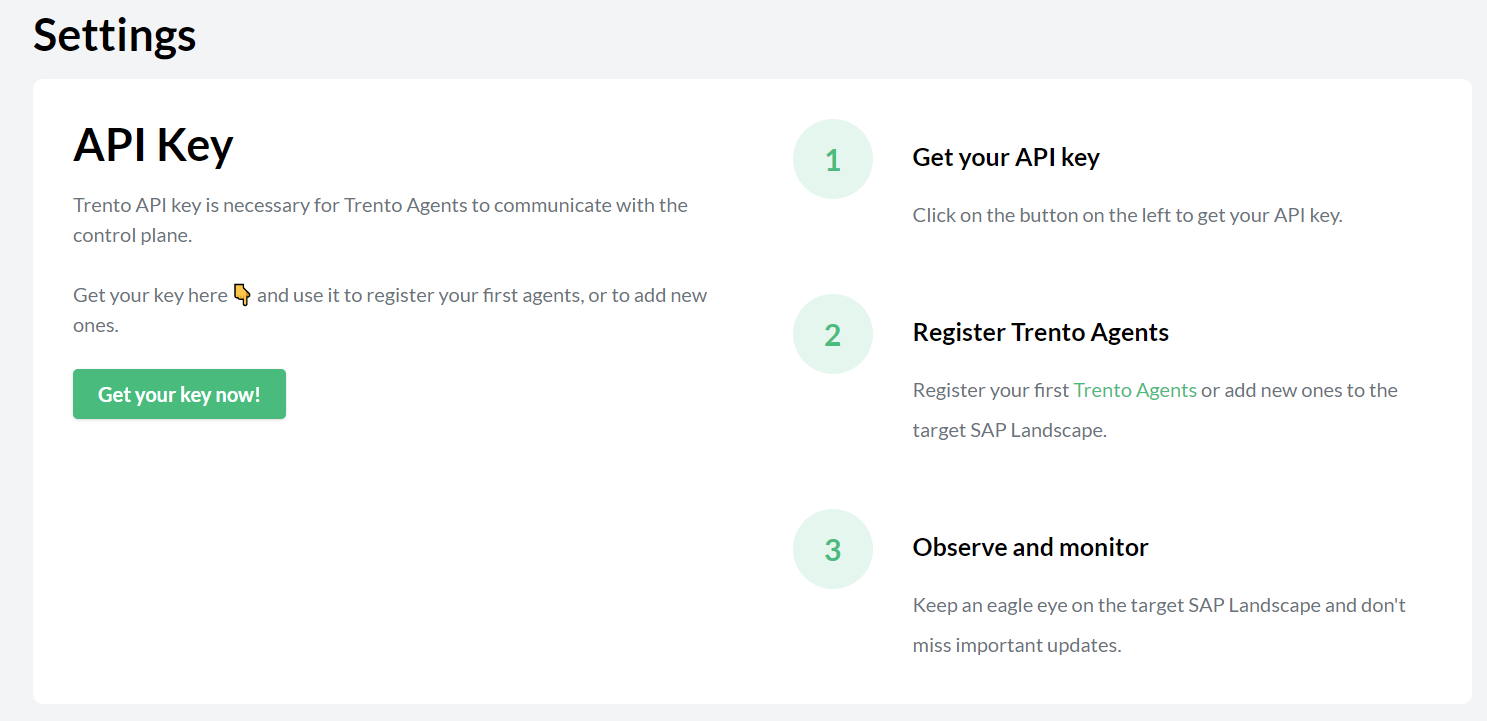
Click the Copy button to copy the key to the clipboard.
Install the Trento Agent on an SAP host and register it with the Trento Server as follows:
Install the package:
> sudo zypper ref
> sudo zypper install trento-agent
A configuration file named
/agent.yamlis created under/etc/trento/in SUSE Linux Enterprise Server for SAP applications 15 or under/usr/etc/trento/in SUSE Linux Enterprise Server for SAP applications 16.Open the configuration file and uncomment (remove the
#character) the entries forfacts-service-url,server-urlandapi-key. Update the values if necessary:facts-service-url: the address of the AMQP RabbitMQ service used for communication with the checks engine (wanda). The correct value of this parameter depends on how Trento Server was deployed.In a Kubernetes deployment, it is amqp://trento:trento@TRENTO_SERVER_HOSTNAME:5672/. If the default RabbitMQ username and password (
trento:trento) were updated using Helm, the parameter must use a user-defined value.In a systemd deployment, the correct value is
amqp://TRENTO_USER:TRENTO_USER_PASSWORD@TRENTO_SERVER_HOSTNAME:5672/vhost. IfTRENTO_USERandTRENTO_USER_PASSWORDhave been replaced with custom values, you must use them.server-url: URL for the Trento Server (http://TRENTO_SERVER_HOSTNAME)api-key: the API key retrieved from the Web consolenode-exporter-target: specifies IP address and port for node exporter as<ip_address>:<port>. In situations where the host has multiple IP addresses and/or the exporter is listening to a port different from the default one, configuring this settings enables Prometheus to connect to the correct IP address and port of the host.
If SSL termination has been enabled on the server side, you can encrypt the communication from the agent to the server as follows:
Provide an HTTPS URL instead of an HTTP one.
Import the certificate from the Certificate Authority that has issued your Trento Server SSL certificate into the Trento Agent host as follows:
Copy the CA certificate in the PEM format to
/etc/pki/trust/anchors/. If the CA certificate is in the CRT format, convert it to PEM using the followingopensslcommand:openssl x509 -in mycert.crt -out mycert.pem -outform PEMRun the
update-ca-certificatescommand.
Start the Trento Agent:
> sudo systemctl enable --now trento-agentCheck the status of the Trento Agent:
> sudo systemctl status trento-agent
● trento-agent.service - Trento Agent service
     Loaded: loaded (/usr/lib/systemd/system/trento-agent.service; enabled; vendor preset: disabled)
     Active: active (running) since Wed 2021-11-24 17:37:46 UTC; 4s ago
   Main PID: 22055 (trento)
      Tasks: 10
     CGroup: /system.slice/trento-agent.service
             ├─22055 /usr/bin/trento agent start --consul-config-dir=/srv/consul/consul.d
             └─22220 /usr/bin/ruby.ruby2.5 /usr/sbin/SUSEConnect -s

[...]
Repeat this procedure on all SAP hosts that you want to monitor.
4.3 Automated Installation with Ansible #
You can perform an automated installation of Trento using RPM packages with Ansible playbooks provided by the ansible-trento package.
4.3.1 Supported operating systems #
Execute the playbooks only on target nodes running SUSE Linux Enterprise Server for SAP applications 15-SP5 and higher, or 16.0 and higher. The supported SUSE Linux Enterprise Server for SAP applications systems for the control node are the same. However, the requirements for the control nodes are less strict. You can use any operating system as long as the installed Ansible version is compatible with the Python interpreter available on the managed target nodes. Refer to the support matrix in the Ansible documentation.
Currently, Trento Server cannot be installed with the Ansible playbook on target nodes running SUSE Linux Enterprise Server for SAP applications 15 SP5.
4.3.2 Requirements #
As a prerequisite, enable the following modules on SUSE Linux Enterprise Server for SAP applications 15.
Replace x with your SP version.
Control node module requirements:
Enable the Systems Management module (not needed for SP5).
$ SUSEConnect -p sle-module-systems-management/15.x/x86_64This repository contains Ansible.
Target node module requirements:
Enable the Python 3 module.
$ SUSEConnect -p sle-module-python3/15.x/x86_64This repository contains essential Python dependencies.
Enable SUSE Package Hub.
$ SUSEConnect -p PackageHub/15.x/x86_64This module is optional. Use it when you need to install Prometheus.
Additionally, install the following packages regardless of the operating system version.
Control node package requirements:
Install Ansible.
> sudo zypper install ansible
Target node package requirements:
Install Python version 3.11 or higher.
> sudo zypper install python311
4.3.3 Installation #
For SLES-based operating systems, install the ansible-trento package using Zypper.
> sudo zypper install ansible-trento4.3.4 Components #
The playbooks comprise the following components.
Trento Server components:
webThe main component of the Trento Server, containing the backend and frontend.
wandaChecks engine component.
Trento Agent:
agentAgent collecting information and processing commands, installed on SAP infrastructure host machines.
Third-party dependencies:
PostgreSQLDatabase server.
RabbitMQMessaging broker.
PrometheusMetrics collecting and processing server.
NGINXHTTP server used as reverse proxy.
The ansible-trento package provides an Ansible role for every one of these components.
4.3.5 Playbooks overview #
Trento provides the following playbooks:
serverInstalls Trento Server components (Web and Wanda) along with the supporting third-party application dependencies.
agentInstalls and configures the Trento Agent.
sitePerforms a full Trento installation. It installs both the server components and agents. An additional feature of this playbook is that the API key for the agents is automatically retrieved from the Trento Server and passed to the deployed agents.
cleanupTries to undo operations performed by executing the other playbooks. It only reverts a subset of the operations. Consult the code of that playbook for full details.
4.3.6 Setting up the inventory #
Prepare an inventory file for your Ansible deployment.
Create an inventory.yml file defining the IP addresses or domain names of the target nodes for each group expected in the playbooks.
The inventory must have the following structure:
all:
  children:
    trento_server:
      hosts:
        vitellone:
          ansible_host: "your-host"
          ansible_user: "your-user"
          ansible_ssh_private_key_file: "/home/user/.ssh/id_rsa"
    postgres_hosts:
      hosts:
        vitellone:
          ansible_host: "your-host"
          ansible_user: "your-user"
          ansible_password: "your-password"
    rabbitmq_hosts:
      hosts:
        vitellone:
          ansible_host: "your-host"
          ansible_user: "your-user"
          ansible_ssh_private_key_file: "/home/user/.ssh/id_rsa"
    prometheus_hosts:
      hosts:
        vitellone:
          ansible_host: "your-host"
          ansible_user: "your-user"
          ansible_ssh_private_key_file: "/home/user/.ssh/id_rsa"
   agents:
     hosts:
       vitellone:
          ansible_host: "your-host"
          ansible_user: "your-user"
          ansible_password: "your-password"
In this example, every component is installed on the same host, named vitellone.
Adapt this example to your concrete case.
You can skip some of the host groups if you are not provisioning them with ansible-trento.
For example, skip defining postgres_hosts if you use a PostgreSQL installation managed by an external team.
If you only use the agent playbook, define only agents in your inventory.
Refer to the Section 4.3.8, “Configuration” section to see how to make ansible-trento skip provisioning a given component.
In the example above, a mixture of authentication methods accesses the target nodes.
When using SSH to connect (ansible_ssh_private_key_file), ensure all target nodes contain the public key of the control node.
To copy your public key from the control node to the target node, use the following command:
$ ssh-copy-id <username>@<ip-or-domain-name-of-the-node>4.3.7 Running the playbooks #
To run a playbook, use the following command:
$ ansible-playbook -i <path-to-inventory> suse.trento.<playbook-name>Replace <playbook-name> with one of the following: server, agent, or
site.
4.3.8 Configuration #
You can configure two types of variables: playbook-level and role-level variables. They differ in how you configure them and the scope of the changes they imply. We try to keep playbook-level variables to a minimum.
4.3.8.1 Playbook-level configuration #
These variables affect how the playbooks execute. The available configuration options are:
provision_postgresWhether to install and configure PostgreSQL.
provision_prometheusWhether to install and configure Prometheus.
provision_rabbitmqWhether to install and configure RabbitMQ.
provision_proxyWhether to install and configure a reverse proxy like NGINX.
Supply playbook-level variables using --extra-vars or -e on the command line during every playbook execution:
$ ansible-playbook -i <path-to-inventory> suse.trento.site -e provision_postgres=false -e provision_rabbitmq=falseWhen disabling the provisioning of a Trento component, you must manually set the respective *_host role-level variables, which the playbook otherwise populates automatically.
For example, if you specify -e provision_postgres=false when executing the server or site playbook, explicitly set trento_postgres_host in your inventory.
4.3.8.2 Role-level configuration #
Almost all settings are configured via role-level variables.
Set them in the inventory file under the vars: section:
all:
  children:
    trento_server:
      hosts: ...
    postgres_hosts:
      hosts: ...
    rabbitmq_hosts:
      hosts: ...
    prometheus_hosts:
      hosts: ...
    agents:
      hosts: ...

  vars:
    trento_server_name: "trento-deployment.example.com",
    trento_web_admin_password: "adminpassword",
    trento_web_postgres_password: "postgres",
    trento_wanda_postgres_password: "postgres",
    trento_rabbitmq_password: "guest",
    rproxy_ssl_cert: "<SSL certificate in base64>",
    rproxy_ssl_key: "<SSL certificate key in base64>"
Some role-level variables are mandatory.
For Trento Server, these are:
| Name | Description |
|---|---|
| Domain name of the Trento web application. |
| Password of the admin user in Web component. |
| Password of the PostgreSQL user used in Web component. |
| Password of the PostgreSQL user used in Wanda component. |
| Password of the RabbitMQ user configured for the Trento project. |
| String with the content of the |
| String with the content of the |
For Trento Agent, they are:
| Name | Description |
|---|---|
| API key for accessing the Trento Web collection endpoint. |
The rest of the variables are optional. You can find the full listing on the Trento Ansible project page.
4.3.9 Example scenarios #
The playbooks in ansible-trento allow for various installation scenarios.
4.3.9.1 Every component on a dedicated node #
The following inventory file installs every Trento component on a different host. It also enables and configures optional e-mail alerting:
all:
  children:
    trento_server:
      hosts:
        vitellone:
          ansible_host: "your-host"
          ansible_user: "your-user"
    postgres_hosts:
      hosts:
        vitellone-pg:
          ansible_host: "your-host"
          ansible_user: "your-user"
    rabbitmq_hosts:
      hosts:
        vitellone-mq:
          ansible_host: "your-host"
          ansible_user: "your-user"
    prometheus_hosts:
      hosts:
        vitellone-metrics:
          ansible_host: "your-host"
          ansible_user: "your-user"
    agents:
      hosts:
        hana01:
          ansible_host: "your-hana01-host"
          ansible_user: root
        hana02:
          ansible_host: "your-hana02-host"
          ansible_user: root

  vars:
    trento_server_name: "yourserver.com"
    trento_web_admin_password: "adminpassword"
    trento_web_postgres_password: "pass"
    trento_wanda_postgres_password: "wanda"
    trento_rabbitmq_password: "trento"
    rproxy_ssl_cert: |-
      -----BEGIN CERTIFICATE-----
      MIIEZDCCA0ygAwIBAgIUAue46Y/9kwT+zvPPW2xfuNv1+Z4wDQYJKoZIhvcNAQEL
      ...
      vzczKRPmQOQbiu02WM2hivWtPBH//A5N
      -----END CERTIFICATE-----
    rproxy_ssl_key: |-
      -----BEGIN PRIVATE KEY-----
      MIIEvQIBADANBgkqhkiG9w0BAQEFAASCBKcwggSjAgEAAoIBAQC1L7Ddc6oYaNPC
      ...
      mpNiKDOPALNTs+Ukdkt5KlE=
      -----END PRIVATE KEY-----

    web_enable_alerting: true
    web_alert_sender: "trento@example.com"
    web_alert_recipient: "trento_maintainers@example.com"
    web_smtp_server: "smtp.example.com"
    web_smtp_port: 587
    web_smtp_user: "smtp_user"
    web_smtp_password: "stmp_pass"
Execute Ansible by running the following command:
$ ansible-playbook -i <path-to-inventory> suse.trento.site4.3.9.2 Trento with externally managed PostgreSQL, RabbitMQ and Prometheus #
The following inventory file does not provision PostgreSQL, RabbitMQ, or Prometheus.
There is no configuration for postgres_hosts, rabbitmq_hosts, and prometheus_hosts.
Instead, explicit trento_postgres_host and trento_rabbitmq_host variables are configured.
all:
  children:
    trento_server:
      hosts:
        vitellone:
          ansible_host: "your-host"
          ansible_user: "your-user"
    agents:
      hosts:
        hana01:
          ansible_host: "your-hana01-host"
          ansible_user: root
        hana02:
          ansible_host: "your-hana02-host"
          ansible_user: root

  vars:
    trento_postgres_host: "yourexternalpg.com"
    trento_rabbitmq_host: "yourexternalrabbit.com:5671"

    trento_server_name: "your-servername.com"
    trento_web_admin_password: "adminpassword"
    trento_web_postgres_username: "postgres"
    trento_web_postgres_password: "trentoansible1"
    trento_wanda_postgres_username: "postgres"
    trento_wanda_postgres_password: "trentoansible1"
    trento_rabbitmq_username: "trentoansible"
    trento_rabbitmq_password: "trentoansible1"
    rproxy_ssl_cert: |-
      -----BEGIN CERTIFICATE-----
      MIIEZDCCA0ygAwIBAgIUAue46Y/9kwT+zvPPW2xfuNv1+Z4wDQYJKoZIhvcNAQEL
      ...
      vzczKRPmQOQbiu02WM2hivWtPBH//A5N
      -----END CERTIFICATE-----
    rproxy_ssl_key: |-
      -----BEGIN PRIVATE KEY-----
      MIIEvQIBADANBgkqhkiG9w0BAQEFAASCBKcwggSjAgEAAoIBAQC1L7Ddc6oYaNPC
      ...
      mpNiKDOPALNTs+Ukdkt5KlE=
      -----END PRIVATE KEY-----
Execute Ansible using the following command:
$ ansible-playbook -i <path-to-inventory> suse.trento.site -e provision_postgres=false -e provision_rabbitmq=false -e provision_prometheus=false4.3.9.3 Deploy only Trento agents #
Use the following inventory file to install and configure only the Trento agents.
You must explicitly specify the agent_web_api_key variable.
Acquire this key manually before running the agent playbook alone.
all:
  children:
    agents:
      hosts:
        hana01:
          ansible_host: "your-hana01-host"
          ansible_user: root
        hana02:
          ansible_host: "your-hana02-host"
          ansible_user: root

  vars:
    agent_web_api_key: "yourserver.com"
Execute Ansible by specifying the agent playbook:
$ ansible-playbook -i <path-to-inventory> suse.trento.agentCustom-tailored inventories are not a requirement. They are used only to highlight which parameters are needed in specific cases. You can easily use a single, fully populated inventory and run only a subset of the operations, such as installing only the agent or skipping the PostgreSQL installation. The playbook automatically picks up or skips variables in the inventory as appropriate for the desired execution configuration.
4.3.10 Reference #
For more information, refer to the Trento Ansible project page.