Tracing quickstart
This section shows how to enable tracing support for Policy Server.
|
Before continuing, make sure you completed the previous OpenTelemetry section of this documentation. It’s required for this section to work correctly. |
Tracing lets you collect fine grained details about policy evaluations. It can be a useful tool for debugging issues in your SUSE Security Admission Controller deployment and policies.
You use Jaeger — used to receive, store and visualize trace events.
Install Jaeger
You use the Jaeger Operator to manage all the different Jaeger components. You can install the Jaeger Operator using Helm charts.
|
At the time of writing (2022-06-21), only specific versions of Jaeger are compatible with Cert Manager, see the compatibility chart. |
To install the Helm Chart from the SUSE Application Collection:
kubectl create namespace jaeger

kubectl create secret docker-registry application-collection \
  --namespace jaeger \
  --docker-server=dp.apps.rancher.io \
  --docker-username=<your-username> \
  --docker-password=<your-token>

helm upgrade -i --wait \
  --namespace jaeger \
  --version 2.57.0 \
  jaeger-operator oci://dp.apps.rancher.io/charts/jaeger-operator \
  --set global.imagePullSecrets={application-collection} \
--set rbac.clusterRole=true|
This is not suitable for production deployment. You should consult read Jaeger’s official documentation. |
To create a Jaeger resource:
kubectl apply -f - <<EOF
apiVersion: jaegertracing.io/v1
kind: Jaeger
metadata:
  name: my-open-telemetry
  namespace: jaeger
spec:
  imagePullSecrets:
    - name: application-collection
EOF|
If the Jaeger Operator webhook isn’t ready yet, creating the |
After creation of Jaeger Operator resources, you have a Service under
my-open-telemetry-collector.jaeger.svc.cluster.local. The Jaeger Query UI is
exposed by the my-open-telemetry-query Service in the jaeger Namespace.
Install Admission Controller
|
The |
The suse-security-admission-controller Helm
chart creates a PolicyServer named default. You want this PolicyServer
instance to have tracing enabled.
To do that, you need to specify some extra values for the
suse-security-admission-controller chart. You should create a values.yaml
file with the following contents:
telemetry:
  mode: sidecar
  tracing: True
  sidecar:
    tracing:
      jaeger:
        endpoint: "my-open-telemetry-collector.jaeger.svc.cluster.local:4317"
        tls:
insecure: true|
For simplicity, there is no encryption of the communication between the OpenTelemetry collector and the Jaeger endpoint. Again, this is unsuitable for a production deployment. Consult Jaeger’s official documentation. |
Deploy the Admission Controller stack in the usual way:
kubectl create namespace suse-sec-adm-controller

kubectl create secret docker-registry application-collection \
  --namespace suse-sec-adm-controller \
  --docker-server=dp.apps.rancher.io \
  --docker-username=<your-username> \
  --docker-password=<your-token>

helm install --wait --namespace suse-sec-adm-controller \
  --values values.yaml \
  --set global.imagePullSecrets={application-collection} \
  suse-sec-adm-controller oci://dp.apps.rancher.io/charts/suse-security-admission-controller
This creates the default instance of PolicyServer:
kubectl get policyservers.policies.kubewarden.io
NAME      AGE
default   3m7s
Looking closer at the Pod running the PolicyServer instance, you can see it has
two containers in it. The policy-server and the OpenTelemetry Collector
sidecar otc-container.
Enforcing a policy
You start by deploying the safe-labels policy.
You want the policy enforced only in Namespaces that have a label environment
with a value of production.
To a Namespace that has such a label:
kubectl apply -f - <<EOF
apiVersion: v1
kind: Namespace
metadata:
  name: team-alpha-prod
  labels:
    environment: production
EOF
Next, you can define a ClusterAdmissionPolicy:
kubectl apply -f - <<EOF
apiVersion: policies.kubewarden.io/v1
kind: ClusterAdmissionPolicy
metadata:
  name: safe-labels
spec:
  module: registry://ghcr.io/kubewarden/policies/safe-labels:v0.1.6
  settings:
    mandatory_labels:
    - owner
  rules:
    - apiGroups:
        - apps
      apiVersions:
        - v1
      resources:
        - deployments
      operations:
        - CREATE
        - UPDATE
  namespaceSelector:
    matchExpressions:
    - key: environment
      operator: In
      values: ["production"]
  mutating: false
EOF
You need to wait for the policy to become active:
kubectl wait --for=condition=PolicyActive clusteradmissionpolicy/safe-labels --timeout=5mOnce the policy is active, you can try it:
kubectl apply -f - <<EOF
apiVersion: apps/v1
kind: Deployment
metadata:
  name: nginx-deployment
  namespace: team-alpha-prod
  labels:
    owner: octocat
spec:
  selector:
    matchLabels:
      app: nginx
  replicas: 0
  template:
    metadata:
      labels:
        app: nginx
    spec:
      containers:
      - name: nginx
        image: nginx:latest
        ports:
        - containerPort: 80
EOF
The policy permits the creation of this Deployment object as it doesn’t violate the policy.
The policy blocks this Deployment object:
kubectl apply -f - <<EOF
apiVersion: apps/v1
kind: Deployment
metadata:
  name: nginx-deployment-without-labels
  namespace: team-alpha-prod
spec:
  selector:
    matchLabels:
      app: nginx
  replicas: 0
  template:
    metadata:
      labels:
        app: nginx
    spec:
      containers:
      - name: nginx
        image: nginx:latest
        ports:
        - containerPort: 80
EOF
The policy isn’t enforced in another Namespace.
This command creates a new Namespace called team-alpha-staging:
kubectl apply -f - <<EOF
apiVersion: v1
kind: Namespace
metadata:
  name: team-alpha-staging
  labels:
    environment: staging
EOF
The policy permits the creation of a Deployment resource,
without any labels, in the team-alpha-staging Namespace:
kubectl apply -f - <<EOF
apiVersion: apps/v1
kind: Deployment
metadata:
  name: nginx-deployment-without-labels
  namespace: team-alpha-staging
spec:
  selector:
    matchLabels:
      app: nginx
  replicas: 0
  template:
    metadata:
      labels:
        app: nginx
    spec:
      containers:
      - name: nginx
        image: nginx:latest
        ports:
        - containerPort: 80
EOF
As expected, this resource is successfully created.
Exploring the Jaeger UI
You can see the trace events sent by the PolicyServer instance to Jaeger,
as there is a new service kubewarden-policy-server listed in the UI:
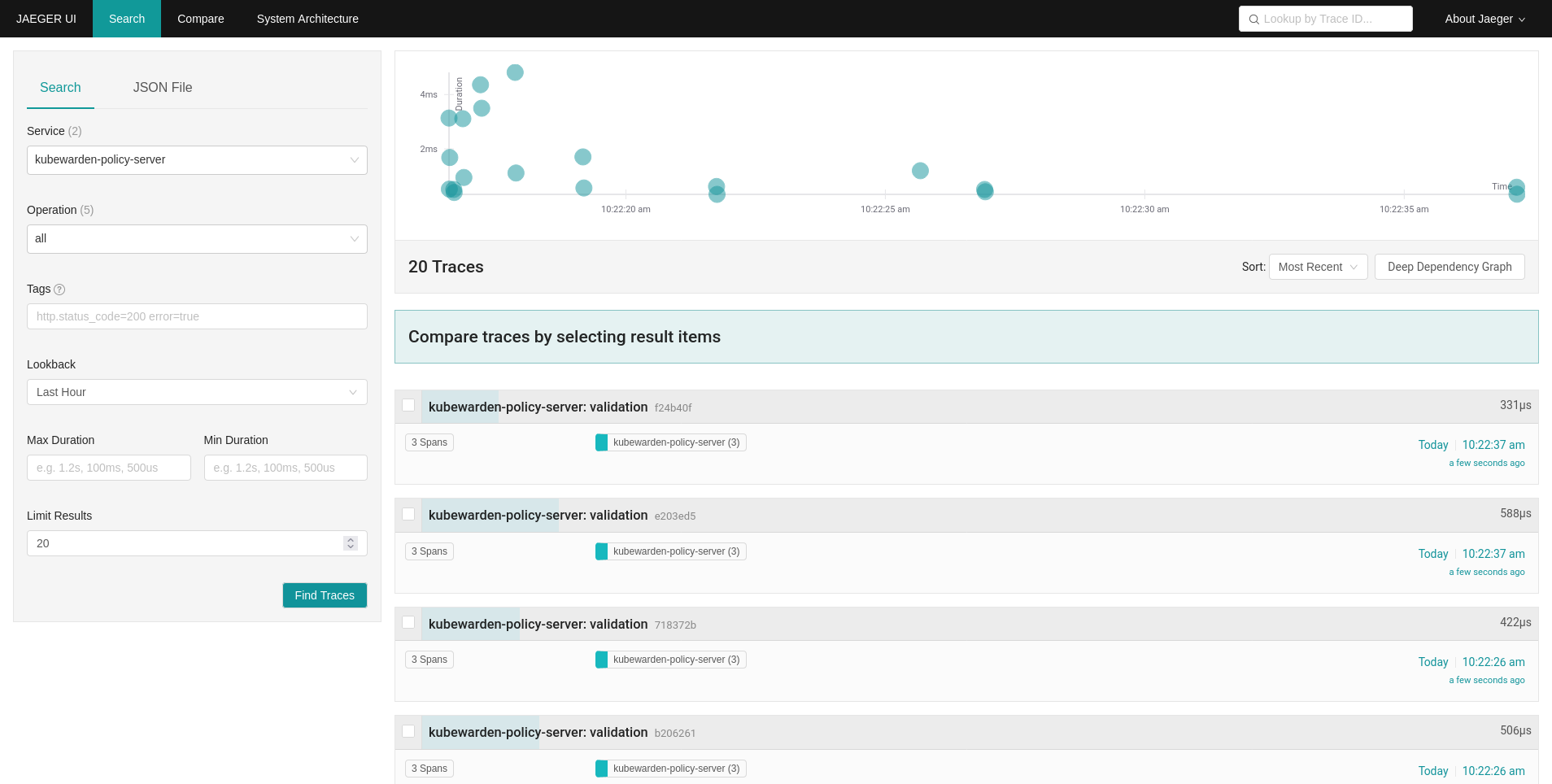
The Jaeger collector is receiving the traces generated by your PolicyServer.
If you installed Traefik in the previous guide, expose the Jaeger Query UI with
this Ingress:
kubectl apply -f - <<EOF
apiVersion: networking.k8s.io/v1
kind: Ingress
metadata:
  name: my-open-telemetry-query
  namespace: jaeger
spec:
  ingressClassName: traefik
  rules:
    - http:
        paths:
          - path: /
            pathType: Prefix
            backend:
              service:
                name: my-open-telemetry-query
                port:
                  number: 16686
EOF
To access the Jaeger UI with Traefik, run:
kubectl -n traefik port-forward service/traefik 8080:80Then go to http://localhost:8080.
If you prefer to bypass Traefik, access Jaeger directly:
kubectl -n jaeger port-forward service/my-open-telemetry-query 16686Then go to http://localhost:16686.