9 Authenticating via Okta #
Okta is an identity management service that allows you to manage users and user access to applications. This topic describes how to use Okta as the identity manager for Open WebUI.
The process of enabling Okta as the identity manager for Open WebUI consists of several steps:
Configuring Okta (Section 9.1, “Configuring Okta”)
Gathering data for Open WebUI configuration (Section 9.2, “Gathering data for Open WebUI configuration”)
Configuring Open WebUI for Okta integration (Section 9.3, “Configuring Open WebUI for Okta integration”)

This example procedure shows the minimal configuration required to use Okta with Open WebUI. Customize the configuration to your specific scenario and refer to the Okta documentation at https://help.okta.com/en-us/content/index.htm?cshid=csh-index for more information.
9.1 Configuring Okta #

You must have administrator privileges to perform the following steps.
Log in to Okta and access the panel.
 Figure 9.1: Okta administrator panel #
Go to › .
In the section, select . In the section, select . Click to proceed.
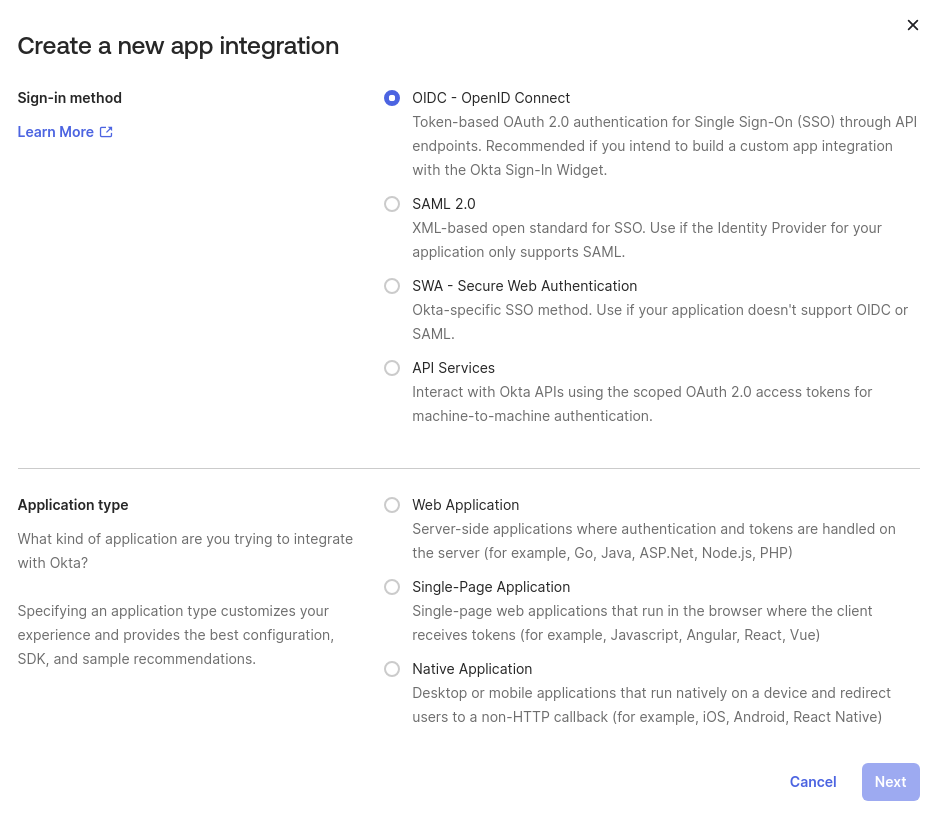 Figure 9.2: Okta configuration window #
In the section, set the to . In the section, toggle the option. Optionally, specify an image for the application logo.
Set to the callback URI, for example,
http://localhost:8080/oauth/oidc/callback. The URI follows this pattern:PROTOCOL://OPENWEBUI_DOMAIN:OPTIONAL_PORT_NUMBER/oauth/oidc/callback
Similarly, set to
PROTOCOL://OPENWEBUI_DOMAIN:OPTIONAL_PORT_NUMBER
In the section, toggle the option. Save changes.
Tip: Open WebUI application settingsAfter the integration is created, you can access the Open WebUI application settings by clicking the related hyperlink. It is required for final configurations and for retrieving the necessary information for the Open WebUI configuration further on.
 Figure 9.3: Open WebUI application access in Okta #
In the section, click and in the section, set the option to the URI in this format:
PROTOCOL://OPENWEBUI_DOMAIN:OPTIONAL_PORT_NUMBER/oauth/oidc/callback
In the section, select . Confirm with .
9.2 Gathering data for Open WebUI configuration #
In the top-right menu, copy the Okta domain. In this example, it is
my-domain.okta.com.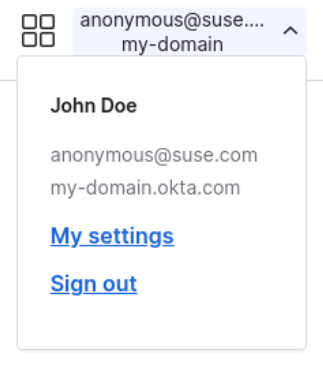 Figure 9.4: Okta domain name #
Go to › and retrieve the and .
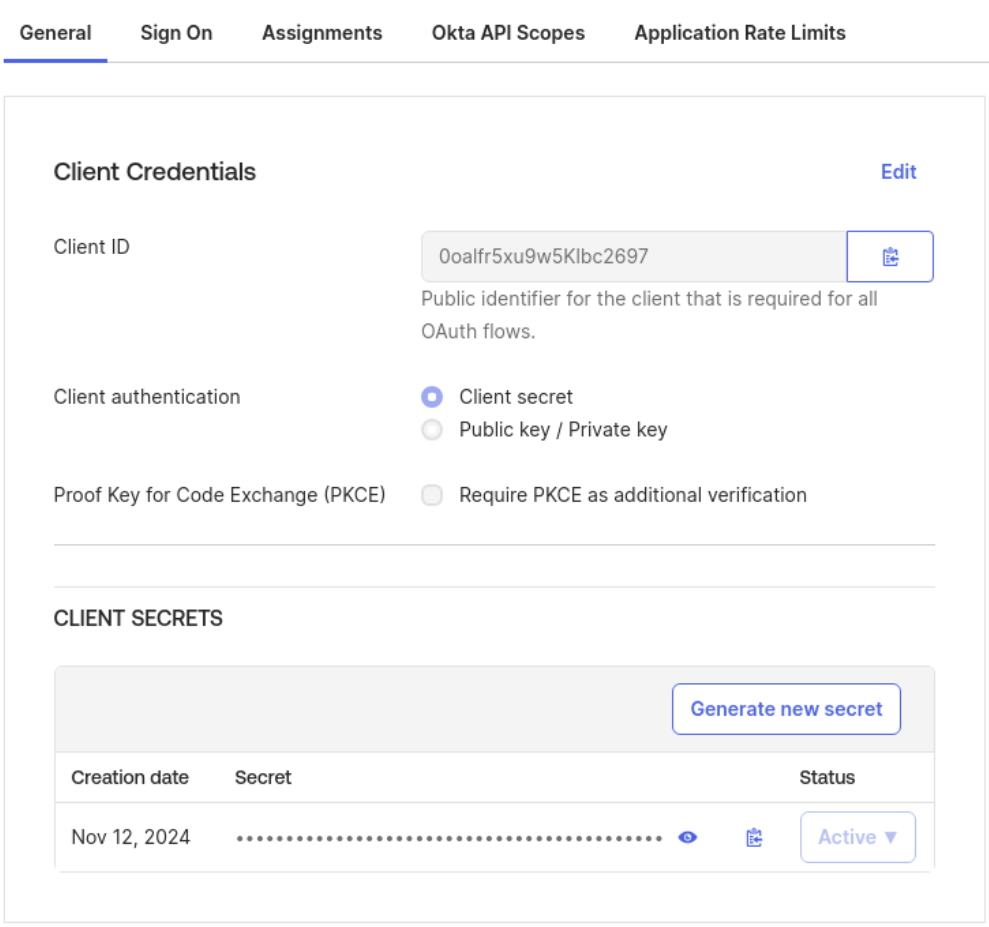 Figure 9.5: Client ID and secret in Okta #Tip
The previously gathered values are used by Open WebUI via the following environment variables as described in Section 9.3, “Configuring Open WebUI for Okta integration”.
OPENID_PROVIDER_URL="OKTA_DOMAIN/.well-known/openid-configuration"
OAUTH_CLIENT_ID="CLIENT_ID"
OAUTH_CLIENT_SECRET="CLIENT_SECRET"
9.3 Configuring Open WebUI for Okta integration #
To configure Open WebUI to use Okta as an authentication provider, you must set up specific environment variables. For more information about OAuth 2.0 in Open WebUI and a complete description of each environment variable, refer to Open WebUI SSO documentation.
Add the following environment variables to your Helm charts
values.yamlfile in theextraEnvVarssection.ENABLE_OAUTH_SIGNUP=true 1 OAUTH_MERGE_ACCOUNTS_BY_EMAIL=true 2 OAUTH_CLIENT_ID=CLIENT_ID 3 OAUTH_CLIENT_SECRET=CLIENT_SECRET OPENID_PROVIDER_URL=OKTA_DOMAIN/.well-known/openid-configuration OAUTH_PROVIDER_NAME=Okta OAUTH_SCOPES=openid email profile 4
Allow account creation when logging in with OAuth 2.0.
Allow logging into an account that matches the e-mail address provided by the OAuth 2.0 provider (Optional).
Variable set for the authentication provider gathered from Okta.
Specify scopes to request (optional, defaults to
openid email profile).The code block should look as follows:
extraEnvVars:
  - name: ENABLE_OAUTH_SIGNUP
    value: "True"
  - name: OAUTH_MERGE_ACCOUNTS_BY_EMAIL
    value: "True"
  - name: OAUTH_CLIENT_ID
    value: "CLIENT_ID"
  - name: OAUTH_CLIENT_SECRET
    value: "CLIENT_SECRET"
  - name: OPENID_PROVIDER_URL
    value: "OKTA_DOMAIN/.well-known/openid-configuration"
  - name: OAUTH_PROVIDER_NAME
    value: "Okta"
  - name: OAUTH_SCOPES
    value: "openid email profile"
Restart Open WebUI to apply the changes.
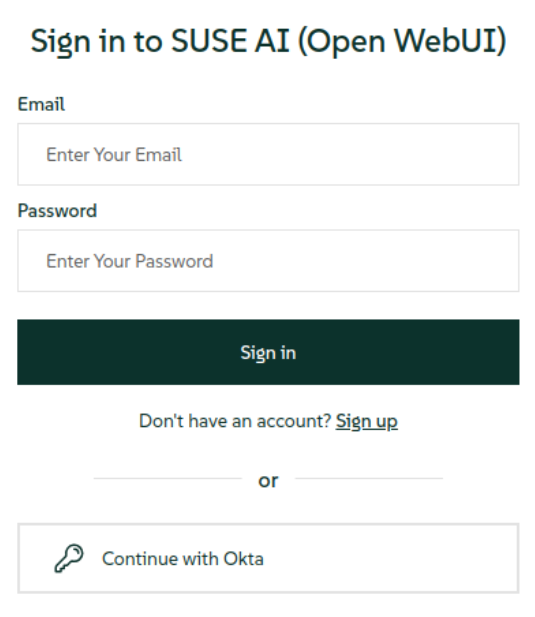
If the configuration went well, you should see the button as an option on both sign-in and sign-up pages. After you click the button, you will be redirected to the Okta login page, or automatically signed in if you are already logged in to Okta.