5 Managing custom AI models #
In Open WebUI, you can create custom AI models based on existing models. Later on, you can modify its settings, or share, clone or delete it.
5.1 Creating custom AI models #
You must have Open WebUI administrator privileges to access configuration screens or settings mentioned in this section.
In the Open WebUI interface, click in the upper part of the left panel.
Select in the top menu and click the small "plus" icon in the top-right corner of the screen.
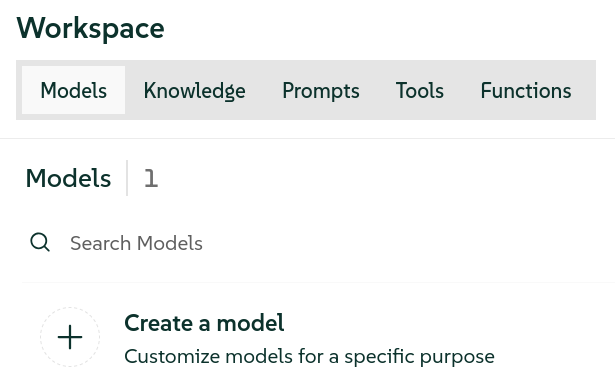 Figure 5.1: Managing AI models #
Click the default logo image in the top-left corner of the form to upload an avatar image for your model.
Enter the of your new model and change the if you are not happy with the provided one.
Specify the base AI model on which your model will be based on.
Enter a short description of your AI model.
Describe the model with custom tags so that other users can identify it easily.
To direct the AI model’s responses, specify a . Find more details about system prompts in https://documentation.suse.com/suse-ai/1.0/html/AI-system-prompts/index.html.
 Tip
TipBy clicking the small option below the system prompt field, you can fine-tune the model’s behavior by modifying its advanced settings.
Specify one or more . They will be shown on the model’s chat welcome screen.
To extend the model’s knowledge base, select one or more documents or collections of documents from the preconfigured list.
In the , , and sections, activate the items that you want your model to use.
TipTo view the JSON representation of your model, click the small option to the right of the label.
Save your changes with the button.
5.2 Modifying existing AI models #
You must have Open WebUI administrator privileges to access configuration screens or settings mentioned in this section.
In the Open WebUI interface, click at the top of the left panel and select .
In the list of AI models, hover the mouse over the model that you want to modify and click the pen icon on its right.
On the model editing screen, you can modify the settings that are described in Section 5.1, “Creating custom AI models”.
On the model editing screen, you can modify the settings that are described in.
Save your changes with the button.
5.2.1 Enabling the default MCP services #
To enable selected MCP services so that they are automatically enabled for a model, follow these steps:
At least one MCP server must be preconfigured. Refer to Installing mcpo to learn how to configure one.
In the Open WebUI interface, click at the top of the left panel and select .
In the list of AI models, hover the mouse over the model that you want to modify and click the pen icon on its right to edit its properties.
In the section, select the MCP tools you want to enable by default and confirm with .
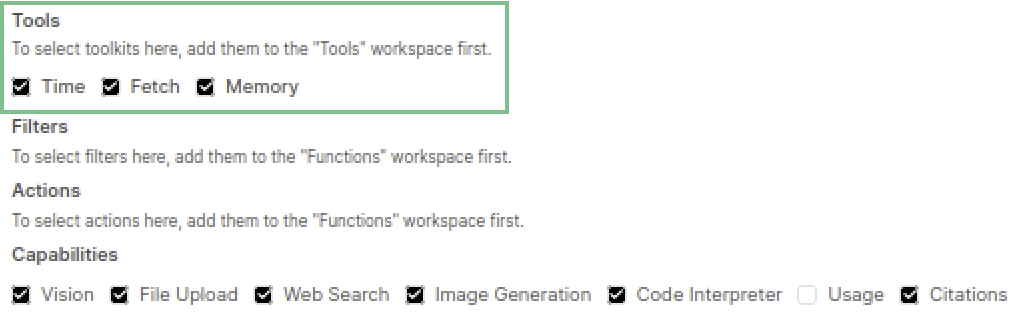 Figure 5.2: Enabling the default MCP tools #
5.3 Cloning existing AI models #
You must have Open WebUI administrator privileges to access configuration screens or settings mentioned in this section.
In the Open WebUI interface, click at the top of the left panel and select .
In the list of AI models, hover the mouse over the model that you want to clone and click the three dots on its right.
From the contextual menu, select to open the same form as described in Section 5.1, “Creating custom AI models” with all settings copied from the original model. The field has
(Clone)appended.From the contextual menu, select to open the same form as described in with all settings copied from the original model. The field has
(Clone)appended.Review the settings and create the cloned AI model with .
5.4 Importing exported models #
You must have Open WebUI administrator privileges to access configuration screens or settings mentioned in this section.
In the Open WebUI interface, click at the top of the left panel and select .
Click the button at the bottom of the screen.
In the file selector, specify the path to the JSON file with the exported models' definitions. Confirm with .
Models with identical IDs. IMPORTANT
AI models with IDs identical to existing models will not be imported.
5.5 Exporting existing AI models #
You must have Open WebUI administrator privileges to access configuration screens or settings mentioned in this section.
In the Open WebUI interface, click at the top of the left panel and select .
In the list of AI models, hover the mouse over the model that you want to export and click the three dots on its right.
From the contextual menu, select .
In the file selector, specify the path where you want to save the exported JSON file. Confirm with .
5.6 Exporting all existing AI models #
You must have Open WebUI administrator privileges to access configuration screens or settings mentioned in this section.
In the Open WebUI interface, click at the top of the left panel and select .
Click the menu:"Export Models"[] button at the bottom of the screen.
In the file selector, specify the path where you want to save the exported JSON file. Confirm with .
5.7 Deleting existing AI models #
Using the Open WebUI interface, you can delete previously created AI models.
You must have Open WebUI administrator privileges to access configuration screens or settings mentioned in this section.
In the Open WebUI interface, click at the top of the left panel and select .
In the list of AI models, hover the mouse over the model that you want to delete and click the three dots on its right.
From the contextual menu, select and then apply with .