2 Setting base AI models #
Open WebUI needs at least one base AI model configured so that you can interact with it or create custom AI models as described in Chapter 5, Managing custom AI models. You can download models from repositories such as Ollama or Hugging Face, or use models via OpenAI-compatible APIs.
2.1 Downloading AI models from Ollama #
Ollama (https://ollama.com/) is an online repository that hosts open source AI models. This procedure describes how to download and use these models from the Open WebUI interface.
You must have Open WebUI administrator privileges to access configuration screens or settings mentioned in this section.
In the bottom left of the Open WebUI window, click your avatar icon to open the user menu and select .
Click the tab and select from the left menu.
In the top-right corner of the screen, click the small "download" icon to open the screen.
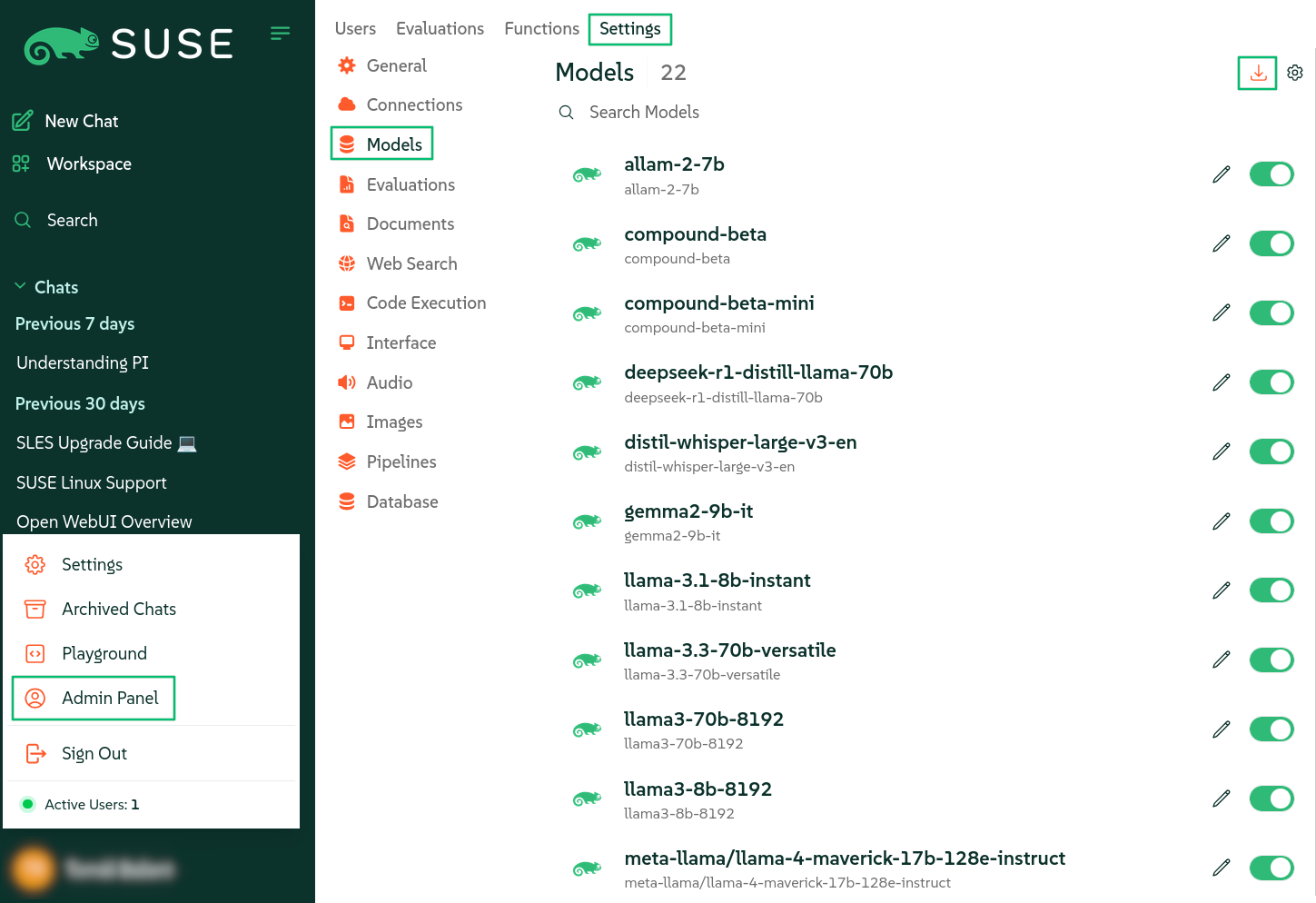 Figure 2.1: Downloading Ollama AI models #
On the Ollama library page, identify the model tag of an AI model that you want to download, for example,
gemma3:4b.Paste the model tag in the input field and confirm by clicking the small download button on the right.
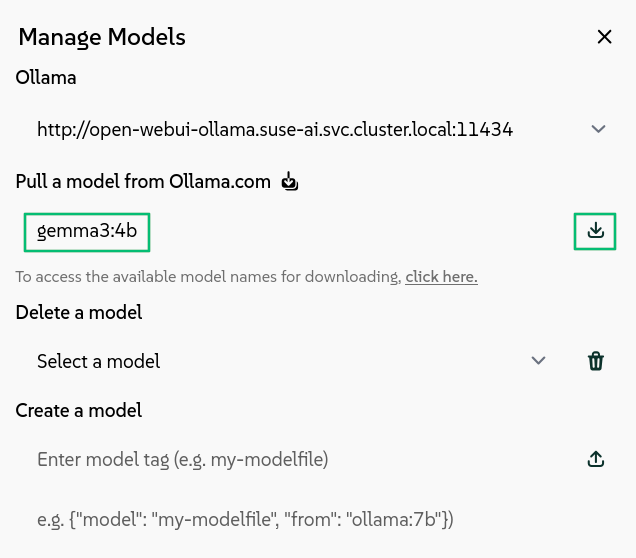 Figure 2.2: Entering model tag to download #
The model download starts and, after it is finished, the model will be available as a base model for AI interaction.
2.2 Downloading AI models from Hugging Face #
Hugging Face (https://huggingface.co/models) is an online repository for AI models. It also supports models in the GGUF binary format optimized for quick loading and saving of models. This procedure describes how to download and use these GGUF models from the Open WebUI interface.
You must have Open WebUI administrator privileges to access configuration screens or settings mentioned in this section.
Navigate your Web browser to https://huggingface.co/models and in the left section, click to include only GGUF models to choose from, for example, .
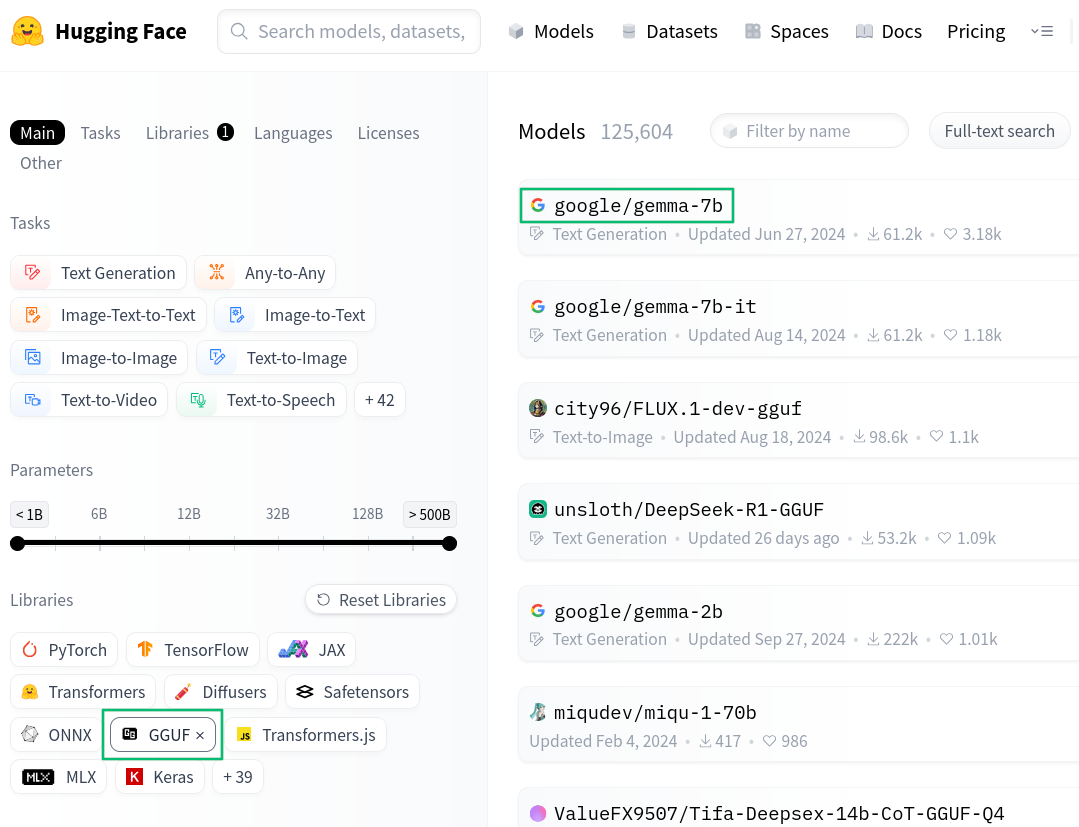 Figure 2.3: Finding models on Hugging Face #
Click the model name to open its model card and select ›
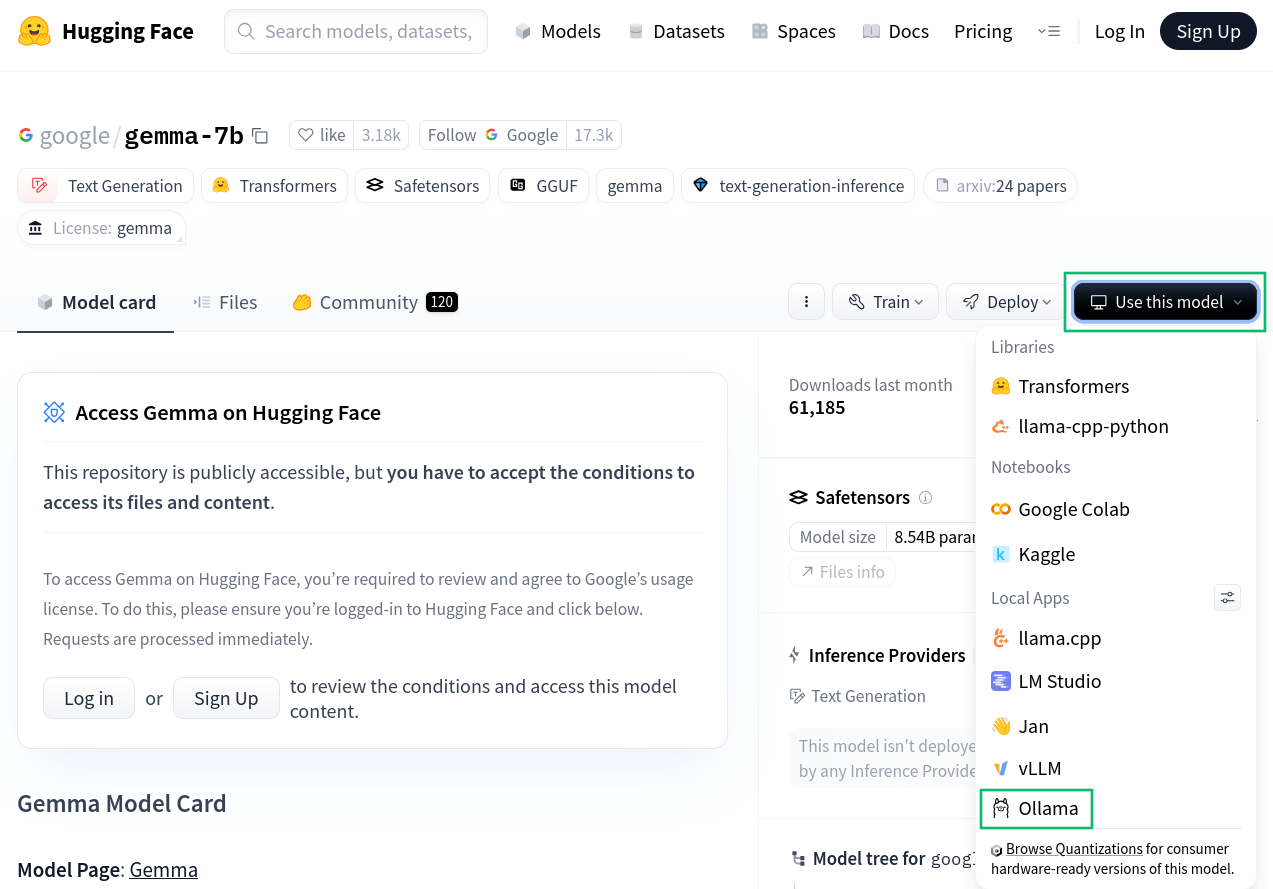 Figure 2.4: Hugging Face model card #
From the pop-up, select the full path to the model, for example,
hf.co/google/gemma-7b.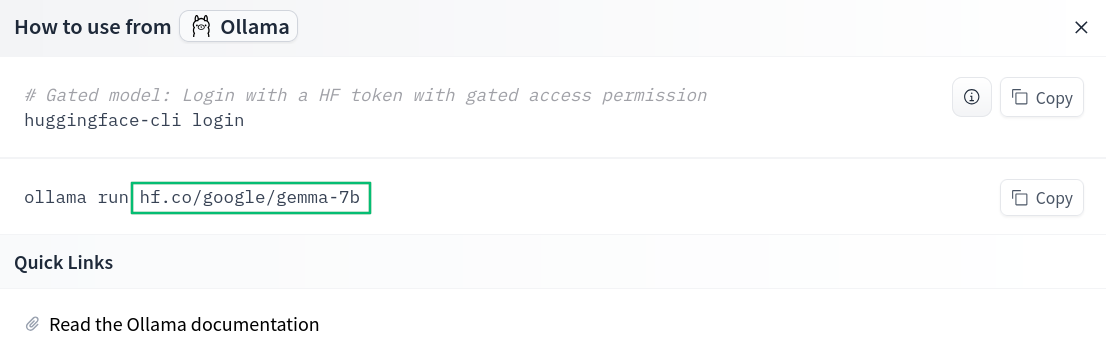 Figure 2.5: Ollama download on Hugging Face #
In the bottom left of the Open WebUI window, click your avatar icon to open the user menu and select .
Click the tab and select from the left menu.
In the section, click the small "download" icon on the right to open the screen.
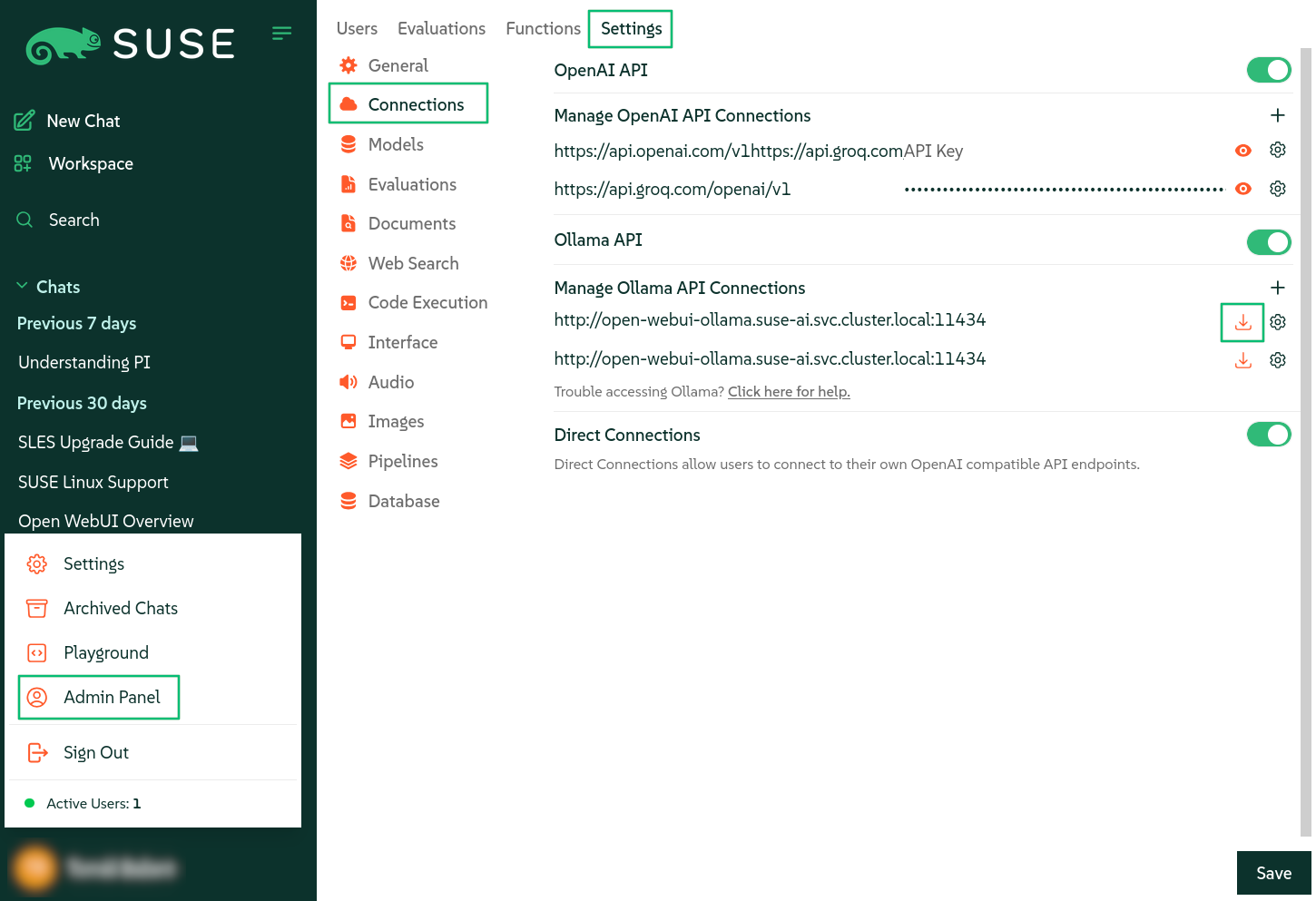 Figure 2.6: Downloading Ollama models from Hugging Face #
Paste the full path to the model tag from Hugging Face in the input field and confirm by clicking the small download button on the right.
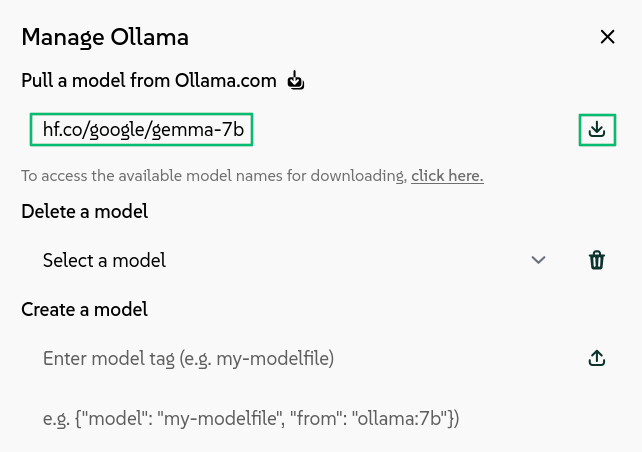 Figure 2.7: Entering model tag to download #
The model download starts and, after it is finished, the model will be available as a base model for AI interaction.
2.3 Using AI models from OpenAI-compatible providers #
Instead of downloading AI models locally, you can use OpenAI-compatible API to access models from model providers. These providers include both local instances of servers, such as LocalAI or llamafile, and cloud providers, such as Groq or OpenAI. This procedure describes how to configure the Groq provider API from the Open WebUI interface.
You must have Open WebUI administrator privileges to access configuration screens or settings mentioned in this section.
Create a Groq cloud account at https://console.groq.com/.
Create an API key at https://console.groq.com/keys.
In the bottom left of the Open WebUI window, click your avatar icon to open the user menu and select .
Click the tab and select from the left menu.
In the section, click the small "plus" icon on the right to open the screen.
Enter
https://api.groq.com/openai/v1as the base URL and the API key that you have previously created. Confirm with .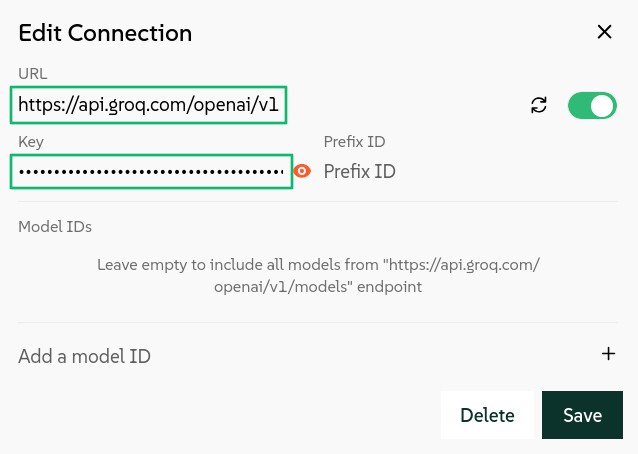 Figure 2.8: Adding the Groq API #
Open WebUI now shows all the available models from Groq in the model selector drop-down list.
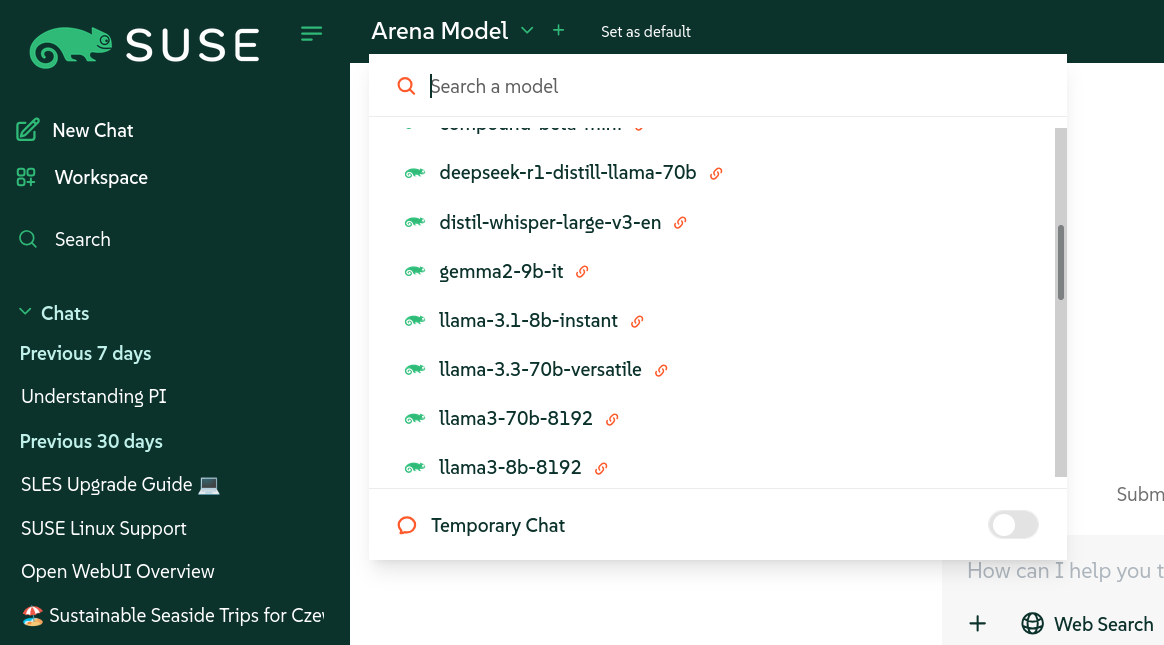 Figure 2.9: List of AI modules from the Groq API #