7 Managing a knowledge base #
Knowledge base is a custom collection of resources on a specific topic. It can include documentation, tutorials, reference guides or short text snippets. Knowledge base collections extend the data on which the selected AI model is trained to make its context more specific.
7.1 Creating a knowledge base #
You must have Open WebUI administrator privileges to access configuration screens or settings mentioned in this section.
In the Open WebUI interface, click in the upper part of the left panel.
Select in the top menu and click the "plus" sign in the right.
Enter a title and a short description for the knowledge base.
Specify whether the knowledge base is public or private and confirm with .
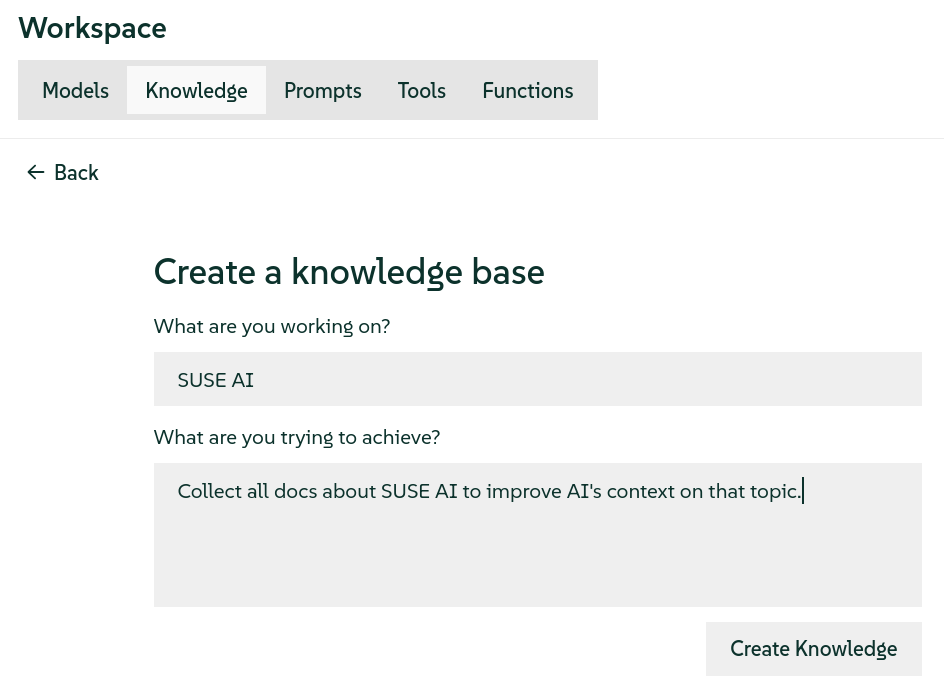 Figure 7.1: Creating a new knowledge base #
Add content to the knowledge base as described in Section 7.3, “Adding content to a knowledge base”.

You can access knowledge base collections from the Open WebUI chat input field by pressing the # character as described in Specifying preconfigured documents, collections or external URLs from the chat input field.
7.2 Deleting a knowledge base #
You must have Open WebUI administrator privileges to access configuration screens or settings mentioned in this section.
In the Open WebUI interface, click in the upper part of the left panel.
Select in the top menu and scroll to the knowledge base that you want to delete. Use the pager at the bottom if the knowledge base is not listed on the current screen.
In the knowledge base tile’s top right corner, click the three dots and select . Confirm the deletion.
7.3 Adding content to a knowledge base #

The default configuration allows file uploads up to 1 MB. To enable larger file uploads, follow these steps:
Update Ingress configuration by creating the
ingress.yamlfile with the following content.apiVersion: networking.k8s.io/v1 kind: Ingress metadata: name: open-webui namespace: SUSE_AI_NAMESPACE annotations: nginx.ingress.kubernetes.io/proxy-body-size: 100m 1 nginx.ingress.kubernetes.io/proxy-connect-timeout: "360" nginx.ingress.kubernetes.io/proxy-read-timeout: "360" nginx.ingress.kubernetes.io/proxy-send-timeout: "360" nginx.ingress.kubernetes.io/websocket-services: "open-webui"This example sets the upload file size limit to 100 MB. Setting this value to
0allows unlimited upload size (not recommended).Apply the changes so that large file uploads are supported.
> kubectl apply -f ingress.yaml
You must have Open WebUI administrator privileges to access configuration screens or settings mentioned in this section.
In the Open WebUI interface, click in the upper part of the left panel and select the tab.
Scroll to the knowledge base that you want to add content to. Use the pager at the bottom if the knowledge base is not listed on the current screen.
Click the knowledge base name and in the menu:Search Collection [] files, click the "plus" sign.
From the drop-down list, you can select one of the following actions:
- Upload files
Select one or more documents to be added to the collection.
- Upload directory
Select a directory whose contents will be added to the collection one item at a time.
 Warning: Wait until the processing is finished
Do not leave the collection’s screen while the selected files are being uploaded and processed. Leaving the screen may disrupt the file processing.
- Sync directory
The selected directory is synchronized with the content of the collection.
Warning: The collection content will be deletedBefore Open WebUI starts to synchronize the directory, all existing resources in the collection are deleted.
Warning: Wait until the processing is finishedDo not leave the collection’s screen while the selected files are being uploaded and processed. Leaving the screen may disrupt the file processing.
- Add text content
You can add a text snippet written in a Markdown format to the collection directly.
WarningIf you experience the error saying "Extracted content is not available for this file. Please ensure that the file is processed before proceeding," during the upload process, you need to enable installing NLTK datasets in the Open WebUI Helm chart. Refer to https://documentation.suse.com/suse-ai/1.0/html/AI-deployment-intro/index.html#owui-helm-overrides for details.
Confirm with
The uploaded resource is processed and analyzed so that you can use it as a context for selected AI models. The processing time may vary depending on the size of the uploaded resources.
After a resource is added, you can view and edit its extracted textual information by clicking its name.
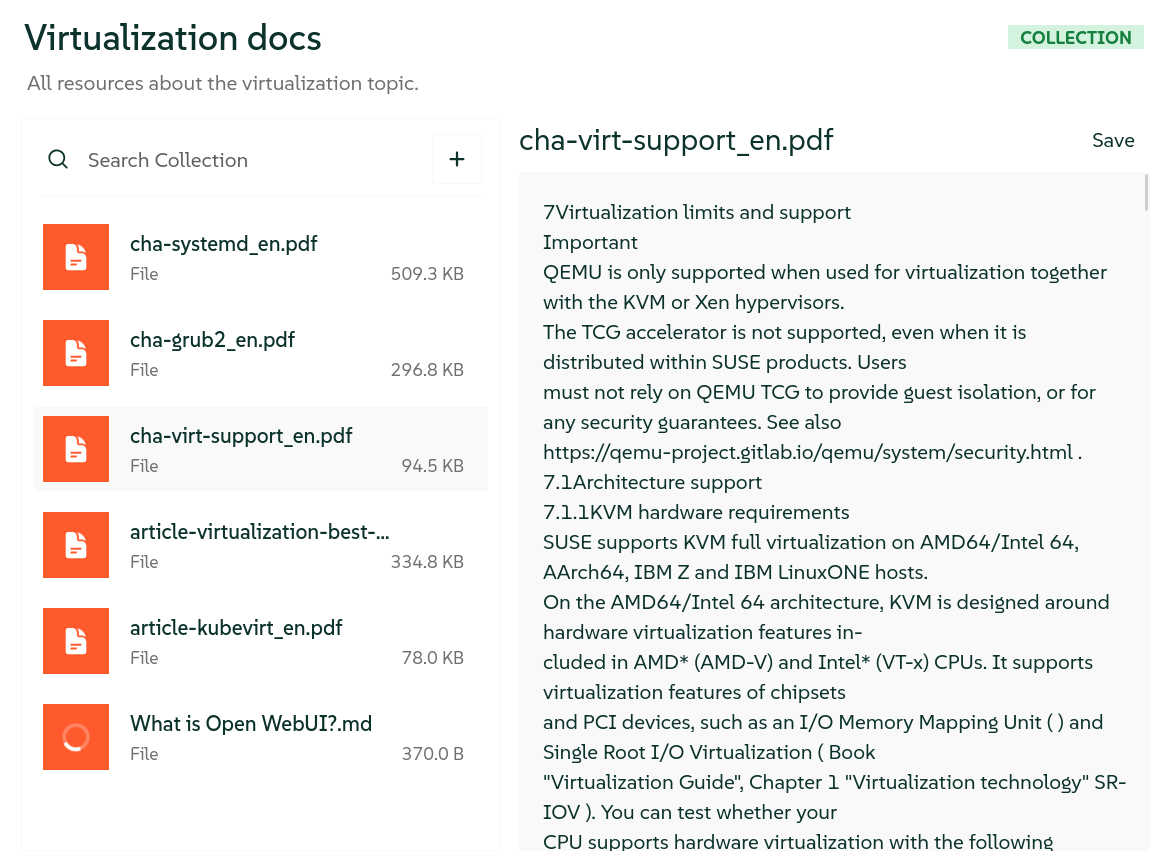 Figure 7.2: Viewing an extracted resource #
7.4 Removing content from a knowledge base #
You must have Open WebUI administrator privileges to access configuration screens or settings mentioned in this section.
In the Open WebUI interface, click in the upper part of the left panel and select the tab.
Scroll to the knowledge base that you want to add content to. Use the pager at the bottom if the knowledge base is not listed on the current screen.
Click the knowledge base name to view all the resources in the collection.
Hover over the resource’s name and click the little cross sign at its top right. The resource will be deleted and its processed data removed from the collection.