4 Setting the default AI model #
In Open WebUI, you can specify an AI model for the current chat or the system default model. The AI model set for the current chat overrides the default system model.
4.1 AI model for the current chat #
In the top left of the Open WebUI chat window, click either the currently selected model name or the message saying that no model is specified.
From the drop-down list, select your preferred AI model for the current chat session.
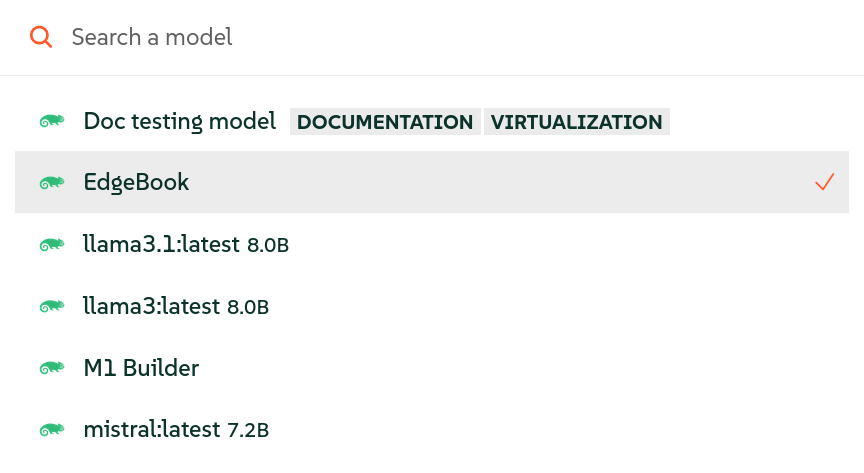 Figure 4.1: Chat-specific AI model #
 Tip: Your default model
To make the selected model your default one, click next to the AI model name.
Tip: Multiple AI modulesYou can select multiple AI modules by clicking the plus sign next to the name of the already selected module.
Your prompts will now be processed by the selected AI model.
4.2 Default system AI model #
You must have Open WebUI administrator privileges to access configuration screens or settings mentioned in this section.
In the bottom left of the Open WebUI window, click your avatar icon to open the user menu and select .
Click the tab and select from the left menu.
Click the little gear icon in the top right to open the screen.
In the section, select the default system AI model. Confirm with .
 Figure 4.2: Default system AI model #