6 Managing user accounts #
Open WebUI provides role-based access control (RBAC). Each user is assigned one of the available roles. The role defines whether the user has privileges to perform administration tasks.
6.1 User roles in Open WebUI #
Open WebUI offers three user roles: 'pending,' 'user' and 'admin.' The following sections provide a detailed description of each role.
6.1.1 The 'pending' role #
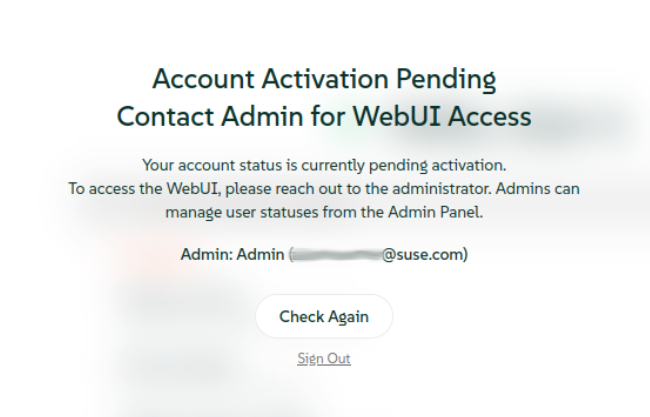
Pending users can log in but can only view the screen with the administrator name and e-mail. This is the default role for a newly created user account before the administrator accepts it and assigns it the "user" role.
6.1.2 The 'user' role #
Users with this role can perform the following tasks:
- Chat permissions
Create new chats with the preconfigured models.
View own chats, including archived chats.
Pin, rename, clone, archive or unarchive, share, delete, add tags to, and remove tags from existing chats.
Generate an overview of a chat, view artifacts, copy content and download chats.
Copy, edit and delete their own messages in a chat.
Edit, copy and read aloud the responses. View response generation information. Generate images. Mark answers as good or bad. Continue responding and regenerate model messages in a chat.
- Current chat controls
Modify valves from the tools and functions available on the system.
Define the system prompt to be used by the current chat.
Modify advanced chat-specific generation parameters.
- Current user settings
Select theme and language. Activate or deactivate notifications. Define the default system prompt and change advanced generation parameters.
Set the default model. Set the user interface, chat and audio related preferences.
Personalize the interaction with the AI model by adding 'memory' —personal details about yourself—to make responses tailored to you.
Set audio preferences.
Import and export chats. Archive and delete all user chats.
Change your personal details such as name, password and profile image. View JWT token and create new API key.
View the installed Open WebUI and Ollama version.
6.1.3 The 'admin' role #
Administrators have full access to Open WebUI resources and can control user management and systems settings. The first Open WebUI account has the 'admin' role. Subsequent administrators get their role from existing administrators.
Administrator’s task and settings are included either on the or in the .
Administrators have the permissions that the 'user' role has with the following additional privileges.
- ›
Add new users.
View all users and their role, name, e-mail, OAuth 2.0 ID, last active date and the user creation date.
Edit name, e-mail and password and delete all users, except for other administrators.
View and delete chats of all users, except for other administrators.
Change the role of all users, except their own and the first administrator.
- ›
Enable or disable new sign-ups. Set the default user role. Enable or disable viewing the administrator details on the screen. Enable or disable chat sharing and message rating. Set the JWT expiration and webhook URL.
Enable or disable chat deletion, chat editing and temporary chat. Set the default model and specify allowed models.
View, change and add OpenAI API URL and Ollama API URL.
Update all models, pull models from ollama.com, delete, create and upload models.
Change documents settings, set the RAG template, and reset document storage.
Enable or disable Web search, change the Web search engine, and set Web loader settings.
Set the default model used for the title generation. Change the default prompt suggestions for the screen.
Change audio settings.
Enable or disable image generation and change image generation settings.
Change pipeline settings.
Import or export configuration files, download database, and export all chats from all users.
- ›
Manage models. Add models by pulling from ollama.com or by creating custom models from base models. Change order of models or hide models from the model list.
- ›
Manage collections of documents. Add documents to collections.
- ›
Manage system prompts. Share prompts, import and export all prompts.
- ›
Manage tools. Import and export tools.
6.2 Creating user accounts #
6.2.1 Creating a single user account #
You must have Open WebUI administrator privileges to access configuration screens or settings mentioned in this section.
In the bottom left of the Open WebUI window, click your avatar icon to open the user menu and select .
On the screen, click the '+' sign at the top right.
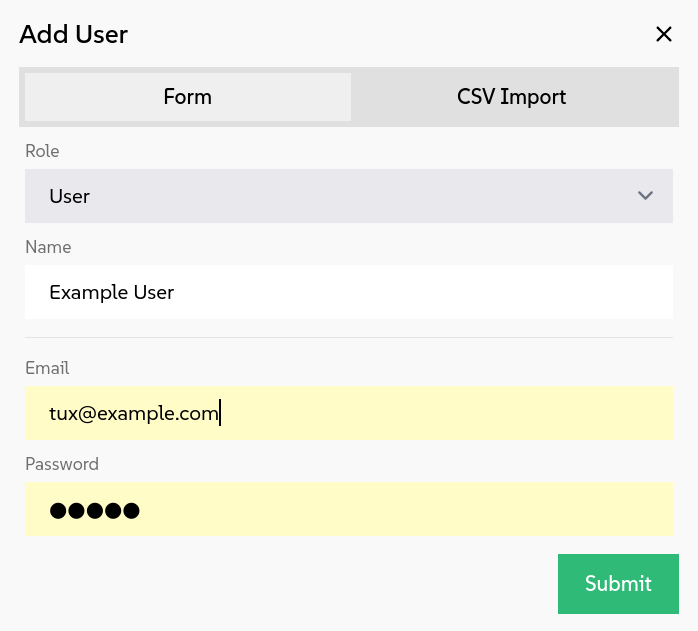 Figure 6.2: Creating new users #
On the screen, select the user role and enter the user name, e-mail and password.
Confirm with .
6.2.2 Creating multiple user accounts from a CSV list #
You must have Open WebUI administrator privileges to access configuration screens or settings mentioned in this section.
In the bottom left of the Open WebUI window, click your avatar icon to open the user menu and select .
On the screen, click the '+' sign at the top right.
On the screen, specify the path to your CSV file with the list of user accounts to be created.
 Tip
TipThe CSV list needs to have the four fields
Name,Email,Password,Roleper line separated by commas, for example:Example User,tux@example.com,SECRET_PASSWD,user
Confirm with .
6.3 Assigning roles to existing users #
This topic explains how to assign one of the available roles to an existing user account. To assign the role when creating a new user account, refer to Section 6.2, “Creating user accounts”.
You must have Open WebUI administrator privileges to access configuration screens or settings mentioned in this section.
In the bottom left of the Open WebUI window, click your avatar icon to open the user menu and select .
On the screen, scroll to the user whose role you want to modify. Use the pager at the bottom if the user is not listed on the current screen.
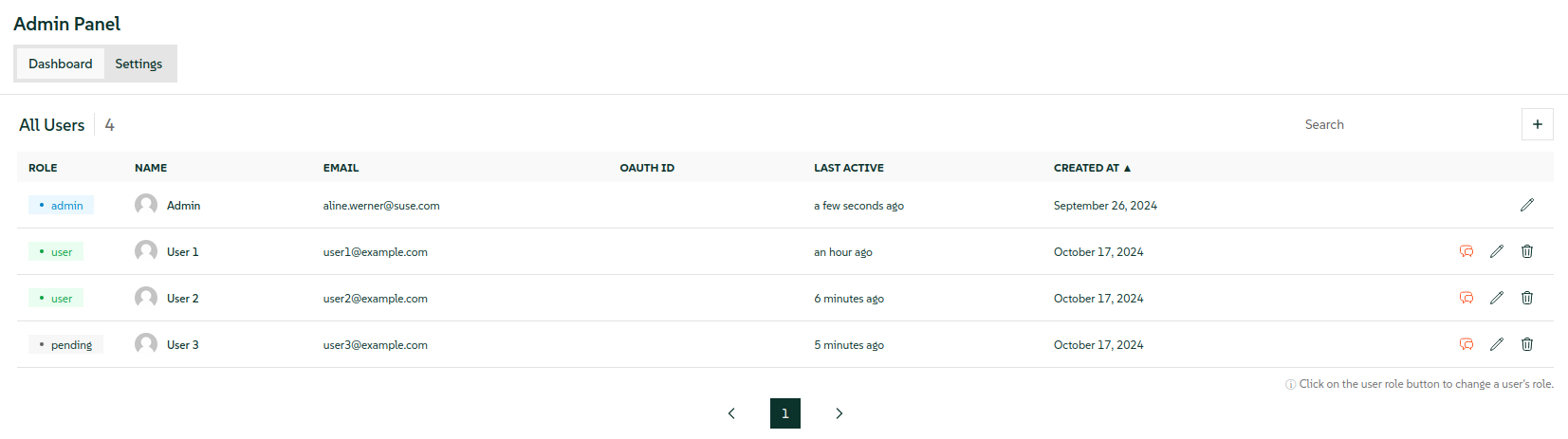 Figure 6.3: Assigning user role #
Click the role button to the left of the user name to cycle through "pending" → "user" → "admin" role.
6.4 Modifying existing user accounts #
You must have Open WebUI administrator privileges to access configuration screens or settings mentioned in this section.
In the bottom left of the Open WebUI window, click your avatar icon to open the user menu and select .
On the screen, scroll to the user whose account you want to modify. Use the pager at the bottom if the user is not listed on the current screen.
Click the corresponding pen icon at their right to open the dialog.
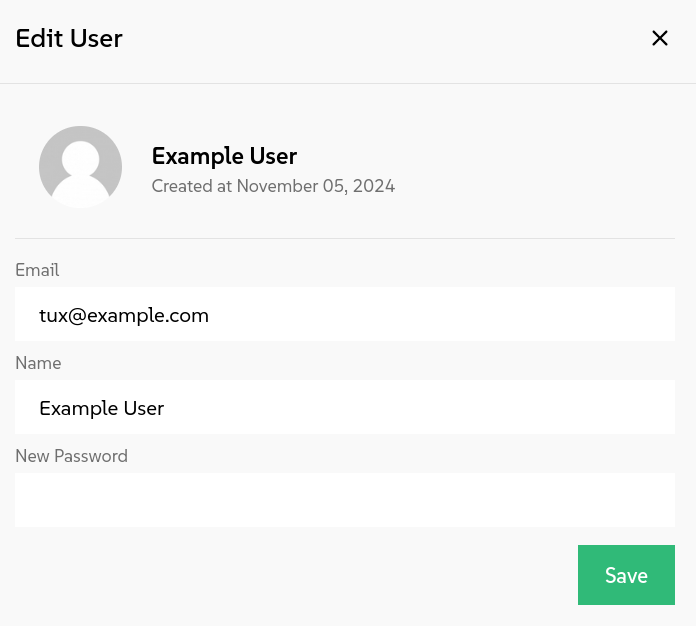 Figure 6.4: Modifying user accounts #
Modify the user’s e-mail, name or password and confirm with .
6.5 Revoking access to Open WebUI #
You must have Open WebUI administrator privileges to access configuration screens or settings mentioned in this section.
In the bottom left of the Open WebUI window, click your avatar icon to open the user menu and select .
On the screen, scroll to the user whose access to Open WebUI you want to revoke. Use the pager at the bottom if the user is not listed on the current screen.
Choose one of the following options:
To revoke the access while maintaining the user account, click the user’s role button to the left of their name until it becomes "pending."
To delete the user account from the system, click the trash icon on the right and confirm the deletion.