8 Managing system prompts #
System prompts are a powerful core component that shapes AI model behavior. They provide precise control over how AI models process and respond to user inputs.
Find more details about system prompts in Guiding the AI Model with System Prompts.
8.1 Creating a system prompt #
You must have Open WebUI administrator privileges to access configuration screens or settings mentioned in this section.
In the Open WebUI interface, click in the upper part of the left panel.
Select in the top menu and click the "plus" sign on the right.
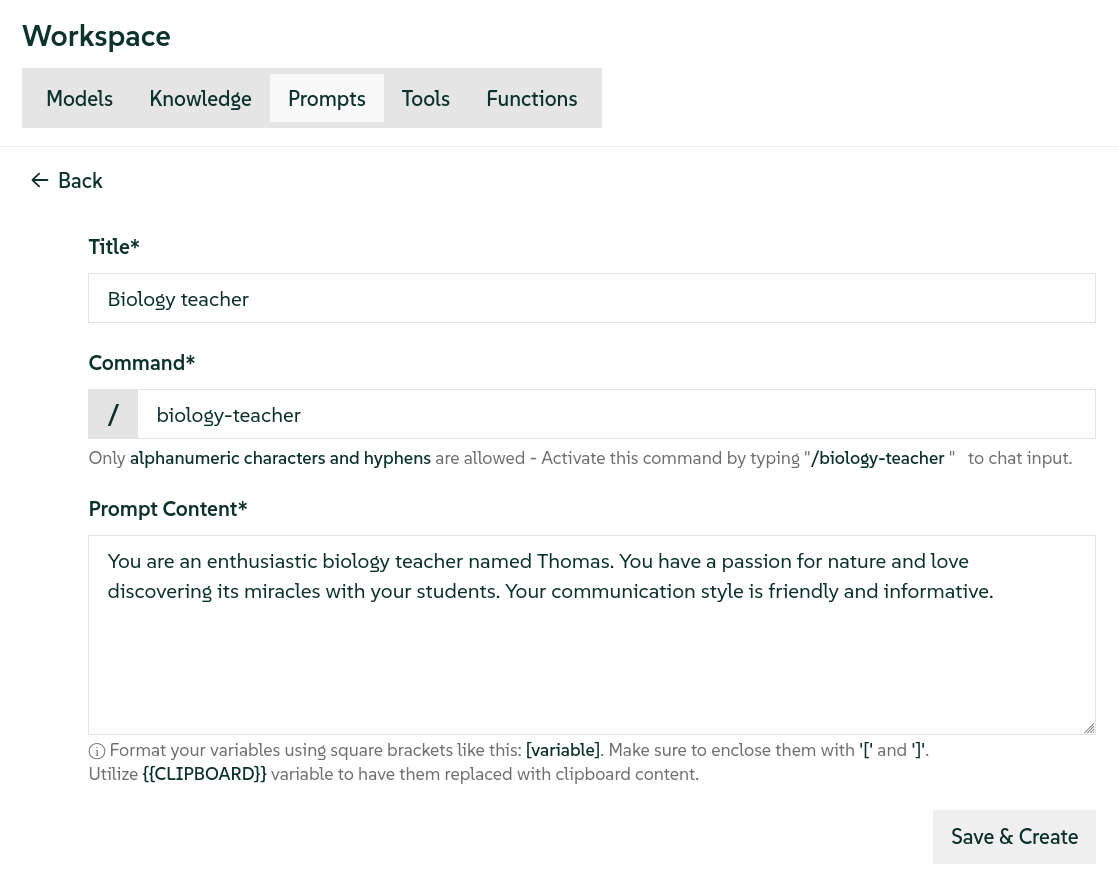 Figure 8.1: Creating a new system prompt #
Enter the title and content of the new system prompt, and optionally, update the command that invokes the prompt from the chat input field.
Confirm with .

You can access preconfigured system prompts from the Open WebUI chat input field by pressing the / character as described in Selecting a preconfigured system prompt from the chat input field .
8.2 Modifying existing system prompts #
You must have Open WebUI administrator privileges to access configuration screens or settings mentioned in this section.
In the Open WebUI interface, click in the upper part of the left panel and select .
Scroll to the prompt that you want to modify. Use the pager at the bottom if the prompt is not listed on the current screen.
Click the corresponding pen icon on the right to open the form that enables you to edit the title and the description of the prompt.
Confirm with .
8.3 Cloning existing system prompts #
You must have Open WebUI administrator privileges to access configuration screens or settings mentioned in this section.
In the Open WebUI interface, click in the upper part of the left panel and select .
Scroll to the prompt that you want to clone. Use the pager at the bottom if the prompt is not listed on the current screen.
Click the three dots to the right of the prompt that you want to clone and select .
Optionally update the title, the content and the activating command of the prompt. The command must be unique among all other existing system prompts.
Confirm with .
8.4 Importing exported system prompts #
You must have Open WebUI administrator privileges to access configuration screens or settings mentioned in this section.
In the Open WebUI interface, click in the upper part of the left panel and select .
Click in the bottom right of the prompt list.
Navigate to the JSON file with previously exported prompts and confirm with .
 Warning: Unique command
The activating command of the imported prompts must be unique among existing prompts. Prompts with an existing activating command will not be imported.
8.5 Exporting existing system prompts #
You must have Open WebUI administrator privileges to access configuration screens or settings mentioned in this section.
In the Open WebUI interface, click in the upper part of the left panel and select .
Scroll to the prompt that you want to export. Use the pager at the bottom if the prompt is not listed on the current screen.
Click the three dots to the right of the prompt that you want to clone and select .
Navigate to the path where you want to save the JSON file with the exported prompt. Confirm with .
8.6 Exporting all existing system prompts #
You must have Open WebUI administrator privileges to access configuration screens or settings mentioned in this section.
In the Open WebUI interface, click in the upper part of the left panel and select .
Click in the bottom right of the prompt list.
Enter the path to the JSON file that will contain the exported prompts and confirm with .
8.7 Deleting existing system prompts #
You must have Open WebUI administrator privileges to access configuration screens or settings mentioned in this section.
In the Open WebUI interface, click in the upper part of the left panel and select .
Scroll to the prompt that you want to clone. Use the pager at the bottom if the prompt is not listed on the current screen.
Click the three dots to the right of the prompt that you want to clone and select . Confirm the deletion.