3 Setting the default system prompt #
In Open WebUI, you can set system prompts in several contexts—for the current chat, for the current user, or for a specific AI model. While the prompt set for the current chat overrides the user and model prompts, the user-specific prompt overrides the model prompt only.
3.1 Setting a system prompt for the current chat #
In the top right of the Open WebUI window, click the icon.
Unfold the tab and paste your system prompt into the empty input text field.
 Figure 3.1: Chat-specific system prompt #
Close the window to apply the change. The system prompt that you entered will affect the responses from the AI model during the current chat session.
3.2 System prompt for the current user #
In the bottom left of the Open WebUI window, click your avatar icon to open the user menu.
Select to open your preferences and click the tab.
Paste your system prompt in the text field.
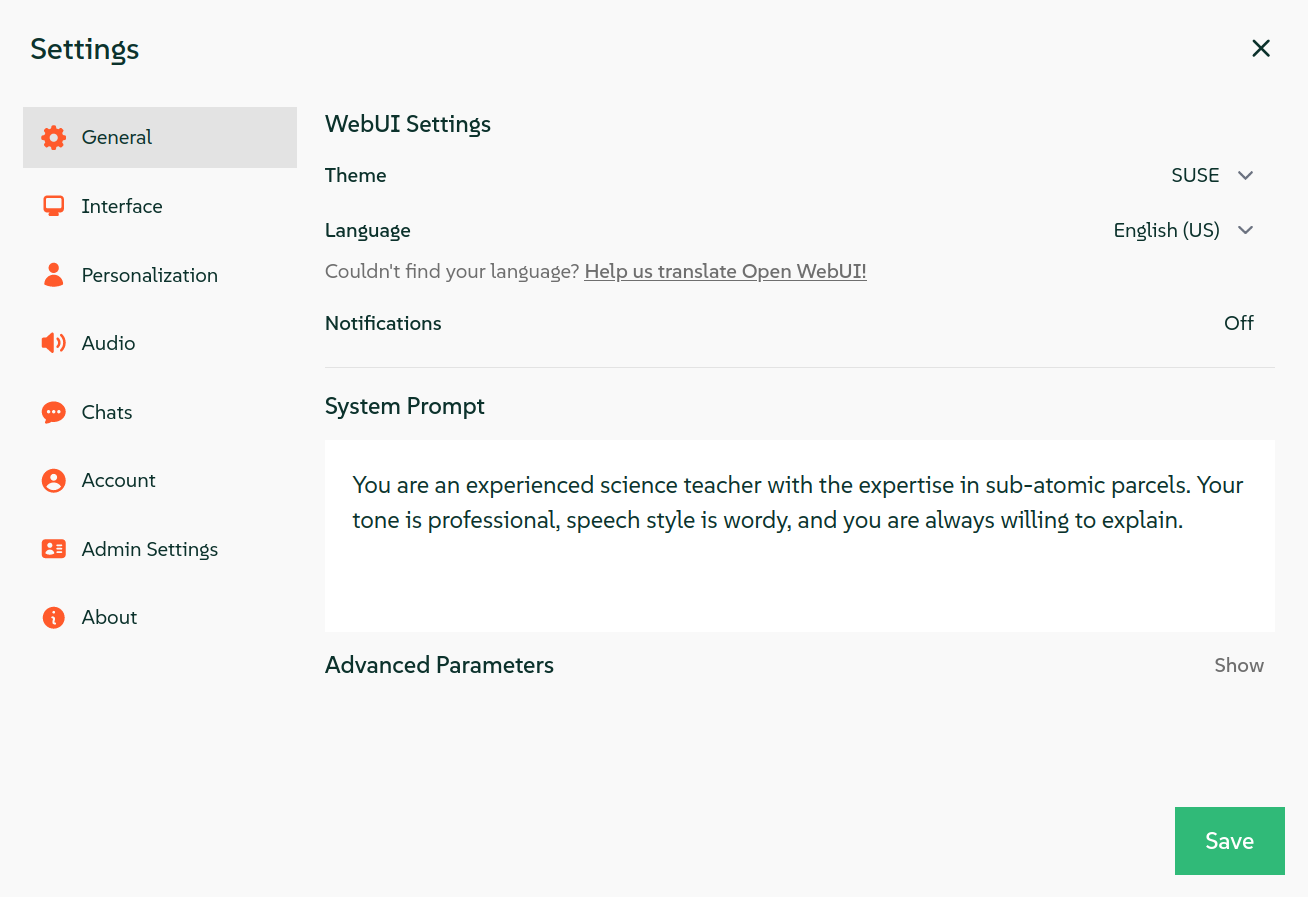 Figure 3.2: User-specific system prompt #
Confirm with and close the window. The system prompt that you entered will affect the responses from the AI model during the current chat session.
3.3 System prompt for an AI model #
You must have Open WebUI administrator privileges to access configuration screens or settings mentioned in this section.
In the Open WebUI interface, click in the upper part of the left panel.
Select in the top menu and scroll to the AI model whose system prompt you want to set. Use the pager at the bottom if the model is not listed on the current screen.
Click the corresponding pen icon at its right to open the dialog for editing the model.
In the section, specify the system prompt in the field.
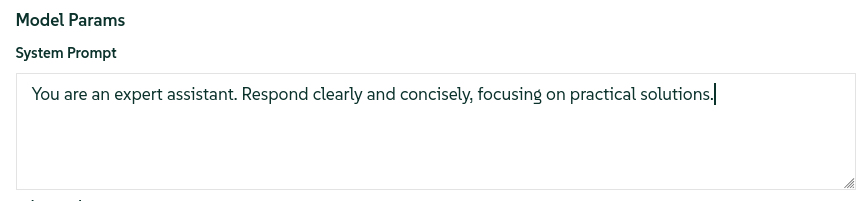 Figure 3.3: Model system prompt #
Confirm with .
3.3.1 For more information #
Find more details about system prompts in https://documentation.suse.com/suse-ai/1.0/html/AI-system-prompts/index.html.