
メンテナンスウィンドウ
SUSE Multi-Linux Managerのメンテナンスウィンドウ機能を使用すると、メンテナンスウィンドウ期間中にアクションをスケジュールできます。 メンテナンスウィンドウスケジュールを作成し、それをクライアントに適用すると、指定された期間外では一部のアクションを実行できなくなります。
|
メンテナンスウィンドウは、システムロックとは異なる方法で機能します。 システムロックは必要に応じてオンまたはオフに切り替えられますが、メンテナンスウィンドウはアクションが許可される時間帯を定義します。 さらに、許可されたアクションと制限されたアクションは異なります。 システムロックの詳細については、システムのロックを参照してください。 |
メンテナンスウィンドウには、カレンダーとスケジュールの両方が必要です。 カレンダーは、繰り返しイベントを含むメンテナンスウィンドウイベントの日付と時刻を定義し、`ical`形式である必要があります。 スケジュールは、カレンダーで定義されたイベントを使用してメンテナンスウィンドウを作成します。 スケジュールを作成する前に、アップロード用の`ical`ファイルを作成するか、`ical`ファイルにリンクする必要があります。
スケジュールを作成したら、SUSE Multi-Linux Managerサーバーに登録されているクライアントに割り当てることができます。 メンテナンススケジュールが割り当てられたクライアントは、メンテナンスウィンドウ外で制限されたアクションを実行できません。
制限されたアクションによってクライアントが大幅に変更され、クライアントの実行を停止させる可能性があります。 制限されたアクションの例は次のとおりです:
-
パッケージのインストール
-
クライアントのアップグレード
-
製品の移行
-
highstateアプリケーション
制限されていないアクションは、安全であるとみなされ、クライアントに問題が発生する可能性が低いマイナーアクションです。 制限されていないアクションの例は次のとおりです:
-
パッケージプロファイルの更新
-
ハードウェアの更新
-
ソフトウェアチャンネルのサブスクライブ
始める前に、アップロード用の`ical`ファイルを作成するか、カレンダーを作成するために`ical`ファイルにリンクする必要があります。 Microsoft Outlook、Google Calendar、またはKOrganizerなどの好みのカレンダー管理ツールで`ical`ファイルを作成できます。
-
SUSE Multi-Linux Manager Web UIに移動し、をクリックし、作成をクリックします。
-
`Calendar Name`セクションでカレンダー名を入力します。
-
`ical`ファイルへのURLを指定するか、ファイルを直接アップロードします。
-
カレンダーの作成をクリックして、カレンダーを保存します。
-
SUSE Multi-Linux Manager Web UIに移動し、をクリックします。
-
`Schedule Name`セクションでスケジュール名を入力します。
-
オプション:`ical`ファイルに複数のスケジュールに適用するイベントが含まれている場合は、`Multi`をオンにします。
-
このスケジュールに割り当てるカレンダーを選択します。
-
スケジュールの作成をクリックして、スケジュールを保存します。
-
SUSE Multi-Linux Manager Web UIに移動し、からスケジュールに割り当てるクライアントを選択し、`System Properties`パネルを見つけて、これらのプロパティを編集をクリックします。 または、に移動し、タブを使用して、システムセットマネージャからクライアントを割り当てることができます。
-
`Edit System Details`ページで、`Maintenance Schedule`フィールドを見つけ、割り当てるスケジュールの名前を選択します。
-
プロパティの更新をクリックして、メンテナンススケジュールを割り当てます。
|
新しいメンテナンススケジュールをクライアントに割り当てると、クライアントがすでに制限されたアクションをスケジュールしている可能性があり、これが新しいメンテナンススケジュールと衝突することがあります。 この場合、Web UIにエラーが表示され、スケジュールをクライアントに割り当てることができません。 これを解決するには、スケジュールを割り当てる際に影響を受けるアクションをキャンセルオプションをチェックしてください。 これにより、新しいメンテナンススケジュールと衝突する以前にスケジュールされたアクションがキャンセルされます。 |
メンテナンスウィンドウを作成したら、メンテナンスウィンドウ中に実行される、パッケージの更新などの制限されたアクションをスケジュールできます。
-
SUSE Multi-Linux Manager Web UIに移動し、からアップグレードしたいクライアントを選択し、タブに移動します。
-
リストからアップグレードするパッケージを選択し、パッケージをアップグレードをクリックします。
-
`Maintenance Window`フィールドで、クライアントがアップグレードする際に使用するメンテナンスウィンドウを選択します。
-
確認をクリックして、パッケージをアップグレードするスケジュールを設定します。
1. メンテナンススケジュールタイプ
カレンダーを作成すると、1回限りのイベントや繰り返しのイベントなど、複数のイベントが含まれます。 各イベントには`summary`フィールドが含まれています。 1つのカレンダーに対して複数のメンテナンススケジュールを作成したい場合は、`summary`フィールドを使用して各イベントを指定できます。
例えば、プロダクションサーバー用のスケジュールと、テストサーバー用の異なるスケジュールを作成したいかもしれません。 この場合、本番サーバーのイベントには`SUMMARY: Production Servers`を、テストサーバーのイベントには`SUMMARY: Testing Servers`を指定します。
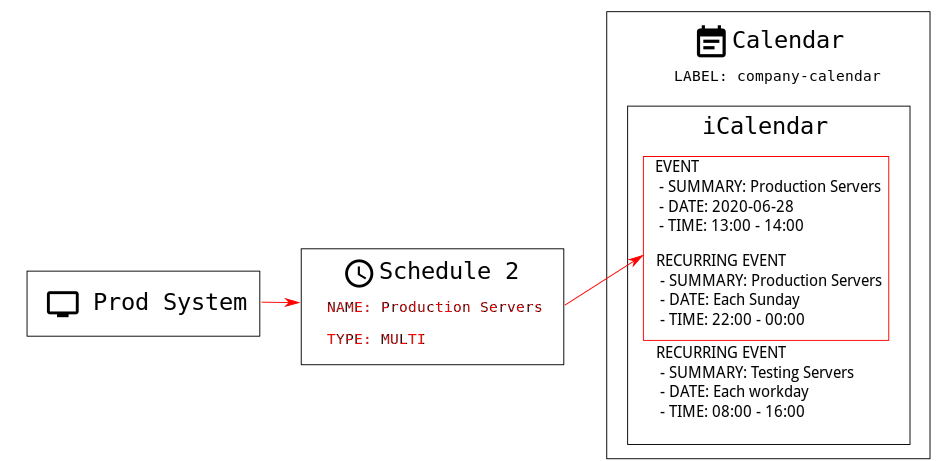
スケジュールには、シングルとマルチの2つのタイプがあります。 カレンダーに複数のスケジュールに適用されるイベントが含まれている場合は、`multi`を選択し、カレンダーファイルで使用した`summary`フィールドに従ってスケジュールに名前を付ける必要があります。
-
SUSE Multi-Linux Manager Web UIに移動し、をクリックします。
-
`Schedule Name`セクションに、スケジュールの名前を入力します。 カレンダーの`summary`フィールドに一致していることを確認します。
-
`Multi`オプションをオンにします。
-
このスケジュールに割り当てるカレンダーを選択します。
-
スケジュールの作成をクリックして、スケジュールを保存します。
-
次のスケジュールを作成するには、作成をクリックします。
-
`Schedule Name`セクションに、2番目のスケジュールの名前を入力します。 2番目のカレンダーの`summary`フィールドに一致していることを確認します。
-
`Multi`オプションをオンにします。
-
スケジュールの作成をクリックして、スケジュールを保存します。
-
作成する必要がある各スケジュールごとに繰り返します。
2. 制限されたアクションと制限されないアクション
このセクションには、制限されたアクションと制限されないアクションのリスト全体が含まれています。
制限されたアクションによってクライアントが大幅に変更され、クライアントの実行が停止する可能性があります。 制限されたアクションは、メンテナンスウィンドウ中にのみ実行できます。 制限されたアクションは次のとおりです:
-
パッケージ操作(たとえば、パッケージのインストール、更新、または削除)
-
パッチの更新
-
クライアントの再起動
-
トランザクションのロールバック
-
設定管理の変更タスク
-
highstateの適用
-
自動インストールと再インストール
-
リモートコマンド
-
製品移行
-
クラスター操作
|
に移動することで、いつでもリモートコマンドを直接実行することが可能です。 これは、クライアントがメンテナンスウィンドウにあるかどうかにかかわらず適用されます。 リモートコマンドの詳細については、動作を参照してください。 |
制限されていないアクションは、安全であるとみなされ、クライアントに問題が発生する可能性が低いマイナーアクションです。 アクションが制限されていない場合、それは定義上、制限されていないものであり、いつでも実行できます。