
유지보수 기간
SUSE Multi-Linux Manager의 유지 관리 창 기능 SUSE Multi-Linux Manager을 사용하면 예약된 유지 관리 창 기간 동안 작업을 예약할 수 있습니다. 유지 관리 창 일정을 생성하고 이를 클라이언트에 적용하면 지정된 기간 외부에서 일부 작업을 실행할 수 없습니다.
|
유지 관리 창은 시스템 잠금과는 다른 방식으로 작동합니다. 시스템 잠금은 필요에 따라 켜거나 끌 수 있지만, 유지 관리 창은 작업이 허용되는 기간을 정의합니다. 또한, 허용된 작업과 제한된 작업이 다릅니다. 시스템 잠금에 대한 자세한 내용은 시스템 잠금을 참조하십시오. |
유지 관리 창에는 달력과 일정이 모두 필요합니다.
달력은 반복 이벤트를 포함하여 유지 관리 창 이벤트의 날짜와 시간을 정의하며, ical 형식이어야 합니다.
일정은 달력에 정의된 이벤트를 사용하여 유지 관리 창을 생성합니다.
일정을 생성하기 전에 업로드할 ical 파일을 생성하거나 달력을 만들기 위해 ical 파일에 링크해야 합니다.
일정을 생성한 후에는 SUSE Multi-Linux Manager 서버에 등록된 클라이언트에 할당할 수 있습니다. 유지 관리 일정이 할당된 클라이언트는 유지 관리 창 외부에서 제한된 작업을 실행할 수 없습니다.
제한된 작업은 클라이언트를 대폭 수정하고 클라이언트 실행을 중지할 가능성이 있습니다. 제한된 작업의 몇 가지 예는 다음과 같습니다:
-
패키지 설치
-
클라이언트 업그레이드
-
제품 마이그레이션
-
Highstate 애플리케이션
제한되지 않는 작업은 안전한 작업으로 간주되며 클라이언트에 문제를 유발할 가능성이 낮은 소규모 작업입니다. 제한되지 않는 작업의 몇 가지 예는 다음과 같습니다:
-
패키지 프로파일 업데이트
-
하드웨어 새로 고침
-
소프트웨어 채널 구독
시작하기 전에 업로드할 ical 파일을 생성하거나 달력을 만들기 위해 ical 파일에 링크해야 합니다.
선호하는 일정 도구인 Microsoft Outlook, Google Calendar 또는 KOrganizer에서 ical 파일을 생성할 수 있습니다.
-
SUSE Multi-Linux Manager Web UI에서 으로 이동한 후 생성을 클릭합니다.
-
Calendar Name섹션에 달력 이름을 입력합니다. -
ical파일에 대한 URL을 입력하거나 파일을 직접 업로드합니다. -
달력 생성을 클릭하여 달력을 저장합니다.
-
SUSE Multi-Linux Manager Web UI에서 으로 이동한 후 생성을 클릭합니다.
-
Schedule Name섹션에 일정 이름을 입력합니다. -
선택 사항:
ical파일에 두 개 이상의 일정에 적용되는 이벤트가 포함된 경우 `Multi`을(를) 선택합니다. -
이 일정에 할당할 달력을 선택합니다.
-
일정 생성을 클릭하여 일정을 저장합니다.
-
SUSE Multi-Linux Manager Web UI에서 으로 이동하여, 일정에 할당할 클라이언트를 선택하고,
System Properties패널을 찾아 이 속성을 편집을 클릭합니다. 또는, 로 이동하고 탭을 사용하여 시스템 세트 관리자를 통해 클라이언트를 할당할 수 있습니다. -
Edit System Details페이지에서Maintenance Schedule필드를 찾아 할당할 일정의 이름을 선택합니다. -
속성 업데이트를 클릭하여 유지 관리 창 일정을 할당합니다.
|
새로운 유지 관리 창 일정을 클라이언트에 할당할 때, 클라이언트가 이미 일부 제한된 작업을 예약했을 가능성이 있으며, 이로 인해 새로운 유지 관리 창 일정과 충돌할 수 있습니다. 이 경우, Web UI에서 오류가 표시되며 일정을 클라이언트에 할당할 수 없습니다. 이를 해결하려면 일정을 할당할 때 영향받는 작업 취소 옵션을 확인하십시오. 이것은 새로운 유지 관리 창 일정과 충돌하는 이전에 예약된 모든 작업을 취소합니다. |
유지보수 기간을 생성하면 패키지 업그레이드와 같은 제한된 작업이 유지보수 기간 동안 수행되도록 예약할 수 있습니다.
-
SUSE Multi-Linux Manager Web UI에서 으로 이동하여 업그레이드할 클라이언트를 선택하고 탭으로 이동합니다.
-
목록에서 업그레이드할 패키지를 선택하고 패키지 업그레이드를 클릭합니다.
-
Maintenance Window필드에서 클라이언트가 업그레이드를 수행하기 위해 사용해야 하는 유지 관리 창을 선택합니다. -
패키지 업그레이드를 예약하려면 확인을 클릭합니다.
1. 유지보수 일정 유형
일정을 생성할 때, 여러 개의 이벤트가 포함되며, 이는 일회성 이벤트 또는 반복 이벤트일 수 있습니다.
각 이벤트에는 summary 필드가 포함되어 있습니다.
하나의 달력에 대해 여러 개의 유지 관리 창 일정을 생성하려면, summary 필드를 사용하여 각 이벤트를 지정할 수 있습니다.
예를 들어, 프로덕션 서버에 대한 일정을 만들고 테스트 서버에 대한 다른 일정을 만들고 싶을 수 있습니다. 이 경우, 프로덕션 서버용 이벤트에는 `SUMMARY: Production Servers`을(를) 지정하고, 테스트 서버용 이벤트에는 `SUMMARY: Testing Servers`을(를) 지정합니다.
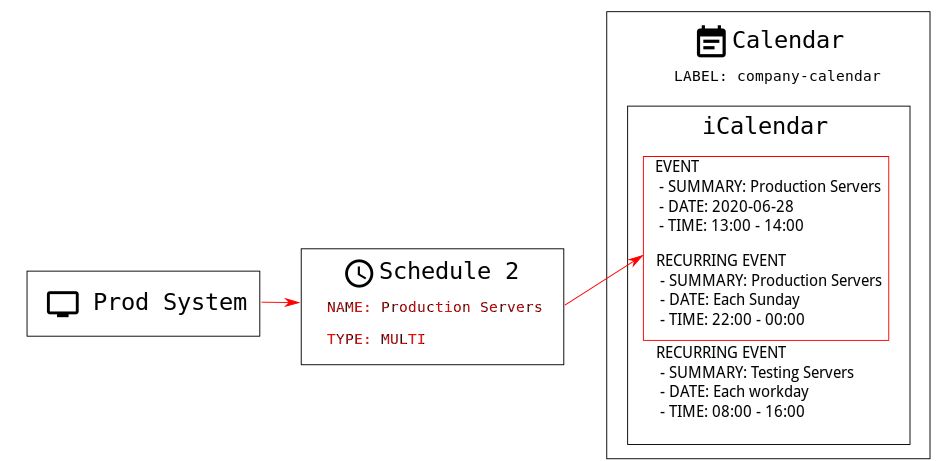
일정에는 단일과 다중, 두 가지 유형이 있습니다.
달력에 두 개 이상의 일정에 적용되는 이벤트가 포함된 경우, multi`을(를) 선택하고 달력 파일에서 사용한 `summary 필드에 따라 일정 이름을 지정해야 합니다.
-
SUSE Multi-Linux Manager Web UI에서 으로 이동한 후 생성을 클릭합니다.
-
Schedule Name섹션에 일정 이름을 입력합니다. 달력의summary필드와 일치하는지 확인합니다. -
Multi옵션을 선택합니다. -
이 일정에 할당할 달력을 선택합니다.
-
일정 생성을 클릭하여 유지 관리 창 일정을 저장합니다.
-
다음 유지 관리 창 일정을 생성하려면 생성을 클릭합니다.
-
Schedule Name섹션에 두 번째 일정 이름을 입력합니다. 두 번째 달력의summary필드와 일치하는지 확인합니다. -
Multi옵션을 선택합니다. -
일정 생성을 클릭하여 유지 관리 창 일정을 저장합니다.
-
생성해야 할 각 일정을 반복합니다.
2. 제한되는 작업 및 제한되지 않는 작업
이 섹션에는 제한되는 작업 및 제한되지 작업의 전체 목록이 포함되어 있습니다.
제한된 작업은 클라이언트를 대폭 수정하고 클라이언트 실행을 중지할 가능성이 있습니다. 제한된 작업은 유지 관리 창 동안에만 실행할 수 있습니다. 제한된 작업은 다음과 같습니다:
-
패키지 작업(예: 패키지 설치, 업데이트 또는 제거)
-
패치 업데이트
-
클라이언트 재부팅
-
트랜잭션 롤백
-
구성 관리 변경 작업
-
highstate 적용
-
자동 설치 및 재설치
-
원격 명령
-
제품 마이그레이션
-
클러스터 작업
|
으로 이동하여 언제든지 원격 명령을 직접 실행할 수 있습니다. 클라이언트가 유지 관리 창에 있든 없든 관계없이 적용됩니다. 원격 명령에 대한 자세한 내용은 작업를 참조하십시오. |
제한되지 않는 작업은 안전한 작업으로 간주되며 클라이언트에 문제를 유발할 가능성이 낮은 소규모 작업입니다. 작업이 제한되지 않은 경우, 정의상으로 제한이 없으며 언제든지 실행할 수 있습니다.