
维护时段
SUSE Multi-Linux Manager中的维护时段功能允许您在计划的维护时段期间安排操作。 当您创建了维护时段计划并将其应用于客户端时,您将无法在指定时间段之外执行某些操作。
|
维护时段的操作方式与系统锁定不同。 系统锁定根据需要开启或关闭,而维护时段定义了允许操作的时间段。 此外,允许和受限的操作也有所不同。 有关系统锁定的更多信息,请参见系统锁定。 |
维护时段需要日历和计划。 日历定义了维护时段事件的日期和时间,包括重复事件,必须采用`ical`格式。 计划使用日历中定义的事件来创建维护时段。 在创建日程安排之前,您必须创建一个`ical`文件以进行上传,或链接到`ical`文件以创建日历。
创建计划后,您可以将其分配给注册到SUSE Multi-Linux Manager服务器的客户端。 分配了维护时段计划的客户端无法在维护时段之外运行受限操作。
受限操作会对客户端进行重大修改,可能导致客户端停止运行。 受限操作的一些示例包括:
-
软件包安装
-
客户端升级
-
产品迁移
-
Highstate 应用
非受限操作属于次要操作,一般认为它们是安全的,不太可能会在客户端上造成问题。 非受限操作的一些示例包括:
-
软件包配置文件更新
-
硬件刷新
-
订阅软件通道
在开始之前,您必须创建一个`ical`文件以进行上传,或链接到`ical`文件以创建日历。 您可以在首选的日历工具中创建`ical`文件,例如 Microsoft Outlook、Google 日历或 KOrganizer。
-
在SUSE Multi-Linux Manager Web UI中,导航到,然后单击创建。
-
在`Calendar Name`部分,为您的日历键入一个名称。
-
提供您的`ical`文件的 URL,或直接上传该文件。
-
单击创建日历以保存您的日历。
-
在SUSE Multi-Linux Manager Web UI中,导航到,然后单击创建。
-
在`Schedule Name`部分,为您的日程安排键入一个名称。
-
可选:如果您的`ical`文件包含适用于多个日程安排的事件,请选中`Multi`。
-
选择要指派到此日程安排的日历。
-
单击创建日程安排以保存您的日程安排。
-
在SUSE Multi-Linux ManagerWeb UI中,导航到,选择要指派到日程安排的客户端,找到`System Properties`面板,然后单击编辑这些属性。 或者,您可以通过系统集管理器为客户端指派日程安排,方法是导航到并使用选项卡。
-
在`Edit System Details`页面中,找到`Maintenance Schedule`字段,然后选择要指派的日程安排名称。
-
单击更新属性以指派维护日程安排。
|
当您将新的维护日程安排指派给客户端时,可能该客户端已经安排了一些受限操作,这些操作可能与新的维护日程安排发生冲突。 如果发生这种情况,Web UI会显示错误,您无法将日程安排指派给该客户端。 为了解决此问题,在指派日程安排时,请选中取消受影响的操作选项。 这将取消与新的维护日程安排冲突的任何先前安排的操作。 |
创建维护时段后,可以安排要在维护时段内执行的受限操作,例如软件包升级。
-
在SUSE Multi-Linux Manager Web UI中,导航到,选择您要升级的客户端,然后转到选项卡。
-
从列表中选择要升级的软件包,然后单击升级软件包。
-
在`Maintenance Window`字段中,选择客户端应使用的维护时段以执行升级。
-
单击确认以安排软件包升级。
1. 维护日程安排类型
当您创建日历时,它包含多个事件,这些事件可以是一次性事件或重复事件。 每个事件都包含一个`summary`字段。 如果您想为一个日历创建多个维护日程安排,可以使用`summary`字段为每个日程安排分别指定事件。
例如,您可能希望为生产服务器创建一个日程安排,为测试服务器创建一个不同的日程安排。 在这种情况下,您需要为生产服务器的事件指定`SUMMARY: Production Servers`,并为测试服务器的事件指定`SUMMARY: Testing Servers`。
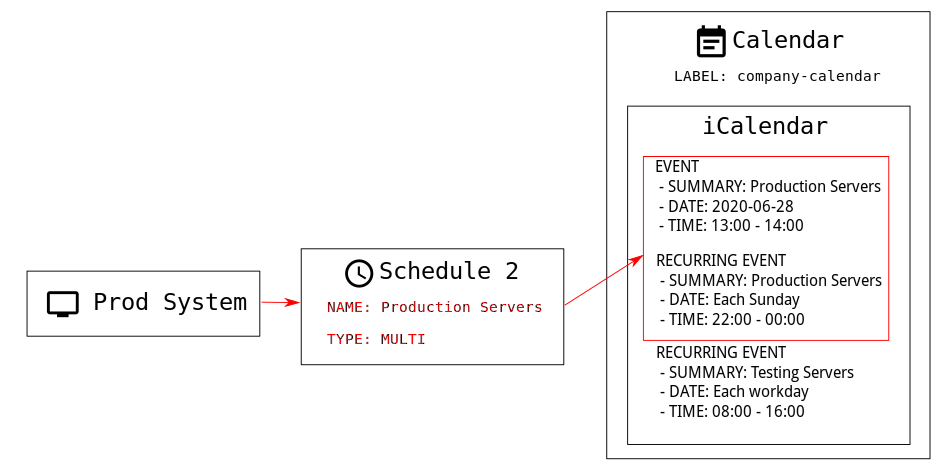
日程安排分为两种类型:单一或多重。 如果您的日历包含适用于多个日程安排的事件,则必须选择`multi`,并确保根据您在日历文件中使用的`summary`字段为日程安排命名。
-
在SUSE Multi-Linux Manager Web UI中,导航到,然后单击创建。
-
在`Schedule Name`部分,键入日程安排的名称。 确保此名称与日历的`summary`字段匹配。
-
选中`Multi`选项。
-
选择要指派到此日程安排的日历。
-
单击创建日程安排以保存您的日程安排。
-
要创建下一个日程安排,请单击 创建。
-
在`Schedule Name`部分,键入第二个日程安排的名称。 确保此名称与第二个日历的`summary`字段匹配。
-
选中`Multi`选项。
-
单击创建日程安排以保存您的日程安排。
-
对需要创建的每个日程安排重复上述过程。
2. 受限制和非受限操作
本节包含受限和非受限操作的完整列表。
受限操作会对客户端进行重大修改,可能导致客户端停止运行。 受限操作只能在维护时段内执行。 受限的操作包括:
-
软件包操作(例如安装、更新或去除软件包)
-
补丁更新
-
重引导客户端
-
回滚事务
-
配置管理更改任务
-
应用 highstate
-
自动安装和重新安装
-
远程命令
-
产品迁移
-
群集操作
|
可以随时通过导航到 直接运行远程命令。 无论客户端是否在维护时段内,这一点都适用。 有关远程命令的更多信息,请参见 操作。 |
非受限操作属于次要操作,一般认为它们是安全的,不太可能会在客户端上造成问题。 如果某个操作没有被限制,则根据定义,它是无限制的,可以随时运行。