
Server Deployment on Kubernetes
SUSE Multi-Linux Manager can also be deployed on Kubernetes. This guide shows you how to install and configure a SUSE Multi-Linux Manager 5.2 Beta 2 on Kubernetes on RKE2.
Several personas are involved in the installation of SUSE Multi-Linux Manager on Kubernetes:
-
the Kubernetes administrator manages the cluster, its users and accesses,
-
the infrastructure administrator takes care of wiring the network access to the cluster,
-
the PKI administrator is responsible for the TLS certificates generation and deployment infrastructure,
-
the SUSE Multi-Linux Manager administrator controls the application itself and its deployment.
In some cases, some of those personas can be merged into a single person or team, but keeping then in mind will explain why the installation is not a one-shot script doing everything. Kubernetes clusters can also vary a lot between organizations, so the SUSE Multi-Linux Manager core installation is designed to be as agnostic as possible of those specific cases.
1. 선행 조건
Installing the Kubernetes cluster and configuring it is out of the scope of this document.
The cluster is assumed to be ready to be used with a user having rights on a namespace dedicated to SUSE Multi-Linux Manager.
If there isn’t one defined yet, a Role and RoleBinding with minimum rights required to deploy server-helm would look like the following:
apiVersion: rbac.authorization.k8s.io/v1
kind: Role
metadata:
  name: example-resource-manager
  namespace: $NAMESPACE
rules:
- apiGroups: [""]
  resources: ["pods", "pods/log", "services", "secrets", "configmaps", "persistentvolumeclaims"]
  verbs: ["*"]
- apiGroups: ["apps"]
  resources: ["deployments"]
  verbs: ["*"]
- apiGroups: ["networking.k8s.io"]
  resources: ["ingresses"]
  verbs: ["*"]
---
apiVersion: rbac.authorization.k8s.io/v1
kind: RoleBinding
metadata:
  name: example-resource-manager-binding
  namespace: $NAMESPACE
subjects:
- kind: User
  name: $USERNAME
  apiGroup: rbac.authorization.k8s.io
roleRef:
  kind: Role
  name: example-resource-manager
apiGroup: rbac.authorization.k8s.io|
This guide assumes the reader knows how to work with Kubernetes: the concepts will not be explained here as they are extensively documented in the official Kubernetes documentation. |
The SUSE Multi-Linux Manager administrator needs to deploy the server-helm Helm chart. However, this chart requires to prepare:
-
TLS certificates chain for the server and database,
-
ConfigMapsfor the server and database root CA certificates, -
persistent volumes for the claims the chart will create or a storage class automatically creating them,
-
credentials secrets for the database users and the administrator,
-
Load balancers or other mechanisms to expose the Salt, report database and optionally TFTP ports.
Run the following command to read the full details on how to use the server Helm chart:
helm show readme --version 5.2.0-beta2 \
    oci://registry.suse.com/suse/multi-linux-manager/5.2/server-helm
1.1. Global architecture
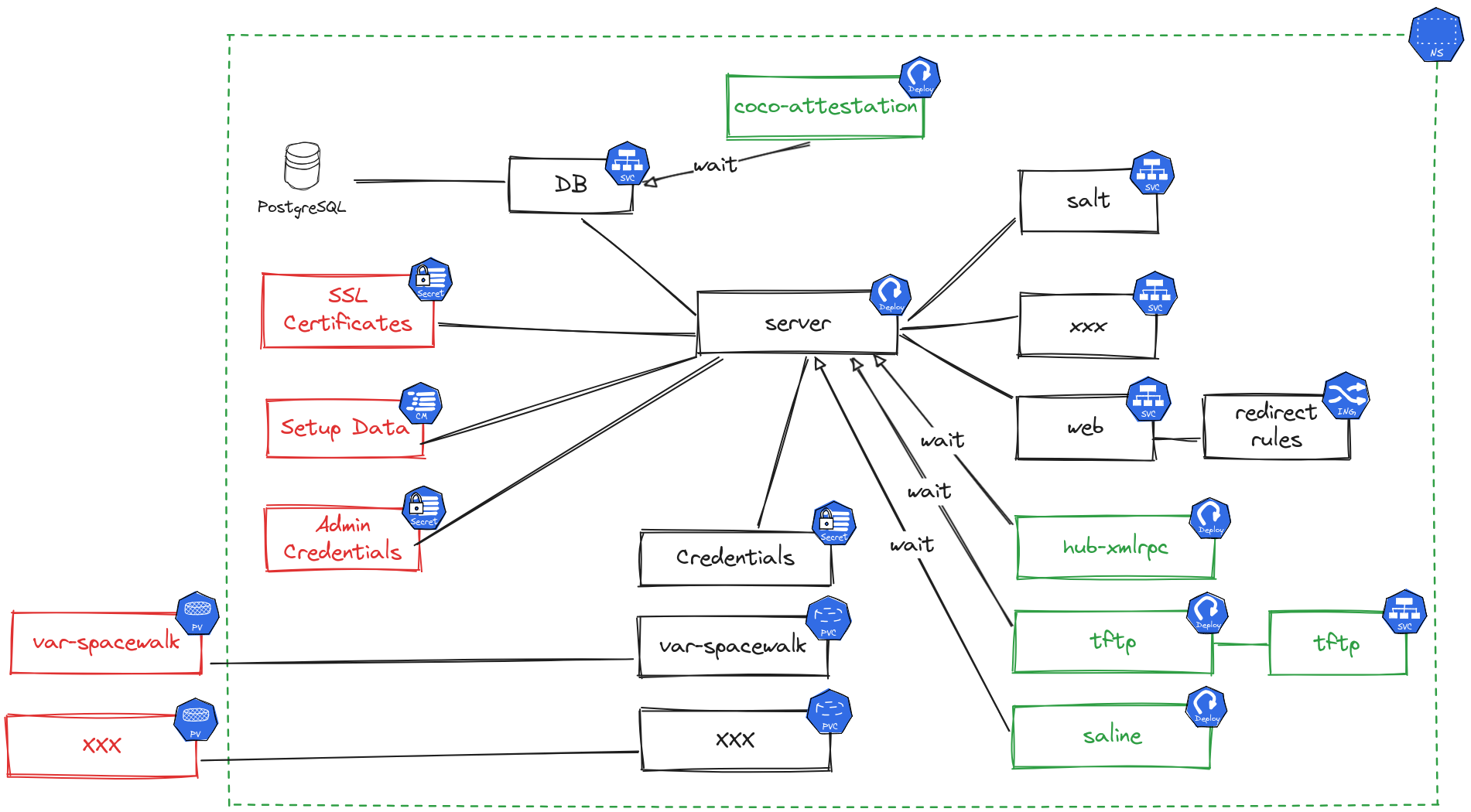
This diagram shows the components deployed by the server-helm chart and the ones expected to be created before hand.
-
Red items are required,
-
Green items are optional and can be enabled using the chart values,
-
Black components are the core components.
|
Even if there are values to disable the internal database, using an external one is not supported yet. Those properties are only present for testing purpose. |
The next sections will explain the resources that are expected.
1.2. Credentials
The deployment requires four specific secrets of kubernetes.io/basic-auth type, each containing a username and a password key. Here are example commands to create them, set the NAMESPACE variable to the namespace where SUSE Multi-Linux Manager will be installed. Adjust these commands to set actual passwords.
|
Using |
kubectl create secret generic -n $NAMESPACE --type 'kubernetes.io/basic-auth' \
    --from-literal=username=dbadmin \
    --from-literal=password=supersecret \
    db-admin-credentials
kubectl create secret generic -n $NAMESPACE --type 'kubernetes.io/basic-auth' \
    --from-literal=username=dbuser \
    --from-literal=password=supersecret \
    db-credentials
kubectl create secret generic -n $NAMESPACE --type 'kubernetes.io/basic-auth' \
    --from-literal=username=reportdb \
    --from-literal=password=supersecret \
    reportdb-credentials
kubectl create secret generic -n $NAMESPACE --type 'kubernetes.io/basic-auth' \
    --from-literal=username=admin \
    --from-literal=password=supersecret \
    admin-credentials
A secret with the SCC credentials needs to be defined in order to pull the images from registry.suse.com. Refer to https://kubernetes.io/docs/tasks/configure-pod-container/pull-image-private-registry/ for the instructions to prepare the secret. Set the registrySecret server-helm chart value to the name of the secret containing those credentials to use it.
1.3. TLS setup
The following TLS secrets are expected:
-
db-cert: TLS certificate for the report database and needs to have thedbandreportdbSubject Alternate Names, and the FQDN exposed to the outside world. -
uyuni-cert: TLS certificate for the Ingress rule and needs to have the public FQDN as Subject Alternate Name.
These secrets can be created using the kubectl create secret tls -n $NAMESPACE command. The certificate file passed to this command needs to start with the server certificate followed by the chain of intermediary CA certificates if any. The root CAs are not needed in these secrets as they are expected in ConfigMaps.
The Root CA certificate of db-cert and uyuni-cert are expected in ConfigMaps named db-ca and uyuni-ca stored in the ca.crt key. Those can be created with a command like kubectl create cm -n $NAMESPACE db-ca --from-file=ca.crt=/path/to/db-ca.crt.
1.4. Storage
The server chart defines volumes as Persistent Volume Claims (PVCs).
|
The created PVCs can be tuned using Helm chart values. Each of the PVCs can have the following values:
-
size: to set the requested size of the PVC. -
storageClass: can be used to select the storage class to use for the PVC. This can be useful to select faster storage for the database or the packages storage. -
extraLabels: can be used to add custom labels to the PVC. -
annotations: can be used to set custom annotations on the PVC. -
volumeName: can be used to hard code which volume the PVC should be bound to. -
selector: is the YAML fragment of the PVC selector to use to find the PV to bind to.
Refer to https://kubernetes.io/docs/concepts/storage/persistent-volumes/ for more information on persistent volumes and their claims.
Refer to the server-helm README for the list of persistent volume claims which will be created and will need to be bound to persistent volumes.
|
While the default sizes are provided, it is highly recommended to change them based on the distributions you plan to synchronize. For more information on storage requirements see 일반 요구사항. |
1.5. Exposing ports
SUSE Multi-Linux Manager requires some TCP and UDP ports to be routed to its services. Refer to the server-helm README for the list of ports to be exposed.
|
RKE2 ships with nginx as the default ingress controller. However, as this is deprecated and soon to be unsupported, the |
|
The |
There are multiple ways to expose the ports, but this documentation will only mention how to configure RKE2’s Traefik for this. This is not a task for the SUSE Multi-Linux Manager administrator, but the Kubernetes cluster administrator as it requires configuration to be set on the cluster nodes.
To set Traefik to expose and route the needed ports, create a /var/lib/rancher/rke2/server/manifests/uyuni-traefik.yaml on each node with the following content. Note that Traefik takes a few seconds to be reinstalled after saving the file.
apiVersion: helm.cattle.io/v1
kind: HelmChartConfig
metadata:
  name: rke2-traefik
  namespace: kube-system
spec:
  valuesContent: |-
    ports:
      reportdb-pgsql:
        port: 5432
        expose:
          default: true
        exposedPort: 5432
        protocol: TCP
        hostPort: 5432
        containerPort: 5432
      salt-publish:
        port: 4505
        expose:
          default: true
        exposedPort: 4505
        protocol: TCP
        hostPort: 4505
        containerPort: 4505
      salt-request:
        port: 4506
        expose:
          default: true
        exposedPort: 4506
        protocol: TCP
        hostPort: 4506
        containerPort: 4506
When using the server as a TFTP server there are a few issues to consider. TFTP is complex to expose from a Kubernetes pod due to the nature of the protocol: the TFTP server receives requests on port 69, but negotiates another random port to continue. This port also needs to stay the same through the whole session for the server to recognize the client as being the same. This means that there are only two possible ways to use the TFTP server:
-
using a load balancer compatible with TFTP,
-
using the host network for the TFTP pod. This can be achieved by setting the
tftp.hostNetworkhelm chart value totrue.
If Traefik is used as the ingress controller, the user needs access to additional resources. Add the following to the rules of the previously defined role:
- apiGroups: ["traefik.io", "traefik.containo.us"]
  resources: ["ingressroutetcps", "middlewares"]
  verbs: ["*"]
If Gateway API is used instead, add the following to the rules of the previously defined role:
- apiGroups: ["gateway.networking.k8s.io"]
  resources: ["gateways", "httproutes", "tcproutes"]
  verbs: ["*"]
1.6. Security framework setup
The main container of the server runs systemd even though this is not a cloud native practice. This means that the default Kubernetes security profiles for this container are not sufficient. There are two possibilities to solve this issue:
-
run the main container as super privileged by setting the
server.superPrivilegedhelm value totrue, -
add custom policies or profile and use it for the container.
Configuring SELinux or AppArmor is documented in the server-helm chart README, report to it for more details.
|
Keep in mind, that running the container as super privileged is not the safest thing to do. |
2. 설치
The server-helm chart requires one value to be set: global.fqdn. The other values have sensible defaults, report to the server-helm chart README for more details on those.
The server can be installed with a command like the following:
helm install smlm-server \
     oci://registry.suse.com/suse/multi-linux-manager/5.2/server-helm \
     -n $NAMESPACE \
     --description "Server installation" \
     --set "global.fqdn=the.server.fqdn" \
     --set "registrySecret=the-scc-secret" \
     --version 5.2.0-beta2
When setting multiple values, using a YAML values file is recommended instead of passing several --set parameters. Refer to the helm command help for more details.
As the main container is not fully cloud-native yet, it is sometimes useful to get a terminal inside it. This can be achieved using the following commands. Variables have been used here for the sake of readability, but it could fit in a single line for convenience. This could be used in place of mgrctl term through the other pages of the documentation.
NAMESPACE=`kubectl get pod -A -lapp.kubernetes.io/part-of=uyuni,app.kubernetes.io/component=server -o "jsonpath={.items[0].metadata.namespace}"`
POD=`kubectl get pod -A -lapp.kubernetes.io/part-of=uyuni,app.kubernetes.io/component=server -o "jsonpath={.items[0].metadata.name}"`
kubectl exec -ti -n $NAMESPACE $POD -- bash
3. Example helm charts
Some helm charts using the server-helm chart can be found in the Manager-5.2 branch of the uyuni-charts git repository. They show case how the TLS certificates can be generated using cert-manager and trust-manager. Those examples may assume to have Kubernetes cluster administrator permissions.
|
These examples are not supported, only provided for documentation purpose. |
4. Diagnostics / Troubleshooting
-
Troubleshooting:
-
Check the pods status and errors using
kubectl get pod -n $NAMESPACEandkubectl describe pod -n $NAMESPACE <POD NAME>. -
If the pods are ready, but Salt minions cannot access the master, check the network configuration and how the ports are exposed.
-