
Migrating from SUSE Multi-Linux Manager Retail Branch Server 4.3
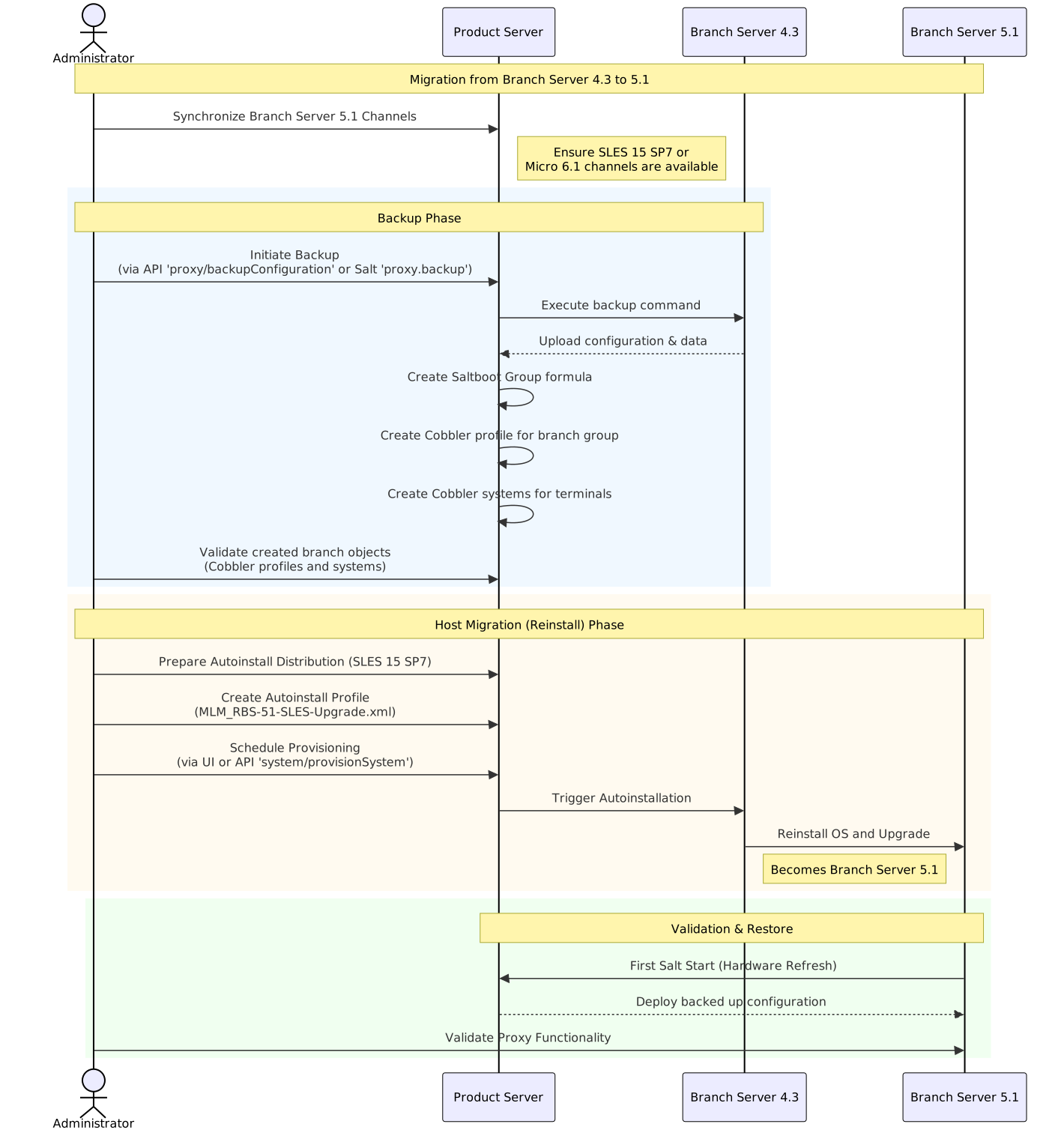
This guide describes how to migrate one or more SUSE Multi-Linux Manager Retail Branch Server Servers from SUSE Multi-Linux Manager Branch Server 4.3 to the SUSE Multi-Linux Manager Retail Branch Server 5.1
1. Overview
-
Synchronize SUSE Multi-Linux Manager Retail Branch Server channels
-
Backup existing SUSE Multi-Linux Manager for Retail 4.3 Branch Server Proxy
-
Validate branch objects were created
-
Migrate Branch Server Proxy host
-
プロキシ機能の検証
2. Synchronize SUSE Multi-Linux Manager Retail Branch Server channels
See SUSE Multi-Linux Manager 5.2 Beta 1プロキシの配備 how to synchronize product channels for a proxy systems.
Depending on the host operating system:
-
SUSE Linux Micro 6.1usesSUSE Multi-Linux Manager Retail Branch Server Extension 5.1channels -
SUSE Linux Enterprise Server 15 SP7usesSUSE Multi-Linux Manager Retail Branch Server Extension for SLE 5.1channels
3. Backup existing SUSE Multi-Linux Manager Retail Branch Server 4.3
SUSE Multi-Linux Manager for Retail 5.1.2 includes automated backup-migration procedure for both kinds of SUSE Multi-Linux Manager Proxy variants. This procedure collects all required data and uploads them to the SUSE Multi-Linux Manager Server. For SUSE Multi-Linux Manager Retail Branch Server this tool also creates and migrates Saltboot related entities.
|
Squid cache data and POS images are not backed up. Due to change in functionality these data are not migrated and instead redownloaded from the server. See retail-deploy-terminals.adoc#_synchronize_images_to_the_branch_server how to warm up the cache. |
There are multiple ways to initiate SUSE Multi-Linux Manager Retail Branch Server 4.3 migration:
-
API呼び出し
$proxyidをブランチプロキシのサーバID、またはカンマで区切られた複数のサーバIDに置き換えます。mgrctl api login mgrctl api post proxy/backupConfiguration '{"sids":[$proxyid]}' -
Salt呼び出し
以下のコマンドの
$proxyをブランチプロキシのminion ID、または複数のブランチプロキシを指定する場合は-L proxyminionid1,proxyminionid2,…に置き換えます。salt $proxy proxy.backup
|
特にカスタム変更がある場合は、プロキシの手動バックアップも実行することをお勧めします。 |
|
SUSE Multi-Linux Manager Retail Branch Server can still be used after backup step as before, however because some formulas were disabled by the backup/migration step, next highstate or image-sync state application will not work properly. Migrate the server host as soon as possible after backup step is performed. |
4. Validate branch objects were created for migrated branches
Backup/migration step will create new Saltboot objects:
-
Saltboot Groupformula with settings from the original formulas is assigned to the branch group. -
New cobbler profile is created for the branch group:
# mgrctl exec -- cobbler profile report --name $branchid:S:$orgid:$orgname
-
New cobbler systems are created for all assigned terminals:
# mgrctl exec -- cobbler system find --kernel-options "MINION_ID_PREFIX=$branchid"
5. Migrate SUSE Multi-Linux Manager Retail Branch Server host
Create and use AutoYAST profiles to migrate or reinstall the proxy host.
5.1. SUSE Linux Enterprise Server 15 SP7に基づく自動インストールディストリビューションの準備
-
SUSE Linux Enterprise Server 15 SP7インストールISOをサーバホストにダウンロードまたは取得します。
-
Use
mgradm distribution copy $path_to_the_isoto copy installation files to the container -
自動インストールディストリビューションを登録します。自動インストールのディストリビューションを参照してください。
5.2. 自動インストールプロファイルの準備
詳細については、自動インストールプロファイルを参照してください。
Create an autoinstallation profile based previously created distribution. As a profile use profile provided at https://github.com/SUSE/manager-build-profiles/blob/master/AutoYaST/SUSE-Multi-Linux-Manager/SUSE%20Multi-Linux%20Manager%20Proxy/MLM_RBS-51-SLES-Upgrade.xml
- プロファイルを作成したら、[変数]タブに切り替えて必要な変数を入力します。
+
org=organization_id
distrotree=autoinstallation_distribution_label_from_previous_step
channel_prefix=clm_channel_prefix or do not add this variable
registration_key=activation_key_for_post_upgrade
-
[
自動インストールファイル]タブでは、追加の確認用に、レンダリングされた完全なプロファイルを参照できます。
5.3. プロキシの自動インストールのプロビジョニング
Schedule an autoinstallation on the old SUSE Multi-Linux Manager Branch Server 4.3 using the profile created in previous step.
-
Use Web UI interface
Provisioningtab at theSystemview of migrating branch-
During provisioning, the Salt key must be accepted manually. This is required to initiate the connection to the minion after reinstallation.
-
If the provisioning web interface hangs, it is better to check manually with
podmanwhether the proxy is up and running on the migrated host.
-
-
またはAPI呼び出し
system/provisionSystemを使用して移行をスケジュールします。たとえば、SUSE Multi-Linux Managerホストから次のスニペットを実行します。mgrctl api login mgrctl api post system/provisionSystem '{"sid":$proxyid,"profileName":"$profileName"}'
6. プロキシ機能の検証
After migration is finished and salt is started first time, backed up proxy configuration is automatically deployed during Hardware Refresh step.
After finishing all onboarding steps, validate required proxy functionality. When validating the proxy, it is recommended to verify that minions can be contacted.